How to connect Allegro Ads to Salecare
The Allegro Ads panel shows clicks, spend and ROAS, but not how much is left after the ads once you take off the cost of goods, commissions and shipping. Allegro offers no public Allegro Ads API. Only Technical Partners and brands get access to it through the REST API, and Salecare does not use that route. So the campaign data is read by the Salecare Ads extension, straight from the Allegro Ads panel, in your signed-in session.
The Overview, Offers and Ad groups tabs and the recommendations are part of the Pro plan and up. On a lower plan those tabs carry a padlock with the plan name, and the Advertising entry in the menu lands on the Promotion tab, which works on every plan. The extension connection itself is available on every plan. It opens for a person with the Integrations (accounts, API tokens) permission.
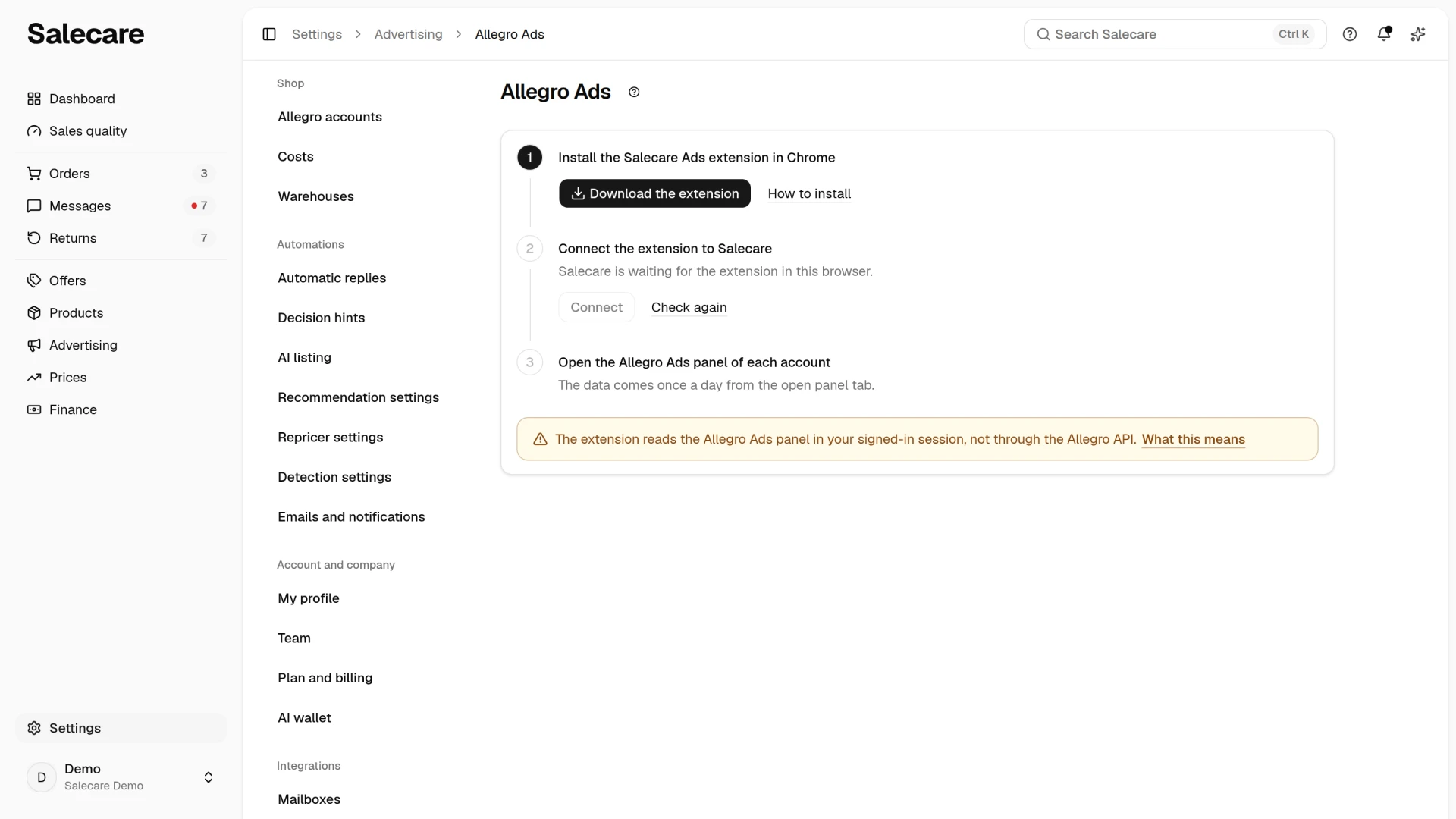
Step 1. Install the extension and click "Connect"
You set the connection up on the Allegro Ads page in Settings, in the Integrations group. The Connect Allegro Ads button on the Advertising page leads there too. The button stands on an empty Overview tab until Salecare has read any Allegro Ads panel. Apply on a recommendation leads to the same page while the extension is not connected yet. Once Allegro Ads is connected, the Allegro Ads entry under the Settings button in the header of the Advertising page leads there too. When you came from Advertising, the path at the top of the page leads back to Advertising, and on a phone the Back to … link does the same. On a phone the page shows only a sentence saying that you connect Allegro Ads on a computer, in Chrome.
Under the steps stands a warning worth reading before you install, and the What this means link unfolds the rest of it. The extension reads the data from your Allegro Ads panel, in your signed-in session, and not through the Allegro API. Allegro names this channel neither as allowed nor as forbidden. It may change the panel at any time, limit or block this way of using the panel, and take measures against your account, for example take quality points off the Terms & conditions and rules measure. The Salecare terms describe the same risk. The extension reads advertising data only. It makes a change in the panel only after your click, and it writes in it the bid or budget from the recommendation.
The extension can label its requests to the panel with the name Salecare Ads. Salecare switches that labelling on at its end, and it is off by default. Without the label the extension's requests look to the panel the same as the panel's own. When the labelling is on and the panel rejects labelled requests, the extension stops syncing and says so in the panel, instead of sending the requests without the label.
How to install the extension
The extension works in Chrome. When Salecare gives a Chrome Web Store link, step 1 has an Install from the Chrome Web Store button and you need to do nothing more. Until the extension is in the store, step 1 has a Download the extension button and you install it from a ZIP package.
- Click Download the extension and save the file on your disk.
- Unpack the file into a folder you will not move or delete. Chrome loads the extension from that folder every time it starts, so if you move or delete the folder, the extension stops working.
- In Chrome open chrome://extensions and switch on Developer mode in the top right corner.
- Click Load unpacked and point to the unpacked folder.
- Go back to Salecare and click Check again. The extension introduces itself to the page only while the page loads, so this button reloads the page. When the extension answers, step 1 is ticked and the Connect button in step 2 becomes active.
Chrome shows a developer mode warning for every extension loaded from a folder this way.
Connect and open the Allegro Ads panel
Click Connect in step 2. Salecare then issues a connection code. The code works for 15 minutes. When it runs out, click Connect in step 2 again, and the new code replaces the old one. Step 3 has an Open the Allegro Ads panel button with that code. Sign in to the panel with the Allegro account you want to pull data from and open the Statistics tab. Only there does the extension recognise the advertising account, finish connecting and send the first data by itself. The Allegro Ads page checks the state every 5 seconds, so after a moment "Connected" replaces the steps. Pairing the extension with your Salecare account happens in the background and needs nothing besides opening the panel.
Step 2. Check the connection state
When the extension is connected and has read at least one account, "Connected" replaces the steps, with the extension version and a list of accounts. Each account shows "Data from" and the date of the last read, or "No data read yet". The extension pulls data while the Allegro Ads panel tab is open in the browser. When you close it, the Allegro Ads page says that the Allegro Ads panel is closed and no data comes in. It also shows an Open the Allegro Ads panel button that resumes syncing. That deletes nothing. The ad groups and costs synced so far stay in the app, and new data stops coming until the panel is open again. When Salecare pauses reading, a message above the list says that approved changes will wait. No data is pulled then, and approved changes are made after reading resumes. You do not need to do anything.
The first sync of an account pulls the whole history the panel provides, usually about a year. Every following one runs by itself once a day while the panel is open and reads only the last 8 full days. Older days in the panel no longer change, and Allegro credits a purchase to an ad click for another 7 days. Ad group results and offer spend inside groups cover the last 30 full days at every sync, so they mean the same after the first sync and after each later one. The Send data button in the extension panel syncs at once, without waiting for the next day. This is how the extension works from version 1.7.0. An older version sends data every 30 minutes and reads the whole history from the panel each time.
In one sync the extension reads at most 1500 rows of the offers-in-ad-groups list, that is offer and group pairs, starting from the largest spend. When the panel has more, the offers with the smallest spend get no daily data. The account then carries a sentence saying that daily offer figures arrived only in part, with the reason. Offer spend inside groups stays as it was at the last sync that read the whole list. This is how version 1.8.1 works. An older version reads the list from the smallest spend, so with a long list it skips exactly the offers that cost the most.
You install the extension from a ZIP package, so it does not update itself. The Download the extension button and the How to install link stay under the "Connected" state after you connect too, so you can download the package at any time, for an update or for a second computer. When a newer version exists, the page says "Version ... is available" and gives the number. A version older than 1.7.0 makes no changes in the Allegro Ads panel, and approved changes wait in the queue. The page then shows a red message, "This version no longer makes changes in Allegro Ads", with the version to download, and the Download the extension button is filled. Salecare also sends the person who connected that version an "Update the Salecare Ads extension" notification, and the alert email addresses at most once every 7 days. Download the package with the Download the extension button, unpack it over the old one and click the reload icon on the extension in chrome://extensions.
Step 3. Sync each account's panel separately
The account list on the Allegro Ads page shows every connected Allegro account. Each has its own Allegro Ads panel, and an account's data comes only from its panel. The extension sends data only for the account whose panel is open at that moment, because accounts cannot be read at once. So open each account's panel at least once every 48 hours. An account that sent no data for 48 hours gets an "Out of date" badge, and Salecare sends a notification about it. When the oldest read is older than 48 hours, the Advertising page also shows a message above the tabs, "The Allegro Ads data is" so many days old, with an Open the Allegro Ads panel button. Until the next sync, the advertising cost of that account is not filled in on new orders and offers. When the extension reads the panel of an account that is not connected in Salecare, the Allegro Ads page shows a warning with the seller identifier and an Allegro accounts link. The data of such an account, that is spend and ROAS, is not collected until you connect it in the Allegro account settings.
Every team member connects the extension in their own browser, and one person has one connection. The connections of other people are named in one sentence, "Also connected by" with their names. A second Chrome profile where you sign in to Salecare as the same person shows your existing connection and has no Connect button. To connect the extension in the second profile, first click Disconnect and confirm. That ends the connection in the first profile, and the extension there asks to connect again. If you keep each Allegro account in a separate Chrome profile, connect each profile as a different team member, with their own Salecare login. If you handle all accounts in one profile, open each account's panel in it one after another.
Step 4. See ad spend in the margin
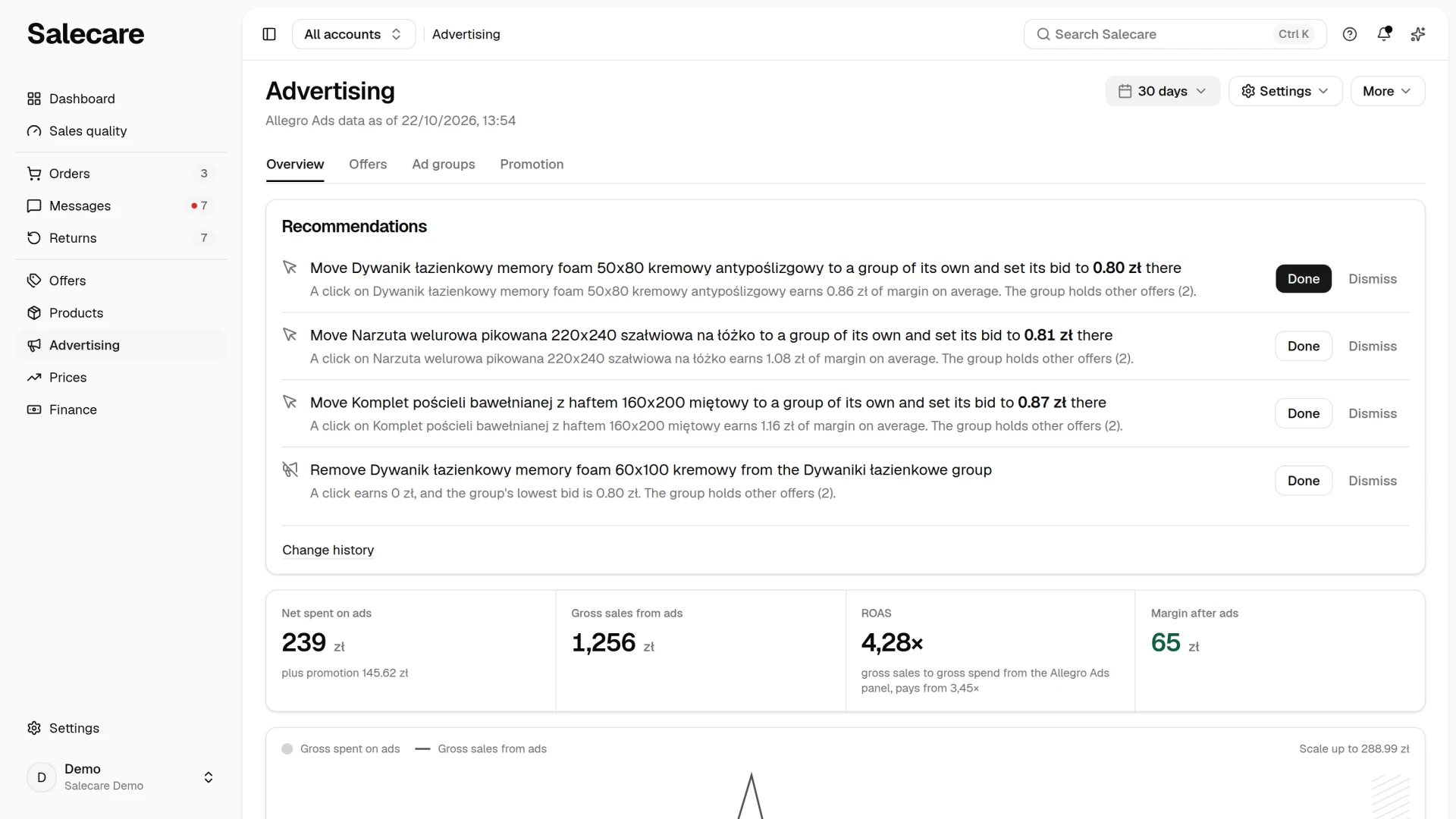
In the side menu click Advertising. The Overview tab shows four figures, that is Net spent on ads (Gross spent on ads for a company that does not settle VAT), Gross sales from ads, ROAS with a note that it is gross sales to gross spend from the Allegro Ads panel and the "pays from" threshold, and Margin after ads. Spent on ads is the Allegro Ads and offer highlight cost that Allegro charged in the settlements for the period, with a "plus promotion" note and the amount of promotion fees. It is the same cost the profit and loss statement takes off, so it is in the period's margin even without the extension. Margin after ads is the margin on the sales Allegro credited to the ads, minus what those ads cost. How to compute and read it is described in the guide "Allegro Ads ROAS in 2026. How to work out margin after ads".
The extension adds the ROAS and sales from ads from the panel, the chart of ad cost and sales from ads day by day, and the daily spend of each offer. From that daily spend Salecare estimates the advertising cost of a single offer and order. An offer's daily spend is split equally between its orders of that day, and spend from a day on which the offer did not sell lands on no order. That is why the sum of ad costs from orders is usually lower than the Spent on ads tile, which also includes highlights. Without the extension, offers and orders have no Allegro Ads cost at all, so an advertised offer looks more profitable than it is.
What next
Once campaign data is coming in, go through the guide "How to analyse Allegro Ads performance". It shows how to find the campaigns that spend budget without a return. If the margin in the app does not know your costs yet, start with the guide "How to set up costs and margin so you see the real profit from Allegro".