Real Allegro margin in 2026, how to set up costs in Salecare
Allegro shows turnover, not profit. The goods, commission, Smart fees, shipping, packaging, returns and advertising can take up most of the sale price, and seller forums keep repeating the line "I end up in the red". Salecare calculates the margin of every order automatically, but it has to know your costs. You set them up in six steps, from purchase prices to fixed costs, and afterwards you only change what changes, a carrier's rate for example.
You do not need to enter Allegro commissions and fees anywhere. The app takes them from your Allegro settlements, together with Smart surcharges and promotion fees. The Profit & loss statement takes the Allegro Ads spend from the settlements too. On an order and an offer Salecare knows that spend only from the Salecare Ads extension. You only fill in what Allegro does not know, the costs on your side.
What comes off the sale price on Allegro
The price the buyer sees is not what stays in the business. Several layers come off it, each from a different source.
- Sales commission. Allegro charges it on the price including the delivery cost, and the rate depends on the category, a few percent in one, well over ten in another.
- Smart fees. The buyer does not pay for Smart delivery. Allegro covers most of the transport cost, and the seller pays a delivery fee. The fee depends on the order value and the delivery method, and the settlement shows the amount.
- Shipping. What you pay the carrier rarely equals what the buyer paid for delivery, and the difference has to be counted.
- Packaging and labour. A box, film, a label and a packer's minutes look trivial until multiplied by a month of parcels.
- Returns. You refund the buyer, often pay for the return parcel, repack the goods and sometimes sell them cheaper or write them off.
- Allegro Ads and promotion. Every unit sold carries a share of the ad spend.
Allegro itself charges the commission, fees, surcharges, advertising and promotion, so Salecare reads them from the account's settlements. The exception is the Allegro Ads spend on an order and an offer, which comes from the Salecare Ads extension, as point 4 of the margin calculation below explains. Allegro cannot see the other costs. It does not know what the goods cost you, what a box costs, how long packing takes or how much of a returned item's value you recover. Those costs are on your side, so you enter them, starting with purchase prices.
Step 1. Enter purchase prices
The purchase price of the goods is usually a seller's biggest cost, and only you know it. Salecare takes it from the product in your database, so it needs two things. The product must have a purchase price saved, and the Allegro offer must be matched to that product.
The quickest way to enter the prices is one list. Go to the Products page and click the Without purchase price filter. The list shows the products without a purchase price and the offers without a product. The ones with the highest 30-day revenue come first, and every row has a price field. The Product and revenue headers change the order. On a phone the rows are rows of one card with the labelled revenue, price and margin and the price field under them, and you pick the order in the menu above the card. Offers that share an EAN or a signature stand in one row. The line under the title says how many of the offers that bring 80% of the last 30 days' revenue already have a purchase price.
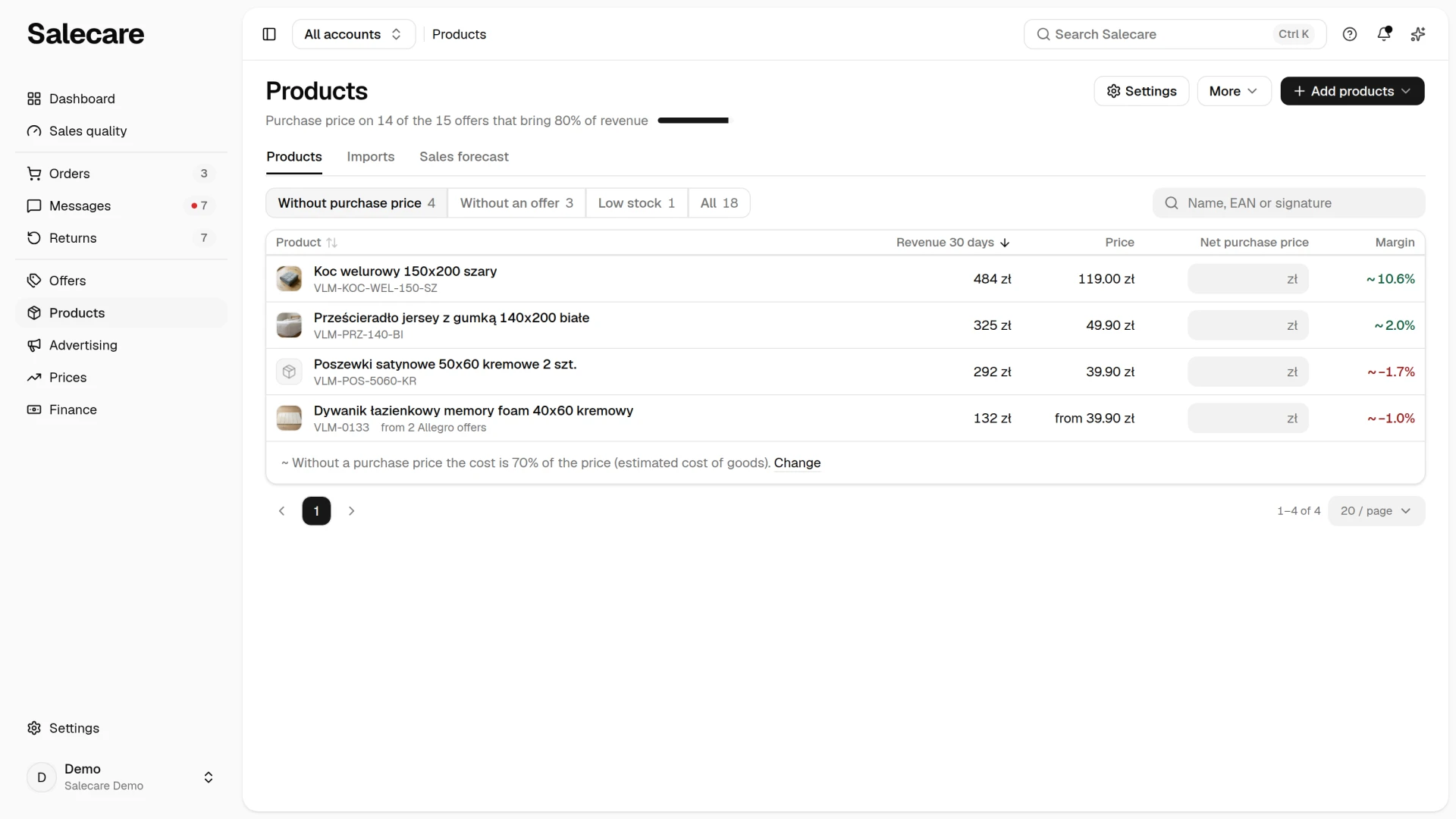
A VAT payer types the net price, and a company outside VAT the gross one. Salecare stores a net price gross. It adds VAT at the same rate it takes off this product's purchase price in net amounts. When the price had no rate of its own, Salecare writes that rate on it. Every screen then shows exactly the net price you typed. The margin in the last column updates as soon as a price is typed, and with the field empty it shows the estimate with a tilde. The line under the list gives the share of the price Salecare takes as the cost of goods without a purchase price, and its Change link opens the Estimated cost of goods panel of step 5. Enter moves to the field in the next row, and Escape puts the row back as it was before you typed.
The Save prices button saves every typed price at once. Order margins are then recalculated in the background. A price typed at an offer without a product creates a new product with that offer's name and code. Salecare links to it every offer without a product that shares the code. The guide "How to match Allegro offers to products" says when Salecare saves such a price on a product already in the catalogue, and when it does not save it. The list shows to people with the Margins and purchase prices (view) permission. Prices are typed by people who also hold Products & imports (manage), and at an offer without a product also Offers (manage).
When you may set repricer rules and the offers of the products with a saved price have no rule yet, the message that confirms the save carries a Turn on the repricer for N offers button. It opens the Prices page with only those offers and straight away the Turn on the repricer panel. Nothing changes until you click Save in the panel. Cancel closes the panel and leaves the list narrowed to those offers, and Show all offers above the list goes back to the full list. When there are more than 100 such offers, the button does not appear.
You can enter the prices in other ways too.
- You can also type the purchase price in the All view, in the row of a product without one. The Save prices (n) button at the bottom of the page saves every typed price at once, as on the Without purchase price view, and Cancel drops them. Until you save, the margin keeps its "~", and a note under the table says what percentage of the price Salecare takes as the cost of goods then. A bundle has no field, because its cost is the cost of its components.
- Enter the price of a single product on its card, in the Price and stock section, in the Gross purchase price field, see "How to add a product to the Salecare database".
- You can also type an offer's purchase price on the Prices page. In the Repricer column such an offer carries "No purchase price" (or "Error" when its rule is already running) with an Enter link. The link opens the offer panel on the Net purchase price or Gross purchase price field. The Save purchase price button stores the price on the offer's product, and an offer without a product gets a new one. After the save the panel shows the minimum price, and Save turns the repricer on.
- Upload the prices of many products at once from your supplier's file, see "How to import products from a file and track the import history".
- When your wholesaler publishes a file at a fixed address, set up an automatic import, and each fetch keeps the purchase prices up to date, see "How to set up an automatic wholesaler import".
- Match an offer that sells a product from your database to that product, because without the match Salecare does not know what the offer sells, see "How to match Allegro offers to products".
Until an offer is matched or a product has a purchase price, Salecare uses the estimated cost of goods of step 5, and the order margin is approximate. You find the unmatched offers on the Offers page when you set the Match status filter to "Unmatched". The Without purchase price filter on the Products page shows the products without a purchase price. Once you match an offer or save a purchase price, the order margins are recalculated in the background. In the catalogue, under the All filter, the margin of such a product carries a "~", and a note under the table explains the estimated cost of goods. On a phone the product has an "Estimated cost" badge beside its name. On the Offers tab of the product card the same badge, in grey, stands beside the period switch. The marks go once you save the product's purchase price.
The Costs page
You set the rest of the costs on your side on the Costs page in Settings. The Costs entry under the Settings button in the header of the Finance page opens the same page. Each row (Shipping, Estimated cost of goods, Returns, Packing and order handling, Fixed costs, VAT) shows its current value, and a chip beside the name says what an exact profit still lacks. The line under the title says how many costs are still to fill in. The Change, Fill in or Add button opens the panel of that cost. On a computer the panel slides in on the right, and on a phone it fills the screen. The Add purchase prices button on the Estimated cost of goods row opens the Products page on the Without purchase price filter. Only a person with the Margins and purchase prices (view) permission sees the Estimated cost of goods row, and the page opens for a person with the Workspace settings permission.
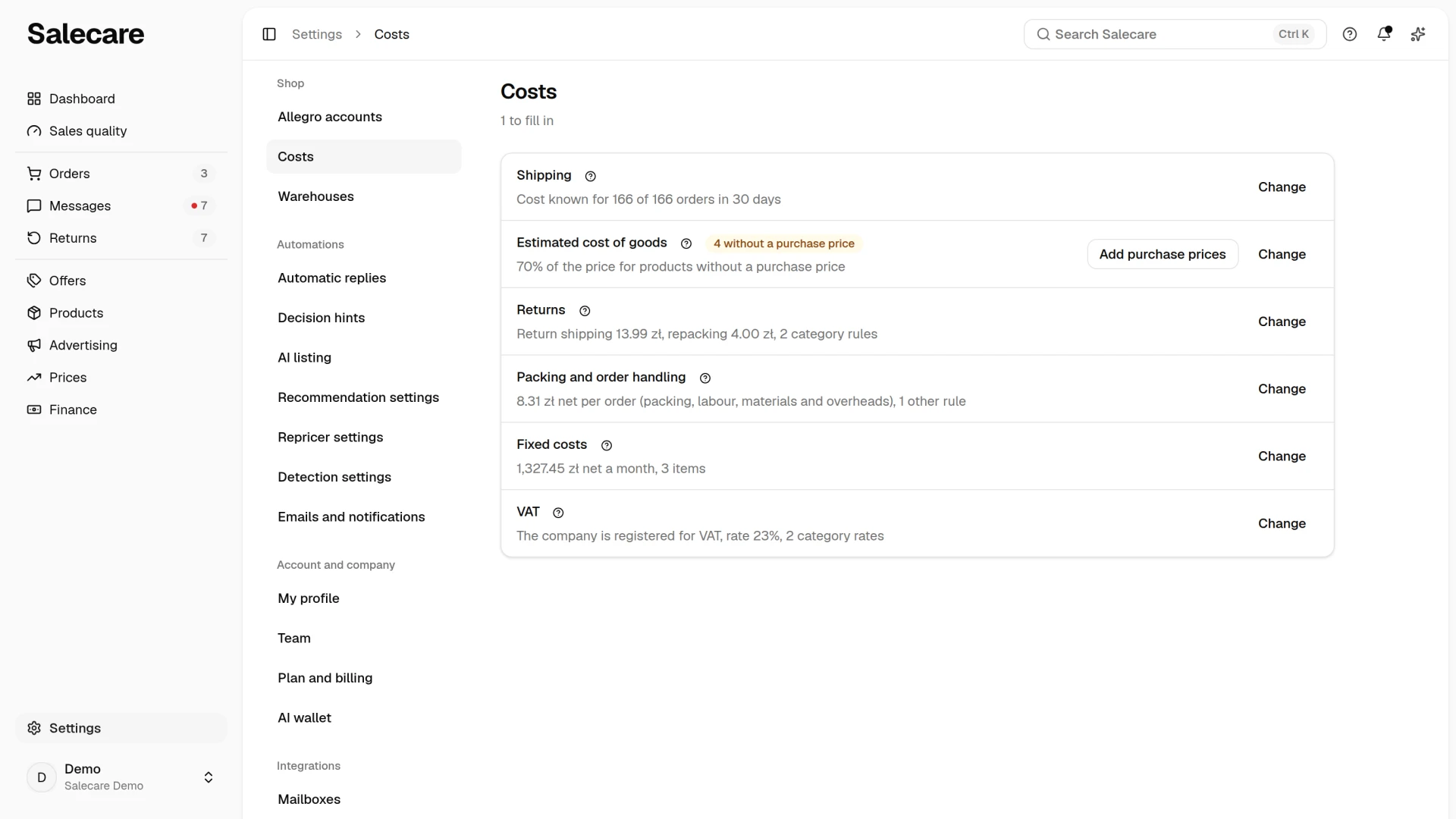
You type the amounts in the panels gross. The row shows them net or gross, with that word beside the amount, depending on how the company handles VAT. A company registered for VAT sees the net amount in the row, and a company outside VAT the gross one.
Step 2. Set packing and order handling
Every company starts with a company-wide rule with zero amounts. Until you fill it in, the Packing and order handling row shows "No amount" with the "Missing" chip. The Profit & loss statement then does not take these costs off the profit, and the repricer works out the minimum price without them, which is too low. Click Fill in on that row. The panel shows the company-wide rule, four gross amounts (Packaging, Labour, Materials, Overheads), how it is charged and the Effective from field.
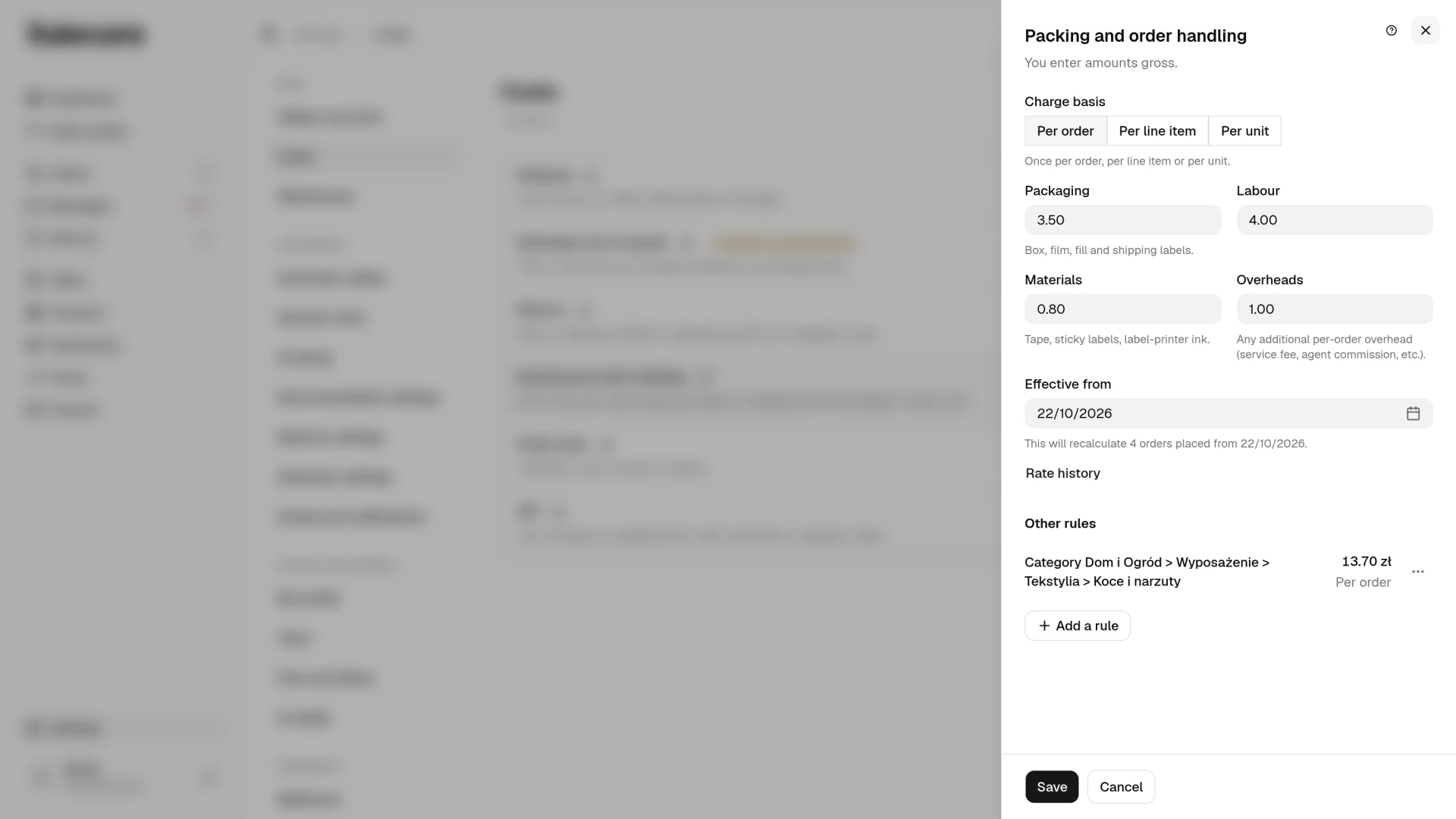
Packaging is the box, film and labels, what physically travels with the parcel. Labour is the packer's time. Materials are tape and ink. Overheads are the other costs you carry on every order, and also a packing service bought on a VAT invoice. How it is charged is "Per order", "Per line item" or "Per unit".
On the first fill-in the Effective from field holds the date the rule starts, 01/01/2010. The amounts therefore also reach every order placed earlier, and the Profit & loss statement takes packaging and labour off the profit of past months too. If the costs only apply from a later day, open the calendar in that field, pick the month and year from the lists at its top, then click the day. Orders placed before that day then stay without these costs. On every later change the field holds today's date, and orders placed before that day keep the previous rate. An earlier date works as a correction of a mistake and recalculates the orders from that day. A future date schedules a change, and the panel shows it under the rule with its date. Under the date you see how many orders the change recalculates. Save stores the new rate from the chosen day and closes the panel, and Rate history shows the earlier rates. On a phone the rates in that window are rows of a list, and you pick the order in the menu above the list.
You type the amounts gross, and the row shows them net or gross, the way the company handles VAT. The Profit & loss statement takes these costs off the profit and the repricer adds them to the minimum price. The order margin leaves them out. In net figures Salecare deducts VAT from packaging, materials and overheads at the rate in the Rate on your cost invoices field of the VAT panel. Labour counts in full, with no VAT to deduct. That is why a company registered for VAT sees a net amount in the row that is lower than the sum of the gross amounts it typed.
The Other rules section lists the rules for a category or an account. If packaging costs more in some categories, glassware for example, click Add a rule and add a category rule. A category rule takes precedence over the company-wide one. You can also assign a rule to one Allegro account, and that account's rule takes precedence over the rule for all accounts. The app does not save a second rule for the same account and scope, and the form says next to the field that such a rule already exists. A new rule has no date field and applies from the start of the order history, so it also covers orders placed before you added it. You change a rule, see its history or delete it from its menu. Deleting brings back the rule's previous rate, or, when it has none, its orders move to the next matching rule. Their margins are then recalculated.
Step 3. Set the shipping rates
The Change or Fill in button on the Shipping row opens the Shipping rates panel. The row says for how many orders of the last 30 days the shipping cost is known, and the chip says how many orders lack it. In the panel you enter the gross rates you really pay for sending a parcel, one for each delivery method. The buyer picks the delivery method at checkout. The panel lists the delivery methods from the price lists of the connected Allegro accounts, the methods buyers picked on your orders and the methods that already have a rate. Each method shows its number of orders in 30 days. Methods with orders lacking a delivery cost come first, marked "Missing". From the rates in this panel the app calculates each order's shipping cost by your own price list, not by what the buyer paid. A rate counts once per order. It does not tell parcel size, weight or the number of parcels apart, so when a duvet ships in a bigger size than a towel and some orders go out in two parcels, enter the average cost of a parcel for that method.
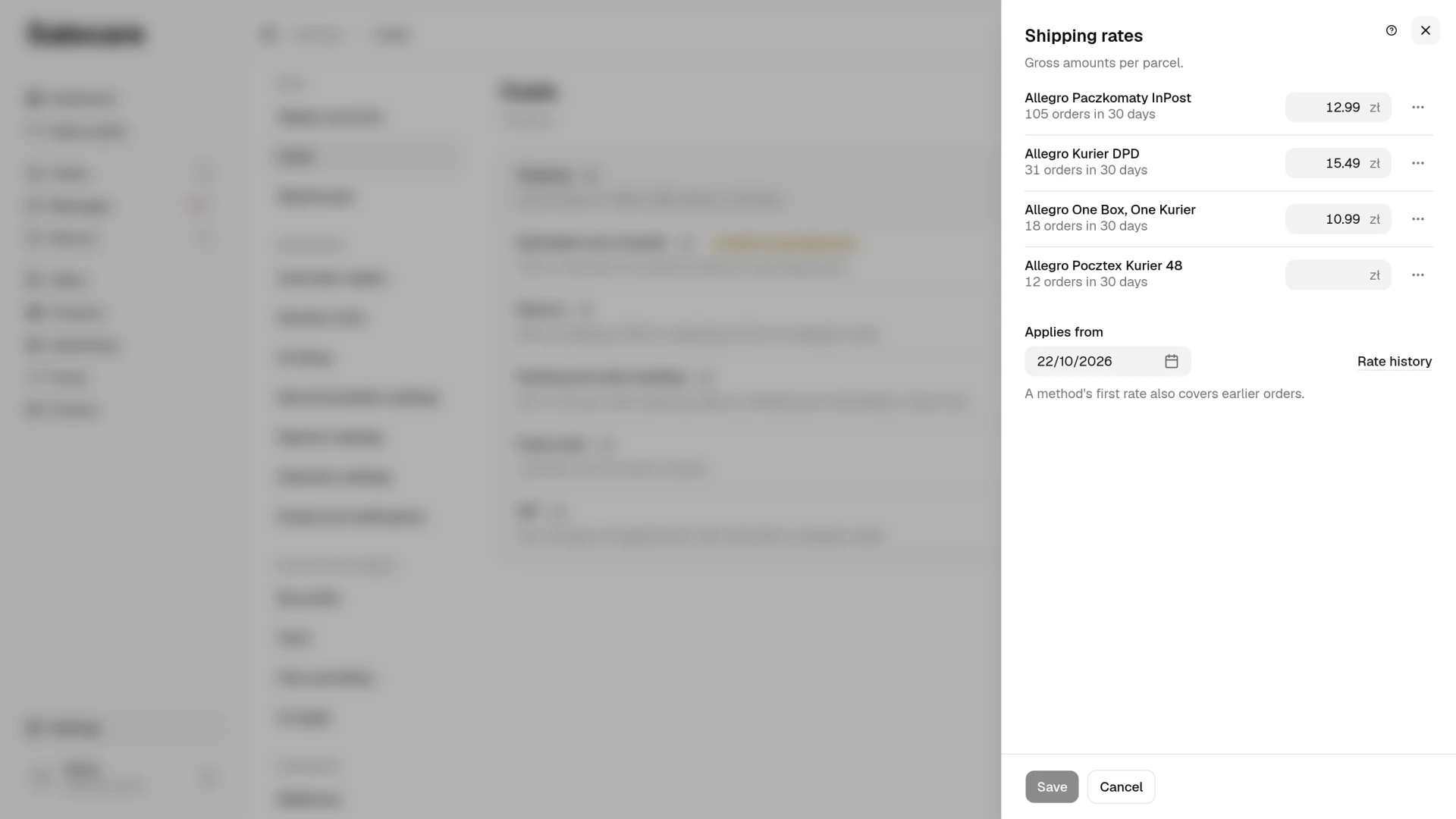
Save in the panel saves every changed rate at once. A first rate for a method covers the whole order history, and a changed rate applies from the day in the Applies from field under the list, today by default. Orders placed before that day keep the previous rate and surcharges, so the result of closed months does not change. Only the orders placed from that day are recalculated. A past date corrects the rate from that day, and a future date schedules a change, shown at the method with its date. When a change of the rate is already scheduled, the new date cannot be earlier than the scheduled one. An empty rate field deletes nothing. Margins are recalculated in the background once per save. The repricer works out the minimum price with the shipping rate in force today.
A method's ⋯ menu holds Surcharges, Rate for one account, Rate history and Remove the rate. You add surcharges, fixed or percentage, to the method's rate. A surcharge with the Add to the shipping cost switch on is added to every order with that delivery method. It therefore fits a cost the carrier adds to every parcel, a fuel surcharge for example. Cash on delivery is a separate delivery method on Allegro, so enter the cash-on-delivery fee in that method's rate, not as a surcharge on the method paid in advance.
You enter the rate and fixed surcharges gross, which is why in the Surcharges dialog the rate field is called Gross base rate, and a fixed surcharge is chosen with the option "Gross amount (zł)". A company registered for VAT sees the shipping cost net, because the app deducts 23% VAT from the rate, as on Allegro invoices. If your carrier's price list is net, add VAT to it before you enter it. A percentage surcharge is a percent of the base rate alone, so the order of the surcharges does not change the result, and two 10% surcharges add up to 20% of the rate. A surcharge with the Add to the shipping cost switch off stays saved but is not added to any order, because Salecare does not add a surcharge to only some orders of a delivery method.
A rate for one Allegro account takes precedence over the company-wide rate. Such rates sit under their method in the panel, and you change or remove each from its menu. The Rate history entry in a method's menu shows its earlier rates and the day each one applied until, and the Rate history link under the list shows the earlier rates of every method. Remove the rate removes the rate together with its earlier versions, and the orders it priced are recalculated without it.
If the Allegro settlement carries a shipping charge, the app uses that amount. Your rate prices the orders Allegro did not charge for delivery. If the settlement carries a shipping charge refund, for example a rebate for fast dispatch that Allegro booked on the order, the app subtracts it from the rate. When no rate covers that delivery method, the shipping cost is the refund alone, with a minus, and the margin stays approximate until you add a rate for the method. When no shipping rate covers the delivery method, the Order profit card on the order page says under its lines that shipping counts as 0 zł and has an Add a shipping rate link. This note appears once the order's margin is recalculated. On an order whose margin has not been recalculated for a long time, you see it after choosing Recalculate margin in the More menu.
Step 4. Set your return costs
The Change button on the Returns row opens the Return costs panel. In it you define what handling a return costs you, meaning the return shipment, repacking and the loss of value of the goods. Start with the company-wide rule at the top of the panel and add category rules where returns cost something different. Salecare picks the rule by the category of the goods that came back. A mug sent back from an order with a duvet therefore gets the mug's rule, not the duvet's.
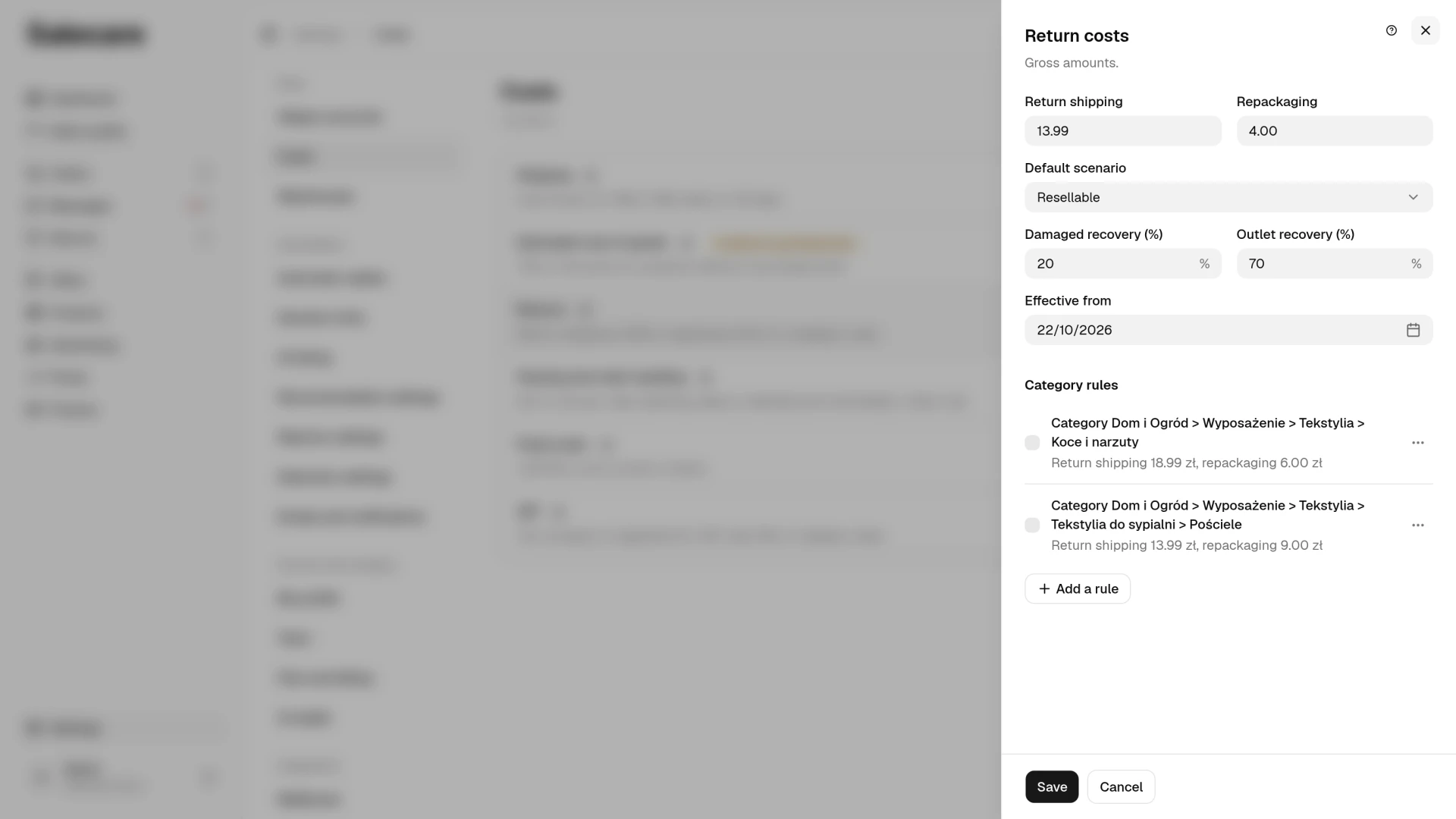
The Return shipping and Repackaging fields are gross amounts. Next to them are the Default scenario field and the Damaged recovery and Outlet recovery fields. Return shipping counts only when you pay for it. Allegro pays the first return of a Smart order when it is a withdrawal or a claim filed within 14 days of the pickup. A further return of the same order and a later claim count as on an ordinary order. On a claim the seller pays, and on a withdrawal the buyer pays unless the account offers free returns. Salecare prices a return with the rate in force on the day it was requested. A rate change from today therefore leaves the costs of old returns as they were, and a past date corrects the costs of returns requested from that day. The first rate also covers returns requested earlier. A category rule, added next to a running company-wide rule, prices returns from the date in its Effective from field, today by default. After you save, change or delete a rule, Salecare recalculates in the background the margin of the orders whose returns the change covers. Scheduling changes and changing many rules at once are described in the guide "How to change return costs over time".
Step 5. Set the estimated cost of goods
The Change button on the Estimated cost of goods row opens a panel asking what you pay for goods on average as a share of the price. Pick "60% of the price", "70% of the price" or "80% of the price", or click "Other" and type your own share, then click Save. It starts at 70% of the price. The sentence under the answers gives the cost of goods at a price of 100 zł. Salecare asks the same question during the first download, so the panel shows that answer. If you set a margin before, the panel shows the cost it implied, for example a 35% margin as 65% under "Other". When products have no purchase price, the row carries a chip with their number, and beside Change stands the Add purchase prices button, which opens the Products page on the Without purchase price filter.
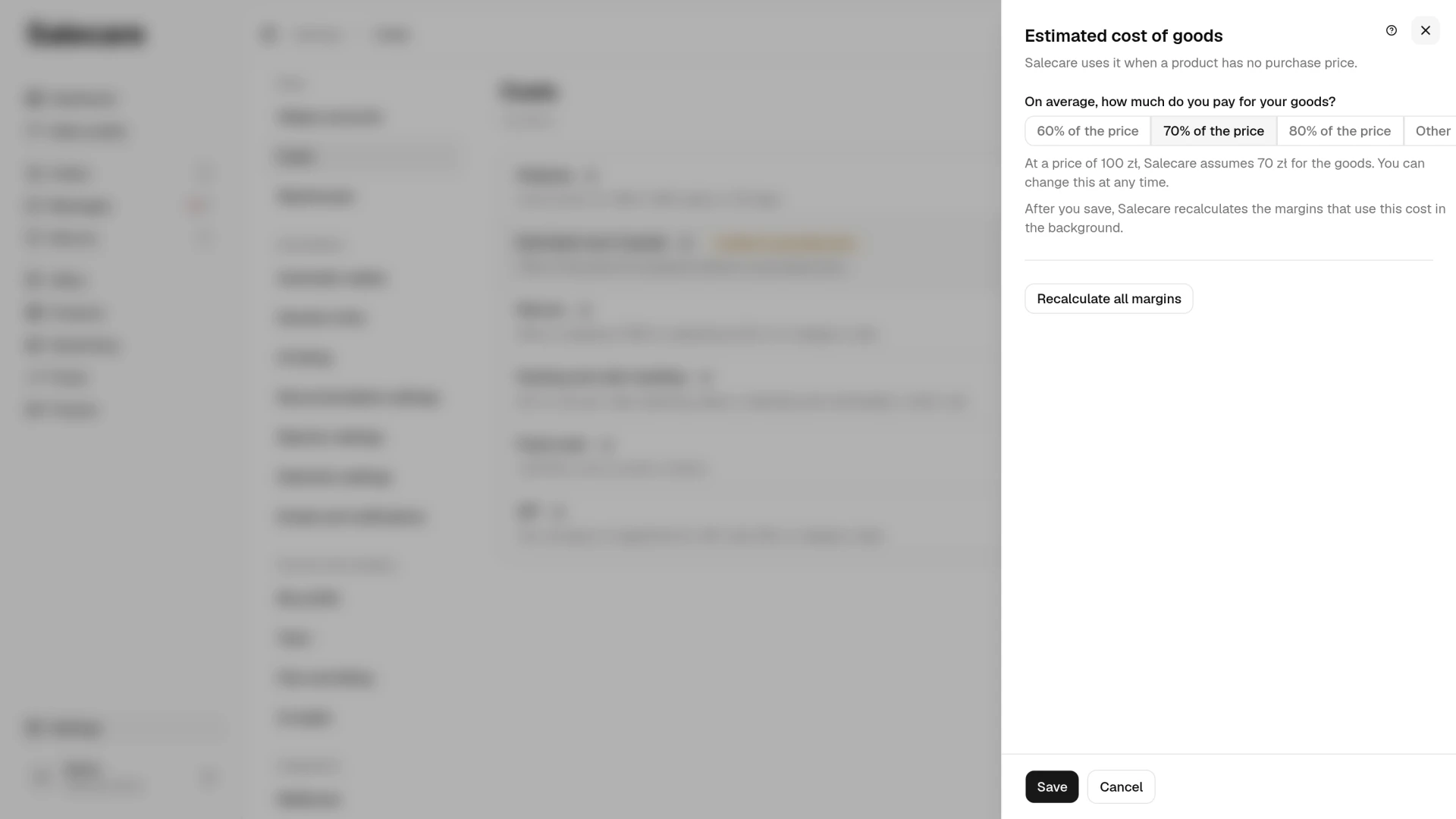
Salecare uses this share only when an offer is not matched to a product or the product has no purchase price saved. Allegro commission, fees and shipping are subtracted separately from real settlements, and a margin worked out with the estimated cost of goods is approximate. Such a margin carries the ~ sign. The order page shows the sentence "~ Margin estimated with the cost of goods" with that share under the amounts, and the product carries the "Estimated cost" badge. That way you always see which figures come from real costs and which from an assumption. The mark goes away once you match the offer to a product and save the product's purchase price, because the margin is then recalculated from that price. When you save a new share, Salecare recomputes in the background the margin of every order with an estimated cost of goods, including the ones placed earlier, so the change reaches the whole history. Orders with a saved purchase price are not affected.
Recalculate all margins
After a bulk change of costs or an import, click Recalculate all margins under the question in the Estimated cost of goods panel and the app will recalculate the margin of every order from scratch. A person allowed to change products sees the button.
It runs in the background, and a progress bar shows how many orders are already done. You can start it up to three times a day, and the button shows that limit.
Step 6. Add fixed costs
The Add button on the Fixed costs row opens a panel where you enter the company's monthly costs that no order carries, such as warehouse rent, salaries and subscriptions. Once there are costs, the row shows their monthly total and the number of items, and the button reads Change. Click Add fixed cost and give a name, the amount paid every month and the First month. Leave the Last month field empty while the cost runs. A ticked The cost includes deductible VAT box means the amount is gross. In net amounts the app takes VAT off it at the rate in the Rate on your cost invoices field. Untick the box for salaries and contributions, and the cost counts in full. When the amount changes, set the Last month on the old cost and add a new cost from the next month. Past periods then keep the amount you paid at the time.
The panel lists the running costs and folds the ones whose last month has passed under Ended. You change or delete each cost from its menu. End a cost that stopped with Last month instead of deleting it, because deleting takes it out of every month it covered. Fixed costs never enter order margins or the repricer's minimum price. The Profit & loss statement, the Dashboard and the sales forecast take them off the profit of the whole company when the cost covers all Allegro accounts. The Profit & loss statement and the Dashboard spread each month's amount over its days.
The result, the Profit & loss statement
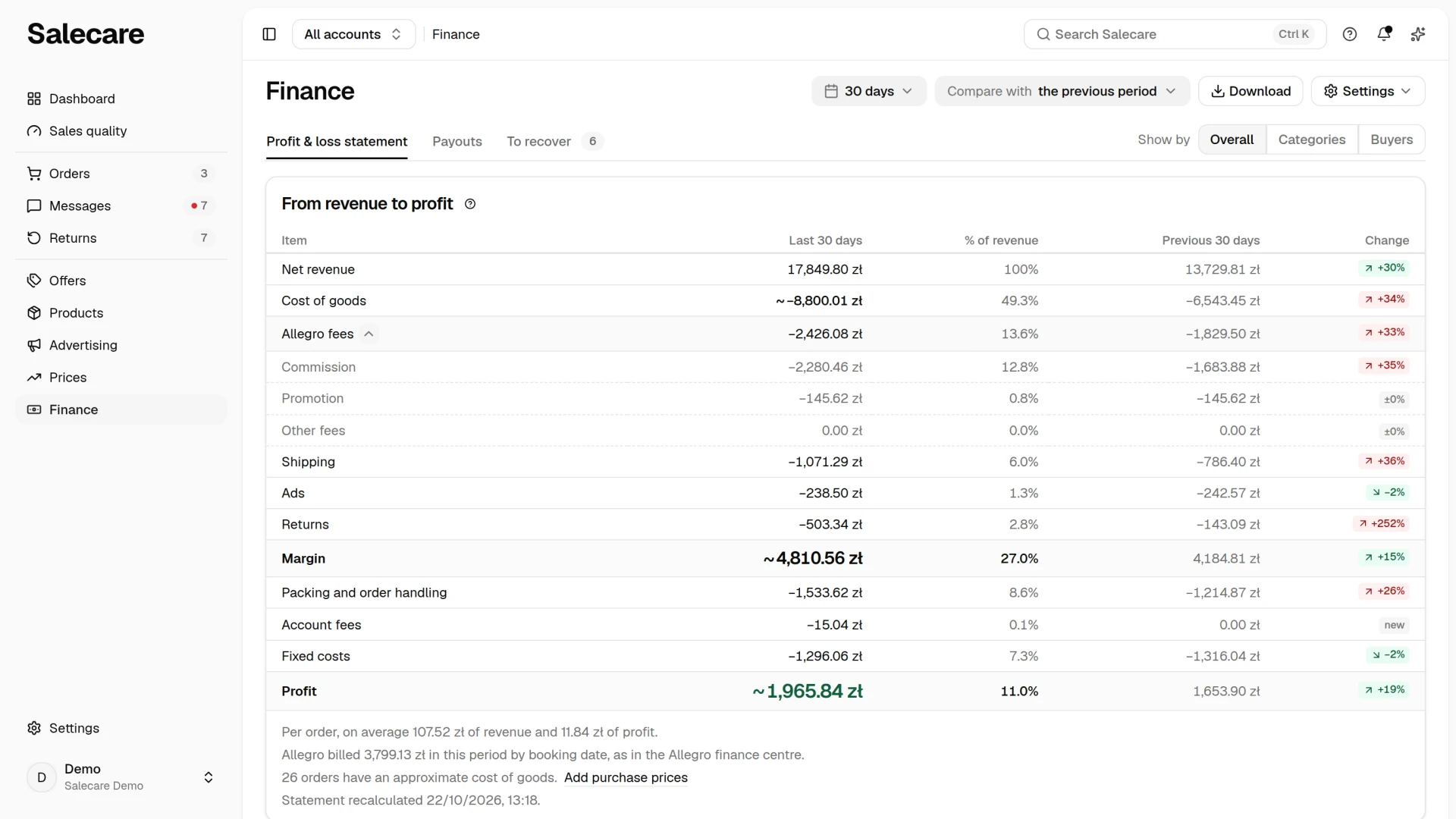
From now on every transaction has a full cost breakdown. The Profit & loss statement in the Finance menu shows revenue, margin and profit with period comparisons, and you also see the cost breakdown on every order and every offer. This page takes promotion and Allegro Ads from the settlements for the whole period, so its margin can differ from the sum of the order margins.
How Salecare computes the margin
An order's margin comes out of one calculation, always in the same order.
- Revenue. Everything the buyer paid, delivery included.
- Minus the purchase cost. The gross purchase price from the product card valid on the day of the order, times the quantity. A bundle is costed from its components, and when any component has no purchase price, the whole bundle gets the estimated cost of goods.
- Minus shipping. The shipping charge from the Allegro settlement if there is one, otherwise your shipping rate for the delivery method the buyer picked, less the shipping charge refund when Allegro paid one out.
- Minus promotion and Allegro Ads. Salecare takes promotion fees, for highlights and the other promotion services, from the Allegro settlements. It splits an offer's fee for a month evenly across that offer's orders from that month, cancelled and still unpaid ones excluded. It knows the Allegro Ads spend on an order only from the Salecare Ads extension, which reads the Allegro Ads panel once a day while the panel is open in your browser. Without the extension the order and offer margin carries no Allegro Ads cost. An offer with heavy ad spend then looks more profitable than it is, and the order margins do not add up to the margin in the Profit & loss statement, which takes that spend from the Allegro settlements. The extension reads the panel in your signed-in session, not through the Allegro API, so read the warning about sales quality points in the guide "How to connect Allegro Ads to Salecare". The offer's ad spend on the day of the order is split evenly across that offer's orders from that day, cancelled ones excluded, and the order takes one share. It is an estimate, because Allegro reports spend per offer and day, not per order. Spend from a day the offer sold nothing lands on no order, so the offer margin leaves that part of the advertising out. The offer's full spend from the extension shows in the Net ad spend column of the offer list, and the full ad cost of the period in the Profit & loss statement.
- Minus commission and the other Allegro fees attached to the order. A commission refund lands on the same line and reduces it.
- Minus the impact of returns. An approved or completed return takes the refund plus the rule's return shipping and repackaging off the margin. It adds back the recovery, a share of the returned goods' purchase cost. "Resellable" recovers 100%, "Damaged" and "Outlet" as much as the rule says. This line also takes the money Allegro paid back to the buyer with no goods returned, for example a discount for a defect, a refund for a missing item or for an uncollected parcel. Salecare reads them once a day from the Allegro list of payment refunds and takes off only the part a return on the same order does not already take off, so nothing leaves the margin twice. For a missing item or an uncollected parcel the purchase cost of those units comes back to the margin, because the goods stayed in stock. The order page counts that part in the Returns line, and the Profit & loss statement, its Buyers view included, counts it with returns. This applies to accounts connected with permission to read payments.
The result is the order margin, and the margin percentage is the margin divided by the revenue. An offer shows its share, split between the order's lines by revenue.
Packing and order handling costs are deliberately absent here. Salecare stores them with every order but subtracts them only in the Profit & loss statement. There Profit is the Margin less Packing and order handling, Account fees and Fixed costs. Account fees are the Allegro subscription and other fees billed to the account rather than to an order. That way the offer margin tells you whether the offer covers its purchase cost, shipping, Allegro fees, promotion and the advertising of the days it sold, and the profit of the period tells you whether the whole company makes money.
Whether the amounts are net or gross is decided by one switch, The company is registered for VAT, in the VAT panel of the Costs page. A company registered for VAT sees revenue, costs and margin net, and a company not registered for VAT sees them gross. Allegro listing prices stay gross for everyone. In the net view each component loses VAT at its own rate. The sale loses it at the line's rate, the purchase cost at the purchase rate, and Allegro charges at the VAT Allegro put on each settlement entry. Your own costs, meaning packaging, materials, overheads and return handling, lose VAT at the rate in the Rate on your cost invoices field, assumed to be 23% until you pick one. Labour loses no VAT, because it carries none, so it counts in full. The shipping cost from your shipping rate, when Allegro did not charge the order for delivery, loses VAT at 23%, the same rate as on Allegro invoices. A bundle's purchase cost loses VAT at the purchase rate of each component. A return loses VAT line by line, so the money paid back to the buyer at the sale rate of the lines that came back and the recovered value at their purchase rate. If any line of an order has no VAT rate, the order gets no net margin rather than a zero.
A missing cost is never counted as zero. An unmatched offer, a product without a purchase price or with the "Estimated cost" badge, a bundle without components and a bundle with a component that has no purchase price get the estimated cost of goods, and an order older than the earliest known purchase price gets that price, all marked approximate. A delivery method with no shipping rate counts as 0 zł of shipping, but the margin stays preliminary and approximate. A cancelled order has its revenue and every cost on your side zeroed. Only the fees Allegro charged and kept remain. Those fees count in the Profit & loss statement and in the order's own margin, but not in the figures of any offer or product, so a cancelled order alone never makes an offer loss-making. An order the buyer has not paid for yet is counted the same way as a cancelled one until the payment arrives, and its margin stays preliminary. Once Allegro books the payment, the next order sync recalculates it like any paid order.
A worked example
An invented product, the Polarna travel mug, with round gross amounts. The buyer paid 89 zł for the mug and 11 zł for delivery.
| Item | Amount |
|---|---|
| Revenue (89 zł mug + 11 zł delivery) | 100.00 zł |
| Purchase cost | −40.00 zł |
| Shipping from your rate (12 zł, no surcharges) | −12.00 zł |
| Allegro Ads share | −3.00 zł |
| Allegro commission | −9.00 zł |
| Order margin | 36.00 zł (36%) |
Add a company-wide packing and order handling rule charged "Per order", with Packaging 2 zł, Labour 3 zł, Materials 0.50 zł and Overheads 0.50 zł, 6 zł in total. The order still shows 36 zł, and the Profit & loss statement for a day with this one order shows a Profit of 30 zł, provided the company is not registered for VAT, has no fixed costs or account fees, and the Allegro settlement carries the same 3 zł of Allegro Ads for that day.
Now the buyer sends the mug back and the return is approved. The order was not Smart, it is a withdrawal and the account offers free returns, so you pay for the return parcel. The rule in the Return costs panel has 12 zł in the Return shipping field, 2 zł in the Repackaging field and the "Resellable" scenario.
| Item | Amount |
|---|---|
| Refund to the buyer | −100.00 zł |
| Return shipping and repackaging | −14.00 zł |
| Value recovery (100% of 40 zł) | +40.00 zł |
| Return impact | −74.00 zł |
| Order margin after the return | −38.00 zł |
If Allegro refunds the commission, the loss shrinks to 29 zł. Had the mug come back damaged with Damaged recovery at 0%, the loss would be 78 zł.
Common mistakes
- A packing and order handling rule left at zero. Every company gets it with zeros at the start. Until you fill it in, the Packing and order handling row carries the "Missing" chip, the profit in the Profit & loss statement leaves these costs out, and the repricer computes the minimum price without packaging and labour, which is too low.
- A delivery method without a rate. The buyer picked a method that has no rate in the Shipping rates panel. The cost of the parcel counts as 0 zł and the margin of those orders stays preliminary and marked approximate until you add the rate. The Shipping row then carries a chip with the number of orders without a cost, and the method in the panel is marked "Missing". The note behind the ~ next to the margin says that no rate covers the delivery method, not that the purchase cost is estimated.
- Products without a purchase price. An unmatched offer or a product without a price gets the estimated cost of goods. The margin is approximate, and the repricer refuses to compute a minimum price for such a product. You find the products without a purchase price on the Products page under the Without purchase price filter, and the unmatched offers on the Offers page when you set the Match status filter to "Unmatched". The Without purchase price list also holds the offers without a product, so you type their prices there straight away.
- Recovery set too high. With 100% recovery for damaged or outlet returns, returns barely touch the margin and the result looks better than the bank balance. Recovery is the part of the purchase price you really get back.
- Changing a rate without checking the date. In the Packing and order handling, Shipping rates and Return costs panels the date field under the amounts decides which orders are recalculated. Packing and shipping rates go by the day the order was placed, and return costs by the day the return was requested. Today's date leaves history as it is, a past date recalculates orders from that day on, and a future date changes nothing until that day. After a bulk data correction, click Recalculate all margins.
Questions about costs and margin on Allegro
Do I have to enter the Allegro commission?
No. Commission, commission refunds, shipping charges billed by Allegro, promotion, ads and the other account fees are read from your Allegro settlements. The Allegro Ads spend on an order and an offer comes from the Salecare Ads extension, and without it the order and offer margin carries no Allegro Ads cost. You only enter the costs on your side, the purchase price, packing and order handling, shipping rates, return costs and fixed costs.
Why does the margin come out below 100% minus the estimated cost of goods?
Because the estimated cost of goods covers the goods alone. At 70% and a 100 zł price Salecare assumes a 70 zł cost of goods, so 30 zł is left before the Allegro costs. Commission, fees and shipping are then subtracted from real settlements, so the margin comes out below 30%.
What is the difference between margin and profit in the Profit & loss statement?
Margin is the result of a single order after the purchase cost, shipping, ads, commission, fees and returns. Profit is the period's margin less packing and order handling, account fees such as the Allegro subscription, and fixed costs such as rent and salaries. When the period has none of those costs the two are equal and the statement says so.
What do "Preliminary" and "Settled" mean next to a margin?
A margin is preliminary until the order turns "Settled", and always when the delivery method has no shipping rate. Allegro does not report that an order is settled, so Salecare applies a fixed time rule. An order turns "Settled" 7 days after it was placed, provided no new fee arrived for it in the last 24 hours. An order the buyer has not paid for yet stays "Preliminary" whatever its age. An order with a return, or with an open missing refund alert, stays "Preliminary" until 45 days have passed since the purchase, because that is how long Allegro accepts a commission refund claim. "Settled" therefore says that the order's fees have not changed for a few days, not that Allegro confirmed a settlement. A return reported later still recalculates the order's margin, so the figures of a period can still change. On the Dashboard the Profit tile carries a "Preliminary" badge with the share of orders that are still preliminary. The share is never rounded down to zero while even one such order is left. A period with no sales has no badge. The ~ sign and the "Approximate" badge are a separate signal. They say that part of the costs was estimated.
When is the margin recalculated?
Automatically in the background after a change to packing and order handling, return costs, a shipping rate, a product's purchase price, an offer's match to a product or a VAT rate. After a shipping rate change, the orders placed from the day the new rate applies from are recalculated, and after a return cost rule change, the orders with returns requested from that day. One order is recalculated with Recalculate margin in the More menu on its page, and all orders with the Recalculate all margins button in the Estimated cost of goods panel, up to three times a day.
Does Salecare show net or gross amounts?
That depends on the The company is registered for VAT switch in the VAT panel of the Costs page. A company registered for VAT sees metrics, charts and lists net, and a company not registered for VAT sees them gross. Allegro listing prices always stay gross, because that is what the buyer pays. You always enter the costs in the panels of the Costs page gross.
What next
Once the costs are set, the repricer can work out a minimum price for an offer, below which it must never go, but only when the offer is matched to a product with a purchase price. With the estimated cost of goods it refuses to compute one. So before the repricer, match your offers with the guide "How to match Allegro offers to products" and fill in the purchase prices, on the Without purchase price list of step 1 or by an import with the guide "How to import products from a file and track the import history" for example. Then see the guide "How to set up a repricer that never goes below your margin".