How to set up VAT and rates so the app computes a net margin
For a company registered for VAT, net margin is the number that says how much actually stays in the business. To work it out, the app has to know the VAT rate on every sale and every cost. Allegro supplies some of them with the order, and nobody supplies the rest. That is why, in the VAT panel on the Costs page, you describe your assortment once and stop seeing a dash instead of the net margin in the reports.
In Settings open the Costs page and click Change on the VAT row. The row says whether the company is registered for VAT and gives the number of category rates. In the VAT panel the The company is registered for VAT switch and the Default sales rate and Rate on your cost invoices fields are saved together by one Save button. The button works only after a change. If one change fails, none is saved. Category rates have their own dialog with a Save rate button. Once saved, the company's margins are recomputed in the background, and with them the minimum prices of the repricer rules and their maximum prices set to "Automatic" or "From margin".
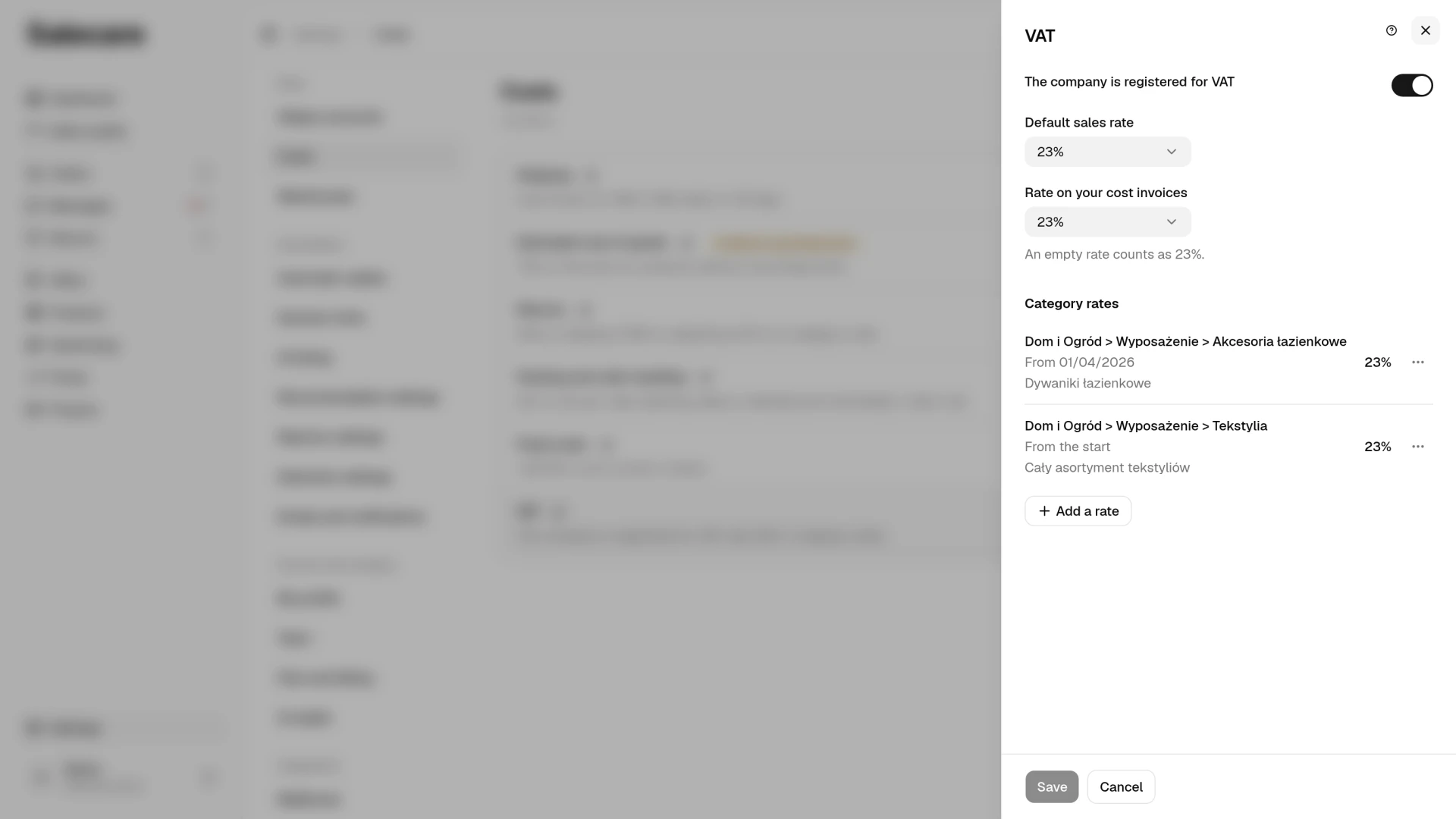
Step 1. Say whether the company is registered for VAT
The VAT panel starts with the The company is registered for VAT switch, and it decides whether the whole app shows net or gross amounts. For a company registered for VAT the metrics, charts and lists show net amounts, because VAT is neither revenue nor a cost of the business, only a tax passing through the account. A company not registered for VAT sees gross amounts, exactly the way the money moved through the account, and VAT on Allegro and supplier invoices is not deducted.
Salecare already asks this during the first download, on the Downloading data page, and you answer "Yes" or "No". The answer goes into this same setting, so you see it in the VAT panel and change it there.
The switch also decides whether an offer published from a draft declares a VAT rate on Allegro. A company not registered for VAT publishes new offers with no VAT rate, even when the product or a rate in the VAT panel states one. With the switch off, the panel says so in the sentence "New offers are published without a VAT rate. Live ones keep theirs." An update from a draft then sends no rate, so the offer keeps the rate it already declares. Offers already live keep the rate they declare. Allegro asks a company exempt from VAT because of its low turnover not to declare a rate at all. The bulk VAT rate change on the offers list does not remove a rate, it only sets one of 23, 8, 5 and 0 percent. So change the invoice options and VAT rate of offers already live in Sales Center, on the My assortment tab. Select the offers there, then on the green bar under the list click Sales policy, then Other and Invoice options and VAT rates.
Allegro fees, that is commission, delivery, promotion, ads, other fees and account fees, lose in net amounts exactly as much VAT as Allegro charged on each billing entry. Most entries carry 23%. Allegro Buyer Protection entries, the charges for money returned to a buyer after a failed transaction, and penalties carry no VAT at all. A company from another EU country may get Allegro invoices at 0% on every fee. Such a fee keeps its whole amount in net figures, the same on the Dashboard, in the Profit & loss statement, on the orders list, on the order card and on the anomalies list. The exceptions are the Promotion and Ads rows on the order card, from which the card always takes 23% in net figures. An entry Salecare stored before it started reading the rate from Allegro is counted at 23%. A commission refund Salecare expects from Allegro is not a single billing entry, so its net amount is counted at 23%.
You do not have to remember this setting at every figure. The pages with your result, from the Dashboard through the orders list and the products list to the Profit & loss statement, give the word "net" or "gross" once in every table and every group of figures. The word stands in the name of the revenue, for example Net revenue, and where there is no revenue, in the name of the first amount. The other amounts in the same table, the costs and the margin, go by their plain names and are counted the same way. That basis applies to every amount below it, and it comes straight from this switch rather than from a setting on the page. A screenshot or a printout then says by itself whether the amounts are net or gross. Net and gross differ by a whole VAT rate, so a margin read at a glance, without that word, can mislead you by a fifth. Prices on Allegro, that is the offer price, a competitor's price and the order value, are always gross, because the buyer pays them, and carry no word. The word "gross" stands only where a gross amount is easily taken for a net one, for example Gross selling price next to Net purchase price or Gross amount on the returns list, and at the fields where you type an amount. In the Sales forecast the word stands in the name of the Net revenue metric.
One thing stays the same either way. Allegro listing prices are always gross, because that is what the buyer pays, and that is the amount you type into the price fields. The app strips the VAT itself wherever it computes a margin.
Step 2. Set the default rate
Net margin reaches for the default rate last, when neither the sold Allegro offer, nor the product, nor a category rate declares one. The field is called Default sales rate, and for a Polish assortment it is usually 23%. An empty field shows "No rate", and saving it empty removes the default rate. This rate covers older orders where Allegro recorded no rate, and every category you have no separate rule for. The repricer's net minimum price is set before any sale, so it never sees the rate on an order. It takes the higher of two rates, the one the offer declares on Allegro and the one from the product or a category rate. Without any of them the minimum price is not computed and the repricer skips the offer. An offer published from a draft gets the default rate too, when neither the product nor a category rule states one. Without any of those three, Salecare publishes the offer with no VAT rate, and Allegro does not show an offer with a VAT invoice and no rate to Allegro Business customers. That is why the default rate is worth setting even when every order carries a rate from Allegro.
Step 3. Set the rate on your own costs
Your own cost invoices, meaning packaging, materials, overheads and return handling, are entered in the Packing and order handling and Return costs panels as gross amounts, and nowhere in the data do they carry a rate. That is why they get a field of their own, Rate on your cost invoices. Until you fill it, the app assumes the same rate Allegro invoices at, and it does not hide that. The empty field shows "No rate", and the sentence under it says an empty rate counts as 23%. Picking your own rate ends that assumption. In net figures the same rate also takes VAT off the fixed costs in the Fixed costs panel that you mark The cost includes deductible VAT, for example rent and subscriptions. It therefore also moves Profit on the Dashboard and in the Profit & loss statement. The amount in the Labour field is not under this rate. Your own people's work comes with no VAT invoice to deduct, so in net figures it counts in full, the same as in the repricer's minimum price. Enter a packing service bought from a company on a VAT invoice in the Overheads field of the packing rule.
Step 4. Add category rates
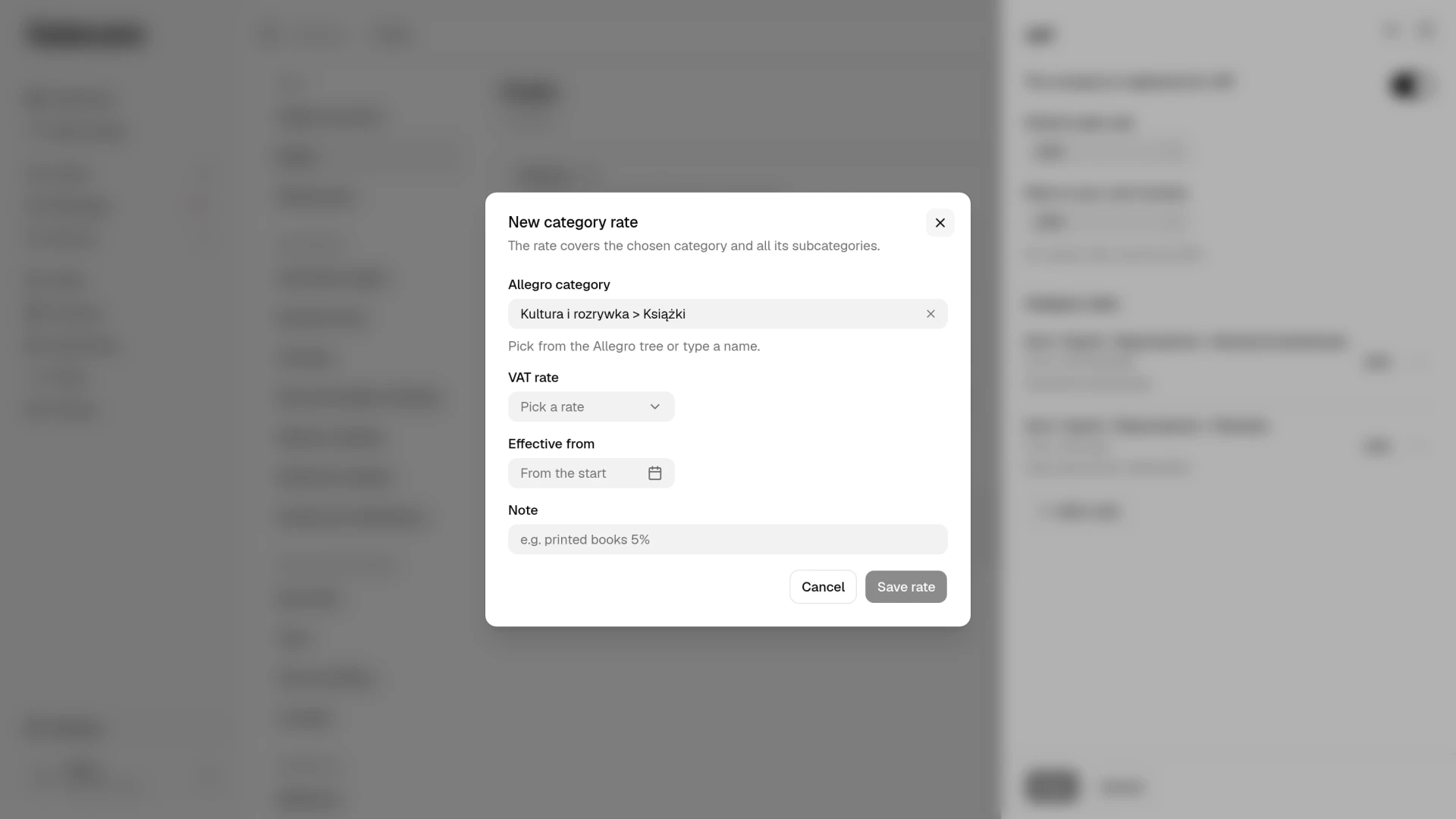
A whole assortment rarely sits on one rate. A category rate ties a rate to an Allegro category and covers everything beneath it in the tree, so one rule on "Kultura i rozrywka > Książki", Allegro's books category, is enough for every crime novel, guidebook and children's book below it. When several rules match one offer, the deepest one in the tree wins, which is the most specific one. A rule recognises a category by its path of names in the tree. When Allegro renames a category or moves it elsewhere in the tree, the rule stops matching its offers, and they take the rate of the parent category's rule or the default rate. The list of rules does not mark this, so after such changes in the Allegro tree check your rules and add a rule for the new path.
Net margin takes the rate of the sold Allegro offer first and, when there is none, the product's rate. A category rate (it also covers subcategories) counts only for orders where neither is set, and without a category rate net margin takes the default rate.
In the VAT panel click Add a rate. You pick the category from the real Allegro tree or search it by name, and the rate from a list of 23, 8, 5 and 0 percent. The Note field is for you, for example "printed books 5%".
The Effective from field is optional. Empty means the rate applies to the whole history, so saving recomputes the net margins of every earlier order. That way you fix a mistake or fill in a missing rate, and the rule also covers old orders without a rate from Allegro. When the rate changes from a given day, for example after a change in the law, pick that day. The rate then applies from it, and orders placed earlier keep the rate they had, so the margins of closed periods do not change. One category then has two rows in the list, "From the start" and the one with the date. You change or delete a category rate from the ⋯ menu beside it. When you open an existing rule with Change and pick a day other than the saved one, that rule stays as it is and a new rate from the chosen day appears next to it. The same day corrects the rate of that rule. When you clear the date of a dated rule, that rule moves to the whole history and saving recomputes the net margins of every earlier order. If the category already has a rule without a date, that save is refused, so change that rule instead or delete one of them. Deleting a rate moves the offers and orders that took it to this category's earlier rate if one is saved, and otherwise to the parent category's rate or the default rate. Only category rates take a date. The default sales rate and the rate on your cost invoices always apply to the whole history.
An order's net margin takes the rule in force on the day the order was placed. The minimum and maximum price in the repricer, the rate sent to Allegro when an offer is published or updated, and the alert about offers with a different rate take the rule in force today. A rate set for a future day changes them only from that day, when prices are recomputed early in the morning.
Where the rate for one order comes from
The order is always the same and it is worth knowing, because it explains every figure in the reports. First the rate on the order line, which Allegro supplied with the sale. If there is none, the rate stored on the product. If there is none there either, the rule for the offer's category, and finally the default rate. The rate on the order line is the rate the offer declared at the moment of the sale, so when that declaration was wrong, the order's net margin is worked out at the wrong rate too. That is why the alert about offers with a different rate, described below, is worth turning on.
The net minimum price is set before any sale and has no order line to read a rate from. So it compares two rates and takes the higher one. The first is the rate the offer declares on Allegro. Salecare reads it during the offers sync, and stores it straight away after a bulk VAT rate change on the offers list or after undoing one. The second is the rate stored on the product, then the rule for the offer's category, and finally the default rate. The higher rate leaves less money out of the price, so a minimum price worked out from it does not fall below the margin you require, whichever of the two rates is the correct one. A maximum price set to "Automatic" or "From margin" is worked out from the same rate, and a change of the rate on the offer recomputes both prices in the background. When neither rate exists, the net minimum price cannot be computed and the repricer skips the offer, even if its orders carry a rate from Allegro. The offer panel on the Prices page then shows the notice "The offer has no VAT rate. Set one in Settings, in Costs, in the VAT row." The offers where the two rates differ are gathered by the "Offers with a VAT rate other than the product rate" alert (see the notifications and alerts guide). One e-mail summary of this alert lists at most 100 offers, in the order they came into Salecare, and the number in the e-mail subject counts only the ones listed. Further offers appear in the summary once you fix some of the first ones. With the Only new items switch on, no summary arrives until that list of 100 offers changes. Set the correct rate on the product, or on the offers with the bulk VAT rate change on the offers list.
A corrected rate on the product does not reach offers already live by itself, because the rate on an offer is a tax declaration the buyer sees on the invoice. Carry it over with the bulk VAT rate change on the offers list, where each change can be undone, or with the Update listing button on the draft. The update window starts with every part of the draft ticked except the price, so the title, description, photos, parameters and listing settings too. Every ticked part overwrites the listing on Allegro. To change only the rate, leave only the product's VAT rate ticked. An update from the draft sends the product's rate or, when the product has none, the rule for the category the offer sits in on Allegro. It changes only the rate for Poland and leaves the rates for other countries as they are. A 0% rate reaches Allegro as ZW, both from the draft and from the bulk change, because Allegro's list of Polish rates has no 0% and Allegro declares a zero rate with ZW. A ZW rate declared on an offer counts as 0% in the minimum price, the maximum price and the alert about offers with another rate, and an NP (outside VAT) rate counts as an unknown rate. Once the offer has synced, you undo that update, together with the previous rate, in the Change history, which opens from the More menu on the offers list.
In the Proof of purchase field you cannot choose "VAT margin invoice", not in the account's listing settings, not in a draft and not in the offer editor, because Salecare does not support the margin scheme. Under that scheme VAT is worked out from the margin, not from the price, while the net margin and the minimum price always take VAT from the price, as for a VAT invoice. An account, a draft or an offer that already has "VAT margin invoice" keeps it and saves without that field changing.
A single product's rate is set on its card, in the Price and stock section, in the VAT rate field. That rate beats the category rule, so keep it for exceptions rather than for whole groups of goods (see the guide on adding a product).
The purchase VAT rate, when you buy on a different rate than you sell
On the product card, in the collapsed Description and parameters section, sits a separate Purchase VAT rate field. That is the rate on the supplier invoice, not the one you charge the buyer, and the two numbers need not be equal at all. You buy goods at 23% and sell them at 8%. Or you bring them in from another EU country and the invoice has no VAT to deduct at all, so the gross amount is already the net one.
An empty field, the "Same as on the sale" option, means the same rate as on the sale and fits an ordinary domestic purchase. Enter 0 for an intra-EU purchase or a supplier exempt from VAT, where there is nothing to deduct. Without it the net cost of such goods would be understated by a fifth, and the net margin overstated by exactly the same amount.
When no purchase rate is given by the purchase price, the product's VAT rate or a category rule, the net cost of a line is worked out at the rate that line was sold at. For a parcel that stays in the company's country that is the same number, so the cost carries no marker and the warnings judge the order by its net margin. The company's country is the one in the Invoice details row of the Plan and billing page, or Poland when none is given there. For a parcel sent abroad it is a different number. Goods bought at 23% and sold to Hungary at 27% then show a net cost lower than on the purchase invoice, and a higher net margin. An order whose delivery country is unknown, for example one not paid yet or one whose buyer data was erased, is treated the same way. On the order card such a line cost carries a "~" with an explanation. The daily e-mail about orders settled below cost and the list of loss-making offers judge such an order by its gross margin, since that one depends on no rate. Set the product's VAT rate or a default rate. The marker then goes away, and changing a rate recalculates margins in the background, so the warnings judge the order by its net margin again.
You can send that rate in a file too. The column mapper has a Purchase VAT rate field next to the ordinary VAT rate field, so one import describes both sides of the transaction from a wholesaler's file (see the guide on importing from a file).
What a dash instead of a net margin means
When none of the four sources supplies a rate for an order line, the app does not guess. Instead of writing a zero and showing an overstated profit, it says plainly that it does not know the net amounts for that order. On the orders list and the offers list the net margin then shows a dash with a question mark, and hovering or tapping it shows the reason. On the order card the margin shows a dash, and below it a notice reads "No VAT rate on one of the order lines, so the net margin is not computed here." with the Set a default VAT rate link. The Profit & loss statement marks no single line. Instead it shows a notice above the figures, with the same link, that says how many orders in the period have a rate, for example "60 of 100 orders in this period have a VAT rate. Net revenue, purchase cost and margin cover only those 60, while commission and costs cover all of them, so the statement does not reconcile." The same notice, without the link, stands on the Dashboard under the tiles of the Sales and profit section. Until you fill in the rates, do not take the net profit of such a period as its result, because the costs also cover orders whose revenue was not counted. The dash and each of these notices are information that a rule is missing, not a fault. Adding a rule for that category, or a default rate, closes the matter, and the margins are recomputed in the background.
The products list is a separate case. The Purchase price column has to show some amount. When neither the purchase price nor the product carries a rate of its own, the column converts at the rate of the category rule for the product's offers, the same one the margin and the minimum price use. When the product's offers sit in categories with different rates, when one of those categories has no rule, or when the product is in no offer at all, the column takes the default rate. When no default rate is saved, it takes 23%, the rate on Allegro invoices. The tooltip at the column header names the rate it then assumes. The product card works out the cost the same way, and the offer panel on the Prices page takes the category rule of that offer. The margin on a row with no rate at all still stays unknown, because the app does not guess it. In the ROAS and ACOS columns, a product whose advertised offer has a sale without a VAT rate in the chosen period shows a dash.
The analytics screens behave the same way. On the revenue and profit chart on the Dashboard, a day that has orders but none with a VAT rate has no bar, and a sentence under the chart says why. On a monthly chart a month that holds such a day has no bar. On the Advertising page, on the Overview tab and in the offer panel, the net margin after ads is then not given, and the sentence "Some orders in this period have no VAT rate, so the net margin after ads cannot be stated." says why. The day by day chart of ad cost and sales from ads stays as it is, because it shows the gross amounts from the Allegro Ads panel. The Sales forecast shows a warning above the tiles with how many orders in its history have a VAT rate, because net revenue and margin cover only those while units sold cover all of them, so the projected net amounts are then understated.
What next
Rates are the basis of every net amount in the app, but profit is also commission, shipping, and packing and order handling. Set them up with the guide on costs and margin. A finished summary of the result, already in the basis you chose, is in the guide "How to read Finance, the profit and loss statement".