How to read Finance, the profit and loss statement
Allegro shows turnover, but decisions are made on profit. Commission and shipping come off every sale, the Smart! fee comes off orders with Smart! delivery, and promotion and Allegro Ads cost money all the time they run, also on days without sales. At the end of the month it is hard to say what is really left. The Profit & loss statement tab in Salecare gathers all of it into one financial result. The same screen can show sales by category, by Allegro account and by buyer, and the months and hours of your sales are shown under the statement.
Step 1. Open Finance
Click Finance in the menu. Finance is one menu item. It opens the first tab you may open. Under the title are three tabs, Profit & loss statement, Payouts and To recover. The count beside the To recover tab is the number of cases waiting for you, that is commission refund requests to send and unusual fees to check. The period you pick on the Profit & loss statement tab stays when you go to the Payouts tab and back, because both tabs read the same period. The To recover tab has no period. On the Dashboard the same statement opens with Full statement in the Revenue breakdown card, straight away with the dates picked on the Dashboard. The former Buyers report is now a view of this screen, and its old address opens that view.
The statement shows revenue, every cost and profit, with a comparison to an earlier period that you choose. Every table says once whether the amounts are net or gross, in the name of the revenue or of the amount column, for example Net revenue. The other amounts in that table are counted the same way. The statement covers sales on Allegro, that is revenue, the cost of goods, Allegro fees, shipping, ads and returns, as well as the packing and order handling and fixed costs entered in Salecare. It does not cover depreciation or financial costs, so it does not replace a financial statement. For a company that is an active VAT payer the amounts are net, because the VAT on sales is never your earnings. From Allegro fees, promotion, ads and account fees included, Salecare takes off as much VAT as Allegro charged on each entry. An entry without VAT therefore stands in the statement in full. Such an entry is for example a charge for compensation Allegro paid out to a buyer under Allegro Buyer Protection. If the company does not settle VAT, switch off The company is registered for VAT in Settings, on the Costs page, in the VAT panel. Then this page and the rest of the app show gross amounts, the way they passed through the account. Offer prices on Allegro stay gross, because that is the amount the buyer pays.
Until Salecare has counted the first day of sales, the page says in one sentence when the statement will appear, for example "The profit and loss statement appears once your orders are downloaded from Allegro.". The period list and the Download button appear together with the first day. When only the chosen period is empty, the page says "There are no orders or fees in the selected period." and the period list stays in place, so you can move to a period with data.
Step 2. Choose the period and the comparison
Above the tabs, on the right, you choose the period. The list holds "Today", "Yesterday", "7 days", "30 days", "This month", "3 months" and "12 months", and "Custom range" opens two date fields and an Apply button. A custom range can be 366 days at most, and no period goes past today. The statement recalculates as soon as you choose. The period applies to the whole screen, the views of Step 4 too. Only the Over time card keeps its own fixed window of months (Step 5).
Beside it is the Compare with list. It sets the comparison period for every comparison on the page, that is for the comparison column and the Change column in the statement and for the revenue change in the Categories view. "The previous period" is a period of the same length right before the chosen one, so November is compared with 2 to 31 October. "The same period last year" moves the same calendar range back a year, so November is compared with the November of last year. For a month this second setting answers whether sales are growing, because both periods have the same season and the same holidays. The header of the comparison column gives the period its amounts come from. If the account history does not cover the whole comparison period, the app says so in one sentence under the statement and shows no comparison columns, so the change is never counted against an empty period.
Step 3. Read the statement from revenue to profit
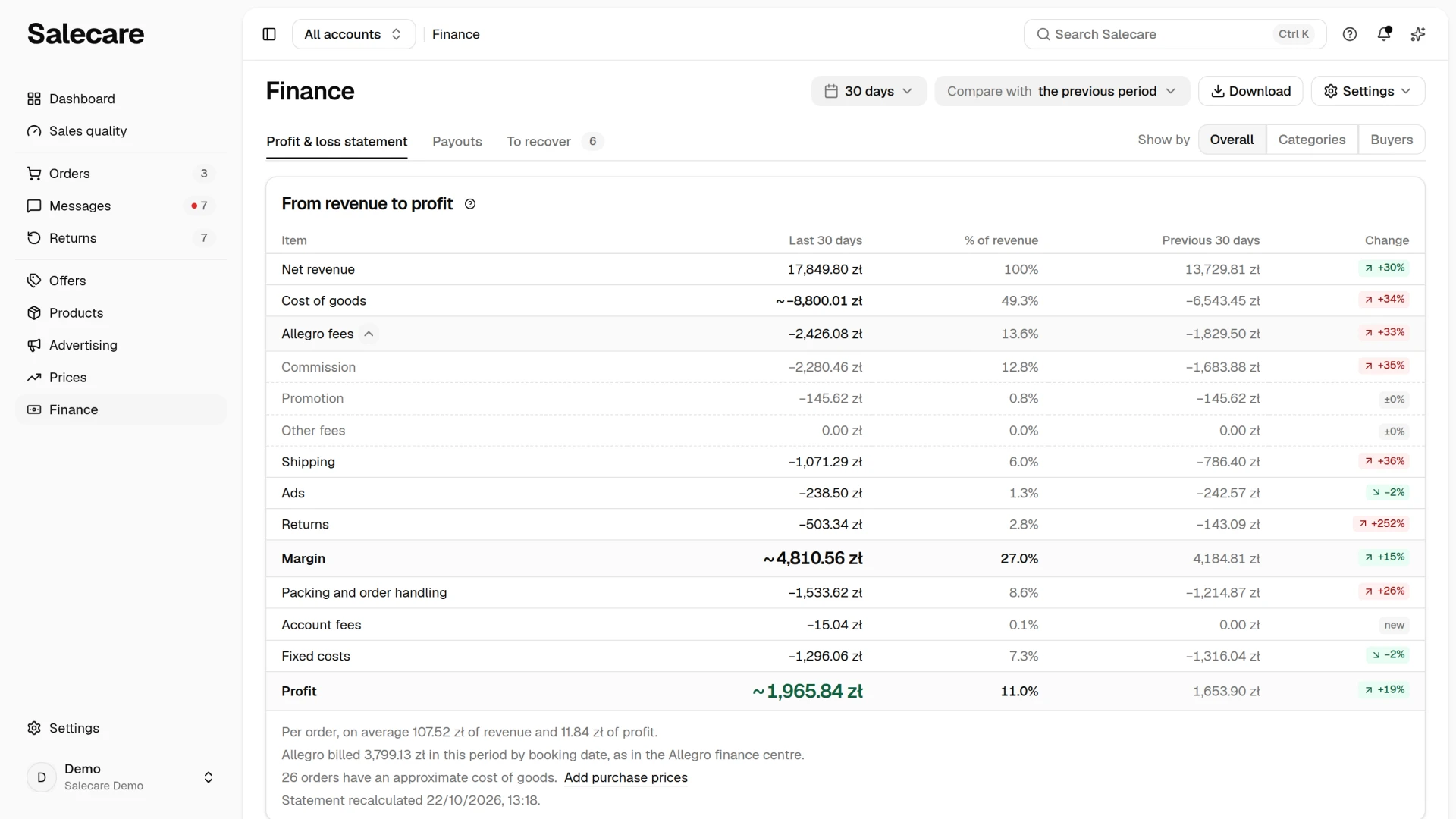
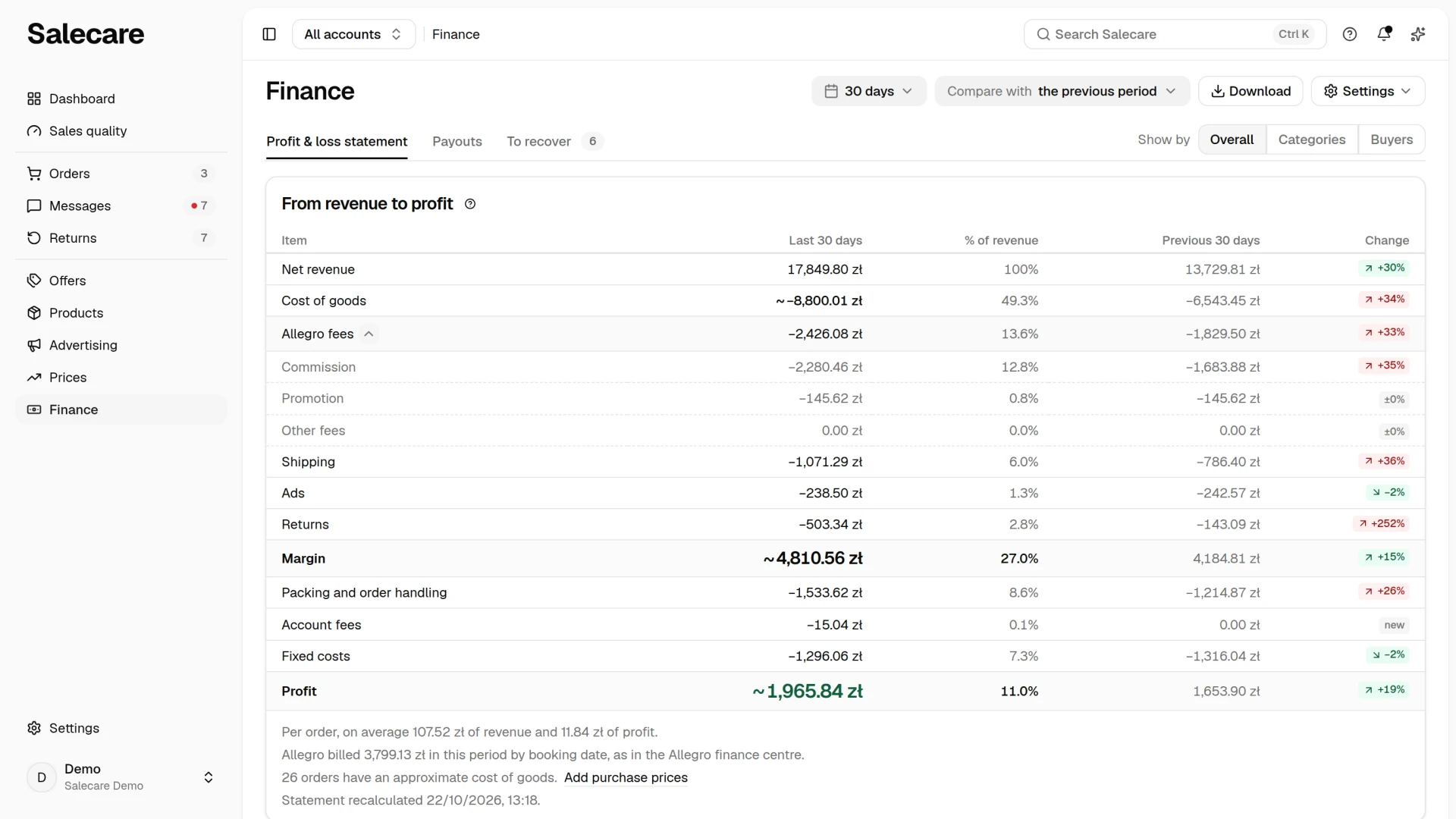
The From revenue to profit table is the full statement of the period. The columns are Item, the amount for the chosen period, % of revenue and, with the comparison on, the amount for the comparison period and Change. The rows come in this order.
- Net revenue (Gross revenue for a company not registered for VAT), which is 100% in the % of revenue column.
- Cost of goods.
- Allegro fees, which you unfold with the arrow beside the name into Commission, Promotion and Other fees. On a phone they stay folded until you unfold them.
- Shipping.
- Ads.
- Returns.
- Margin, that is revenue after those costs.
- Packing and order handling, that is the amounts of the row of the same name on the Costs page.
- Account fees.
- Fixed costs.
- Profit.
Revenue and the number of orders cover paid orders. A cancelled order and one the buyer has not paid for yet are left out. Once the payment arrives, the order enters the statement on the day it was placed. Cash on delivery is the exception. It counts from the moment the buyer fills in the delivery form, that is before they pay on pickup. It stays in revenue even if the buyer does not collect the parcel, until the order is cancelled. The cost of packing and order handling comes off right here, from the margin of the whole period and not from the margin of a single order. The margin on an order and on an offer therefore leaves this cost out. Allegro account fees and fixed costs, that is rent, salaries and subscriptions entered in Settings, on the Costs page, in the Fixed costs panel, come off the profit too. Each month's amount is spread over its days, so a week gets its share of the rent. Fixed costs belong to the whole company, so when you pick one account in the account switcher the Fixed costs row disappears and a line under the statement says that fixed costs are not subtracted for one account. Until you enter any fixed cost, the line "You have no fixed costs." stands under the statement with the Add fixed costs link.
From revenue to profit
The Cost of goods, Margin and Profit rows carry a "~" when part of the orders of the period have no purchase price in the catalogue. For those Salecare counts an estimated cost of goods, so these three amounts are approximate in that part. A line under the statement says how many orders have an approximate cost. The Add purchase prices link opens the Products page with the "Without purchase price" filter, and someone with the Products (view) permission sees it. Filling in the purchase prices on the products removes the approximation.
The Change column holds a pill with the percent change against the comparison period. For revenue, margin and profit the pill is green when the value rose and red when it fell. For costs the colours are the other way round, because a rising cost is unfavourable. A cost pill is red when the cost grew and green when it fell. A higher cost with higher sales is not necessarily bad news, so when you point at the pill you also see the cost's share of revenue in both periods, for example "Share of revenue 4.0% against 2.0%". A cost that was not there in the comparison period has the grey pill "new". A product return and a payment refund without a product return are counted on the day the order was sold, not on the day the buyer sent the goods back or got the money. That way the margin of a month shows what was really left from that month's sales. The consequence is that the result of a month that has already ended can still shrink when a buyer returns goods several weeks later. A complaint, a commission refund or a correction of Allegro settlements, which arrive even weeks after the return deadline, can change it too. Promotion, ads and account fees, on the other hand, are counted on the day Allegro charged them. The statement is therefore a management report by the day of sale, not a record from the books. Accounting books a return in the month the corrective invoice is issued, so the amounts of months with returns will differ from the books. Check the result of a closed month again after about two months.
Under the table stand short lines, each only when it applies to your data.
- "Per order, on average … of revenue and … of profit." With a loss the line speaks of a loss.
- "Allegro billed … in this period by booking date, as in the Allegro finance centre." You can compare this amount with the finance centre in Allegro. The statement costs will not add up to it, because they are assigned to the day of the sale, and delivery is counted separately.
- The number of orders with an approximate cost of goods, with the Add purchase prices link.
- The number of orders with no shipping cost, because no shipping rate covers their delivery method, with the Add a shipping rate link. The cost of those parcels is not subtracted, so the margin and the profit are overstated. Once you add a rate for that delivery method, the margins of those orders recalculate in the background.
- "60 of 100 orders have a VAT rate, so the net amounts cover only those orders." with the Set a default VAT rate link.
- A note about fixed costs (none entered, or one account picked).
- "Orders and fees in … are not in the statement." The statement counts amounts in zloty only. If the period has orders or Allegro fees in another currency, for example from Allegro.cz, point at this line or tap it on a phone. You see them separately for each currency, in the currency they were charged in, with the zloty equivalent at the NBP average rate of the business day before the day of each entry. That equivalent is for comparison and does not enter the sums. The same line says how many orders from other Allegro marketplaces the last order download left out.
- "Statement recalculated …" with the date of the latest recalculation of any day of the chosen period, not of all of them.
Revenue, costs and margin come from a daily summary that Salecare refreshes in the background. After you fix a purchase price or after a correction of Allegro settlements, the margins of orders, visible on the orders list, recalculate first, and usually within a few minutes the statement days on which those orders were placed follow. In a period that includes today the recalculation date is almost always fresh, because today's orders recalculate continuously. So check a fix of older orders on a closed period, for example "This month" after it ends. There the date moves only when one of that period's days recalculates. The lines about fixed costs, purchase prices, shipping rates, VAT and currencies are counted on the spot every time the page opens. When some days of the period hold amounts in different currencies, a message stands in place of the table saying that the statement appears once they are recalculated.
Step 4. Show by
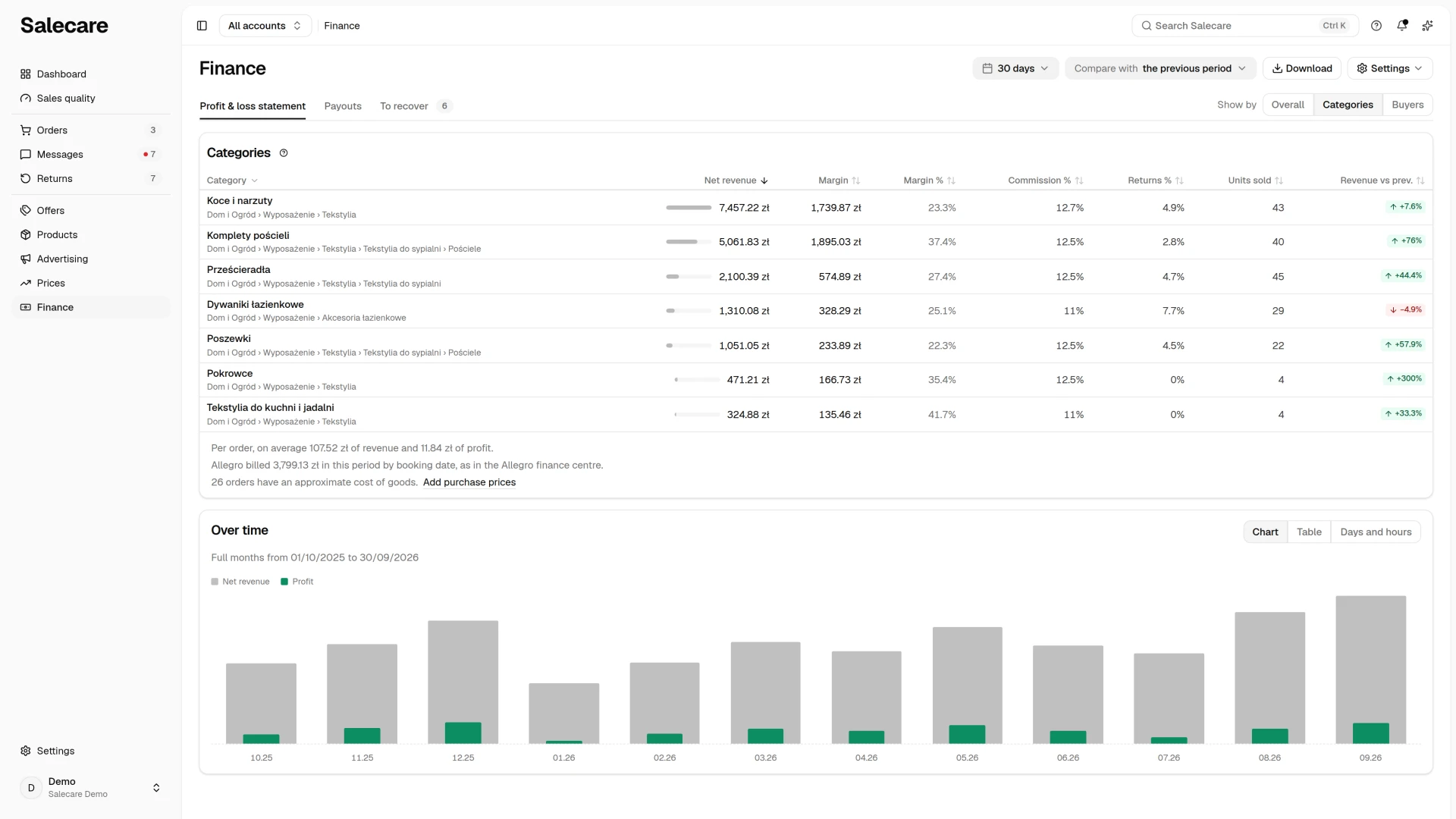
In the row of the Profit & loss statement, Payouts and To recover tabs, the Show by list sits on the right. On a narrow screen it is in a row of its own under the tabs. It has four items, Overall (the statement of Step 3), Categories, Allegro accounts and Buyers. The Allegro accounts view is on the list only when every account is selected and at least two of them sold in the period. Under each view are the same first three lines as under the statement, that is the average per order, the amount Allegro billed and the number of orders with an approximate cost of goods. The views therefore say the same about the period as the statement does.
Categories
The Categories view gives revenue, margin (as an amount and in percent), commission in percent, returns in percent and units sold for each Allegro category, and the revenue change against the period picked in the Compare with list. Clicking a column header sorts the categories. On a phone the categories are rows of the view's card with every value of the table labelled, and you pick the order in the menu above the card. It holds every field the table sorts by, the category path too. The Commission % column says what part of the category revenue went to Allegro commission. Allegro charges commission once for the whole order, so when an order spanned several categories the amount is divided between them in proportion to their share of the order revenue, not by the rate of each category. Sales with no category assigned stand in the row "Uncategorised".
Allegro accounts
Each row of the Allegro accounts view is one account with revenue, share, orders, margin, profit, ad cost and revenue per 1 zł of ads. The header of every column sorts the accounts, and on a phone the accounts are rows of the view's card with the values labelled and you pick the order in the menu above the card. An account's profit leaves out fixed costs, because they belong to the whole company. Revenue per 1 zł of ads is the whole revenue of the account divided by the ad cost, which is why it is higher than the ROAS on the Advertising page, which counts only the sales attributed to the ad.
Buyers
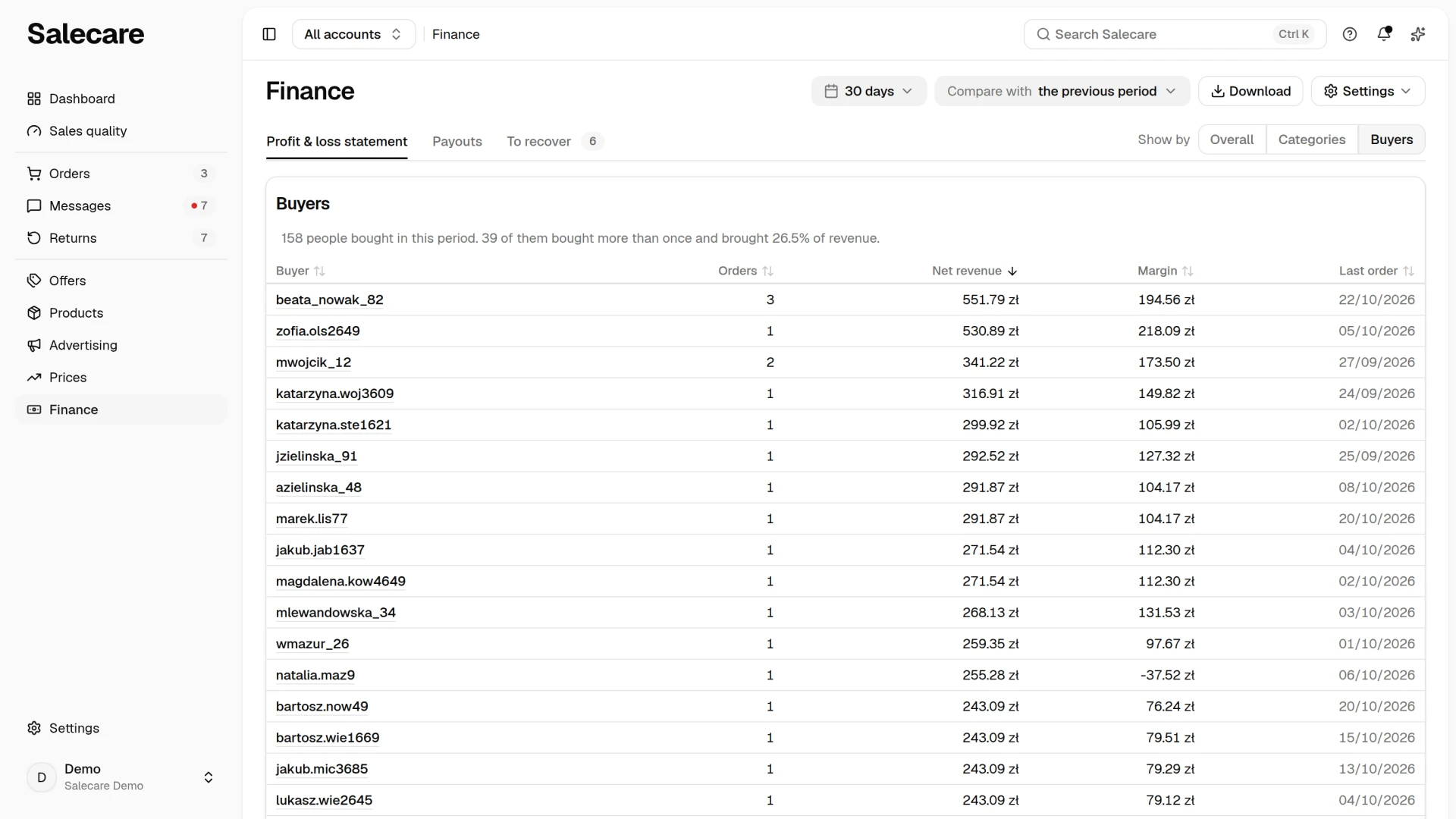
The Buyers view starts with one sentence, for example "120 people bought in this period. 30 of them bought more than once and brought 41.5% of revenue." The same orders count as in the statement, that is paid orders and cash on delivery orders from the moment the delivery form is filled in. A cancelled or not yet paid order therefore does not create a buyer, and orders from foreign Allegro marketplaces in a foreign currency are not in the sums. A returning buyer is one who has more than one such order in the period or already bought earlier, before the period began. A regular customer with one order this month is therefore returning, not new. A buyer is counted separately on each Allegro account. When the same login buys on two of your accounts, the table shows it twice in the all-accounts view and it enters the number of buyers twice. An earlier purchase counts only from the same account and only from orders that Salecare has in its history.
The table lists buyers from the highest revenue in the period. At first it shows 20 rows, and Show all unfolds the rest, 100 buyers at most in all. The sentence above the table therefore counts every buyer, while the table shows the top hundred. The header of every column but Account changes the order, and the hundred in the table are the first hundred in that order. After a click on Orders you therefore see the buyers with the most orders, also those outside the hundred with the highest revenue. A buyer whose margin cannot be stated net always comes last when you sort by margin. On a phone the buyers are rows of the view's card, and you pick the order in the menu above the card. The columns are Buyer, Account (with all accounts), Orders, Net revenue, Margin and Last order. The buyer's login is a link to their orders for someone who may open orders. A buyer's margin is the sum of the margins of their orders, before packing and order handling, account fees and fixed costs. This is where you see what turnover alone does not show, for example a buyer with high revenue and a negative margin. Such a row is a signal to review their orders, returns or shipping costs before they buy again.
Step 5. See the months and hours of your sales
Under the statement and under every view sits the Over time card. It has three modes, Chart, Table and Days and hours, and the mode you pick stays in this browser. The Chart and Table modes show twelve full calendar months that ended on or before the end of the chosen period. The line above them gives these months with dates, for example "Full months from 01.10.2025 to 30.09.2026". These months do not depend on the chosen period, so they serve for judging a season. Chart sets the revenue and the profit of each month side by side. Table gives, newest month first, orders, revenue, cost of goods, Allegro fees, margin and profit. If revenue grows while profit stands still, costs grow faster than sales and it is worth checking which.
Days and hours
The Days and hours mode counts the orders of the chosen period. The line above the grid names that period. When the period is at least two weeks long and has at least 10 orders, a sentence above the grid names the weekday with the highest average number of orders per day. The grid of weekdays and hours shows the number of orders in each hour, and a darker cell means higher revenue. Cancelled and unpaid orders are not counted in it. Hours are given in Polish time. Salecare loads the data of the grid only when you first open this mode.
The statement as a file
The Download button in the page header opens the Downloads panel with the New file form already filled in. The form holds the period from the screen, which you cannot change in the panel. You pick the format, CSV, Excel or PDF, and click Prepare file. Each row of the file is one day, week or month, depending on the length of the period. For a period of up to 31 days a row is a day, up to 92 days a week, and for a longer period a month. The columns run from revenue, through purchase cost, commission, shipping, ads, promotion, other fees and returns, to margin, packing and order handling, account fees, fixed costs and profit, together with margin and profit in percent. The file covers the accounts picked in the top bar. The amounts are the ones on screen, that is net for a company that is an active VAT payer and gross for a company that is not. The column names say which. Fixed costs are taken off when the statement covers every account. The file also carries the notes the page shows under the statement when they apply to the chosen period, that is on orders without a VAT rate, on an estimated cost of goods, on parcels without a shipping rate and on orders or fees in other currencies. In CSV and Excel they stand under the table, after an empty row, and in PDF in the header. The file is prepared in the background and the panel stays over the statement, so you lose nothing from the screen. When the file is ready, the message "File ready" appears and the list shows a Download button. You can open the list of files at any time from the account menu, with the Downloads item.
The "All time" option is in the Downloads form for the reports that take data from the whole history, for example the orders list. The profit and loss statement is not there, because the statement always has two dates. You download it only with this button on the page, for the period you have open. The Download button shows when the chosen period has data and when your team account may order exports. Before you pass the file to an accountant, remember that returns are in it on the day of the sale, as on screen, so months with returns will not agree with the books.
What next
A summary of these figures, with the matters waiting for you, is on the Dashboard, described in the guide "How to read the Salecare Dashboard". These figures are as reliable as the costs the app knows. If you are not entering them yet, go to the guide on setting up costs and margin. The Payouts tab is described in "How to read Allegro payouts", and the To recover tab, that is commission refunds and unusual fees, in the guide on recovering commission and the guide on unusual fees. When a line under the statement says that only some of the orders in the period have a VAT rate, for example "60 of 100 orders in this period have a VAT rate…", the other orders are missing a VAT rate. You set it by the guide on VAT and rates.