How to check unusual Allegro fees
Hidden Allegro surcharges only come to light in your settlements. A shipping surcharge, a fee charged more often than usual or a commission higher than the sales would suggest first has to be noticed, and then reported to Allegro separately. Salecare compares Allegro fees with your own norm and shows in the Unusual fees card only what deviates from it, together with the amount you paid above the norm. It works the norm out from the last 90 days, separately for every account and kind of fee. A kind of fee charged fewer than 20 times in that time, an Allegro subscription for example, has no norm yet, so its amount is not compared. The list holds fees only, that is money Allegro took. Commission refunds, discounts and payment refunds to buyers are not fees and raise no alarm.
Detecting unusual fees is part of the Pro plan and up. On a lower plan the Unusual fees card says which plan has it instead of showing the list. On Pro two kinds of signal run, fees higher than usual and a higher commission rate. The other two, the same fee charged more often and a new kind of fee, come with the Business plan.
The Unusual fees card is about costs. Sales anomalies, that is a sudden drop in an offer's sales or returns above the account average, are reported by the email alerts "Offers with a sudden sales drop" and "Offers with returns above account average". You set them up following the guide "How to set up notifications and alerts".
Step 1. Open Unusual fees
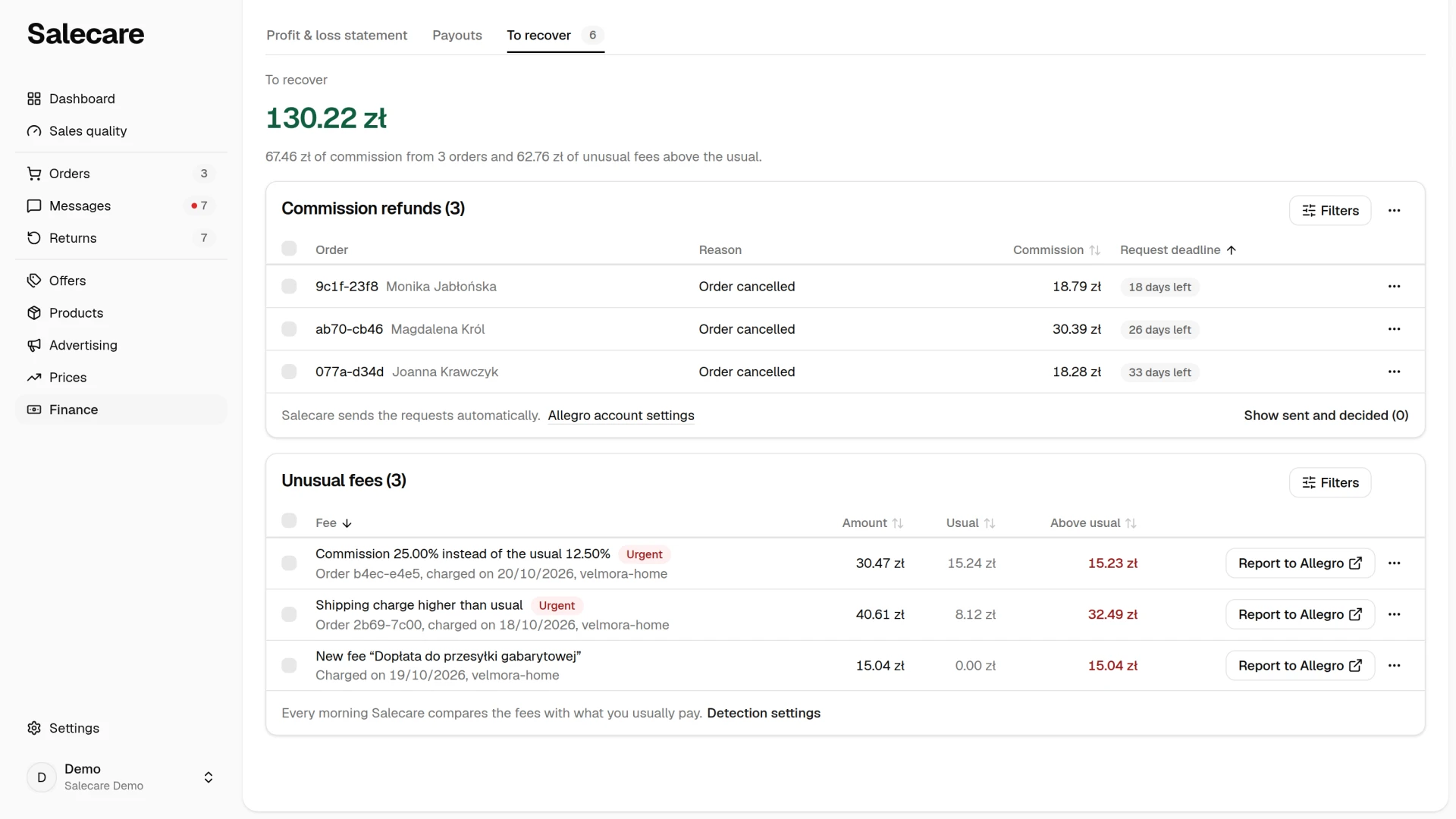
Click Finance in the menu, and in it the To recover tab. The Unusual fees card is the second card of that tab, under the Commission refunds card, with the number of fees to check in its title. At the top of the tab stands the amount to recover. It is the commission of the requests waiting to be sent plus the part of the unusual fees above what you usually pay for that fee. Under the amount you see how much comes from which source. The same amount stands on the Dashboard in the To do card and in the morning report, and the count beside the name of the To recover tab counts requests to send and unusual fees you have not checked yet. The old address of the anomalies list now leads to this tab.
Salecare checks your billing once a day in the morning, and a newly connected account also right after its first synchronisation, so a fee charged during the day reaches the card the next morning. A notification in the bell also announces every new signal and opens the card with that row at the top. You set the email summary on the Emails and notifications page, in the Unusual fees topic. Until Salecare finds the first unusual fee, the card says "Salecare checks your settlements every morning and shows any charge higher than usual here.". When every fee is checked, it says "Nothing is waiting to be reviewed.", and the Show checked button in the card footer brings them back. When nothing waits either to be sent or to be checked, the tab says "Nothing to recover.".
Monitored areas
The card collects four kinds of deviation. A fee higher than usual is a single fee clearly higher than your norm for that kind of fee, for example a sudden jump in the cost of an ad or in a courier surcharge. A fee that shows up more often than usual is a kind of fee charged many more times than usual in one day. Salecare counts the shipping charge, the courier surcharge and Allegro Buyer Protection per order then, so a day of heavy sales alone raises no alarm. A commission rate higher than usual is an order on which the commission divided by the order value is clearly higher than the account's usual rate. Commission is counted as a percentage of sales, so an expensive sale alone raises no alarm. The usual rate is one norm for the whole account. When you sell in categories with different rates, a mistake in a category with a low rate, for example a doubled 6% commission against the account's usual 12%, may not exceed that norm and give no signal. A new kind of fee is an Allegro charge that was not on this account before, also when it belongs to a kind of fee you already pay, a new courier surcharge for example. Such a row has the heading "New fee" with the name of the Allegro operation.
Step 2. Read the row
Each row has a heading that says what happened, for example "Courier surcharge higher than usual", "More “Courier surcharge” charges than usual", "Commission 14% instead of the usual 11%" or "New fee “Listing fee”". Under the heading stands a detail, that is the order number and the day of the fee ("Order 12345, charged on 05.10.2026"), the day of the fee alone, or, for fees charged more often, "Charges of" and the day of the jump. Beside it you see the Allegro account and the "Urgent" badge on the signals that deviate the most from the norm. Fees with that badge stand at the top of the list. Three columns with amounts say what it cost.
- Amount is the fee that was charged.
- Usual is what you usually pay for such a fee.
- Above usual is the difference, the part that counts toward the amount to recover.
The amounts are counted as everywhere else in the app, that is net for a company that is an active VAT payer. The Amount and Usual headers sort the list. On a phone the fees are rows of the card with a tick box, the row menu and the labelled values Amount, Usual and Above usual, with Report to Allegro under the fee, and you pick the order in the menu above the card. Picking the same field again reverses the order. The Filters button narrows it by urgency, kind of signal, kind of fee, amount, usual amount, day with more charges, detection date and account.
How the amount above usual is worked out depends on the kind of signal.
- A fee higher than usual. Usual is the upper bound of fees of this kind from the last 90 days, and Above usual is the amount less that bound.
- A new kind of fee. Usual is zero, so the whole amount counts as above usual.
- A commission rate. Usual is the commission the account's usual rate would give on the value of this order, and Above usual is the difference between the commission charged and that amount.
- A fee charged more often. The row shows the total of fees of this kind on the day of the jump, with dashes in the Usual and Above usual columns. Salecare knows how many charges on that day are usual, but not which of them were extra, so it counts no excess here. A one-off burst in the number of fees is therefore on the list and in the number in the card title, but adds nothing to the amount to recover, on the Dashboard or in the morning report.
- A signal with no usual value also has dashes and adds zero.
Step 3. Report a wrong fee to Allegro
Salecare sends nothing to Allegro and files no complaint, so when a fee is charged wrongly, you report it yourself. Every row has a Report to Allegro button. It copies a ready text to the clipboard and opens Allegro's contact form in a new tab, the Contact us page in Allegro Help. The message "Fee details copied. Paste them into the Allegro form." appears. The text holds one request to check the fee, with its kind, day and account login, the gross amount with the usual gross amount (or the gross amount alone when there is no usual one), and the order or offer number, because Allegro needs these details to find the charge. The amounts in the text are gross, as in Settlements with Allegro in Sales Center, where you find the fee, also when the columns of the card show net amounts. When the browser refuses to copy the text, the Fee details window shows it to copy by hand, and the Open the Allegro form button opens the form. For fees charged more often you report the fees of that kind from the day of the jump. Show order in the row menu opens the order in Salecare if you have access to it.
Step 4. Mark a fee as checked
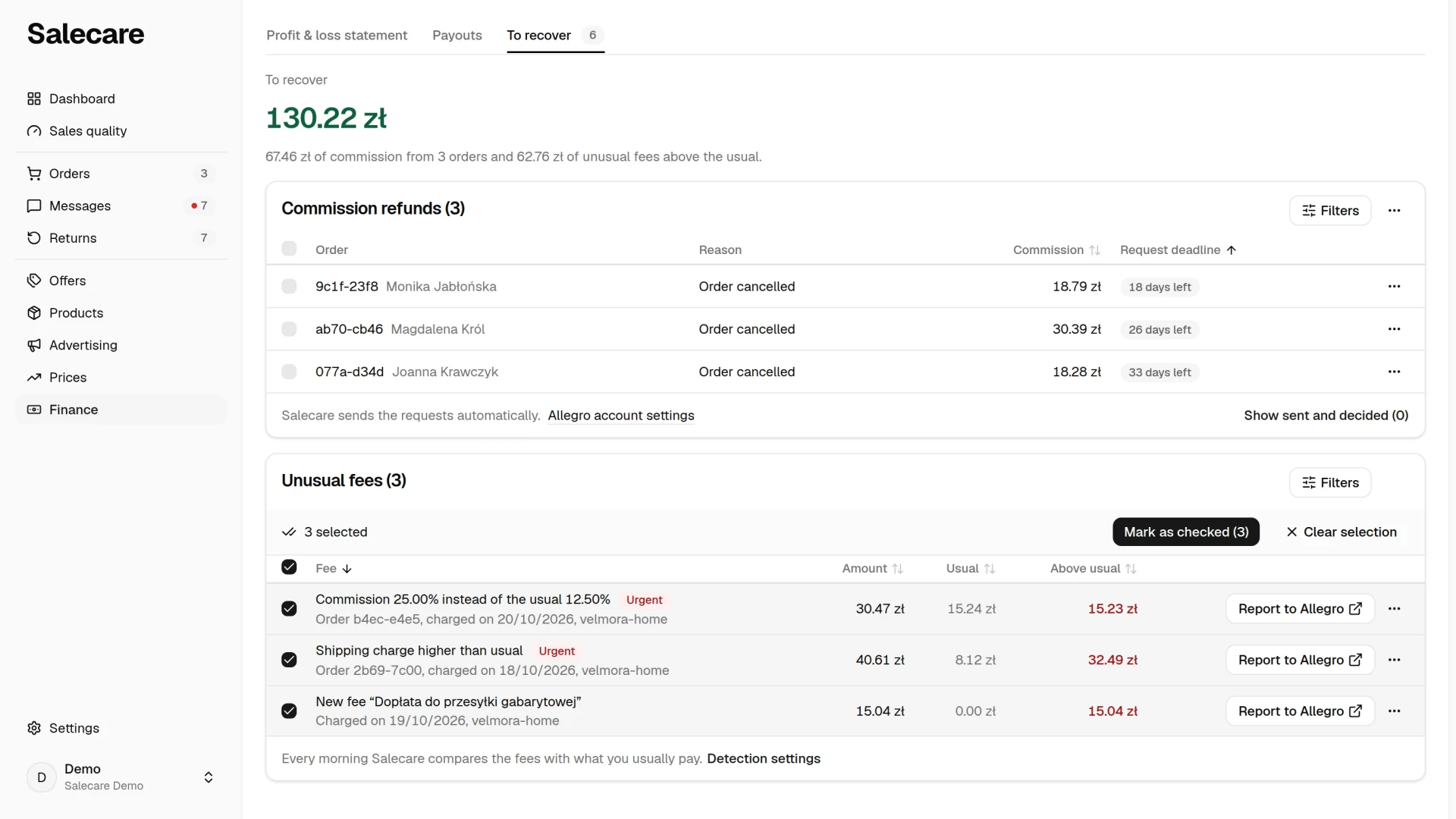
When the matter is cleared up, open the row menu and click Mark as checked. To close several fees at once, tick the rows or the Select all box in the table header. Then click Mark as checked in the bar above the list, which gives the number of ticked fees. The mark works at once, with no confirmation window, and a message "Marked as checked." with an Undo button appears at the bottom of the screen. The Undo button puts back what you just marked, and the fee returns to the list to check. Nothing goes to Allegro. A checked fee leaves the list and the amount to recover, and you see it again after clicking Show checked. There the row menu has Mark as not checked, which puts the fee back on the list.
Step 5. Tune the detection
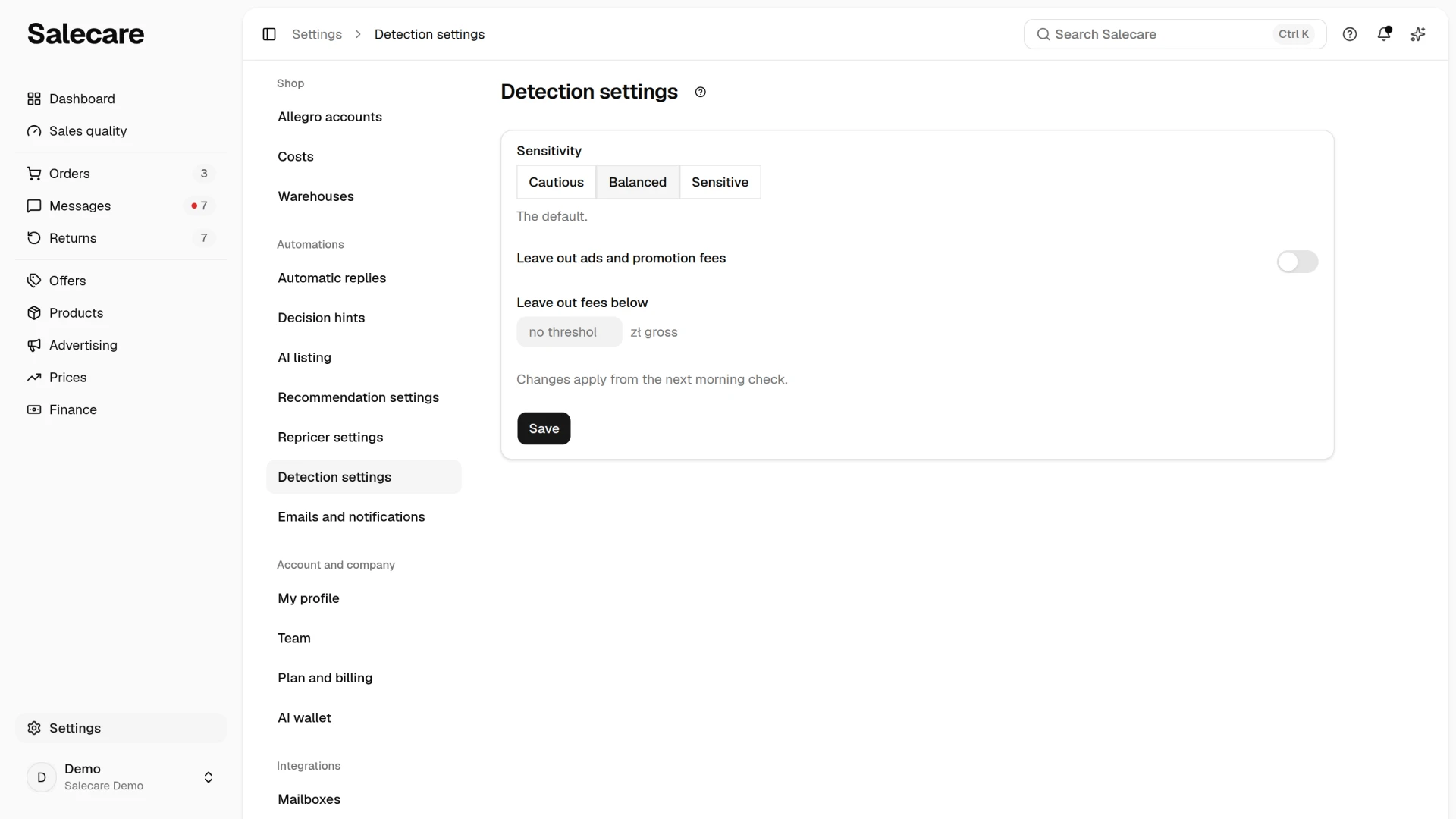
Click Detection settings in the card footer, beside the sentence that Salecare compares the fees with what you usually pay every morning. The link is visible to someone who may change these settings. It leads to the Detection settings page in Settings. The Detection settings entry under the Settings button in the header of the Finance page leads to the same page from every tab, as does the Detection settings row in Settings, in the Automations group. When you came from Finance, the path at the top of the page leads back to Finance, and on a phone the Back to … link does the same. The Discard changes button puts back the saved values. The Sensitivity field has three settings, "Cautious" (only large deviations), "Balanced" (the default) and "Sensitive" (smaller deviations too). The higher the sensitivity, the more signals to review. Salecare applies the sensitivity to fees higher than usual, a commission rate higher than usual and sudden increases in how often a fee is charged. From October to December and for 3 days before and after public holidays (New Year, 1 and 3 May, Easter, All Saints' Day, Christmas) Salecare raises the threshold for the daily "Ads" charge and for fees charged more often, because in that time both grow with sales. In the fourth quarter the threshold is one and a half times higher, and from 22 to 29 December 2.4 times. Single fees, a courier surcharge or a correction for example, the commission rate and the fees counted per order keep the same threshold all year.
The Leave out ads and promotion fees toggle mutes "Ads" and "Promotion" fees, that is, costs you generate yourself in campaigns. They are still visible in the margin, on the Profit & loss statement page and in the Revenue breakdown card on the Dashboard. They only stop raising alarms. The Leave out fees below field sets a threshold on the gross amount in zloty, as in Settlements with Allegro. Individual fees smaller than that amount do not reach the list as higher than usual or as a new kind of charge. The commission rate check and sudden increases in charging frequency work regardless of amount, so the threshold does not switch off the commission check on cheap orders. When you want no threshold, leave the field empty, and it shows "no threshold". The Detection settings page has only these three fields. You turn the morning email of orders from the last 90 days that settled below cost on and off with the switch in the Orders below cost row on the Emails and notifications page, and it arrives every day at 07:00. The email lists up to 20 orders with the biggest loss, with the Allegro order number and the day it was placed, and each order is included only once. The email goes to the email recipients on that page, the people of the team picked on the list, or to the company owner while the list is empty. It leaves out anyone without the Orders (view) and Margins and purchase prices (view) permissions. The email stays on until you switch it off, and once it is off you still see those orders on the orders list. You save the page with the Save button, and the changes take effect from the next morning check, which covers fees from the last 7 days. Signals already on the list stay, so after muting advertising fees close the old advertising signals with Mark as checked.
What next
The commission Allegro did not give back after returns is watched by the Commission refunds card above the unusual fees. See the guide "How to get the Allegro commission back after a return in 2026". The whole picture of costs and profit is in the guide "How to read Finance, the profit and loss statement".