How to set up notifications and alerts
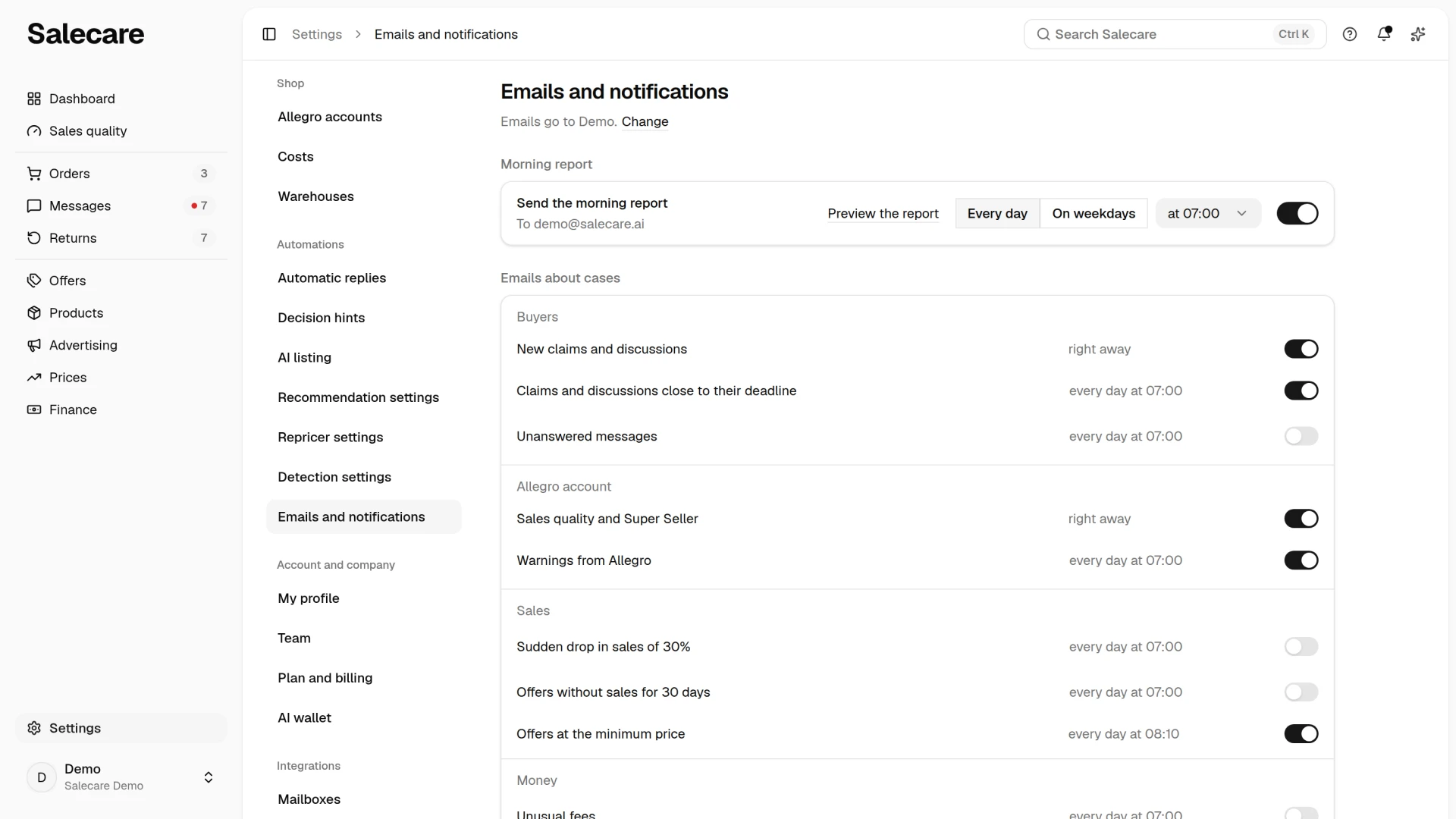
Something new keeps happening on an Allegro account. A claim with a deadline comes in, a commission rate goes up, Allegro sends a warning. When you check for it by hand, refreshing one page after another, something will eventually slip. Salecare tells you about it in three ways. The morning report gives yesterday's figures and today's matters every morning. Live notifications in the app tell you about events straight away. Emails about cases arrive right away or as summaries based on your own thresholds, every day, every week or every month. You set up the morning report and the emails on the Emails and notifications page, which you open in Settings, in the Automations group. The page opens for every person on the team, because each person sets up their own morning report. Only a person with the Workspace settings permission sees the list of recipients and the topics of the emails about cases, because they are a setting of the whole company. Everyone else sees only their own morning report on this page. The old /alerts address and the Emails and notifications link at the bottom of Salecare emails and at the bottom of the Notifications panel open the same page.
Step 1. Set up the morning report
The morning report is an email to the confirmed address you sign in to Salecare with. You set it up on the Emails and notifications page, in the Morning report group, in the Send the morning report row, which shows your address under it. The switch in that row turns the report on and off. Next to it you choose the days ("Every day" or "On weekdays") and the send time (06:00, 07:00, 08:00 or 09:00). You can pick the days and the time while the report is off, too. Every change saves at once, and Undo in the message brings the previous setting back. "On weekdays" means Monday to Friday, and public holidays are not skipped. The report also comes on a holiday that falls on such a day. With the settings unchanged, the report comes every day at 07:00. The setting applies only to your address, and the report does not depend on the list of recipients or on the topics of the emails about cases. The person who sets up a new company has it on from day one. Everyone else, including people added to the team later, has it off until they switch it on themselves on this page. Every person on the team switches it on here themselves, also without the Workspace settings permission. The same switch, named Morning report by email at 07:00, is also on the Downloading data page during the first data download.
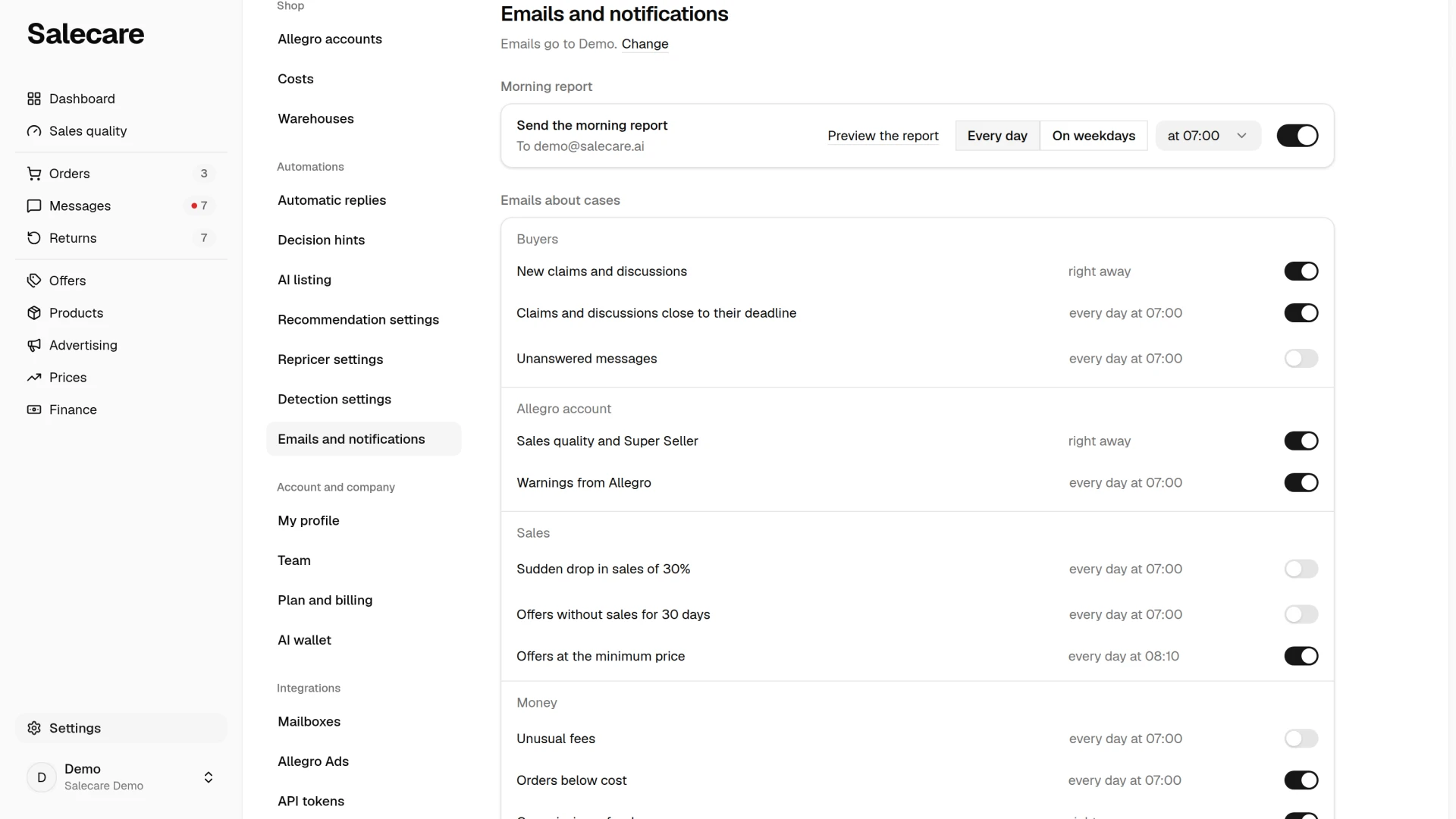
The Preview the report link in that row opens the Morning report panel with the email that would reach your address now. The preview sends nothing. When the company has no connected Allegro account, the panel says "The report comes once an Allegro account is connected." When the report would hold nothing for you, the panel says "No report comes today, because it holds nothing you can open in Salecare."
The report has two parts. The Yesterday part gives the revenue, the profit, the orders against the average of the 7 days before and Available for payout. That is the available balance of your Allegro wallets in zloty, as of today or as of the day it was last read. The figures cover every Allegro account together. A tilde before the profit means the cost of goods is estimated, and the "Preliminary" badge says Allegro may still change some of yesterday's fees. When the company is registered for VAT and some of yesterday's orders have no VAT rate, a sentence under the figures says how many orders have one. When none has one, the report gives no revenue and no profit, and its subject line gives the number of orders. The Today part lists at most five matters from the To do list on the Dashboard, in the same order and with the same deadlines. It sums up the rest in one sentence. When nothing waits, the report says "Nothing urgent today". The Open Dashboard button opens the Dashboard for all accounts. When the subscription payment failed or an Allegro account is disconnected, the report opens with a sentence about it.
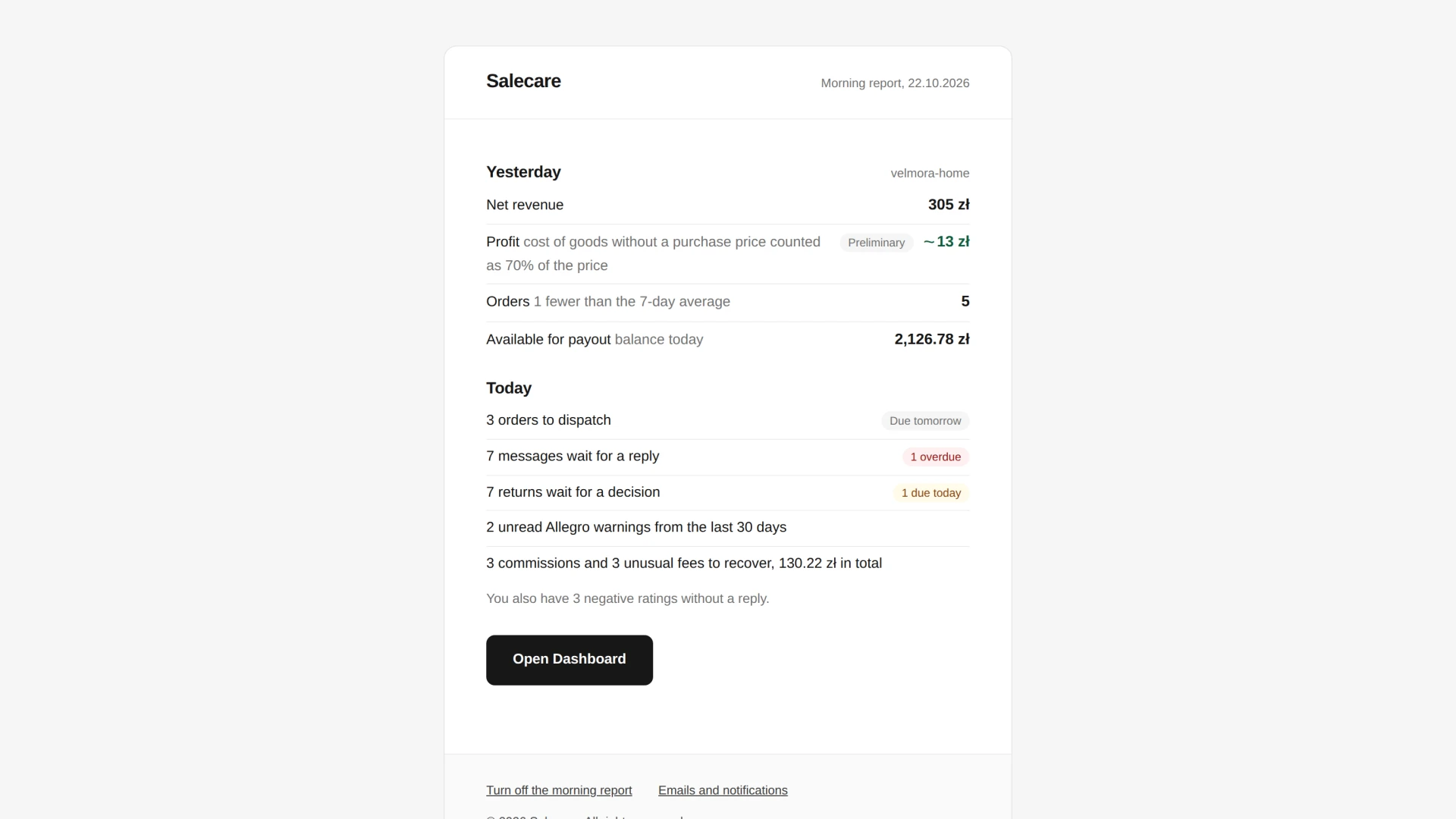
The report shows only what you may open in the app. The Yesterday part goes to people with the Analytics & reports (view) permission, and only those who also hold Margins and purchase prices (view) see the profit in it. The Today part lists only the matters of the lists you may open. When the report holds nothing for you, it does not come that day. No report goes to a company with no connected Allegro account, to a company in its grace period or to one with a locked account. A new company gets its first report at the first report time after Salecare has worked out the figures of the last 30 days.
Every morning report has a Turn off the morning report link at the bottom. It opens a page where you turn the report off with the Turn off the morning report button, without signing in. Opening the link changes nothing by itself. Once it is off, the same page shows a Turn it back on button. The link turns off the report to your address only. Gmail and Apple Mail may also show their own unsubscribe button, which turns the report off in one click. The Emails and notifications link at the bottom of the report opens the Emails and notifications page once you sign in.
Step 2. Start with the bell
The bell in the top bar opens the Notifications panel over the page you are on. A dot on the bell means an unread notification or a new Salecare announcement. New notifications appear in the panel immediately, without refreshing the page. Salecare fetches claims and discussions from Allegro every 15 minutes, so you know about a new claim at most about a quarter of an hour after it was opened on Allegro rather than the next day.
Notifications are laid out by day, under the Today and Yesterday headings, and older ones under their date. Unread narrows the list to unread notifications, and the More menu sets the period and lets you order the list oldest first. Notifications of one kind from the same hour are gathered into one row with a count, "×3" for example. Show older loads the next rows, about 30 at a time. Clicking a row opens its case and marks every notification of that row as read, and Mark all as read at the top marks every one as read in one click. An unread discussion or claim whose reply deadline is today or has already passed shows "Urgent". At the top of the list sits a new Salecare announcement, when there is one. Any account status that waits in line behind the one shown in the bar under the top bar sits there too, a disconnected account for example. The Emails and notifications link at the bottom of the panel opens that page.
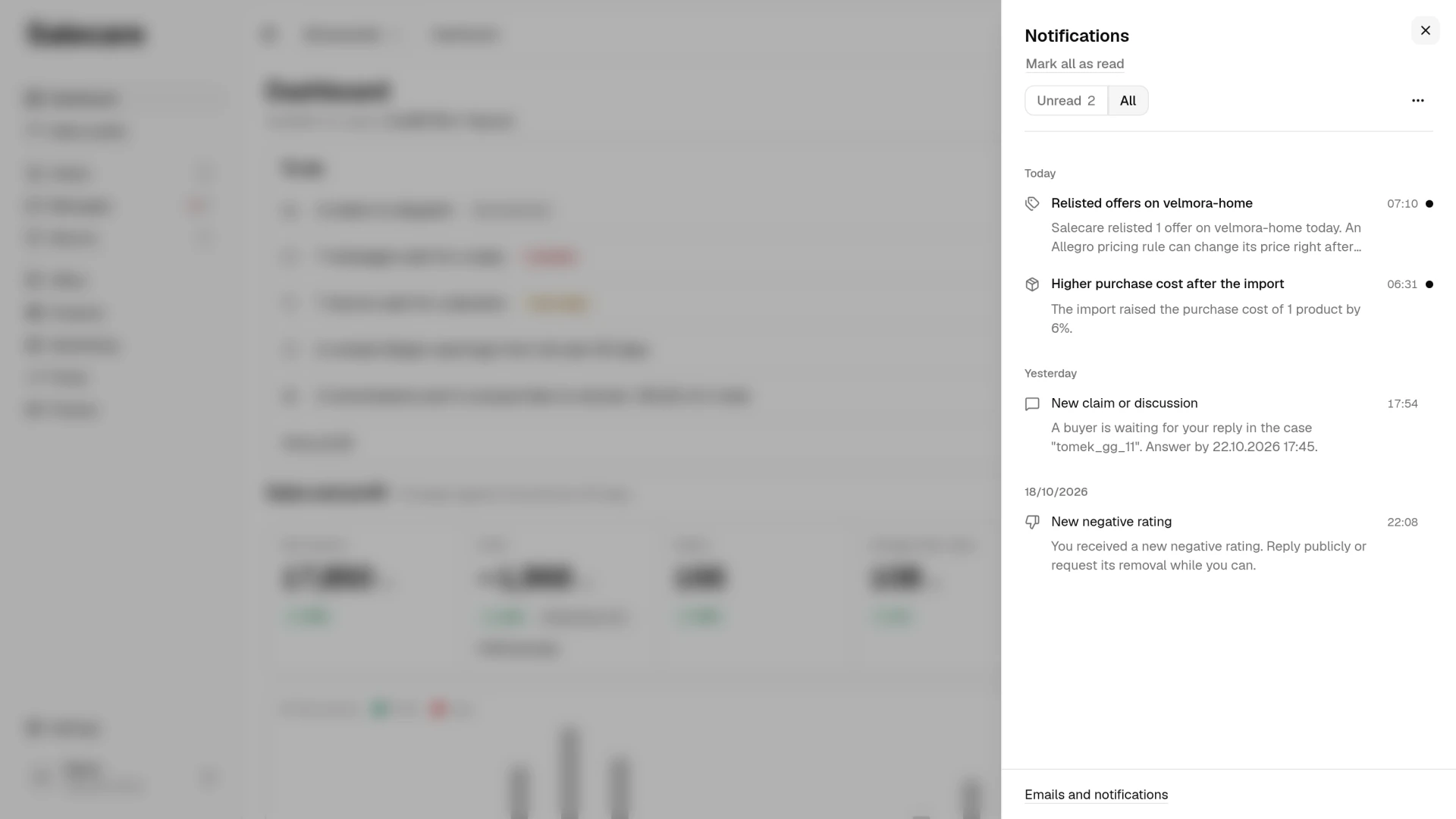
Notifications of one kind from the same clock hour are joined in the panel into a single row with a count, ×3 for example, so three finished files do not take the whole list. Clicking such a row marks every notification it joins as read. The text appears in the language you have the app set to, no matter when the notification was written. Only the parts that come from your own data are not translated, the description of a detected anomaly or a quoted buyer message, for example.
When a data file is ready, a notification names it, for example "The file Orders September 2026 is ready", with a Download button. Clicking the row opens that file on the Downloads page. When the file cannot be prepared, the notification says "The file could not be prepared" and gives the same name. Files are described in the guide "How to export data to files".
The "Relisted offers on" notification, followed by the account name, arrives at most once a day per account, when the daily relisting of ended offers relisted an offer there or got an Allegro refusal. It gives the number of relisted offers and reminds you that an Allegro pricing rule can change their price right after the relist. When Allegro did not relist some offers, it names how many, the first of them and the reason Allegro gave. Clicking it opens the settings of that Allegro account at the relisting panel. This notification has no email copy. Relisting is covered by "How to relist ended offers".
The "Photo batch finished" notification goes only to the person who started the photo batch from the bulk action bar on the Offers page, once the batch has no offer left to edit. It gives the number of photos ready and the number of offers in the batch. When the batch stopped early, it also gives the reason, an AI wallet that ran out or the amount approved at the start being reached. Clicking it opens the batch page, where you review the results and choose which to send to your offers. This notification has no email copy. Photo batches are covered by "How to edit the photos of many offers at once".
The "Allegro rejected some of the photos" notification arrives after you send the results of a photo batch to your offers, when Allegro rejected at least one photo of that send. It gives the number of rejected photos with the number of all photos of the send and the reason on the first rejected offer. Clicking it opens the batch page, where every rejected offer shows the reasons Allegro gave. This notification has no email copy.
The "Offers with a blocking error" notification arrives when the catalogue compliance check found new offers on an account with an error that makes Allegro refuse to renew them or to save any edit other than a price or stock change. It gives the account name and the number of offers that got the error in that check. It arrives at most once a day per account. Clicking it opens the To fix tab on the Offers page with the "All" reason picked, where the offers with the "Allegro may end it" reason come before the offers with the "Catalogue error" reason. This notification has no email copy. With most of these errors the offers keep selling, but Allegro can end an offer with no link to a catalogue product in a category that requires one, so link such an offer straight away. What a blocking error is and how to fix it is explained in "How to match Allegro offers to products".
The "Offers unlinked from products" notification arrives when automatic matching removed the links of offers to products, because for 24 hours neither the EAN, nor the signature, nor the title they were made from pointed to those products any more. It gives the number of such offers and the name of the first one. Salecare no longer sends warehouse stock to these offers and no longer relists them automatically. On Allegro they keep the quantity last sent. Clicking it opens those offers on the Offers page, with the Product field set to "No product". This notification has no email copy.
Email messages carry their own language setting. The Language item in the account menu changes the language on screen, and after the change Salecare asks whether it should write to your company in the same one. Only once you confirm do the morning report, alert digests, payment reminders and the email copies of notifications arrive in the chosen language, Polish or English. The setting covers the whole company.
Step 3. Set up the emails about cases
Email recipients
The line under the title of the Emails and notifications page says who of the team gets the emails about cases, "Emails go to Anna Lis and Piotr Len." for example. The Change button next to it opens the Email recipients panel with everybody in the team. Each person has a checkbox, their name and the address they get the emails at, which is the sign-in address they confirmed last with a code. You tick any number of people and store them with Save, and Undo in the message brings the previous list back. Cancel closes the panel without a change. A recipient can only be a person of the team, not an address typed in. A new person in the team gets nothing until someone adds them to the list, and a person removed from the team leaves the list. Every recipient gets a message of their own, so nobody sees who else got it.
While the list is empty, the company owner gets the emails, and the line under the title says so, "The list of recipients is empty, so emails go to the company owner, Anna Lis." for example.
A recipient gets an email only when they may open the page it leads to. The email about a new claim goes to a person with the Discussions (view) permission, and the emails about margins and minimum prices and the competitor report only to a person with Margins and purchase prices (view). Under a person who will not get some of the emails switched on for lack of a permission, the panel says in one sentence which topics they will not get and which permission they lack. You change the permissions on the Team page. A person who has not confirmed their email address gets no email at all, and the panel says that under their name too. The morning report does not depend on this list, because each person gets it at their own address.
Messages about the account and payments, a failed payment, an ending trial or a locked account for example, and the message about a lost connection to an Allegro account always go to the address in the Invoice email row on the Plan and billing page, not to the recipients of this page. Every owner of the company also gets a copy at the address they sign in with, so these messages do not wait in the accounting office's inbox. A lost connection stops the download of that account's orders and stock. The warning about a stopped sync covers only accounts that are still connected.
Two warnings always reach the recipients, with no switch, because they cannot be foreseen and they cost money the same day. A sentence under the email topics says so. The first is about an offer that still sells a product with no stock in the warehouse, on an account whose stock Salecare does not control. The second is about a connected account whose sync failed three times in a row (for orders that is usually about half an hour, for offers about two hours). Each has its own frequency limit, so one failure gives one message, not a series. The email about offers selling without stock arrives at most once every 12 hours per company. Salecare sends it a few minutes after the first such product, so that it covers the whole stock update, the overnight wholesaler file for example, and it gives the number of products and the names of the first three. A product that runs out of stock within those 12 hours goes into the next email, sent once they are over. You see the full list straight away in the Notifications panel.
Email topics
The Emails about cases group has one row for each topic, and the topics sit in the Buyers, Allegro account, Sales and Money groups. More topics unfolds the less used topics. There you find the Offers and returns, Data upkeep and Salecare groups, and the Competitor report (PDF) row at the end. Each row shows only to a person who may open the page the topic's email leads to. Only a person who also holds Margins and purchase prices (view) sees the Offers at the minimum price, Orders below cost, Offers with a low margin and Competitor report (PDF) rows. Each row says when its email goes out, "right away", "every day at 07:00" or "on Mondays at 08:00" for example. When a rule covers one account, the row also gives its login. When there are several rules, the row gives their number and when the rules that are on send, "2 rules, every day at 07:00" for example, and "2 rules, different sending times" when they send at different times. For the topics sent right away the switch turns off the emails only, not the bell notifications. Of the rule summaries only the summary of the Claims and discussions close to their deadline topic reaches the bell, so switching that topic off also turns that notification off.
Each topic except the Competitor report (PDF) row without a rule has a switch that saves at once, and Undo in the message brings the previous state back. The switch shows whether a topic is on, and the topic's name looks the same in both states. Switched off, the switch of a topic with rules turns all its rules off and remembers which of them were on, and switched on again it turns exactly those rules back on. When the topic remembers nothing, switching it on turns all its rules on. Switching on a topic that has no rule yet opens its panel on the "New rule" form and stores nothing until you add the rule with Add the rule. When a topic has one rule, the number in its name, the 30% in Sudden drop in sales of 30% for example, opens the topic panel with the form of that rule. You change the number in the form and store it with Save the rule. At the start the New claims and discussions and Sales quality and Super Seller topics are on, because the account's standing depends on them. The other topics sent right away are on at the start when the company has an alert rule switched on. At the first change of the company's settings on this page, that is a switch, the list of recipients or a rule in the topic panel, Salecare stores which of these topics are on at that moment. From then on each topic keeps its own state whatever the rules. When the company had no alert rule switched on then, these topics stay off also after the first rule is saved, until you switch them on.
Two topics have a fixed time. Offers at the minimum price arrive every day at 08:10 as one morning list of the offers that sit at their minimum price. Orders below cost arrive every day at 07:00 in one message, with the Allegro order number and the date it was placed. The message covers the orders of the last 90 days and lists up to 20 with the biggest loss, and its button opens the orders list filtered to a negative margin. You turn this email on and off for the whole company with the switch in the Orders below cost row.
The Commission refunds and Offer drafts topics send emails right away and, when they have a rule, a summary too. Their row then says "right away and every day at 07:00", for example. Switching the row off turns both kinds of email off and remembers which of them were on, and switching it on again turns exactly that back on. When the row remembers nothing, switching it on turns on only the emails sent right away, because you set up the summary in the topic panel with the schedule you choose. The panel of these two topics has an Email right away switch that turns off only the emails sent at once and keeps the summary. The Commission refunds topic sends new cases to file and Allegro's decisions right away, and the Offer drafts topic sends new drafts, drafts Allegro refused and offers below cost.
Cases, messages and warnings from Allegro
The New claims and discussions topic in the Buyers group sends an email right away for every new case. The Claims and discussions close to their deadline topic sends a summary of the after-sales cases awaiting your reply, with less than 72 hours left to the decision deadline or, for a claim, waiting on your decision for 5 days. The Warnings from Allegro topic in the Allegro account group sends a summary of warnings from Allegro, removed and ended offers, account blocks and terms breaches, for example. The Unanswered messages topic in the Buyers group covers buyer messages from the Allegro Message Centre from the last 14 days, in threads where the buyer wrote last. For each message the digest gives the reply deadline counted the way Allegro counts it, 24 working hours with Saturdays, Sundays and statutory days off left out. The messages waiting longest come first. Threads hidden in Salecare stay out of the digest. The Warnings from Allegro topic always covers every account, and its rule form has no account choice. Warnings from the mailbox are not tied to an Allegro account, so narrowing the rule to one account would hide an account block, for example. For a warning from the message centre the summary names the account login. The reply and decision deadlines are described in Step 4.
Offers with low margin
The Offers with a low margin topic has its threshold in the name, Offers with a margin below 10% for example. It looks at the orders placed in the last 7 days. For each offer it works out the average margin on the offer's own lines in those orders and adds the offer to the summary when that margin is below the rule's threshold. Cancelled orders are not counted.
The topic panel and its rules
In the row of a topic with rules, clicking the text that says when the email goes out, "every day at 07:00" for example, opens the topic panel. The Summary rules section says that each rule sends its own summary and what the topic's switch on the list does to the rules. Under it are the rules with their schedule, numbers and account, and a rule that is off ends its description with "off". A topic without a rule has the sentence "This topic has no rule yet." in that place. Change picks another rule, and the menu next to a rule deletes it after a confirmation. Add another rule sets up a second rule of the same kind, with a different threshold or for another account, for example. The form comes below. Its heading gives the name of the rule you are changing, or says "New rule" when you set up a new one. The Competitor report (PDF) row without a rule has a Set up button in place of the switch, and only that button opens the panel, because the text saying when the email goes out is not clickable in this row.
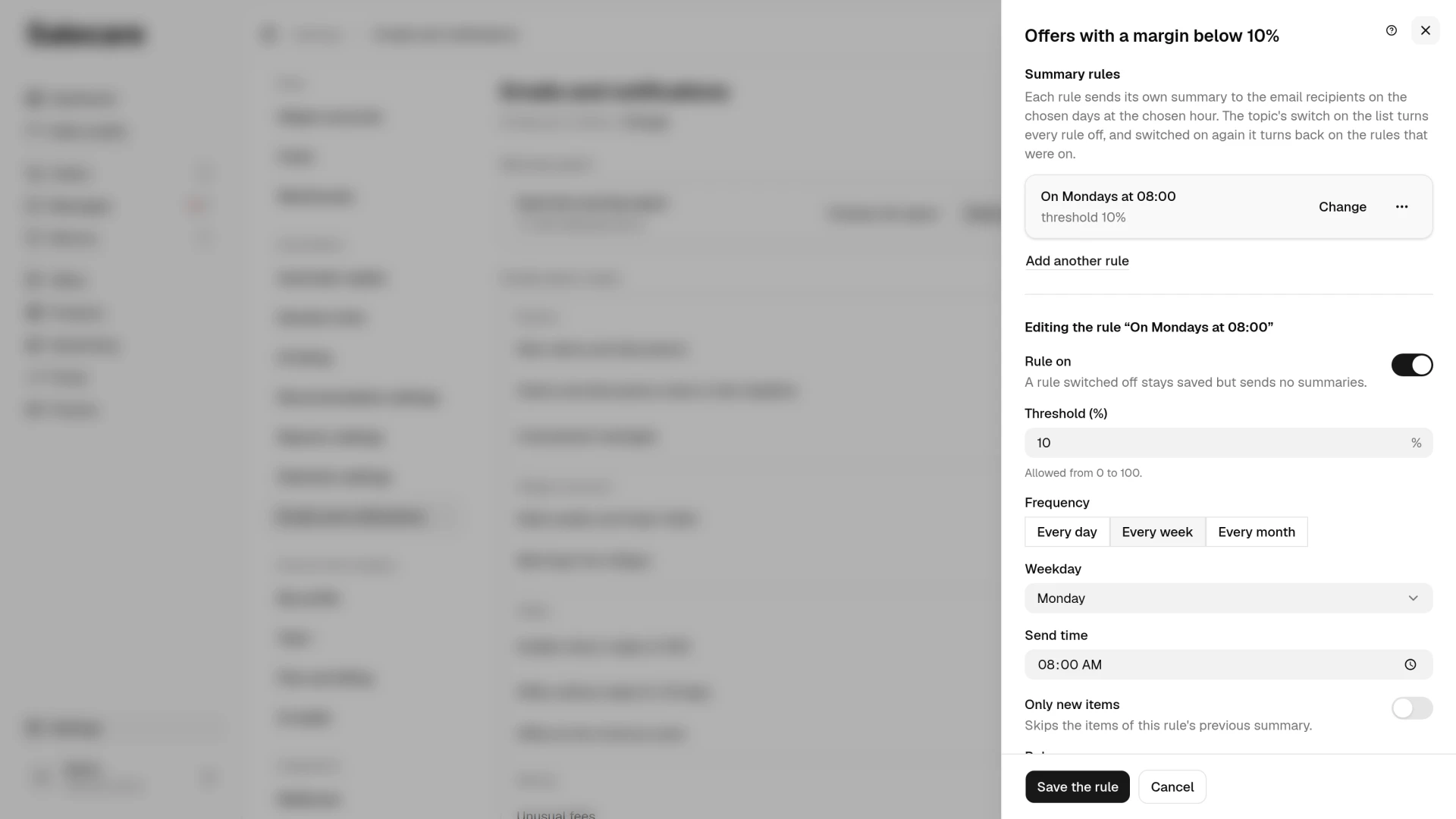
The form follows the order of the decisions. At the top is the Rule on switch. A rule switched off stays saved but sends no summaries, and the topic's switch on the list turns every rule on or off at once. Next come the topic's numbers and the Account field, then the frequency ("Every day", "Every week" or "Every month") and the send time, Only new items and last the optional Rule name. The button at the foot of the panel says what it stores: Save the rule when you change a rule, Add the rule for a new one. Cancel closes the panel without saving. With the "Every week" frequency you also choose the weekday the rule's week starts on, Friday for example when you plan the week on Friday. It is Monday by default, and the rule's description in the panel shows the chosen day, "on Fridays at 08:00" for example. A new weekly rule sends its first summary on the next chosen weekday, and when you set it up on that very day, the same day at the send time. A daily summary arrives at most once a day, a weekly one once a week counted from the chosen day, and a monthly one once per calendar month. From the send time Salecare checks the rule and sends the summary when there is something to report, so when there was nothing at that time it can arrive later in the same period. The next period starts again at the send time, so one late summary does not move the ones after it. The summary of every rule goes to the email recipients of this page, each in a message of their own. The Only new items switch makes the summary show only items that were not in this rule's previous summary, and when there is nothing new no email is sent. Salecare then checks the rule again about once an hour until the end of the period, so a new item reaches the summary at most about an hour after it appears. Items from earlier summaries may still need your action, and the email says so. The Preview button in the form shows what a summary sent now would contain with the settings in the form. It gives the number of items and lists the first 50 of them, with the account login when you have several Allegro accounts. With the Only new items switch on, the preview of a saved rule leaves out the items from its previous summary and says how many it left out. The preview sends no email, does not save the rule and does not count as a sent summary. The competitor report arrives as a PDF file, so the preview does not show its content.
Three topics rely on data that cheaper plans do not produce. They are Unusual fees, the summary of the Offer drafts topic and Competitor report (PDF). The competitor report needs competitor analysis, just like the Competition tab on the Prices page. The Report by email item in the More menu on that tab opens the panel of this topic. When your plan does not include a topic that has no rule yet, a padlock with the name of the plan that unlocks it stands in place of the switch. The panel then does not let you add a rule. A rule set up earlier stays, and you can still change or delete it. No competitor report arrives from such a rule, and the rule shows the "Your plan does not include competitor analysis" badge. When a rule's last send failed, the rule in the panel carries a badge with the reason, "No recipient has a confirmed email address" or "The watched account no longer exists" for example. The rules of the Offers with a low margin and Competitor report (PDF) topics show "No recipient has the Margins and purchase prices (view) permission" when no recipient has that permission. A rule whose summary leads to a page no recipient may open shows "No recipient has the permission for the page this email links to".
Each number of a rule shows its allowed range under the field. Threshold (%) fires the alert when the value falls below or rises above that percentage. Min orders makes the condition count only once there are at least that many orders. Lookback days is how many days of history Salecare looks through. Days without a sale is how long an active offer has not sold at all. Drop (%) compares the sales rate of the last 7 days with the 30-day average. From October to December the threshold is one and a half times higher, and on the days around public holidays higher still, at most 90%. Multiplier says how many times the offer's return rate must exceed the account average, adjusted for seasonality. Minimum wait (hours) leaves out cases where fewer hours than that have passed since the buyer's last message, counting clock hours, weekends included. At 0 every open case arrives, and claims with a decision deadline within 72 hours always arrive. The Account field narrows the rule to one Allegro account, and in the competitor report rule you pick a seller in the Competitor field or leave "Whole market".
Offers with a VAT rate other than the product rate
Under More topics, in the Data upkeep group, sits the Offers whose VAT rate differs from the product's topic. It lists the active offers whose VAT rate declared on Allegro differs from the product rate or, when the product has none, from the rate in the VAT settings. For each offer the summary names both rates and where the second one comes from, for example "VAT rate on the Allegro offer 8%, on the product 23%". An offer at ZW is listed as "ZW (0%)", because that is how Allegro declares a zero rate, and an offer at NP (outside VAT) is not listed, because it states no percent to compare with. The repricer then works out the minimum and the maximum price at the higher of the two rates, and one of them is wrong. Set the correct rate on the product, or on the offers with the bulk VAT rate change on the offers list. This topic has no threshold to set and applies only to a company registered for VAT, because for a company not registered for VAT the repricer's prices do not depend on a rate.
Returns and sales drops
The Sudden drop in sales topic in the Sales group and the Offers with many returns and Offers with returns above the account average topics in the Offers and returns group under More topics send summaries about a sudden sales drop, an elevated return rate and returns above the account average. All three count orders by the date the buyer placed them, so the history fetched when you connect an account lands in the right weeks and a new account gets no false drops. Cancelled and unpaid orders are not counted, because they are not sales. The sales drop compares the last 7 days with the average week of the last 30 days, and the return alerts count returns from orders placed in the last 30 days. The summary lists up to 50 offers, the biggest drop or the highest return rate first. The alert about returns above the account average fires when an offer's return rate exceeds the account average by the set multiplier, adjusted for seasonality.
The sales drop threshold is not the same all year. From October to December the drop has to be one and a half times the one set in the rule, and on the days around public holidays bigger still. The days around a holiday run from 3 days before it to 3 days after it for Easter, 1 and 3 May, All Saints' Day, Christmas and New Year's Day. With a 30% threshold the alert therefore waits for a 45% drop from 1 October, 63% from 29 October to 4 November, 72% from 22 to 29 December, 63% on 30 and 31 December and 42% from 1 to 4 January. The raised threshold never goes above 90%, so an offer that stopped selling always reaches the summary. While the threshold is raised, the summary and the rule preview give the threshold in this period next to every offer, for example "threshold in this period 45% instead of the rule's 30%".
Step 4. Act straight from an alert
Only people with the Margins and purchase prices (view) permission see and set the Offers with a low margin and Competitor report (PDF) topics. Amounts and thresholds in alerts are net or gross, the same as the amounts you see in the app. A margin threshold typed while reading net amounts is therefore compared with the net margin, not with another figure. The subject line says what the alert found, "3 offers with a low margin" or "2 warnings from Allegro" for example, so you can see it in the inbox list without opening the message. With several Allegro accounts each item in the summary names the login of its account, so you know on which account to act. The alert about claims and discussions is the only one that goes not just to email but also to the bell in the app, because those cases carry a deadline. For a case waiting on your reply the summary gives the reply deadline the way Allegro counts it, 24 working hours from the buyer's last message, without Saturdays, Sundays and statutory days off. A message from Friday afternoon is therefore due on Monday, and once the deadline has passed the item says so. The minimum wait in the rule, by contrast, counts clock hours from that message, weekends included. A claim you have already replied to reaches the digest once fewer than 72 hours are left to the decision deadline. When you take no decision within 14 days of the claim being filed, you are deemed to have accepted it, and the buyer can get the money from Allegro Buyer Protection, which Allegro then charges to your account. An undecided claim reaches the digest as early as 5 days after it was filed, because in the Claim resolution time measure Allegro gives full points for an average below 7 days. Such an item gives the day of the case, "day 6 of 7 to decide" for example. Claims accepted in Salecare that you have not refunded yet are listed too, with the refund still to make. The summaries link straight to specific cases, offers and products, so from an alert you go directly to acting, without hunting through lists.
Every rule also has an Account field. By default an alert covers all accounts, but you can narrow it to one. With several accounts, a threshold that spells trouble on electronics can be normal on fashion. Rules whose findings belong to no account, a missing purchase cost in the shared catalogue or the competitor report for example, do not offer the choice.
What next
The most common source of urgent notifications is after-sales cases. How to keep them under control is shown in the guide "How to answer messages and claims", and you can automate the first response to messages following the guide "How to automate Allegro messages and discussions".