How to export data to files
Your accountant asks for a summary of Allegro fees, the bank for turnover, and you assemble those files by hand from several tabs of the panel. On top of that there are your own analyses in Excel, for which orders and margins have to be extracted somehow. In Salecare you prepare all such files in one place, in the Downloads panel.
Step 1. Open "Downloads"
Downloads is a panel on the right. It opens over the page you are on, so you lose nothing on screen. Open it from the account menu, from the "Search Salecare" field, from the notification about a finished file, or with the Download button on a page with data. The old /exports address opens the same panel over the page you are on. The account menu item and the Download buttons are shown to people with the Downloads permission.
At the top of the panel is the unfoldable New file block, and under it the list of prepared files, newest first. Under the panel title a line says for how many days files are available. Before you prepare the first file the list says "The files you prepare will appear here." The list shows the 50 newest files of the company.
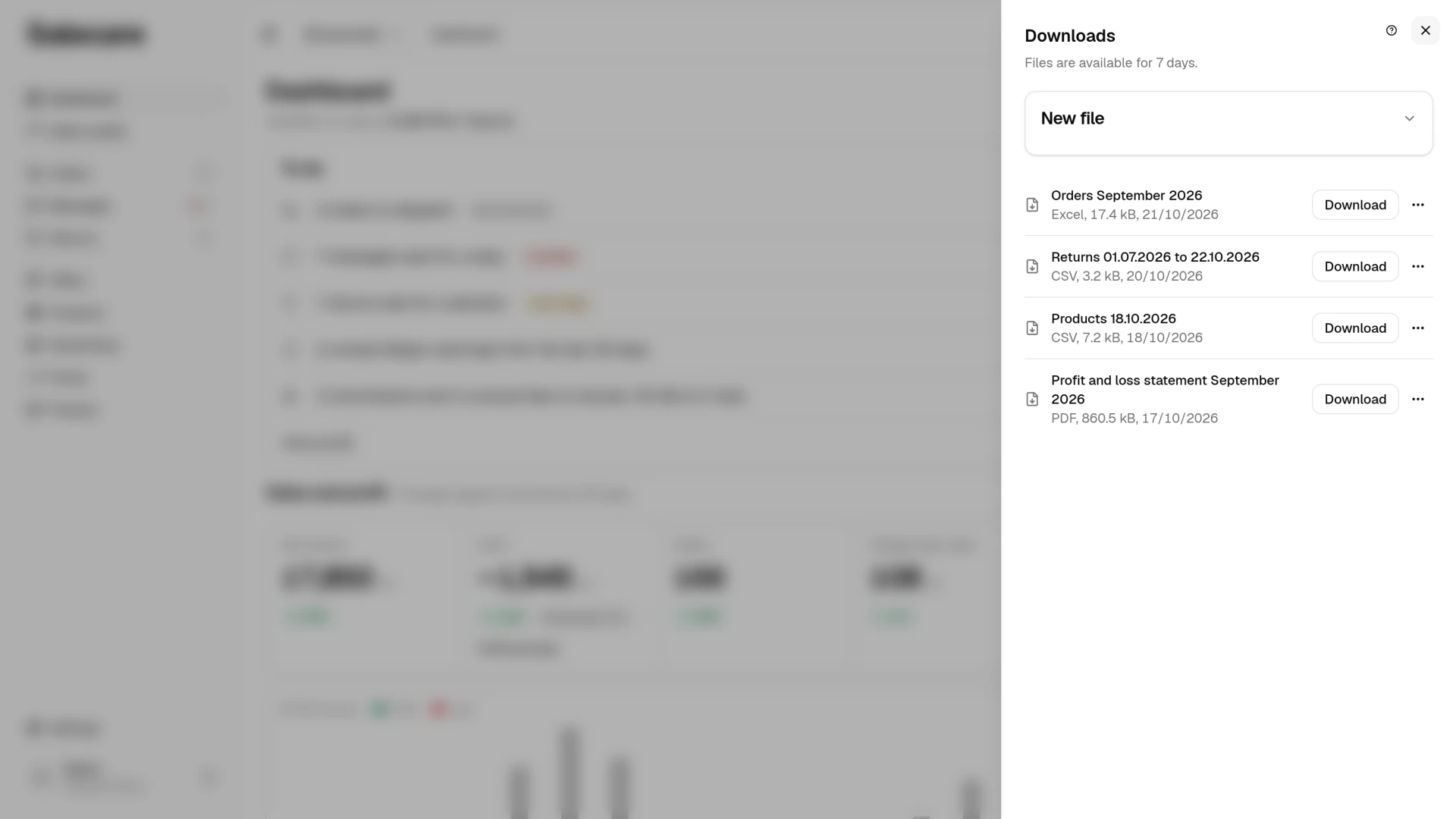
Step 2. Prepare a file
In the panel unfold the New file block. Choose the data in the What to download field, the range in the Period field and "CSV", "Excel" or "PDF" in the Format field. Then click Prepare file. "All time" covers all the data. "Products" and "Stock levels" show the state at the moment the file is prepared, so they have no period. The Format field offers only the formats the chosen data comes in.
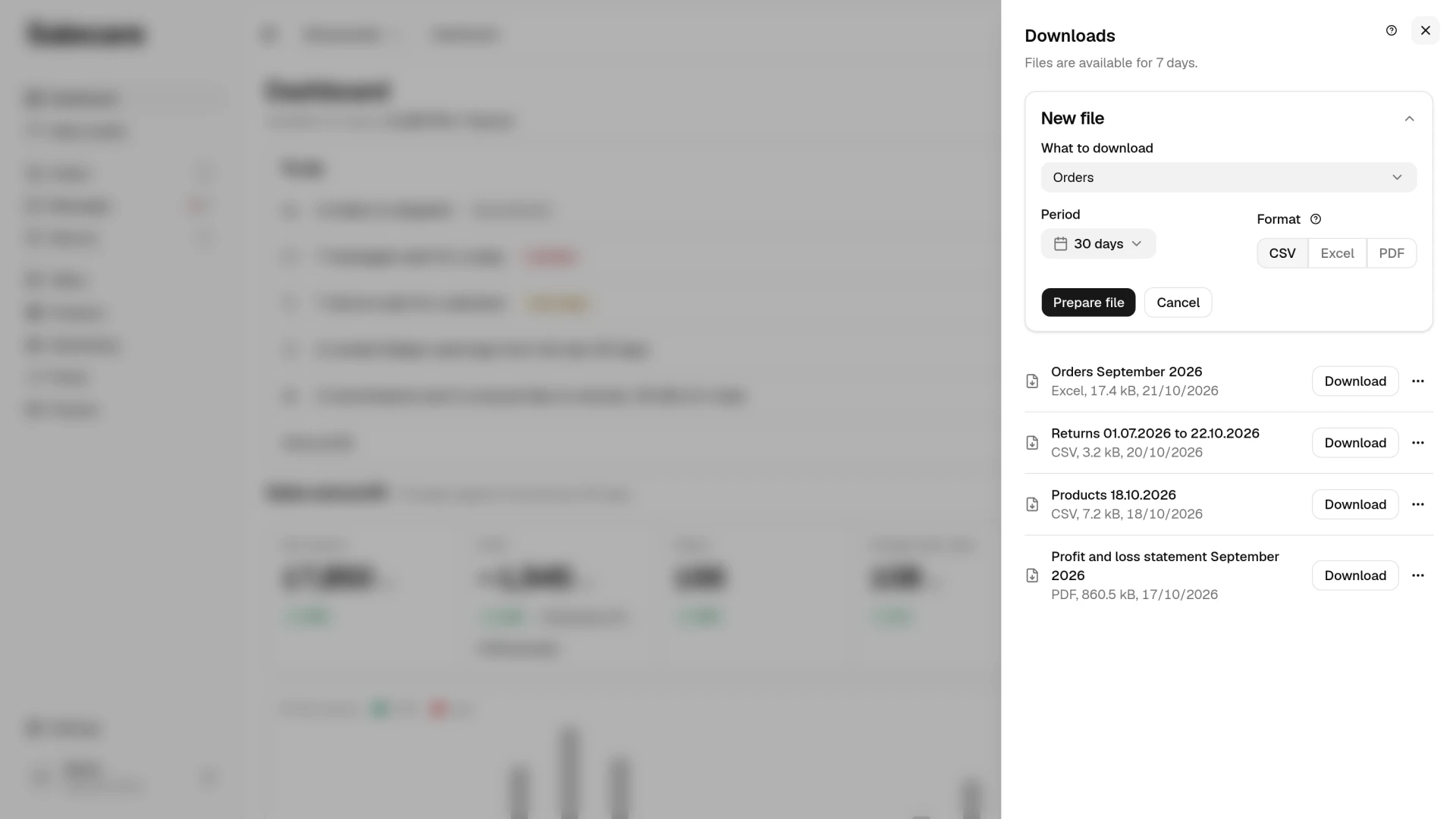
You can pick "Orders", "Order line items" and "Returns", then "Allegro settlements and fees", "Margin by day", "Order line margins" and "Commission refunds", then "Offers", "Products", "Stock levels", "Price change history", "Offer price history" and "Offer report". A file is prepared in the language the app is set to. You can also prepare the price change history with the Download button on the Change history tab of the Prices page. The panel then opens with that kind of data and the period shown on screen.
A finished file is named after what it holds and the period, for example "Orders September 2026" or "Margin by day Q3 2026", with the Allegro account login. A file without dates has "all time" in its name, and the "Stock levels" and "Products" files carry the day the file was prepared. Next to the format the list gives the file size. Older files, prepared before the list started showing the size, have none.
Reports you order from other pages
A few files are not on the What to download list, because the page you order them from sets their scope. The Download button on such a page opens the Downloads panel with the New file block filled in. You choose the format there and click Prepare file, and the finished file lands in the list with the others.
- You download the competitor report on the Prices page, on the Competition tab, from the More menu (the Download PDF report item), from the menu at a seller or from their card. It comes as PDF only.
- Allegro wallet operations cover the period of one payout rather than a date range. You download them with the Download button on the Payouts tab of the Finance page, for the period you have open there, as CSV or Excel.
- The profit and loss statement is downloaded with the Download button on the Profit & loss statement tab of the Finance page, for the period and accounts you have open there, as CSV, Excel or PDF. The rows of the file are days, weeks or months, depending on the length of the period. "All time" is not offered here, because the statement always has two dates.
- Cost items from the Dashboard page are downloaded from the window you open by clicking a cost in the Revenue breakdown card. In that window the Download button prepares the file in the background, without opening the panel. The message has a Downloads button that closes the window and opens the list of files. The file holds the whole list of entries, not only the visible page. It covers the period and Allegro account chosen on the Dashboard page and the filters and sort set in the window, and comes as CSV or Excel. Allegro fees have Commission, Promotion and Other fees tabs in the window, and the file covers the tab you have open.
The cost items file has the columns "Date", "Item", "Scope", "Order number", "Type", "Allegro code", "Status", "Amount" and "Currency". "Type", "Allegro code" and "Status" are filled in for Allegro fees, that is commission, ads, promotion, other fees and account fees, so you can match the period's commissions against the Allegro invoice in a spreadsheet. For purchase cost, shipping, operating costs and returns those three fields stay empty.
Formats and their limits
CSV is best for further processing, Excel for files someone simply has to open and read, and PDF for reports you send on in finished form. A CSV file opens in Excel with a double click, Polish letters included.
An Excel file holds from about 13,000 to 30,000 rows, depending on how many columns the report has. The orders list holds about 20,000 rows, price history 30,000, and the Dashboard cost items and wallet operations up to 30,000. When the chosen report is longer, the panel says under the Format field how many rows it has and how many Excel holds, and asks for CSV.
A PDF holds at most 1,000 rows of a report. When the chosen range has more, the PDF shows the first 1,000 in the report's order and says under the heading how many of how many rows it holds. The row count in the heading and the "Total" row then cover the whole range, including the rows the PDF leaves out. Download the full list as CSV or Excel. The exception is the "Offer report", whose PDF prints every offer of the chosen period.
Not every report offers all three formats. The "Offer report" comes as Excel or PDF only. The product catalogue is available as CSV only, because it carries every product field together with the descriptions. The Format field therefore offers only the formats the chosen data comes in.
Gross and net amounts
Apart from the profit and loss statement and the Dashboard cost items, amounts in the files are gross, also when you read net figures on the app screens. The file travels on, to an accountant or another program, and must not depend on whether the company is registered for VAT. That is why the revenue and margin columns carry the word "gross" in their name, and a net amount stands in the file only in a column whose name says so.
The profit and loss statement carries the amounts shown on screen, net or gross, and says so in the name of every column. It also carries the notes the page shows above the figures, on orders without a VAT rate for example. In CSV and Excel they stand under the table, and in a PDF in the heading. The cost items from the Dashboard page carry the amounts of the window you download them from, and say so in the name of the "Amount" column.
The date range
You choose the range in the Period field. "All time" covers all the data. Each file is narrowed by a date of its own.
- "Orders", "Order line items", "Margin by day", "Order line margins" and "Offer report" by the order date.
- "Allegro settlements and fees" by the operation date.
- "Returns" by the date the return was requested.
- "Commission refunds" by the date they were detected.
- "Offers" by the date the offer went live on Allegro, the one in the "Listed at" column.
- "Price change history" and "Offer price history" by the date in the "When" column.
"Stock levels" and "Products" have no period. They show the state at the moment the file is made, so when you pick one of them the panel shows the sentence "The state at the moment the file is prepared." in place of the period field. The stock levels PDF carries "As of" with that moment in its heading. The stock as of 31 December is therefore only on a file prepared that day.
Allegro accounts in the files
Apart from the "Margin by day" file, the files on the What to download list cover every connected account at once and the panel does not narrow them. That is why the orders list, order line items, settlements, line item margins, the returns register and commission recovery end with an "Account" column holding the login the row came from. In the "Price change history" and "Offer price history" files the "Account" column stands right after the date, and in the offers list before the listing date. That column is what lets you group the file by account in a spreadsheet. Stock levels and the product catalogue have no "Account" column, because products and their warehouse stock belong to the whole company, not to one Allegro account.
The "Margin by day" file takes the account from the switcher in the top bar. With one account selected it covers that account, with "All accounts" it covers all of them. Salecare counts the margin separately for each account and stores one row per account per day, so with all accounts the same date repeats once per account. The "Account" column in the file, right next to the date, says which account a row covers.
Orders and order line items
The orders list covers every order in the range, unpaid and cancelled ones included, and its Allegro status stands in the "Status" column. It also carries two invoice columns, "Invoice for the buyer", answered "Yes" or "No", and "Buyer tax ID". Both are empty on an order Allegro has released no answer for, and on an order whose customer data has been erased.
Order line items cover only the orders that are a sale. The lines of unpaid and cancelled orders are not in the file, because no invoice stands behind them, while an order with a return stays, because the sale happened. The file ends with a "VAT rate" column and an "Account" column. The "VAT rate" is the rate Allegro states on the order line, so the file reconciles against an invoicing program row by row. An empty cell in that column means Allegro stated no rate for the line, and settings in Salecare do not fill it in. The "Account" column is new at the end of the file, so check any spreadsheet formula that points at a column by number after your first download. The invoicing program issues invoices and corrections and sends them to KSeF, because Salecare does not. The guide "How to work with orders in Salecare" covers this.
Margins
After the "Currency" column the "Margin by day" file has the columns "Other Allegro fees", "Account fees", "Gross profit before fixed costs", "Net revenue" and "Net margin". The profit is the margin less operating costs and account fees. Fixed costs are not in it, because they belong to the whole company rather than to one account on one day, so only the profit and loss statement takes them off. The net cells are empty on a day where some orders have no VAT rate. These columns were added at the end of the file, so the earlier columns kept their places.
Line item margins carry the "Net revenue" and "Net profit" columns next to "Gross revenue" and "Gross profit". The rate behind them comes from the order line. Where Allegro stated none, it comes from the rate set on the product, then from the rule for the category in the VAT row on the Costs page in Settings. An empty cell in those two columns does not mean the rate is zero. It means that some line of that order has no rate from any of those sources. So the cell can be empty on a line that has a rate of its own. Once you fill the rate in on the product or with a rule, the margins are recalculated in the background and the next file carries the net amounts. These columns are new to the file, so check any spreadsheet formula that points at a column by number after your first download.
The "Offer report" counts revenue, costs and margin separately for each offer, from the orders that are a sale only, without unpaid and cancelled ones. Under the report's name the panel says "One row per offer. Pick an offer to download only that one." An empty Offer field gives the report of every offer sold in the chosen period, one row per offer. To download one offer only, search for it in the Offer field by its name, EAN or offer ID and pick it from the suggestions. The field searches every offer of every account. The PDF version of this report requires a date range and covers at most 90 days.
Returns and commission recovery
The returns register says what came back and whether the amount is settled. After the buyer login stand the "Offer", "EAN" and "SKU" columns from the order line the return covers, and next to the amount the "Of which the delivery refund" and "Estimated amount" columns. The delivery is part of the refund amount, not a separate cost, so do not add it to the total.
"Estimated amount" answered "Yes" means Allegro has not confirmed the full settlement yet. The amount is then either Salecare's own sum of the lines coming back to the buyer, without the delivery refund, or the total Allegro stated without itemising the delivery. In both cases the "Of which the delivery refund" column holds 0, so do not add the delivery to such an amount yourself. These five columns are new to the file, so check any spreadsheet formula that points at a column by number after your first download.
Product catalogue, stock and offers
The product catalogue carries every product field together with the descriptions, so an Excel or PDF file of the whole catalogue cannot be built. For "Products" the panel also reminds you that descriptions, photos and parameters taken from the Allegro Product Catalogue may be used only in offers on Allegro. That is what the Allegro terms say, so do not move such content from the file to other shops or other sales platforms.
Stock levels have one row per product and warehouse. The offers list has the columns "Listed at", the day the offer went live on Allegro, and "Created at", the day Salecare first read it. The date range narrows the list by the listing date.
Price history
Price history records the prices an offer stood at, together with the price each of them replaced and where the record came from. The "Source" column reads "Salecare repricer", "Edited in Salecare", "Read from Allegro", "Allegro price rule" or "Allegro Ceny programme".
- A "Read from Allegro" row is written when the sync sees a new offer price. A price that did not change is written again only after thirty days without any record. A row whose "Previous price" and "Price" are the same is therefore that same price recorded again, not another price change.
- An "Allegro Ceny programme" row is the price the buyer pays while Allegro discounts the offer in that programme. Your price in the offer does not change meanwhile. Such a price reaches the file only when it is lower than the lowest price of the last 30 days, and the end of the discount leaves no row of its own.
The file covers every offer of the company and carries the columns "When", "Account", "Offer ID", "Offer", "EAN", "Previous price", "Price", "Source" and "Currency". When a buyer asks what the price was on a given day, pick their offer in a spreadsheet with a filter on the "Offer" column. The price on a given day is the one in the last row before that day. When that row's source is "Allegro Ceny programme", also check whether the programme discount was still running then. The PDF version covers the thousand newest rows of that history, so download the full record as CSV or Excel.
Step 3. Download the file before it expires
Preparation runs in the background. Larger files take a moment, and the list refreshes by itself when a file is ready. A row of a file in progress has the "Running" badge, and a finished file has the Download button, its size and its date. When a file is ready, a notification names it, for example "The file Orders September 2026 is ready", and clicking that row opens the Downloads panel on that file. When the file cannot be prepared, the notification says "The file could not be prepared" and gives the same name.
For a file that could not be prepared you see the "Failed" badge, the reason stands under the name, and next to it is the Try again button. When preparation is interrupted on Salecare's side, with a very large file for example, and is interrupted again after the retry, choose CSV or a shorter period.
Under the panel title is a line saying for how many days a file can be downloaded, 7 days from the moment it is prepared by default. Past that date the file moves under the Show expired button, has the "Expired" badge and cannot be downloaded, only deleted. The following night its row leaves the list and the file is erased, so save your files to disk rather than treating this list as an archive. You do not have to wait for that date either. In the More actions menu on the row choose Delete, and after you confirm with the Delete file button the file is gone at once. A file that is still being prepared cannot be deleted from the list. You can prepare the same file again.
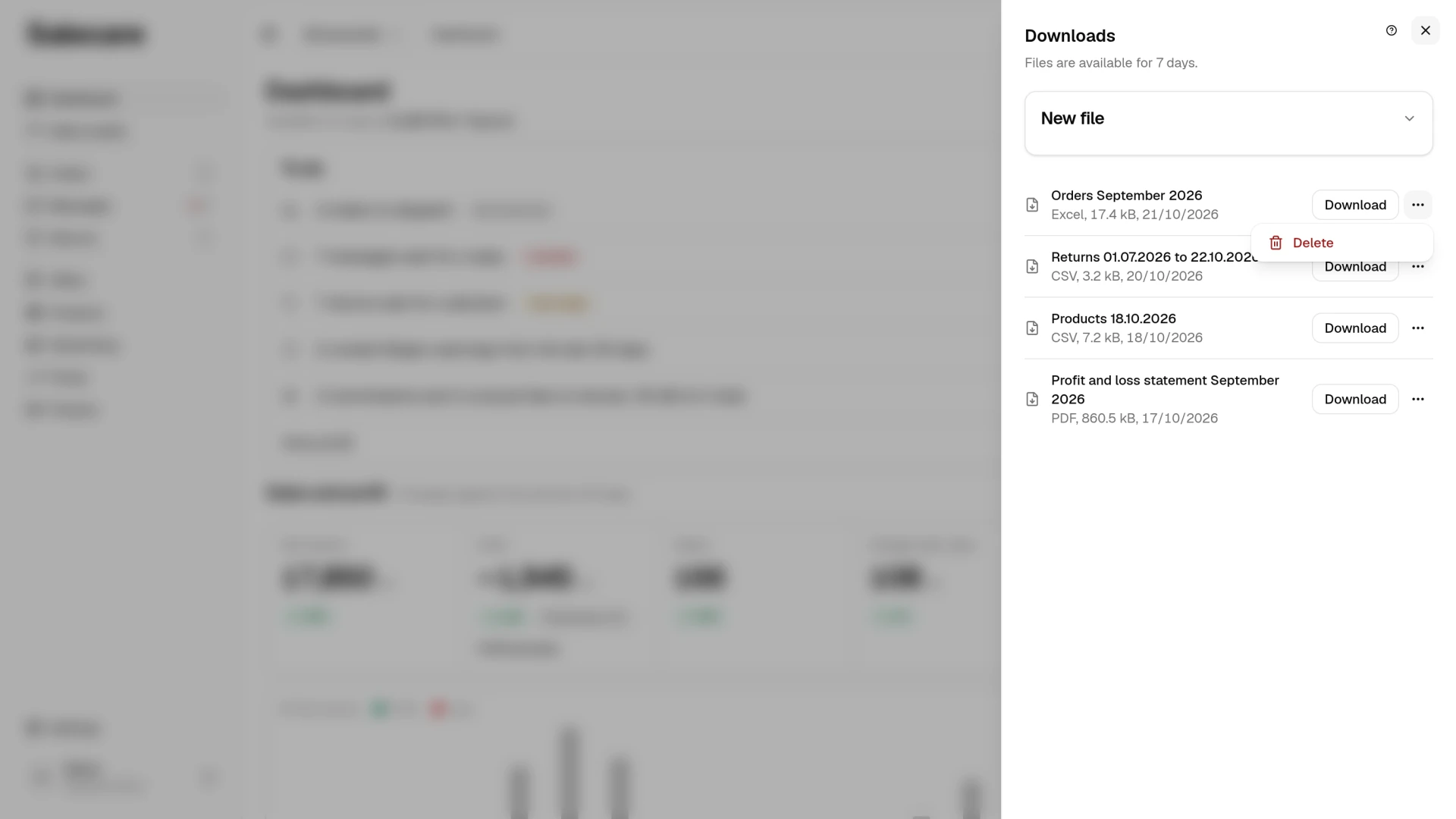
The list shows the files of the whole company. A file with margins or with messages is visible only to a person with the permission for margins or for messages.
Allegro settlements and fees in Excel are ready-made material for your accountant, and a CSV of orders and margins opens the way to your own analyses and pivot tables. It is easy to turn this into a monthly habit. At the start of the month you prepare the previous month's settlements and send the file to the accounting office right away.
The whole company archive in one file
The Downloads panel hands out files for your accountant and for your own analyses. A copy of the whole company data set is downloaded separately, on the Plan and billing page, in the folded Data export and company deletion section, with the Download company data button. The button is shown to a person with the Company & invoice details permission. The file is in JSON format and holds company details, team seats, products, orders together with buyer details, buyer correspondence, margins, subscriptions, AI wallet operations and the audit log. When a person without the Margins and purchase prices (view) permission downloads it, margins and purchase prices are left out, and a line under the button says so before the download. Offers, stock levels, Allegro settlements, the price change history and the offer price history are not in it. Those sets are downloaded in the Downloads panel, as CSV, Excel or PDF.
The button works for as long as you use Salecare, and after you request the company's deletion for another 30 days from the start of the grace period. On a paid plan the grace period starts after the period already paid for has ended, unless you choose "Stop at once" when you request the deletion. Then the 30 days run from the day of the request. After the request the day until which you can download the data stands under the button, and after that day a note that the time to download the data has passed.
The Downloads panel and the archive also work on an account locked for non-payment, for the whole time it is locked, until its data is deleted. The lock page has a Downloads button that opens the same panel. There you prepare a file, download a finished one and delete one you no longer need. The other pages of the app lead back to the lock page meanwhile.
Deleting the company
Only the Owner requests the deletion of the company, with the Delete company button in the same Data export and company deletion section. Another person with both the Billing & subscription and the Company & invoice details permissions sees a sentence there saying that only the Owner can delete the company. After the request a 90-day grace period starts before permanent deletion, and for the first 30 days of it you can download the data yourself with the Download company data button. You confirm the request in a window with the company name and your password.
The company's only Owner also has the same Delete company button on the My profile page, in the folded Remove my access to Salecare section, because they cannot delete just their login. It opens the same window and sends the same request. The sentence above it says that together with the company Salecare permanently deletes all its data, including the Allegro accounts connected in Salecare with their offers and orders, the products, the settings and the access of every person in the team, while the accounts, offers and orders on Allegro itself stay. After the request that section shows the day the company is permanently deleted and an Open Plan and billing button, which leads to the Plan group with the Cancel company deletion button. The guide "How to add a team and permissions" describes it.
On a paid plan the request cancels the subscription, so it does not renew, and the grace period starts after the period already paid for has ended. Until then Salecare works as usual. Orders, offers and stock keep syncing with Allegro, and the repricer keeps changing prices. In the request window you choose "Keep working until" that date or "Stop at once". The second option stops syncing with Allegro, the repricer and automatic reply drafts straight away, and the grace period starts on the day of the request. Choose it when you are moving your sales to another tool, so that two repricers do not change the prices of the same offers. A company without a paid period has no such choice, because syncing stops at once. After the request the Plan group on the Plan and billing page gives the date the company is permanently deleted, and until the grace period ends the Owner takes the deletion back with the Cancel company deletion button in that group.
Event log
The team's sign-ins and security changes are on the Event log tab of the Team page, described in the guide "How to add a team and permissions".
What next
Before you send anyone a "Margin by day" file, make sure the app knows your costs. The guide "Real Allegro margin in 2026, how to set up costs in Salecare" will help. A ready summary of your results without exporting anything is in the guide "How to read Finance, the profit and loss statement".