How to get around Salecare
Salecare has a lot of pages, and most of the work starts in the same few places. The menu on the left leads to the modules and shows how many matters are waiting, the top bar says whose data you are looking at and where to search, and the account menu collects the plan, the wallet, the files and the language. This guide shows what is where, on a computer and on a phone.
Step 1. Find a page in the side menu
The side menu has three parts separated by a thin line. The first holds the Dashboard and Sales quality. The second collects buyer service, that is Orders, Messages and Returns. The third collects sales and money. It has Offers, Products, Advertising, Prices with the tabs Offers, Competition and Change history, and Finance, which is one entry with three tabs, Profit & loss statement, Payouts and To recover. The Finance entry opens the first tab you have access to. Every item stands on one level with its own icon, so there is nothing to unfold. Settings is pinned under the menu and stays in view even when the menu scrolls. It opens the Settings page, where every setting you have access to is a row of one of four groups, Shop, Automations, Account and company or Integrations. Every setting, a setting of a single module included, Decision hints of returns for example, opens as a page in Settings. A module that has settings also has a Settings button in its header, on a phone just a gear icon. With one setting the button leads straight to its page in Settings, and with several it opens a list of their names. It shows only what you may open. A settings page opened from a module has that module in its path, and on a phone a Back to … link naming the module, so you return where you came from.
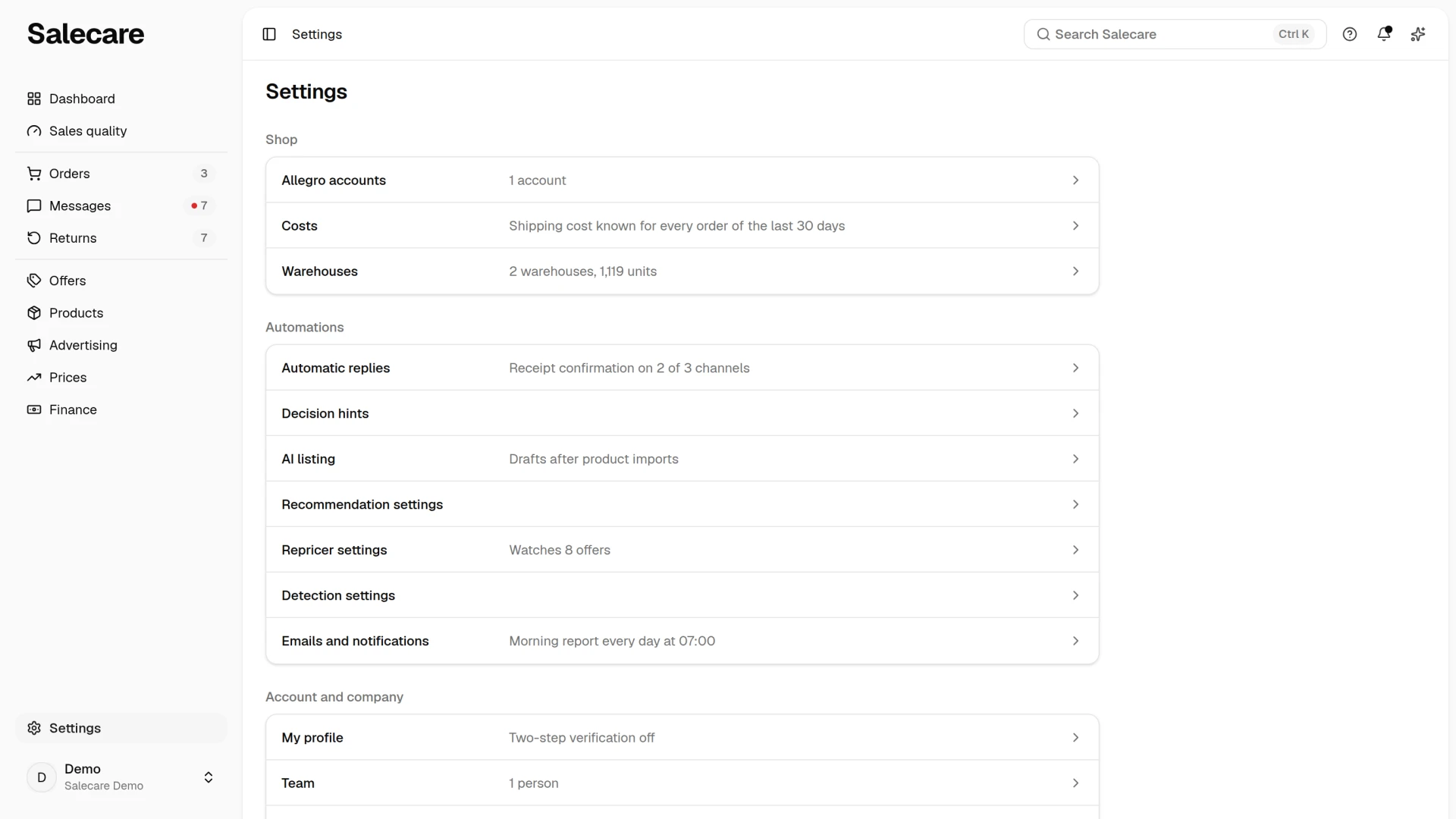
The menu shows only what you can open with the permissions of your group. An item your plan does not include stands with a padlock and the name of the plan it is available from. A new company in a trial with no plan chosen does not see such items at all. Permissions are described in the guide "How to add a team and permissions", and the plan in the guide "How to manage your plan and invoices".
The Show or hide the menu button in the top left corner folds the menu to icons only. Every item then stays as its own icon, and hovering it shows its name. On a phone the same button (☰) is called Open the menu and opens the menu, as step 7 describes.
Step 2. Read the numbers beside the menu
The Orders, Messages and Returns entries carry a number of matters waiting for you, the same as in the To do card on the Dashboard page. Beside Orders it is the orders to dispatch. Beside Messages it is the number of the To answer view, which holds the messages, discussions, claims and buyer emails waiting for a reply or a decision. Beside Returns it is the number of returns in the To decide view, which holds the returns whose parcel has reached you or whose refund deadline is at most 3 days away. A return the buyer has only reported, or whose parcel is still on its way, waits in the Awaiting the parcel view and is not in that number. When nothing is waiting, there is no number. A red dot beside the number means some of those matters are past their deadline, and hovering over the number says how many. The Returns entry never has a dot, because past the deadline Allegro refunds the buyer by itself. When something is waiting, Orders opens with a filter of those matters, Messages opens the To answer view and Returns opens the To decide view. When the menu is folded to icons, a dot on the corner of the icon replaces the number, red if any matter is past its deadline. The Dashboard page is described in the guide "How to read the Salecare Dashboard".
Step 3. Choose the Allegro account in the top bar
The account switcher in the top bar shows whose data you are looking at. "All accounts" is the shared view of all connected Allegro accounts, and picking a login narrows the pages to that account. With one account picked, the switcher button has a grey background, so you see at a glance that the pages show only that account. A check mark stands beside the picked item. An account that lost its connection has the "Disconnected" badge in the list. A person with the permission to reconnect clicks that row and returns to Allegro to give consent, and for everyone else the row is inactive. At the bottom of the list are the Connect another account and Manage accounts items. Settings pages have no switcher. On a screen of tablet width and wider, the path to the page you are on stands after the switcher, past a thin vertical line. It starts with the menu item, then comes the tab, and it ends with the open record, for example "Offers > Drafts > draft name". Every earlier level is a link to its page. When the bar is short of room, the middle levels fold under a button with three dots, and a long name at the end is shortened. On settings pages the path starts with "Settings". When the Settings button in the header of a module opened the settings page, that module follows "Settings", for example "Settings > Prices > Repricer settings". Connecting accounts is described in the guide "How to connect an Allegro account to Salecare and run the first sync".
Going back, going forward and refreshing the page work with the browser's arrows and refresh button, also in Salecare installed as an app. When the app opens in a window without a browser toolbar, on an iPhone for example, Salecare shows Back, Forward and Refresh buttons in a bar of its own at the bottom of the screen, as the guide "How to install Salecare as an app" describes.
Step 4. Read the bar under the top bar
When something needs your attention on every screen, a bar with one sentence and at most one button stands under the top bar, for example Choose a plan, Update payment or Reconnect. For a person who cannot act on it, the bar says who can. The bar shows one matter at a time, the most important one. The order is as follows.
- The subscription lapsed and the company has a countdown to permanent deletion of its data.
- Deletion of the company was requested.
- The subscription payment failed.
- An Allegro account is disconnected.
- An Allegro account is outside the plan's account limit.
- The first download of data from Allegro is running, or stopped for a reason the bar gives.
- A trial with no plan chosen ends within 3 days.
- A subscription paid by BLIK or Przelewy24 renews within 7 days.
The other ongoing matters wait as rows at the top of the Notifications panel. The trial bar does not stand on the Plan and billing page, because the Plan group there says the same. The first-download bar does not stand on a page that shows that information itself.
Step 5. Open the account menu
You open the account menu by clicking your profile at the bottom of the side menu. The button shows your name and your company. The account menu has the following items.
- My profile with your details, password, two-step verification and devices.
- Plan and billing with the "Trial until" badge and a date until you choose a plan. The item is shown to the account owner and people with the Billing & subscription permission.
- AI wallet with the balance, for the same people. Once the balance falls to the low balance warning amount, it also appears in the top bar in a warning colour. The wallet is described in the guide "How the AI wallet and top-ups work".
- Team or Invoice details for people who manage the team or the company data but not the plan. The account owner and people with the Billing & subscription permission have the invoice details on the Plan and billing page, and the Team page in Settings, in the Account and company group.
- Downloads, the panel over the page you are on. The item is shown to people with the Downloads permission, and files are described in the guide "How to export data to files".
- Language and Theme change the language and the look of the screen.
- Install the app, when the browser has an installation to offer, described in the guide "How to install Salecare as an app".
- Log out.
The bell in the top bar opens the Notifications panel over the page you are on. A dot on the bell means an unread notification or a new Salecare announcement. Notifications are described in the guide "How to set up notifications and alerts". Beside the bell is the button of the AI assistant, described in the guide "How to use the AI assistant".
Step 6. Search Salecare and use Help
The "Search Salecare" field in the top bar (Ctrl K, ⌘K on a Mac, a magnifier on smaller screens and on a phone) opens the search. Type a page name such as "orders" or "VAT", pick a result with the arrow keys and press Enter. From 3 characters the search also shows orders, messages, returns, offers and products. Find an order by its number, login, the buyer's or the receiver's name, phone number or product name. Find a message by login, subject, claim number or text, but not by the buyer's name. Find a return by the return, parcel or order number, the login or the buyer's name. Find an offer by title, offer number, EAN or signature, and a product by name, EAN, signature or another code. Each group shows up to 3 results, and All results in Orders and the like open the list with the same text in its search field. Orders, returns, offers and Allegro messages follow the account picked in the account switcher. Type Polish letters as on the lists, because "kolodziej" does not find "Kołodziej". You see only the groups of lists you can open. With nothing typed the list shows the Recently opened (up to 5 pages), Go to and Actions groups. The Actions group holds, among others, Downloads, New product, Import products, Offer change history, Photo edits and Import history. Every row of the Settings page stands in the Go to group marked "Settings", the settings of a module too, for example Decision hints, Recommendation settings and Detection settings.
You open the Help panel with the question mark in the top bar, and on a phone from the menu that the ☰ button in the top left corner opens. Guide to this page opens the guide in a panel beside the page, Page tour shows step by step what you have on screen, All guides opens the library in a new tab, and Write to Salecare opens a new message in your mail program. The Guide to this page item is only on pages that have a guide, and Page tour only on pages with a tour. Many fields and titles also have a small question mark that opens the Help panel straight on the right part of a guide.
Step 7. On a phone
On a phone every page starts the same way. The top bar starts with the Open the menu button (☰) in the top left corner, followed by the account switcher, the magnifier of the search and the bell. The bar stays on screen while you scroll the page, so you open the menu from the end of a long list too. There is no bar of tabs at the bottom of the screen. When some orders to dispatch or messages are past their deadline, a red dot stands on the ☰ button.
The ☰ button slides the menu in from the left edge of the screen. At the top of the menu stand your name with the company name and a close button. Under them come all the pages of the menu, grouped as on a computer, Dashboard, Orders, Messages and Returns included. Beside Orders, Messages and Returns stand the same numbers as on a computer, with a red dot when some of the matters are past their deadline, and the item of the page you are on is highlighted. Then come the Help part with the AI assistant and the Account and settings part with Settings, My profile, Plan and billing, AI wallet and Downloads. The same rules as in the account menu on a computer decide who sees which items, so a person without the Billing & subscription permission has no billing and wallet items here, only Team or Invoice details, and the Install the app item is there only while the browser has an install to offer. On a page of this part, the My profile page for example, its own item is highlighted, not Settings. At the end of this part you pick the Language and the Theme with switches, and the change works at once, without closing the menu. Log out is at the very bottom. You close the menu with the button in its top right corner, with the Esc key or by tapping the page beside it.
A page that sits under another one, an order, a return, a draft, a product, an import or a settings page for example, starts with the Back to … link naming the page above it, which leads from an order to the Orders page, for example, and from a settings page to Settings or to the module you opened it from. It is the only such link on the page. An open conversation on the Messages page and an open payout on the Payouts page have the Back to list button in that place, which returns to the list in the same view. The product import wizard has no such link, because its Back button moves between the steps. When a save bar appears at the bottom, for example with a Save prices button, it is there for saving or cancelling the changes.
What next
If you have not connected an Allegro account yet, start with the guide "How to connect an Allegro account to Salecare and run the first sync". Once the menu shows your matters, open the Dashboard page and read the guide "How to read the Salecare Dashboard".