How to manage your plan and invoices
A subscription should surprise you neither with an invoice nor with an exhausted limit. The Plan and billing page in Salecare shows your plan, current usage, payment method, invoice details and invoices in one place. It is worth looking at right after you start, so the first payment goes through without surprises.
Step 1. Check your plan and usage
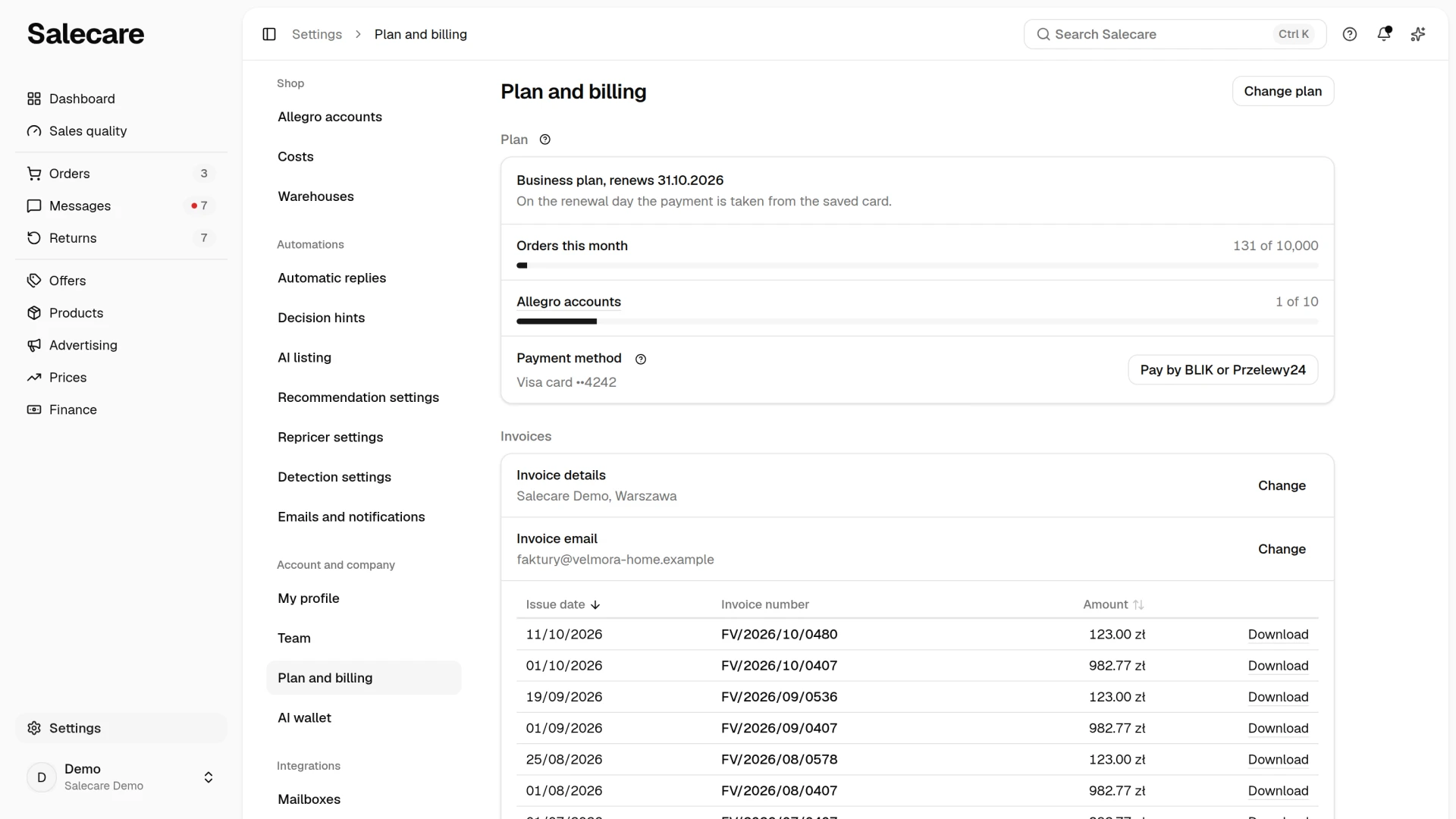
Click your profile at the bottom of the side menu to open the account menu, and choose Plan and billing. The same page is in Settings, in the Account and company group. The whole page is open to the account owner and anyone with the Billing & subscription permission. The first group, Plan, says in one sentence what state the plan is in. It gives, for example, the plan name with its renewal date, the end date of the trial or a note that the payment failed. The line under that sentence says once what happens on that day, for example that on the renewal day the payment is taken from the saved card, or that you pay nothing until the trial ends and after it a BLIK or Przelewy24 payment link arrives at the invoice email.
Below, each limit of the plan has its own row, with the name on the left and the usage on the right. The Orders this month row shows how many orders of the plan's monthly limit have been used, and the limit is shared across all connected Allegro accounts. The Allegro accounts row shows how many accounts of the plan's limit are connected, and its name leads to the Allegro accounts page. The bar under the figure shows how much of the limit is used. When the plan has no limit, the row gives the figure alone with "no limit" and draws no bar. Under the rows stands one warning at most, when you are close to the order limit or over it, when the growth and AI features are restricted, or when more accounts are connected than the plan covers. The button in the top right corner of the page opens the Choose a plan page described in step 2. Until you buy a plan the button is called Choose a plan, and after that Change plan.
Going over the limit costs nothing extra and does not stop order syncing. The first calendar month over the limit restricts nothing. When the limit is exceeded for the second month in a row, Salecare temporarily restricts the growth and AI features, including adding new Allegro accounts, until you move to a higher plan or until the end of a month in which the limit was not exceeded. Only months in which the company used Salecare from the first day count. The months before sign-up whose orders Salecare downloaded from the account history, and the month of sign-up, therefore do not count as the first month over the limit.
A new company starts with a 14-day trial on the Business plan. It counts from the moment the email address is confirmed and needs no card. The Plan group then shows the end date of the trial, and the line under it says that without a plan Salecare stops downloading data from Allegro, changing prices and sending stock after that day. Until you pick a plan, the account menu shows a badge with the end date of the trial next to Plan and billing. In the last 3 days a bar with the number of days left in the trial and what stops when it ends, that is downloading orders and offers from Allegro, price changes and sending stock, stands under the top bar. The bar shows only when no more important message holds that place, and its Choose a plan button opens the Choose a plan page. A person who manages billing does not see this bar on the Plan and billing page, because the Plan group says the same. An email with the same information then also reaches the invoice address. Once a plan is bought, there is no badge, no bar and no such email, and the line in the Plan group says that you pay nothing until the trial ends, and whether after it the payment is taken from the saved card or a BLIK or Przelewy24 payment link arrives at the invoice email. The trial is available once per Allegro account and once per tax ID or VAT number. When a company connects an Allegro account that already had a trial in another company in Salecare, or saves in its invoice details the tax ID or VAT number of a company registered earlier, the trial ends at once, and the message after connecting the account or saving the details gives the reason. When the trial ends and no plan is chosen, the company enters the 90-day grace period by the next night at the latest, and downloading orders and offers, price changes and sending stock stop on every Allegro account. If a plan was already chosen, it starts at once. Stripe charges the saved card for the first period at once, and with BLIK or Przelewy24 a payment link arrives by email, due within 7 days.
While a new account is in its trial without a chosen plan, Salecare shows no padlocks on features outside the plan. What the Business plan does not include is left out of the menus and choice lists, for example the 5-minute repricer cadence. Once you choose a plan or the trial ends, the padlocks come back.
Step 2. Choose and buy a plan
The Choose a plan or Change plan button on the Plan and billing page opens the Choose a plan page. The Monthly and Yearly switch beside the title shows the prices on the cards in the billing cycle you pick, and with yearly billing you see how much you save. All prices are shown net. A plan card shows its price and its order limit, and the button on the card buys or changes the plan. What each plan includes is in the comparison described below, which the See the full plan comparison button under the cards opens.
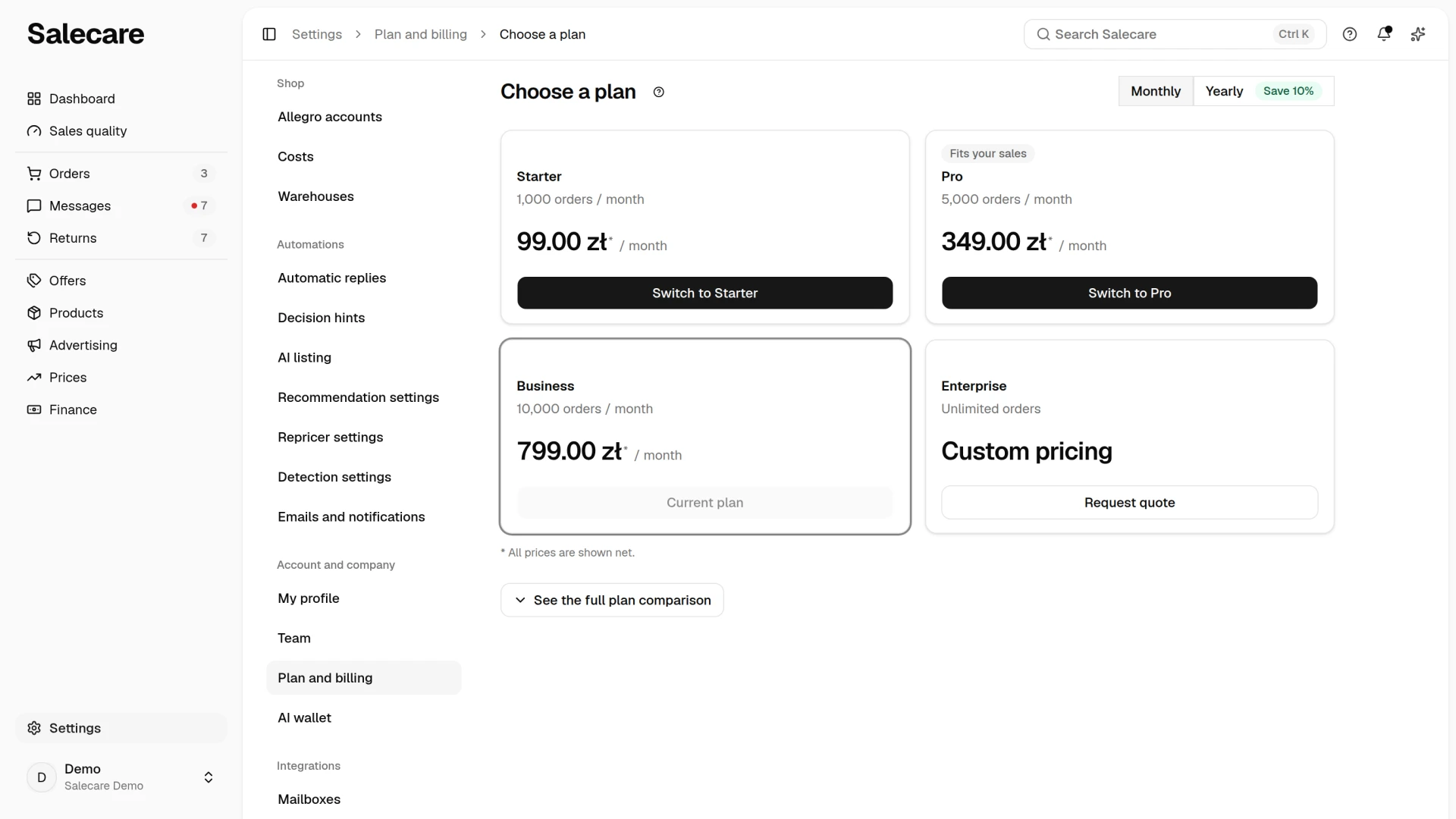
The "Fits your sales" badge marks the cheapest plan you can buy yourself that covers your Allegro accounts, active automatic imports and warehouses, and whose order limit holds the month with the most orders among this month and the three before it. The badge does not look at the features you use, such as the Salecare repricer or Allegro Ads, so check them in the full plan comparison. A custom plan never gets the badge.
Click the button on the plan card you want and Salecare opens the How would you like to pay? window. Tick the box with the request to start the service before the 14-day period for withdrawing from the contract ends, because without it the payment buttons stay inactive. Then choose Card with automatic renewal or BLIK or Przelewy24. Paying by card takes you to Stripe's payment page, where you enter the card details and confirm the purchase. Choosing BLIK or Przelewy24 creates a subscription paid from a payment link. Outside the trial, Salecare opens the Payment page with the amount for the first period right away. During the trial nothing is due until it ends, so the Payment page does not open, and the payment link arrives by email once the trial ends. Stripe charges a card only after the trial ends in that case too. A plan bought during the trial applies from the moment of purchase, so until the trial ends the company has the features of that plan, not of the Business plan. If you have a discount code, click I have a discount code under the cards and type the code before you click the button on the plan card. The purchase window shows it on the Discount code line. The code works with the first purchase of a plan, and a plan change during a subscription has no such field. After the purchase a purchase confirmation with the text of the request reaches your email address.
Buying a plan needs your invoice details. When the tax number or the full company address is missing, the warning "Fill in the invoice details to buy a plan." with a Fill in link stands at the top of the Choose a plan page, and the buy buttons on the plan cards are inactive, because every subscription payment gets a VAT invoice. Fill in the details as step 4 describes and come back to choose the plan.
While Salecare does not settle VAT for companies from other countries, a company based outside Poland cannot buy a plan. A yellow notice with an email address to write to about the purchase then stands at the top of the page, and the buttons that buy or change a plan are inactive. A quote request for the custom plan goes out as usual. Once Salecare settles VAT for companies from other countries, the notice is gone and a company from another country buys a plan like any other. A company from another EU country whose VAT number the VIES register confirmed then pays the net amount alone and settles the tax in its own country (reverse charge). A company outside the EU whose registered office Salecare support confirmed pays the net amount alone, without Polish VAT. Until the confirmation, the payment includes 23% VAT, and a change of rate applies from the next subscription payment. When Salecare's yearly sales at 23% VAT to EU companies without a confirmed number come close to the limit of art. 28k of the Polish VAT Act, such a company cannot buy a plan until the VIES register confirms its number, and the yellow notice asks it to check the number in the invoice details. A renewal payment that would pass that limit is not collected until Salecare support deals with it, and the plan keeps running.
The plan you choose has to cover what you already use, also when you change the plan of a running subscription. When you have more connected Allegro accounts, active automatic imports or warehouses than the plan covers, Salecare does not let you choose it and charges nothing. The message says what to disconnect, pause or delete and how many, for example "Disconnect 2 Allegro accounts". Do that and choose the plan again. Salecare repricer rules do not need pausing before a plan change. A plan with a lower limit of active rules can be chosen, and Salecare pauses the rules beyond that limit itself when the new plan starts. The Starter plan has no Salecare repricer, so there the rules simply wait.
The Payment page
Stripe takes the card and payment details. You enter them on Stripe's page when you buy by card, and on the Payment page in Salecare you type them into Stripe's form, so Salecare neither sees nor stores them. Salecare learns about a payment only once Stripe confirms it.
When a payment is waiting for you, the Plan group on the Plan and billing page shows a Subscription payment row with the amount and a Pay button that opens the Payment page in Salecare. At the top of that page you see the gross amount to pay, the plan and billing cycle the payment is for, and the period you pay for. Below it you choose one of the payment methods the form shows and click the button with the amount. A card and BLIK finish the payment on this page, BLIK once you approve it in your banking app. Przelewy24 opens your bank's page, and after paying you come back to Salecare. While the payment runs the button stays inactive, so a second click or a second browser tab never charges twice.
After a completed payment you come back to the Plan and billing page with a message that the payment was accepted. When the bank has not confirmed it yet, the message says the payment is in progress. In both cases the subscription status changes only once Stripe confirms the payment. After a failed payment you stay on the Payment page with a message that nothing was charged, and you can choose another method. A link to a payment that is already settled or cancelled takes you to the Plan and billing page with a message that there is nothing to pay. The Payment page opens for the account owner and anyone with the Billing & subscription permission. From the link in an email they reach it too, after signing in.
Stripe sends no invoices or payment receipts of its own, and the Payment page links to no Stripe document. The only invoice is the VAT invoice from inFakt, which appears in the invoice list of the Invoices group on the Plan and billing page once the payment is booked.
What the rows of the plan comparison mean
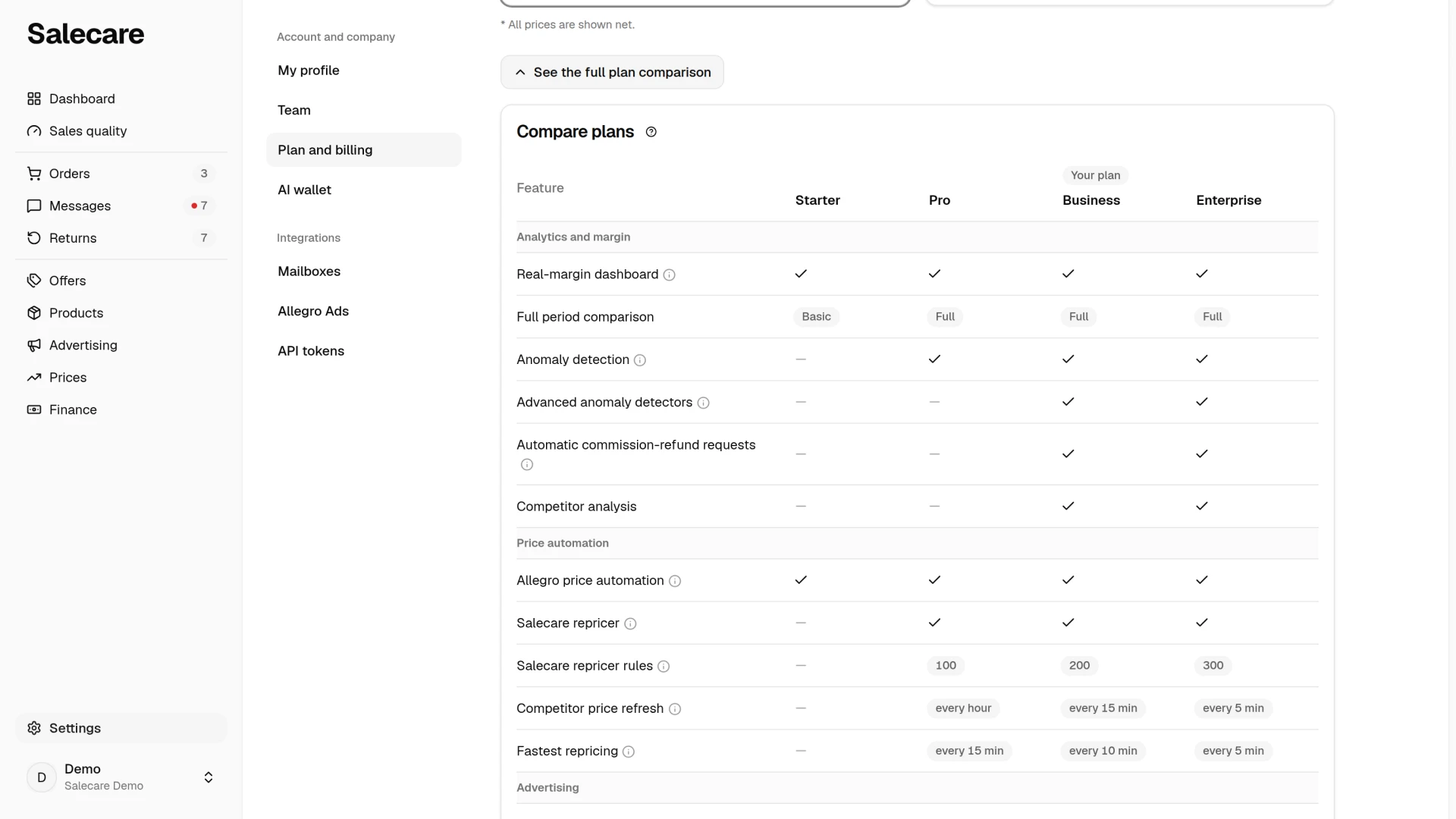
The See the full plan comparison button under the cards on the Choose a plan page opens a comparison of the plans with yours highlighted, so you can see at once what a plan change would add and what you are not paying for. Hovering over a row name shows a short explanation, and the longer explanations of the rows are below.
- Full period comparison. "Full" adds a comparison with the previous period, meaning the % change in margin, categories and offers across the dashboard and trends. "Basic" shows the current period without comparisons.
- Competitor analysis. A market dashboard and single-seller reports. You see who competes with your range on Allegro, how hard they undercut you, and where your margin is under the most pressure.
- Salecare repricer rules. The limit counts the offers that use the Salecare repricer at once, which means pricing based on competitor prices. Allegro price automation is not limited.
- Competitor price refresh. The Salecare repricer pulls competitor prices from Allegro for the offers under its rules. It does so every hour on Pro, every 15 minutes on Business and every 5 minutes on Enterprise. Starter does not include the Salecare repricer, so competitor prices refresh on it in two ways. Every hour a sweep of the range checks the products, starting with those whose prices were read longest ago, and opening an offer's competitor list refreshes the prices of that offer.
- Fastest repricing. How often the Salecare repricer can change an offer's price. Every 15 minutes on Pro, every 10 minutes on Business, every 5 minutes on Enterprise. Starter does not include the Salecare repricer.
- Assistant knowledge base. The knowledge source for the entire AI assistant (chat, reply drafts and offer generation), based on your catalogue and correspondence. The "By keywords" mode matches exact phrases, while "By meaning (AI)" understands the intent of a query and returns more relevant results.
- AI offer-draft generation. AI builds ready offer drafts (title, description and parameters) from your products. The same feature also gives access to adding and filling in products with AI and to the photo tools, namely background removal, Studio AI and photo edits for many offers.
- Import frequency. How often an automatic import refreshes. Every hour on Starter, every 30 minutes on Pro, every 15 minutes on Business, every 5 minutes on Enterprise.
Step 3. Manage the payment and the subscription
Once you have a subscription, the Plan group holds a Payment method row. It names the method only, for example "Visa card ••4242", "No card saved" or "BLIK or Przelewy24", and the line under the plan name gives the day and the way of the next payment. The renewal can charge the saved card automatically or wait for your payment by BLIK or Przelewy24. The row's main action is the button next to the method, and the other one, when there is one, sits in the ⋯ menu. With card payment the Change card button opens the Stripe panel, where you replace the card, and without a saved card the same button is called Add card. The ⋯ menu then holds Pay by BLIK or Przelewy24. With BLIK or Przelewy24 the Pay by card button switches the renewal to an automatic charge of the saved card, and Change card is in the ⋯ menu. Without a saved card Add card stands in that place, and Pay by card appears only once a card is saved. The Stripe panel does not change how the renewal is paid, only these buttons do. With BLIK or Przelewy24, a week before the renewal a notice that the subscription renews within 7 days stands under the top bar, and a reminder reaches the invoice address. You pay nothing yet at that point. On the renewal day an email with a link to the Payment page in Salecare reaches the invoice address, and the Plan group shows a Subscription payment row with the amount, a "To pay" badge and a Pay button.
Cancelling the subscription and the Stripe panel are in the folded Data export and company deletion section at the bottom of the page. The Cancel subscription button opens the Stripe panel straight on cancelling, and the Open the Stripe panel button opens the whole panel, where you cancel and resume the subscription and replace the card. When you are done you come back to Salecare, and the Plan and billing page already shows the new state.
You change the plan on the Choose a plan page, with the button on the plan card you want, also when you pay by card. Salecare first checks that the plan covers what you already use, as step 2 describes, and then opens the Stripe panel with the confirmation of the change to that plan. After you confirm you come back to Salecare. The Stripe panel itself does not check the number of connected Allegro accounts, so always change the plan on the Choose a plan page in Salecare.
A subscription paid by BLIK or Przelewy24 can be cancelled in the Stripe panel, but its plan cannot be changed there. After clicking the button on the plan card you want, you therefore confirm the change in a window in Salecare. A higher plan works at once, and the price difference for the rest of the period goes onto the next payment. A lower plan starts at the end of the period already paid for, and until then the Plan group gives the date of the change and has a Keep current plan button. While a plan change is scheduled the Stripe panel does not allow cancelling the subscription, so the Cancel subscription button is inactive then, and the section tells you to click Keep current plan first. To cancel, click Keep current plan and then cancel the subscription.
You can end a yearly plan before the paid year is over with the End the yearly plan with a refund button in the Data export and company deletion section. The plan then works until the end of the current month of its year, and under the button you see that date and the refund for the whole months that remain until the end of the year. The amount is the share of the yearly fee paid that those months make up in the year. The button is not there while a subscription payment is waiting to be paid, for example a renewal for a new year paid by BLIK or Przelewy24. The refund is counted from the fee for the current year, so pay it first. You confirm the date and the amount in a window, and after that the Plan group gives the day the plan ends and the refund. After that day Salecare refunds the money to the card or account the payment came from and issues a corrective invoice. The subscription then ends, so the company enters the 90-day grace period described below. To keep Salecare working, choose a new plan on the Choose a plan page. Until that day you can resume the plan in the Stripe panel, and then there is no refund. Cancelling in the Stripe panel only switches off the renewal, and the plan works until the end of the paid year without a refund.
When a lower plan starts, Salecare fits what runs to the plan's limits. The oldest Allegro accounts stay connected, and the newer ones beyond the limit get the "Over the plan limit" status and stop syncing, although their data stays. Their offers stay active on Allegro, though, and Salecare does not download their orders and does not update the stock or prices of those offers. Accounts brought back earlier with the Bring back button come before the oldest. A yellow bar with their logins and the Change plan and Allegro accounts links then stands under the top bar. Syncing comes back by itself when you disconnect another account or move to a plan that covers all accounts. When the new plan has the Salecare repricer with a lower limit of active rules, the rules beyond that limit are switched off, and a notification in the bell gives their number and leads to the list of offers with a switched-off rule. Salecare first switches off the rules on accounts that do not sync, for example accounts over the plan limit, because those rules change no prices anyway. Then it switches off the most recently added rules. You switch them on once you switch others off or move to a higher plan. When there are more active automatic imports than the plan covers, all of them are paused and you choose which to resume. An import that runs more often than the plan allows is paused too.
When a trial ends without a plan being bought, the company enters a 90-day grace period, the same one that follows the end of a cancelled subscription, described below. Order and offer syncing then stops on every Allegro account, not only on the accounts beyond the plan's limit.
Deleting the company also ends the subscription. Only the Owner requests the deletion, with the Delete company button in the folded Data export and company deletion section on the Plan and billing page, and Salecare then cancels the subscription in Stripe. The plan works until the end of the period already paid for and does not renew, so the card is not charged after that date. Until that day Salecare works as usual, syncs orders, offers and stock with Allegro and changes prices, and the 90-day grace period starts only after it. In the request window you choose "Keep working until" with the end date of the paid period, or "Stop at once". The second option stops syncing, the repricer and automatic reply drafts the moment you send the request, and the grace period starts the same day. Choose it when you are moving your sales to another tool, so that two repricers do not change the prices of the same offers. You confirm the request with the company name and your password. If you resume the subscription renewal in the Stripe panel before the paid period ends, the deletion request is taken back, because the card is charged again. Without a paid plan, for example during the trial, the request stops syncing at once and the window says so before you click. After the request the Plan group gives the date the company is permanently deleted, and until the grace period ends the Owner takes the deletion back with the Cancel company deletion button in that group. Before the paid period ends the subscription then renews again. After the end of the paid period Stripe no longer resumes the subscription. The Plan group says so before you click, and the Cancel the deletion and choose a plan button takes back the deletion alone and moves you to the Choose a plan page. The company then stays in the grace period with the same deletion date, and choosing a plan brings the background work back at once. Right after the request a confirmation with the date the company is permanently deleted and the last day to download the data reaches the invoice address, and before the deletion reminders come 30 days, 7 days and one day ahead. Downloading the company data is described in the guide "How to export data to files".
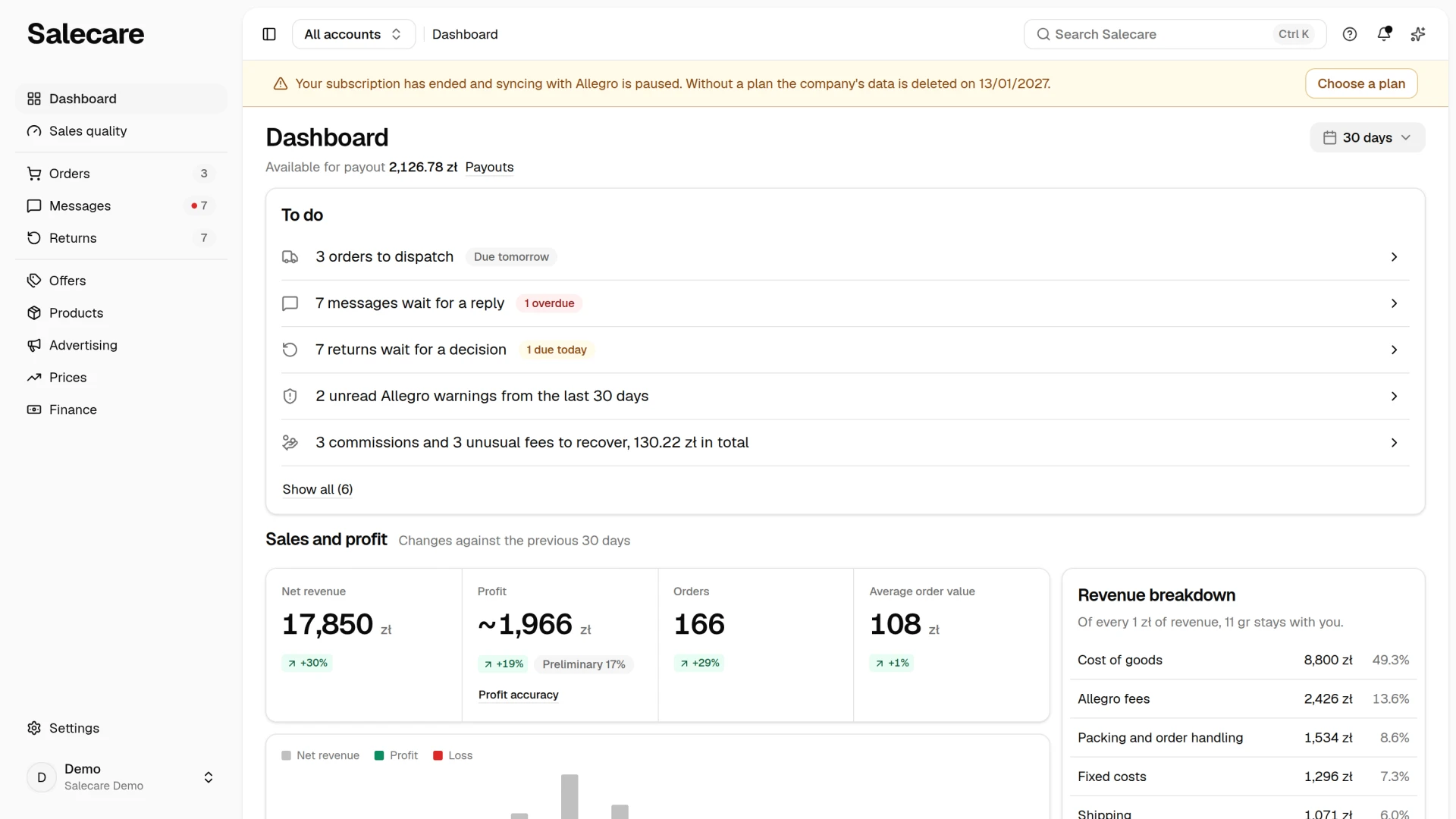
Cancelling the subscription ends the service later, after the period already paid for. When that period runs out, the company enters a 90-day grace period. During it Salecare stops order and offer synchronisation, repricing and automatic reply drafts, and a bar naming the day the company is permanently deleted stands under the top bar. The saved card is not charged for the automatic AI wallet top-up either. Reminders reach the invoice address 30 days, 7 days and one day before that date. You can download your company data for the whole grace period, and choosing a plan stops the deletion and brings the background work back at once.
The account owner and people with the Billing & subscription permission have a Choose a plan button in the bar, which opens the Choose a plan page, and with a requested company deletion an Open Plan and billing button. The others see a request in the bar for the account owner to choose a plan.
When a renewal fails, for example because the bank declines the card, Salecare keeps working as usual for 7 days while Stripe retries the card. A red bar under the top bar shows the day this period ends, and an email with the same date and a link to the Payment page in Salecare, where you pay the renewal with one of the methods the form shows, reaches the invoice address. If the payment does not go through by that day, the account is locked by the following night at the latest. Order, offer and discussion syncing with Allegro, price changes, stock updates sent to Allegro and AI features then stop, and in Salecare you can then open only the payment page and the Downloads page. Paying the subscription unlocks the account at once.
An account over the plan limit and a shared warehouse
You can bring an account over the limit back at once with the Bring back button in its row on the Allegro accounts page. In the window you pick the connected account that gives up its seat in the plan. The offers of the account that gave up its seat stay active on Allegro, but Salecare does not download its orders and does not update the stock or prices of its offers until a seat frees up. With a shared warehouse the sales of the account over the limit do not reduce the stock on your other accounts, so the accounts can sell goods you do not have. End that account's offers in Allegro in that case, or watch the stock by hand. The account's data and its Allegro consent stay. When the plan changes to one with fewer accounts, the accounts brought back this way keep their seats before the others.
Step 4. Fill in your invoice details
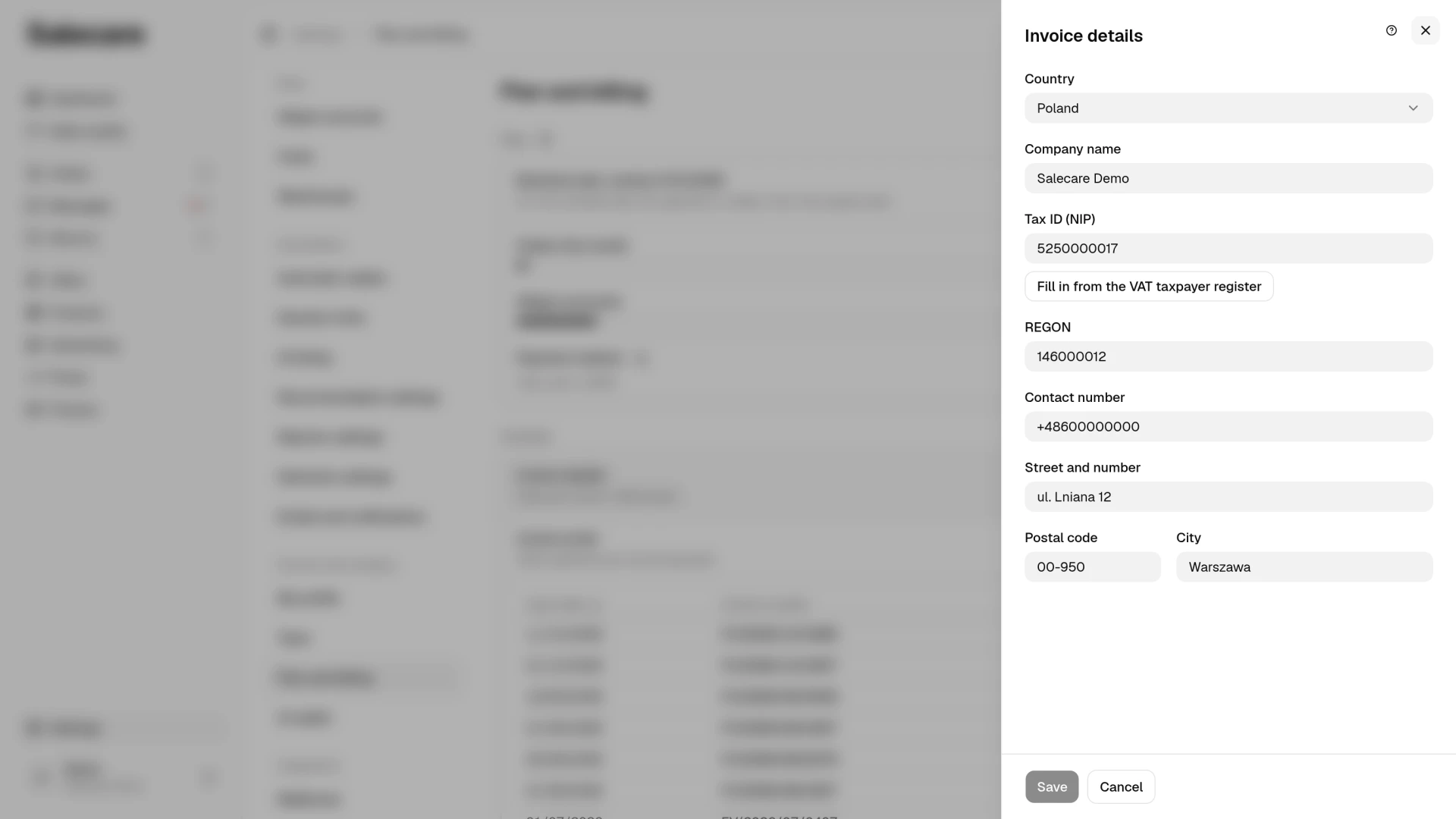
The second group of the page, Invoices, starts with the Invoice details row. When something is missing, the row has a "Missing" badge and a Fill in button, and with complete details a Change button. The button opens a panel on the right. Pick the country in it, enter the company name, the tax number, a contact number and the address, that is street and number, postal code and city, and finally click Save. These details go onto invoices and into settlements, so fill them in before the first payment. Without a tax number and a full address you cannot buy a plan or top up the AI wallet, because every subscription payment and every top-up gets a VAT invoice.
The Invoice email row shows the email address invoices go to, and the Change button opens a panel with that one field. All messages about the account go to this address too. The emails about cases go to the people of the team picked on the Emails and notifications page, not to this address. Messages about the account stopping work, that is a failed payment, a locked account, a payment to pay, the end of the trial, the grace period, a requested company deletion and a lost Allegro connection, also go as a copy to every owner of the company, to the address they sign in with.
The country you pick decides which number the form asks for. A Polish company enters a NIP and a REGON beside it. Under the NIP field is the Fill in from the VAT taxpayer register button. It enters into the form the company name, REGON and address the Ministry of Finance VAT taxpayer register lists for that number. It saves nothing itself, so check the data and click Save. The register lists VAT taxpayers only, exempt ones included, so a business that never registered for VAT is not there and you type the data in by hand. A company can use the register 10 times a day. A company from another country enters only its VAT number in that country's format, for example the Slovak 4444444444, and the REGON field disappears, because that is a number of the Polish register. You can type the number with or without the country prefix, and the app stores the national part. While the company is still on its trial and a company registered in Salecare earlier already has the saved number, the trial ends with that save and the message after saving says so.
While Salecare does not settle VAT for companies from other countries, a company based outside Poland cannot buy a plan or top up the AI wallet, as the notice on the Plan and billing page says, and nothing about the register appears under the number field. Once Salecare settles VAT for companies from other countries, the VAT number of a company from another EU country goes to the EU VIES register after saving, together with the company name and address. A VAT number in the VIES register line then appears under the field with the register's answer and a sentence on the rate Salecare invoices this company at. A confirmed number gets an invoice without Polish VAT marked "reverse charge", and Salecare checks it again every week. When the register holds the number under a different company name, the answer reads "Different name in VIES", and invoices carry 23% VAT until you correct the name in the invoice details. If a national register does not answer, an earlier confirmation stays in force and Salecare asks again the next day. A company outside the EU sees a Registered office outside the EU line under the field. Salecare support confirms the registered office from the tax number and the invoice details, and until then invoices carry 23% VAT. Changing the country or the number withdraws any confirmation. When the register does not know the number, check it with your tax office, correct it and save again. A number that is not in the format the selected country uses never reaches the register. Invoices for a company outside the EU carry no Polish VAT, because the service is not subject to VAT in Poland.
The contact number sits beside the billing email and is optional. It is the number to call about billing. You can type it with spaces or dashes, and the app removes them. If the company takes calls from abroad, start the number with the country prefix and a + sign, and the app stores a 00 prefix as +.
Under these rows is the list of VAT invoices from inFakt with the issue date, number, amount and a Download link. An invoice whose document is still being made shows "Being prepared" instead of the link, and before the first payment the list says that the first invoice appears after the first payment. You change the order of the list in the Issue date and Amount headings. On a phone each invoice is a row with its number, the issue date under it, the Download link and the amount, and you pick the order in the menu above the list. Picking the same field again reverses the order.
A person with the Company & invoice details permission who does not manage billing opens Invoice details in the account menu or the Plan and billing row in Settings. They see the same page, but with the company data only, that is the Invoice details and Invoice email rows and the company data download in the Data export and company deletion section. The old addresses of the invoice details and privacy pages still work. A person who manages billing lands from them on the Plan and billing page with the Invoice details panel open or with the Data export and company deletion section unfolded.
What next
AI wallet top-ups are settled separately from the subscription. See the guide "How the AI wallet and top-ups work". And if billing is not meant to be managed by the whole team, restrict access with permission sets following the guide "How to add a team and permissions".