How the AI wallet and top-ups work
Offer descriptions, photos from Studio AI, replies to customers and researching products online are AI actions that cost real money with the model providers. In Salecare you settle them from the AI wallet. You top up funds in advance, and every AI action comes off the balance at its actual usage, so you pay only for what you use. A person who manages billing sees the balance in the account menu. Once the balance falls to the low balance warning amount, they see it in the top bar as well.
Step 1. Open the AI wallet page
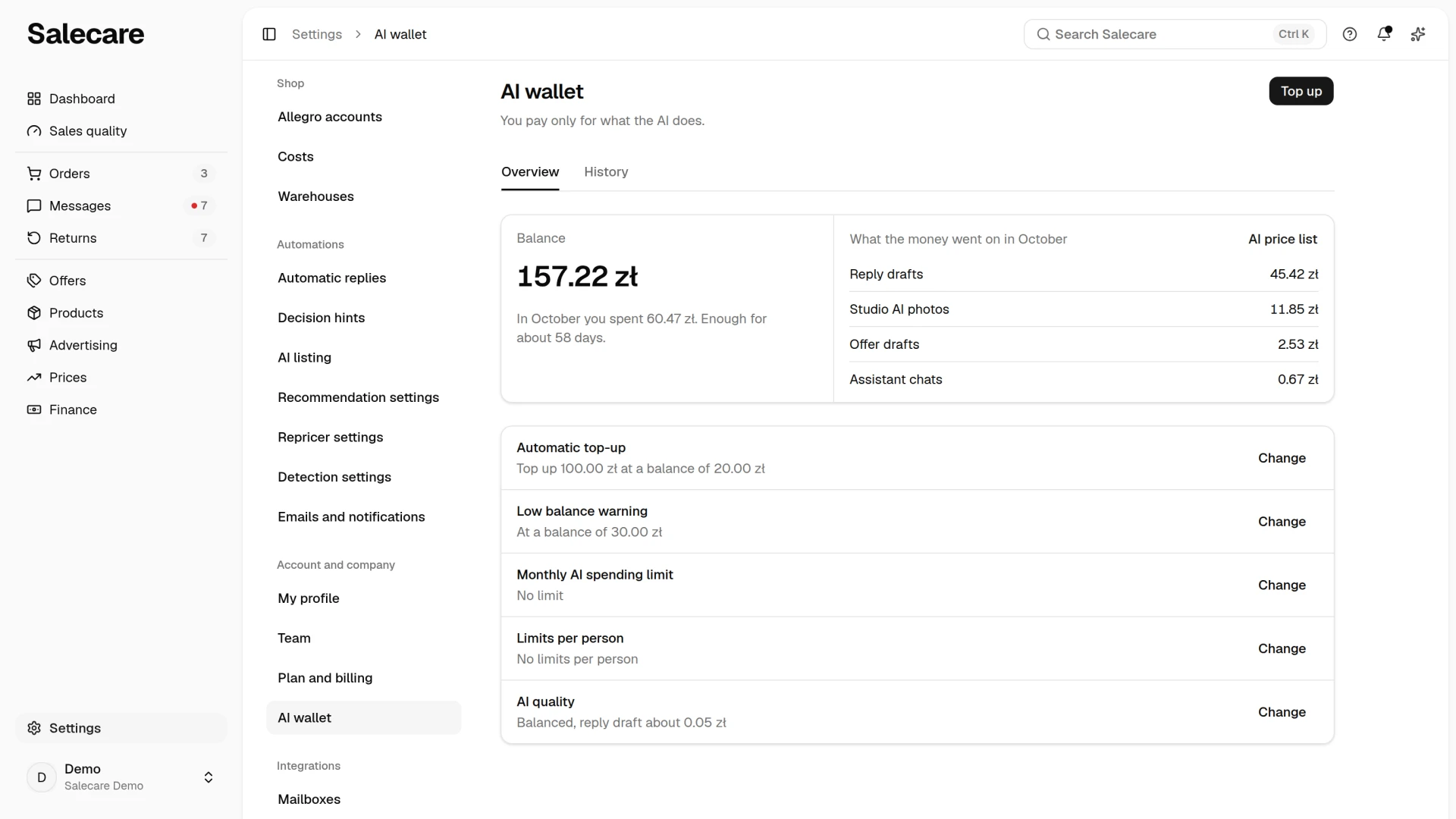
Click your profile at the bottom of the side menu to open the account menu and choose AI wallet. The current balance stands on the right of that item. On a phone the AI wallet with its balance is in the Account and settings part of the menu that the ☰ button in the top left corner opens. The same page is in Settings, in the Account and company group. Once the balance falls to the low balance warning amount you set further down, the balance also appears in the top bar in a warning colour, and clicking it opens this page. Only a person who manages billing sees the balance and the whole page. A person with the Workspace settings permission sees only the AI quality row on this page. The rest of the team uses AI but cannot open the wallet.
The page has the Overview and History tabs. The Overview tab holds the balance card described in step 3. Under it stand the rows of the wallet settings, Automatic top-up, Low balance warning, Monthly AI spending limit, Limits per person and AI quality. The Change or Turn on button of a row opens a panel on the right. Each panel saves only its own setting with its Save button. When the wallet is empty, a notice above the balance card says that AI actions are paused until you top it up.
Step 2. Top the wallet up
Click Top up in the top right corner of the page. The Top up the AI wallet panel opens. Choose one of the ready amounts in it, 50, 100, 250 or 500 zł, or enter your own, from 50 to 5000 zł. Below you see a receipt-style breakdown with the net amount, the VAT and the total to pay. A Polish company pays 23% on top, so a top-up of 100 zł net is 123 zł to pay. While Salecare does not settle VAT for companies from other countries, a company based outside Poland cannot top up the wallet, and the panel shows it a notice with an email address to write to about the purchase. Once Salecare settles VAT for companies from other countries, a company from another EU country whose VAT number the VIES register confirmed and a company outside the EU whose registered office Salecare support confirmed pay the net amount alone. The VAT line of the breakdown then reads "Reverse charge, no Polish VAT" or "No Polish VAT". A company from another EU country whose VAT number VIES has not confirmed yet pays 23% VAT. When Salecare's yearly sales with Polish VAT to such companies come close to the threshold set by the VAT act, the panel shows it a notice that Salecare takes the payment once the VAT number is confirmed in the VIES register, and the top-up button stays inactive.
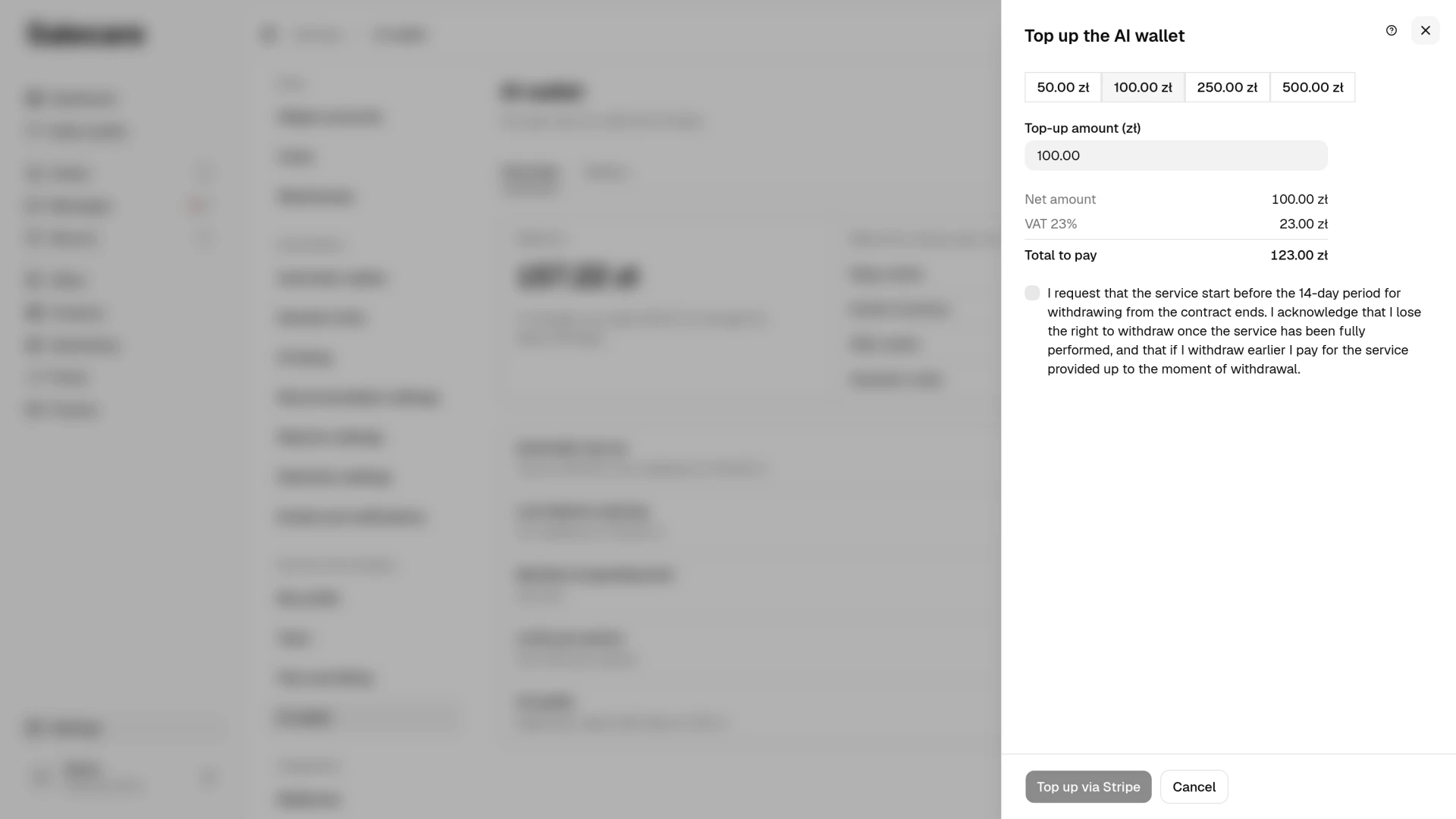
Before paying, tick the box with the request to start the service before the 14-day period for withdrawing from the contract ends. Without it the Top up via Stripe button stays inactive. Every top-up gets a VAT invoice, so fill in your invoice details first, that is the tax id and the full company address. Until they are there the top-up button stays inactive, and the panel shows the notice "Fill in the invoice details to top up the wallet." with a Fill in the invoice details link. Click Top up via Stripe and pay on Stripe's payment page. After paying, you return from Stripe to the AI wallet page, and the notice "Your wallet has been topped up" appears above the balance card. When you come back from Stripe without paying, the notice reads "Top-up was cancelled". The funds appear in the balance once Stripe confirms the payment, and a purchase confirmation with the wording of the request to start the service arrives at your email address.
Automatic top-up
The Automatic top-up row shows the balance threshold and the top-up amount, or "Disabled". The Turn on or Change button opens a panel. Switch on Top up automatically in it and fill in the Balance threshold and Top-up amount fields. Once the balance drops to the balance threshold or lower, your saved card is charged the top-up amount, so AI features do not stop mid-run. The panel says what amount the card is charged and how much reaches the wallet. The card charged is the one saved for your subscription in the Stripe panel, which you open on the Plan and billing page. The wallet is credited the net amount, the same as with a manual top-up. A company that pays without Polish VAT gets an invoice without Polish VAT, and with reverse charge the invoice is marked "reverse charge". When no card is saved, a Save a card link shows above the switch. The top-up amount has to be higher than the balance threshold, and you need a saved card and complete invoice details before you can switch it on. When you save the automatic top-up switched on, you tick the same request to start the service, and after every automatic top-up a purchase confirmation arrives.
The Monthly cap field sets the most automatic top-ups may add up to, net, in one calendar month, and below the field you see how much has been charged this month. By default it is five top-ups of the chosen amount, that is 500 zł for an amount of 100 zł. While the field shows five top-ups and you have not typed an amount of your own in it, it moves with the top-up amount, so after you change the amount to 250 zł it shows 1250 zł. A cap you type yourself stays as it is when the top-up amount changes, and it cannot be lower than one top-up. When one more top-up would exceed the cap, the card is not charged. The Automatic top-up panel then shows a notice, the row gets a "Monthly cap reached" badge, and one notification arrives in the bell and by email. The automatic top-up resumes on the 1st of next month, or at once when you raise the cap. Manual top-ups do not count towards this cap.
When a card charge fails, the Automatic top-up panel shows the reason, the row gets a "Failed" badge, and a notification appears in the bell, at most one a day. The next charge attempt comes an hour later at the earliest, and after three failed attempts the automatic top-up switches itself off. It switches off at once when the card needs you to confirm the payment, in your banking app for instance, when no card is saved, or when invoice details are missing. Once it is switched off, an email arrives too. After you save a working card or complete the details, switch the automatic top-up on again and click Save. The card is not charged on an account locked for non-payment, after the subscription has ended, after you ask for the company to be deleted, or for a company based outside Poland while Salecare does not settle VAT for companies from other countries. In each of these cases the AI wallet page stays reachable, so you can switch the automatic top-up off.
Low balance warning
The Low balance warning row shows the amount at which Salecare warns you, and Change opens a panel. Enter an amount from 1 to 1000 zł (5 zł by default) in the Warn at a balance of field and click Save. When the balance falls to this amount or lower, a notification appears in the bell and, while the automatic top-up is off, an email comes too. The warning comes once each time the balance falls and returns only after a top-up above this amount. When the wallet runs out, you get a separate notification and email, whatever this amount is. Both emails are sent while the AI wallet topic is switched on on the Emails and notifications page. When the AI assistant refuses to answer because the wallet is empty or the welcome bonus is paused, the chat window shows a Top up the AI wallet link under the message. It opens the Top up the AI wallet panel on the AI wallet page. A person who does not manage billing sees, instead of the link, that a person who manages billing tops up the wallet. Filling in a product with AI fails while the wallet is empty, and the product list and the product page give the empty wallet as the reason. Salecare then takes no EAN codes pasted in the Add products with AI dialog either, and gives the same reason.
Monthly AI spending limit
The Monthly AI spending limit row shows the limit and what has been spent this month, or "No limit", and once the limit is reached it has a "Reached" badge. Change opens a panel. Enter an amount from 1 to 50 000 zł in the Limit per month field and click Save. An empty field means no limit. Under the field you see what AI actions have cost this month. Once the charges for AI actions in a calendar month reach the limit, Salecare starts no new AI actions. The assistant does not answer, and reply and offer drafts, automatic ones included, are not written. Filling in a product with AI fails with the limit as the reason, a paid background removal in the gallery of a product, a draft or an offer does not start, and a photo batch stops before the next offer. An action already running finishes and is charged. The limit holds whatever the balance, so a top-up does not lift it. You can start new actions from the 1st of next month, or at once after raising the limit. When the assistant refuses to answer because of the limit, the chat window shows a Change the limit in the AI wallet link under the message, and a person who does not manage billing sees instead who changes the limit. The limit covers spending from the AI wallet, while the monthly cap on automatic top-ups only limits the card charges.
Limits per person
The Limits per person row says how many people have a limit of their own, and when one of them has reached it, the row has a "Reached" badge. Change opens a panel with the people of your company. Next to each person you see what the AI actions they started have cost this month, and in the field beside it you enter their own monthly limit, from 1 to 50 000 zł. An empty field means no limit for that person, and one Save button saves the whole list. A person's limit counts every AI action they started, also the ones that finish in the background, which are the assistant chat, generating content in the offer editor, offer drafts and product content, suggested replies to ratings and drafts of rating removal requests, discussion reply drafts, Studio AI photos, object cut-outs, photo batches and the AI mapping suggestion of a product import. Once a person reaches their limit, a "Limit reached" mark appears next to their name, and until the 1st of next month or until the limit is raised they start no new AI action. They cannot start a new photo batch either, and a batch they started earlier stops before the next offer. Filling in a product with AI that they started fails with this limit as the reason. The assistant then answers them that a person who manages billing raises the limit, with no link to the wallet. Everyone else keeps working. Automatic discussion reply drafts and automatic offer drafts, which Salecare starts on its own, count only towards the company's monthly limit, which applies whatever the personal limits are.
AI quality
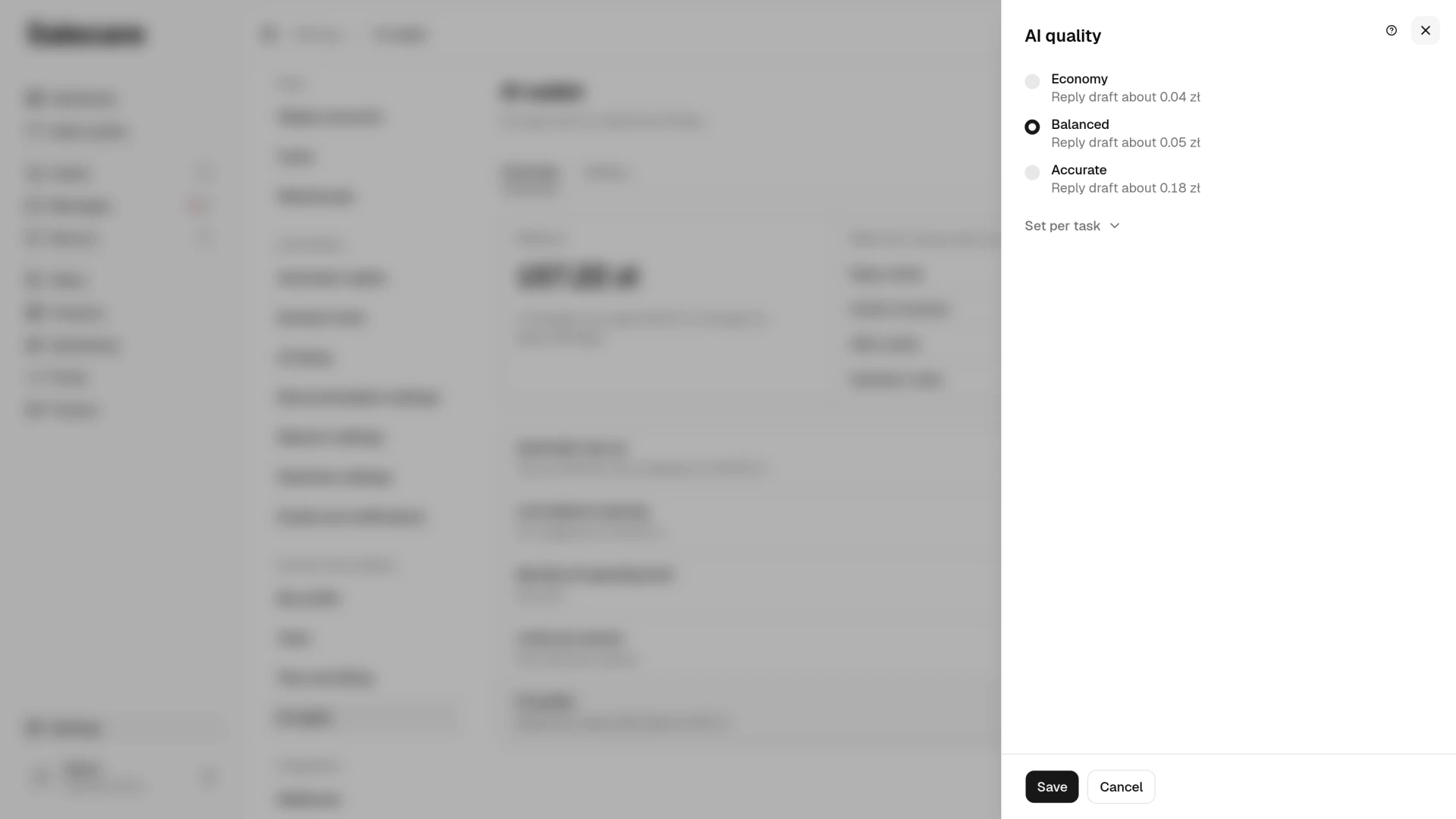
The last row below the balance card is AI quality. It shows the AI level and the approximate price of a reply draft. Change opens a panel where you set one level for every AI task, "Economy", "Balanced" or "Accurate". After clicking Set per task you set a level for each task on its own. Each task shows the price of one action at every level. The "Economy" level is the cheapest and fastest, enough for simple questions and bulk replies. The "Balanced" level is enough for most questions, drafts and replies. The "Accurate" level handles harder tasks more reliably but costs more per action. On a plan that does not include it, the level is locked, and a padlock names the plan it is available from. The change takes effect after you click Save. A person with the Workspace settings permission who does not manage billing sees only the AI quality row on the AI wallet page, without the balance or the spending. During a trial without a chosen plan the "Accurate" level is not on the list.
Step 3. Keep track of where the funds go
The balance card on the Overview tab gives what has been spent on AI this month. The "Enough for about … days" line says how many days the balance lasts at the pace of spending of the last 30 days. The What the money went on list under the balance splits this month's spending by kind of task. All operations of the wallet are on the History tab. Every AI charge names the type and the action it paid for, the date and time, and the amount taken from the balance. A charge tied to a record links straight to it, a discussion or an offer for instance. A top-up carries a link in the Document column to its VAT invoice from inFakt. The invoice is issued automatically once the payment settles and is also sent to your billing email address. Until it is there, the Document column stays empty. Stripe sends no invoices or receipts of its own. The inFakt invoice is the only invoice for a top-up. The filters above the list narrow it down by Type, Action, Name, Note, Amount, When and Document, so you can check what a single day or a single kind of action cost you. The Type filter appears when the list holds transactions of more than one type. The sort menu in the Type column header and the Amount column header set the order of the list. On a phone the transactions are rows of one card with the type, the date, the amount and the invoice link, and you pick the order in the menu above the card. It holds every field the table sorts by, and picking the same field again reverses the order.
AI price list
The AI price list link in the balance card opens a panel with the approximate price of one AI action at the three AI quality levels, "Economy", "Balanced" and "Accurate". The panel prices a chat message, a discussion reply, an offer draft and a rating reply, plus photo background removal and an AI photo when they are paid. It shows that a discussion reply costs a few groszy, while an offer draft or a photo from Studio AI costs distinctly more. The cost of filling in a product with AI and of the AI mapping suggestion of an import is shown in the task list of the AI quality panel. The amounts are estimates based on your recent usage, or on typical values when you have no history yet. Actual usage is what gets charged, so the cost of a single action may differ.
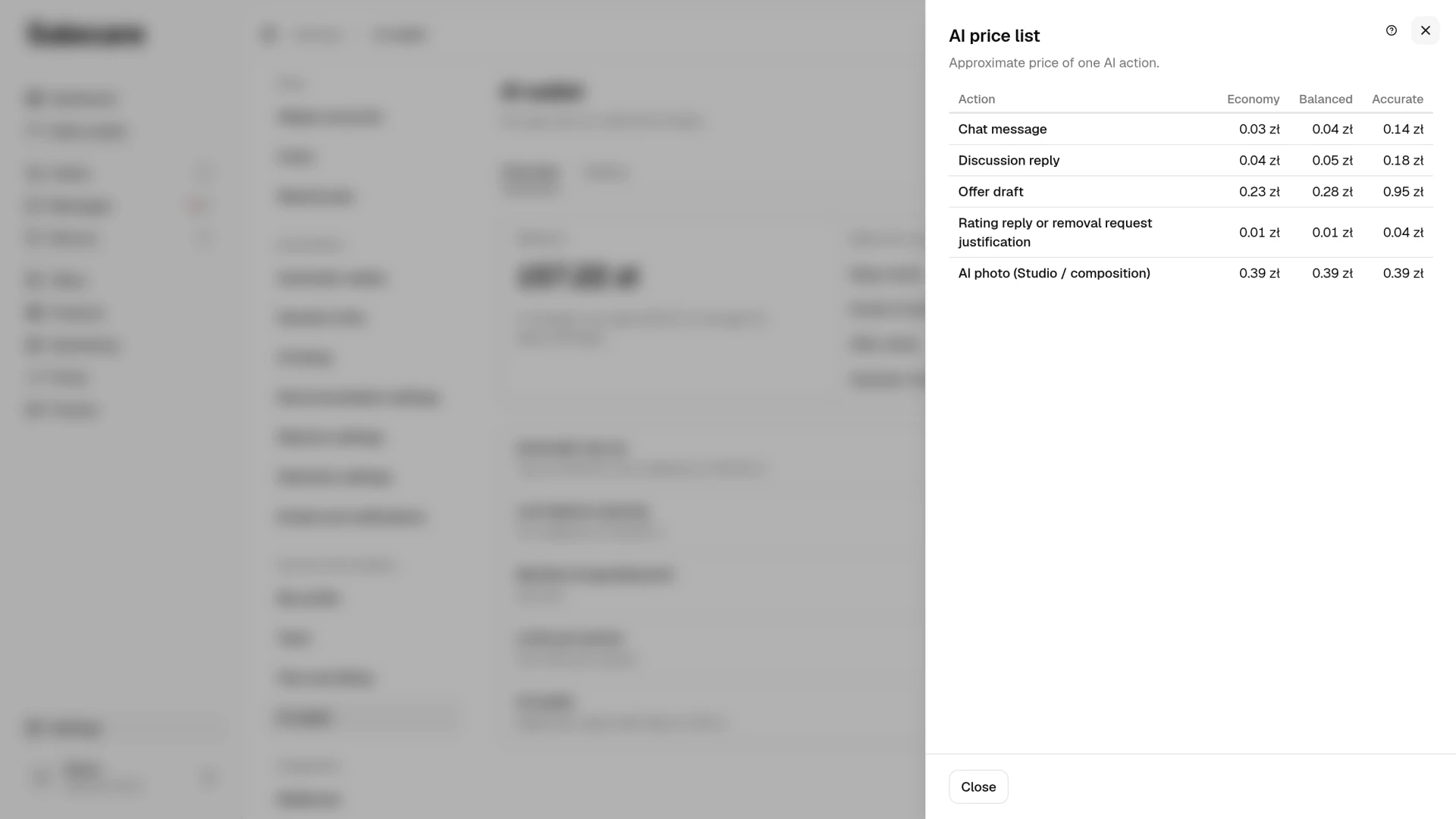
Photo batch quote, reservations and the welcome bonus
A photo edit of many offers shows its price before you start it, that is the cost of one photo and the total. The batch stops before it goes over that total, and also when the AI wallet runs out or the charges for AI actions reach the company's monthly limit or the limit of the person who started it. The offers it had not reached by then stay as they are, and the bell notification about the finished batch says what stopped it. A paid batch cannot start with an empty wallet or once one of these limits is reached. The details are in "How to edit the photos of many offers at once".
While an offer draft or a product filled in with AI generates, it reserves its estimated cost on the balance. The Regenerate button in the draft editor first gives the approximate cost from the AI wallet and asks for your consent. A Studio AI photo in the gallery of a draft or an offer is paid from the AI wallet, the same as elsewhere. The next generation starts only when something is left on the balance after the reservations of the generations in progress. A generation that starts while the ones in progress have already reserved the whole balance, or while your company already has two others in progress, waits in the queue and starts once one of them finishes. Other AI actions, the assistant chat for instance, reserve nothing and start as long as the balance is above zero. The balance is always charged the actual cost, so it can go below zero by the cost of the actions that were running at the time, and the shortfall comes off the next top-up. The reservation disappears once the generation ends.
A new company gets the welcome bonus when the first Allegro account it connects had never been connected in Salecare before, and its trial did not end over a repeated tax ID or VAT number. The wallet history shows it as an entry of its own. Salecare has a daily limit on the total AI use paid for by welcome bonuses alone across all companies. Use by companies that pay for a plan or topped up their wallet does not count towards it. When that use passes the limit on a given day, the welcome bonus is paused until the end of the day for companies that have not topped up their wallet yet, have no paid plan and received no credit from the Salecare team. The assistant, offer drafts, reply drafts for buyers, suggested replies to negative ratings, draft justifications of rating removal requests, generating content in the offer editor, photos from Studio AI, a paid background removal in the gallery and the AI-fill of the import mapping then answer with a message about the paused bonus. Filling in a product with AI then fails, and the product list and the product page give the paused bonus as the reason. Topping up the wallet lifts the pause straight away.
When AI does not work despite the balance
The wallet balance is not the only condition. The Starter plan has no AI offer-draft generation, so offer drafts, filling in products with AI, photo batches and the AI tools in the offer editor do not work, however full the wallet is. They work from the Pro plan up. When the plan's order limit is exceeded for the second month in a row, or the subscription payment is more than 7 days overdue, Salecare temporarily restricts the AI features, the assistant included. The assistant then answers with a message about the restriction, and under it is a Change the plan on the Plan and billing page or Update the payment on the Plan and billing page link. A person who does not manage billing sees, instead of the link, who can do it. A wallet top-up does not lift this restriction. The restriction ends after moving to a plan with a higher limit, after a month within the limit, or once the overdue payment is settled, and the balance stays on the account the whole time. The details are in "How to manage your plan and invoices". On top of that come the company's and each person's monthly AI spending limits described in step 2.
An unused balance is not refunded. The exception is a sole trader treated as a consumer, who is refunded the unused balance after the contract ends. The rules are in § 10 of the Terms.
What next
See what to ask the assistant in the guide "How to use the AI assistant". And if you want to see AI actions in practice, start with the photos. The guide "How to make a white thumbnail background and Studio AI photos" shows it step by step.