How to make a white thumbnail background and Studio AI photos
Allegro requires an offer thumbnail to have a pure white background, exactly RGB 255,255,255. For a thumbnail that breaks the rules Allegro can put the sanctions set out in Allegro's terms on your account, and a warning for a thumbnail rules out being granted or keeping Super Seller status in the following month. Whether the thumbnail complies also counts in sorting by relevance. Allegro waives the rule only for some offers, used goods sold from a regular account or auctions in the Fashion category for example, and the full list of exceptions is in Allegro's thumbnail rules in its Help Centre. A photo session for hundreds of products is a cost most sellers cannot carry.
Salecare gives you two tools for this, and each does something different. The Remove background item cuts the real product out of the photo, and the Use on white button puts it on a square with a pure white RGB 255 background. That is how the thumbnail is made. Studio AI works differently, because an image model draws the whole photo anew, with a new background or in a new composition. So thin, translucent and openwork items, the very things ordinary cutting out fails on, such as net curtains, jewellery or plants, get no holes. The model can change the product itself while it draws, though, so you compare every result with the original. Such a photo is the model's work, so Allegro marks it with an AI watermark, and a thumbnail cannot carry a watermark. Studio AI photos are therefore further photos of the offer, never its thumbnail.
Step 1. Set the photo composition
In Settings open the AI listing page. In the AI photos group, the Photo composition row shows the composition the Studio AI window starts with, with a sample photo and the price of one photo from the AI wallet. The Change button opens a panel where you set the starting point for every photo.
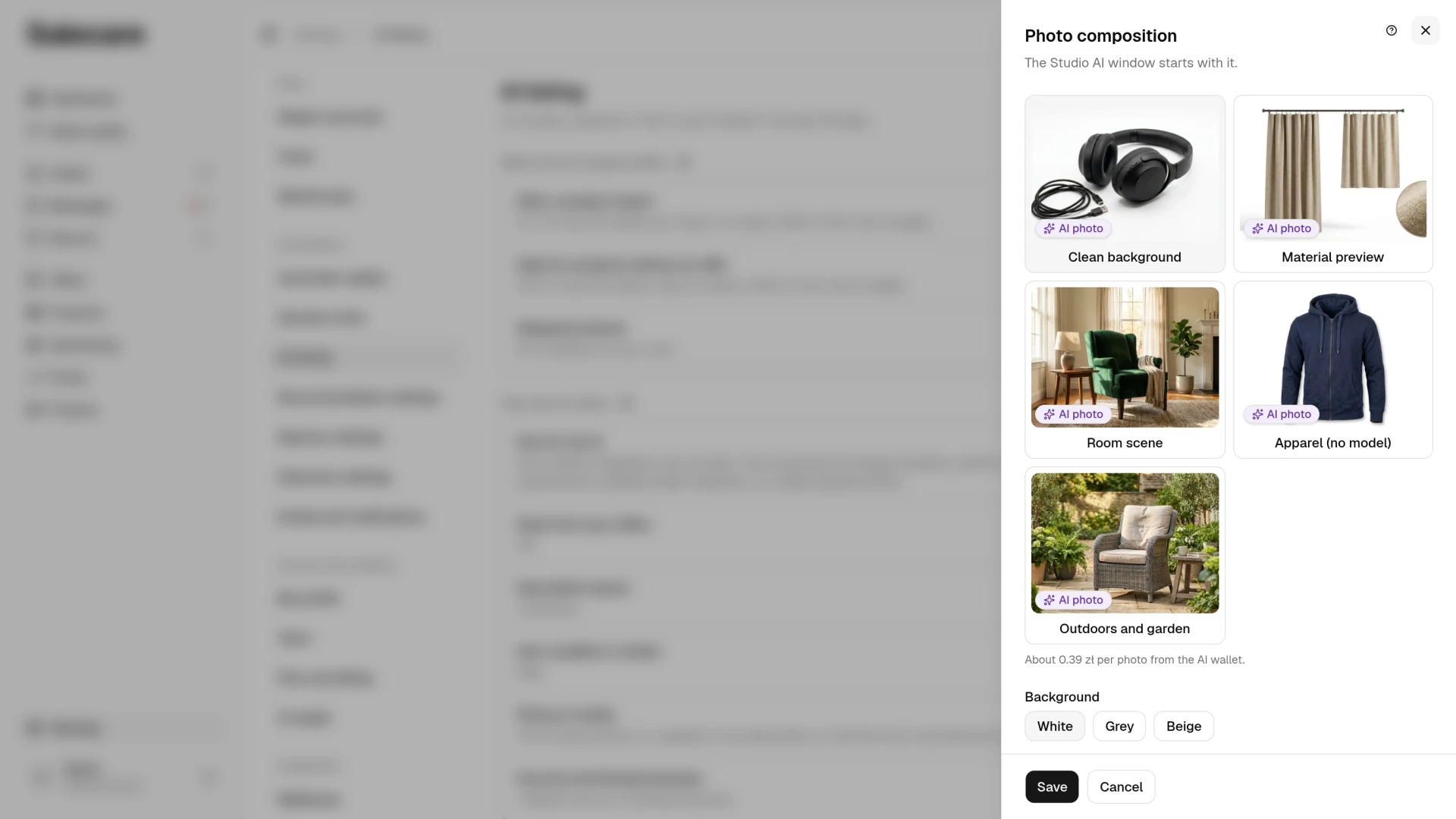
The default composition decides what the Studio AI dialog opens on, as long as it suits the product's category. You can pick "Clean background", "Material preview", "Room scene", "Apparel (no model)" or "Outdoors and garden", each with a sample photo. In a "Material preview" the model draws the product on a new background, and Salecare cuts the circle with the close-up from the middle of your own photo and enlarges it, so the weave in the circle is real, not drawn. You place the circle in the Material preview placement field. The panel also has the Background field, with "White", "Grey" or "Beige", and the Soft shadow switch, which adds a shadow under the product. The model draws the "White" background too, so it is usually not exactly the RGB 255 white Allegro requires on the thumbnail.
The image model draws every composition, so each photo you generate is charged to the AI wallet. Salecare applies the background and the shadow in the compositions on a seamless backdrop, that is "Clean background", "Material preview" and "Apparel (no model)". "Room scene" and "Outdoors and garden" bring their own surroundings. The Save button in the panel generates nothing and charges nothing, and while Studio AI is unavailable the panel says so and Salecare keeps your choice for later. Where the default composition does not suit the product's category, a room scene for a phone for instance, the dialog opens on one that does. A product's gallery always offers every composition, and you can adjust each photo on its own.
Step 2. Open the product gallery
Go to Products, open the product card and scroll to the Photos section on the Details tab. In the gallery the photos are tiles, and each has a photo menu in its corner with Set as thumbnail, Move left, Move right, Remove background, Studio AI and Remove. This guide is about two of them, Studio AI and Remove background. The first photo in the gallery, with the "Thumbnail" badge in its top left corner, is the thumbnail of the offers created from this product.
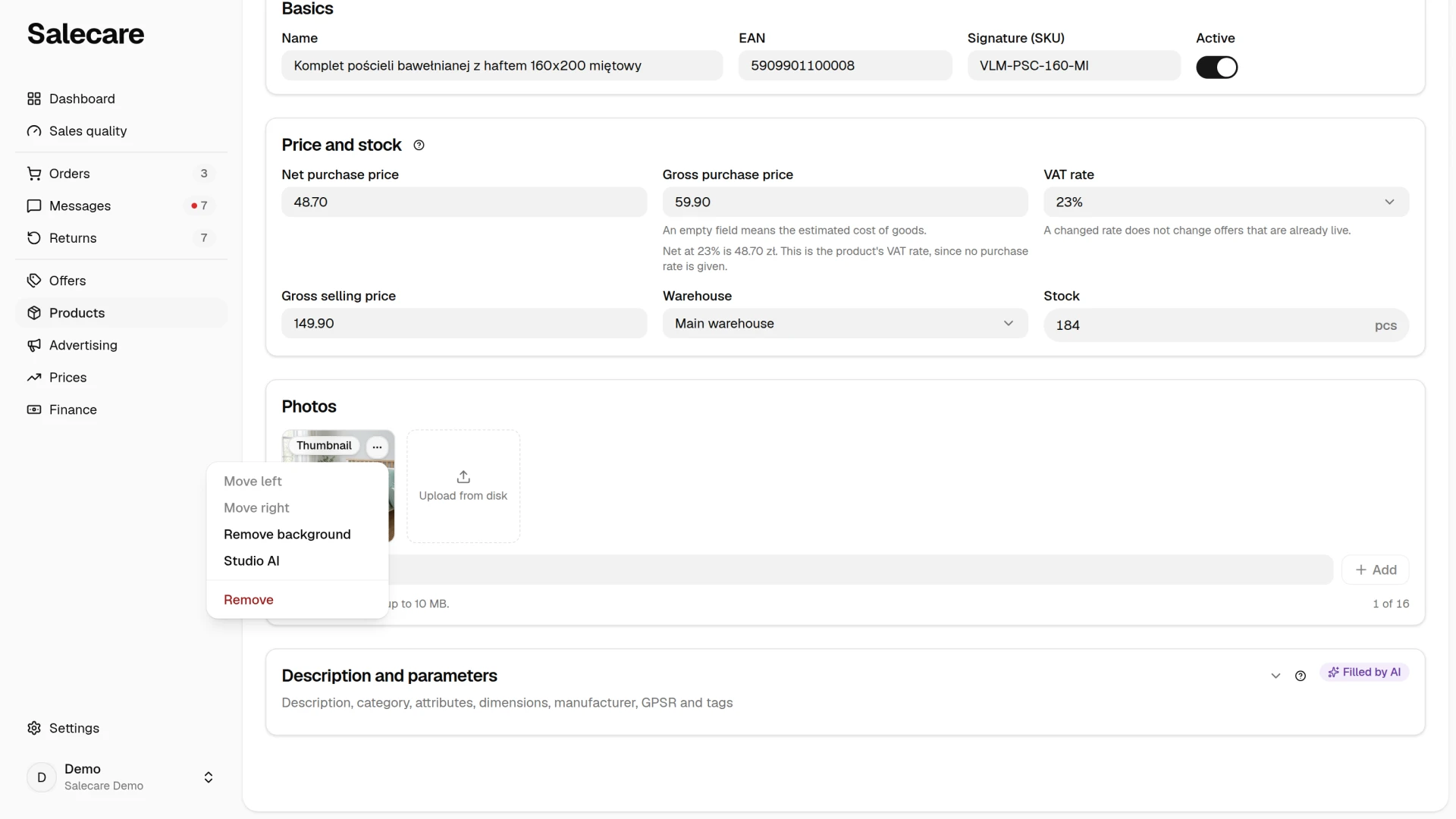
Both tools belong to the Pro plan and up, together with AI offer-draft generation. On a lower plan both stand switched off in the photo menu, and beside them is the name of the plan that unlocks them. A team member who can only view products sees the photos alone, without the menu.
You will find the same photo menu items in an offer draft's gallery and when editing a live offer, and they work the same everywhere. On a lower plan they are not there.
Step 3. Make the thumbnail's white background with "Remove background"
Open the menu of the first photo and choose Remove background. The background goes automatically. If something is off, paint over that spot with the Erase or Restore brush. Painted spots are only marked at first. Once you have marked everything to fix, click Apply touch-ups, and all the marks are sent together. Every applied mark is charged to the AI wallet. While marks are waiting, the Use on white and Use without background buttons are switched off, so apply them or take them off with Undo.
Then click Use on white. Salecare crops the photo to the product, centres it on a square with a pure white RGB 255 background and leaves an even white margin around it, so a product that touched the edge of the original no longer touches it. The edges of the finished photo are measured. When they are not all white, you see a warning that such a photo can be the thumbnail only in an offer Allegro exempts from the white background rule, used goods sold from a regular account for example. The measurement checks only the frame of the photo. Leftovers of the old background right next to the product, a shadow or a piece of floor for example, are not measured and stay in the photo, so remove them with the Erase brush before you click Use on white. Putting it on white uses no model, so it costs nothing on top of removing the background. A photo on white has no transparency left to touch up, so the Background already removed item in its menu is switched off.
When you want the cut-out alone, with a transparent background, choose Use without background. Such a photo is useful further down the gallery, but the thumbnail needs the white background.
The cut-out takes the original's place in the gallery and is saved with the product. When you want to keep the original, a supplier's room shot for example, as a further photo, add it to the gallery again, from disk or by URL, before you save the product.
Step 4. Add more photos in Studio AI
Choose Studio AI in the photo menu. The dialog opens on your default composition as long as it suits the product's category. When it does not, a "Room scene" for a phone for example, the dialog opens on the composition picked for that category, and the others are one click away. You see the approximate cost of one photo above the Generate button. A click on Generate starts generating straight away, with no separate confirmation. Generate again always makes a new photo and takes another charge from the AI wallet. Every version you generate is kept, so you go back to earlier versions and to the original at no charge from the Versions of this photo list.
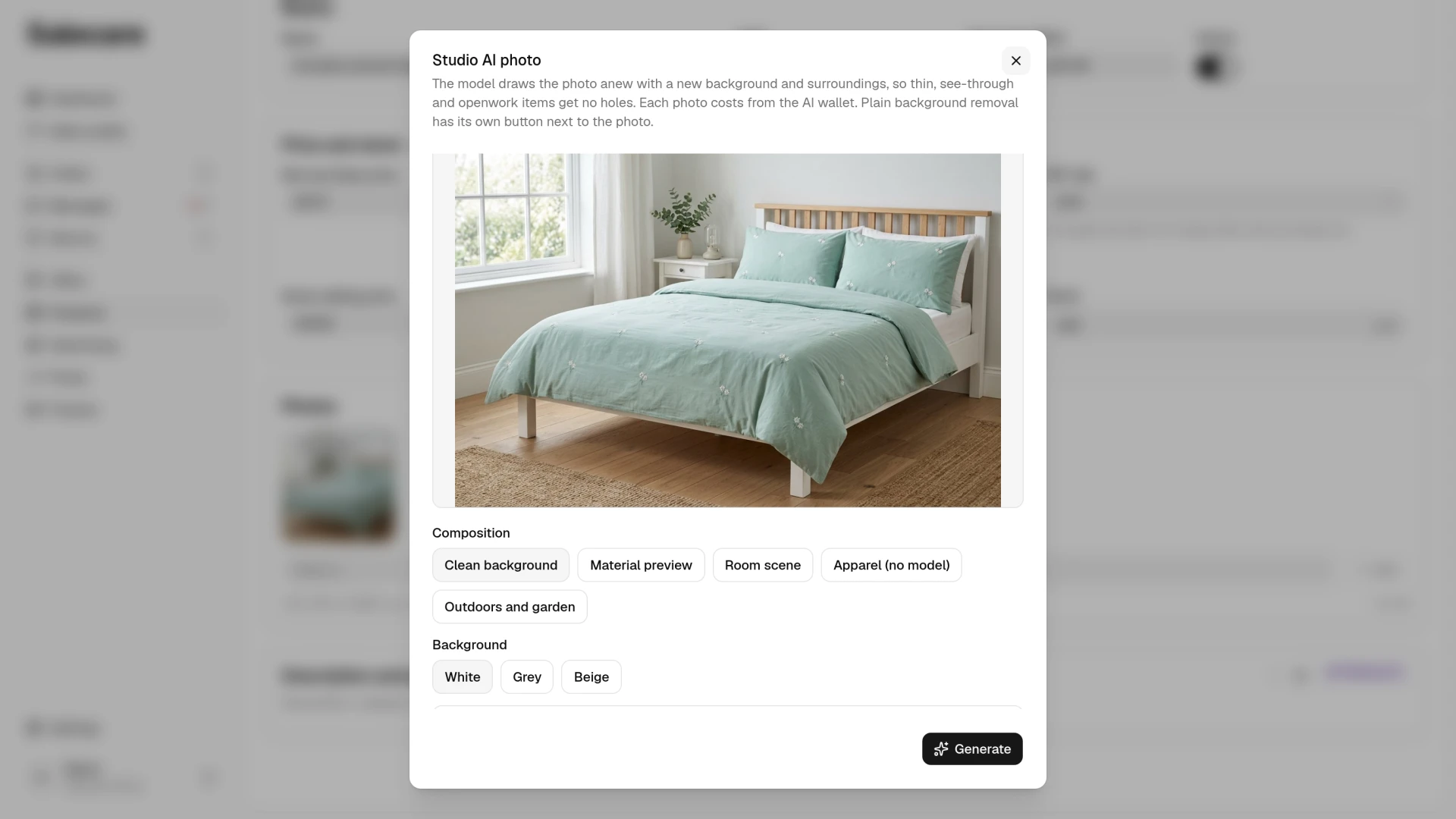
Before you click Use photo, compare the result with the original using Show original. The model is told to keep the product unchanged, but it draws the whole photo anew, so check the colour, pattern, shape and the number of items in a set. A photo that changes the product misleads the buyer and breaks Allegro's rules. The dialog reminds you of this next to every result.
After you click Use photo, the result goes into the gallery as a new photo, right after the photo it was made from. The original stays where it was, so the thumbnail is still a real photo of the product. A Studio AI photo cannot be moved into first place, and a gallery that would start with one, after the original is removed for example, cannot be saved. The gallery warns you before you click save. The rule still holds after the save. In the offer editor a photo Allegro keeps with the AI label carries the "AI-generated" badge and cannot be moved into first place.
Examples from different industries
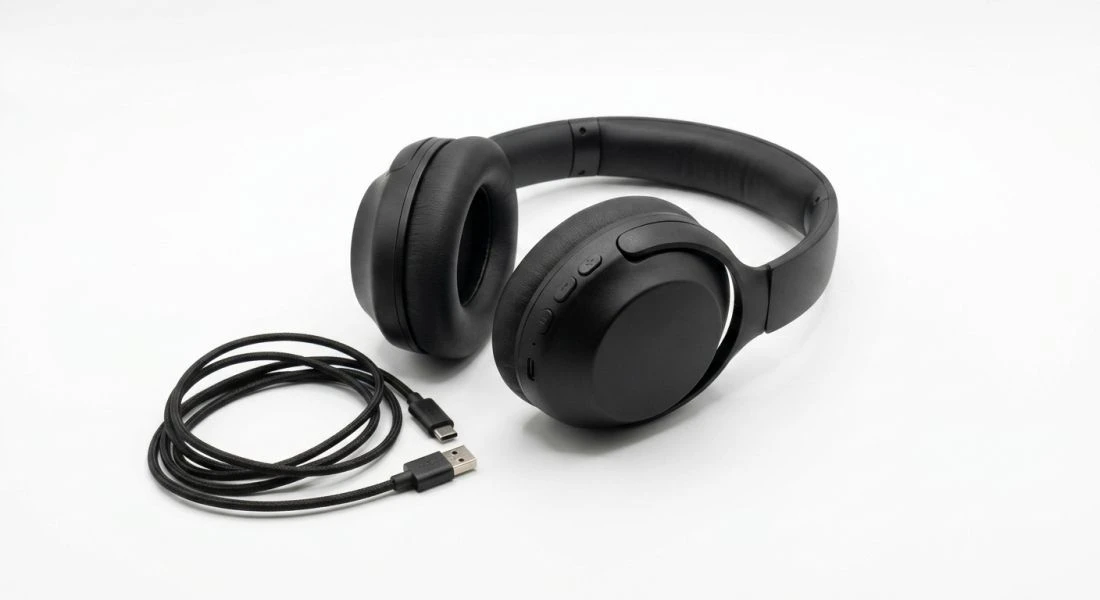
This is what photos generated in Studio AI look like. Each came from a single ordinary product photo, in a different industry. The model was told to change only the surroundings and keep the product unchanged, but it draws the whole picture anew, so compare every result with the original, as step 4 describes. Each of these is a further photo of the offer, labelled as AI, not a thumbnail.
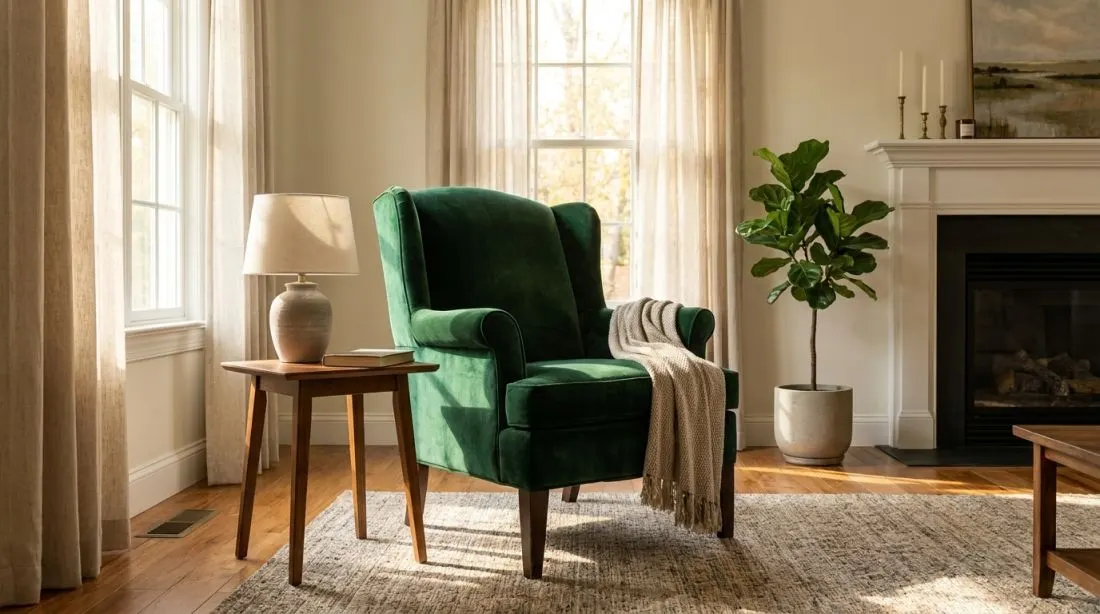
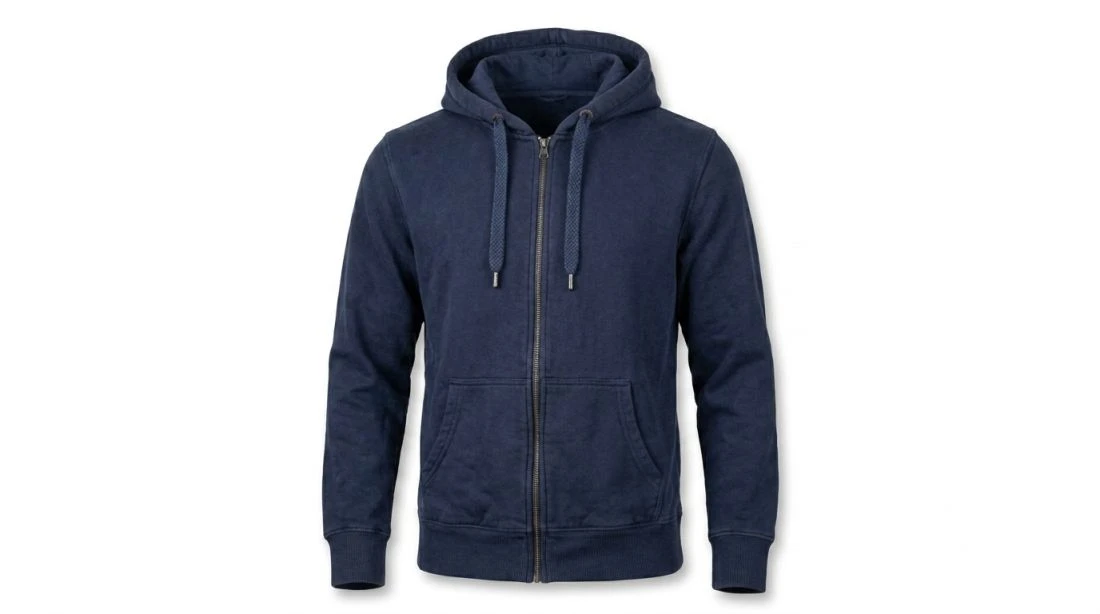
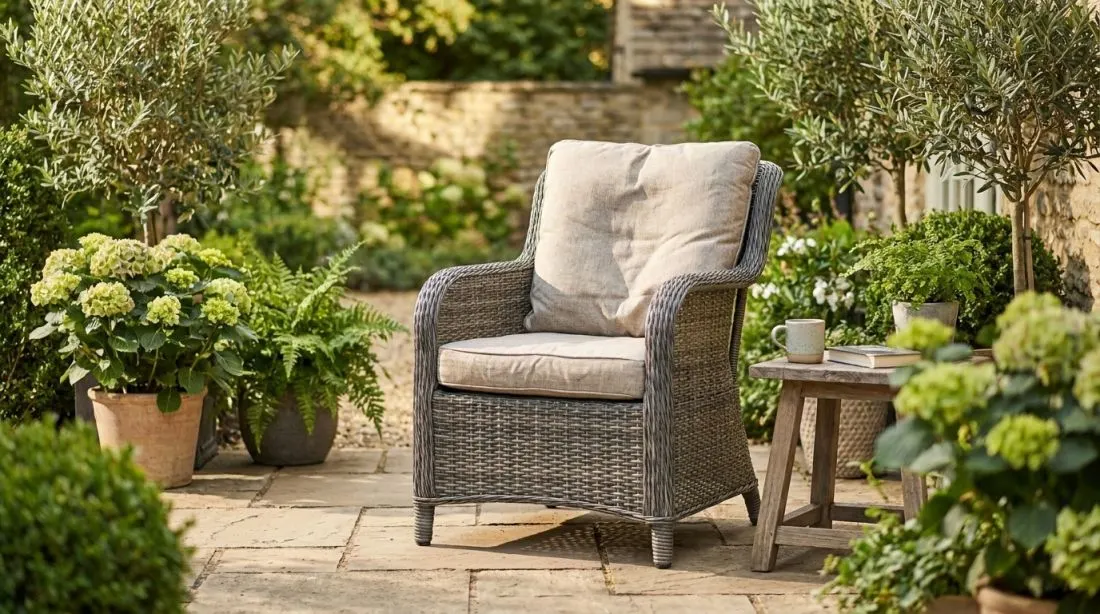
When "Remove background" is enough
If the photo is simple (a solid, opaque product on a reasonably clean background), Remove background and Use on white are enough. That is faster and cheaper than Studio AI, and for the thumbnail it is the only Salecare tool, because it keeps the real product. A supplier photo that is already on a pure white background can stay in first place without any edit.
With net curtains, lace and other openwork, the thumbnail still has to be a real photo on white. You bring the cut-out parts back with the Restore brush and the Apply touch-ups button, and then click Use on white. You can also upload a photo taken on white in the first place. Studio AI gives such an offer extra photos without holes, but never the thumbnail, and the model draws the lace pattern or the curtain weave anew, so compare it with the original.
The Touch up the cut-out item in the menu of a cut photo works until you leave the page. Once the page is opened again Salecare no longer knows the original, and a second background removal would only damage the product, so that menu item is switched off. Check the cut-out before saving.
How you know which photo the AI made
A photo from Studio AI is saved under its own file name, and in every gallery, the product, the draft and the live offer editor, it carries the violet "AI-generated" badge. The Studio dialog keeps a Versions of this photo list alongside the original, so it is always clear what came from the supplier and what came out of the Studio. A cut-out of a Studio AI photo is still an AI photo, because the pixels the model drew stay in it, so it keeps the badge and the label.
Allegro takes the AI label only when a photo is first added and does not let it be added later. So when a draft is published, such photos are declared to Allegro as AI co-created content, and when a live offer is saved, also when an offer is updated from its draft, Salecare first sends the photo to Allegro with the AI label and only then saves the gallery. When the file of a Studio AI photo can no longer be read, the save is refused and nothing reaches Allegro. Remove that photo from the gallery or make it again. A draft that holds only Studio AI photos is not listed until you add a real photo of the product. When a draft proposes a new product to the Allegro catalogue, only the real photos go into it.
Many offers at once
When the first photo needs fixing in many offers on Allegro, you do not have to open each one. On the Offers page select Buy Now offers, open the More menu of the bulk action bar and choose Photo edit. Salecare edits the first photo of each with the "White background" edit or in Studio AI, with the price before the start and a review of the results before anything is sent to Allegro. The whole route is covered by "How to edit the photos of many offers at once".
What next
Good photos improve the AI-generated offer drafts, titles, parameters and descriptions. Every generated photo is paid for from the AI wallet. A person who manages billing sees the wallet balance in the account menu, under the AI wallet entry. You open the account menu through your name at the bottom of the menu, and on a phone that item is in the Account and settings part of the menu the ☰ button in the top left corner opens. On the top bar the balance appears only once it falls to the low balance warning amount or lower, and you set that amount on the wallet page. How to top up the wallet and switch on automatic top-up is covered by "How the AI wallet and top-ups work".