How to create products from EAN codes with AI
A supplier sends an invoice with twenty new EAN codes, and you sit down to retype names, look up categories and write descriptions. Five products take an hour, and with the next delivery it all starts again. In Salecare you can hand this stage to the AI. You paste the codes alone, and Salecare creates products from them in your catalogue and fills in their data.
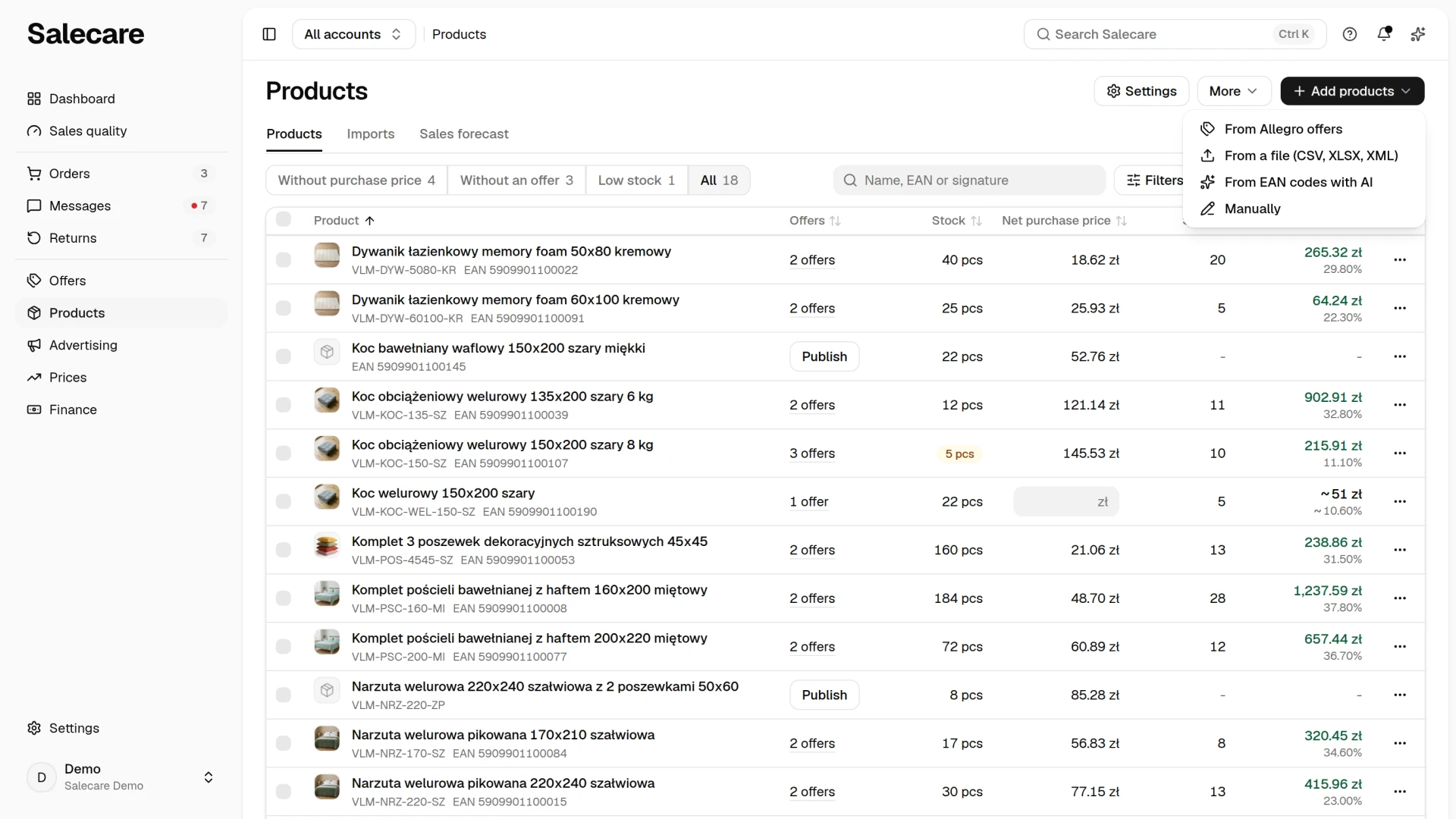
Step 1. Choose "From EAN codes with AI"
In the menu go to Products, and when the list opens on the Without purchase price view, click All. At the top of the page click Add products and choose From EAN codes with AI. A dialog opens where you add a whole delivery at once, without creating products one by one. The item is available from the Pro plan upward and needs AI configured. On a lower plan it is switched off, and the lock beside it names the plan that unlocks it. The Add products menu is shown to people allowed to manage products.
Step 2. Paste the EAN codes
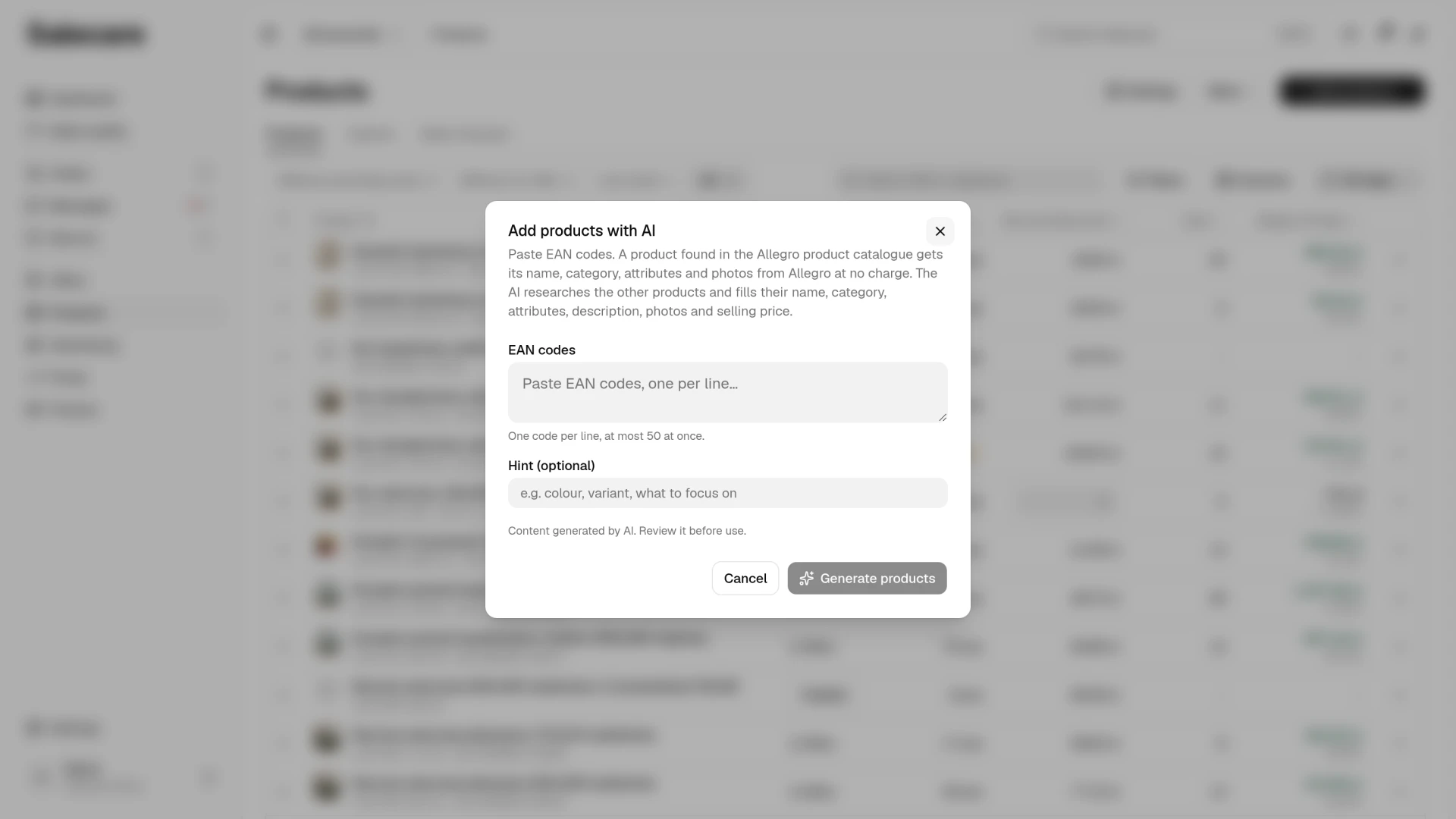
In the Add products with AI dialog you paste EAN codes, one per line, at most 50 at once. The limit covers every valid code on the list, including the ones you already have in the catalogue. Such codes are skipped at no charge, so you can paste the list from the invoice without cleaning it up by hand. A code with a wrong check digit, or one that is not an EAN-8, UPC-12, EAN-13 or GTIN-14 code, such as a wholesaler's own code, is skipped and does not count towards the limit, and the message after sending says how many such codes there were. Under the field you see straight away how many codes are on the list, the estimated cost of one new code and the total for the whole list, before anything starts. The total is an estimate for the case where every code is new and none is in the Allegro product catalogue. The wallet is charged the actual cost of each research, so a single research can cost more or less than the estimate. You paste a longer invoice in several parts, because the dialog does not let you send more than 50 codes. If the catalogue identifies products by your signature, the pasted code is also written into the new product's signature field, so the catalogue can identify it. You can replace it with your own signature later on the product card. In the Hint field you can add a pointer for the AI, such as a colour, a variant or what to pay attention to. The hint goes to the AI with every code on the list, so send a pointer that concerns one product with that code on its own. The hint applies only to codes that are not in the Allegro product catalogue, because products from that catalogue do not go through the AI. Finally, click Generate products.
When the AI wallet cannot pay for the research, because it is empty or AI actions reached the monthly spending limit set in the AI wallet, Salecare adds no product. The message gives the reason, and the pasted codes stay in the field, so you send them again after topping up the wallet or raising the limit.
The first time round, paste a few codes as a test. You will see how the AI copes with your range before you paste a whole invoice.
Step 3. Review the finished products
New products appear on the list straight away, named after the bare code, with the status "Queued". Then they get the status "AI is filling in" with a progress bar and fill in as you watch. Salecare first looks each code up in the Allegro product catalogue. This lookup needs at least one connected Allegro account. Without one, every code goes to the paid AI research. A product found in that catalogue gets its name, category, attributes, manufacturer and photos from Allegro, at no charge to the AI wallet. When the catalogue holds several products under one code, Salecare picks a product Allegro has reviewed before a product proposal that is still waiting for review. Salecare does not take the description over from the catalogue, and the catalogue gives no price, so you add the description and the gross selling price yourself or fill them with a paid research using Fill with AI in the More menu of the product card. The AI researches the other codes in turn. It fills in the name, category, attributes and description, adds photos and the gross selling price, and, when it finds them, the manufacturer, weight and dimensions too. Each such research is charged to the AI wallet at what it actually used, a research that ended in an error included. The AI wallet balance is visible in the account menu, under the AI wallet entry, to the account owner and to people with the Billing & subscription permission. On the top bar the balance appears only once it falls to the low balance warning amount or lower, and you set that amount on the wallet page.
A code the AI cannot research stays on the product list under the bare code, marked "Generation failed". When the AI wallet was the reason, for example an empty wallet or a monthly spending limit reached, the reason and what to do appear under the mark. The product card shows the same message, and the account owner and people with the Billing & subscription permission get an Open the AI wallet button next to it. You delete such a product, fill it in by hand, or research it again with Fill with AI, which is another paid research. Even in the default "Fill empty" mode the AI then replaces the name made of the bare code with its own name.
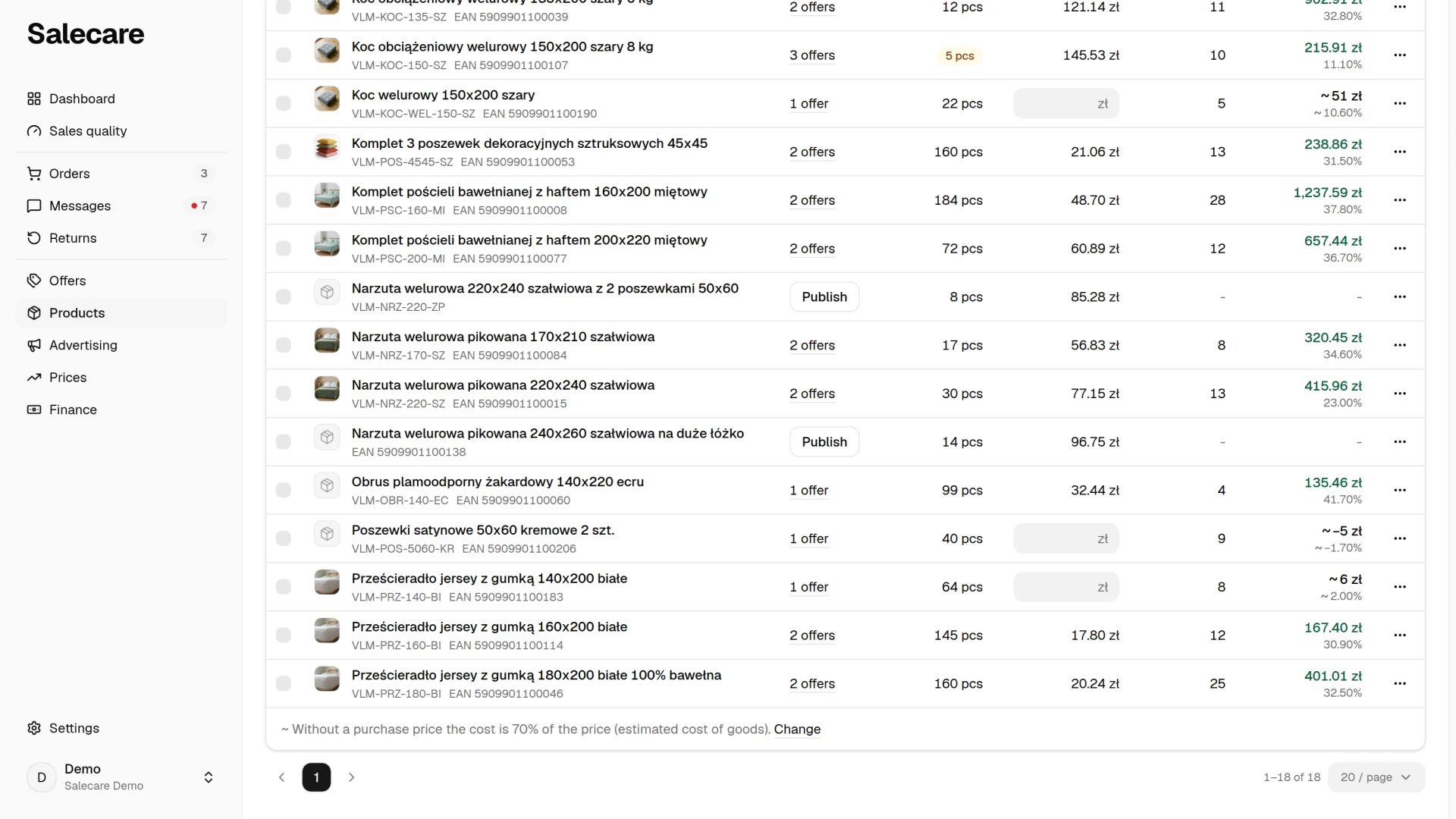
Finished products land in your catalogue like any other. Open them, review the data and correct what needs correcting before a product goes into an offer draft. Add the purchase price and the stock level, because the AI does not work these out. Check the manufacturer, weight and dimensions, because the AI writes them in when it finds them and can get them wrong. Check the Gross selling price field as well, which the AI filled in from the prices of existing offers. An AI offer draft takes that price as its starting point, and the repricer uses it as the maximum price in rules without a maximum margin of their own. Review the data from the Allegro product catalogue too. Verify AI-generated content before you use it, as the dialog itself reminds you. The AI does sometimes get a variant wrong or pick a photo of a different colourway, which is why a quick review is a mandatory part of this process.
If the Daily for products without an offer row in the When the AI creates drafts group of the AI listing page is on, a finished product added this way gets a paid offer draft at the next daily check, which runs at 6:30. Review it before then or turn its Active switch off. That check skips a product the AI is still filling and a product marked "Generation failed" that still has the bare code as its name.
What next
If, besides the codes, your supplier gives you a full data file, an import following the guide "How to set up an automatic wholesaler import" will be faster. New products can also use better photos, and the guide "How to make a white thumbnail background and Studio AI photos" will help there.