How to set up an automatic wholesaler import
The worst dropshipping scenario looks like this. A product goes out of stock at the wholesaler, but the Allegro offer is still up. A customer buys goods that do not exist, and you cancel the order and collect negative feedback. The runner-up is a broken wholesaler file that zeroes your stock levels or breaks the prices of your whole catalogue in a single import.
An automatic import in Salecare fetches a CSV or XML file from the wholesaler on a schedule and updates the purchase prices and stock levels of your products in Salecare. The built-in safeguards hold the import back when the file looks suspicious. The import does not change the prices of your Allegro offers. A new purchase price moves the margin and the minimum price in your repricer rules. Stock reaches your Allegro offers only once you switch on the Quantity from the warehouse row in the Allegro account settings. Step 7 explains how. Without that setting, the offer of a product the wholesaler no longer has keeps selling.
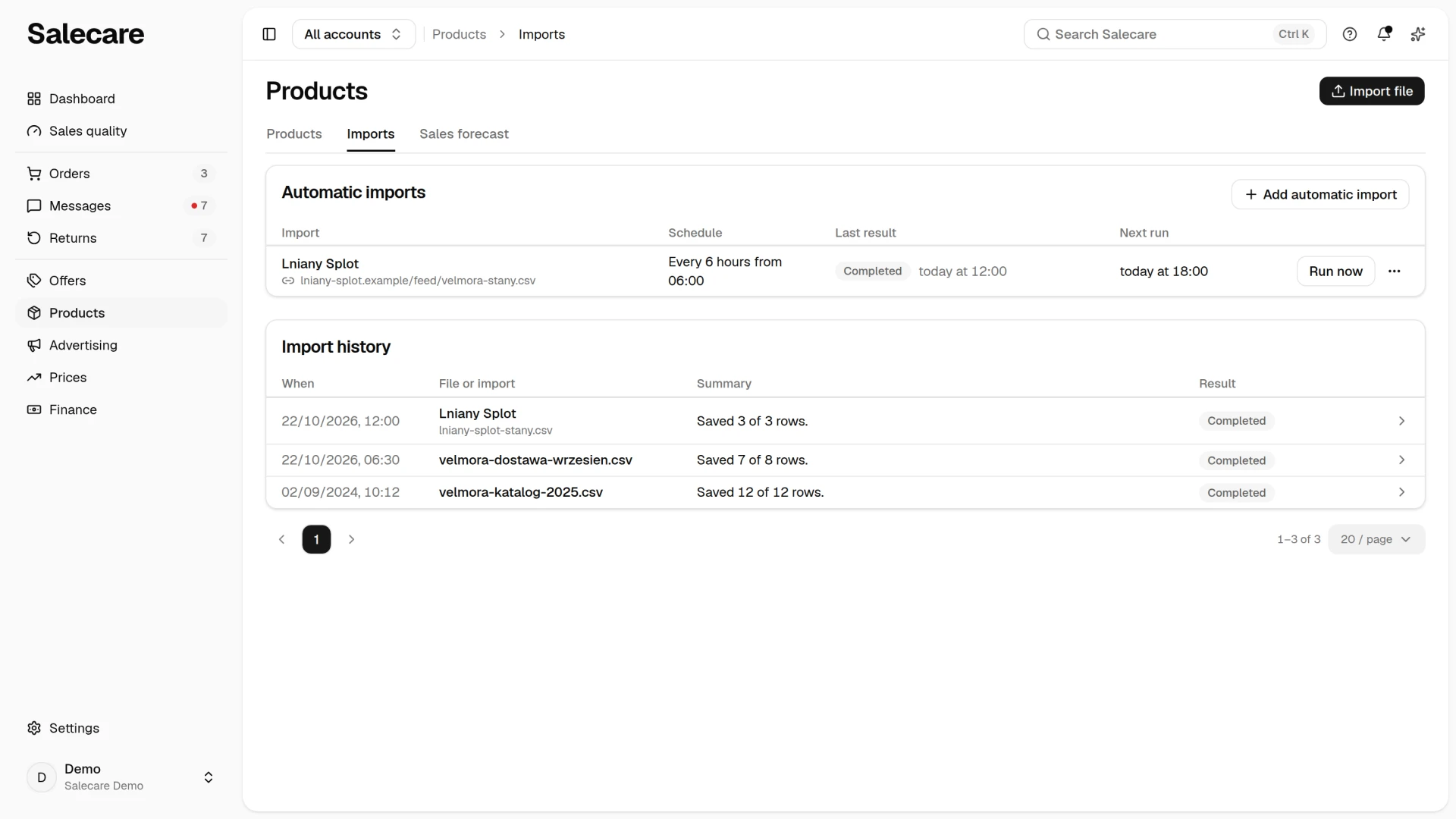
Automatic imports are on the Products page, on the Imports tab, beside the history of every import. It is a work list, not a setting, so it is neither in Settings nor under the Settings button. The old address of the Product sources page opens the tab as well. You set up an automatic import in the same wizard as a one-off import. The guide "How to import products from a file and track the import history" covers the steps of the wizard too.
Step 1. Point to the file at a URL or an FTP server
Go to the Products page, open the Imports tab and click Add automatic import or Import file. Add automatic import opens the wizard with the Import automatically switch already on. In the File step choose URL or FTP server. For a URL paste the link to the file, and for an FTP server give the host, login, password and path to the file you get from the wholesaler. Then click Fetch and preview. Salecare fetches the file and detects the columns. A file from disk can only be uploaded once, because Salecare cannot fetch it a second time.
The What is in the file? question sets what the import does to products. Choose the answer that matches what the file really is. The choices are "Whole catalogue", "Wholesaler price list", "Prices and stock only" and "Descriptions and photos". "Wholesaler price list" sends stock to an external warehouse if you have one and sets "Set stock to 0" for products that vanish from the file. You add an external warehouse in Settings, on the Warehouses page. You can change the Stock target warehouse field in the Columns step. The file address and the FTP server details of a saved import are seen and changed only by a person with the Margins and purchase prices (view) permission. Without it the file is fetched from the saved address, and the purchase price columns are blank in the preview. A column assigned to the purchase price stays at the Purchase price or Supplier's price field, and a column assigned to the Purchase VAT rate field stays at it, so you cannot leave either out. A column whose name points to a purchase price can only be skipped or assigned to the Purchase price or Supplier's price field. You cannot change the row-skipping conditions that read purchase price columns either.
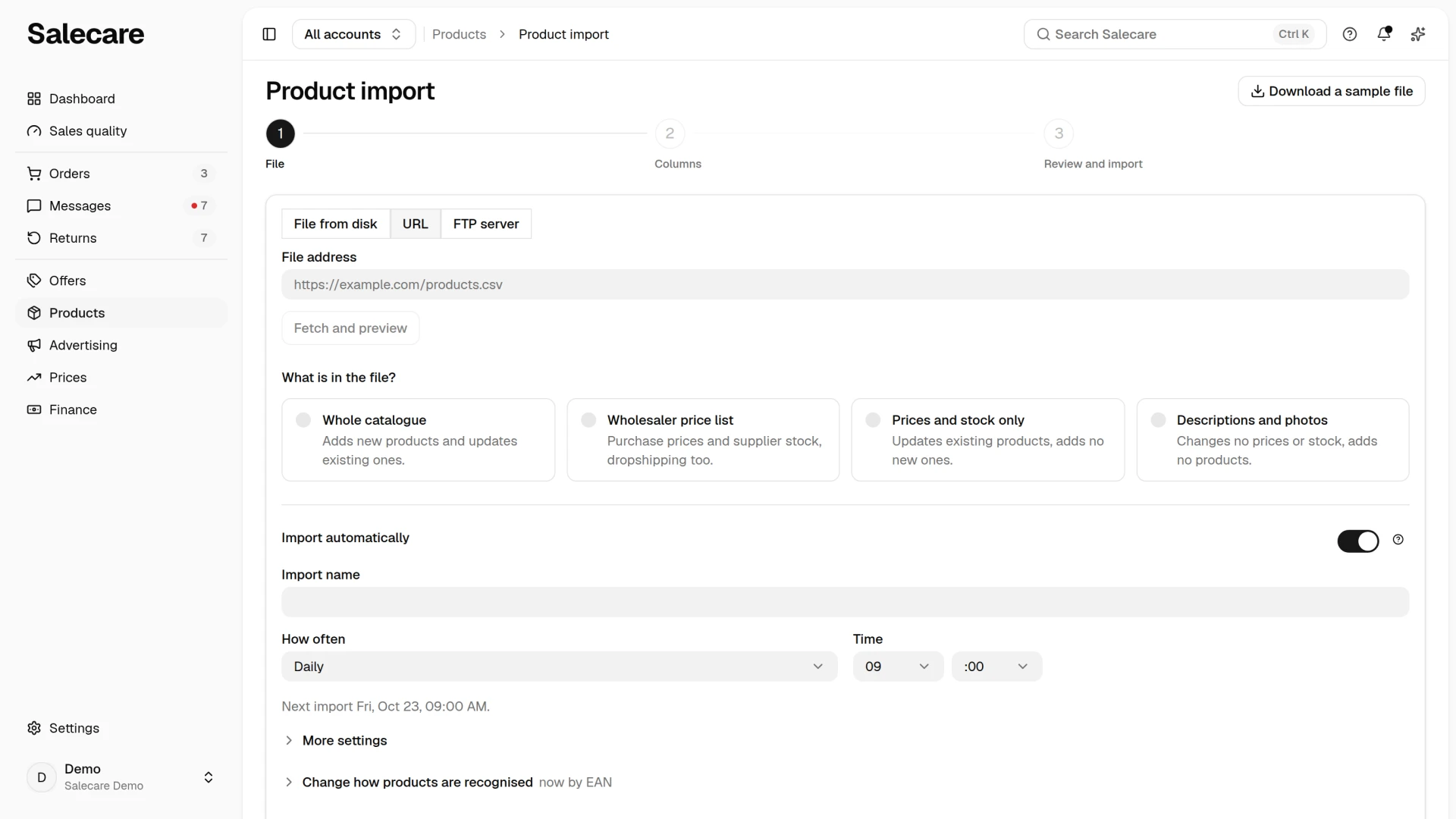
Under the question stands Change how products are recognised. The Recognise products by field decides which column matches a file row to a product in the catalogue. The choices are "EAN (barcode)", "Signature (SKU)" and "Name". Until you change it, Salecare recognises products by EAN, and when the file has no EAN column, by signature or by name. When you recognise by signature and the file has a barcode column assigned, a row whose signature matches no product is checked once more by its barcode. By name only products without a barcode can match. When the column you recognise products by is not assigned, the import will not run until you assign it in the Columns step.
The Existing products field has the options "Update their data" and "Only link them to this import". Every matched or added product stays linked to this import, and the "Only link them to this import" option leaves its data alone.
The When an EAN repeats in the file field concerns a code that appears in the file several times with different purchase prices. In an automatic import the default option is named "Reject the rows with this code (strict mode)" and does not block the whole import. On every run it rejects every row with the repeated code, so that product keeps its previous stock and purchase price until the file is fixed. For a supplier file choose "Keep the row that has stock". That option takes the price from the row that has stock, and with several such rows it uses the average weighted by stock.
Step 2. Switch on the automatic import and set the schedule
The Import automatically switch works only for a URL or an FTP server. Once it is on, you choose how often and at what time Salecare fetches the file, and the date of the next import shows underneath. The Import name field is optional. You can enter a wholesaler's name there, for example. By default the import runs daily at 9:00. For a supplier file set it to hourly or more often, because the stock on your offers changes only after an import, and until then a customer can buy goods the wholesaler no longer has. With an import every few minutes or hourly, the time field is called Run minute. The Day of the week and Day of the month fields appear when the frequency needs them. In a shorter month the import runs on the last day.
Your plan sets the most frequent option available, that is hourly on Starter, every 30 minutes on Pro, every 15 minutes on Business and every 5 minutes on Enterprise. The list shows only the frequencies your plan covers. The plan also caps the number of active automatic imports, at 1 on Starter, 5 on Pro and 10 on Business, while Enterprise has no limit. Once you have as many active imports as your plan includes, the switch is disabled and a line under it names the limit.
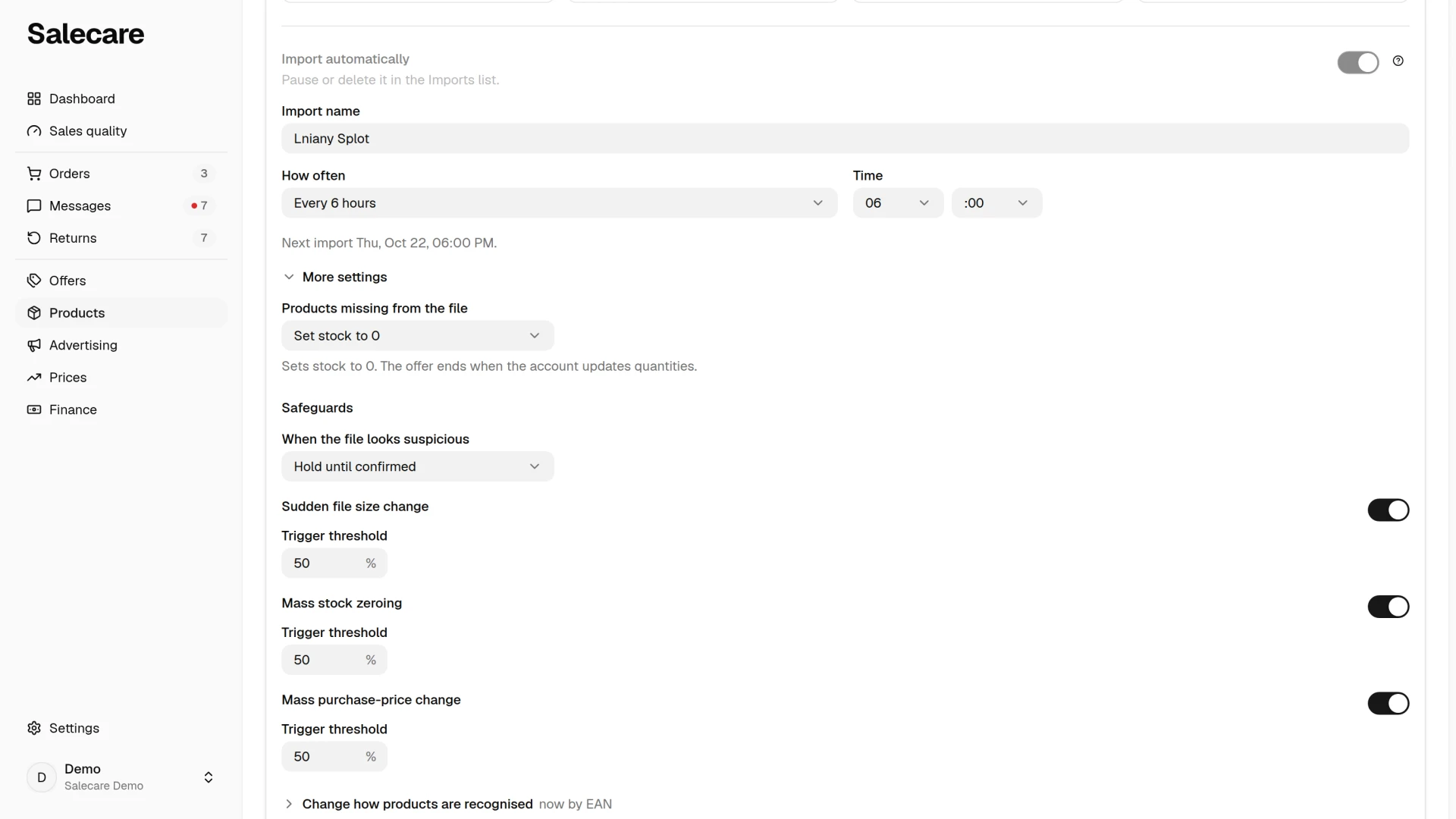
Under More settings you find the Products missing from the file, Safeguards and Run order fields.
Products missing from the file
The Products missing from the file field is set to "Leave unchanged" by default. A product missing from the file then keeps its last stock level and stays on sale. Many wholesalers do not send a zero for a sold-out line but drop it from the file, so for a supplier file choose "Set stock to 0". The "Wholesaler price list" answer picks this setting too. A broken file still cannot zero your catalogue. When the import holds stock for at least 10 products and a larger share of them vanishes from the file at once than the Sudden file size change threshold from step 2 allows (50% by default, or 30% with that safeguard switched off), the run zeroes none of them. Keep "Leave unchanged" for a file that covers only part of your catalogue, where a line missing from the file does not mean the goods are gone.
Safeguards
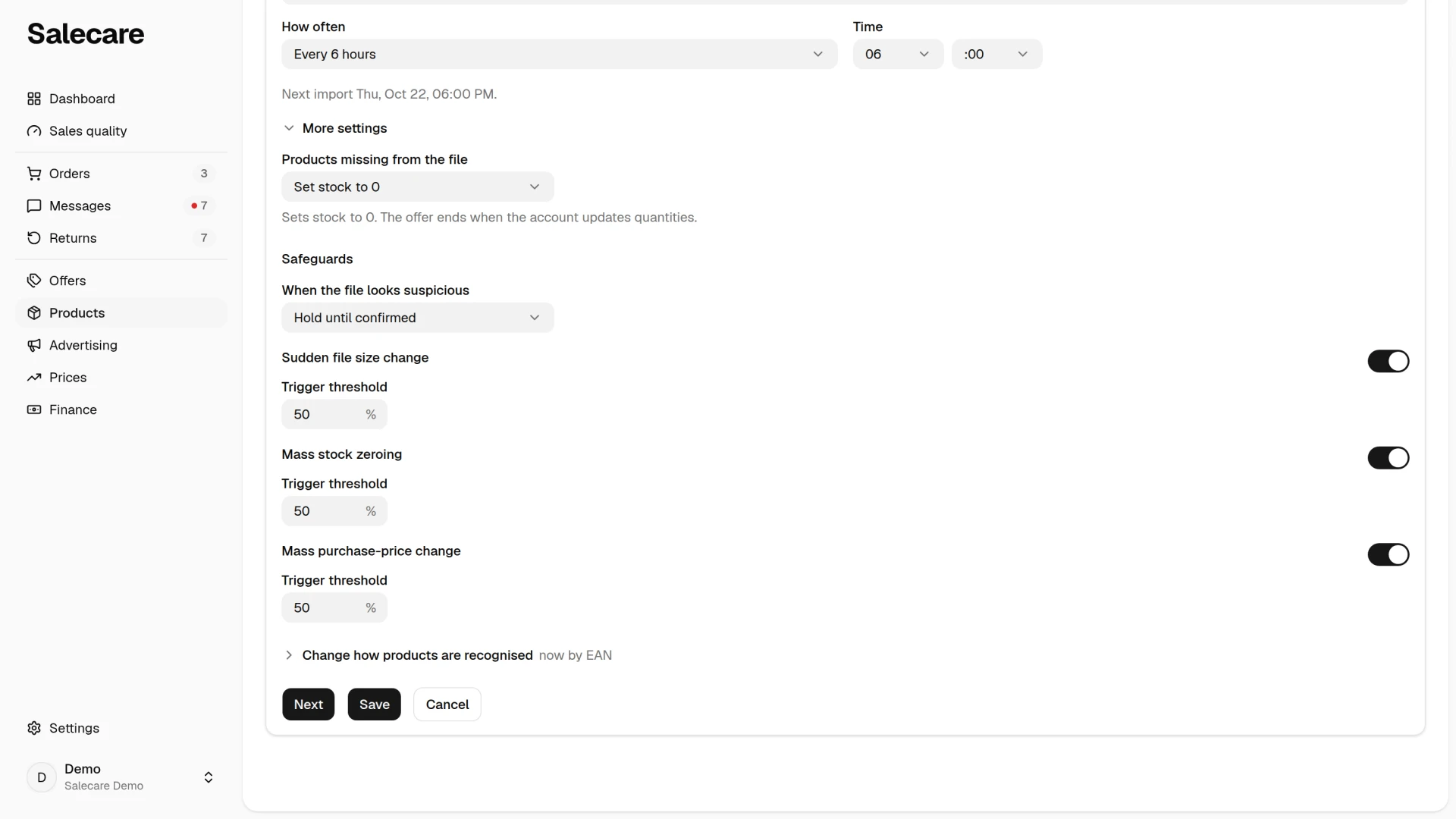
The Safeguards section protects your catalogue from a broken file. The When the file looks suspicious field sets the reaction. The choices are "Hold until confirmed", "Import and flag" and "Notify only". Three thresholds detect a sudden change in file size, mass zeroing of stock levels and a mass change in purchase prices, and each has its own Trigger threshold field with a value from 1 to 99%. All of them are on by default with a threshold of 50%. The file size threshold reacts when the row count changes by more than the set percent against the previous successful run. The stock threshold reacts when the file zeroes the stock of more than the set percent of products that hold stock at import time. It works once there are at least 10 such products. The price threshold reacts in both directions, because a purchase price several times too high raises the minimum price in the repricer just as surely as one that is too low makes you sell below cost. It reacts only to a mass change, though, when the purchase price moves by more than the set percent (50% by default) in the same direction for at least 10 products that make up more than a quarter of the file's products matched to the catalogue and holding a purchase price. A wrong price for one group of products, such as a set priced as a single piece, therefore goes through without a hold. You see such a change in the Purchase cost changes section in the import details. A purchase cost rise or a fall of 30% or more also rings the bell, as step 5 explains. Leave the safeguards on.
A file written with a different number format than the one set in step 3 is raised the same way, because such a disagreement changes every price in the file. The run reads the numbers in the format from step 3 and leaves the decision to you instead of quietly reading the file another way. A file that no longer carries a column from the saved mapping is raised the same way. The mapping remembers column names. So a column the wholesaler renamed, for example from "Stock" to "Stock level", is treated as skipped, and the field it was assigned to stops being written. The run names those fields. Once you assign their columns again, the next run goes through normally. A file that has stopped changing is raised separately. Salecare remembers which file the previous runs fetched. When the wholesaler serves exactly the same file for longer than a day and longer than three schedule intervals, the run is annotated with the date the file stopped changing and the import is marked on the list. This one signal never holds a run, because an unchanged file brings no new numbers. The mark clears by itself on the first run that fetches a different file. The file-size comparison works when the previous run had at least 10 rows. Below that this safeguard does not react.
Run order
The Run order field appears once you have another automatic import. The import with the lower number starts first, and imports run one at a time, one after another.
Step 3. Assign the columns
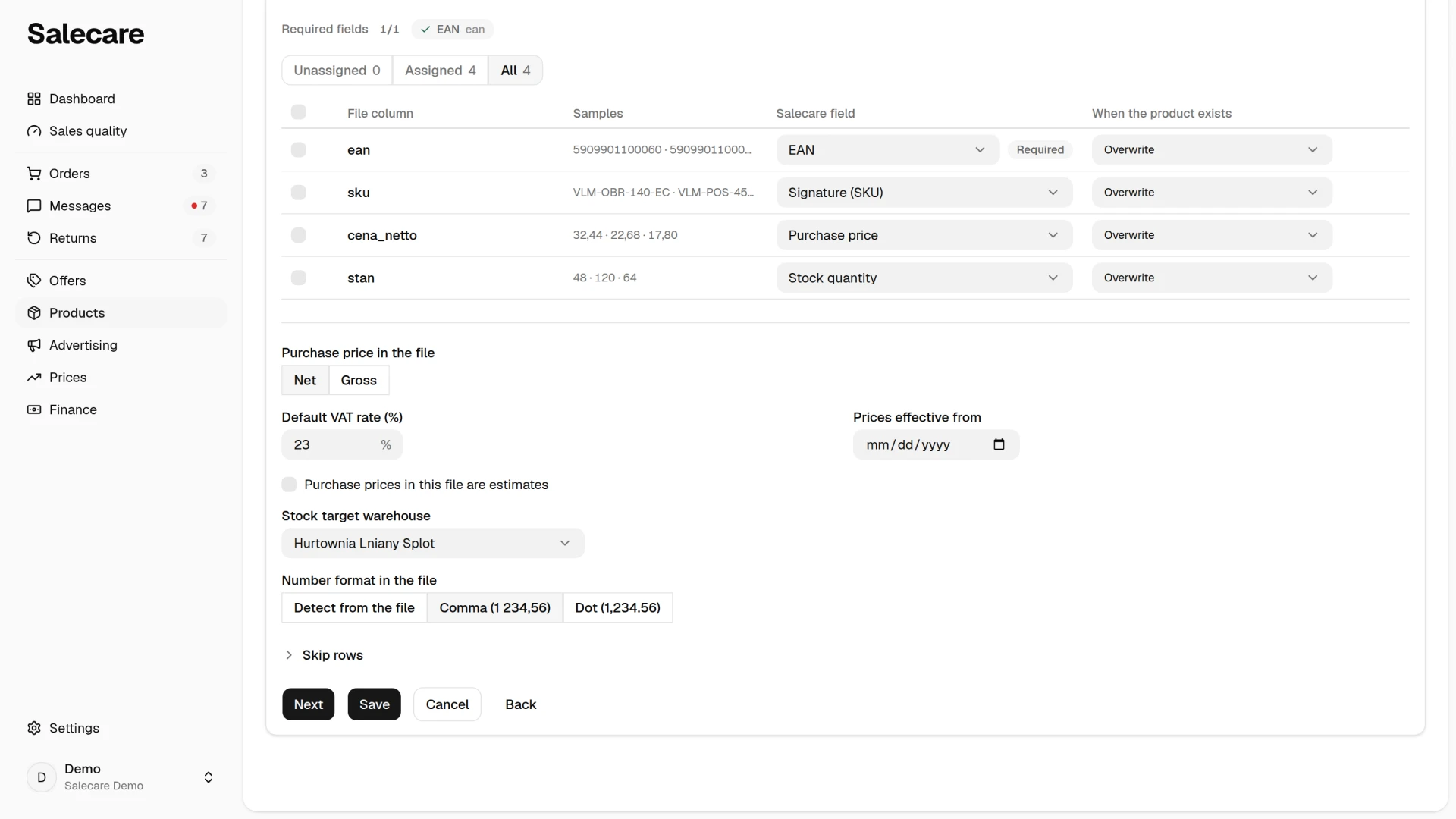
In the Columns step you assign the file's columns to product fields, for example the name, EAN, purchase price and stock. The mapping is a table in which each file column has one row. The buttons with counts above the table, All, Unassigned, Assigned and Conflicts, narrow it to the columns you want to work on. The Conflicts button only shows when the same field has more than one column assigned to it. The Mapping template list loads a saved assignment, and Save as template saves the current one. The assignment is saved with the import and used on every subsequent run. A saved mapping, which you can read without fetching the file, shows the column names in their saved form, lower case, without accents and with underscores in place of spaces.
Under the table only the settings of the mapped columns appear. For each price you choose "Net" or "Gross". Until you choose, Salecare sets it from the column header. Then come the default VAT rate that net prices need, the date the prices apply from, the target warehouse for stock (without it the stock is not saved), the default supplier, the weight and dimension units and the number format. A warehouse column in the file takes precedence for its row. The Number format in the file field has the options "Detect from the file", "Comma (1 234,56)" and "Dot (1,234.56)". Once the file is fetched, Salecare sets it to the format it recognised, and from then on every run reads the numbers the same way. That matters when the wholesaler sends 125 one week and 12.50 the next. A file of whole zlotys gives no clue at all, so guessing afresh each time can read the same price a hundred times too high. The "Detect from the file" option recognises the format anew on every fetch.
The columns have no setting for what the import does to a product that already exists. You choose that in the Review and import step, separately for each group of fields. If you correct that data in Salecare, set the Name and description and Photos and parameters groups to "Fill empty fields" or "Keep existing". With "Overwrite" every run replaces the value on the product card with the one from the file, including a name, category, description and photos corrected by hand or by the AI. The product fields are covered by the file import guide, in the "Product fields" part.
Prices and VAT
Net prices are converted to gross on import, because the app stores the purchase price and the selling price gross. Whether the app shows amounts net or gross depends separately on whether the company is registered for VAT. The default VAT rate reaches the product when it converted a net price on that row. A row that converted nothing, with gross prices for example, only fills a product that has no rate, and only when you have no VAT rate rules, so the net margin has something to take it from. When you do have rules, the rate comes from the category rule, and for a category with no rule of its own from the default rate in the VAT rate settings. A column assigned to the VAT rate field does not block saving another import that also has it. A VAT cell holding text instead of a number, such as "zw.", counts as empty, and the import details show the warning "Unreadable VAT rate" for it.
The Prices effective from field helps when the costs from this import are reliable only from some date. Older orders then get an approximate margin instead of a falsely recalculated one. When you leave the field empty, the first cost from this file covers earlier orders too. Later fetches change the price only going forward, and a "Valid from" column in the file takes precedence over this field. You tick Purchase prices in this file are estimates when the file holds a manufacturer's price list without your rebates, for example. Prices from such a file are saved as estimates, margins calculated on them are approximate, and the repricer does not work out a minimum price from them. On the product card such a price carries the "Estimated price" badge, and on the product list the "Estimated cost" badge. A real price from another file or saving the product card confirms the price and lifts these limits. Switching the option off does not change prices already saved when the purchase price group is set to "Fill empty fields". To refresh such prices, use the "Fill empty fields and refresh estimates" option.
Step 4. Review and save
The Review and import step runs a trial import that saves nothing and says how many products differ from the data in Salecare, how many are new and how many rows are skipped. It also shows whether the file crosses any safeguard and says how many listed offers "will stop covering their purchase price" after this import, that is, would sell at or under the new purchase price. The review of a person without the Margins and purchase prices (view) permission does not compare purchase prices with the saved ones, does not check for a mass purchase-price change and does not give that number. If another automatic import changes the same field, the warning names that import. You cannot save the import until you resolve the conflict.
Save and import saves the automatic import and runs the first import at once, with no separate approval, because the wizard showed the changes before saving. The safeguards apply to this import too.
Step 5. Save and watch the Imports list
The Imports tab of the Products page has two lists. The Automatic imports list shows each import with its schedule, the result of its last import and the next one. The Last result column shows the state of the newest run. When Salecare could not fetch the file, for example because the server did not answer, the row shows "Error" with the reason under it. The import history then gets no new entry, because nothing was imported. Run now fetches the file straight away. When an import waits for your decision, Decide takes its place and opens that import's details. The More menu pauses or resumes an import, changes its settings with Edit or deletes it. A deleted import stops running, and the products it saved stay in your catalogue.
You open a saved import for changes with Edit. The wizard shows all its settings, every step can be opened straight from the step bar, and the Save button stands on every step. Without fetching the file again the import keeps its saved column assignment. Save does not approve or start a first import, so an import that was waiting for approval keeps waiting.
The second list, Import history, shows every import newest first, with one sentence about its result and its state. Clicking a row opens the import details with the row counts and the undo. A person without the Margins and purchase prices (view) permission sees no file addresses, and the purchase price cells are blank for them in problem rows and rejected rows, the downloaded file included. Warnings an import raised without being held, for example a file that has stopped changing, also show at the top of its details.
A few broken rows do not stop the whole file. The import rejects a row that cannot be read, for example with text in the price column or without an EAN in a file matched by EAN. It also rejects a row with an invalid EAN or a negative price, and a row that could not be saved. It saves the rest of the file, so the stock and prices of the other products update as usual. The rows that could not be read are listed in the Rejected rows section of the import details, and the other rejected rows in the Rows with errors and conflicts section, each with its reason. A bundle whose component row was rejected is rejected too, so that it keeps that component. When the rejected rows together make up more than 20% of the file, the run stops as a whole, because that usually means the wholesaler changed the column layout. The run then says how many rows were broken. Such a run does not push the next run back, so the wholesaler's corrected file is fetched at the usual time. When products that disappear from the file are set to "Set stock to 0", a product that the EAN or SKU of a rejected row points at keeps its stock, and the other products missing from the file get stock 0 as usual. Only when a rejected row has neither an EAN nor a SKU does the run set no product to 0, because such a row may have been about one of them. The first run in which every rejected row has a code does it.
When a run raises a purchase cost or cuts one by 30% or more, you get a bell notification about it, even if the run otherwise finished without errors. The notification says for how many products the purchase cost rose or fell that steeply and by how much at most, and its link opens that run's page, where the Purchase cost changes section lists those products. A steep fall sends a notification, because the new purchase cost lowers the minimum price in your repricer rules at once, and a wholesaler's mistake would let the repricer go below the real cost. A smaller fall sends none, because it widens the margin. You will find it in the same section.
Notifications about the runs of an automatic import go to everyone in the company with the Products (view) permission, not only to the person who saved the import. That covers a first run waiting for approval, a run held by the safeguards, rejected rows, purchase cost changes, a failed run and an import whose last three runs failed. A held run saves nothing, zero stock levels included, which is why the whole team hears about it. A person without the Margins and purchase prices (view) permission gets no notifications about purchase cost changes. They hear about the purchase price safeguard only on a held run, with its threshold and without the figures.
You undo a bad run with the Undo import button in the import details, for up to 24 hours after the import. The undo skips records a later run of the same import has already changed. So on a frequent schedule undo the run straight away, and pause the import with the Pause button in the More menu until the file is fixed.
Step 6. Decide on a held import
An import that waits for your decision has the state "Needs a decision" in the list and a Decide button beside it. There are two cases.
The first is a held import. An import held by the safeguards saves nothing. The Save anyway button (for a first run Approve and run) shows only on the newest held run of an enabled automatic import. Show changes opens the preview. On a phone the sample rows of the preview are a list instead of a table, and you pick the order in the menu above the list. A held run replaced by a newer run, or whose automatic import is paused, shows "Not saved".
The second is zeroed stock. When an import sets more than 30% of the products with stock for sale on Allegro to zero at once, Salecare holds the zeros back so a broken file cannot end offers. Until then the offers show the previous quantity. If the zeros are real, click Send now. If the file was broken, undo the import, because without a decision the zeros reach Allegro with the stock update at 06:15.
Step 7. Switch on quantity updates for your Allegro accounts
The import changes the stock in the Salecare warehouse, not the quantity on your Allegro offers. To stop the offer of a product that ran out at the wholesaler from selling, in Settings open Allegro accounts and click the account. Then click Change in the Quantity from the warehouse row and switch on Send the warehouse quantity to the offers. The setting works separately for each account, so switch it on for every account that sells goods from this file. This also covers an external warehouse, the one the "Wholesaler price list" answer sends the stock to. The stock of such a warehouse reaches the offers too, unless the warehouse has Exclude this warehouse from Allegro switched on. From then on, the offer of a product with stock 0 gets 0 units and Allegro ends it, so the offer is ended, not paused. The quantity on the offer changes after an import run, so the schedule from step 2 decides how long an offer keeps selling goods the wholesaler no longer has. The exception is a run that takes more than 30% of the products with stock for sale on Allegro to zero at once. The zeroes then wait, and you send them to Allegro from step 6 with Send now. Otherwise they go out with the daily stock update at 6:15. To have an ended offer come back after a delivery, answer the Relist offers when the goods are back in stock question in the same group. Allegro accepts a relist only from an offer with complete product safety data, and without that answer an ended offer waits until you relist it by hand. Pushing stock to offers is part of the Pro plan and up. On a lower plan the Quantity from the warehouse row and the relist question show a padlock with the name of the plan the feature works from. The Warehouses page tells you in the Allegro offers from the warehouse section which accounts it covers. The details of relisting, and the other rows of this group, are covered in the guide "How to pause selling for offers with no stock cover".
What next
Warehouse stock reaches only the offers matched to products. When some offers have no match, see the guide "How to match Allegro offers to products".