How to pause selling for offers with no stock cover
Selling goods you do not have in stock usually ends with a cancelled order and a refund to the buyer. Such a cancellation can lower your account's sales quality, and sales quality affects where your offers rank when buyers sort by relevance. Salecare can set the quantity on your offers from your stock levels. An offer with no stock cover then stops selling, usually before anyone buys it.
Stock updates on Allegro and dispatch time from stock are part of the Pro plan and up. On a lower plan the Quantity from the warehouse and Dispatch time from the warehouse rows show a padlock with the name of the plan the feature works from.
Step 1. Sort out the source of your stock
This feature works on stock from your warehouses in Salecare, both own and external ones, where an import mirrors a dropshipping wholesaler's stock. Every warehouse counts unless it has Exclude this warehouse from Allegro switched on. So you need a stock source, for example an automatic wholesaler import that loads stock into a warehouse, or stock maintained by hand on products. Without complete stock levels, do not switch these settings on. The app says so plainly on the settings page.
Step 2. Switch on stock updates for the Allegro account
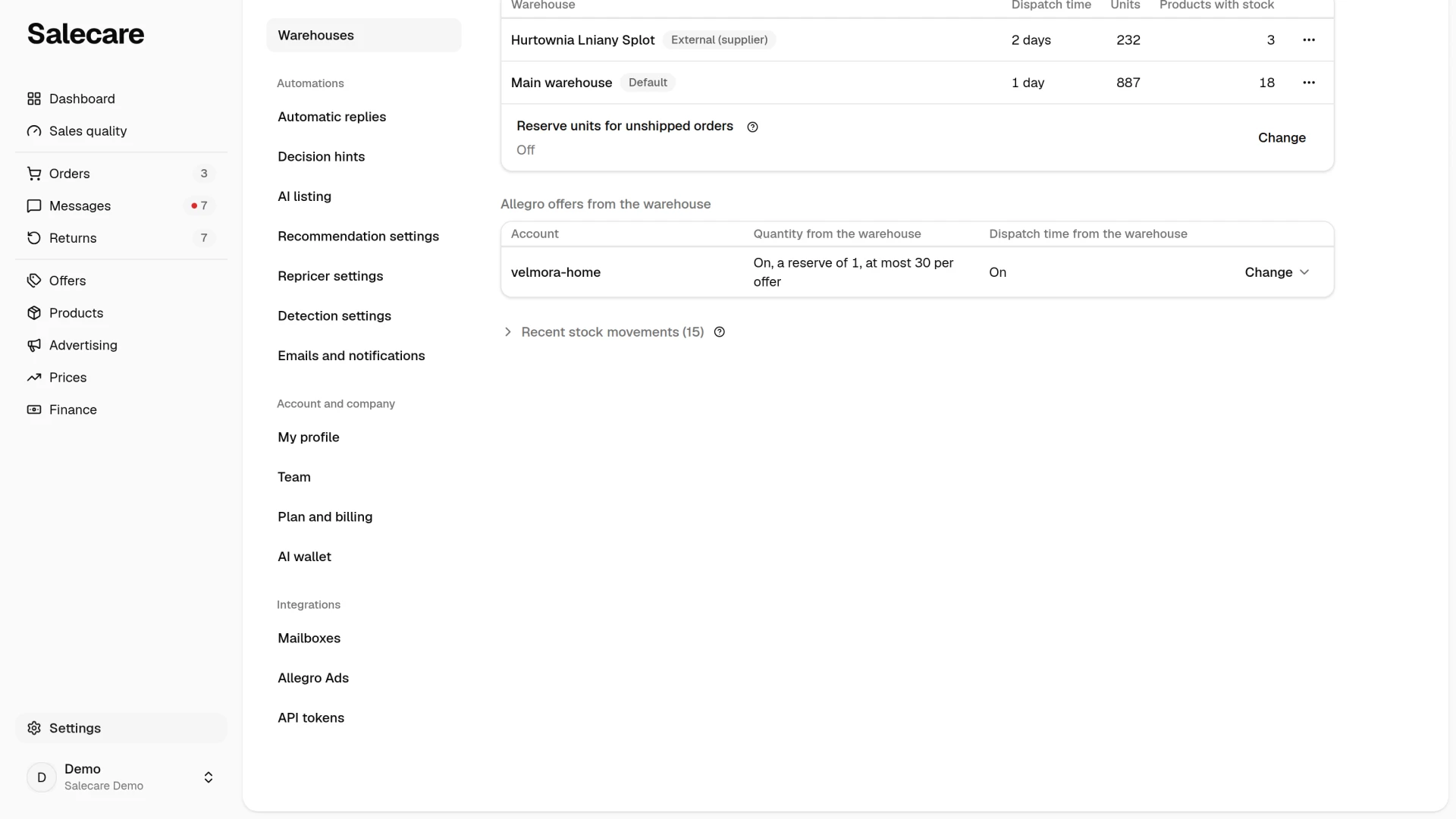
These settings are separate for each Allegro account, so the warehouse can drive one account while you leave another with quantities set by hand. Sales from such a second account reduce the warehouse stock only when its offers are matched to products, as step 4 explains. In Settings open Allegro accounts and click the account. The Stock and relisting group holds the Quantity from the warehouse and Dispatch time from the warehouse rows, and Change next to a row opens its panel. The Warehouses page opens the same panels, as step 3 describes. These are Salecare settings and are not sent to Allegro. The List new offers on this account row in the Listing group is about drafts, not stock, and the guide "How to schedule automatic offer publication" covers it.
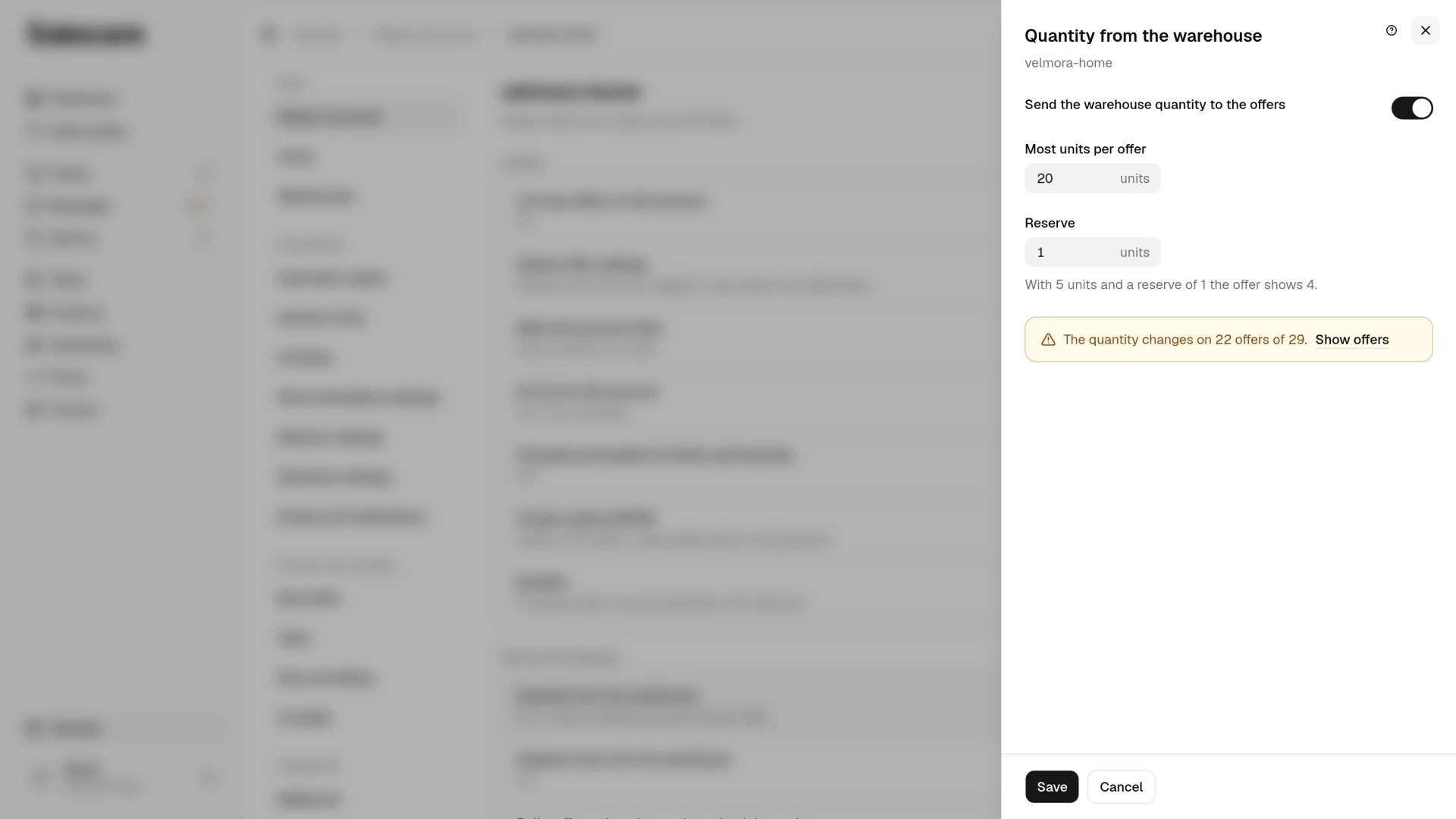
In the Quantity from the warehouse panel switch on Send the warehouse quantity to the offers. That setting protects you from selling goods you do not have. When a product hits zero, Salecare sends 0 units to the offer, and Allegro ends it at once, before anyone buys it. Allegro does not let an active offer stay listed with no units, so this always happens, whatever the other settings say. Salecare leaves auctions alone. An auction covers 1 item for as long as it runs, so Allegro accepts no other quantity for it, and 0 units would end it despite the bids placed.
The panel has no separate relisting switch. An offer Allegro ended for lack of stock is relisted by the answer to the Relist offers when the goods are back in stock question in the same group, covered in the guide "How to relist ended offers". An account set up with that question relists such offers in the morning run at 6:50. On an account that already relisted offers as soon as the goods arrived, stock updates keep doing it. Before such a relist Salecare checks on Allegro who ended the offer and why, and then sends the quantity and the relist in one change. The relist reaches the offer history only once Allegro shows the offer as live. Allegro accepts a relist only when the offer has complete product safety data, because since 4 August 2025 it no longer accepts the "no safety information" option when listing, relisting or editing. A rejected relist goes to the notification bell with the reason Allegro gave, and so does a relist Allegro accepted while the offer did not come back on sale within 4 minutes. The bell notification comes at most once an hour per account and names only the first such offer. The other offers without that data show on the offers list with the Missing GPSR data only filter ticked and the Offer status filter set to "Ended". Salecare tries again every morning, so once the data is filled in the offer usually comes back the next day, within two days at the latest. Which offers have gaps and how to fill them in bulk is in the guide "How to verify GPSR of offers in bulk". If the offer has an Allegro pricing rule, the rule can change the price right after the relist, and Salecare then picks up the new price together with the confirmation. When the fee cycle for a promotion or extra options has already ended, Allegro starts a new one after the relist and charges for it. When the account relists no offers, the offer waits until you relist it by hand.
In the Most units per offer field you set an upper limit of units for one offer on this account, for when you do not want a single offer to show the whole stock. An empty field, which shows "No limit", means no limit. The limit counts separately for each offer and does not split the stock between offers of the same product. What stops the same unit from selling twice is taking sales off the stock as step 4 describes, by plain subtraction or through reservations, a few minutes after the sale.
The Reserve field keeps the last units away from Allegro. Every offer on this account shows this many units fewer than the warehouse holds, never below zero. With 5 units and a reserve of 1 the offer shows 4, and with 1 unit it shows 0 and Allegro ends the offer. An offer selling a pack of several units or a bundle counts the reserve in packs or bundles. It helps when you sell the same goods on several Allegro accounts, because an order reaches Salecare a few minutes after the sale, and until then the other offers still show the unit that has sold. Salecare does not see sales outside Allegro at all, in your online shop for example, so they do not reduce the warehouse stock, and the reserve only softens their effect. When you also sell these goods through another channel, feed the warehouse stock from the system that sees those sales, an automatic import of the stock file from your shop or your integrator, for example, or do not switch on stock updates for the account that sells these goods. A value of 0 means no reserve. A new value reaches the offers with the next stock change, or when you click Send stock now in the More menu of the Warehouses page. While the warehouse holds no more units than the reserve, Salecare does not list a new offer of that product on this account, because the next update would send 0 to it. Relisting an offer ended for lack of stock counts the reserve too, so the offer comes back only once the stock is above it.
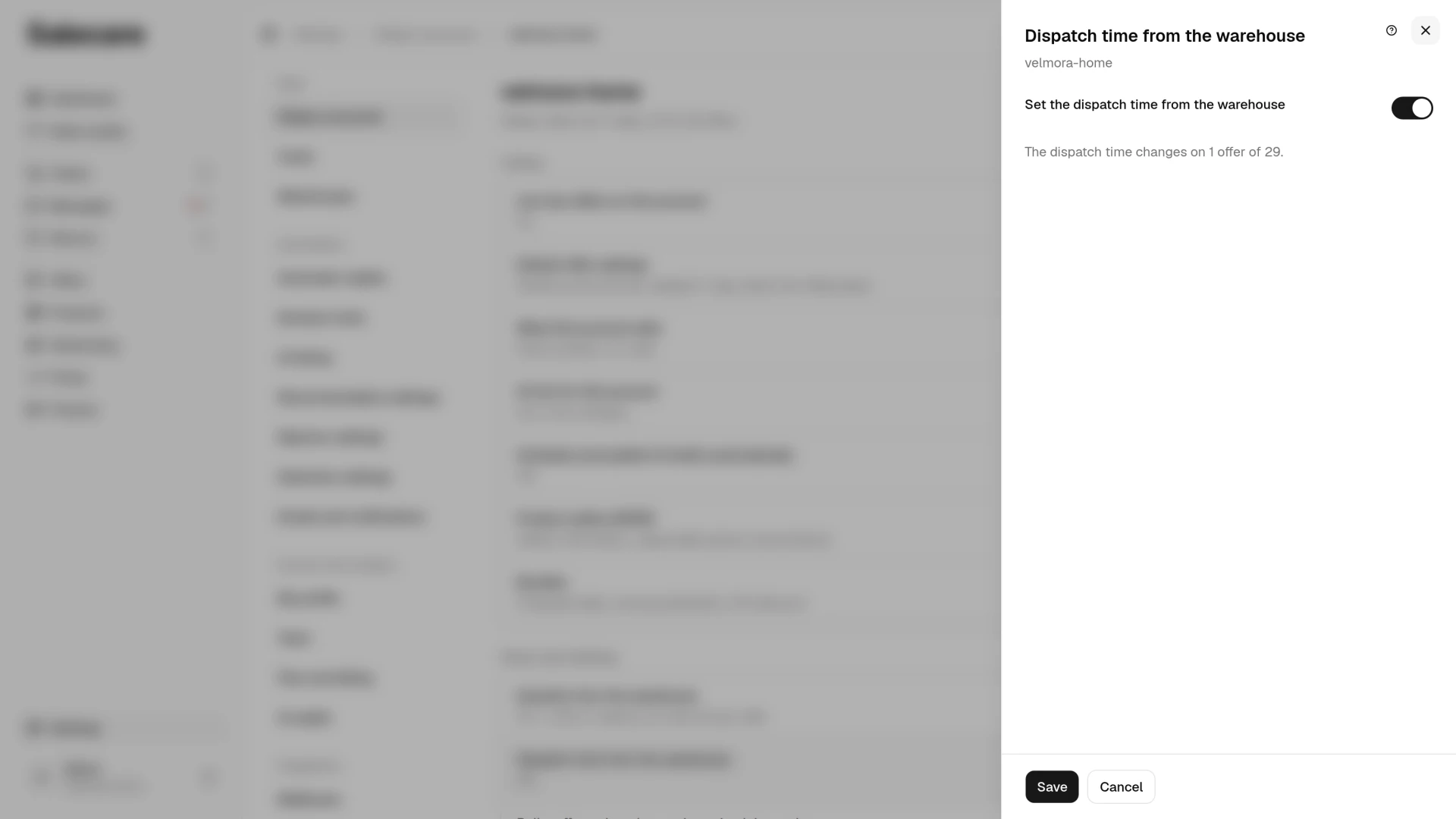
Once Set the dispatch time from the warehouse is on in the Dispatch time from the warehouse panel, Salecare gives the offers on this account the dispatch time of the fastest warehouse that has the product in stock. Sales then come off your stock the same way as with quantity updates, as step 4 describes.
All of these settings are off by default and need an account connected with the offer-write permission.
Step 3. Check Allegro offers from the warehouse
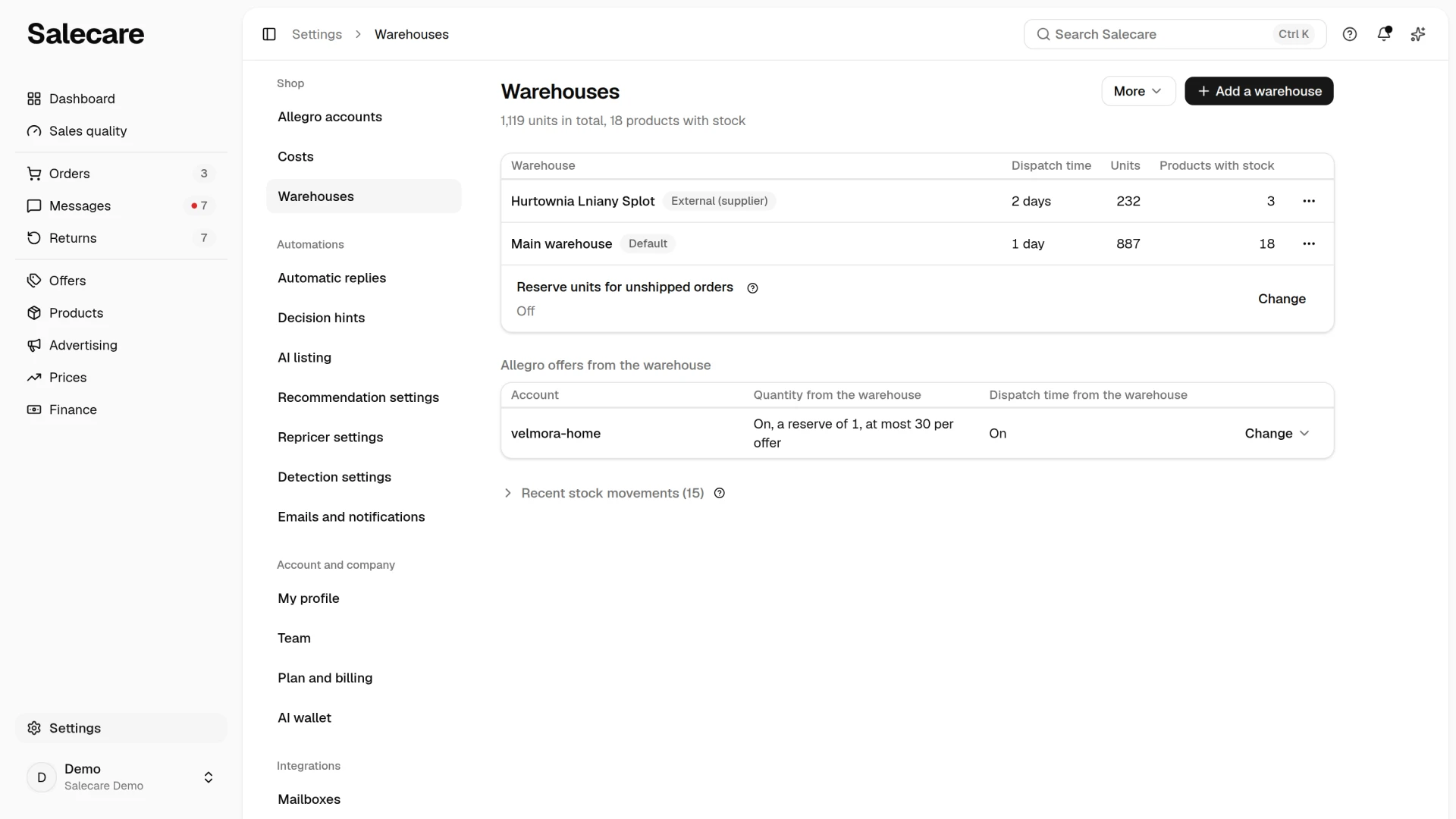
In Settings open the Warehouses page. The Allegro offers from the warehouse section has a row for each Allegro account and says whether its offers take the quantity and the dispatch time from the warehouse, in the words the account settings use. Change opens the same panel as in the account settings, so you set stock for several accounts in one place. You can also send stock at once, without waiting for the next sync. Click More in the page header and pick Send stock now. Salecare first asks "Send stock to Allegro now?" and says how many offers change their quantity. Recalculate dispatch time works the same way for the dispatch time.
Step 4. Choose how sales come off your stock
Once the warehouse drives at least one account, so stock updates or dispatch time from the warehouse is on, sales start coming off your stock on their own. By default, after every order sync the sold units are subtracted from your own warehouse and a "Sale" entry appears in the stock movements. A cancellation puts the units back into the same warehouse with a "Returned to stock" entry. Units the buyer sent back in a return, also on a return of the whole order, come back the same way once you click Save grade in the Condition and photos section of the return page. Only goods graded A (as new) with the "Restock" disposition come back, though, and only once the parcel has been received. The "Relist as used" or "Dispose of" disposition leaves the units off stock. When you record it after the units already came back into stock, Salecare takes them off again. That way the offers of the accounts the warehouse drives show the quantity less what has sold, including when the same product is listed on several offers or on several accounts. Only sales from offers matched to a product come off the stock, though, on every account, including the accounts with hand-set quantities. A sale from an unmatched offer does not reduce the warehouse, and sales from before the match will not reduce it later, unless the offer appeared in Salecare within the last day. Before you switch on stock updates, match the offers of these goods on all your accounts to products, as the guide "How to match Allegro offers to products" explains. A sale does not reduce an external warehouse, because that stock belongs to the supplier and the next import updates it. Salecare subtracts the orders placed from the moment you switch it on. Earlier orders leave the stock as it is. Before you switch it on, enter or import the current stock, because sales from before the switch-on will not reduce it later. With this default subtraction, enter the number of units on the shelf less the units of orders that have not shipped yet, and count the stock the same way when you correct it after a stocktake, because shipping them no longer reduces the stock in Salecare. Salecare checks the accounts that take their stock from the warehouse for new orders every 2 minutes and fetches a new order at once, and the other accounts every 15 minutes. In that time several buyers can buy the last unit on different offers.
The second option is reservations. You turn them on for the whole company, not for each account separately, on the Warehouses page in the Reserve units for unshipped orders row with Change. An order then does not take the units off straight away but reserves them. The physical count stays as it is and the available quantity falls. On dispatch a reservation turns into a sale. On cancellation, a return or after a timeout the units go back into the pool. A reservation is placed at the same order sync as a plain subtraction, so it protects against selling a unit twice just as well. What it adds is that the warehouse list shows units in stock, reserved and available separately.
Step 5. Check the preview before switching anything on
The Quantity from the warehouse panel shows what a save changes before anything reaches Allegro. Under the fields sits a line that says on how many live offers of this account the quantity changes and how many of them Allegro ends. The line counts this with the values typed in the Most units per offer and Reserve fields and updates when they change. When nothing changes it says "The quantity does not change." The Show offers button opens the list of the offers it concerns. On a phone the offers there are rows of a list instead of a table, and you pick the order in the menu above the list. The Dispatch time from the warehouse panel says the same way on how many offers the dispatch time changes. An offer counts when it is matched to a product with stock in a warehouse not excluded from Allegro. For the quantity, a bundle offer counts too when at least one of its components has such stock, because a bundle gets the number of whole bundles its components make up. Ended and inactive offers are not counted here, because Allegro ends only a live offer at 0 units. When you switch it on, and while updates run also when you change the fields in a way that changes offers, Salecare asks first and repeats that number. Look through the offers Allegro will end before you confirm. If the panel says the quantity does not change, switching on changes nothing on your offers, so match offers to products and fill in the stock first.
What next
Stock is best loaded automatically. See the guide "How to set up an automatic wholesaler import". And if the preview shows no qualifying offers, start with the guide "How to match Allegro offers to products". Relisting ended offers every day, including the ones you ended, is a separate account setting covered by "How to relist ended offers".