How to list and end offers in bulk
The season ends and a hundred listings have to go. Or a wholesaler import has just added two hundred new products and all of them need to reach Allegro. Changing offers one at a time is a whole day's work. In Salecare you perform the same operations in bulk, one action across many offers at once.
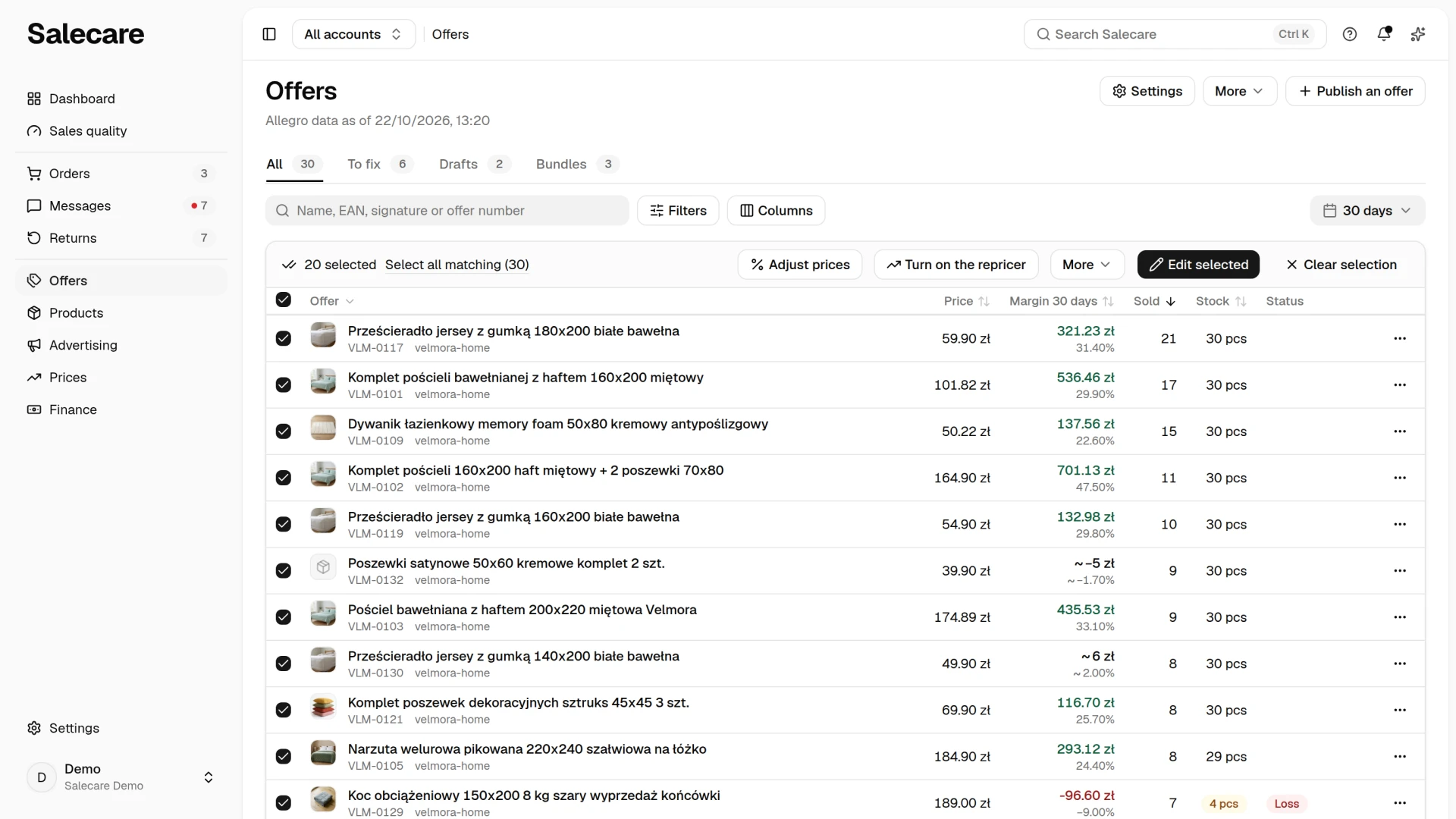
Step 1. Select everything matching the filters
In Salecare's lists, the checkbox in the table header selects the current page. Once you have done that, a Select all matching option appears, covering every result of the current filters, including those on later pages. You select items the same way on most lists in the app. First narrow the list with filters, then select all matching, and only then choose an action. When you already have a list of offers, a column of numbers from a sheet for example, paste it into the search on the Offers page. Several offer numbers or EAN codes separated by spaces, commas or semicolons leave the offers with those numbers on the list, and each number has to match whole. One search reads at most 500 numbers, so split a longer list into parts. A fragment that is not a number, a column header or an SKU for example, is left out. The bar above the table says how many numbers were read and what was left out, so before you act you can see whether the list covers everything. An EAN code leaves the offers with that code on every account, unless you narrow the list with the Account filter. The list shows active offers by default, and you see ended ones once you set the Offer status filter to "Ended" or "All".
Step 2. Publish many drafts at once
On the Drafts tab of the Offers page you select the finished drafts and publish them with a single action, instead of opening each one separately. That is the whole road from import to sale. The wholesaler supplies the products, the AI generates the drafts, and you list the whole batch in one go. Generating drafts with the AI needs the Pro plan or higher.
Before it goes out, every draft goes through the check from the Catalogue compliance section. A draft with a blocking error does not go out, because Allegro would refuse such an offer anyway. The draft list shows the reason the publication failed beside it, and the section in the draft names the error itself. Once you fix it, you list the draft again. Warnings, such as a missing EAN on a draft not linked to a catalogue product, do not stop bulk listing, because selecting the drafts and choosing the action is your decision. So read them in the draft before you select it for listing.
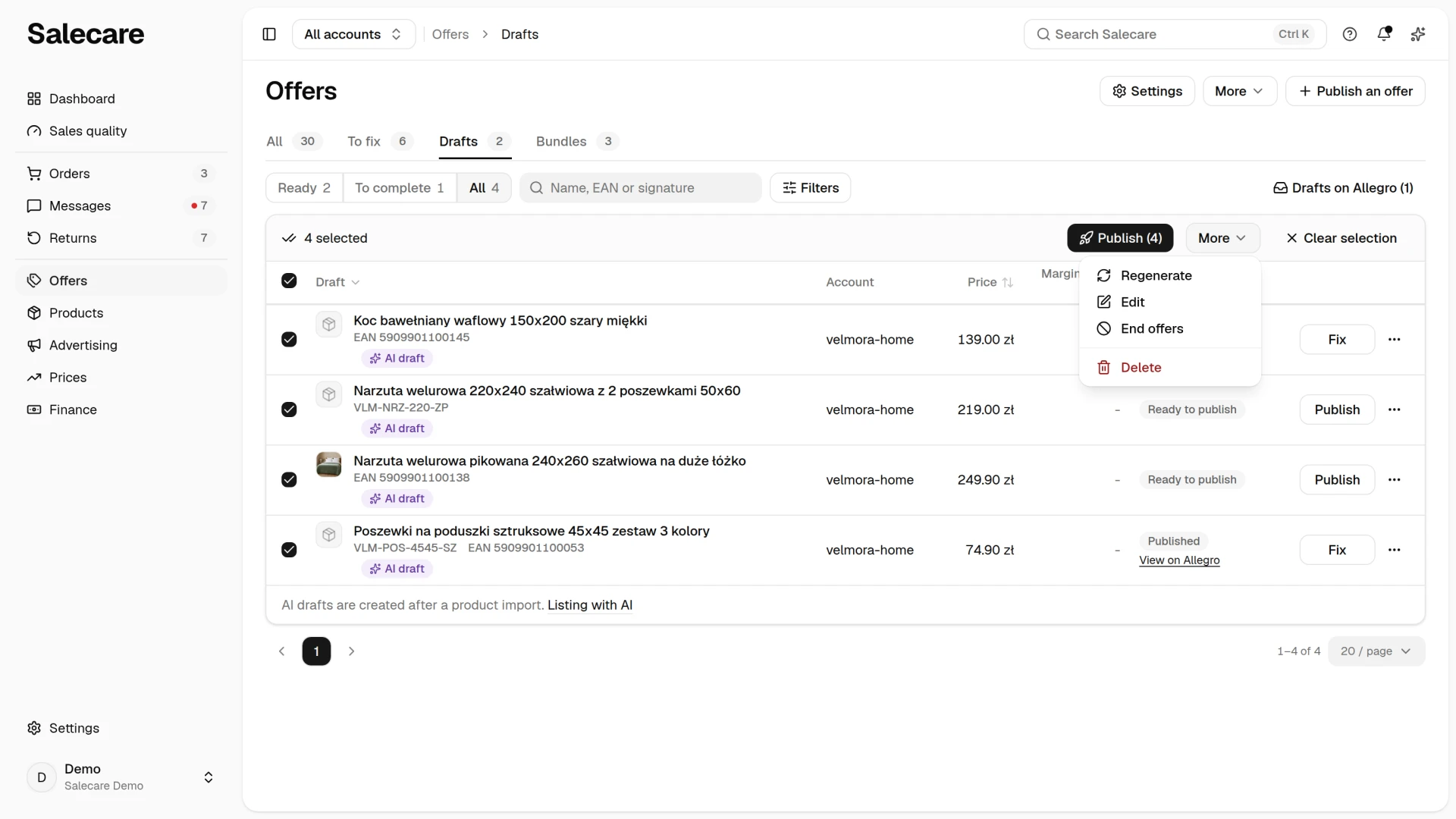
Once you select drafts, a bar appears above the list with a Publish button and the number selected, and on a phone the bar floats above the bottom edge of the screen. The button publishes the ready drafts among those selected, and the confirmation window says what it skips. It skips drafts that are not ready, already published, have no account chosen, whose product is out of stock or that have a paid promotion chosen. You publish a draft with a paid promotion on its own, because only the publish window of a single draft names the option Allegro charges for. When you select up to 200 drafts, the message after publishing says how many drafts started publishing and how many were skipped. Salecare handles a larger selection in the background, in batches. A draft whose price does not cover the purchase cost and the Allegro commission, or whose margin Salecare cannot work out, for example without a purchase price, is not published, and the draft shows the reason. When a person without the Margins and purchase prices (view) permission publishes, Salecare does not check the price against the cost, so neither of these reasons holds a draft back. When some of these offers go on Allegro at a price that does not cover the purchase cost and the commission, the owner and every person with that permission get one notification in the bell and an email from the Offer drafts topic once publishing ends. The notification lists those offers with their prices and the prices below which every sale loses money. The person who published gets no signal about it. A larger selection, handled in batches, also gives one notification.
Step 3. End many offers at once
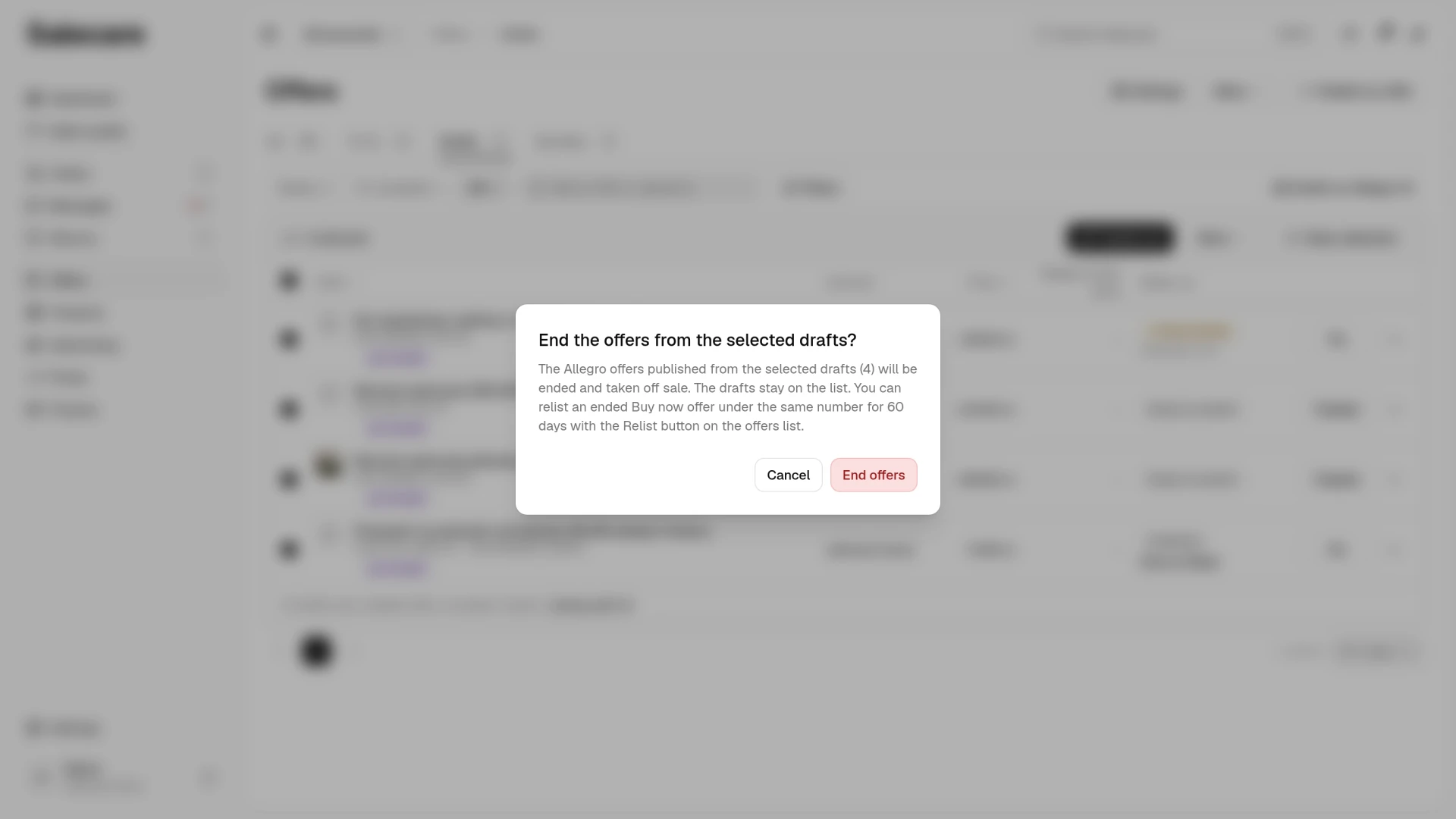
Most offers on an account do not come from Salecare drafts, so you end them on the Offers page. Narrow the list with filters, by category, account or last sale, for example, select the offers, open the More menu in the bar above the table and click the End entry below the line. Changing the filters that decide which offers are on the list clears the selection, so End covers only the offers in the current results. You end a single offer from the action menu in its row, and on a phone from the menu on the offer card. Before the end, the confirmation dialog says that you can relist an ended Buy now offer under the same number for 60 days with the Relist button on the offers list. Every end from the Offers list also lands on the Change history page, where you can undo it for 7 days. For a holiday, do not end offers. Use Allegro's Sales break instead. It suspends every offer of the account for up to 30 days and then brings them back on its own, and the end dialog links to it.
The bulk End offers action also works on the Drafts tab, in the bar of selected drafts under More. You select drafts with published offers and end the linked active offers on Allegro with a single action. It comes in handy at the end of a season, when withdrawing a product range, and when a wholesaler stops delivering. Check the Relist offers when the goods are back in stock row in the account settings first. If it has the answer "Also those you ended, at most N days after the end" or "Only those you ended, at most N days after the end", Salecare brings an ended offer back at the next morning relist at 6:50 when its product is in stock and no more than N days have passed since the end. The end dialog on the Offers list warns about this for such an account, and the one on the drafts list does not. Before you end offers for good, set the product stock to zero or pick the answer "Only those Allegro ended for lack of stock" or "Do not relist" in that row. The confirmation dialog reminds you that you can relist an ended Buy now offer under the same number for 60 days with the Relist button on the offers list. An end from the drafts list does not land on the Change history page, so you bring the ended offer back only with the Relist button on the Offers list. Publishing a draft again, on the other hand, creates a new offer, without its sales history. When you delete drafts that have published offers, you can end the linked offers at the same time. One decision then tidies up both the drafts and the offers, and no offers that nobody remembers stay on Allegro.
Relist ended offers
You bring ended offers back in bulk the same way. On the Offers page set the Offer status filter to "Ended", select the offers, open the More menu and click Relist. Allegro relists an ended Buy now offer under the same number and address for 60 days after its end, and an offer relisted within 30 days keeps part of its popularity. In the dialog you enter the quantity after the relist, at least 1, because Allegro does not relist an offer with no stock. An offer whose stock the Salecare warehouse keeps comes back with the warehouse quantity, and stays ended when the warehouse holds none. The details, including which offers Allegro lets you relist, are in "How to relist ended offers".
Step 4. Change prices, titles and descriptions of many offers
Tick offers in the rows. A bar appears above the table with the Adjust prices, Turn on the repricer (on a plan with the repricer), More and Edit selected buttons. More holds Retitle, Description, Photo edit (when the photo tools are available), Check thumbnails, GPSR, VAT, Assign product, Relist and, below a line, End. The Edit selected and Adjust prices windows name in their title how many offers change on Allegro. On a phone the bar floats above the bottom edge of the screen with Edit selected, and the rest, Adjust prices and Turn on the repricer included, is under More. The offer card on a phone shows the Price, Margin, Sold and Stock fields and one problem badge, and its menu holds the same entries as the table row. You find each offer's change on the Change history page, where you can undo it for 7 days. The Edit selected window takes a price from 1.00, because Allegro does not accept a lower one. For a lower price the window says so under the price field, and the Apply to selected button stays inactive. A price or quantity change in Edit selected and in Adjust prices skips auctions, because an auction covers one unit and its price is set by the buyers' bids. Before the save the window says how many auctions it skips and leaves them out of the offers that change price, and the message after the save says how many auctions were skipped.
Adjust prices
The Adjust prices button raises or lowers the prices of the selected offers by a percentage or an amount, with rounding to whole zloty or to an ending in .99. On a cut Salecare rounds the price down, and on a rise up, so the rounding never moves a price against the change. The dialog works out the new prices before you save and shows how many offers change price. The change goes to Allegro at once, so check the selection before you click Apply. An offer whose price would fall below 1.00 after a cut keeps its old price, and the dialog says how many such offers there are.
Retitle
The Retitle entry in the More menu changes the letter case of the titles and optionally adds a prefix or a suffix. The changes reach Allegro in the background. In the Words that keep their letter case field type, separated by commas, the brands and names that should stay written as they are now. Words with a digit, words with a capital inside such as iPhone, and short abbreviations such as LED or XL keep their form on their own. Allegro accepts a title of up to 75 characters. An offer whose new title would be longer stays as it is, because shortening would remove its last words, such as the size or the colour.
Add a section to descriptions
The Description entry in the More menu adds one section at the end of the description of every selected offer. The existing content stays untouched, and an offer whose description already has this text is skipped. The section can hold up to 20000 characters and the HTML tags Allegro allows, that is headings, lists and bold. The description has to be about the product, because Allegro does not allow contact details, payment details or information about a warranty, a holiday or a sales break in it. An offer whose description would take more than 40,902 bytes with the new section is skipped too, because Allegro does not accept a longer description. Letters with diacritics, the formatting and the addresses of the photos in the description take more bytes than plain text. You see the reason in Change history.
Step 5. Keep track of the state in the lists
The Drafts tab shows the state of each item, so you can see what is listed and what already reads "Offers ended". An offer ended from Salecare changes its state at once, and one ended in Allegro after the next offer sync, which runs every hour. A link to Allegro shows only next to offers that this state does not mark as ended. The Offers page shows the full list of offers on your account.
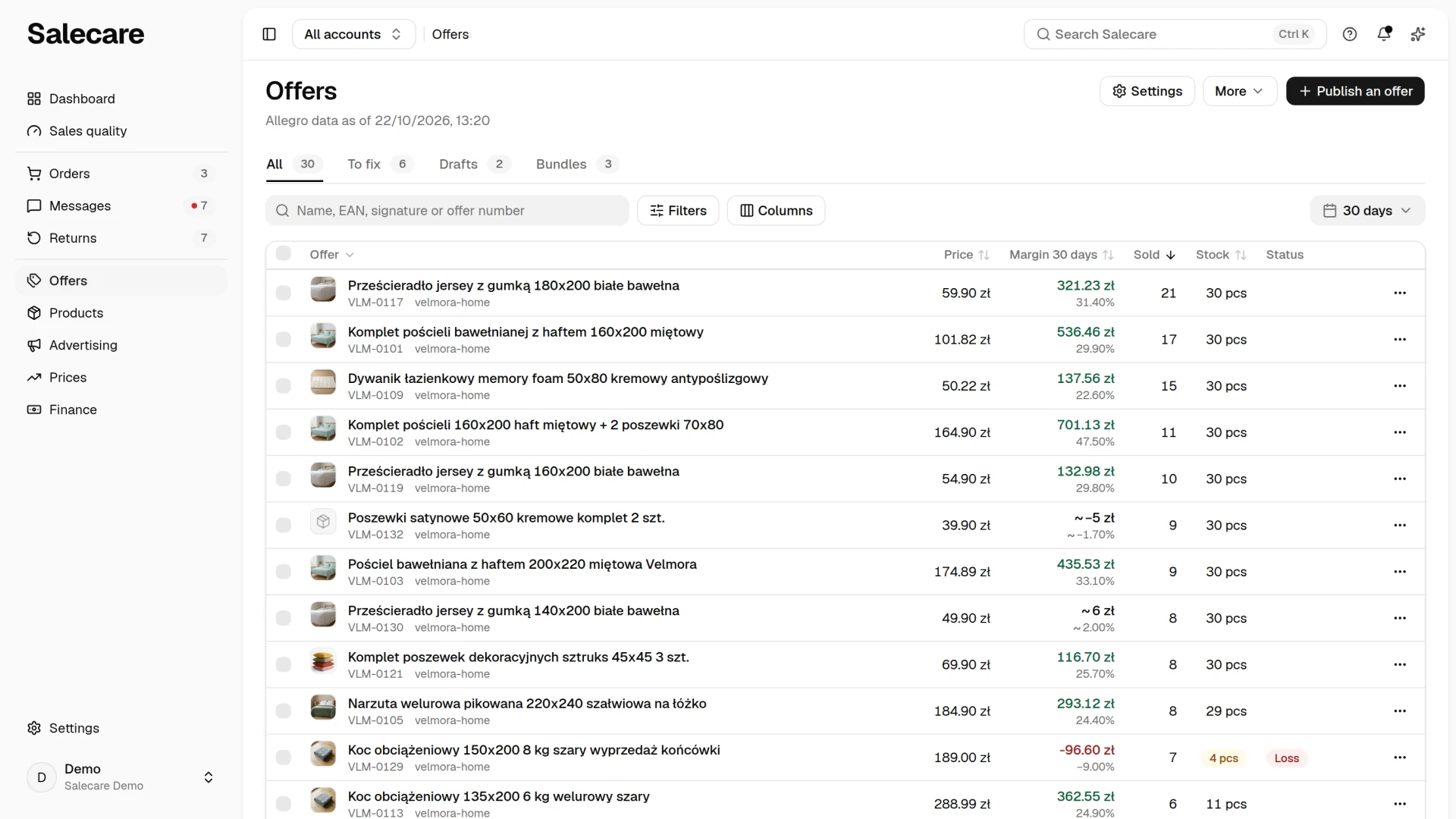
The Offers page fills up once the Allegro account is connected, because the automatic sync pulls the offers in within a few minutes.
What next
If you are just starting with drafts, see "How to list an offer on Allegro with AI (offer drafts)". And before publishing anything in bulk, make sure the account is ready. The guide "How to connect an Allegro account to Salecare and run the first sync" will take you through it.