How to connect an Allegro account to Salecare and run the first sync
Everything in Salecare starts with connecting your Allegro seller account. Once you consent on Allegro, the app pulls in orders, offers, settlements, messages and returns by itself, and keeps them up to date from then on. Connecting itself takes about a minute.
Before you start. Create your account and confirm your email address
Salecare works with accounts from Allegro Poland (Allegro.pl). An account registered on another Allegro marketplace, such as Allegro.cz or Allegro.sk, cannot be connected.
Self-service sign-up is closed for now, and Salecare opens accounts on request. On the sign-in page click Request access, enter your full name, your email address and a few words about your Allegro store, then click Send request. Salecare will contact you and send you an invitation.
While sign-up is open, the sign-in page has a Create account link in that place, and you create the account yourself with an email address and a password. You type the password once, and the eye icon shows what you typed. The password needs at least 12 characters, including an upper and a lower case letter, a digit and a special character. It must not be a password known from a data leak. Under the fields, tick your consent to the Terms of Service, the Privacy policy and the Data processing agreement. Once you start filling the form in, a reCAPTCHA box appears above the Create account button. Tick it before you send the form. Until you connect an Allegro account or change the names, your full name and your company name are the part of the email address before the @. You change your full name on the My profile page and the company name in the Invoice details row of the Plan and billing page. The trial lasts 14 days from the address confirmation and needs no card.
Once the account is created, Salecare sends one message with a 6-digit code to the address you gave and opens the Check your inbox page. The code is also in the subject and works for 30 minutes, only for the address it was sent to. Enter the 6 digits from the email or paste the whole code, and the page sends it by itself after the last digit. After five wrong tries the code stops working and you need to send a new one. When you read the message on another device, confirm the address with the Confirm address button in the same message. The button works for an hour. If you click it later, the Check your inbox page says the link has expired and asks you to enter the code or send a new one.
If the address has a typo, click Change next to it, correct it and click Send code, and the new code goes only to the corrected address. The Send the code again link appears 30 seconds after the last code, and after a minute the page suggests checking your spam folder. Salecare sends at most 5 codes within 24 hours, the first one included. The Log out button is in the top right corner of this page. When you later change your email address on the My profile page, Salecare sends a message with a code to the new address straight away. While the new address waits for confirmation, the Email address field has an Enter the code from the email link under it, which opens the page with the code field.
If the address has waited for confirmation for more than a day and no code went to it in the last 24 hours, Salecare sends one more message with a new code and the date the unconfirmed account will be deleted. This message comes once, no later than 48 hours after the account was created, and counts toward the limit of 5 codes within 24 hours. An account whose address nobody confirms within 72 hours is deleted, so after that you can sign up again with the same address.
Step 1. Connect your Allegro account
Once the address is confirmed, Salecare opens the Connect your Allegro account page and sets up your account in the background. This usually takes less than a minute. The card on that page says what Salecare downloads, that you sign in on the Allegro website, and that nothing changes on Allegro until you switch it on. If you click Connect Allegro account before your account is ready, the button waits and takes you on to Allegro as soon as everything is ready. If setting up takes longer than two minutes, the page says so and gives the address [email protected]. As long as the company has no Allegro account connected, Salecare opens this page after you sign in. In its top right corner the account menu holds Help, which opens this guide, and Log out.
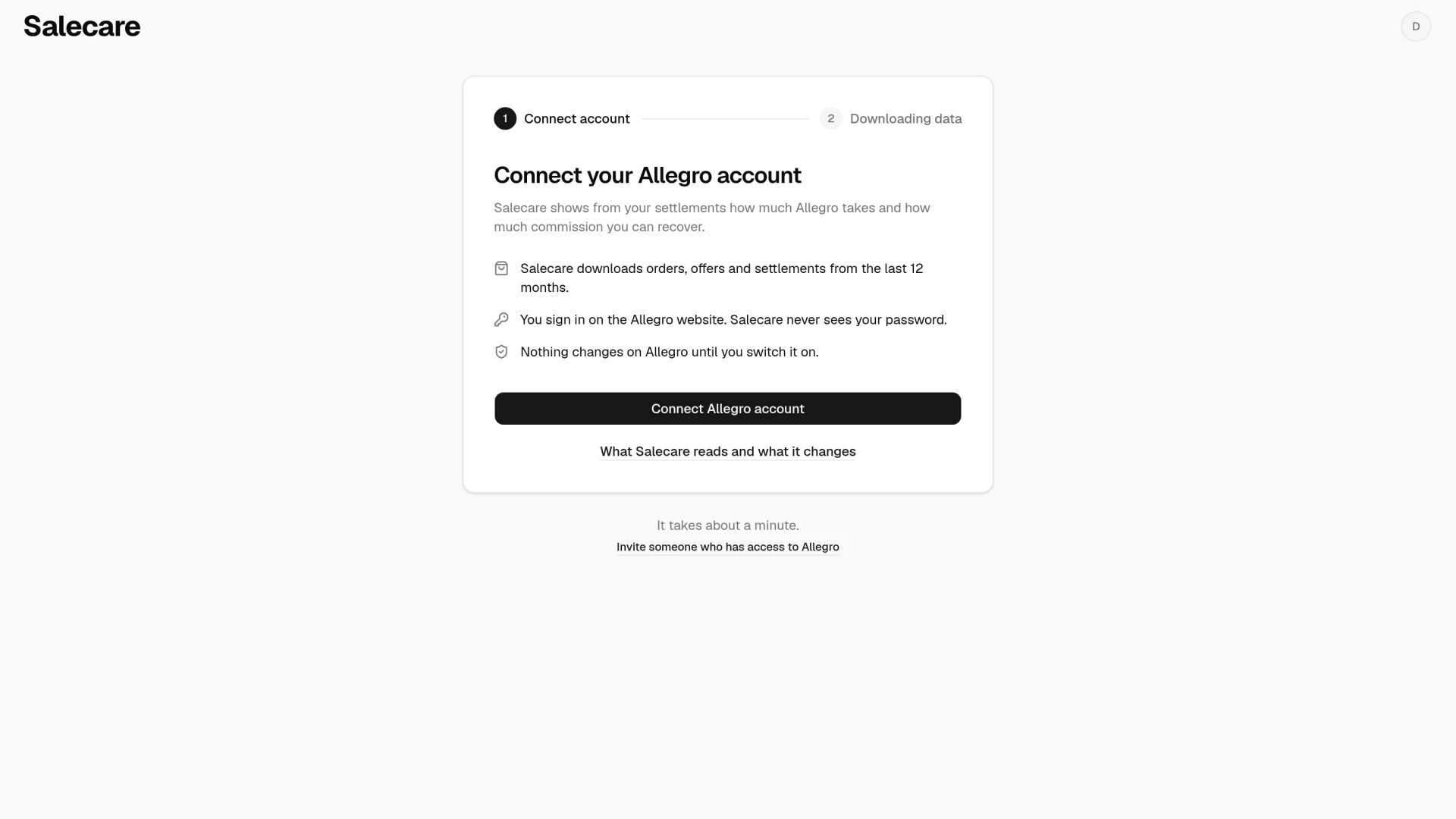
Under the Connect Allegro account button, the What Salecare reads and what it changes link opens a panel with the permissions Salecare asks Allegro for, in two groups, Reading and Changes only after your decision. Allegro shows the same permissions after you sign in.
If you have no access to the Allegro account, click Invite someone who has access to Allegro under the card, type their email address and click Send invitation. They get an invitation to the team with the Administrator role. The invitation is valid for 7 days, and they connect the account once they accept it. The link works once your Salecare account is set up, and only a person who may give the Administrator role sees it.
After you click Connect Allegro account, Salecare redirects you to Allegro. Allegro asks you to sign in, or shows the account already signed in in your browser and asks you to confirm it. This way you see which account you connect before you agree to anything. If it is not the right account, log out on Allegro and sign in to the right one. Then confirm the permissions. They include access to Allegro campaigns. With it the repricer knows which offers take part in price-changing campaigns such as AlleObniżka or Allegro Ceny, and does not change their price.
If you cancel on the Allegro website instead of confirming the permissions, you come back to the Connect your Allegro account page with a message that no account was connected. Just click Connect Allegro account again. When Allegro refuses the connection for any other reason, Salecare shows an error message and asks you to try again in a few minutes.
When you connect your first Allegro account, Salecare takes the company name (for an account without a company, your first and last name) and your first and last name from the Allegro profile. Salecare does not change a name you saved earlier on the My profile page or in the Invoice details row of the Plan and billing page. It does not copy the tax ID from Allegro.
Salecare never learns your Allegro password. After authorisation it receives an access key from Allegro, which you can revoke at any moment in your Allegro settings or by disconnecting the account in Salecare.
Step 2. Wait for the data to download
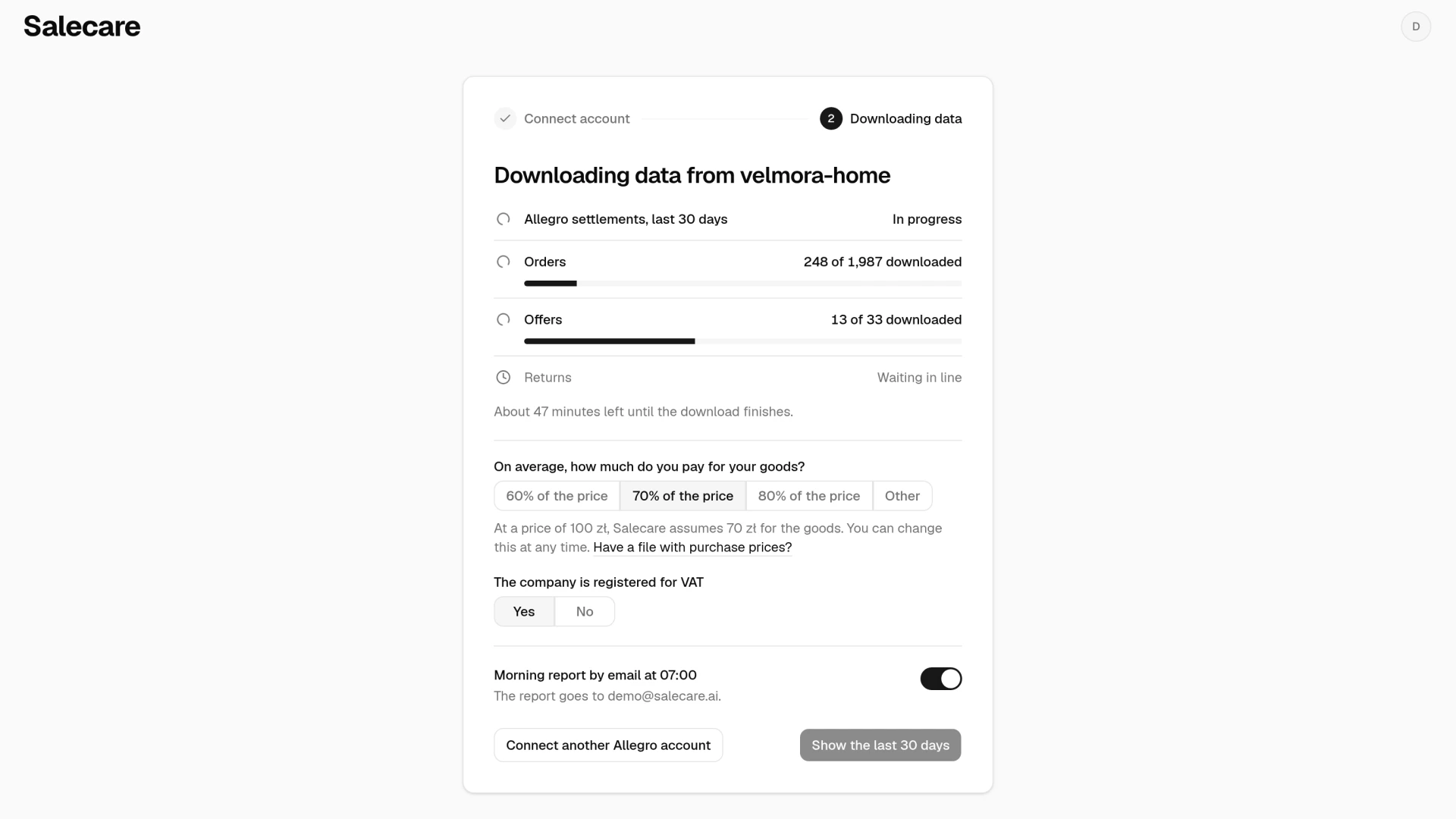
After you consent on Allegro, Salecare shows the Downloading data page. Four rows say what is being downloaded, that is Allegro settlements, last 30 days, Orders, Offers and Returns. Each row shows its state, for example "Waiting in line", the count downloaded so far, or "Done". The counts cover every account being downloaded. Under the rows Salecare says how long is left until the download finishes. You can close this page and the download carries on. The Show the last 30 days button works once the last 30 days are ready, also while older history still downloads. If the connection expired, the page shows a Reconnect button. If another error stopped the download, Salecare tries again within 15 minutes, and the Go to the dashboard link takes you on without waiting.
Salecare downloads the orders of about the last 12 months, because Allegro does not serve older ones. It also downloads settlements with commissions and fees from about 13 months, active, inactive and ended offers, buyer messages and returns. It first downloads what the numbers of the last 30 days need, and the older history after that. Sales older than those 12 months never reach the reports or the comparisons with a year earlier. The order download takes from a few minutes to over an hour on large accounts. You can open other Salecare pages in the meantime, and the data fills in as it arrives.
While downloading, Salecare asks how much you pay for your goods on average. The ready answers are "60% of the price", "70% of the price" and "80% of the price", and you type your own share after clicking "Other". "70% of the price" is selected at the start, and the sentence under the answers says what cost of goods Salecare assumes at a price of 100 zł. Salecare takes that share of the price as the cost of goods of products that have no purchase price. The Have a file with purchase prices? link next to it opens the product import from a file. The second question asks whether the company is registered for VAT. You answer it "Yes" or "No". Each answer saves at once, and you change it later in Settings, on the Costs page, in the Estimated cost of goods and VAT rows.
Under the questions is the Morning report by email at 07:00 switch. It turns on and off the report sent to your address, which is shown under the switch. The person who registers the company has it on from the first day. Unless you change it, the report comes every day at 07:00. You pick the days ("Every day" or "On weekdays") and the hour (06:00, 07:00, 08:00 or 09:00) later in Settings, on the Emails and notifications page, in the Morning report row. The report is described in the guide "How to set up notifications and alerts".
The Connect another Allegro account button takes you to Allegro, where you connect the next account. Before you click it, log out of the previous account on Allegro, because Allegro confirms the account you are signed in to in the browser. After you consent you come back to the Downloading data page, which shows the download from every connected account together. The button is missing when every seat in your plan is taken or adding accounts is paused.
You can close the Downloading data page. Five minutes after the last 30 days are counted, the person with the Owner role gets an email with the Allegro fees, the revenue, the profit and the commissions to recover, if any wait. When the company is registered for VAT and some orders of those 30 days have no VAT rate, the email says under the figures how many orders have a rate. When no order has a rate, the email gives no revenue and no profit. The Show the last 30 days button in the email opens the Dashboard. The email does not come if someone at the company opens those numbers on the Dashboard first. When the account had no sales and no fees in those 30 days, the email says so in one sentence.
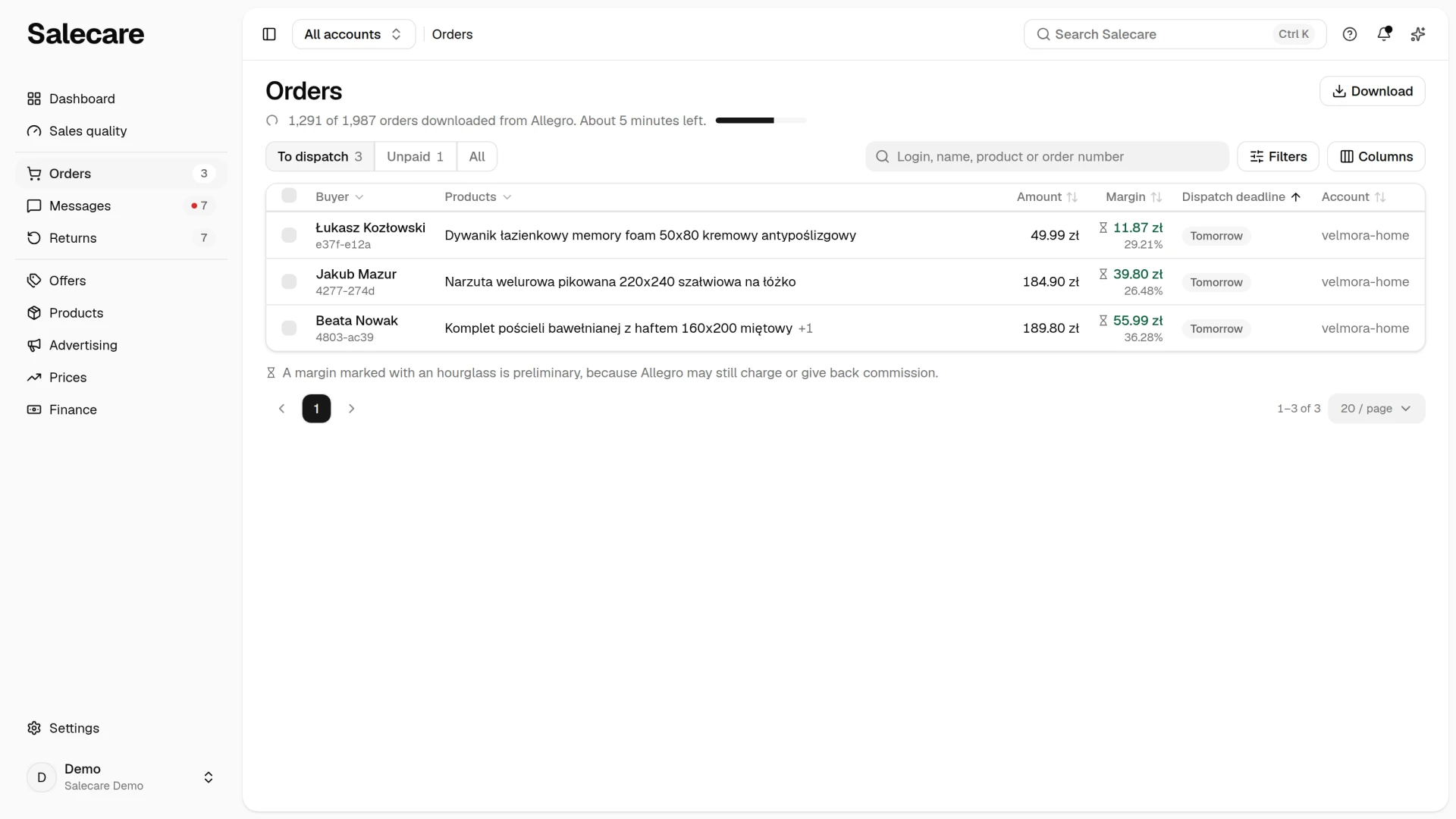
While the download runs, the Orders, Offers and Returns lists fill in by themselves. Under the page title a counter shows the orders or offers downloaded so far, and once Salecare knows the pace of the download, the time left too. The buttons and filters above the list appear together with the first row. An empty page says in one sentence what will appear on it and when. On the other pages the same counter stands in one line under the app's top bar, for the orders first, then the offers, and last the settlements. When the download is waiting for its turn, because Salecare is downloading other accounts' data at the same time, the line says it starts by itself. There is at most one such line under the top bar. When something more urgent is waiting at the same time, for example a disconnected Allegro account or an overdue payment, the line shows that instead of the download. Once the download is done, the line goes away by itself.
Salecare downloads at most 10 000 offers per status, counted separately for active, inactive and ended offers. This is a Salecare limit, not an Allegro one. When there are more than 10 000 active or inactive offers, Salecare downloads the first 10 000. When more than 10 offers and more than 1% of all active and inactive offers are missing, Salecare sends a notification with the count Allegro reports and the count that was saved, at most once a day per account. A smaller gap passes without a notification. Offers that are not in Salecare have no margin calculated and the repricer does not cover them.
The Offers list says in one sentence how the offer download is going. While the first download runs, the empty list says your offers appear here once they are downloaded from Allegro, and the offers appear on it during the download, without reloading the page. If the download ended with an error while the list is still empty, the list says Salecare tries downloading the offers again within the hour and gives the date of the last attempt. When the download succeeded and the account has no active offers, the list says active offers appear here once listed on Allegro and the Offer status filter shows ended ones, and gives the date of the last download. Once the list holds offers, a failed download shows through the "Allegro data as of" line under the title of the Offers page. It gives the moment of the last successful offer download and stays put until the next download succeeds. When the offer download fails three times in a row, Salecare sends a notification and an email with the reason, separately from the notification about orders.
Step 3. See your first numbers on the Dashboard
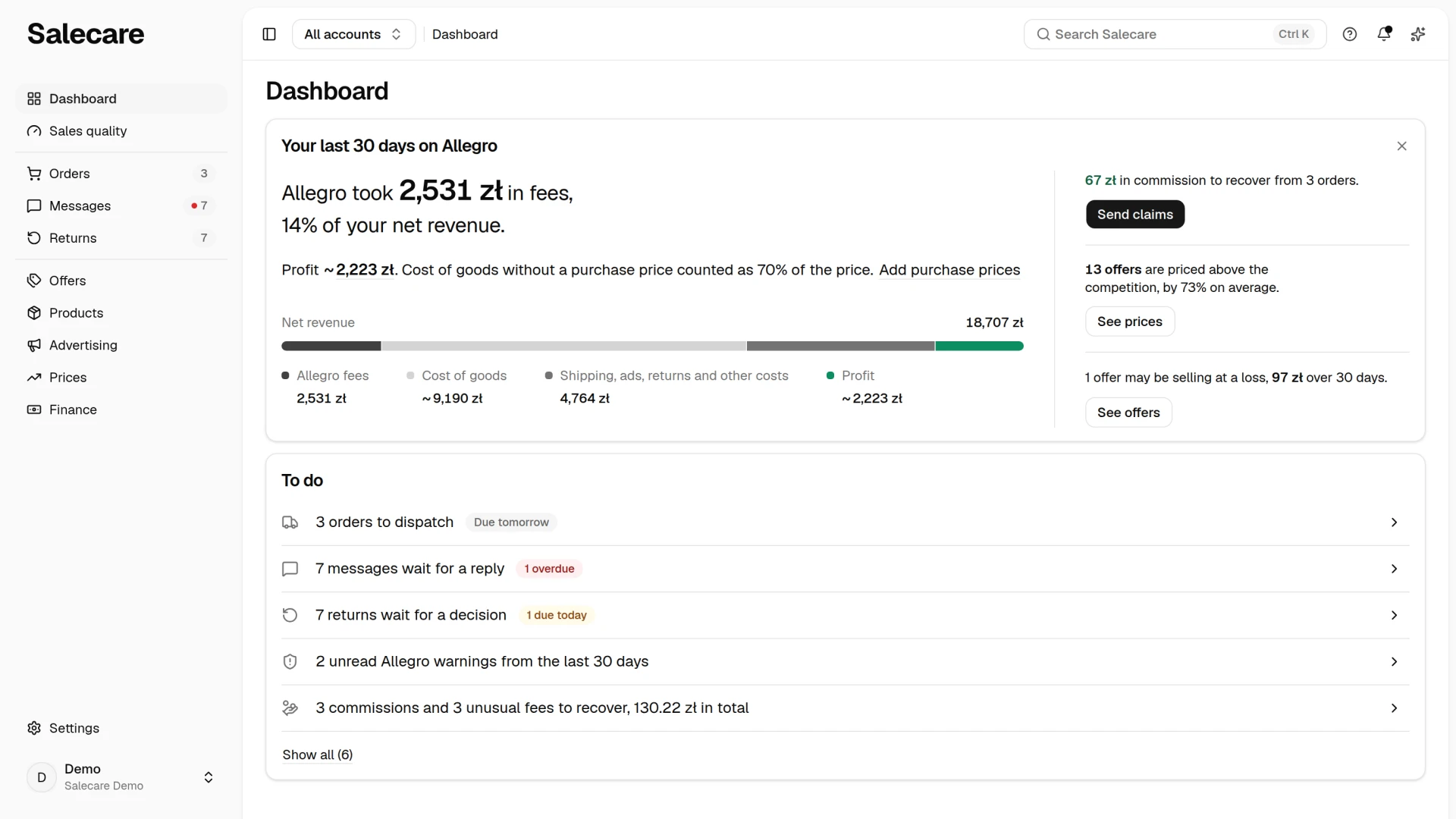
Once the last 30 days are counted, the Dashboard shows the Your last 30 days on Allegro card, described in the guide "How to read the Salecare Dashboard". The Show the last 30 days button on the Downloading data page and in the email with the first numbers opens it. From then on Salecare opens the Dashboard after you sign in.
Allegro accounts in the settings
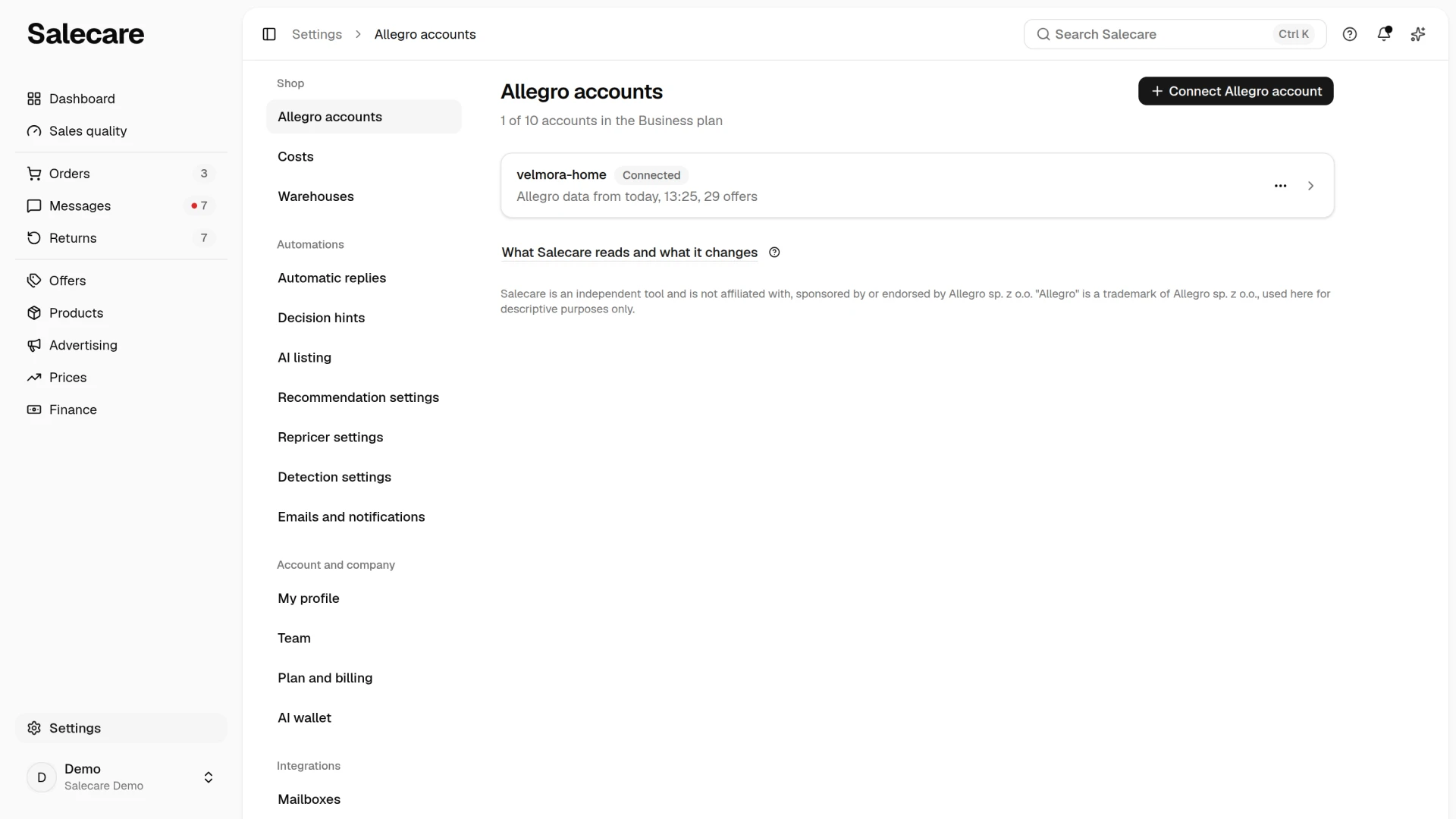
Every connected account is in the settings. In the menu click Settings, the entry at the very bottom of the menu, then the Allegro accounts row in the Shop group. The line under the title says how many accounts your plan covers. Each account is one row with its login and a "Connected", "Disconnected" or "Over the plan limit" badge. A line in the row says how recent its Allegro data is and how many offers are active, or why Salecare downloads no orders or offers. Accounts with a problem come first, the others in the order of their logins. Clicking a row opens the Allegro account settings, every setting of that one account, from listing and stock, through returns, to buyer messages. The More menu next to the account (three dots) holds Disconnect and Delete Allegro account and its data. When you may change none of the account's settings, the row does not open. The Connect Allegro account button in the top right corner of the page connects another account the same way as in step 1. After you consent or cancel on Allegro you come back to the Allegro accounts page. A company that does not have its first numbers yet goes to the Downloading data page after the consent.
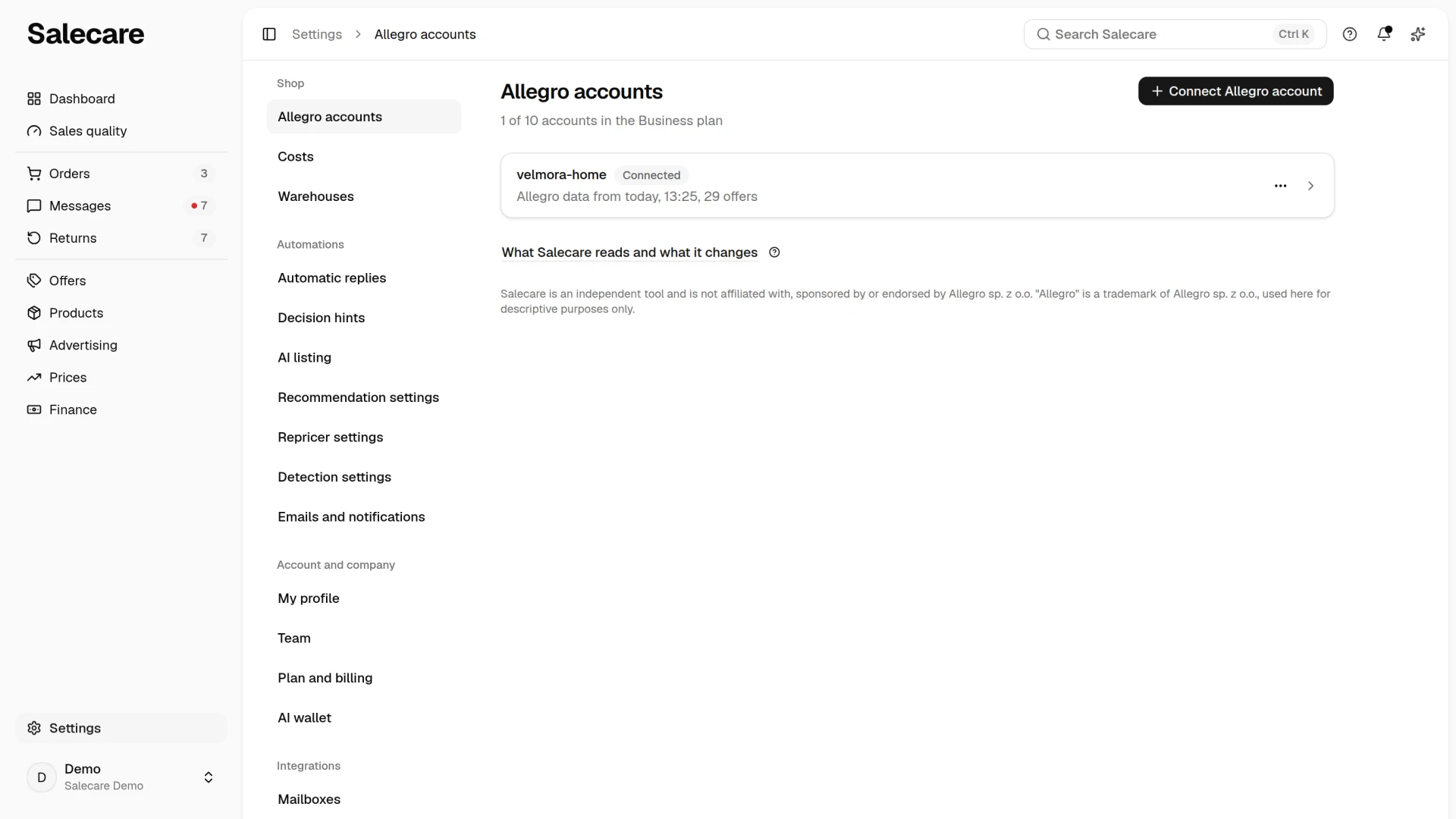
Salecare pauses adding new accounts for two reasons. The Connect Allegro account button is then locked, and a yellow bar above the list names the reason. When every seat in your plan is taken, the button is locked too, and its hint says "Every seat in your plan is taken." When the company goes over the orders limit for the second month in a row, the Reconnect button in the account rows keeps working, so after a password change in Allegro you reconnect the account at once and its orders keep syncing. When the subscription payment is more than 7 days overdue, Salecare locks the company by the next night at the latest. Syncing of orders, offers and discussions with Allegro, price changes and sending stock to Allegro then stop on every account, and the app opens only the payment page and the downloads. With a shared warehouse, watch the stock in Allegro by hand in the meantime, because a sale on one account does not reduce the stock on the others. Paying the subscription unlocks the company at once.
The date in the account's line says when the account last downloaded orders and settlements. When a download saves fewer orders than Allegro reports, Salecare sends a notification with both counts. The accounts list has no button to run the download again. Every night Salecare downloads again the orders changed in the last 7 days, so gaps from that period fill in by themselves. If older orders are missing, or the gap is still there the next day, write to [email protected]. The date of the last successful offer download is given by the "Allegro data as of" line under the title of the Offers page. Every page that lists or sums Allegro data has such a line with the date its own data was downloaded, for example of the returns on the Returns page, the messages on the Messages page and the wallet on the Payouts page. A live account has the "Connected" badge. When access ends, the account has the "Disconnected" badge and its line says exactly why. "Allegro withdrew access." means Allegro stopped accepting the access key, for example after a password change or after the consent was withdrawn on Allegro's side. "The connection expired." means the access key to Allegro expired. "Disconnected in Salecare." means the account was disconnected in Salecare. In each of these cases the account's row carries a Reconnect button. It reconnects that very account. When Allegro confirms another account, because that one is signed in in the browser, Salecare changes nothing and names the account to sign in to. Reconnecting needs a free seat in your plan, just like a new account. When every account your plan covers is connected, Salecare does not connect the account and names your plan's account limit. An account whose access was revoked keeps its seat in the plan, so an account over the plan limit does not take it by itself, not even overnight, and you can reconnect it at once. If you no longer want to use such an account, reconnect it and disconnect it with Disconnect in the More menu, and its seat goes to the account over the plan limit. Disconnecting keeps the orders and margins you have, and you can connect the account again later with Reconnect. The same menu holds Delete Allegro account and its data. It removes the Allegro account for good together with all of its data, ads, discussions and repricing included. Only people holding the Delete Allegro accounts permission see that entry, separately from the Integrations (accounts, API tokens) permission that is enough to reconnect. Before the account goes, its login has to be typed back in the confirmation dialog.
The "Over the plan limit" status marks an account your plan no longer covers, for example after moving to a plan with fewer accounts or after a trial ends without a plan being bought. The oldest accounts then stay connected, and the newer ones beyond the limit stop syncing. Their data stays and the Allegro consent still holds, so their More menu holds Disconnect, and the row has no Reconnect button. Salecare keeps renewing their access to Allegro, so they do not need connecting again when they come back. Every page shows a yellow line under the top bar with the logins of those accounts. The person who manages the plan gets a Change plan button in it, and everyone else gets an Allegro accounts button. Syncing resumes on its own once you disconnect another account or move to a plan that covers every account. You do not have to wait, though, because the row of an account over the plan limit has a Bring back button. In it you choose the connected account that gives way, so you decide which shops run within the plan. The account that gave way gets the "Over the plan limit" status, and its data and its Allegro consent stay. Its offers stay active on Allegro, but Salecare does not import its orders and does not update the stock or prices of its offers. With a shared warehouse its sales do not reduce the stock on your other accounts, so the accounts can sell goods you do not have. End its offers in Allegro in that case, or watch the stock by hand. When the plan later changes to one with fewer accounts, the accounts brought back this way keep their seats before the oldest ones. An account over the plan limit that you disconnect no longer comes back on its own. Reconnect it once your plan has a free seat. When a trial has ended without a plan being bought, the company is in a 90-day grace period and syncing stops on every account, including those that read "Connected". It resumes once a plan is chosen. When no plan is chosen by the end of the grace period, Salecare deletes the company and all of its data for good. In the meantime a line under the top bar shows the deletion date, and you can download the data until that day in the Downloads panel, which the account menu opens.
What Salecare reads and what it changes
Under the list of accounts sits the What Salecare reads and what it changes link. It opens a panel with the permissions from the Allegro screen in two groups, what Salecare only reads and what it changes in Allegro. Next to each permission you see what Salecare uses it for. For example, the permission to refund buyers is used only on your decision in a return, and only on an account that has the Return decisions sent to Allegro row on in the Allegro account settings. Without it Salecare refunds nothing.
The After the sale group
The After the sale group in the Allegro account settings has two rows, Block cancellation once paid and Commission refund claims. Both rows write something to Allegro in the name of this account, so you set each account on its own. The Change button next to a row opens a panel with the switch. Before switching it on, Salecare asks you to confirm.
Once you switch on Block cancellation once paid, Salecare sets the fulfilment status of a newly paid order to "Processing", and from then on the buyer cannot cancel the order alone. It works only on a business account and for at most 3 days after the purchase. The guide "How to work with orders in Salecare" covers it.
Once you switch on Send commission refund claims automatically, Salecare sends Allegro a claim for each newly detected case of this account, that is returns, cancellations and unpaid orders, and holds back the ones Allegro rejects. The feature is part of the Business plan and up, and the padlock in the row names the plan. The guide "How to get the Allegro commission back after a return in 2026" covers it.
If you have more than one account
You connect another account with the Connect another Allegro account button on the Downloading data page or with the Connect Allegro account button on the Allegro accounts page. Before connecting the next account, log out of the previous one on Allegro, because Allegro confirms the account you are signed in to in the browser. Salecare shows each account's data separately where that matters (in messages and settlements, for example), and together where you want to see the whole business.
When you sell on at least two accounts and all accounts are selected, the Profit & loss statement page shows the Allegro accounts card with the revenue, margin, profit and ads of each account. An account's profit leaves out the fixed costs, because they belong to the whole company. The card is described in the guide "How to read Finance, the profit and loss statement".
How many accounts work at the same time depends on the plan. Starter covers 1 account, Pro 5, Business 10, and Enterprise has no limit. The trial runs on the Business plan. When every seat is taken, the Connect Allegro account button is locked and a bar above the list names your plan's limit. Changing the plan is covered in the guide "How to manage your plan and invoices".
Each account has its own settings, and on a new account the writes to Allegro, such as stock, dispatch time or relisting offers, start switched off. After connecting the next account, click its row on the Allegro accounts list and go through the rows of its Allegro account settings. The Allegro account settings show each setting in one row with its current value, in four groups, Listing, Stock and relisting, Customer service and After the sale. The Change button opens a panel with the fields and one Save button. Before a change that reaches Allegro, Salecare asks you to confirm. For the Quantity from the warehouse row the panel says how many active offers change and how many of them Allegro ends. A row outside your plan shows a padlock with the plan's name. Switching something on for one account does not switch it on for the others.
When you sell the same goods on several accounts from a shared warehouse, every account shows the stock of that same warehouse, and an order reaches Salecare a few minutes later. In that time the same unit can sell on two accounts. The Reserve field in the panel of the Quantity from the warehouse row keeps the last units off Allegro. The guide "How to pause selling for offers with no stock cover" describes it.
Allegro also limits the number of offers of the same product in "New" condition, counted together across all your accounts. When listing, Salecare keeps to a limit of two such offers and does not list another one on any account. The guide "How to list an offer on Allegro with AI" gives the details.
Before you switch on any automation
If another system already runs your orders, stock or prices, for example BaseLinker, Apilo or Sellasist, decide which system writes which field in Allegro. When two systems write the same field, the stock or the price of an offer changes on every run of either of them, and a buyer can get two replies. Once the account is connected, Salecare only reads data from Allegro. You switch on every write to Allegro yourself, separately on each account.
| Field in Allegro | What writes it in Salecare | At the start |
|---|---|---|
| Units in the offer | The Quantity from the warehouse row in the Allegro account settings | Off |
| Dispatch time | The Dispatch time from the warehouse row in the same group | Off |
| Price | Repricer rules and the price changes you order on the offers list | Only offers with your rule or change |
| Relisting an ended offer | The Relist offers when the goods are back in stock row | "Do not relist" |
| New offers | The Publish to Allegro button in an offer draft and the Schedule and publish AI drafts automatically row | Scheduling off |
| The "Sent" status | The Mark as sent button on the order card | Only when you click it |
| Block on buyer cancellation | The Block cancellation once paid row in the After the sale group | Off |
| Messages to buyers | The message acknowledgement, and reply drafts you send yourself | Acknowledgement off |
| Refund to the buyer | The Return decisions sent to Allegro row in the Customer service group | Off |
| Tracking number, label, invoice | Salecare does not write them | They stay in the other system or the Allegro panel |
Start with reading only, and check that the orders and the margin in Salecare match what you know. Then switch on one write at a time, and switch the same field off in the other system first. When the stock or the price of an offer goes back to its previous value after a while, two systems write the same field. Switch the write off in one of them. Every write is described in the guides "How to pause selling for offers with no stock cover", "How to set up a repricer that never goes below your margin" and "How to automate Allegro messages and discussions".
One Allegro account in one company
One Allegro account can be connected to one company in Salecare at a time. Two companies on the same account would change the prices of the same offers and answer the same buyers, overwriting each other. When you try to connect an account that is already connected in another company, Salecare does not connect it and says so in a message. Disconnect it in that company, or if the selling moved to your company, write to [email protected] and the Salecare team will allow one connection. When you connect the account after that permission, Salecare disconnects it in the company that held it, and that company gets a notification about it in the app. The account's data stays in that company, but Salecare no longer syncs it there or changes the prices of its offers there.
An account whose access Allegro revoked (after a password change or a withdrawn consent, for example) is no longer connected to your company. If another company connects it before you connect it again, Salecare refuses your reconnection.
The trial is available once per Allegro account. If you connect an account that already had a trial in another company in Salecare, your company's trial ends at once and the message after the connection says so. If no plan was chosen yet, the Plan and billing page shows the reason too. By the next night at the latest the company then enters the 90-day grace period described above, and syncing with Allegro stops on every account, including the one just connected. It resumes once a plan is chosen, and without a plan Salecare deletes the company and its data for good after 90 days. If a plan was already chosen, it starts at once and its first payment is due the same day. Your company gets the AI wallet welcome bonus when the first Allegro account it connects had never been connected in Salecare before, and its trial did not end over a repeated tax ID or VAT number.
The menu, the counts and the account switcher
The menu has seven entries and Settings at the bottom. Dashboard has Sales quality under it. Below them stand Orders, Messages and Returns together. Offers has Products and Advertising under it. Prices is one entry with the tabs Offers, Competition and Change history, and Finance is one entry with the tabs Profit & loss statement, Payouts and To recover. An entry your role cannot open is not in the menu. An entry your plan does not include has a padlock and does not lead to a page.
Counts stand only at the Orders, Messages and Returns entries. Orders counts paid orders that have not been shipped yet. Messages counts the matters of the To answer view, that is the messages, discussions, claims and buyer emails waiting for a reply or a decision. Returns counts the returns of the To decide view, that is the returns whose parcel has reached you or whose refund deadline is at most 3 days away. Each count equals the row of the same name in the To do card on the Dashboard, for the same accounts. Clicking the entry opens the list of exactly those matters. A red dot in a count means some of them are overdue, and hovering over it tells you how many. Returns never has a dot. The other entries have no count. You see the number of unusual fees and commission refund claims on the Dashboard and on the pages themselves.
At the top of the page stands the account switcher. It shows "All accounts" or the login of the selected account. Open it to pick one of the connected accounts or all of them at once, and Orders, Offers, Messages and the counts in the menu then show the data of the accounts you picked. A disconnected account has a "Disconnected" badge in the list and cannot be selected. The person who manages integrations reconnects it by clicking its row. An account over the plan limit is not in the list. Below the accounts are the entries Connect another account (as long as your plan has a free place) and Manage accounts, which opens the Allegro accounts page. The switcher is not on the pages in Settings, because settings apply to the whole company.
On a phone the top bar of every page starts with the ☰ button in the top left corner. It slides in a menu from the left edge of the screen with every entry, that is Dashboard, Sales quality, Orders, Messages, Returns, Offers, Products, Advertising, Prices and Finance with the same counts, and under them Help, AI assistant, Settings and the items of the account menu. When some of the matters are overdue, a red dot stands on the ☰ button.
Under the top bar there is at most one line about the state of your account or plan. When several matters are waiting, the line shows the most urgent one. From the most urgent, they are expired subscription, company deletion requested, failed payment, disconnected account, account over the plan limit, data download, end of the trial and subscription renewal. Until the last 3 days of the trial, only a badge in the account menu shows it.
Where to get help
Click Help in the top bar. The menu has four entries. Guide to this page opens the guide about the page you are on on the right side of the screen and keeps that page open. Page tour walks you step by step through the elements of the page. All guides opens the whole library in a new tab, and Write to Salecare starts a new message in your email program. A page that has no guide or no tour does not have the matching entry.
On the Connect your Allegro account page, before the company connects an account, the Help entry is in the account menu in the top right corner.
What next
Once the account is connected, set up the basics the margin depends on. First match your offers to products with the guide "How to match Allegro offers to products". Products from a wholesaler's file are added with the guide "How to import products from a file and track the import history". Then enter the purchase prices, and if the company is registered for VAT, set the rates with the guide "How to set up VAT and rates so the app computes a net margin". Purchase prices, shipping rates and operating costs are covered by the guide "Real Allegro margin in 2026, how to set up costs in Salecare". Finally set up email alerts with the guide "How to set up notifications and alerts".
Once the basics are in place, switch on automatic reply drafts and go through the negative ratings whose deadline to request removal is passing. The guides "How to automate Allegro messages and discussions" and "How to request the removal of negative ratings" walk you through it.
If you already have many offers on Allegro but no products in Salecare yet, start with the "You have offers but no products yet" part of the guide "How to match Allegro offers to products". Without products and their purchase prices the cost of goods of every offer is only estimated.