How to set up a repricer that never goes below your margin
A price war on Allegro always looks the same. Today someone drops 10 groszy, tomorrow 20, and a week later the whole competition is selling below the break-even point. Watching prices by hand across hundreds of offers does not work, and blind automations can push the price down so far that you lose money on every unit.
The repricer in Salecare works differently. For every offer you set a minimum margin, and the repricer keeps the price competitive but never goes below the calculated minimum price. The minimum price comes from the purchase price and that margin, and a separate switch decides whether it also has to cover the Allegro commission, the shipping and the operating costs. It is therefore worth having your costs configured before you set up the repricer (see the guide on costs and margin).
The Salecare repricer, the engine this guide describes, is part of the Pro plan and up. The plan also sets how many offers can hold an active Salecare repricer rule at once, that is 100 on Pro, 200 on Business and 300 on Enterprise. A line at the bottom of the Repricer settings page shows how much of that limit you already use. Allegro automation works on every plan, Starter included, and has no such limit. The plan also sets how often the Salecare repricer can check the competition. The shortest interval is 15 minutes on Pro, 10 minutes on Business and 5 minutes on Enterprise, and the Competitor check field shows the shorter intervals as locked, naming the plan that opens them. In Allegro automation mode Allegro itself works the price out, every hour. Competitor prices for offers with a Salecare repricer rule refresh as often as the plan allows, that is every hour on Pro, every 15 minutes on Business and every 5 minutes on Enterprise. A rule that checks more often compares the price with the same reading, and the offer panel says so under the frequency choice. Competitor prices for the other offers, on Starter too, refresh in two ways. Every hour Salecare checks the products, starting with those whose prices it read longest ago, and opening the Competition tab of an offer panel refreshes them as well.
Step 1. Set the repricer defaults
Click Settings in the header of the Prices page, or go to Settings, the Automations group, the Repricer settings row. The Repricer settings page opens in Settings, with the starting values for new rules, and you can override each of them for an individual offer later. When you came from Prices, the path at the top of the page leads back to Prices, and on a phone the Back to … link does the same. Save stores the changes and keeps you on the page, and Discard changes puts back the saved values. The page is shown to people with the Workspace settings permission.
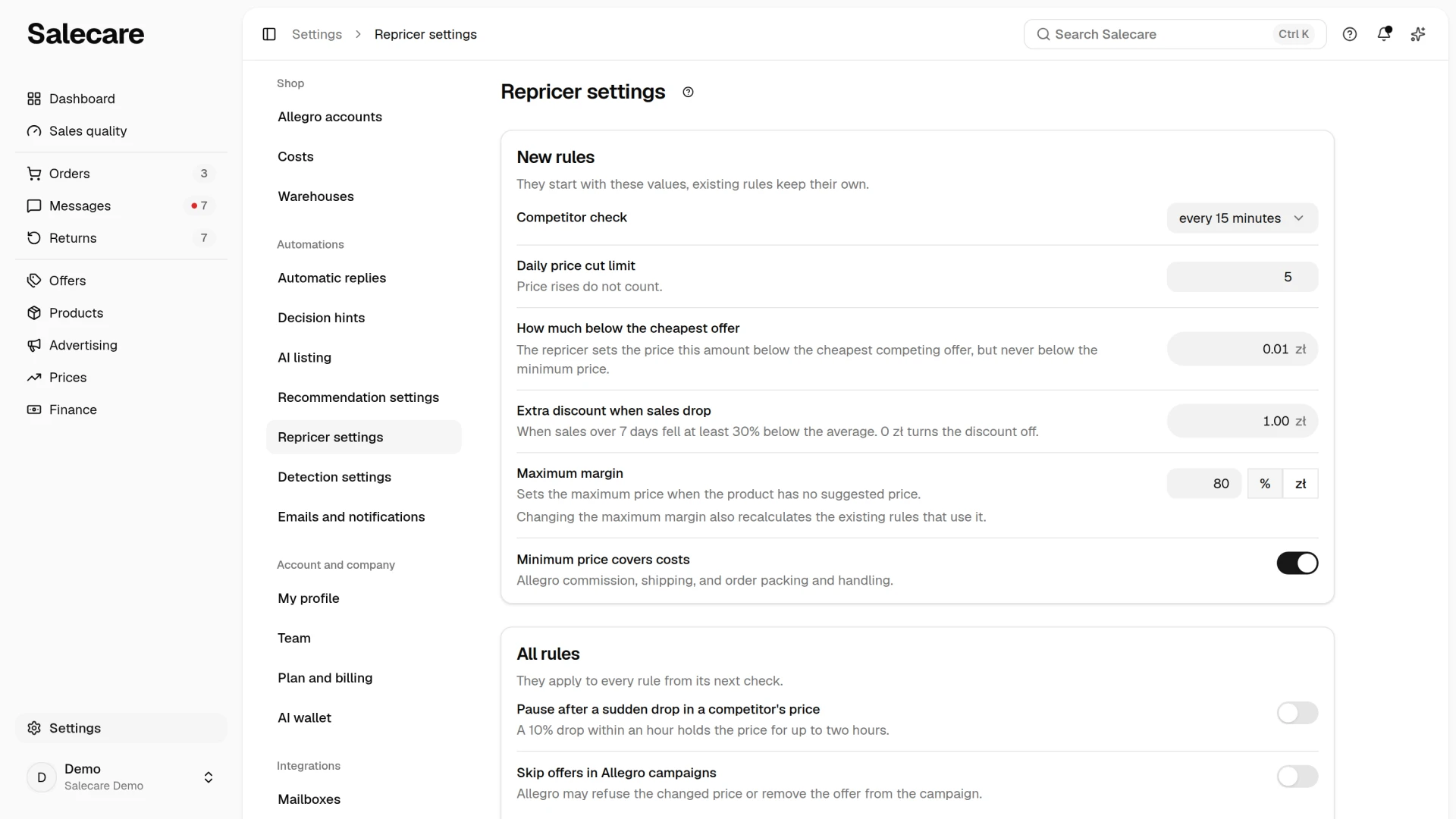
Five fields and one switch under the heading New rules decide how the repricer works. The sentence under the heading says new rules start with these values while existing rules keep their own.
- Competitor check is the frequency, from every 5 minutes to once a day. The shortest intervals open only on a higher plan and carry a padlock with the plan's name in the field. During a new account's trial without a chosen plan, the cadences your plan does not include are not listed.
- Daily price cut limit is the maximum number of price cuts in a day. Once the limit is reached, the Salecare repricer does not cut the price again until the next day, counted from midnight Polish time. Price rises do not count toward the limit, so it does not stop the price going back up toward the maximum price. The limit applies to the Salecare repricer only, because in Allegro automation mode Allegro itself changes the price.
- How much below the cheapest offer is the amount by which the price stops under the cheapest competing offer. A new account starts at 0.01 zł, one grosz cheaper, because a flat 2 zł is a fifth of the price of a 10 zł item and next to nothing on a 500 zł one.
- Extra discount when sales drop stops the price that amount further under the cheapest competing offer, but never below the minimum price. It applies only when the offer's sales over the last 7 days fell at least 30% below its own average. A new account starts at 0 zł, with no such discount. The field shows only on a plan that works out the offers' average sales, that is Business and Enterprise, because without that average the discount could never apply.
- Maximum margin sets the upper bound. The maximum price is the purchase price plus that margin, so at 50% the repricer will not raise a price above one and a half times what the goods cost. You enter it as a percentage or in zł, with the "%" and "zł" switch beside the field. The app reaches for it only when a rule has no maximum margin of its own and the product has no suggested selling price. It is also the value the panel for several offers starts from. The maximum margin is a bound, not a target. With a high value the repricer loses nothing, while with a low one it stops raising the price sooner. The app works out the maximum price for every offer on its own, so one value fits a whole catalogue, even one spanning a 20 zł accessory and a 2 000 zł appliance. The margin is measured on the purchase price in the same basis as the minimum margin, that is net for a company registered for VAT and gross for one that is not. The order in which the app picks the maximum price is described further on, in the part about the maximum price.
- The Minimum price covers costs switch under the margin is the setting every new rule starts with.
A change to these values applies to new rules only, and rules that are already configured keep their own. The maximum margin is the exception. Once it is saved, Salecare works out the maximum price again for the rules that take it from this value, and the sentence under the field says so. The Save button stores the settings, and the page stays open.
Below stands the Excluded from the comparison list. The Restore button on a row brings the competitor back into the comparison, and Add exclusion opens the form described in the guide "How to exclude a competitor that does not sell the same goods". At the bottom the page gives the limit of offers the Salecare repricer can cover and how many of them are in use, for example "The Business plan lets the Salecare repricer cover 200 offers, 12 in use.", and on a plan with no limit it says there is none. When your company has an individually set limit, the page gives that limit without naming a plan.
The Minimum price covers costs switch decides what your minimum margin means. Under the minimum price the panel says so in one sentence, "Covers the Allegro commission, shipping, and order packing and handling" or "Does not cover the Allegro commission, shipping or order packing and handling". When the switch is on, the minimum price covers the Allegro commission, the shipping and the operating costs, so the minimum margin stays intact. When it is off, the minimum price is the purchase price plus the margin. The commission, shipping and operating costs are then not covered by it, so they reduce your profit. In neither setting does the minimum price count advertising cost or the impact of returns, while the Profit row on the Profit & loss statement tab of the Finance page already subtracts them. So on an offer that runs ads or takes returns the profit lands below the minimum margin. On the same goods the difference is large. With a purchase price of 100 zł, shipping of 10 zł, operating costs of 5 zł, an 8% commission and a 10% margin, the minimum price is 135.87 zł with the switch on and 110 zł with it off.
With the switch on, what the buyer pays for delivery counts as well. That payment reaches you with the price, and Allegro charges its commission on it just as on the price. When the buyer paid for delivery in each of the last 5 orders where they bought this offer alone, the minimum price is lower by the smallest of those payments. It never drops by more than the shipping cost, though, or by more than the lowest delivery price the offer's shipping rates list today. An order with several products does not count, because one delivery payment then pays for a parcel holding all of them. The delivery payment does not lower the minimum price when even one of those buyers got free delivery (for example with Allegro Smart!), when the offer delivers free today or its shipping rates are not known, or when it has fewer than 5 such orders. With a delivery payment of 8.99 zł the minimum price in the example is 126.88 zł.
Further down, under All rules, stand two switches that apply to every Salecare repricer rule from its next check, not only to new ones. Both are "off" by default. With the Pause after a sudden drop in a competitor's price switch on, when the lowest competitor price falls by 10% or more within an hour, the repricer keeps the offer's current price for an hour after the drop (two hours on a plan that reads competitor prices once an hour) and sends a notification. Switched off, the repricer follows the competition at once, never below the minimum price. With the Skip offers in Allegro campaigns switch on, the repricer does not change the price of offers taking part in Allegro campaigns and programmes, for example Allegro Ceny. Switched off, it changes their price too, and Allegro may refuse the change, remove the offer from the campaign or apply the campaign discount to the new price. When Allegro refuses the change, the repricer leaves that offer until the next campaign read, and the history says "Allegro refused the price change of an offer in a campaign".
Step 2. Put offers under the repricer
Click Prices in the menu. The Prices page has three tabs, Offers, Competition and Change history, and opens on the Offers tab. The line under the title says how many offers with competition the repricer watches and how many of them are pricier than the competition. Beside it stands "Allegro data as of" and a date. On the Offers tab it is the earlier of the offer and competitor price downloads, and on the Competition tab the moment of the oldest of the latest competitor price downloads of the listed products. Salecare downloads competitor prices separately for each product, so it downloaded the competitor prices of every product no earlier than that. A competitor the latest download did not reach, for example one beyond the 60 cheapest offers, stays on the list with the price from an earlier download for at most 7 days. The header holds the Settings and Turn on the repricer buttons. Settings leads from every tab to the Repricer settings page in Settings. The list on the Prices page holds only offers currently listed on Allegro. A rule on an ended offer is kept and comes back when you list the offer again.
When you pick no view, the list opens on the Pricier than competitors view if it holds at least one offer, and otherwise on the All view. The link on the Dashboard page opens the same view. The views above the list are Pricier than competitors, No rule, which are the offers the repricer does not watch, Without purchase price, which are the offers Salecare cannot work out a minimum price for, and All. Each view gives its number of offers. Beside them stand the search box, which looks through the name, EAN, SKU and offer number, and the Filters button.
A row is one offer. The columns are Offer, Your price, Cheapest competitor, Minimum price, Maximum price and Repricer, and the header of each sorts the list. The Minimum price column, with the minimum margin under the amount, is shown to people with the Margins and purchase prices (view) permission. Under your price stands "at the minimum price" or the "Below the minimum price" badge. Under the competitor price stands how much cheaper or pricier it is than yours, or "same price". The Repricer column holds the state of the rule, described below in the chapter on when the repricer refuses to go lower. On a phone the offers are rows of one card with the same amounts and the repricer state, and a tap on a row opens the offer panel. You pick the order in the menu above the card. It holds every field the table headers sort by, and the menu button names the field the list is ordered by. Picking the same field again reverses the order.
Clicking a row opens the offer panel, described below, on the Rule tab. The menu at the end of the row has Run now, Turn off or Turn on, Change history, Margin breakdown, Offers of this family, Competitor prices, Open on Allegro and Delete rule. Run now checks the competition of an offer with a turned-on Salecare repricer rule at once and may change its price on Allegro. Turn off switches the rule off without deleting it, and Turn on switches it back on. Delete rule asks for confirmation and leaves the offer without a rule, so the repricer stops changing its price. Change history and Competitor prices open the offer panel on the matching tab. Margin breakdown and Offers of this family appear on offers of a variant family, and the first needs the Analytics & reports (view) permission. Families come from your product import, by the parent product's EAN column in the file. These are not Allegro variants. On a phone the variants in the margin breakdown are rows of a list with the total at the end, and you pick the order in the menu above the list.
Pricing mode
Clicking a row on the Prices page opens the offer panel. The Rule tab shows your price and the cheapest competitor, the minimum margin, the minimum price, the maximum price, the Who changes the price field, the This offer's settings section and the Repricer on for this offer switch. The Save button stores the rule and leaves the panel open, and Cancel closes the panel without changes. The Competition and History tabs are described further on. The "?" in the panel header opens this guide.
You pick the pricing mode in the Who changes the price field. The answer "Salecare" turns on the Salecare repricer, and the answer "Allegro" turns on Allegro automation. A new rule starts on the answer "Allegro". Under the choice the panel says in one sentence what the chosen mode does, and with "Salecare" it also gives how often the repricer checks the competition. On a plan without the Salecare repricer the "Salecare" answer carries a padlock with the name of the plan that opens it. When every Salecare repricer place in the plan is taken, the panel says so. If the offer has an Allegro price rule for allegro.pl, the Salecare repricer does not change its price, because setting a price by hand would switch that rule off in this offer. The currency converter rule Allegro adds for allegro.cz, allegro.sk and allegro.hu does not stop a price change.
The Salecare repricer picks its tactic itself. When a competitor has stock, it sets the price just below theirs. When no competitor has stock, it raises the price toward the maximum price, by at most 10% per check. When a search by name finds nobody but you, it leaves the price alone. When an offer's sales drop, it adds the extra discount, provided the plan works out the offers' average sales. It never drops below the minimum price. Allegro automation cannot mirror the extra discount on a drop in sales, a custom frequency, the daily price cut limit or price-war protection, because in that mode Allegro steers the price. How the automation itself works is described in the chapter on Allegro automation at the end of this guide.
Minimum price
The minimum price is the lowest price at which you still make what you set out to make. In the panel you enter the minimum margin in the Minimum margin field, as a percentage or an amount with the "%" and "zł" switch. Under the field the panel says which purchase price the margin is measured on, for example "share of the net purchase price". Below stands the Minimum price, the amount the repricer will not go below, and under it a sentence saying whether it covers the Allegro commission, shipping, and order packing and handling. The Minimum price covers costs switch in the This offer's settings section sets that, and in a new rule it starts from the workspace default. The What it is made of foldout takes the minimum price apart into its amounts. They are the purchase price (net for a VAT payer, gross otherwise), the minimum margin, the Allegro commission with its rate, shipping together with order packing and handling, the delivery the buyer pays as a minus, and VAT. The lines add up to the minimum price to the grosz.
The margin is measured on the net purchase price when the company is registered for VAT, and on the gross purchase price when it is not. You tell the app which applies in Settings, on the Costs page, in the VAT row. A VAT-registered company therefore needs a VAT rate, because without one the minimum price cannot be calculated. Nor can the minimum price be calculated from an estimated purchase price, that is a price loaded from a file with Purchase prices in this file are estimates ticked. The offer panel says so directly ("This product's purchase price is marked as an estimate. Confirm it on the product page."), and the product page marks such a price with an "Estimated price" badge. Saving the product page confirms the price as the actual one, and from then on the repricer calculates the minimum price from it. Of two VAT rates, the one the offer declares on Allegro and the one from the product or the VAT row on the Costs page in Settings, the app takes the higher. The minimum price is worked out when the rule is saved, every night, and at once after every change of the purchase price (including a cost list upload), of the VAT row on the Costs page, of the product's VAT rate and of the offer's VAT rate on Allegro. The app keeps a commission quote from Allegro's fee calculator for up to 3 days, so after a change of the commission rates in a category the minimum price moves to the new rate within a few days.
When the recalculated minimum price comes out above a maximum price you typed yourself, the app does not store it. The maximum price is your decision, and a purchase price that passes it almost always means a broken wholesaler file. The previous minimum price may already sit below the new cost, though, so the repricer stops changing this offer's price. In the Repricer column the offer then carries the state "On hold", and the explanation beside it gives the new minimum price and asks you to raise the maximum price. In Allegro automation mode Salecare takes such an offer out of Allegro's price automation. Once you raise the maximum price or fix the cost, the rule goes back to work at the next recalculation.
With the switch on, the minimum price also needs the delivery cost. When the last delivery the app found for this offer went out by a method that has no rate, and Allegro billed nothing for it, the minimum price cannot be calculated. The panel says so outright and asks you to add a rate in Settings, on the Costs page, in the Shipping row. In the same way the panel writes when the offer has no VAT rate, which a margin measured on the net price needs, and points to the VAT row on the Costs page. With the switch off the delivery is not part of the minimum price, so a missing rate does not block it. When the buyers' delivery payment lowers the minimum price, the What it is made of section shows it as a minus on the Delivery paid by the buyer line.
With the costs covered, the Allegro commission line in the What it is made of section gives the rate that went into the minimum price. It is Allegro's own fee calculator for this offer's category first. When the commission Allegro charged this offer over the last 30 days is higher than the quote, the minimum price is worked out from the charged commission. In a category whose commission rate depends on the price, the app also asks the calculator for the rate at the minimum price itself. When that rate is higher, the panel shows the higher minimum price a moment later, the same one the rule stores. When Allegro quotes nothing, it is the commissions Allegro charged over the last 30 days to this offer, to this account, or to all of your accounts. With neither a quote nor a single charged commission, the app works the minimum price out from a default rate and says so in the What it is made of section ("Commission taken at the default rate, because Allegro gave no rate for this offer."), because the real commission may differ.
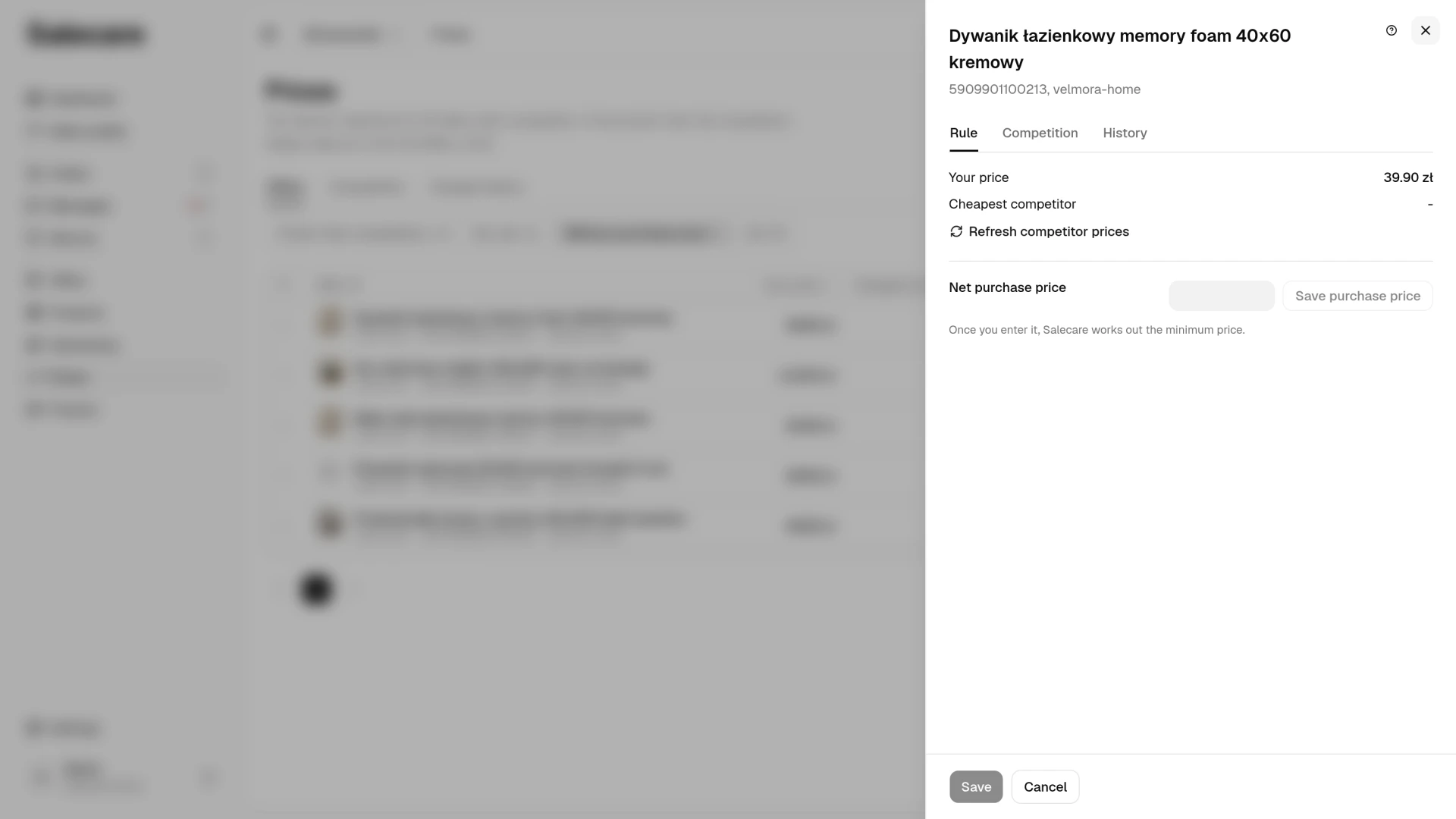
When an offer has no purchase price, the offer panel shows a Net purchase price or Gross purchase price field, depending on whether the company is a VAT payer, with a Save purchase price button instead of the rule. For an offer that sells several units at once the field says the price is per unit. The Enter link in the Repricer column opens the panel straight on that field. An offer without a product gets one, and offers with the same code are linked to it. After the save the panel shows the minimum price and the What it is made of section, and Save turns the repricer on. When the product's purchase price is an estimate, or the product is a bundle, the panel points to the product page, and a person without the right to products sees an Open Products link.
Maximum price
The panel shows the upper bound as the Maximum price, an amount with a note saying where it came from, for example "from the product's suggested price", "from the maximum margin 50%" or "entered by hand". The Change button beside the amount opens a choice of three answers to where that price comes from. On "Automatic" the maximum price comes from the product's suggested selling price, and failing that from the default maximum margin in the repricer settings. On "From margin" the Maximum margin field appears under the choice, as a percentage or in zł, and it is what sets the maximum price, including for a product that carries a suggested selling price. On "Own amount" a field for the amount appears. The amount you type replaces the whole calculation for this one offer and cannot be lower than the minimum price. In all three the panel shows the amount the rule runs with, and a note under it names where that amount came from. When you change the margin, the amount in the field is worked out again straight away, before you save. On "Automatic" and "From margin" the app works the maximum price out again on every save of the rule, every night, and whenever the product's suggested selling price, its purchase price, its VAT rate, the offer's VAT rate on Allegro, the default maximum margin or the VAT row on the Costs page in Settings changes. That is why with these answers you do not type it by hand. Saving a rule without changing that choice leaves its maximum margin as it was.
For an offer with no purchase price on record the maximum price comes from the product's suggested selling price, and failing that from the offer's current price. A worked-out maximum price does not drop below the price the offer already sells at, or below the minimum price, so it does not force a cut. The exception is a price the repricer itself raised the offer to above the last price you set. When the maximum price is worked out again it can come back below that price, and the repricer then cuts the price to the new maximum price. When you raise the offer's price on Allegro above the maximum price, the maximum price rises with it at the next offer sync, but by half at most in one go, because a bigger jump is usually a typo, 1 999 zł instead of 199.90 zł for example. That limit applies during the day only. The nightly recalculation never sets the maximum price below the offer's price, so a typo still on the offer at night lifts the maximum price all the way to it, which is why you should correct a typo in the price on the same day. When a typo did stay overnight, once the price is corrected the maximum price returns at the next nightly recalculation to the worked-out one, or to the corrected price when that is higher. Until that night the repricer may raise the price toward the typo again, when nobody else has stock for example, but such a rise does not keep the maximum price at the typo, because a price the repricer itself raised the offer to does not hold the maximum price above your last price.
The price moves within a band between the minimum and maximum price and never goes below the minimum price, so the margin on a sale at the offer's price is protected even while the competition keeps going lower. The minimum price applies to the offer's price for one sale and does not take quantity discounts set on Allegro into account. With such a discount, from 3 units for example, a unit in a larger order sells below the minimum price. The "?" in the panel header opens this guide. Day to day the note under each amount is enough.
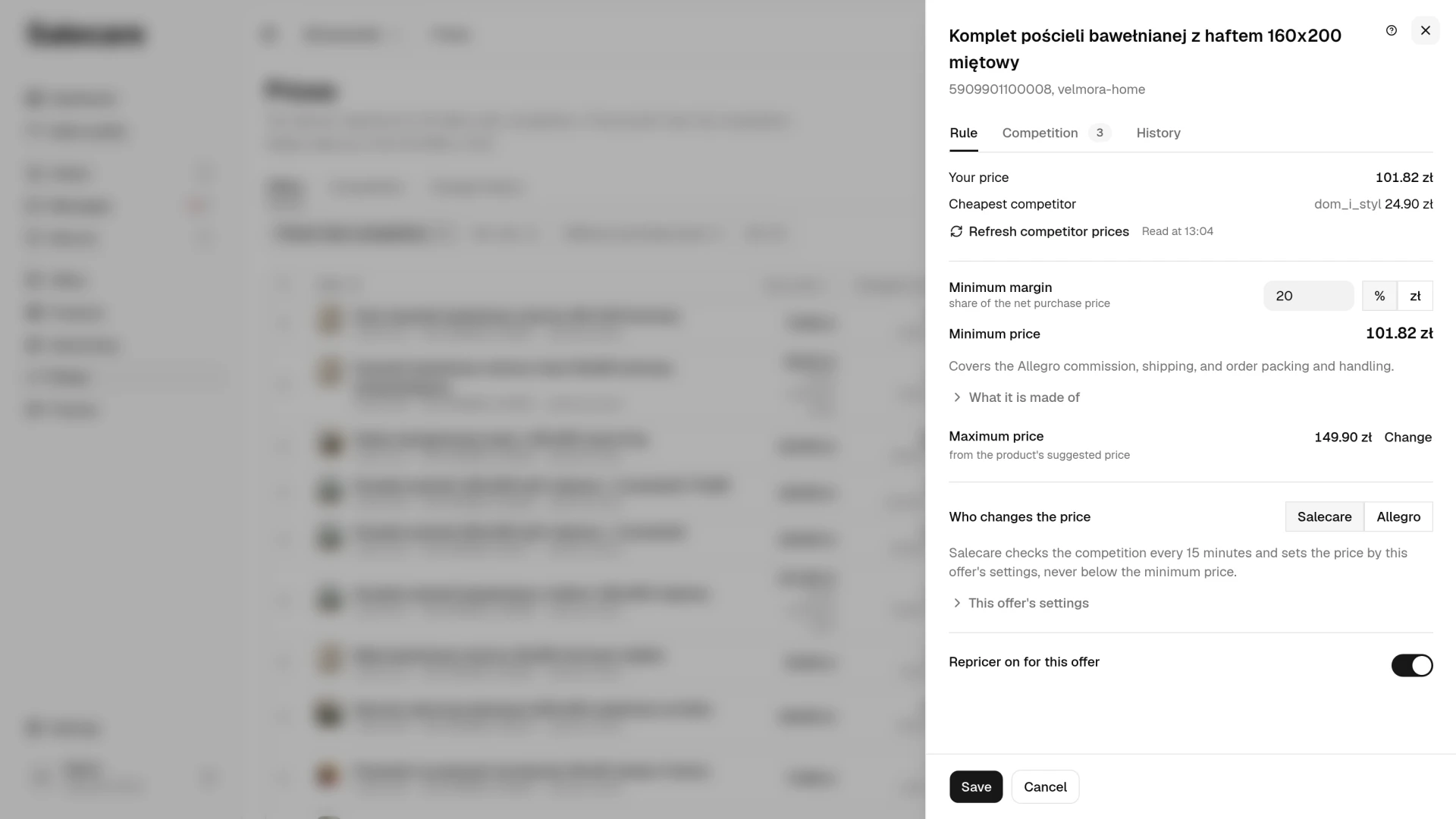
In the This offer's settings section you change the Competitor check, Daily price cut limit, How much below the cheapest offer and Extra discount when sales drop fields and the Minimum price covers costs switch. With Allegro automation only the How much below the cheapest offer field and that switch are there. When you clear the Daily price cut limit field, the offer gets the limit from the repricer settings, which the field then shows. Until you change a value, the offer uses the repricer settings from Step 1, and the sentence by the Who changes the price field says which settings Salecare sets the price by. The same Save button stores these values as the rule.
Competitor prices in the offer panel
On the Rule tab the panel shows your price, the cheapest competitor and the time of the reading. The Refresh competitor prices button fetches the current lowest competitor price for this product from Allegro. Next to that price stands "+ delivery" with that seller's delivery cost. The repricer adds to the competitor's price whatever that competitor's buyer pays for delivery on top of what your buyer pays. A competitor at 49 zł with 10 zł delivery costs the buyer more than your 55 zł with free delivery, so the repricer does not go below its 49 zł. When a competitor ships for less than you, the repricer does not go below that competitor's item price because of it. When the lowest competitor price fell by at least 10% within an hour, the panel says the repricer leaves the price alone for now.
Salecare searches for competitors by barcode. It searches by offer name when the offer has no barcode or when the same barcode points at several of your products, and the panel then writes "Searched by offer name, so there may be more competitors." A search by name finds fewer competitors, because a listing title is usually unique, so no results does not have to mean nobody else sells this product. That is why, when a search by name finds nobody but you, the repricer leaves the price alone and records the reason "The name search found no competitor" in the history.
The repricer asks Allegro for Buy now offers only, and only on the Polish Allegro market. An auction price is the current bid rather than a price anything can be bought at, so an auction sitting at 1 zł on its second day must never count as the cheapest competitor and walk your price down to its minimum. For the same reason a competitor priced in another currency is dropped, because 30 koruna is not 30 zł. Offers from your own accounts are dropped too, so they never undercut each other. The repricer also compares goods in the same condition only, because used, damaged, ex-display, refurbished or returned goods are no competition for a new product. It reads your offer's condition from the Stan (condition) parameter. When the offer has one, the repricer asks Allegro only for offers with the same value of that parameter, so a "Nowy" (new) offer is compared with "Nowy" offers and a "Używany" (used) offer with "Używany" offers. When the category has no such parameter or Salecare has not read it yet, the repricer judges the condition by the title, on both sides. For a new offer it then leaves out the offers whose title says the goods are used, damaged, ex-display, refurbished or returned, and it compares an offer whose title says so only with such offers. A rival in another condition does not show on the list on the Prices page, in the Price against the competitor filter, on the Competition tab of the offer panel, on the Competition tab of the Prices page or in the price undercut notice either.
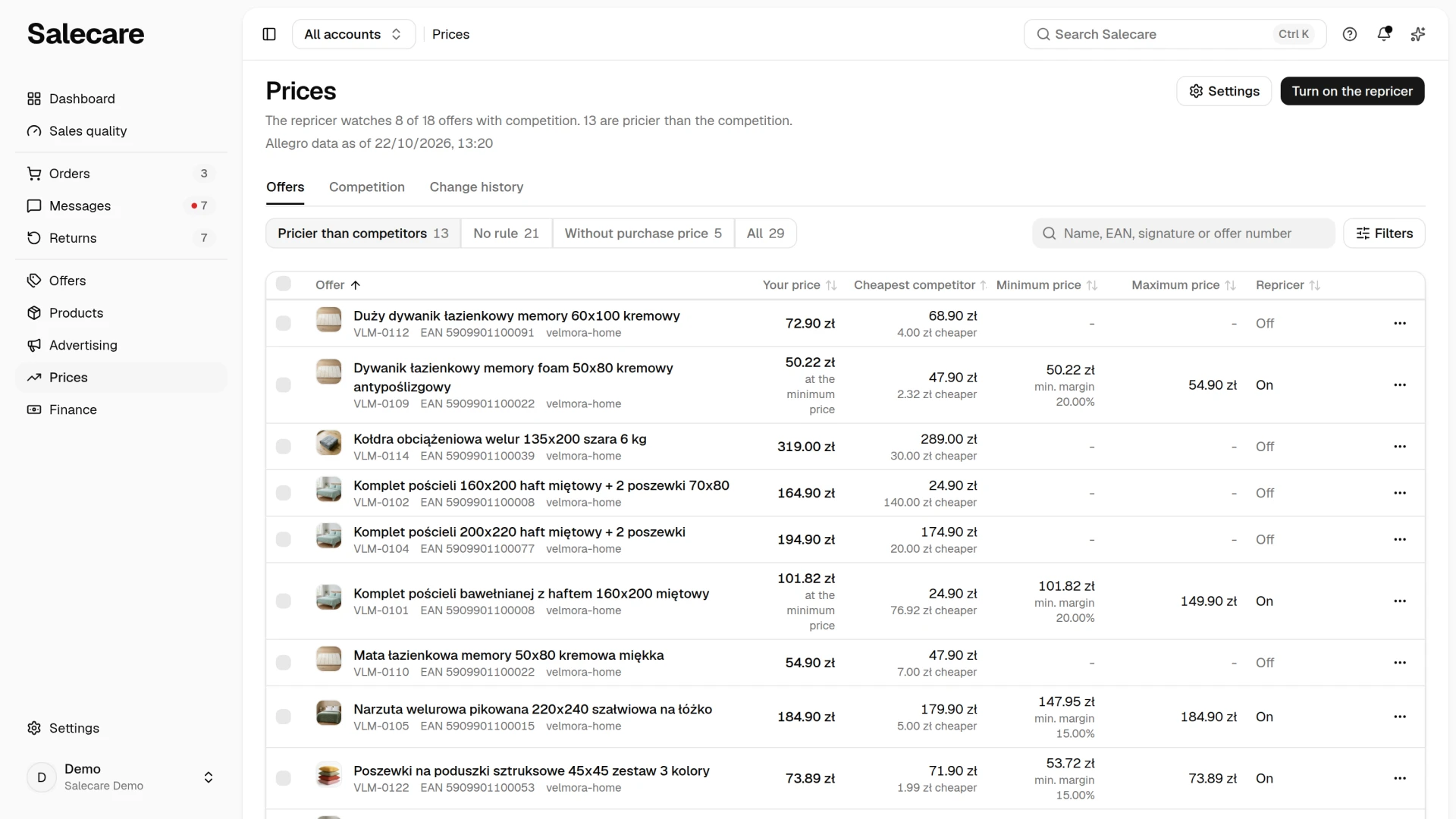
The price of the cheapest competitor stands in the Cheapest competitor column, with the difference to your price under it. You see the list of all of an offer's competitors on the Competition tab of the offer panel. You open it by clicking the row and the Competition tab, or with Competitor prices in the row menu. Each competitor takes two lines. The first holds the seller's login, when Salecare last saw it (for example "seen today, 08:15") and the price. The second holds the title of their listing on one line, that seller's delivery cost and the difference to your price. The whole title shows when you point at it. The button above the list carries the name of the current order, Price at first, cheapest competitor first, and sorts the list by Price, Difference to your price, Last seen or Seller. The Filters button beside it opens the fields Seller, Price, Difference to your price and Last seen in place. The number on the button says how many criteria are on, and Reset removes them. The list holds the competitors who had stock at the last read. A competitor who sold out, or whom a full read of the market no longer finds, stops counting at once. Delivery stands beside the price and does not enter the gap, because that list compares item prices. When no delivery cost was recorded for an offer it reads "No data" in place of an amount, and free delivery reads "Free". When Salecare knows only the cheapest competitor from the reading of the offer itself, the tab says so and gives that seller's login and price.
The Filters button above the list opens a panel with the list criteria. It holds the fields Repricer state ("On", "Off", "On hold" or "Error"), With competition, Price against the competitor, Cheapest competitor, Number of competitors, Who changes the price ("Salecare" or "Allegro"), Account, Your price, Competitor price, Maximum price, Purchase price, Lowest price in 30 days, Minimum margin, Price against the minimum price ("On target", "Near the minimum price", "At the minimum price" or "Below the minimum price"), EAN, Category and Variants. The Account field shows with several Allegro accounts. The Apply button narrows the list, and Clear removes the panel's criteria and keeps the search and the view. The offers where you are cheaper or pricier than the competitor are found with the Price against the competitor field. The field sets the offer's gross price against the competitor price shown for that same offer. That is the price of the cheapest competing offer for the linked product or, when there is none, of the cheapest competing offer from the reading of the offer itself. Salecare takes that reading during the account's first download for the 20 offers with the highest revenue over the last 30 days. Both amounts are item prices without the delivery cost. "Cheaper than the competitor" leaves the offers priced below the competitor price, "Pricier than the competitor" the ones priced above it, and "Same as the competitor price" the ones at exactly that price. "No competitor price" leaves the offers that show a dash instead of a competitor price, that is offers with no linked product, or ones on which no competitor with stock has been seen for a week, neither on the linked product nor in the reading of the offer itself. The filter works together with the search, the sort and the other fields of the panel. It stays in the page address, so a link opens the list already narrowed, and Select all matching takes in only the offers the filter left. Remove it with the Clear button in the Filters panel.
The Turn on the repricer button in the header of the Prices page opens a panel that turns the repricer on for every offer without a rule that can take one. The line by the Save button says how many offers that covers and how many of them have no purchase price. On the Competition and Change history tabs the same button leads to the Offers tab with this panel open.
You can put several offers under the repricer at once from the list. Tick the rows and a bar appears above the list with the number of selected offers. It holds the Run now, More (with Turn off and Turn on) and Set rule buttons, and a button that clears the selection. Select all matching takes in every offer matching the view and the filters, not only the ones on the page. Offers that cannot take a rule, those sold to businesses only and those with no rule and no purchase price, cannot be ticked.
Set rule opens the Set a rule for N offers panel, which sets the same rule on all the selected offers. The panel works on every plan. On a plan without the Salecare repricer the "Salecare" answer in the Who changes the price field carries a padlock with the name of the plan that opens it, so you can save "Allegro" only. When some of the selected offers already have a rule, the panel says so and Save asks first whether to replace them. Saving replaces the whole rule on those offers and cannot be undone in bulk. A rule that is turned off stays off. With "Salecare" the panel says how many of the selected offers still fit in the limit of active rules. The panel asks where the maximum price comes from with the same three-answer choice as the panel of a single offer, and the default answer is "Automatic". On "Automatic" and "From margin" the maximum price is worked out for each selected offer on its own, so one setting fits a selection holding a 20 zł accessory and a 2 000 zł appliance. On "Own amount" the same amount goes onto every selected offer and is never re-worked. Offers whose minimum price stands above it keep their current rule, and the message after the save gives their number.
In Salecare repricer mode an offer that does not hold an active Salecare repricer rule yet takes a place in the limit of active rules. The offers left without a place keep their previous rule, and the message after the save gives the limit and the number of offers left out. The message after the save gives the number of rules saved and the number of offers skipped. Its second line gives the reason with the number of offers it covers, for example a product with no purchase price or a delivery sent by a method with no rate. When the limit left offers without a place, the first line gives the limit in place of those numbers, and the reasons stand under it in the same way. When skipped offers wait for a rate, the message has an Open Shipping rates button. The button is absent when your permissions do not let you open that page. The message with the summary is produced for a selection of up to 200 offers. Past that number, which in practice means after using Select all matching, the rules are saved in the background in batches and no summary is produced. Offers Salecare cannot put under this rule then keep their previous one, so refresh the list after the save and check its Minimum price and Repricer columns. The pace of changes and the reaction to competitors sit in the These offers' settings section, the same as in the panel of a single offer.
The History tab of the offer panel gives the Lowest price in 30 days value, and the Filters panel has a field of the same name. That is the lowest price Salecare has recorded for this offer over the last 30 days. Allegro measures a reduction against its own record for that period. The amount in Salecare is built from the prices Salecare itself sent to Allegro and from the prices seen at successive syncs. A price set and withdrawn outside Salecare between two syncs never reaches it, which is why Allegro's own baseline can be lower. That comparison also decides the free "Okazja" marking, because Allegro grants it only on a cut of at least 5 percent and no more than 60 percent against that price. Allegro checks further conditions of its own on top of that, among them the median of the lowest prices of the last few days, the condition of the goods and the offer's category, so a cut inside that band alone does not earn the marking. Salecare records every price it sends to Allegro itself, that is from an offer edit, a bulk edit, a bulk price change, a price confirmed in the assistant, the repricer and an undone edit. It also records every price it sees when it syncs your offers, so changes made straight in the Allegro panel land there too. It records the price the buyer sees while the Allegro Ceny programme discounts the offer as well, because that reduction leaves the offer's own price where it stands and the offer sync never sees it. Every price cut lowers this baseline, so the next reduction starts from a lower level and the offer loses the marking more easily. You download that whole record as a file in the Downloads panel, in the New file form, by picking the "Offer price history" report.
The price change history of one offer opens on the History tab of the offer panel, or with Change history in the row menu. It shows exactly when and why the repricer moved the price. The views Price changes, Skipped and All show the changes, the holds, or both, and the Change history link leads to the tab with the history of every offer. Every price change is recorded, and a hold only when it starts or its reason changes, rather than on every later check while it lasts. Every offer keeps its latest 500 price changes and 100 holds.
Change history
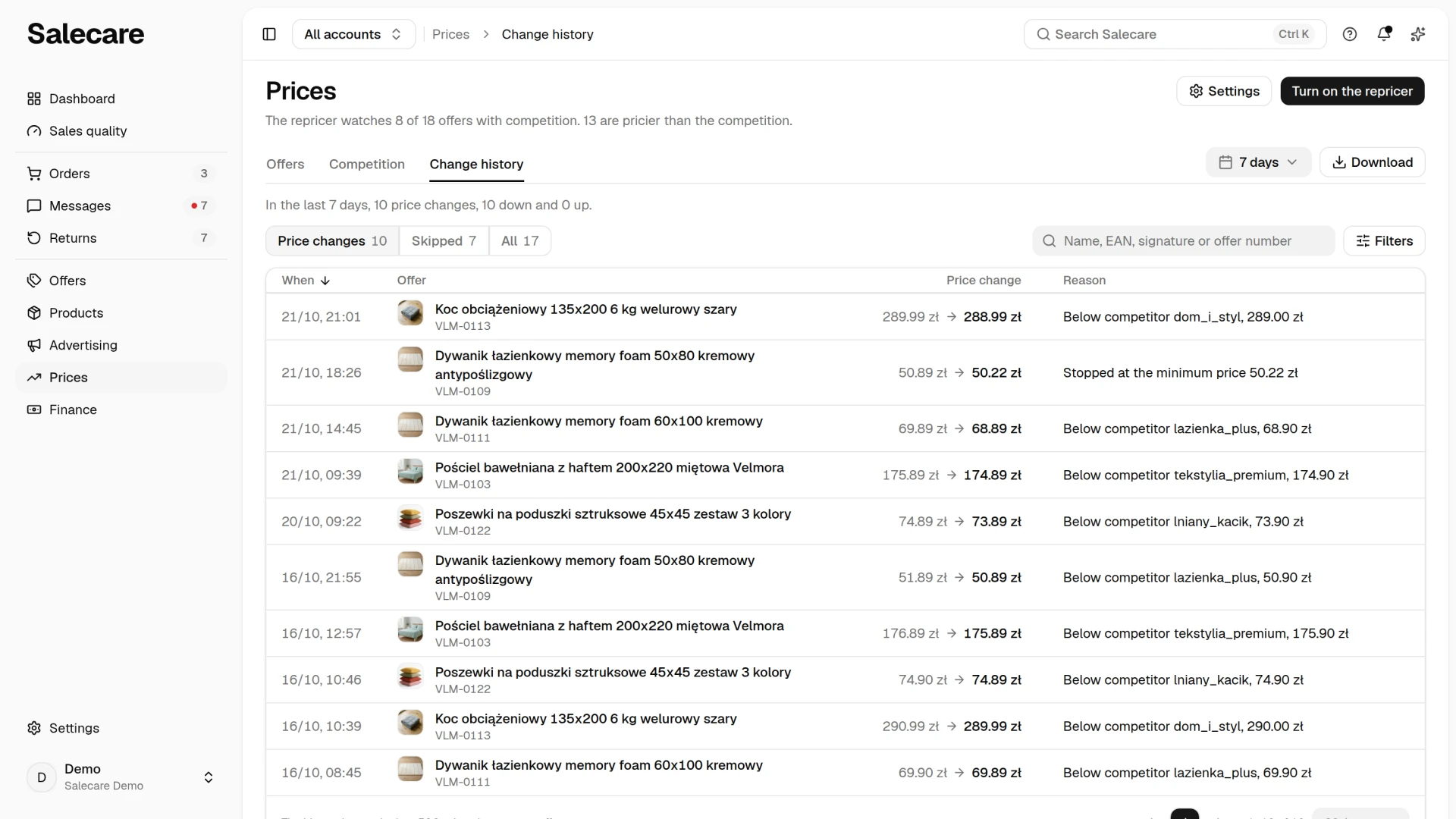
You find every price change made by the Salecare repricer on the Prices page, on the Change history tab. The list opens on the last 7 days, and the period choice and the Download button stand at the end of the tab bar. You pick the period from "Today", "Yesterday", "7 days", "30 days", "This month", "3 months" and "12 months", and "Custom range" lets you enter your own dates. The line above the list gives how many times the repricer changed prices in the chosen period, down and up. The Price changes, Skipped and All views count the entries of the chosen period, account, search and filters. A view without entries has no button unless it is the one picked, and when only one button would be left, there is none. The list opens on the Price changes view, and Skipped shows the checks in which the repricer kept the price, with the reason. When an offer has an Allegro price rule, the repricer does not change its price, and the Reason column gives "The offer has an Allegro price rule" for it. The "Failed" badge means the new price was not saved on Allegro. Each row says when, on which offer, from what to what and why the price changed. The list starts with the newest entry, and the When header reverses the order. On a phone the entries are rows of one card with the labelled values Price change and Reason, and you reverse the order in the menu above the card. Clicking the row of an offer that is on sale opens the offer panel on its History tab. An offer that is no longer on sale carries an "Ended" badge and opens nothing. The Filters panel narrows the list by account, direction, reason and competitor, and the search box looks through the name, EAN, SKU and offer number. The Download button opens the Downloads panel with the New file form already filled in. There you pick the format, "CSV", "Excel" or "PDF", and click Prepare file. The file holds the period on screen and every column. It is prepared in the background and appears in the list in the panel, and the PDF holds the latest 1000 rows. While the history is empty, the Download button is not on the page. The history keeps the latest 500 price changes and 100 holds per offer, so download the older ones with an export before they drop off the list.
Step 3. Get to know your competition
The Competition tab of the Prices page, the PDF competitor reports and the daily price undercut notice belong to the Business plan and up. On a plan without competitor analysis the Competition tab carries a padlock with the name of the plan that opens it. On Pro you see competitor prices on the list on the Prices page, on the Competition tab of the offer panel and on the Change history tab. On Starter you see them on the list on the Prices page and on the Competition tab of the offer panel.
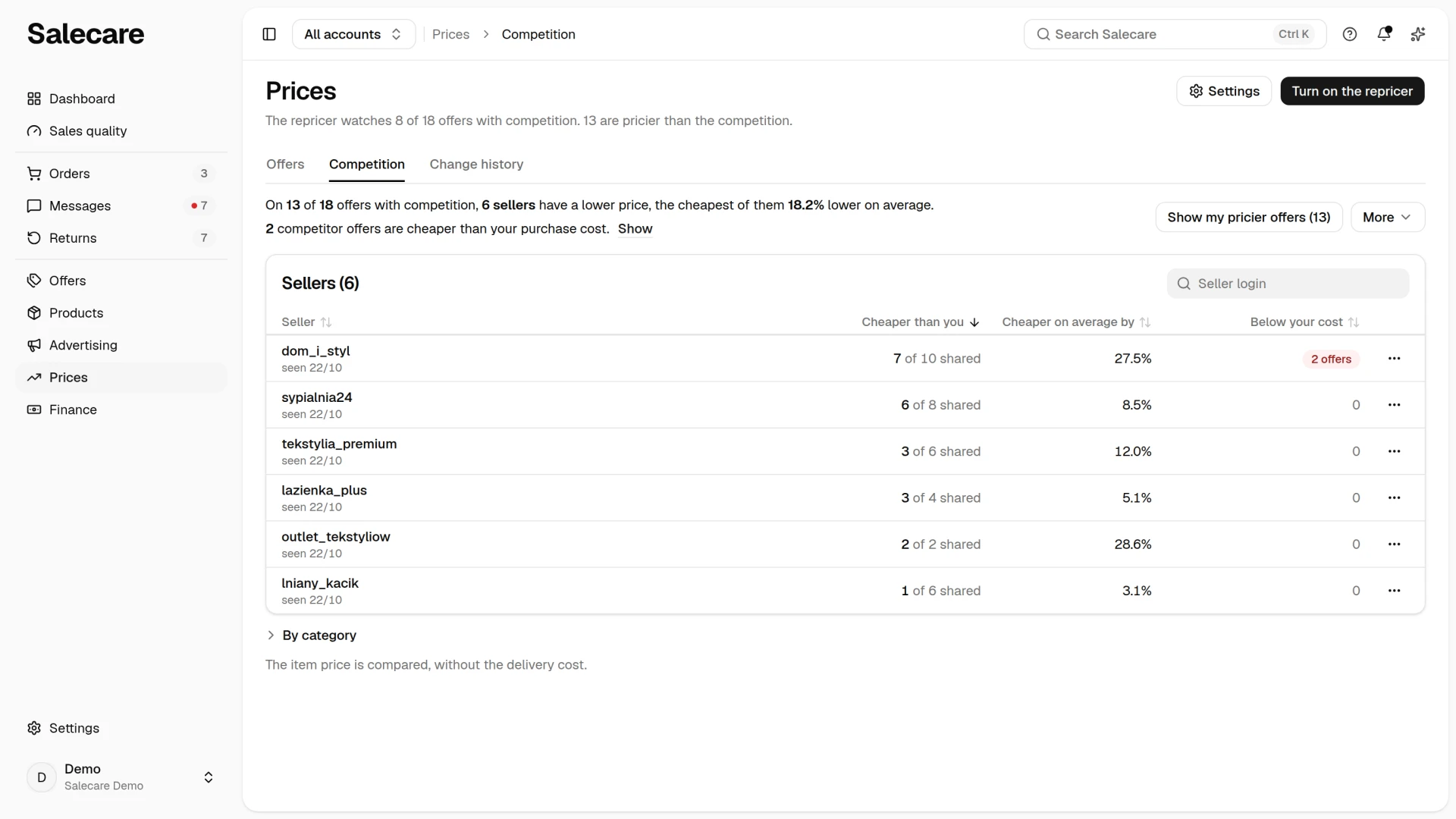
Until Salecare has read the competitor prices of any offer assigned to a product, the Competition tab holds only a card with the sentence "Sellers appear once Salecare has read the competitor prices of offers assigned to products." and the Assign products to offers link. The link opens the To fix tab of the Offers page with the offers without a product. With data, the Competition tab starts with two sentences. The first says on how many offers with competition someone has a lower price and by how much on average, and the second on how many you have the lowest price. The Show my pricier offers button opens the list on the Prices page on the Pricier than competitors view. The More menu holds Download PDF report and Report by email. The second opens the panel of the Competitor report (PDF) topic on the Emails and notifications page. The Sellers table sets each seller against your offers, that is it shows on how many shared offers they are cheaper than you and by how much on average. A person with the Margins and purchase prices (view) permission also sees how many of their prices are below your purchase cost. The "Seller login" field narrows the table, and its headers change the order. On a phone the sellers are rows of one card, and you pick the order in the menu above the card. The By category card shows on how many offers of each category the competition is cheaper. The categories with the most shared offers come first. The Category header, the Cheaper competition header, which offers Cheaper competition and Shared offers, and the Cheaper on average by header change the order. On a phone the categories are rows of one card, and you pick the order in the menu above the card.
Clicking a row opens the seller's card. It sets their last seen prices against your shared offers, from the largest difference, and Show all unfolds the rest of the list. The card gives how many shared offers the seller is cheaper than you on and by how much on average. The date their offers were last seen stands under the name, so the figures on the card are as fresh as that date. Readings older than 7 days drop out of the comparison. The card keeps no earlier prices for that seller. Their prices from previous days sit on the Change history tab described above, narrowed to their login and to a date range. It records only checks on offers with a Salecare repricer rule where that seller was the cheapest competitor, though, and only when the repricer changed the price or started a hold, because a check that changed nothing is not recorded. An artificial promotion shows on their own Allegro offer, because Allegro works out and prints the lowest price of the last 30 days next to it. The Open the shop on Allegro button leads to their offers. From the card and from the menu at the seller's row you can also download a PDF report, show their offers in the repricer and exclude them from the comparison with Exclude from comparison, as the guide "How to exclude a competitor that does not sell the same goods" describes.
The comparison uses the item price alone, without the delivery cost, the way Allegro's own price rules do. In Allegro search a buyer can sort by price with delivery included, so that is a different comparison. A competitor's quantity rebates, for example for buying a second item, are not visible here, and offers in the auction format and classified ads are left out, because they quote no price at which the item can be bought. The prices are indicative, so check a disputed item against the competitor's current offer.
On the Business plan and up there is also the notification bell. Once a day Salecare checks whether anyone is selling below you and sends one combined notification, with a link to the card of the seller undercutting the most of your offers. On an offer with a repricer rule the bell rings when a competitor has cut its price by at least 5 per cent since the previous check, because the repricer does not report the rival moving. On an offer with no rule two more reasons ring it, a new competitor, and a price below your purchase cost. A new competitor is a seller who turned up within a day on a product whose market Salecare was already reading. When Salecare reads a product's market for the first time, right after an offer is linked for example, the sellers who were already selling it are not reported as new.
When the repricer refuses to go lower
When the cheapest competitor is selling below your minimum price, the repricer does not follow. The price stops at the minimum price and you get a clear signal that further cuts in this offer would go below the minimum price worked out from your costs and margin. That is the moment for a business decision, improve the costs, change supplier or give the offer up, but deliberately, not because an automation did it for you.
That signal has a concrete shape. Under the offer's price on the list on the Prices page stands "at the minimum price" when the price equals the minimum price. The price then goes no lower, and a competitor sells lower. The "Below the minimum price" badge means a price under the minimum price, that is a sale below the calculated threshold. The Price against the minimum price field in the Filters panel collects such offers. Every day at 08:10 the bell raises one "Offers on their minimum price" notice with the number of such offers and a link to the list on the Prices page, where they come first. Both modes do this, the Salecare repricer and Allegro automation alike. One e-mail also arrives every morning listing the offers priced at their minimum price or lower, those below it first, with an Open Prices button. It arrives every day at 08:10, and you switch it on and off with the switch in the Offers at the minimum price row on the Emails and notifications page. Until you save any change to the company's settings there, that is a switch, the list of recipients or a rule, it arrives when at least one alert rule is switched on (see the guide on notifications and alerts).
The Repricer column on the list on the Prices page holds one of six words. "On" means the offer has a rule and nothing holds it. "Off" means the offer has no rule or its rule was turned off. "On hold" means the rule is on but the repricer leaves the price alone today, and the explanation beside the badge gives the reason, for example "On hold for today, the limit of 5 price cuts is used up.", "On hold during the Allegro campaign" with the campaign's name, or "The new minimum price is above the maximum price. Raise the maximum price." "Error" means the rule is on but the repricer has no fresh minimum price, because the purchase price is missing or the minimum price has not been worked out again for over two days. The explanation beside the badge then gives the date of the last minimum price and asks you to check the purchase price and the shipping rate, and the repricer keeps working on the previous minimum price. "No purchase price" stands on an offer with no working rule whose minimum price Salecare cannot work out, and the Enter link opens the offer panel on the purchase price field. "B2B only" is an offer sold to businesses only, which the repricer skips. On an offer in Allegro automation mode "Allegro sets it" also stands under the state.
There are also situations where the repricer does not move the price at all and says so in the history.
"The offer has an Allegro price rule" means one of Allegro's own price rules for allegro.pl is attached to the offer. Setting a price by hand would switch that rule off on Allegro's side, so Salecare holds instead. Remove that rule from the offer in the Allegro panel and the repricer goes back to work on that offer within the hour. Rules for allegro.cz, allegro.sk and allegro.hu, including the default currency converter rule Allegro adds by itself to offers shown on those marketplaces, do not hold the repricer. The repricer changes the price on allegro.pl only, and that change does not switch off the rules of the other marketplaces, so you do not need to remove any of them.
"No up-to-date campaign data" means Salecare has not read this offer's campaign participation in the last 6 hours. The read runs hourly, so it is a passing state, but while it lasts the repricer leaves the base price alone. If Allegro refuses to show the campaigns of an account that has given access to them, the status stays until a read succeeds again, because the repricer does not change a price while it does not know whether the offer takes part in a campaign.
"Competitor offers could not be read" means Salecare did not read the market of this offer. Allegro did not answer, the permission to read listings is gone, Allegro served related offers instead of ones matching the search, or one of your accounts has neither a login nor a seller number from Allegro yet, so your own offers cannot be told apart from the competition. A market that was not read is not an empty market, and on an empty market the repricer raises the price toward the maximum, so rather than guess it holds the price until the next check. On a market that was read and is empty the price rises by at most 10% per check, as does every rise the repricer makes, following a competitor who raised the price included, so one wrong reading costs one step at most, while a price below the minimum is always lifted to the minimum at once.
"The price could not be saved on Allegro" means Allegro did not accept the new price, or did not answer when Salecare checked, just before writing it, whether one of Allegro's own price rules is attached to the offer. The price stays as it was and the repricer tries again at the next check.
"The offer is in an Allegro campaign" means the offer takes part in a campaign that moves the price itself, Strefa okazji, the weekly Smart! deals or the Allegro Ceny programme, for example. Campaigns that only add a marker to the offer list, such as Hit or Nowość, do not hold the price. This reason and "No up-to-date campaign data" appear only with the Skip offers in Allegro campaigns switch on.
Salecare reads campaigns only from accounts that have given access to Allegro campaigns. An account connected before Salecare started asking for that access does not have it. For such an account the repricer does not know which offers take part in campaigns, so it changes their prices as before, and a strip above the list on the Prices page names the account and carries a Reconnect button. The button takes you to the Allegro page, where you confirm the permissions. Allegro confirms the permissions for the account you are logged in to in your browser, so log out of Allegro before reconnecting a different account. Once you are back a message confirms that the account's permissions were updated, the strip goes away, and from the next campaign read, which runs every hour, offers taking part in campaigns carry the state "On hold" when the Skip offers in Allegro campaigns switch is on. Someone without the Integrations (accounts, API tokens) permission sees a hint in the strip about whom to ask for the reconnect instead of the button.
A hold shows on the list on the Prices page as the state "On hold" in the Repricer column. For an offer taking part in a campaign the explanation beside it names that campaign. A campaign holds an offer only while the Skip offers in Allegro campaigns switch is on. When it is off, an offer in a campaign carries the state it would have outside the campaign, for example "On", and does not come up under the state "On hold" in the Filters panel. An offer whose price the repricer has already cut as many times today as the limit allows carries the same state with the explanation "On hold for today, the limit of price cuts is used up" and the number of cuts, and the repricer will not cut that price again today but can still raise it toward the maximum price. That reason belongs to the Salecare repricer only. An offer whose new minimum price came out above the maximum price you typed also carries the state "On hold". The Repricer state field in the Filters panel narrows the list to the state "On hold", and you tell the reasons apart by the explanation beside the badge.
The state "Error" with the explanation "The minimum price has not been worked out since" and a date means the minimum price has not been worked out again for over two days, because the nightly recalculation could not do it, for example when the offer lost its product link, the product has no purchase price or the delivery method has no rate. The repricer then keeps working on the previous minimum price, and the explanation gives the date it was last worked out. Once the missing figure is in place, the minimum price is worked out again at once or at the latest in the nightly recalculation, and the state goes back to "On".
The remaining reasons say the price is deliberately standing still, or that the data to compute it was missing. Each such hold is recorded in the history once, when it starts, and the repricer then looks at it again on the rule's own schedule rather than every few minutes. "Pause after a sudden drop in a competitor's price" appears with the switch of the same name on, when the lowest competitor price fell by at least 10% within an hour. The repricer then leaves the price alone for an hour after the drop, or two hours on a plan that reads competitor prices once an hour, and you get one bell naming the seller who started it. "The price would go back and forth" holds a move that would turn the price back for the third time within the last 3 hours, so the price does not swing back and forth. A first and a second turn, a rise after a cut for example, go through, and a move after the market changed always goes through, for example when a competitor came back with stock, sold out, or someone else is now the cheapest. "Today's price cut limit is used up" means the repricer has already cut this offer's price as many times today as the limit allows, and did not cut it further. It does not hold back a rise toward the maximum price, because rises do not count toward the limit. "The name search found no competitor" means an offer with no barcode, or with a barcode that points at several of your products, has nobody but you in the results. "Minimum price above the maximum" means the new minimum price did not fit under the maximum price you typed. "No minimum price", "No maximum price" and "No price could be worked out" say the range could not be worked out, most often for a missing purchase price or VAT rate. "B2B only" is an offer listed for companies alone, and "The offer is not active" is one ended or paused on Allegro.
A price the repricer set can be undone. The first such change on an offer writes an entry on the Change history tab carrying the price from before the repricer, and the Undo button on that entry restores it. On its next check the repricer then turns that offer's rule off instead of setting its price again, so the restored price stays. To put the repricer back to work on that offer, turn its rule on on the Prices page with Turn on in the menu at the offer's row. The guide "How to review and undo offer changes" covers it.
Allegro automation
In Allegro automation mode Salecare creates an Allegro price rule of the "Lowest price on Allegro" type. Every hour Allegro works out the lowest price of the product on Allegro, comparing only active Buy now offers linked to the Allegro product catalogue, of a new product where the category requires the Stan (condition) parameter, with free delivery through Smart! or from the seller and a dispatch time no longer than the category average, leaving out sets and business-only offers, from sellers with at least a neutral sales quality. The offer's price follows that price, less the undercut you set, always between the minimum and the maximum price. Allegro does not work out a lowest price, though, for a product whose highest and lowest prices differ by more than 50%, or when the lowest price moved by more than 30% against the median of the last 14 days. The rule then does not work and Allegro leaves the offer's price alone until it can work out a lowest price again (Allegro's rules). In this mode an entry without a badge in the offer's history means Salecare sent the minimum and maximum price to Allegro. It does not mean Allegro changed the price. Salecare sends a changed minimum or maximum price to Allegro within minutes, and an unchanged range once a day, so a new minimum price after a cost rise reaches Allegro at once. When you set the price of such an offer in Salecare, in the offer editor, with a bulk price change or by undoing a change, Allegro switches its price rule off for that offer, and Salecare attaches the offer again within minutes. Allegro automation takes only offers priced in PLN, because Salecare sends the minimum and maximum price for allegro.pl. For an offer priced in another currency, for example in Czech koruna, Salecare does not send the minimum and maximum price to Allegro, and the offer's history gives the reason "Allegro automation takes prices in PLN only". Other changes to that offer from Salecare reach Allegro as usual. On the Prices page the rule of such an offer carries the state "On hold", and the explanation beside the badge gives the same reason.
You turn off a rule in Allegro automation mode with Turn off in the menu on its row, with the Repricer on for this offer switch in the panel, with Turn off on the bar of selected offers or in the assistant. Turning it off takes the offer out of Allegro's price automation, so Allegro no longer changes its price. Once you turn it on, Salecare sends the minimum and maximum price to Allegro within minutes. Turn off and Turn on on the bar of selected offers work for both modes. On a plan without the Salecare repricer the bar switches only Allegro automation rules, skips offers on the Salecare repricer and says how many in the message. When one account is picked in the account switcher, the change covers only its offers. A Salecare repricer rule that is turned off takes no place in the limit of active rules. Salecare takes the offers out of Allegro automation the same way when an account is disconnected, when an account is removed together with its data, and when the company can no longer use Salecare, after its subscription ends for example, because nobody would update the minimum price any more. When an account is removed, Salecare also deletes from the Allegro panel the price rules it created for that account.
Allegro automation follows every offer of the product, your own offers on other accounts included. When the same product is listed on another of your accounts, the offer panel shows that account's login ("This product is also on your account" followed by the login) and, before saving, asks you to tick that you understand the two offers can keep undercutting each other down to their minimum prices. The Salecare repricer skips your own accounts, so it asks for no such tick.
In Allegro automation mode, offers with the same price undercut share one Allegro price rule. Allegro allows a seller at most 18 of their own price rules on one account, counting the ones you created in the Allegro panel or in another tool, so one account holds at most 18 different undercuts, and fewer when you already have other rules. A further undercut ends in the offer's history with a "Failed" badge, because Allegro does not accept another rule, whether the places were taken by rules Salecare created or by ones created outside it. Either way, set the same undercut on the rules on that account so they share one Allegro rule, or delete in the Allegro panel the rules you no longer use.
What next
The repricer protects the margin of an individual offer. Watch the result of all your sales on the Profit & loss statement tab of the Finance page, and the effect of advertising on profit on the Advertising page. The Allegro Ads cost enters an offer's margin when the Salecare Ads extension sends the data from the Allegro Ads panel.