How to exclude a competitor that does not sell the same goods
The repricer looks for competitors by your offer's barcode, and one barcode often covers a whole family of goods. That is why the competitor list sometimes holds an offer that looks extraordinarily cheap and in fact describes something else, for example a 30x50 towel next to your 50x90, a single towel next to your set or a summer duvet next to your all-season one. The repricer then sees a price nobody pays for your goods and follows it down to the minimum price.
You keep the exclusion list on the Repricer settings page in Settings, and every plan has it. On Starter, exclusions only change the competitor prices and counts Salecare shows. The Salecare repricer, which follows those prices, runs on Pro and up.
Exclusions are not sent to Allegro. An offer in the "Allegro automation" mode keeps comparing itself under Allegro's rule, which picks the compared offers itself, so on that offer an exclusion only changes the figures Salecare shows. Only the Salecare repricer follows a price without the excluded rivals.
An exclusion helps with such a wrong match. You name a seller or a single offer, and Salecare stops counting it as competition. You also choose how far it reaches. An In every offer exclusion covers the whole company and every rule at once, so a rival named once does not have to be entered again on each offer. An In this offer only exclusion counts only on one offer, and the same rival keeps counting on the rest of your offers. That scope covers one offer of yours, not the whole EAN. If you list the same product in several offers or on several accounts, exclude the rival on each of them or choose the In every offer scope.
What changes after an exclusion
An In every offer exclusion removes the rival from every place where Salecare shows competition, and that is what it is for. It does not count towards the price the Salecare repricer follows. It does not show in the Cheapest competitor column on the Prices page. It does not count towards the list of competitors on the Competition tab of the offer panel. It does not enter the Sellers table or the seller card on the Competition tab of the Prices page, which come with the Business plan and up. It raises no undercut notification and reaches no PDF report. The screens therefore show no rival the repricer has stopped taking into account.
An In this offer only exclusion reaches less far. On that one offer the rival leaves the price the repricer follows, the Cheapest competitor column and the competitor offer list. In the Sellers table and the seller card on the Competition tab, the undercut notifications and the PDF reports it still counts, because those describe the market of the whole company, not of one offer.
An exclusion takes effect on the next price check and needs no resync. Earlier observations of that rival stop counting immediately, not a week later when they expire on their own.
Excluding a single offer
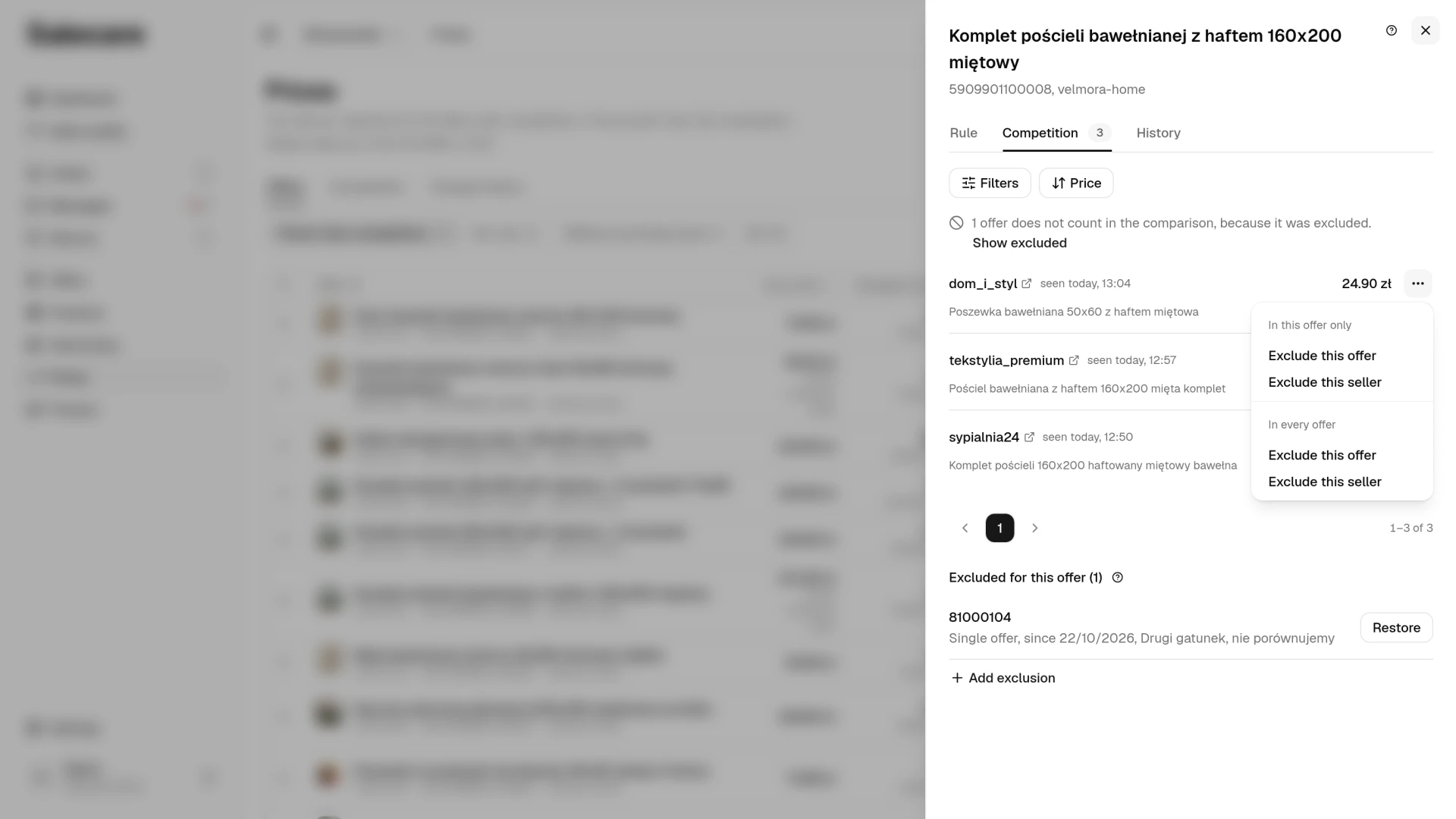
Nobody knows someone else's listing number by heart, so a single offer is excluded where you can see it. On the Prices page, click your offer and open the Competition tab of the panel, or choose Competitor prices in the menu at the offer's row. The competitor offer list opens, two lines for each offer. The first holds the seller's login, when Salecare last saw it (for example "seen today, 08:15") and the price. The second holds the title of their listing on one line, that seller's delivery cost and the difference against your price. The whole title shows when you point at it. The list holds the competitors who had stock at the last read. One who sold out leaves it on its own, with no exclusion.
The difference on this list compares the item price alone, without the delivery cost, the same as in Allegro's price rules. The delivery cost sits apart, by the truck icon. In Allegro search a buyer can sort by price including delivery, but that is a different comparison.
The listing title matters most here, because it is the only thing that separates a wrong match from a real competitor. The price alone does not settle it. A rival at half your price is sometimes a seller of the very same goods who simply went lower, and excluding them would be a mistake, because the repricer would stop reacting to the real state of the market. Read the title and check the size, the number of items in the set and the type of goods before excluding anything.
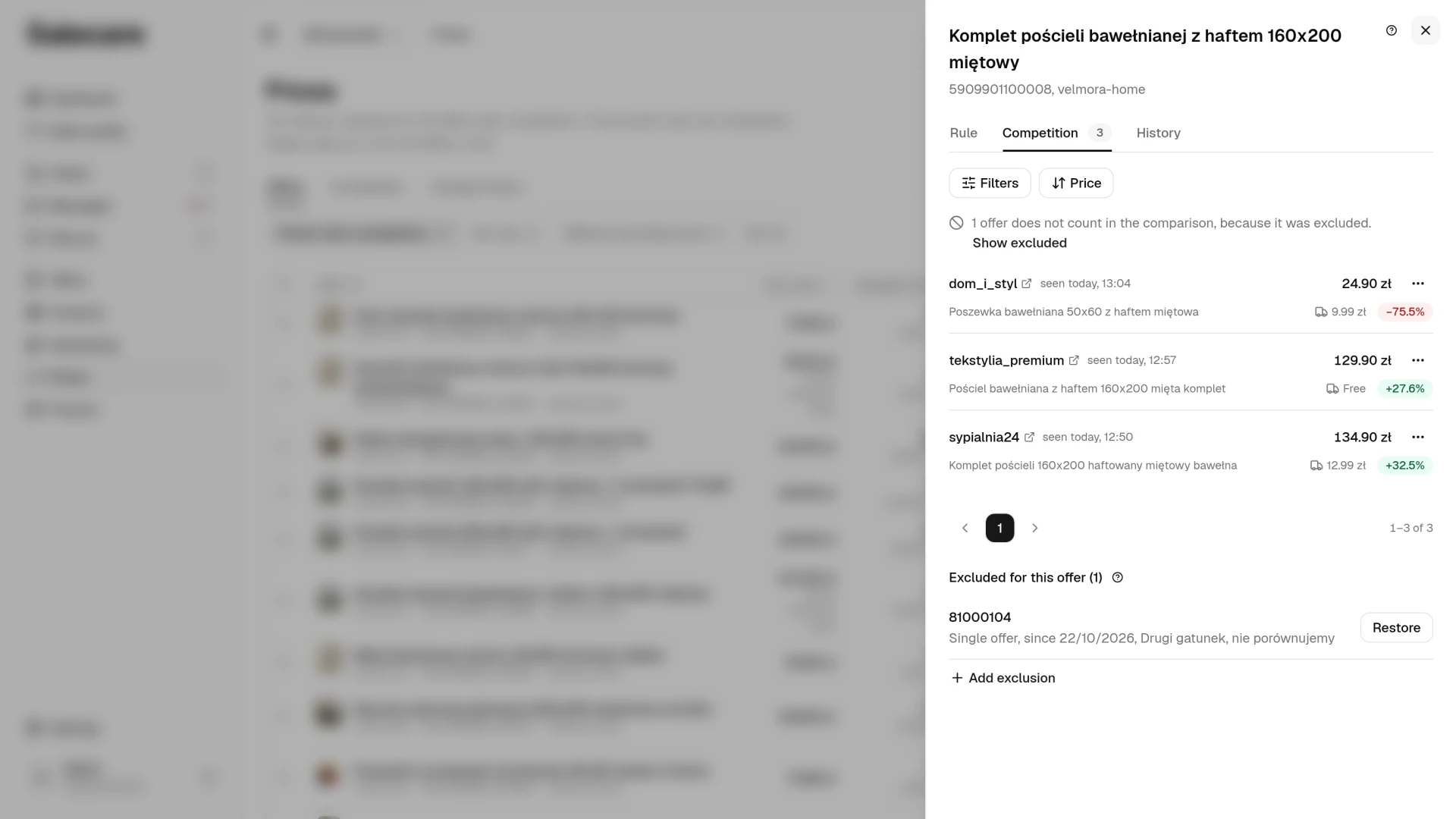
The menu at the end of the row is split in two by scope. Under In this offer only the exclusion counts solely on the offer the list was opened from, even when you have the same product in other offers or on other accounts. Under In every offer it covers the whole company. Both parts carry the same two options. Exclude this offer switches off one specific offer, and the seller's other offers still count. That is the right choice when the match is the problem rather than the seller. Exclude this seller switches off everything that seller lists, and fits when every one of their offers is the same misunderstanding. An exclusion under In every offer is first confirmed with the question "Exclude in every offer?", while one under In this offer only is saved at once.
The list shows one offer per seller, their cheapest. Once you exclude it, the seller's next offer takes its place on the list from the next price check, the one the repricer now follows. The exception is a product you have in several offers. If you exclude a rival's offer in only one of them, on that offer the seller leaves the list and the Cheapest competitor column, while the repricer still counts their other offers.
The row menu and the exclusion section in the offer panel are shown to people with the Workspace settings permission. Without it the competitor list shows the prices and the number of excluded offers, but nothing can be excluded or restored from it.
Excluding in the offer panel
When a rival is only in the way on a single offer, you do not have to hunt for them in the competitor list. On the Prices page, open that offer's panel and its Competition tab, and under the competitor list you will find an Excluded for this offer section with the number of exclusions and an Add exclusion link. The section works like the list on the Repricer settings page. You pick whether you are excluding a seller or a single listing, enter the login or the listing number, and can add a note. The entry counts only on that offer, and the same rival keeps counting on the rest of your offers.
The section shows only the exclusions pinned to that offer. Company-wide exclusions are not repeated there, because they do not belong to that rule and could not sensibly be lifted from it. You keep those where they apply, on the Repricer settings page.
Excluding a seller from the settings
You know a seller's login and can type it from memory, so the exclusion list is kept on the Repricer settings page in Settings. You open it with the Settings button in the header of the Prices page or with the Repricer settings row in Settings, in the Automations group. When you came from Prices, the path at the top of the page leads back to Prices. The list is called Excluded from the comparison, and the Add exclusion button opens the form.
First you choose what you are excluding, a seller or a single offer. For a seller, the field suggests the logins Salecare has actually seen on your products lately, so it is usually enough to start typing and pick from the list. When the login you want is not among the suggestions, type it in full. You type a login Salecare has not seen yet the same way, and so exclude a seller before they turn up on your goods at all. For a single offer you type the offer number from its Allegro address.
The note is optional, but it is worth filling in. In a month, a note such as "different size than ours" explains the reason for the exclusion, which a login alone cannot.
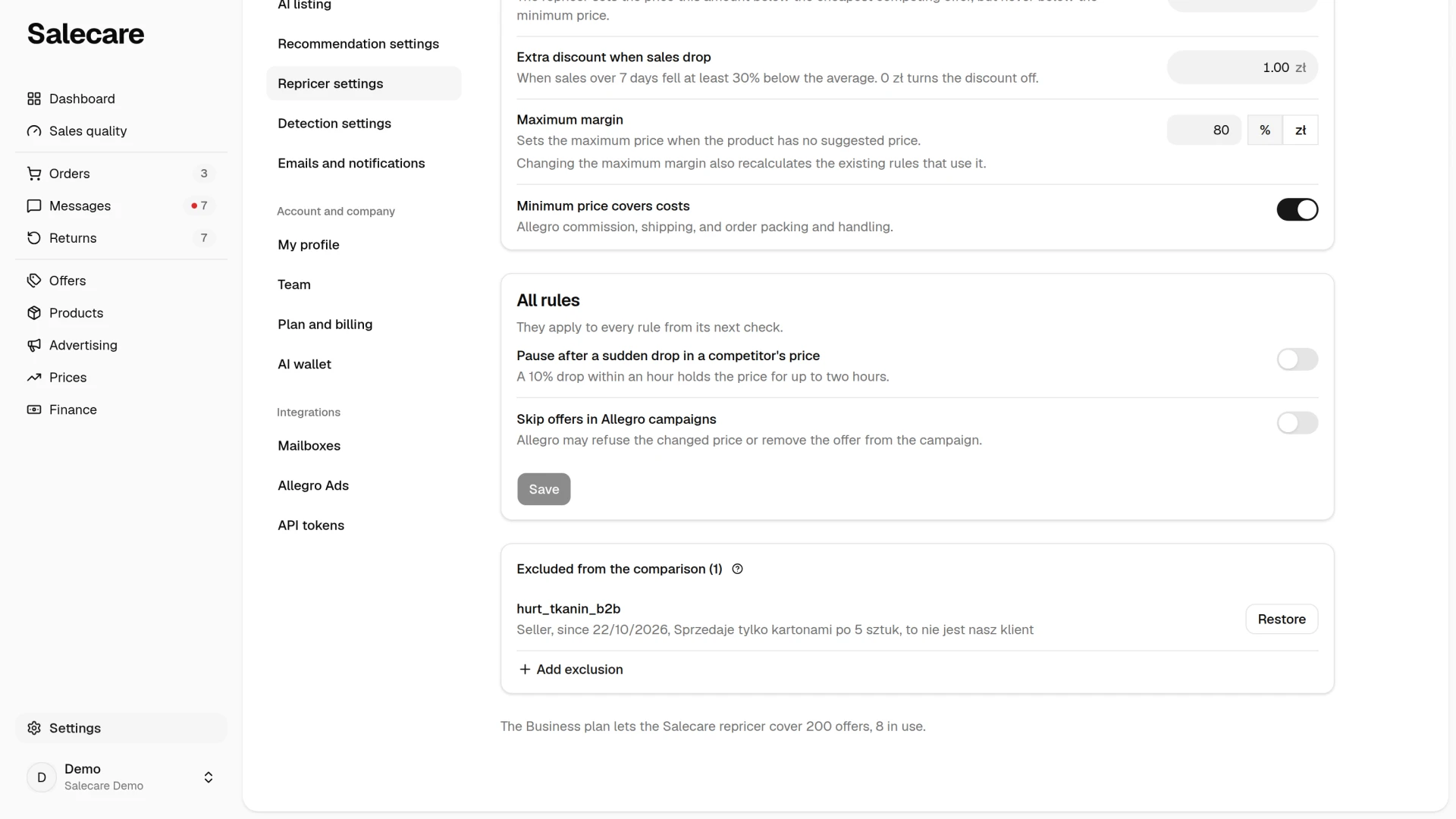
The limit is 200 entries, and it covers the exclusions from the settings and the ones pinned to single offers together, so the counter under the form counts both. With the limit reached the Exclude button is inactive, and an exclusion tried from the competitor offer list ends with a message that the list is full. If you are approaching that number, the problem usually lies elsewhere, most often in barcodes that point at several different goods at once.
You can also exclude a seller on the Prices page, on the Competition tab, from the menu at their row or from their card. Salecare asks first whether to exclude them from the comparison, and excludes them on all offers.
Undoing an exclusion
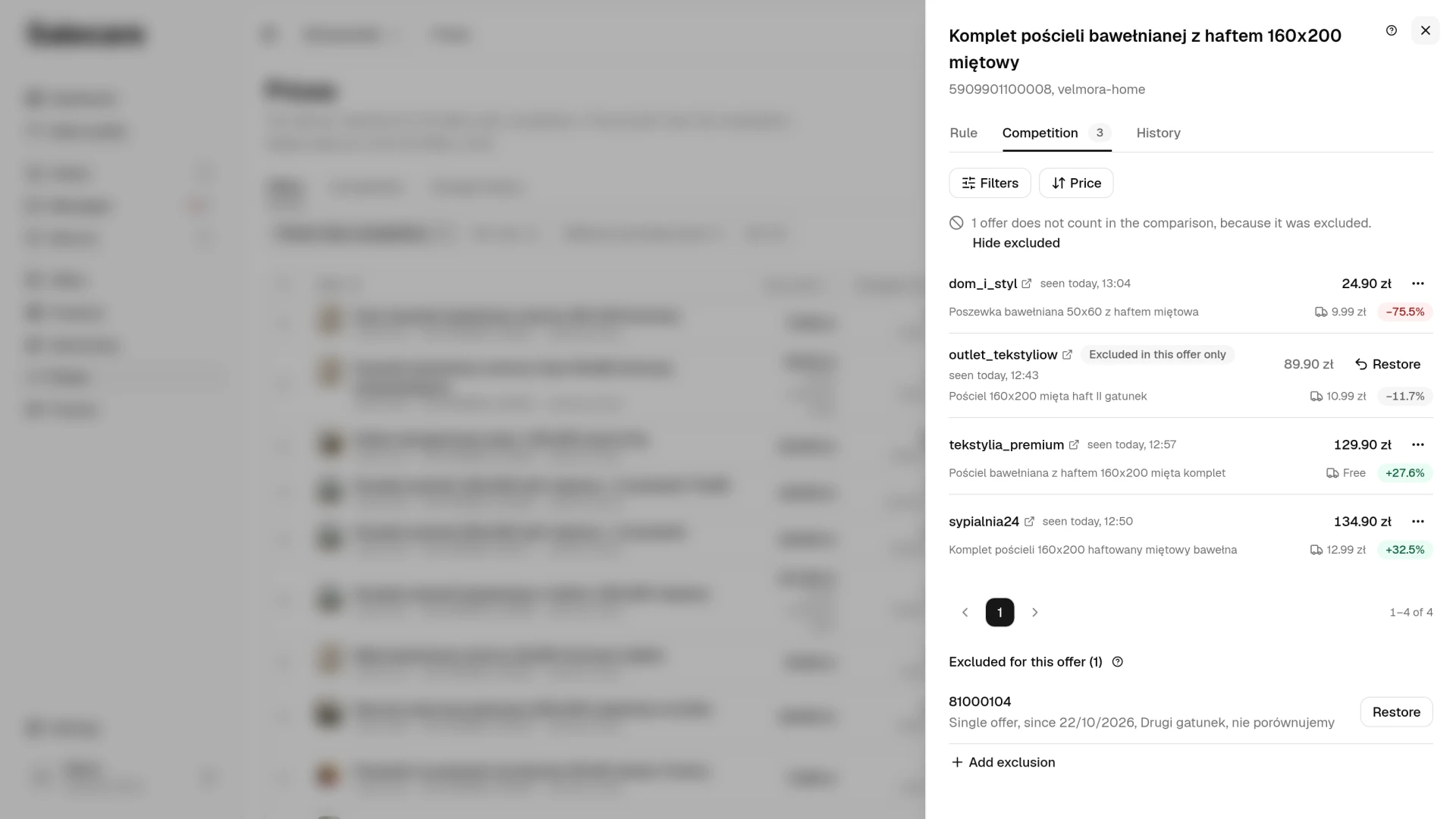
An exclusion deletes no data, it only stops counting it, so undoing is immediate and nothing has to be fetched again. On the Repricer settings page you bring an entry back with Restore on its row, and an exclusion pinned to one offer the same way in the Excluded for this offer section of the Competition tab of its panel. In the competitor offer list, the Show excluded switch (once on, it turns into Hide excluded) reveals the rivals you switched off, and the Restore button on such a row returns it to the comparison. An excluded single offer does not show there when its seller has another offer that still counts, because the list then shows that other one. You lift such an exclusion on the Repricer settings page or in the exclusion section of the offer panel, and the list returns to the cheaper offer from the next price check.
The badge on an excluded row says how far the exclusion reaches, "Excluded in this offer only" or "Excluded in every offer". For an exclusion in this offer only, Restore works at once. For an exclusion in every offer, Restore lifts it across the whole company, not only on this offer, so Salecare asks you to confirm first.
When something is excluded on an offer, the competitor list says so plainly, above the table. A price that stopped following the cheapest rival then has a visible explanation instead of looking like a fault. If you exclude every rival of an offer, the list is empty, but you undo the exclusion in the Excluded for this offer section or on the Repricer settings page.
What an exclusion does not solve
An exclusion is a person's decision about one specific rival, and it does not replace order in your data. If the same barcode describes several different goods of yours, the repricer stops searching by barcode altogether and searches by the offer name instead, which finds far fewer competitors. That is fixed in the product catalogue, not here (see the guide on matching offers to products).
Your own Allegro accounts are never competition for each other and do not need excluding. Salecare skips them automatically, including an account you connect later. Auctions need no exclusion either, because an auction price is the current bid rather than a price anything can be bought at, so the repricer never compares it. Nor do offers of used, damaged, ex-display, refurbished or returned goods. The repricer compares goods in the same condition only. It reads the condition from the Stan (condition) parameter and, when an offer has none, from the title. On a new product it therefore leaves such offers out on its own and does not show them in the competitor list or in the Cheapest competitor column (see the guide on a repricer with a minimum price).