How to match Allegro offers to products
A margin that does not know the purchase price is guesswork. Salecare subtracts commissions, fees and shipping from your Allegro settlements, but it takes the real cost of buying the goods from the product in your database. Until an offer knows which product it is, its result is only approximate. Matching offers to products is the shortest route to a true profit statement across the whole account.
You have offers but no products yet
You do not have to start with the product database. Go to the Products page and click the Without purchase price filter, or choose From Allegro offers in the Add products menu, which opens the same list. When you have no products yet, the Products page opens on that filter by itself. The list shows the offers without a product, highest 30-day revenue first, and offers that share an EAN or a signature stand in one row. When you type a purchase price at such an offer and click Save prices, Salecare creates a product with that offer's name and code and links every offer without a product that shares the code. Such a product gets no category, photos, VAT rate, warehouse or stock, so linking the offers does not change the quantity of the offers on Allegro. You fill in the rest of its data on the product page. How to type the prices on this list is described in step 1 of the guide "Real Allegro margin in 2026, how to set up costs in Salecare".
When the offer's code already has one product in the catalogue and that product has no purchase price yet, Salecare saves the price on it. When the code belongs to a deleted product, Salecare restores that product and saves the price on it. The price is not saved in five cases.
- The offer's code matches several products.
- The offer sells a bundle. A bundle's cost comes from the purchase prices of its components.
- The product with the offer's code already has a purchase price.
- The code belongs to a deleted product that has a purchase price or whose restoring would take offers away from another product.
- One sale of the offer is several units of a product.
The message after the save then says what to do, and the other typed prices save as usual.
The matching described below helps when you already keep a product database, from a wholesaler's price list for example. Then go through this order.
- Import products from a file with the EAN, the signature and the purchase price, from a wholesaler's price list or an export from another system, for example. The guide "How to import products from a file and track the import history" walks you through it.
- After every import Salecare matches offers to products by the signature and the EAN by itself, as step 2 describes.
- Link the offers whose codes do not fit the file in bulk with the Link from a file button in the Assign products window, which step 2 describes.
- Set the Product field to "No product", check how many offers are left, and assign the rest by hand in the Assign products window.
Step 1. Find the offers without a product
Go to the Offers page and click Filters. In the Product field choose "No product", and next to that value you see the number of such offers. Click Apply. The margin of these offers is approximate, because the purchase cost is estimated, although the real Allegro costs, that is the commission, fees and shipping, have already been subtracted. A "~" by the margin says so, and so does the sentence under the table. The sentence gives the share of the price Salecare takes as the cost of goods and has an Add purchase prices link. The same offers are also on the To fix tab, under the "No product" reason.
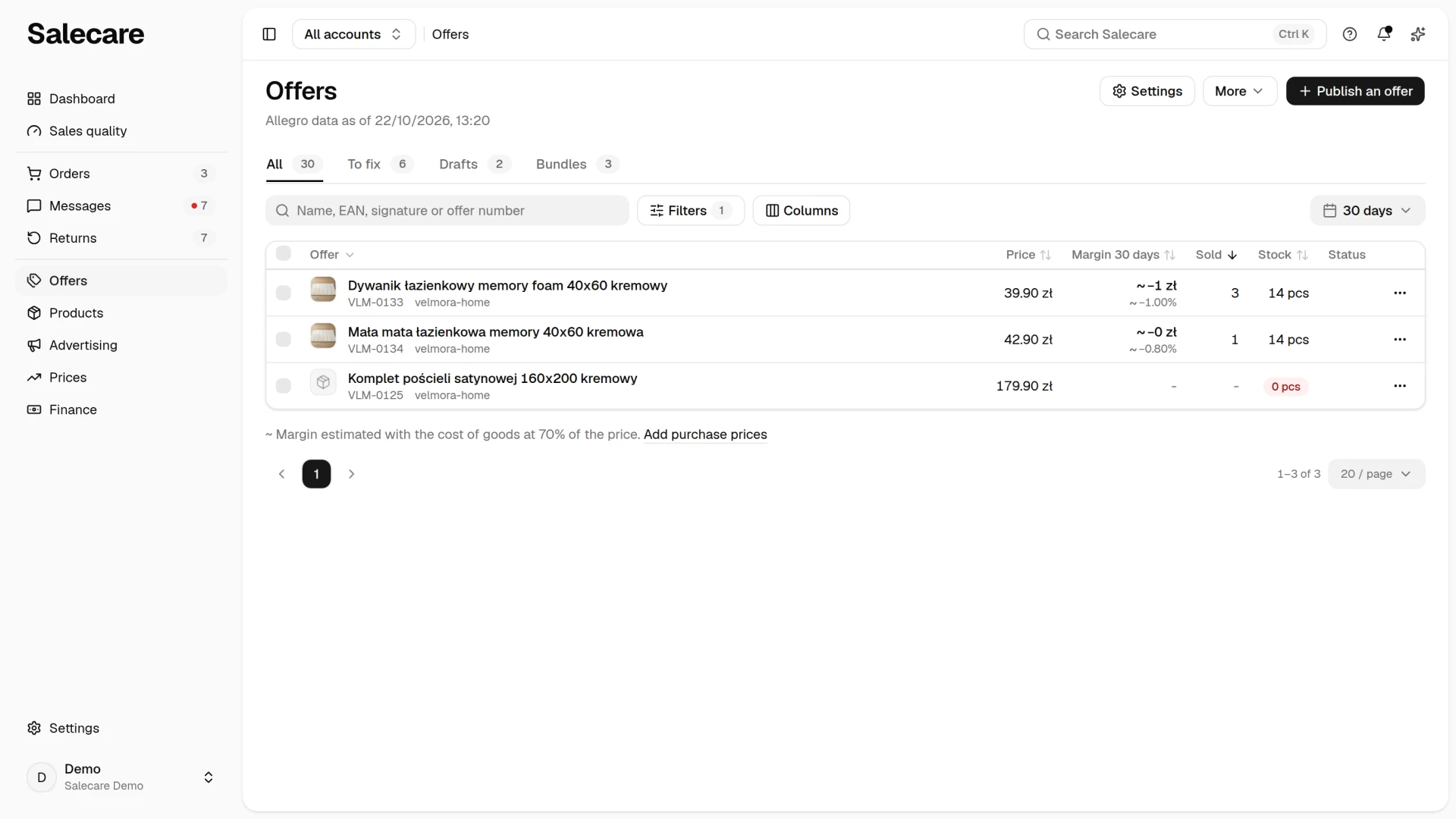
The Filters button opens a panel on the side. It holds Offer status, Product, Account (when you have several accounts), Category, SKU, price and margin ranges, the Listed and Last sale dates, the Catalogue and Catalogue compliance fields, B2B only, and toggles such as Negative margin only. That toggle counts only sales with a confirmed purchase cost, so it never shows offers without a product. When the Offer status field is set to "Active", turning the toggle on changes it to "All", so ended offers with a loss show too. Choose "Active" afterwards to keep only the offers on sale. For offers without a product the margin ranges are worked out from the estimated cost of goods, so they do not tell you what you really lose either. Start with your best-selling offers, because that is where an estimation error costs the most. Sort the offers without a product by sales in the window or by revenue in the window, highest first, and work down from the top of the list.
The No sales in 30 days only toggle keeps the active offers listed at least 30 days ago that sold nothing in that time. Improve their title, photos, price or parameters in the offer editor or with the Boost with AI button. An offer improved this way keeps its number, history and popularity.
You point at the category in the same Allegro category search as in the product form. Above the offer list, however, the search suggests only the categories you have or had offers in, on every account. When only ended offers are left in the chosen category, or only offers of an account other than the one picked in the account switcher in the top bar, the list is empty. Set the Offer status field to "All" then, or pick "All accounts" in the switcher.
What the price, margin and sold columns show
The All table always shows the Offer, Price, Margin for the chosen period, Sold, Stock and Status columns. The Columns button beside the Filters button adds Net revenue, Category, Product, Listed, Last sale, Shipping, Competition, Advertising (on a plan with ads) and Sold per Allegro, and this browser remembers your choice. The Margin column shows what is left from the offer after the costs of selling it, across the orders of the chosen period. Purchase cost, Allegro commission and fees, shipping, promotion and ads are deducted from revenue, and returns are accounted for. Operating costs are not counted here. When an order held several items, the revenue and the purchase cost are this offer's own, while the remaining costs are split by its share of the order revenue. A dash means no sales in this period. A "~" by the margin means the cost of goods is taken as a share of the price because the product has no purchase price. A dash instead of the net margin means a sale without a VAT rate. Set the rate on the product then, or add a rule on the Settings page, under VAT. A person without the Margins and purchase prices (view) permission does not see the Margin column.
The Sold column counts the units of the offer sold in the chosen period, from your orders. Next to it stands the number of units sold in the last 30 days according to Allegro, and below it the date of the last sale from your orders. The Stock column of a live offer is red at 0 units and amber at 1 to 5. The Status column shows one badge, and only when the offer has a problem.
On a phone the offers are the rows of one card. A row holds a checkbox, the photo, the name with the signature and the actions menu, the badge of the Status column under the name, and below them the labelled Price, Margin, Sold and Stock values. When the list shows a margin with the "~" mark, the sentence about it closes the card. You choose the order in the menu above the card. It holds every field the table headers sort by, and its button names the field the list is sorted by. Picking the same field again reverses the order.
Step 2. Match offers to products
Match by signature, EAN or name
A matched offer takes the real purchase cost from the product, and from that moment its margin is calculated from real figures. The margin of an unmatched offer is approximate, worked out from the estimated cost of goods, and is marked as approximate everywhere in the app, so it never poses as an exact result. The fastest way is in bulk. Open the Assign products window from the More menu on the Offers page, from the Quick fixes card on the To fix tab, or from the bar of ticked offers, through More > Assign product. The window proposes products for offers without a product that share an EAN or a signature with them. A row with one matching product is ticked. When several products match, you pick one with Pick a product, and when none does, you click Search for a product. The Assign button with a number saves only the ticked rows. An offer links only when the chosen value matches exactly one product.
At the foot of the window, under Matching settings, the Match again button re-checks every offer by signature and EAN and updates existing links as well. When you tick Also match by offer title, it checks by title too. When you match by name, the offer title has to be the same as the product name, and letter case and doubled spaces do not matter. Salecare also runs that full check by itself after every offer sync.
An automatic link that no code confirms any more keeps working for 24 hours. That happens, for example, when the EAN disappeared from the offer or from the product, because such a code often comes back with the next import of the supplier file. During that time the offer stays matched, also when the code disappeared from the offer itself. When the code comes back in that time, nothing changes. When it does not, the first check after 24 hours removes the link. The offer goes back to the offers without a product, and stock updates from the warehouse and automatic relisting stop acting on it, because the offer no longer has a linked product. On Allegro it keeps the quantity last sent. Salecare then shows one "Offers unlinked from products" notification with the number of such offers and the name of the first one. A click opens those offers on the Offers page, with the Product field set to "No product". A link made by the name stays while the offer's title still names exactly that one product, and once it stops, the same 24-hour rule applies. The check never touches a link assigned by hand.
Offers that nothing connects to a product are assigned by hand in the Assign products window, with the Assign product button in a row of the To fix tab, or in bulk from a file, as the next section explains. The line under the title of the Without purchase price list on the Products page shows the progress. It says how many of the offers that bring 80% of the last 30 days' revenue have a purchase price.
Which code comes first
An offer has two codes, your signature and the barcode from the Allegro catalogue product. When they point to different products, the code with precedence decides the link. You choose it in the Assign products window, under Matching settings, in the Check first field, and save it with the Save button. With "Signature, then EAN" Salecare checks the signature entered on the offer first, and the EAN decides when there is no signature or no product carries it. With "EAN, then signature" it checks the offer's barcode first. Take care then when Allegro assigns several sizes to one catalogue product, because the EAN will point at the wrong variant. The other code stays as a fallback, so an offer with a single code links exactly as before. The figures below the choice show how many offers would gain a link, change product or lose one, before you save anything. When your catalogue identifies products by your signature, there is no choice and the signature decides. An offer with no signature then still links by barcode, as long as that barcode points to one product.
Link from a file, linking in bulk
When there are many such offers, use the Link from a file button in the foot of the Assign products window. The Link offers to products from a list window opens. Its Download the list to fill in button downloads a CSV of the offers that have not ended and have no product yet. When one account is picked in the account switcher, the file holds only that account's offers. The first column holds the offer number, the second is empty, and the next ones carry the title, EAN and signature from the offer, so the offer is easy to recognise. Type an EAN, a signature or the exact name of a product from your database into the second column. Rows with an empty second column are left unchanged, so you can fill the list in batches. Send the filled-in file, CSV or XLSX, with the Link from the file button in that window. Salecare links every correct row in one go, says how many of the filled-in rows it linked, and lists the rows to fix, for example when a code names no product or several. Offers linked this way count as assigned by hand, so the automatic check never touches them.
Multipacks
A multipack offer, "Mug, 3 pcs" for example, linked to the single mug needs the number of units as well. Open the product, go to the Offers tab, click the number in the Units in one sale column next to that offer, enter 3 and save. From then on, under warehouse control, each sale of the offer takes 3 mugs off the stock. The offer gets whole packs only, so 10 mugs are 3 packs. On an account that takes its stock from the warehouse the new number of packs reaches the offer at once. When the warehouse holds fewer units than one pack, the offer gets 0 and Allegro ends it. The margin and the repricer's minimum price count the purchase cost of one sale as three purchase prices. The worked-out maximum price takes three suggested prices of the product, and when the maximum margin decides, three purchase prices plus that margin. The offer panel on the Prices page then says under the maximum price "from the product's suggested price times 3". Both repricer bounds are worked out again right after the number of units is saved, without waiting for the nightly pass, and the margins of that offer's orders are recomputed in the background. Sales already taken off the warehouse stay as they are. The What may run out list of the sales forecast counts each unit sold of this offer as 3 mugs, sales made before the change included. When you link the offer to another product, the number of units goes back to 1.
Step 3. Link offers to the Allegro catalogue
This is a different matter from step 2. There you linked offers to your own products, and here it is the Allegro catalogue, the shared product register on Allegro's side. Allegro can end an offer without that link automatically. It also does not show such an offer abroad, on Allegro.cz, Allegro.sk and Allegro.hu, and gives it no special badges buyers can see. The exceptions are categories with a unique assortment, such as Collections and art or Handicraft, and classified ads. Only a linked offer can also become the product's Top offer, the offer Allegro's algorithm picks to represent the product.
The Allegro catalogue is no longer a page in the settings. Offers with a catalogue error are on the Offers page, on the To fix tab, under the "Catalogue error" reason. The step button in the row links the offer or opens the error details. The list starts with the most urgent reason, and the Offer, Reason and Margin 30 days headers change the order. On a phone the offers are rows of one card with the step button under the name, and you pick the order in the menu above the card. The Quick fixes card above the list links, in one click, the offers that have one sure catalogue match. The Link to the catalogue button with the number of such offers does it. When an offer has several matches, its row has a Pick a product button, with which you choose the right catalogue product.
Salecare checks the state of those links after every offer sync, so until you connect an Allegro account the To fix tab has nothing to show. When you want to check at once, after your fixes on Allegro for example, open the More menu in the header and click Check the catalogue now. It checks the links and the catalogue compliance described in step 4 together. People who can manage offers see it.
Automatic linking to the catalogue
When you switch on Link new offers to the catalogue automatically in the Quick fixes card on the To fix tab, Salecare links unambiguous matches to the catalogue after every sync, meaning offers with one product per EAN. Ambiguous matches always need your choice.
Step 4. Check your offers against the catalogue
A link alone is not enough. When an offer is renewed, and on every edit other than a price or stock change, Allegro checks the whole offer, against the catalogue product too. When the data does not match, Allegro refuses the save. In the first three cases of the list below the offer keeps selling, and a change of the price or the stock alone goes through, because Allegro does not check the rest of the offer for it. Renewing and any other edit fail. The fourth case is more urgent, because Allegro can end such an offer. The To fix tab shows such offers in advance. Salecare checks the offers that have not ended after every sync. The Check the catalogue now entry in the More menu runs the check at once, after your fixes on Allegro for example, and people who can manage offers see it. Salecare refreshes the catalogue product data every week, so a change to a product on Allegro's side reaches the result with a delay.
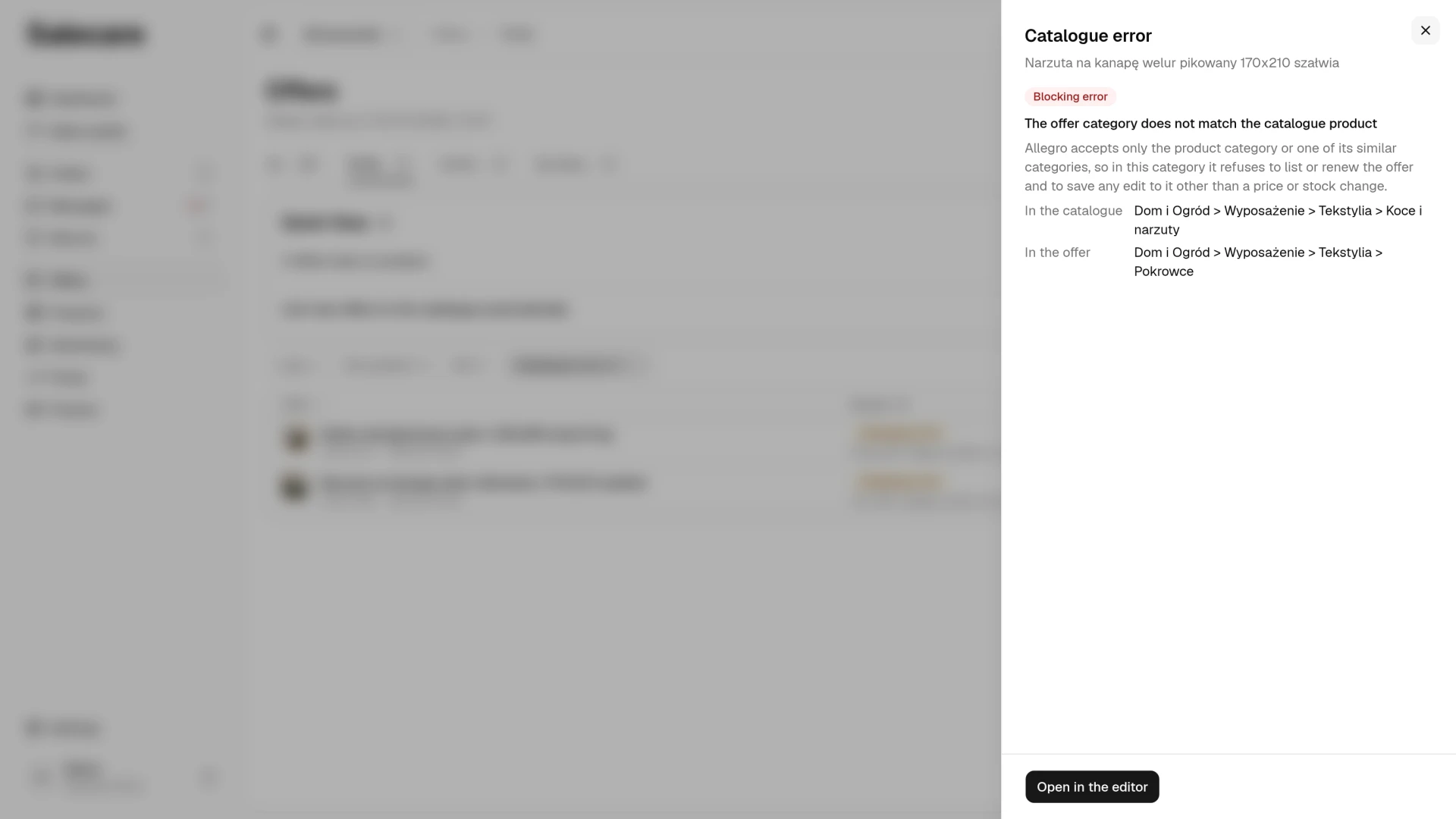
The "Catalogue error" and "Allegro may end it" reasons gather the offers Allegro refuses to renew or to edit in any way other than a price or stock change. A blocking error is one of the four situations in the list below. The first three sit under the "Catalogue error" reason, and the fourth under the "Allegro may end it" reason.
- An EAN in the wrong format, one with a wrong check digit, a length other than 8, 10, 12, 13 or 14 digits, characters other than digits, or a number meant for a shop's internal use or a coupon.
- An offer category that is neither the catalogue product category nor any of its similar categories.
- A required parameter of the offer's category left empty.
- An offer with no link to a catalogue product in a category that requires one.
Salecare marks as blocking only the cases it can check by itself and that Allegro certainly refuses. Allegro can refuse a save for other reasons too, an EAN with a correct check digit that is not in the GS1 database, for example, or the limit of offers per product that Allegro sets in some categories. No offers under the "Catalogue error" and "Allegro may end it" reasons therefore does not guarantee that a renewal goes through.
Link the offers with case 4, the ones under the "Allegro may end it" reason, to a catalogue product first. Allegro checks every listed offer, and it can end an offer with no catalogue product in a category that requires one at any time, not only refuse its edits. The ended offer stops selling, and you can renew it only once it is linked.
Variants, meaning sizes and colours, depend on the catalogue link too. Since 14 April 2026 Allegro no longer lets sellers join offers into multi-variant groups. It builds variants by itself from the products in the catalogue and shows them in an offer only when the offer is linked to a catalogue product. When you do not sell one of the variants, Allegro can show another seller's offer in its place. Say you sell "Linen Wave" bedding in 160x200 and 200x220 as two offers, and the 200x220 offer has no catalogue product. A buyer looking at the 160x200 size then does not see your 200x220 size beside it, at most another seller's offer. You find the offers missing their variants for that reason in the Filters panel, in the Catalogue field set to "Not linked". Those in categories that require a product are also on the To fix tab, under the "Allegro may end it" reason. The product variants themselves are checked on Allegro, on the My assortment tab, where you can also suggest changes to them.
Warnings do not block an offer, so they have no reason on the To fix tab. You find the offers with warnings in the Filters panel, in the Catalogue compliance field, with the value "Warnings", and the offers with a blocking error with the value "Blocking error". An offer that is not linked to a catalogue product gets a warning when it has no EAN in a category where the code is optional. With the code Allegro could link it to such a product. Such an offer has no catalogue link either, so what step 3 describes applies to it. An offer with both a blocking error and warnings sits on the To fix tab together with all of its problems.
An EAN different from the catalogue product code is not an error, because Allegro allows offers with a different code on the same product. A title that does not contain the catalogue product brand is not an error either. Allegro does not require the brand in the title, and Allegro search also takes the brand from the Brand parameter of the offer. Generic brands, such as "No brand" or "Generic", are not looked for in the title. Neither difference alone puts the offer on the To fix tab. When the offer has a blocking error too, the Catalogue error panel shows these differences under For your information, with a "Note" badge.
The Brand and Producer parameters are different. When their value in the offer differs from the catalogue product, Allegro shows the difference in Sales Center, on the Offer updates tab, and tells you by email. You have 14 days to accept the change. After that Allegro unlinks the product from the offer and ends it. Salecare does not compare these parameters with the product, so such an offer does not land on the To fix tab. Check the Offer updates tab on Allegro yourself.
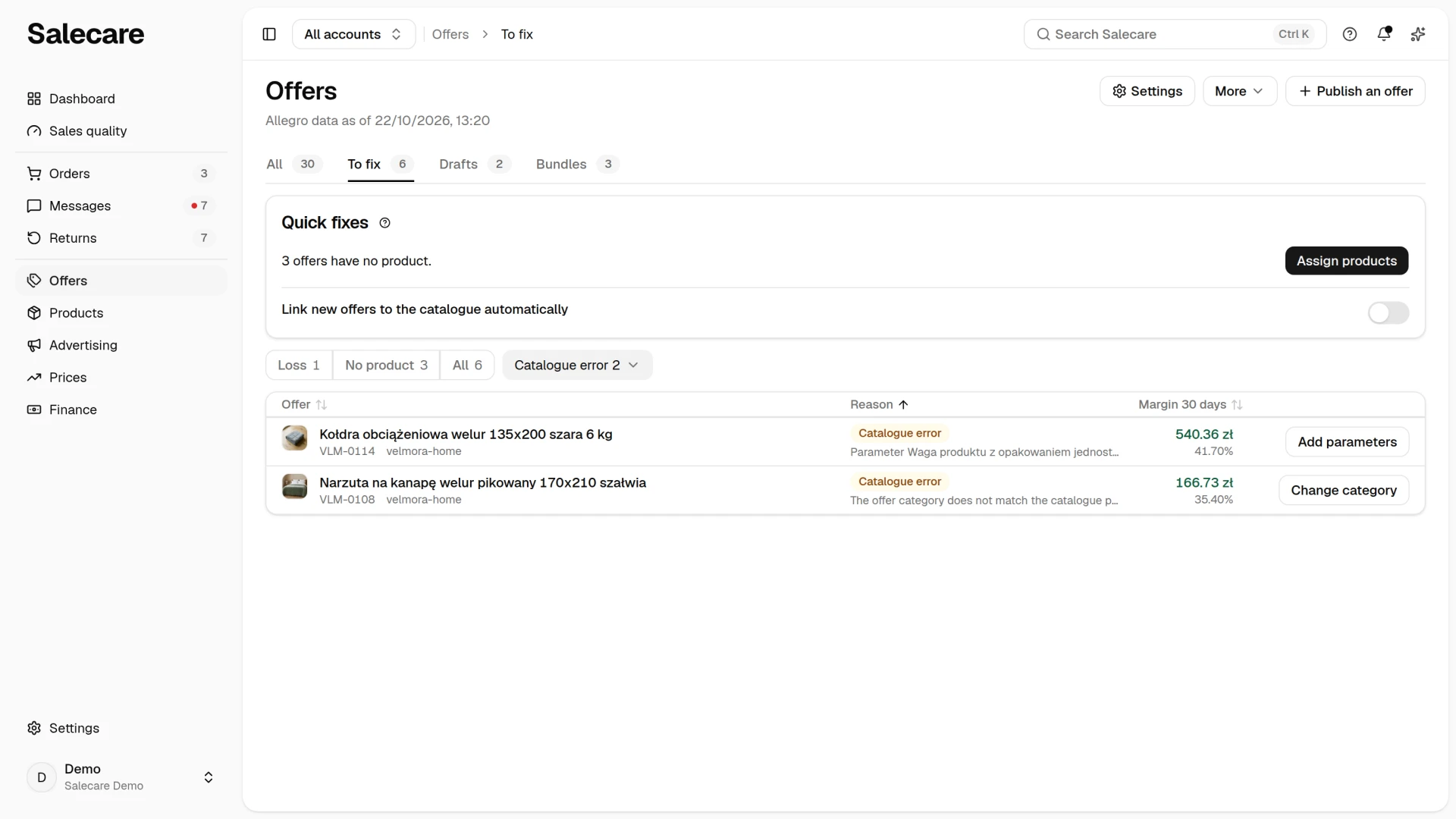
Each row names the problem of the offer in one line under the reason, for example "Parameter Colour is missing". The button in the row, Add parameters, Change category or Fix the EAN, opens the Catalogue error panel. For each problem the panel shows the In the catalogue value beside the In the offer value, the product category path beside the offer category path for example, and says what Allegro does. From the panel you go on to the offer editor with the Open in the editor button. You fix the category in the offer editor with the Move to the product category button, because Allegro moves an offer listed more than 12 hours ago only into its catalogue product category. You change the title and the parameters in the offer editor too, and you fix the EAN on Allegro. After your fixes, the Check the catalogue now entry refreshes the result.
When the check finds new offers with a blocking error, the bell shows the "Offers with a blocking error" notification with the account name and the number of such offers. It arrives at most once a day per account and has no email copy. A click opens the To fix tab of the Offers page with the "All" reason picked. The offers with the "Allegro may end it" reason come there before the offers with the "Catalogue error" reason. The same check runs in offer drafts before an offer reaches Allegro, as the guide "How to list an offer on Allegro with AI (offer drafts)" explains.
What next
Matching is the first step to a real result, and the second is costs. The guide "Real Allegro margin in 2026, how to set up costs in Salecare" describes them. The estimated cost of goods also blocks the repricer from setting a minimum price, so after matching take a look at "How to set up a repricer that never goes below your margin".