How to list an offer on Allegro with AI (offer drafts)
Listing a single offer by hand means a title, a dozen or so parameters, a description, photos and half an hour of clicking. With fifty products that turns into a week's work. And at the end Allegro can still reject the publication for a reason that is not obvious at first glance. Offer drafts in Salecare reverse the proportion. The AI prepares the offer and you only check it and publish.
Creating drafts with the AI, from products or from EAN codes, and generating them again need the Pro plan or higher. On a lower plan these buttons are disabled and a padlock stands next to them. Hover over it to see the name of the plan. On every plan you can open the Drafts tab of the Offers page, correct and publish a draft you already have, and bring a draft saved on Allegro into Salecare with the Drafts on Allegro button.
Step 1. Create a new draft
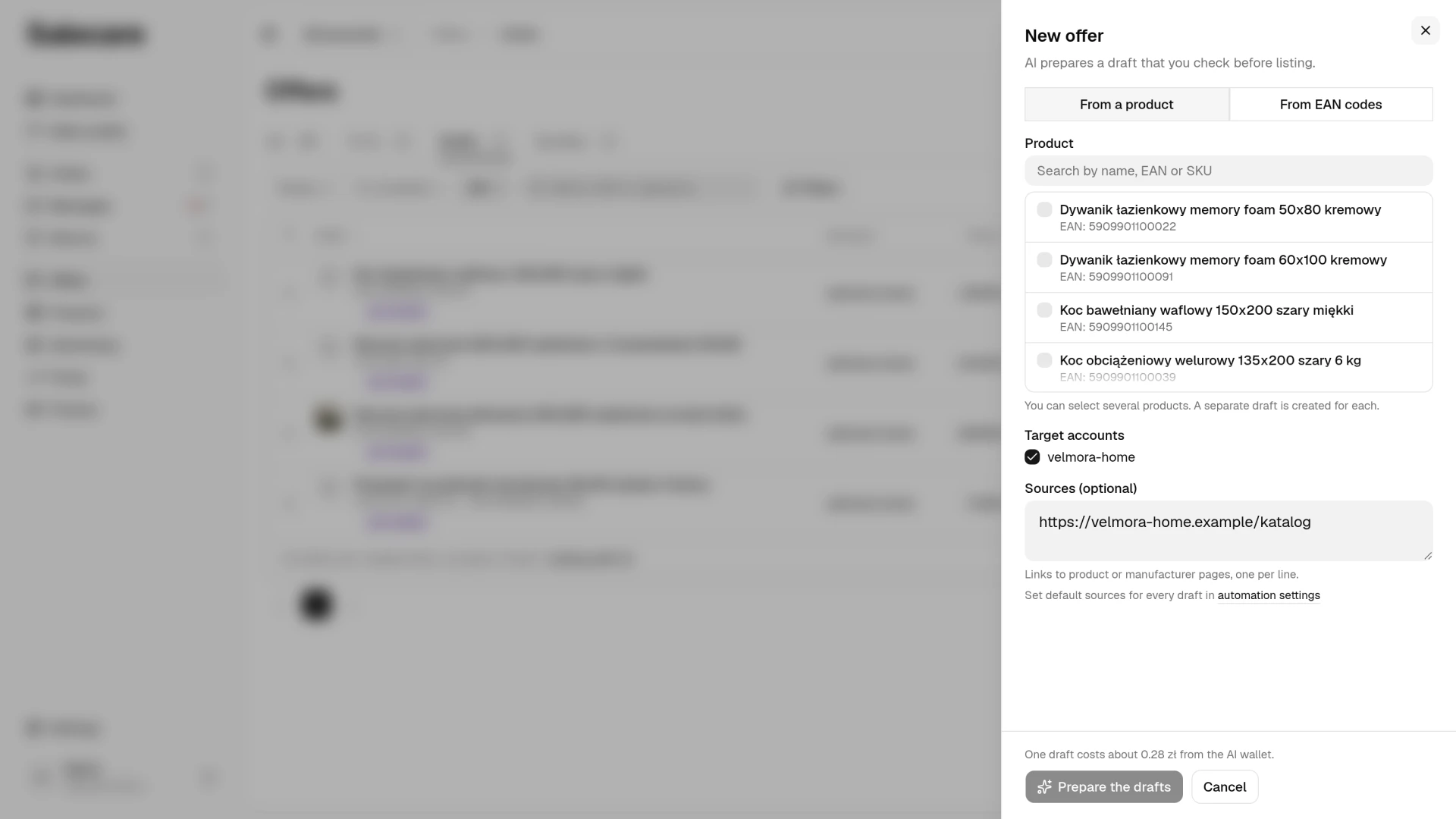
Go to the Offers page and click Publish an offer. In the New offer window choose From a product or From EAN codes. With From a product you search the database for a product by name, EAN or SKU and can select several at once. With From EAN codes you paste EAN codes, one per line. A product has one draft, so several codes of the same product make one draft. A product that already has a draft is skipped, and when you pick it on its own, its draft opens. You then write its content anew in the draft with the Regenerate button. A code of a product that already has a draft is skipped at no charge. From a code that is not in the catalogue yet, Salecare creates a new product. When the catalogue identifies products by your signature, that same code also goes into the new product's signature field. Enter your own signature before you publish, on the product card or in the draft's Your own signature field. The offer takes its signature at publication, and a later change on the product card no longer reaches it. In the Sources field you can paste links to product or manufacturer pages. The AI reads them and uses them when building the draft, but it takes photos only from the manufacturer's page.
Goods that come in several sizes or colours are listed with a separate draft and a separate EAN code for each size and each colour. Salecare does not join offers into a multi-variant offer, because Allegro switched that option off on 14 April 2026. Allegro now builds variants itself from the Allegro catalogue, so a buyer sees the other sizes and colours in the offer when each of these offers is linked to a product in the Allegro catalogue. Allegro may also show variants sold by other sellers in your offer. Step 4 of the guide "How to match Allegro offers to products" shows how to find the offers that miss their variants because they are not linked to a catalogue product.
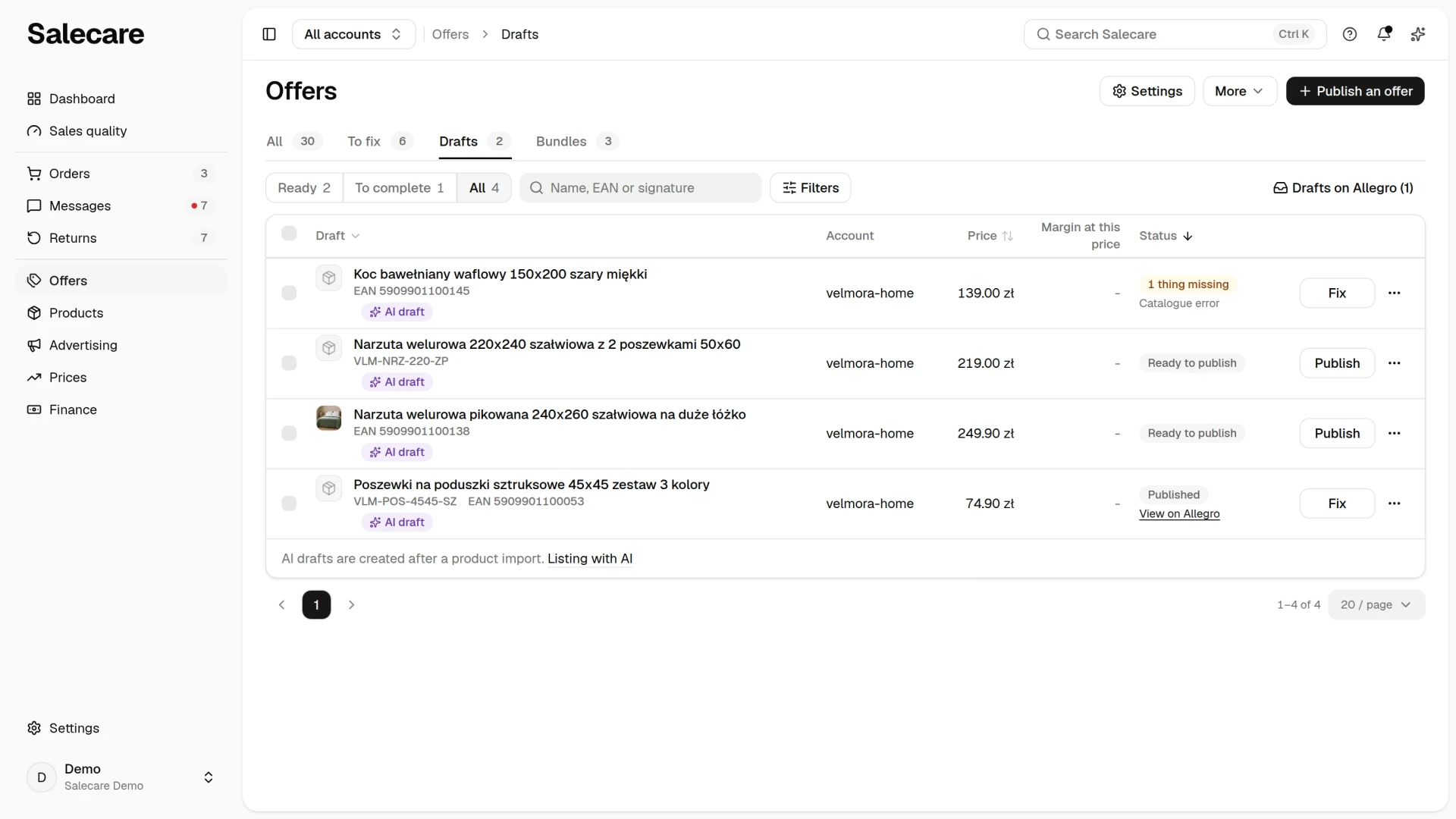
Finished drafts are collected on the Drafts tab of the Offers page. Above the list you see the state switch, the search and the Filters button, and the Drafts on Allegro button when your Allegro accounts hold unpublished offers. The settings of drafts that create themselves open from the Listing with AI link in the footer of the list. That link shows to a person who can open settings. The Settings button in the header of the Offers page opens the same page too. You open the Recent publications window from the More menu in the header of the Offers page.
Step 2. Check what the AI filled in
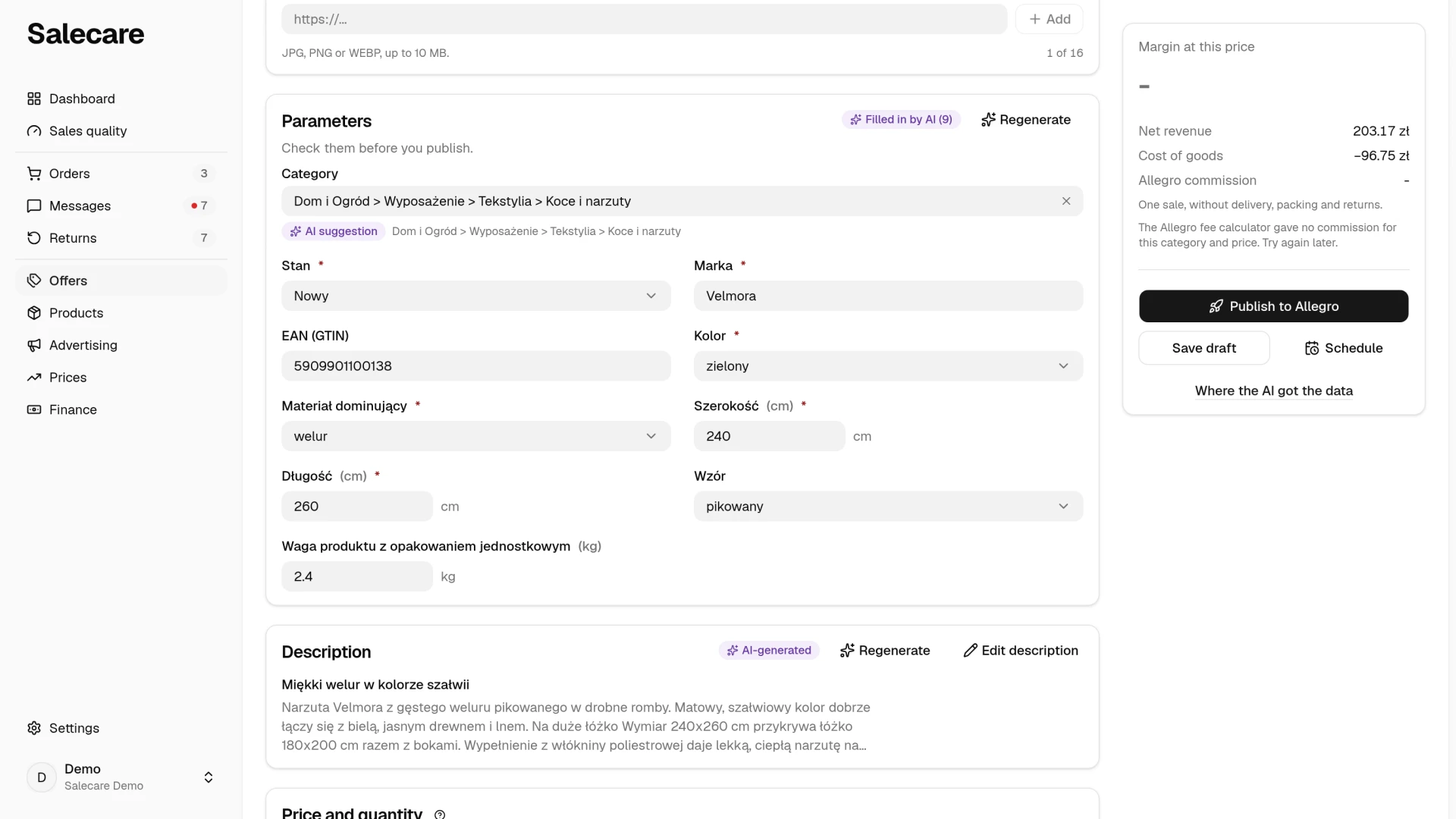
The draft opens in the offer editor, which has the same layout as the page of a live offer. The header gives the name of the draft and its state, for example "Ready to publish", and a line "Draft from product …, EAN …, account …" in which the SKU leads to the product card. The less frequent actions are in the More menu in the header. Under the header stand the sections Title and photos, Price and quantity, Parameters and Description, and a folded Delivery, returns and other settings card. On the right is a card with the margin and the buttons Publish to Allegro, Save draft and Schedule. Next to the sections Title, Photos, Parameters, Description and Product safety (GPSR) stands a Regenerate button that tells the AI to rewrite only that part. Salecare asks for your consent first and gives the approximate cost from the AI wallet. The edits you saved in that part are replaced.
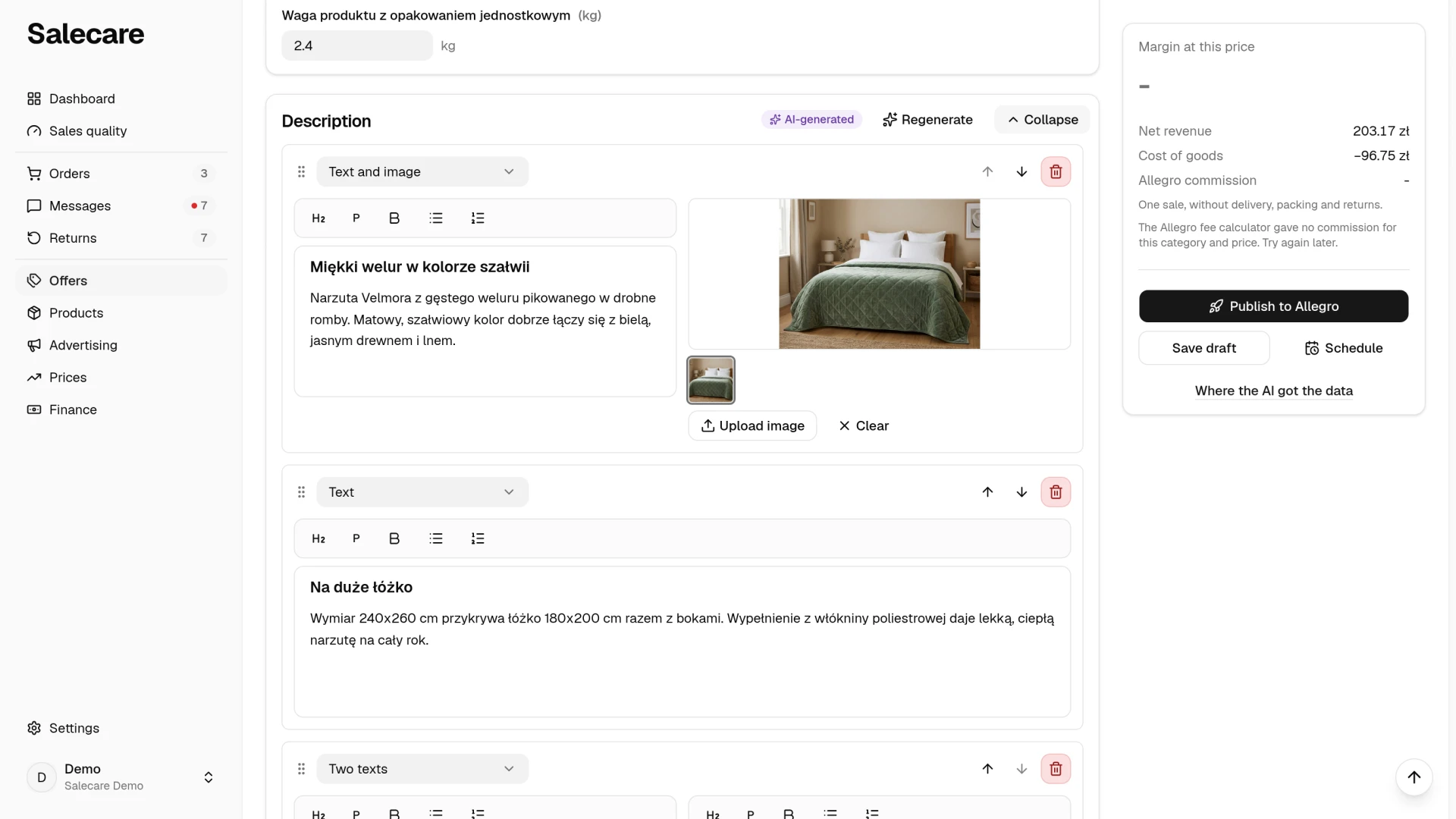
The AI fills in the title, parameters, a description split into sections, the selling price and the product-safety (GPSR) information. It picks photos only when you switch on Let the AI pick photos in Settings, on the AI listing page, in the Photos in drafts row. That option starts switched off. Without it the draft keeps only the photos the product already has in your catalogue, and the image spots in the description stay empty. You then fill the gallery yourself or with the Regenerate button in the Photos section, which looks for photos even with the option off. A product created from an EAN code has no photos of its own, and Salecare does not list a product that is not in the Allegro catalogue without a photo. In the Parameters section the category comes first, followed by the required parameters and those that already hold a value. Empty optional parameters open with the Show optional link. The violet "Filled by AI" badge in the section header says how many parameters the AI filled in. The number drops when you change a value the AI gave, so it shows what is still worth checking before you publish the offer. When the product is linked to a card in the Allegro Catalogue, the parameters that describe the product come from that card. They carry the "From product card" badge and cannot be changed in the draft. The offer parameters, such as Condition, are yours to fill in. The description shows in short first, and the Edit description button opens it for editing in the same place. You correct what needs correcting and save.
The title must follow Allegro's rules, that is 12 to 75 characters and at least three words. A draft with a title outside those bounds is not saved, and the app says what to fix. A draft that got a shorter title some other way is stopped before it is sent to Allegro, and so is a draft with no price or with a description over 40,902 bytes (the formatting and the addresses of the photos in the description count too), with the reason on the draft. In the editor of a live offer a changed title follows the same rules. Salecare does not shorten an over-long title for you at publication either, because a name cut silently can change what the offer means. The AI gives the exact name of the product in the title, that is the brand, the model and the key feature, each word once. Allegro forbids adding keywords only to lift an offer in search. So when a title repeats a word, Salecare sends it back for a rewrite once. A repeat still there after the rewrite is not flagged, so read the title before you publish.
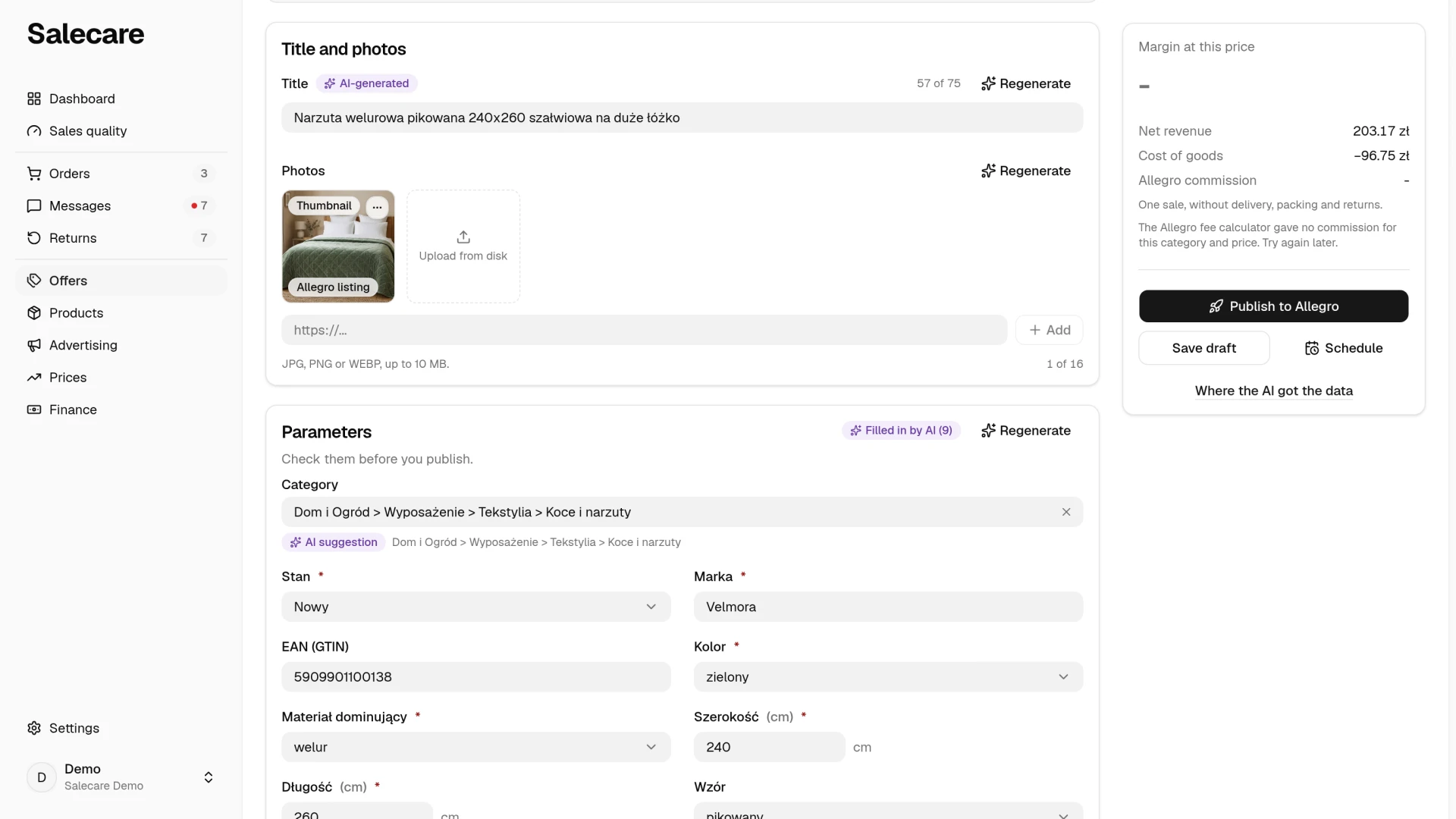
Each photo the AI chose names where it came from in its bottom left corner, "Allegro catalogue" or "Web" for example. That label is grey, because the AI found the photo rather than drew it. Only a photo drawn by Studio AI carries the violet "AI-generated" badge. The AI takes photos only from the Allegro catalogue and from your own offers of this product. It takes them from the manufacturer's website only when you also switch on Let the AI take photos from manufacturer pages on the AI listing page. A new account has that option switched off. The AI never takes photos from other sellers' offers or from shops, because they are someone else's work. A photo whose longer edge measures under 500 pixels is dropped during the search and never reaches the gallery, because Allegro refuses the whole listing over one photo that is too small.
Photos drawn by Studio AI are declared to Allegro at publication as AI co-created content. The EU Artificial Intelligence Act requires it. Since 2 August 2026 a photo in a listing that a model drew has to be marked as such. The label is applied as the file is uploaded to Allegro and cannot be changed afterwards, so an unlabelled photo can only be corrected by uploading the gallery again. Imported photos, and photos from the Allegro catalogue, from your own offers or from the manufacturer's website, are not declared this way, because no model drew them. Allegro puts a watermark on an AI photo and a thumbnail cannot carry one, so a Studio AI photo cannot be moved into the first place of the gallery. A draft that holds only Studio AI photos is not listed until you add a real photo of the product. When a draft proposes a new product to the Allegro catalogue, only the real photos go into it.
In the Title and photos section the photos are tiles, and the first one, with the "Thumbnail" badge in its top left corner, is the offer thumbnail. You change the order by dragging a tile to another place. In the top right corner of each tile is the photo menu with Set as thumbnail, Move left, Move right, Remove background, Studio AI and Remove. The Remove background and Studio AI items are in the menu when your plan includes them. You cannot set a photo the AI drew as the thumbnail. A Studio AI photo goes into the gallery after its source photo, never becomes the thumbnail and is paid from the AI wallet. The Upload from disk tile adds photos from your computer, picked in the window or dropped onto the gallery, and the field under the tiles adds a photo by its address. Save photos from the web only when you have the right to use them. The gallery holds at most 16 photos and counts them under the tiles, and it reaches Allegro only at publication. The title field counts characters, for example "12 of 75".
The description is built from text and photo sections, ready to be sent to Allegro.
The AI is told to leave out of the title and the description sales slogans such as "najlepszy", "hit" or "gratis", promises such as "gwarancja satysfakcji", warranty, returns and complaint terms, delivery and payment details, contact details, web addresses, or health and medicinal claims such as "leczy", "zapobiega chorobom" or "wzmacnia odporność". Allegro keeps that information in separate tabs of the offer. Food or supplements may not carry a health claim the European Union has not authorised, so for such goods the AI describes the composition and how to use the product instead. When the model writes such a phrase anyway, Salecare sends the copy back for a rewrite once, and the progress bar shows the "Rewriting wording Allegro does not allow" step. A phrase still there after the rewrite shows in a yellow box under the title field or under the description blocks, so read them before you publish.
While a draft is generating, you cannot start a second generation of the same draft. That works neither from the list, nor with the section buttons, nor from the new draft window for the same product. Salecare then asks you to wait until the current generation finishes. The draft finishes it with the settings it started with. Creating and regenerating drafts also counts towards the per-minute limit on AI requests shared by the whole company, like creating drafts in bulk. Past it the app asks you to wait a moment and try again.
Product safety (GPSR)
In the Product safety (GPSR) section, the Regenerate button has the AI look up the warnings and safe-use instructions for this product in its sources, an age limit or a small-parts warning, for example. It fills the field only when it finds them on the manufacturer page, in the manual or in the Allegro catalogue. When the sources say nothing, it leaves the field empty. Text in this field, also one the AI wrote, comes before the safety document from the product card and before the text saved on the account. With the field empty, the offer goes out with the product's safety document, usually from the supplier file. When the product has none, the offer goes out with the text saved on the account. This is your own safety declaration, so read the text before you publish. Salecare matches the responsible producer to the product, taking the producer registered in the Allegro account under the product's brand. A product without a brand gets the producer and the responsible person saved on the account. When nothing matches, Salecare does not list the offer until you pick the producer in this section.
Price, margin and selling format
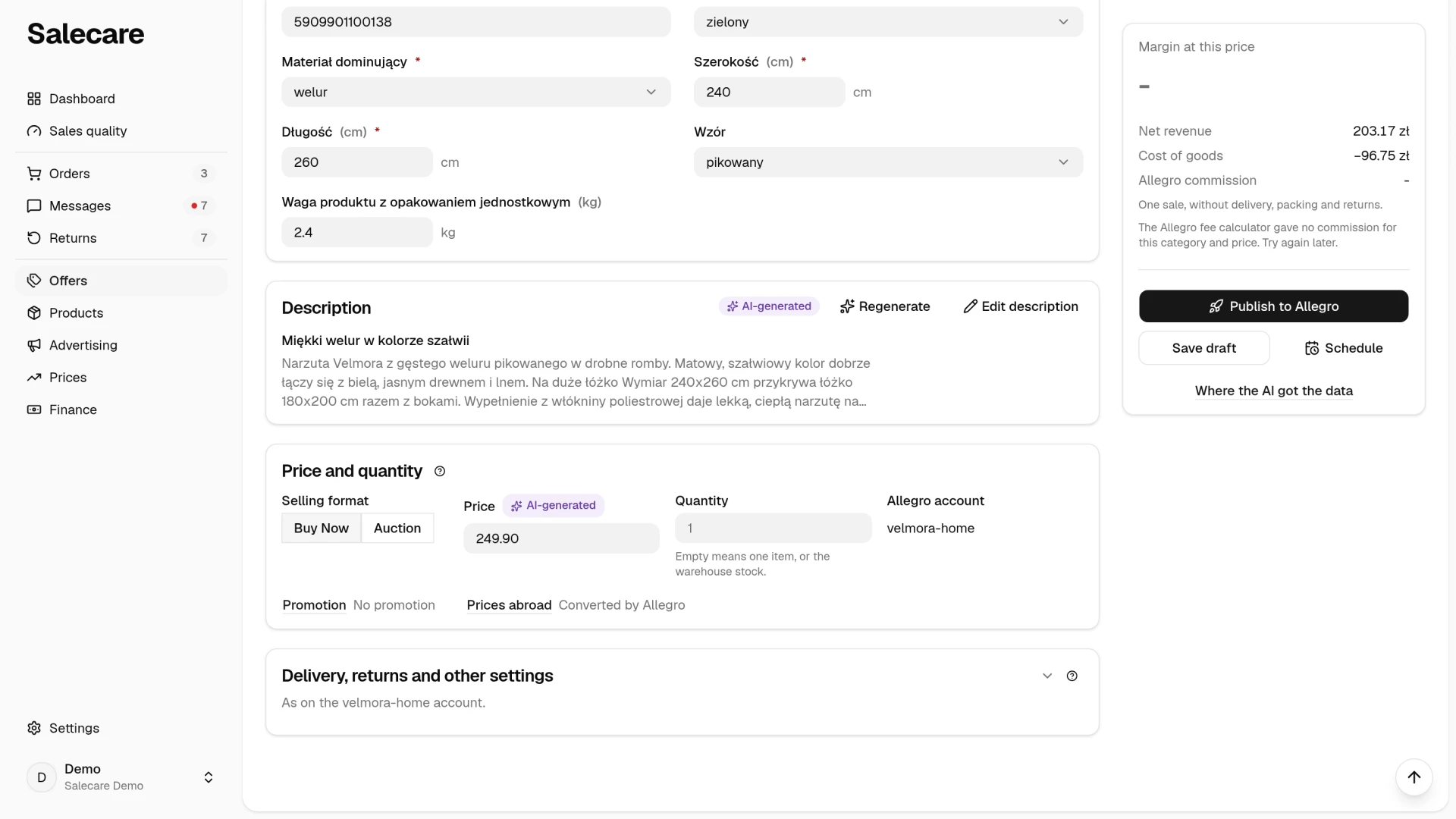
The selling price in the draft is proposed by the AI from the offers of this product on Allegro. When the product card names a gross selling price, from a file import for example, the AI keeps close to it but may move it slightly. The price field then carries the violet badge, and the gross selling price from the product card stands under it for comparison. Regenerate for the whole draft and Boost with AI set the price anew too. Check the price before you publish, above all when you switch on the account's automatic publication, because the draft then goes out without your review.
In the card on the right, under Margin at this price, you see what one sale leaves you. Salecare shows the margin at the price in the field and under it the revenue, the cost of goods from the product card and the Allegro commission. For a company registered for VAT the revenue and the margin are net. The commission comes from the Allegro fee calculator for the draft's category and saved price. When you enter another price, the margin is worked out at once at the same rate, and Salecare checks the rate for the new price after you save the draft. Delivery, including the fees for Allegro Smart! deliveries, operating costs, advertising and return costs are included neither in the margin nor in the loss warning. So an offer whose price covers the purchase cost and the commission can still make a loss. With free delivery or Allegro Smart! add the delivery cost to the price yourself. When the price does not cover the purchase cost and the commission, a loss warning appears under the margin. You see no margin when the product has no purchase price, uses the estimated cost of goods or has its purchase price in another currency, and with net amounts also when the product has no VAT rate. You see no commission when the draft has no category or no price, when no account may list offers, or when the Allegro fee calculator gives no rate. Salecare then gives the reason in that place. A person without the Margins and purchase prices (view) permission sees no purchase cost, commission, margin or loss warning in the card on the right.
When the purchase price comes from a file whose prices were marked as estimates, the margin is approximate, and the draft says so under the amounts.
Salecare does not publish an offer whose saved price does not cover the purchase cost and the commission without your consent. The publish dialog then states the loss of one sale, and its button changes to Publish despite the loss. The same applies when you schedule the publication. The amount appears beside the Schedule despite the loss button, and scheduling with that button is the confirmation. A confirmation covers only the price you give it at, so after a price change Salecare asks again. Publishing in bulk or from the drafts list does not publish such an offer, and the draft shows the reason it was refused. The account's automatic publication does not publish it either, because there is nobody to confirm. The draft then returns to "Not scheduled" and waits for your decision, and once you change the price, automatic publication books it again. A draft already saved to Allegro stays there under its own number. The next publication puts that very offer on sale at the draft's price, even if its price on Allegro is different. Open the draft and publish it from its page, or raise the price. Saving the draft to Allegro needs no confirmation, because it sells nothing yet. When a person without the Margins and purchase prices (view) permission publishes a draft (in bulk too) or schedules it, Salecare does not compare the price with the cost, because that person does not see the loss. When such an offer goes on Allegro at a price that does not cover the purchase cost and the commission, the owner and every person with that permission get a notification in the bell and an email from the Offer drafts topic. The notification names the offer, its price and the price below which every sale loses money. It also names the person who published the offer, scheduled it or changed the price of a scheduled draft. Bulk publishing gives one notification that lists all such offers. The person who published the offer gets no notification and no other signal, and their draft looks the same as with a price that covers the cost.
This check works only when the margin shows in the card on the right. When no margin can be worked out, bulk publishing does not publish the draft and gives the reason next to it, and the account's automatic publication skips it and leaves it for your decision, just like a draft at a loss. When only the commission is missing and the price does not cover even the purchase cost, both treat the draft as an offer at a loss. A draft you publish on its own or schedule yourself goes out at its saved price without this check. So enter the purchase price on the product card before you publish, then publish the draft, in bulk too, or schedule a date.
When you leave the Quantity field empty, the offer goes out with one item or, when stock updates are enabled, with the product's stock level.
In the same section you choose the selling format. The "Buy Now" format sells at a fixed price. An auction goes to the highest bid placed before the chosen time runs out, and you pick the time from those Allegro accepts, that is 24 hours, 3, 5, 7 or 10 days. Without a choice the auction runs for 7 days. The price in the field then becomes the starting price, the lowest amount the auction can end on, so the margin in the card on the right and the loss warning are worked out from it. An auction always sells 1 item, so the Quantity field is locked then. When the warehouse sets the stock of the account's offers, Salecare sends no warehouse quantity to a running auction. For the same reason an auction can run on one account only. When you tick several accounts, a warning appears under the Allegro account field, and Salecare does not publish the draft until one account is left. The draft sets no auction reserve price, a paid Allegro option, because Allegro charges for it even when the item does not sell. You can set it yourself in the Allegro panel if you need it. It is not the repricer's minimum price, the floor the repricer never takes an offer's price below.
You choose the offer promotion by clicking the Promotion link under the fields of the section. The choice opens in a side panel. The Save button in the panel puts it into the draft, and you save the draft with the Save draft button in the card on the right. Cancel closes the panel without a change. Next to the link stands the name of the chosen promotion or "No promotion". By default the offer goes on sale without one. "Featured" and "Flexible Featured" are paid Allegro options. For "Featured" Allegro charges upfront for every 10 days, and the fee depends on the category. For "Flexible Featured" it charges upfront for every day. Both renew on their own until you switch them off in the offer, and Allegro takes an extra commission on a sale from a promoted offer, which the margin preview does not include. Allegro lists the current fees in its seller help. Salecare switches the chosen promotion on in every offer it puts on sale from this draft, also when you publish a draft saved on Allegro earlier. Saving a draft on Allegro alone does not switch it on, and Update listing does not change it. The publish window, both on the draft page and on the drafts list, reminds you which paid option the offer goes on sale with. Publishing in bulk skips drafts with a paid promotion, so you publish such a draft on its own. Next to a published offer the draft says whether the promotion is on. When Allegro refuses it, the offer stays on sale without a promotion and you pay nothing for one, and you can switch it on in the offer settings in the Allegro panel. When Allegro does not answer as the promotion is switched on, the draft says that Salecare does not know whether the promotion is on. Then check in the offer settings in the Allegro panel whether it is switched on, because it may have been switched on and charged for.
Next to it the Prices abroad link opens the Selling abroad fields in a side panel. You save them the same way as the promotion. Next to the link stands "Converted by Allegro" when no price is entered, or the number of marketplaces with your own price, and for an auction "Auction on Allegro.pl only". Enter a price in the panel for Allegro.cz (in Czech koruna), Allegro.sk (in euro) or Allegro.hu (in whole forints) if the offer should show there too. Salecare sends the price as you enter it, without any exchange rate conversion. An empty field does not keep the offer on Allegro.pl, though, because the delivery price list decides whether it sells abroad. When the price list has a delivery method to Czechia, Slovakia or Hungary, Allegro shows the offer there itself, at a price converted at the European Central Bank rate. To keep the offer on Allegro.pl only, remove the delivery methods to that country from the price list. Allegro shows the offer abroad when it sells as Buy Now, is linked to a catalogue product, the account is a verified business account and one of the delivery methods reaches that country. An auction stays on Allegro.pl. The margin preview and the loss warning are worked out from the Allegro.pl price, and Update listing does not change the prices abroad. Orders from Allegro.cz, Allegro.sk and Allegro.hu are in a foreign currency, so the profit and loss statement leaves them out of its totals, and the repricer changes the price on Allegro.pl only. Salecare may also not download such orders at all, and the Orders list then says how many it skipped. The guide "How to work with orders" explains this. The publish window reminds you on which marketplaces the offer should show at the price entered in the draft, and next to a published offer the draft says how Allegro qualified it on each of them at the time of listing. The marketplaces where Allegro showed the offer on its own are not named in the draft. When Allegro refuses it, the reason is in the offer in the Allegro panel.
Step 3. Publish to the account of your choice
As the offer goes out, Salecare removes what Allegro will not accept. Emoji come out of the title and the parameters. In the description they stay, because Allegro reads them there as ordinary text. Photo addresses Allegro cannot download come out too, because one dead link costs the whole publication.
Delivery, terms and listing settings
In a draft these settings sit in the folded Delivery, returns and other settings card, below Price and quantity. The card holds delivery, the after-sales terms, product safety (GPSR), the listing settings with the signature and the Sold as field, and the Catalogue compliance section. The line under the card's title names the account whose settings the offer goes out with and how many settings the draft states itself, for example "As on the velmora-home account, except 2 settings of this offer.". Click the title to open the card. The card opens by itself when one of its fields has an error or when an error in the Catalogue compliance section holds the listing. You can change the delivery price list, the returns and complaints terms, the guarantee, the size table, the additional services and the GPSR parties only while the draft has one account ticked, because they are saved on the Allegro account. With several accounts each account takes them from its own settings, and the other settings the draft states, such as the dispatch time or the shipping address, go to every account. The line then reads "As on the … accounts" and counts only those other settings. In place of the Delivery rates, Return terms, Claim terms, Guarantee, Size table and Additional services fields, the card then shows each ticked account with the name of the setting from its listing settings, or "None" with a "Set on account …" link that opens that account's Default offer settings panel. A choice saved earlier in the draft for these fields stays in the draft and applies again when the draft lists on one account only.
The listing takes the delivery price list, the dispatch time, the shipping address, the returns and complaints terms and the guarantee from the draft first, then from the account's listing settings. You set them in the account settings. In Settings open Allegro accounts and click the account, then in the Listing group, in the Default offer settings row, click Change. The panel has the Delivery and After the sale parts, and the shipping address, the invoice and the size table are under More offer settings. When the panel asks for a delivery price list and a full shipping address, that part starts unfolded. Empty default offer settings come from your oldest active offer. Each account is set up on its own. When neither the draft nor the account states the dispatch time, the shipping address or the returns and complaints terms, Salecare does not leave them empty. It takes them from the oldest active offer on that account. When that offer has no terms, the new offer gets the first terms saved on Allegro. In the folded Delivery, returns and other settings card the account then shows that offer's number, its dispatch time and the settings taken over. Open the card and check them before you publish, above all when you dispatch supplier stock more slowly than stock from your warehouse, because a dispatch time that is too short means late shipments. Salecare does not copy the delivery price list from another offer.
If one of the chosen accounts has no listing settings, a list of gaps stands beside that account. It can name the delivery price list, the shipping address, the after-sales terms (the implied warranty and returns), the product safety information (GPSR), and the responsible producer and the responsible person in the EU. Not every gap blocks in the same way. Allegro always requires the delivery price list and the shipping address. The after-sales terms are required unless the account already has terms saved that Allegro will use, and the product safety information only in the categories that ask for it. The EU product safety rules require the responsible producer, and for a producer outside the European Union also the responsible person in the EU, so without them Salecare does not list the offer on that account and gives the reason beside it. You pick them in the Product safety (GPSR) section while one account is ticked. The offer also goes out with the VAT rate stated on the product, and when the product carries none, with the rate from your category rule or the default rate. When none of them fits, the offer goes out with no declared rate. You fill it in afterwards on the offers list with the VAT action, which opens the Bulk VAT rate change window. A company that is not registered for VAT publishes offers with no VAT rate, even when the product or a rule states one. A listing carries a guarantee only when the draft or the selling account names one. Salecare never copies a guarantee from your other offers, and when one account is ticked, a line under the terms in the draft says which guarantee the listing goes out with. You cannot choose the invoice type "VAT margin invoice", because Salecare does not support the margin scheme. Where it is already set, it stays, and the margin and the minimum price are worked out as for a VAT invoice.
Allegro account
You choose the account the offer should go to in the Price and quantity section, in the Allegro account field. With one account that is chosen, the field names it. With several accounts the field opens a list where you tick one account or several, and the field names the account or the number of accounts ticked. With no account ticked the offer is not listed. Publish to Allegro, Save as Allegro draft and Schedule use the accounts ticked right now and the rest of the draft as you see it, because Salecare saves unsaved changes first. When the save fails, nothing goes to Allegro and the fields show what to fix. Allegro allows at most two offers of the same product in condition "New" across all your accounts, and ends any further ones early. So Salecare lists such a product on two accounts at most, counting its offers that are already active, and on the other accounts it lists nothing and gives the reason. With more than two accounts ticked a warning appears under the field.
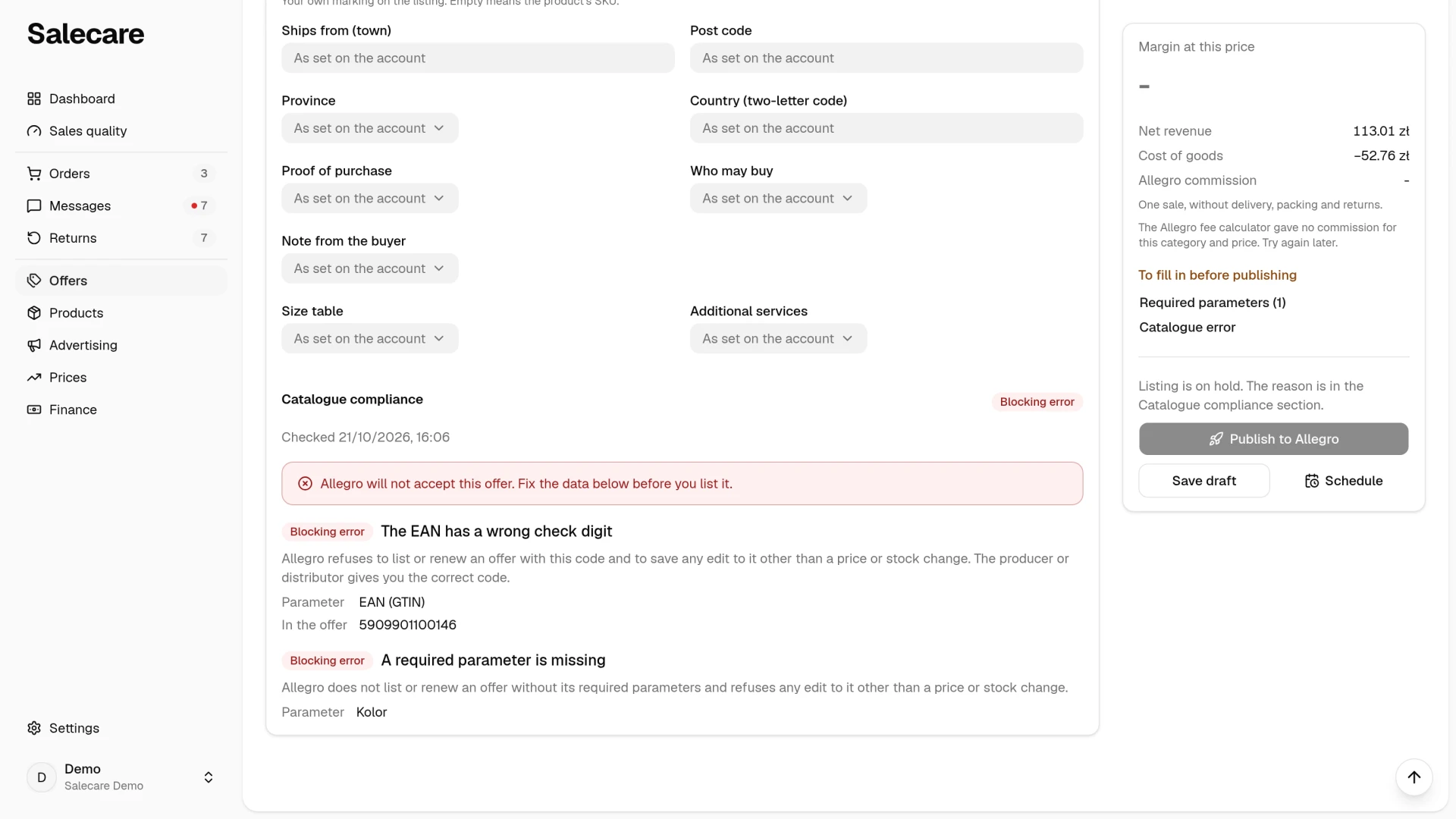
When something is missing before publishing, the card on the right says "To fill in before publishing" and names the Allegro account, the connection to the account, the title, the price, the category, the required parameters, the GPSR data, a setting the account lacks and a Catalogue error. This list changes as soon as you fill something in. The state in the header, for example "2 things missing", is the same state the draft has on the Drafts list, and it changes once you save the draft. It does not count the required parameters or the account settings, because the Drafts list does not check them. Clicking an item scrolls the page to the place in the draft where you fill it in, and the Delivery, returns and other settings card opens by itself. With several accounts ticked, each account lists the offer with its own delivery price list, after-sales terms, responsible producer and responsible person in the EU, so clicking such an item opens the settings of the account it names, that is the Default offer settings panel for the delivery price list and the after-sales terms, and the GPSR panel for the producer and the responsible person. A person without the Integrations (accounts, API tokens) permission then sees under the list that these settings need that permission. You pick the delivery price list in the draft's Delivery section or in the account's listing settings, because Salecare does not copy a price list from another offer. With no price list chosen, Allegro assigns the only price list on the account or the one named "default", and refuses the offer when there is neither. Of the after-sales terms saved on Allegro the offer takes the first. A producer registered in Allegro under the product's brand goes into the offer by itself, and a product without a brand gets the producer saved on the account. You enter the product safety information in the draft or set a default on the account. You pick the responsible producer, and for a producer with an address outside the European Union also the responsible person in the EU, in the GPSR block while one account is ticked. The Publish to Allegro, Save draft and Schedule buttons are in the card on the right under the list of what is missing, and Publish to Allegro stays inactive while no account is ticked or a Catalogue error blocks the listing.
On a phone the Parameters and Description cards are folded and say under the title what they hold. Click a card's title to fold or unfold it. The margin, the Publish to Allegro button and the More menu stand in a bar at the bottom of the screen, and Save draft and Schedule are in that More menu. It is the only More menu on a phone, because it also takes the less frequent draft actions of the More menu in the header.
The less frequent actions of a draft are in the More menu in the header. They are Regenerate, Save as Allegro draft, Update listing, Link to an active offer and Delete draft. Deleting asks for confirmation, and when the draft has a live offer on Allegro the dialog lets you end it at the same time. After deleting you land on the Drafts list.
Scheduling the publication
You publish a draft right away with the Publish to Allegro button. If the offer should start later, click Schedule in the card on the right and pick the date and time, in Polish time, in the Schedule publishing window. When the draft's category has an order history, the window suggests the day and hour it sells most often. Salecare then lists the offer at that time on the ticked accounts, after the same checks as when publishing right away, even when the account's automatic publication is off. When you cancel the publication, the draft is not listed automatically until you set a new date.
Listed offers and AI sources
Once an offer has gone out from the draft, the card on the right shows a Listed offers list. Each row gives the account, the offer number with a link to Allegro and the state of the offer. The Update button opens the same window as the Update listing item in the More menu, and End ends the offer on that account. When Allegro did not accept the last update, the row carries the sentence "Allegro did not accept the update of …" with the date. The Details link opens an Offer no. … panel with the rest of what is known about that offer, among others the reason for a refusal when Allegro gave one.
Under the card is the Where the AI got the data link, only on a draft the AI wrote. It opens a panel that holds your hint, the links from the sources and the skipped links, the list of sources and the steps of the generation. There you can check what the AI based the title, parameters and description on. A page found on the web reaches the AI and the list of sources only when it is about this product, that is when it gives its EAN code or its brand together with words from the product name. Company registries and contact-finder sites are left out, and so are the Blocked domains from the AI listing settings. When no page on the web is about the product, the AI writes the draft from the Allegro catalogue and your data, and the list of sources has no web pages.
Catalogue compliance
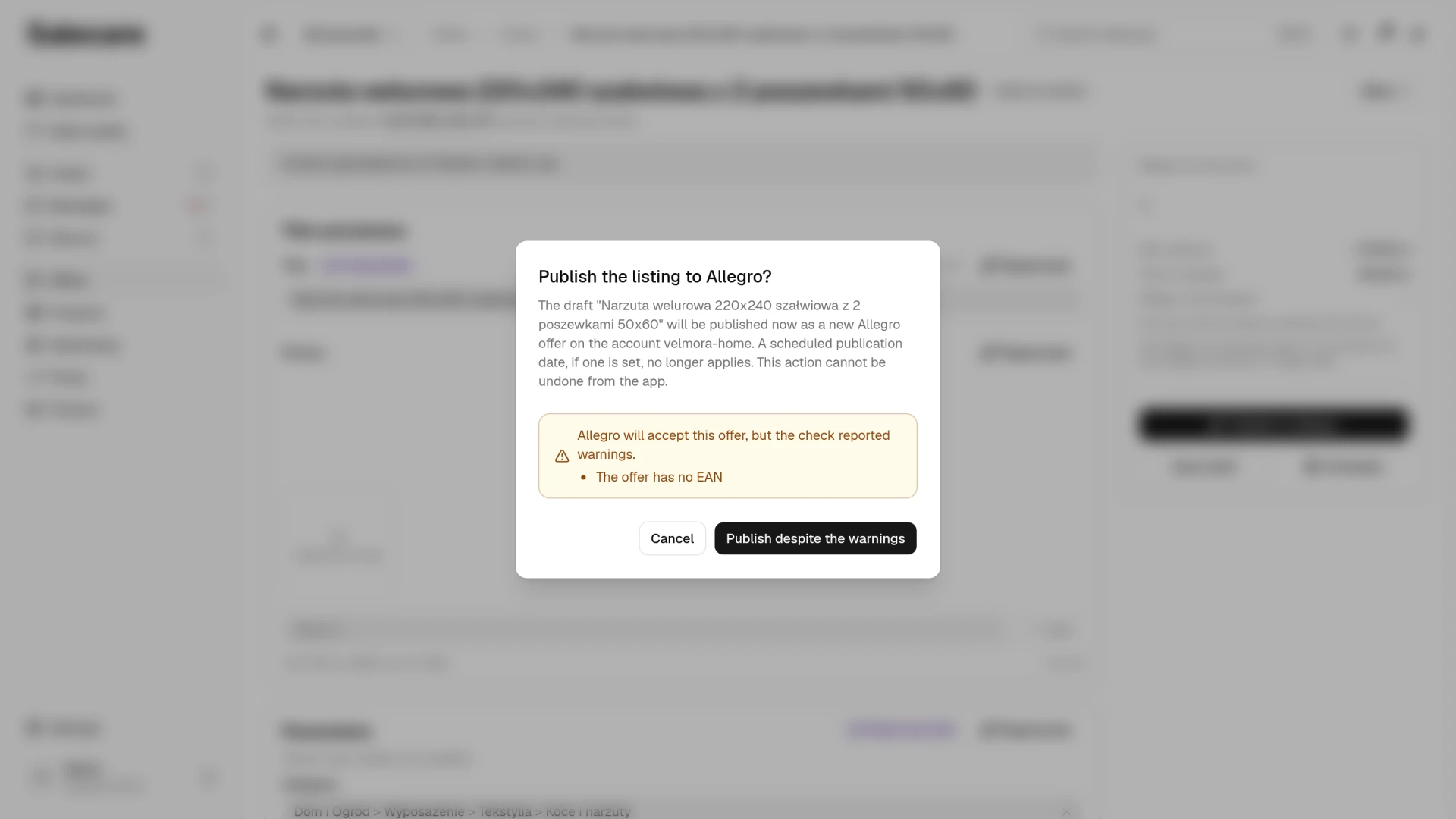
Catalogue compliance is a section in the Delivery, returns and other settings card, which opens by itself when an error holds the listing. In it Salecare checks the draft the way Allegro checks an offer when saving it, once the draft is created, after every save and once more right before sending. A blocking error, such as a wrong EAN or a missing required parameter, puts the listing on hold, because Allegro would not accept such an offer anyway. The Publish to Allegro button is then inactive, with the reason beside it. Salecare does not compare the category of a draft linked to a catalogue product with the product, because such a draft reaches Allegro without a category and Allegro picks the category itself. When Allegro refuses the listing or lists errors when saving an Allegro draft, the errors only Allegro named are added to this section but do not disable the button. The fix can lie on Allegro's side, in the catalogue product data for example, for which you send Allegro a change suggestion. Salecare checks the draft again before the next attempt. Warnings, such as a missing EAN on a draft not linked to a catalogue product, do not hold the listing. The publish dialog names them, and its confirm button is then Publish despite the warnings. An EAN different from the catalogue product code and a title without the product brand are only notes, because Allegro allows such offers, so the publish dialog does not ask about them. Save as Allegro draft always works, even with a blocking error, because Allegro saves an inactive offer despite its errors and only lists them. When the draft changed after the last check, the section says the result refreshes in a moment. What exactly counts as a blocking error and what as a warning is explained in "How to match Allegro offers to products".
Step 4. When Allegro rejects a publication
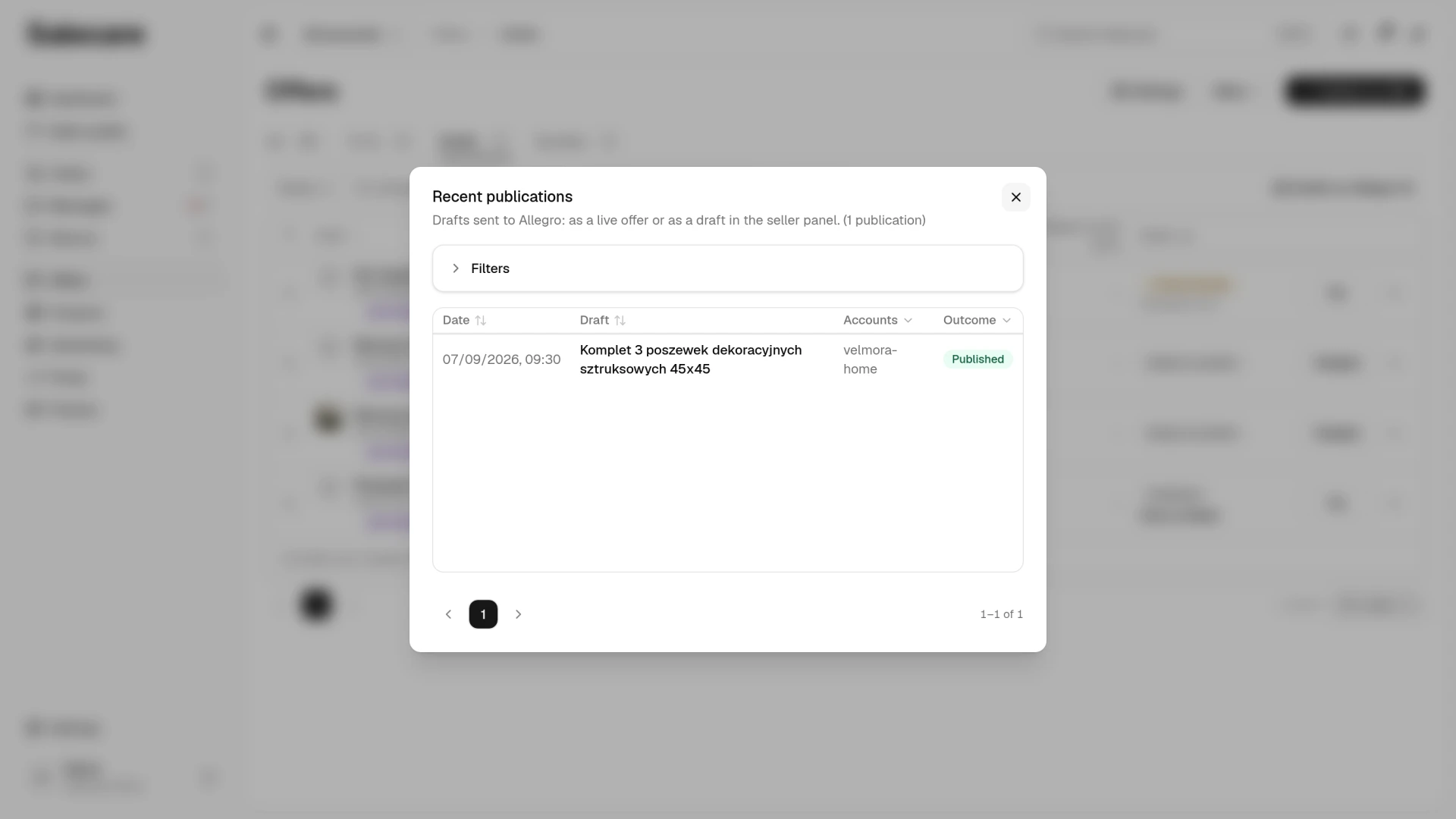
Sometimes Allegro says no anyway. The draft list then shows the "Rejected by Allegro" badge and the first reason for the refusal beside the draft, and the draft page names every reason from Allegro's response in a banner you close once you have read it. You fix the problem named and publish again, with no guessing about what went wrong. Sometimes Allegro takes the offer for a check and refuses it only a moment later, for example when the EAN code does not exist in the GS1 database. Salecare follows that check, and the reason for the refusal shows in the banner on the draft page and in the bell. Such an offer never went on sale, so Salecare deletes it from Allegro, also when it was a draft saved on Allegro earlier, and you publish the fixed draft as a new offer. When Allegro refuses because the offer does not match the catalogue, a category outside the product category, a wrong EAN or a missing required parameter for example, the refusal also lands in the Catalogue compliance section, naming every problem Allegro reported and not only the first. The errors Allegro listed when saving an Allegro draft land there the same way. None of them holds the next listing attempt, because Salecare checks the draft again before sending it. The latest publication result of each draft, successes and rejections alike, is in the Recent publications window. It does not show earlier attempts of the same draft or drafts that were deleted. On a phone the publications in the window are rows of a list, the reason for a rejection stands under its row, and you pick the order in the menu above the list.
When the product is already on sale
If the product already has an active offer on Allegro, for example one you listed by hand earlier, link the draft to it instead of listing a second offer of the same product. In the header of the draft, open the More menu and pick Link to an active offer. The item appears when the draft's product has an active offer the draft is not linked to yet. In the window you pick the offer from the list, each one with its account, offer number and price. Linking sends nothing to Allegro, and the offer stays as it is. From then on Publish to Allegro adds no second offer of this product on that account, and Update listing carries the ticked parts of the draft over to it. A draft has one listing per account, so when it already has a listing on the account of the offer you pick, the window warns you. That listing stays on sale as it is, but the draft stops updating it.
The Update listing window asks which parts of the draft go. The selling price starts unticked there, because it would replace the price the offer has on Allegro now. When the ticked price does not cover the purchase cost and the commission, the window states the loss on one sale and the button changes to Update despite the loss, so the offer changes its price only once you confirm. When no margin can be worked out, the price update is not checked. The same holds when a person without the Margins and purchase prices (view) permission updates the offer. When their price reaches the offer and does not cover the purchase cost and the commission, Salecare notifies the owner and the people with that permission, and not them. When you update one offer, the title and the price of the offer as of the last sync with Allegro stand under the list of fields, next to what the offer will show after the update. A field you leave unticked stays on the offer as it is. For a draft in the auction format the window does not offer the price, because an auction's price is its starting price.
On the offers list, the row menu of an offer matched to a product has Boost with AI. The AI then writes that product's draft again from the offer on sale and links the draft to that offer. Nothing reaches Allegro until you use Update listing. The generation is paid from the AI wallet. When the product already has a draft, Salecare asks first, because the edits saved in the draft are replaced, and names the approximate cost. The accounts the draft was aimed at stay, and the boosted offer's account is added to them. Boost with AI needs the Pro plan or higher, and on a lower plan the item is not in the menu.
What next
Before publishing, sort out the photos. The guide "How to make a white thumbnail background and Studio AI photos" shows how to do it without a designer. And once you have a lot of drafts, see "How to list and end offers in bulk". How to set a publication date on a draft or switch on automatic listing of finished AI drafts at their category's best selling time is described in the guide "How to schedule automatic offer publication".