How to schedule automatic offer publication
Offer drafts can sit for weeks, because listing is always "I'll do it tomorrow". And even when you do click Publish to Allegro, you do it at a random time, often when your customers are not buying. Salecare can list finished AI drafts by itself, on the day and hour their category sells most often. You switch this on separately for each Allegro account, so the main shop can list on its own while the outlet stays in your hands.
You can also set the date yourself on the draft page when an offer should not start right away. The goods arrive from the wholesaler on Thursday or a collection premieres on Monday morning, and you want the draft ready today. At that time Salecare lists the offer for you, after the same checks as a click on Publish to Allegro.
Offer drafts prepared by the AI are part of the Pro plan and up. Automatic draft creation, which feeds automatic listing, starts from the Business plan.
Step 1. Open the account settings
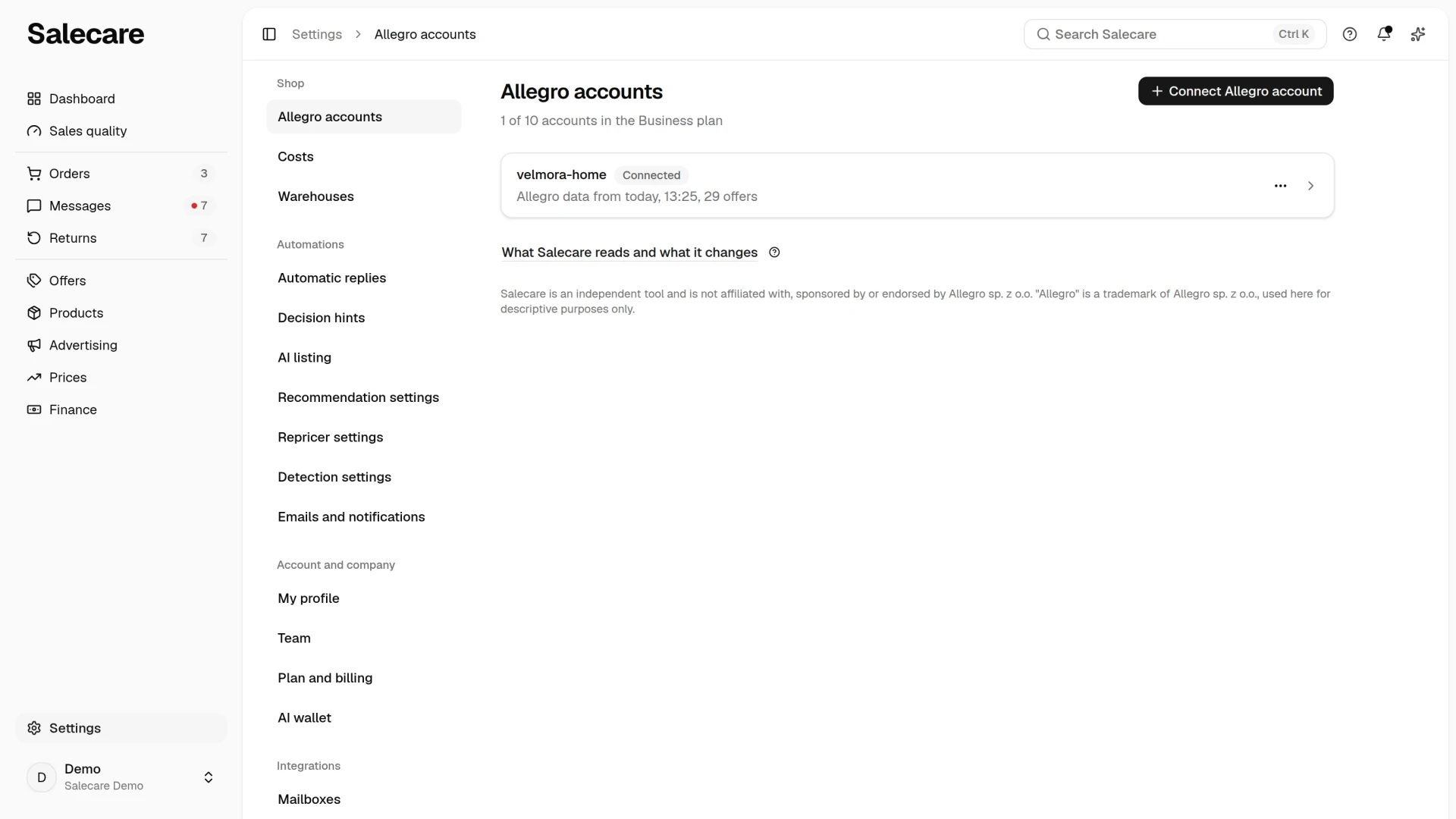
In Settings open Allegro accounts and click the account. The Allegro account settings open, every setting of that one account. Each of them applies only to it, and a second account has its own.
Step 2. Switch on automatic listing
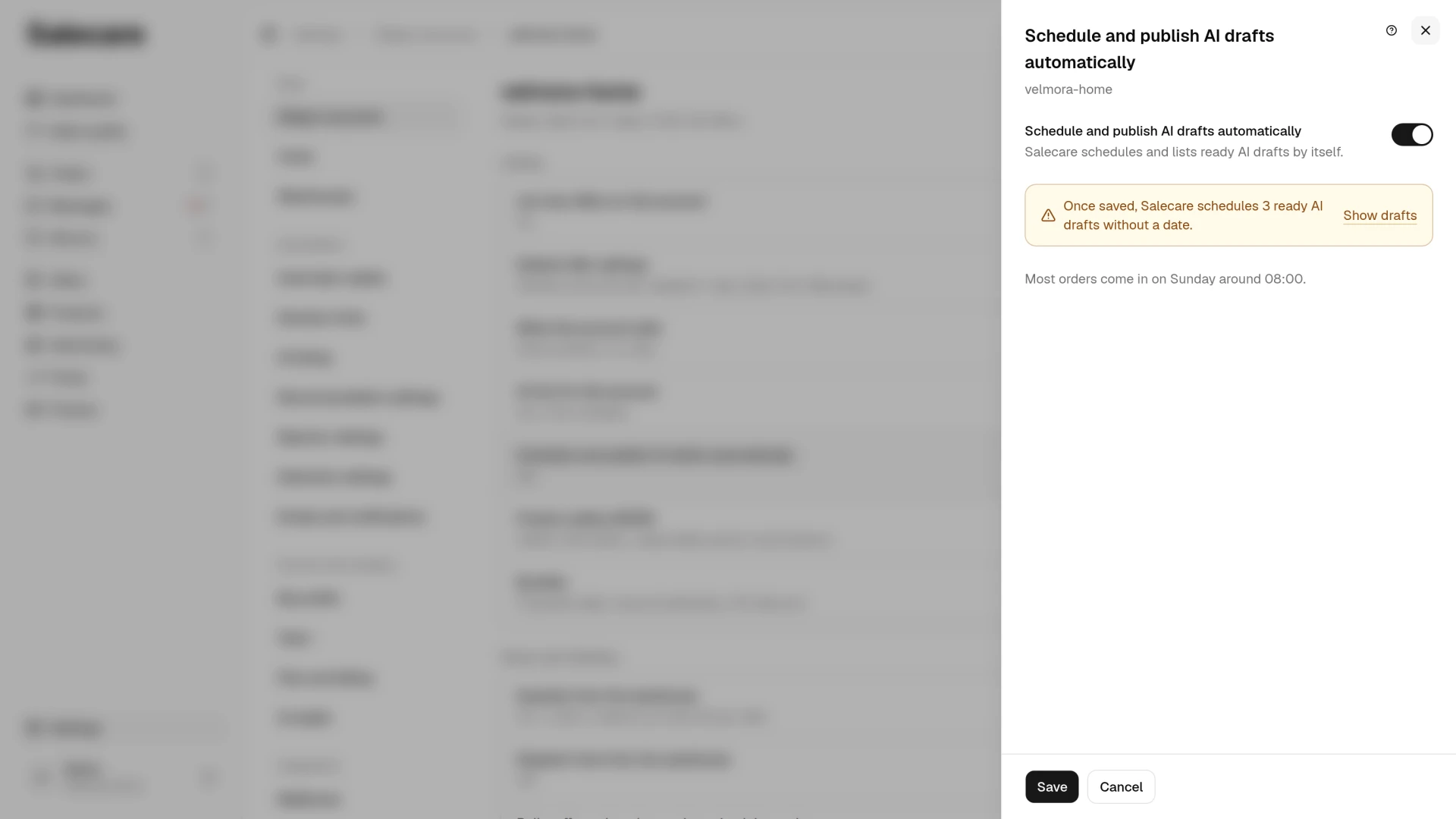
In the Listing group, in the Schedule and publish AI drafts automatically row, click Change and turn on the switch in the panel. The switch is off by default. Once it is on, Salecare books a ready AI draft aimed only at accounts with this option on for the day and hour its category's products sell most often. At that time it publishes the draft on Allegro. Salecare books ready drafts with no date every 15 minutes. A draft that also aims at a hand-run account waits for your decision, so nothing lists there without you.
At the first pass after you switch it on, Salecare books every ready AI draft with no date that aims only at accounts with this option on, including the ones that have waited for weeks. They have the prices and content of the day they were made. Once you flip the switch, the panel says how many ready AI drafts with no date Salecare books after the save, and the Show drafts link opens their list. Review them before you save. Delete a draft you do not want to list, or untick this account in the Allegro account field of its Price and quantity section.
The Save button in the panel asks you to confirm first, because automatic publication lists offers on Allegro without asking for confirmation. The confirmation says how many drafts the next run books. Publication creates a new offer from the draft, so the new offer has none of the history of this product's other offers and goes through GPSR verification. The switch changes nothing until you save the panel.
Which accounts the drafts go to when you have several
AI drafts created automatically, from the import and from products without an offer, go to every account with the List new offers on this account row on in the Listing group, unless you set the accounts' assortment. That setting is on by default on every account. With that row off, Salecare does not select the account by default when drafts are created and does not aim automatic drafts at it. A single draft can still be listed on that account by hand. So if you switch automatic publication on only for the main shop while the outlet has that option on and no assortment, every such draft also aims at the outlet and waits for your decision, and nothing lists on its own. With no assortment rule the account takes every product. For the main shop to list on its own, turn the List new offers on this account row off on the outlet, or give the outlet an assortment in the What this account sells row. Both changes apply to new drafts. In the drafts already waiting, untick the outlet in the Allegro account field, in the Price and quantity section. While publication is on, the panel shows how many drafts wait because they also aim at an account without automatic publication.
If you turn the switch off on one of the draft's accounts after it was booked, the automatic booking stays on the draft, but the offer does not go out until you turn the switch back on.
Step 3. Check when Salecare lists
Under the switch the panel gives the day and hour when the whole company gets the most orders, for example "Most orders come in on Tuesday around 18:00.". It counts orders, not revenue. This hint appears from the first order, so with only a few orders it is just an approximation. When the company has no order yet, that place says "Not enough sales history to suggest a time yet."
Salecare works out the draft's own date more precisely, by the product's category, because cushions and electronics sell at different times. This is the category saved on the product, the Category field on the product card, not the category the AI picked for the draft. Only orders from offers matched to products of that category count, and the category needs at least 3 such orders. When the product has no category or its category has fewer orders, the draft is booked for the present moment and published right away, with no time badge. Such a draft has no proposed time on the drafts list either.
You see booked drafts on the Drafts tab of the Offers page. The Status column shows a "Scheduled for" badge with the date and time of the booking. The "Best selling time in the category" sort in the Status heading menu orders the list by weekday. The field of the same name in the Filters panel narrows the list to the weekday you pick.
Step 4. What Salecare checks before publication
Salecare checks for due dates every 5 minutes and lists the offer on the ticked accounts as if you clicked Publish to Allegro. Before sending, it checks the draft the same way as the Catalogue compliance section, and also the account settings, the responsible producer and the limit of two offers of the same product in condition "New". A draft with a blocking error does not go out, because Allegro would refuse such an offer anyway. It then gets the "Rejected by Allegro" badge with the reason, and the bell shows the "Scheduled offer publish failed" notification. Salecare does not book such a draft again by itself, so once you fix it, you publish it by hand or schedule it again.
A refusal can hit only some of the accounts, for example when one of them has no responsible producer or the product in condition "New" already has two offers. The offer is then created on the other accounts, the draft gets the "Published" status, and the reason for the refusal shows on the drafts list and on the draft page. The bell shows the "Scheduled offer not created on some accounts" notification with the names of the accounts the offer was not created on. Once you fix it, you list it there with the Publish to Allegro button, which adds an offer only where there is none yet. Both notifications also come by email when the Offer drafts topic is switched on on the Emails and notifications page. At most one email a day comes for each of the two reasons.
The date waits when it cannot be carried out safely. When the product's tracked stock has run out, Salecare does not book the draft and a booked offer does not go out, so you do not sell goods you cannot ship. The same happens when the Quantity from the warehouse row is on for every account of the draft and the stock is no higher than the account's reserve, because the offer would show 0 units. The draft is booked or listed at the first check after the stock is back. When at least one account of the draft can show the goods, the offer is created there and the other accounts get the reason for the refusal. A draft with no account ticked waits the same way, until you tick an account.
Automatic publication does not list a draft whose price does not cover the purchase cost and the Allegro commission either. If that is so at publication time, Salecare does not publish the draft, because there is nobody to confirm the sale below cost. The draft returns to "Not scheduled", and the drafts list and the draft page show the reason "Automatic publication skipped this draft because its price does not cover the purchase cost and the Allegro commission, so every sale would make a loss. The draft waits for your decision. Once you change the price, automatic publication books it again. You can also publish it from the draft page, confirming the sale below cost."
Automatic publication skips in the same way a draft whose margin Salecare cannot work out, for example when the product has no purchase price, uses the estimated cost of goods, or the Allegro fee calculator gave no commission. When only the commission is missing and the price does not cover even the purchase cost, the draft is skipped as an offer at a loss. The draft returns to "Not scheduled" with the reason and waits for your decision. Enter the purchase price on the product card, then publish the draft or schedule a date on its page. Once you change the price, automatic publication books it again. The calculation covers only the purchase cost and the Allegro commission, without delivery, including the fees for Allegro Smart! deliveries, advertising and returns, so an offer that passes it can still make a loss.
Step 5. Set the date yourself
Go to Offers, open the Drafts tab and open the draft. In the Price and quantity section, in the Allegro account field, tick the accounts the offer should appear on. Scheduling saves the ticked accounts on the draft. A draft with no account ticked cannot be scheduled, because it would have nowhere to go. The offer goes out on the accounts the draft has ticked at publication time. So when you change the accounts after scheduling and click Save draft, you also change where it is published.
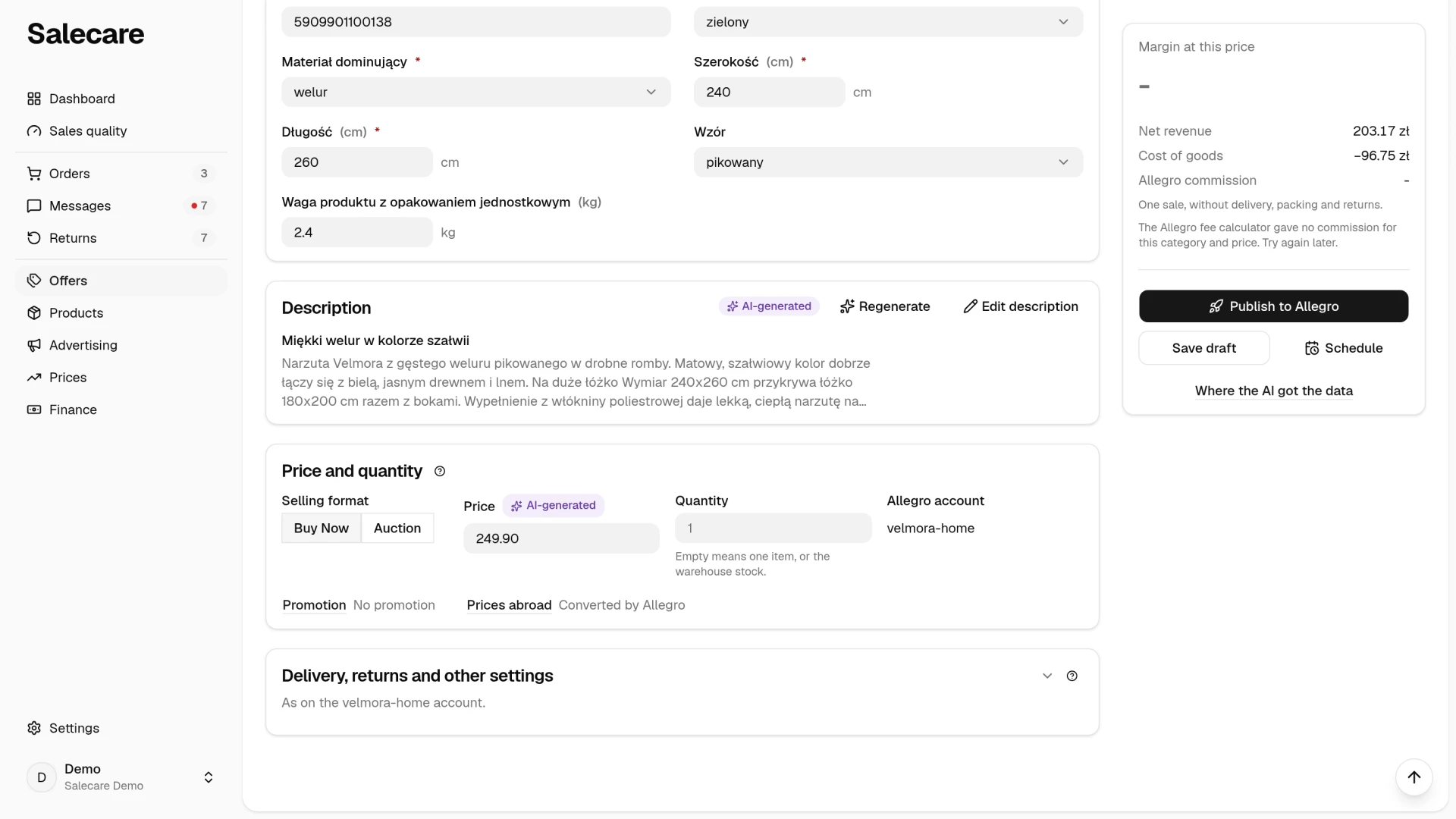
On the draft's page, click Schedule in the card on the right. In the Schedule publishing window, pick the date and time and click Schedule. When the draft's category has an order history, the window already holds the proposed time when that category sells most often. The time must be in the future and counts in Polish time. The date is saved apart from the offer's content, so save content changes with the Save draft button. The scheduled date shows in the card under the buttons.
When the price saved in the draft does not cover the purchase cost and the Allegro commission, the button in the Schedule publishing window is called Schedule despite the loss, and the window gives the loss on one sale. The click confirms the sale below cost at that price, with no separate confirmation window. Once the price changes, the confirmation no longer applies. A person without the Margins and purchase prices (view) permission does not see the loss and schedules the publication without this check. When such a person changes the price of a scheduled draft, the offer also goes on Allegro at the new price without the check. When the offer goes on Allegro at the scheduled time at a price that does not cover the purchase cost and the commission, the owner and the people with that permission get a notification in the bell and an email from the Offer drafts topic. The person who scheduled the publication or changed the price does not get them.
Salecare carries out a date you set on the ticked accounts even when the account's automatic publication is off. The same goes for an automatically booked draft whose date you change on the draft page. From then on it is your date and no longer depends on the account's switch.
Step 6. Cancel or move the date
You cancel a scheduled date on the draft's page. Open it from the Drafts tab and, under the buttons in the card on the right, click Cancel publication next to the date. The button shows while the draft is waiting for its scheduled publication. The draft then gets the "Publication cancelled" status, and the card says "Publication cancelled." Without a new date the draft will not be listed automatically. Automatic publication skips such a draft, and you schedule it yourself or publish it by hand when you decide it is ready. On the drafts list you find such drafts with the Publication filter and its "Publication cancelled" option.
To move the date, pick a new one and click Schedule again. The Publish to Allegro button works all the time, so you can publish a scheduled draft right away without waiting for its date.
Offers with no sales
You find offers with no sales on the Offers page once you tick No sales in 30 days only in the Filters panel. The list shows active offers listed at least 30 days ago that sold nothing in that time. Salecare does not end them. An offer ended and listed again loses its number, its history and its place in campaigns, and the new one starts with no popularity. So improve the title, photos, price or parameters in the offer editor or with the Boost with AI button, and the offer keeps its number, history and popularity.
What next
Automatic listing publishes what is already waiting in the drafts. To have the drafts made automatically too, see the guide "How to switch on automatic offer drafts for new products". How the draft itself is made and what Salecare checks before listing is described in the guide "How to list an offer on Allegro with AI (offer drafts)". And before offers start going out on their own, make sure the prices have a lower limit. See the guide "How to set up a repricer that never goes below your margin".