How to switch on automatic offer drafts for new products
A single wholesaler import can add hundreds of new products, and every one of them then waits to be listed. In practice some of them never go on sale. Products without offers earn nothing, and writing offers by hand for a whole catalogue is weeks of work. In Salecare the AI can prepare offer drafts by itself, within the limits you set.
Unattended AI drafting, which is what this guide sets up, is part of the Business plan and up. AI drafts asked for with your own click are available from the Pro plan. On a lower plan both automations can still be turned on, but each carries a padlock naming the plan it starts working on, and until then nothing changes.
Step 1. Open AI listing
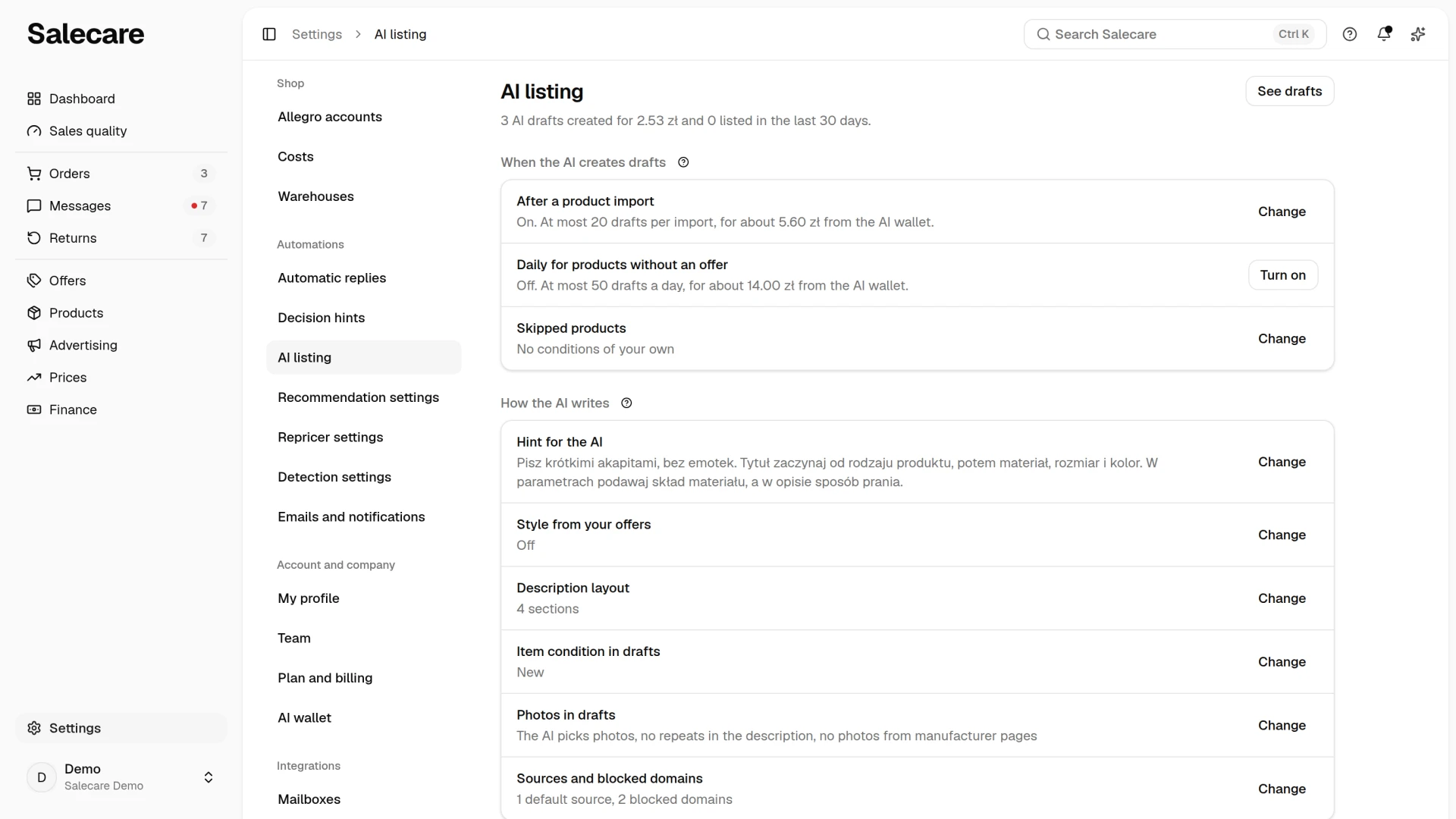
In Settings open AI listing. The Settings button in the header of the Offers page opens the same page. The When the AI creates drafts group holds two automations, After a product import and Daily for products without an offer, and the Skipped products row. Each automation shows whether it is on, its draft limit and its cost from the AI wallet. The line under the title says how many AI drafts were created in the last days, what they cost and how many of them were listed, and the See drafts button opens the Drafts tab on the Offers page. The AI listing page is also reached from the Listing with AI link in the footer of the Drafts tab, shown to a person who can open settings. The sentence above it says when AI drafts are created, meaning after a product import, for products without an offer, in both cases or only when you ask for them.
Step 2. Turn on drafts after an import and set the limit
The Turn on button in the After a product import row starts the automation that runs after an import. Turn on only saves the setting, and Undo in the confirmation message restores the previous state. Drafts are made and paid for only at the next import. After every product import the AI prepares an offer draft for the new products, up to the limit of drafts per import. The limit starts at 100. The Change button on an automation that is on opens a panel with the switch and the Most drafts per import field, and the sentence under the field says what that costs from the AI wallet. A value of 0 means no limit. Past the limit, the remaining new products in that import are skipped. The switch in the panel turns the automation off, and Save stores the changes in the panel.
The automation skips a product whose Active switch is off and a product whose tracked stock has run out, because such a draft could not be listed anyway. It also skips a product you already sell in an Allegro offer that has not ended. It recognises such a product in two ways. The first is the EAN code on the offer, including an offer not yet matched to a product. The second is the offer's match to the product, for example when an offer without an EAN code carries the product's SKU as its signature.
Every draft is a paid search charged to the AI wallet, which is why both automations are off by default. When the AI wallet is empty, this month's AI charges have reached the monthly spending limit or the welcome bonus is on hold, the automation orders no draft after an import. Those products are left without a draft. If you turn on the automation for products without an offer from step 3, it covers them once the wallet can pay again. When the wallet runs out while the drafts are being prepared, the drafts the funds did not cover get the "Could not be prepared" badge on the Drafts tab. The daily check prepares them again, and when that automation is off you generate them yourself with Regenerate in the row menu on the Drafts tab. Start with a smaller limit and check how much the automation really uses. The draft charges show on the History tab of the AI wallet page. With the limit at 0, the simplest safeguard is the Monthly AI spending limit on the same page. Once that limit is reached, both automations order no drafts until the 1st of the next month or until you raise the limit.
Step 3. Turn on the separate automation for products without offers
The Daily for products without an offer row is a separate automation for products that have no offer at all, with its own limit in the Most drafts a day field. You turn it on the same way, with Turn on, and change the limit in the panel behind Change. The limit starts at 50. This automation clears the backlog. The AI works through the part of the catalogue that has had no offers so far. The check runs once a day, around 6:30, and the limit applies to one such check. Past the limit, the remaining products without offers wait for the next check, and 0 means no limit. If you turn it on in the afternoon, the first drafts appear the next morning.
A product without an offer is an active product that has never been matched to any of your offers, ended ones included, and that has no draft and never had one, deleted ones included. Its EAN code must not be on any of your Allegro offers that have not ended either, so a product sold in an offer not yet matched to it gets no paid draft. A product whose matched offer has ended will therefore not get a draft from the automation. Resume that offer or prepare a draft by hand. A deleted draft does not come back either. Create a new one by hand. The exception is a draft the AI did not prepare because the AI wallet could not pay for it. Such a draft carries the "Could not be prepared" badge on the list, and the daily check prepares it again once the wallet can pay. A draft with an error for any other reason you generate again yourself, with Regenerate in the row menu on the Drafts tab.
A product whose tracked stock has run out and a product whose Active switch is off are skipped too. So is a product added with From EAN codes with AI in the Add products menu while the AI is still filling it in, and a product marked "Generation failed" that still has the bare EAN code as its name. A finished product added this way gets a draft at the next daily check, so review it before then.
When either automation starts preparing drafts, a notification with their number appears under the bell. For drafts after an import, it goes to the person who started the import or set up the automatic import, and for drafts from the daily check, to the person who created the company's Salecare account. An e-mail arrives when the Offer drafts topic is on on the Emails and notifications page. The notification comes the moment the drafts are ordered, so some of them may still be in preparation.
Step 4. Exclude products the automation should leave alone
The Change button on the Skipped products row opens a panel with your conditions, and the row says how many you have. Click Add condition and choose a product field, a condition and a value, for example category contains "Outlet". A product that meets any of the conditions gets no draft automatically, neither after an import nor from the daily check. The exclusion applies before the limit, so an excluded product takes no place in the limit. With a wholesaler file of thousands of lines, it is the simplest way not to pay for drafts of products you will not list anyway, for example from a category you do not sell, or one brand. Generating a draft for such a product by hand still works. The conditions take effect once you click Save in the panel. A sentence in the panel reminds you that Salecare always skips inactive products, products whose tracked stock has run out and products already on an Allegro offer that has not ended.
Step 5. Tell each account which assortment it sells
On the AI listing page you only set whether drafts are created, not on which account. A draft from the automation is meant for the accounts you list new offers on, and that is set in Allegro account settings. If you run several Allegro accounts with different assortments, tell each of them what it sells. In Settings open Allegro accounts, click the account and, in the Listing group, click Change on the What this account sells row. The rules read product fields, for example category contains "Tyres" or warehouse is "Fashion". One matching rule is enough for a product to go to that account. An account with no rules takes every product no other account took. When every account has rules and none wants a given product, the automation skips it and charges nothing to the AI wallet. Without rules the behaviour does not change, so with one account there is nothing to set here. In the same account settings, on the AI hint for this account row, you write a hint for the drafts meant only for that account, and the panel also shows the company hint with a link to change it. A draft for several accounts uses the company hint, because one description cannot have two styles at once. With the field empty the draft uses the company hint too. The guide "How to set the style and sections of AI descriptions" covers it.
The automation only considers accounts connected to Allegro whose List new offers on this account row is on, in the same Listing group. An account with that row off gets no automatic drafts, even when it has rules, and takes none of the products other accounts left. When no account lists new offers, the draft is still created and paid for, but it points at no account. Automatic publication therefore does not cover it, and you pick the account yourself on the draft.
Step 6. Review the drafts before publishing
The drafts created land on the Drafts tab of the Offers page and wait for your review, corrections and approval. The state switch above the list splits them into Ready, To complete and Rejected by Allegro. A draft goes to Ready when it has an Allegro account chosen, a title, a price, a category and product safety information, and the Allegro catalogue check found no blocking error. Creating drafts lists nothing on Allegro by itself. A draft goes out only when you click Publish, set a date for it or switch on automatic listing on the account.
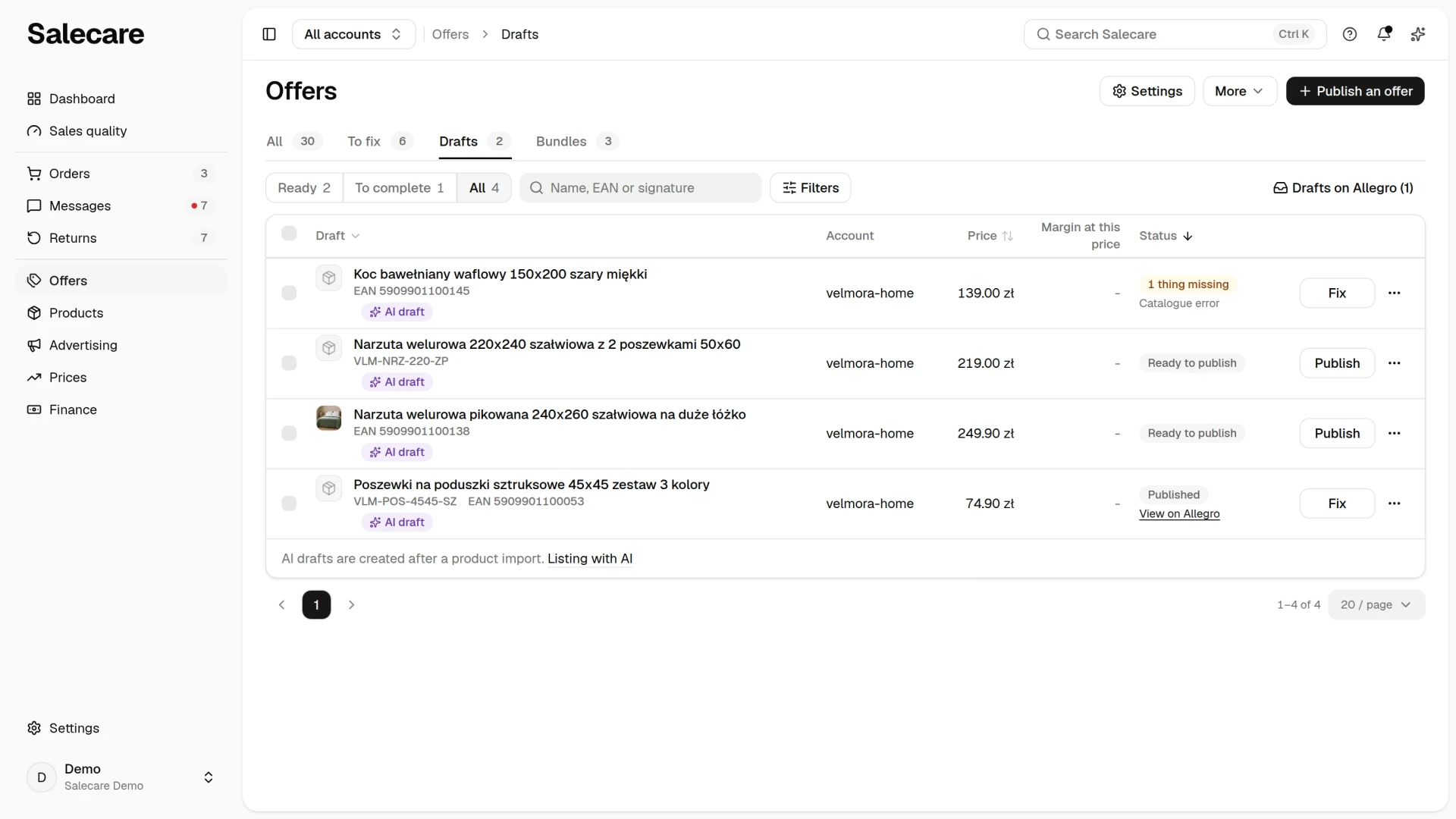
If you want finished AI drafts to list themselves at their category's best selling time, turn on the Schedule and publish AI drafts automatically row in Allegro account settings. It is off by default, and before saving Salecare asks and says how many ready AI drafts without a date the next scheduling run will plan. After that, automatic publication lists offers without asking you to confirm. When the product has no category, or its category has fewer than 3 orders, the draft goes out at once, without waiting for a time slot. New wholesaler stock often has no such history yet. A draft that also points at an account without this option waits for your decision. To avoid that, switch off List new offers on this account on the other accounts or give them an assortment. You can also set the date yourself on the draft, on the day the goods arrive for example. The guide "How to schedule automatic offer publication" describes both ways.
What next
The quality of the drafts depends on what the AI knows about your products and the tone it writes in. Set that once following the guide "How to set the style and sections of AI descriptions". And if new products enter Salecare from a wholesaler file, see the guide "How to set up an automatic wholesaler import".