How to update a live offer from a draft
A typo in the title, an old photo, a missing parameter. You usually notice the day after publishing, when the offer is already up and selling. Relisting it from scratch is the worst way out, because a new offer starts with no sales history, while the old one stays behind as a duplicate. In Salecare you carry the fixes from the draft over to the active offer, without starting over.
Offer drafts prepared by the AI are part of the Pro plan and up.
Step 1. Open the draft linked to the offer
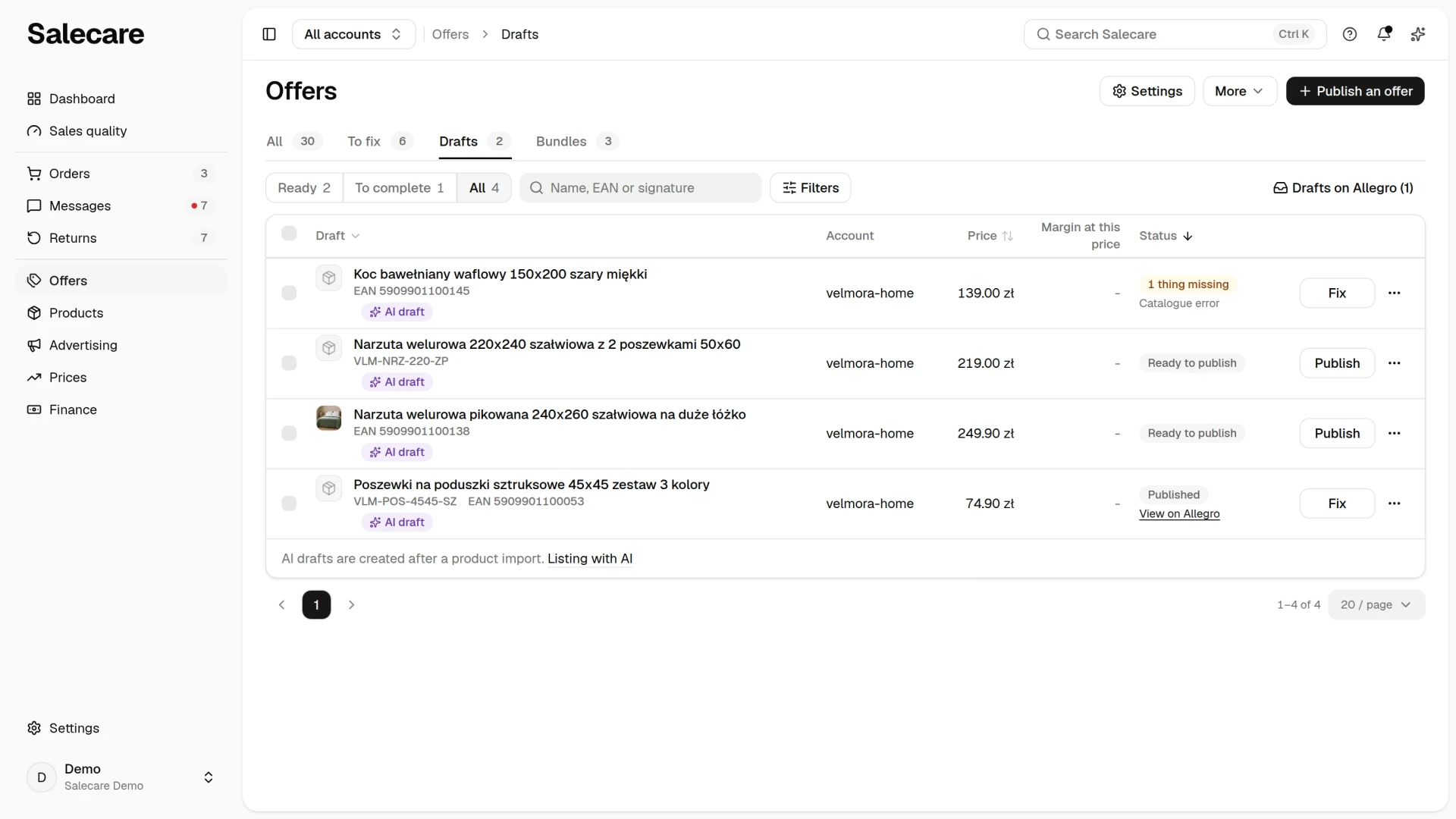
Every offer published from a draft stays connected to it. Go to the Offers page, open the Drafts tab and open the draft the offer was listed from. The list shows the current publication state next to each item. A draft may have offers published on several accounts at once, and the app shows that on the draft. The Drafts on Allegro button above the list serves a different purpose. Its number counts the unpublished offers on your Allegro accounts, up to 50, or only those of one account when you picked it in the Allegro accounts switcher at the top of the screen. An offer matched to a product can be imported to edit in Salecare, and an unmatched one has to be matched first. The button appears only when there are such offers.
An offer that did not come from a draft, one listed in the Allegro panel or by a wholesaler's software for example, can get fixes from a draft too. On the Offers list, the row menu of an offer matched to a product has Boost with AI. The AI then writes that product's draft again from the offer and links the draft to it, and the generation is paid from the AI wallet. When the product already has a draft, open it and pick Link to an active offer in the More menu in the header. Linking sends nothing to Allegro, and the Publish to Allegro button then adds no second offer of this product on that account. Both ways are described in "How to list an offer on Allegro with AI (offer drafts)".
Step 2. Make the corrections in the draft
In the card on the right of such a draft you see the Listed offers list. Each row has the account, the offer number linking to Allegro, its state and the Update and End buttons. Details opens the Offer no. … panel with the rest of the offer's information.
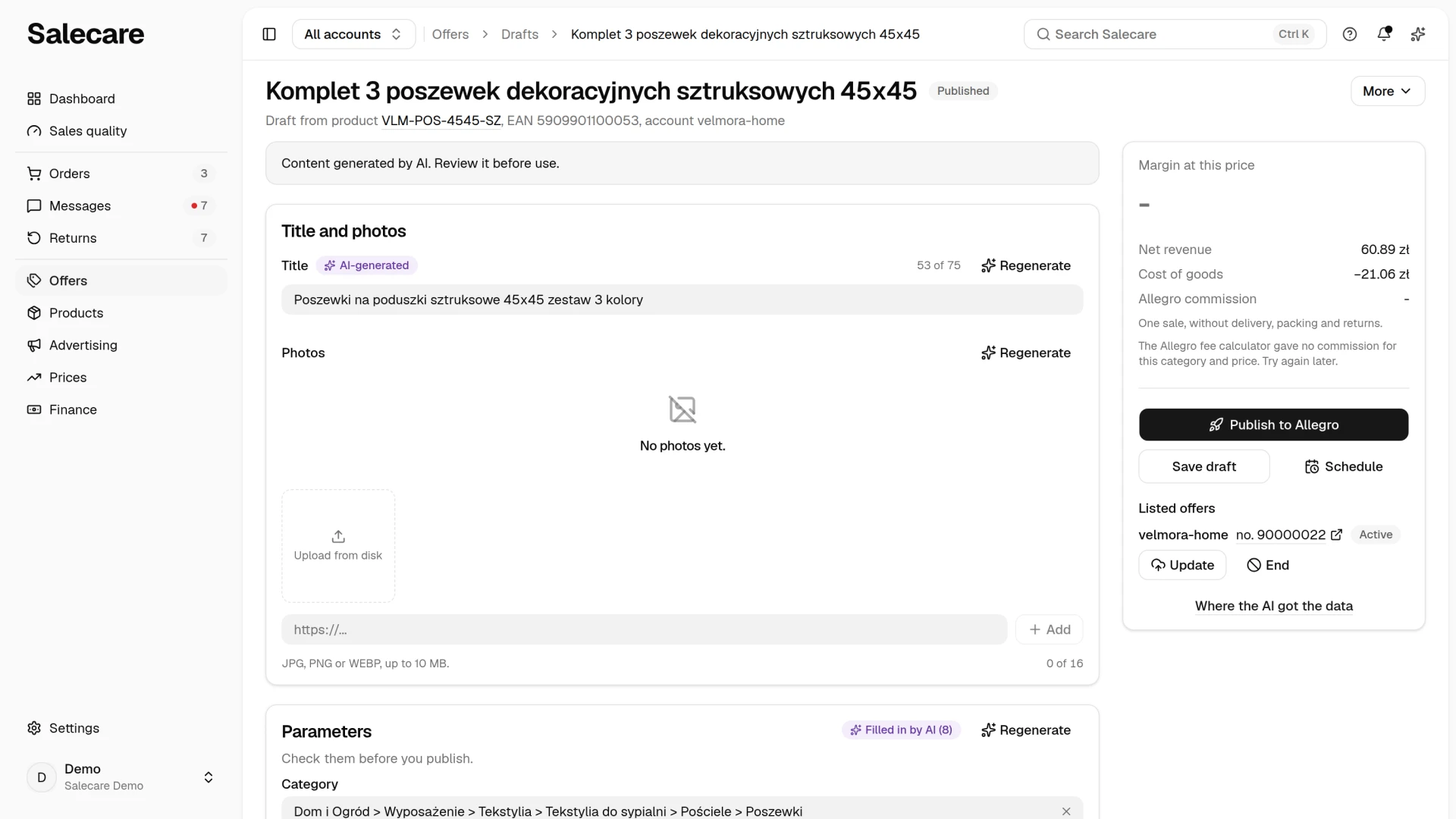
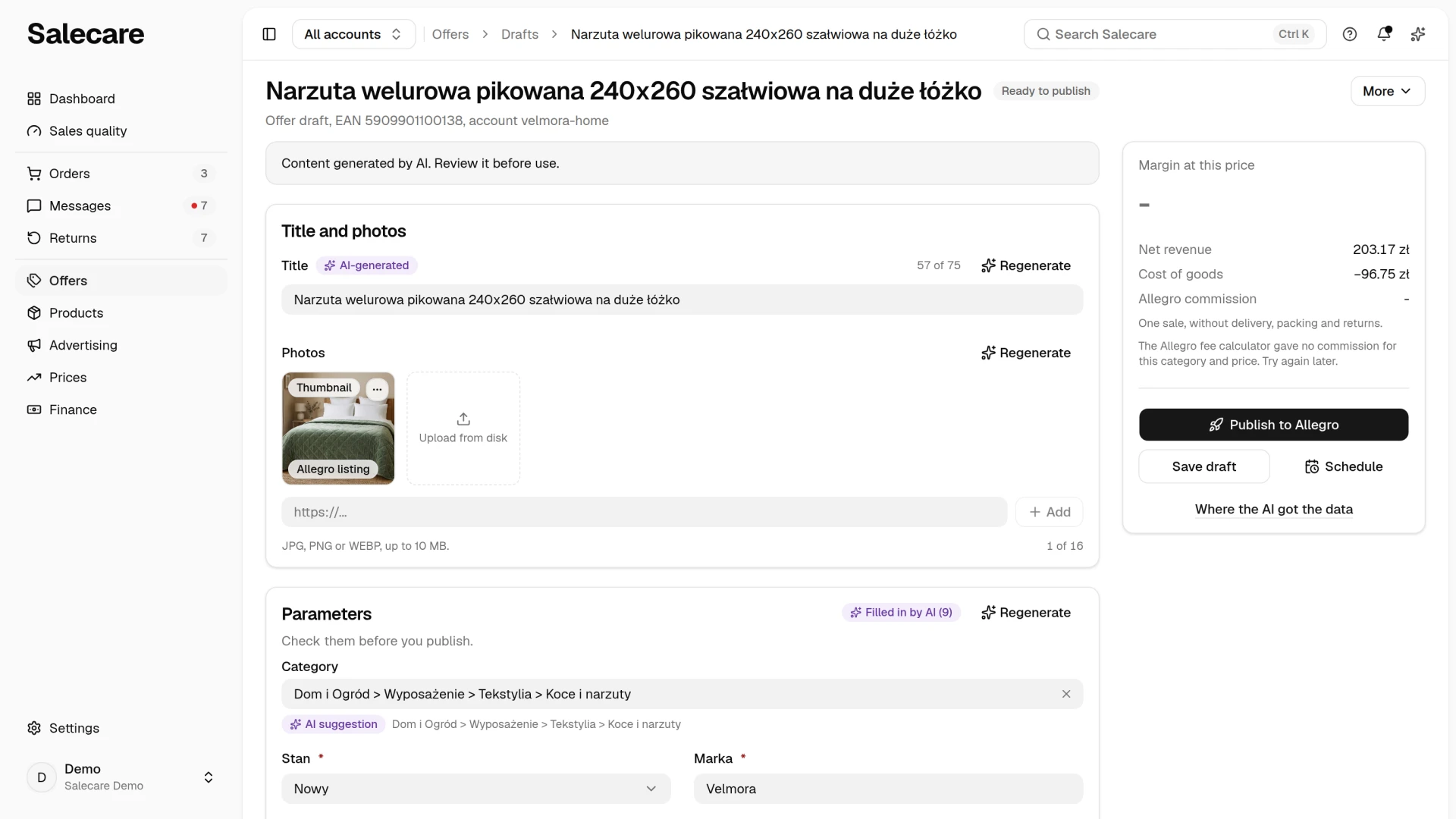
Correct whatever needs changing in the draft, for example the description, the photos or the parameters. You edit it the same way as before the first publication. Changes saved in the draft do not change the offer until you decide to update it, so you can take your time. Salecare saves unsaved changes in the draft before it sends the update, so the offer gets what you see in the draft. When the save fails, the offer does not change and the fields show what to fix. Allegro fetches photos from the internet, not from your disk. Photos you add in the draft are kept by Salecare at a public address, so Allegro can fetch them. A photo whose address does not lead to the internet, from a broken wholesaler file for example, is skipped by the update and the rest of the gallery is sent, and when every photo is like that, the offer's gallery does not change.
The update does not change the offer's category. The parameters reach the offer by the category it sits in on Allegro, so a parameter that category does not have is not sent. Allegro lets you change the category of an active offer only in the first 12 hours after listing, and after that only move the offer into its catalogue product's category. You make that move in the offer editor on the Offers list. On an offer linked to a product from the Allegro catalogue, the update changes only the offer parameters, Condition for example. The product parameters come from the Allegro product card and are locked in the draft, so you correct them only by reporting a change of that card on Allegro.
Step 3. Update the listing
Instead of publishing again, update the listing. You update the offer on one account with the Update button in its row of the Listed offers list. The Update listing entry in the More menu in the draft header reaches all the draft's offers at once, and with several accounts it reads Update listings. Salecare then applies the chosen parts of the draft to the active offer without relisting it. The sales history stays in place, and only the parts you tick change. The offer stays published throughout, so a fix does not pause sales even for a moment. Publishing again does not create a second listing on that account. It only adds a listing on accounts where the draft has no offer or its offer has ended.
Before anything is sent, the window asks "What to carry over from the draft to the listing", meaning which parts of the draft go to the offer. The choices are Title, Description, Photos, Parameters, Selling price, VAT rate and Listing settings. Everything but the price is ticked at first, and the unticked parts stay in the offer as they are. Listing settings are the settings the draft states itself, such as dispatch time, delivery price list, returns terms, shipping address and product safety (GPSR). They overwrite what the offer has on Allegro now, so untick them when you changed those settings on Allegro after publishing. Settings the draft does not state stay in the offer as they are. The update never changes the quantity, the promotion or the prices abroad. When you update one offer, the window also shows its title and price now and after the update. When the ticked title has fewer than 12 characters or three words, or the ticked price is 0, Salecare sends nothing, because Allegro would not accept the change, and the message says why.
Tick the price on purpose, because it replaces the price the offer has on Allegro now. When the ticked price does not cover the purchase cost and the Allegro commission, the window states the loss on one sale, and the button changes to Update despite the loss. Without that confirmation Salecare does not send such a price. A person without the Margins and purchase prices (view) permission does not see the loss, and their price goes to Allegro without this check. When Allegro accepts such a price and it does not cover the purchase cost and the commission, the owner and the people with that permission get a notification in the bell and an email from the Offer drafts topic. The notification names the offer, its new price, the price below which every sale loses money and the person who updated the offer. That person gets no signal about it. For an auction the window has no price, because the update does not change the starting price.
The whole update goes like this.
- Correct the draft and click Save draft.
- Click Update in the offer's row, or pick Update listing in the More menu.
- Tick the parts in the window that should reach the offer.
- Confirm with the Update listing button.
When Allegro refuses the update, for a photo it cannot download for example, the app shows the reason, and the offers on your other accounts are still updated. Allegro checks some changes, the description for example, after it has accepted them. The message then says that Allegro is still checking the change. If Allegro refuses it, the reason appears under the offer's row in the Listed offers list and in the notifications, and the offer keeps its previous content.
The draft is the handiest way to carry over a bigger fix, for example a sharpened description, photos replaced after a session in Studio AI or parameters that were missing, especially on several accounts at once. You can also make a single fix in the offer editor on the Offers list. The editor works on every plan and lets you undo the last change.
When you tick VAT rate, the offer gets the product's VAT rate or, when the product has none, the rate from the VAT settings for the category the offer sits in on Allegro. That category can differ from the draft's, because an offer bound to a product from the Allegro catalogue lands in that product's category. This is how a corrected product rate reaches an active offer, because a correction on the product alone does not reach an offer already listed. Only the rate for Poland changes, the rates for other countries stay. When the company is not registered for VAT, or no rate is stated anywhere, the rate on the offer stays as it is.
Corrections in the offer editor
You make a single correction in the offer editor on the Offers list, without a draft. The "?" next to a section of the editor opens this part of the guide.
The editor of a live offer has the same layout as the draft editor. The header names the offer, its state on Allegro, for example "Active", and a line "Offer …, account …" with the offer number and the account. Under it stand the sections Title and photos, Price and quantity, Parameters and Description, and a folded Delivery, returns and other settings card. On a phone the sections fold and the line under each title says what it holds. The Save to Allegro button in the card on the right (on a phone, in the bar at the bottom of the screen beside the margin) works only once you change a field, and it sends Allegro only the fields you changed. When you click Offers above the header or another menu item with an unsaved change, Salecare first asks whether to leave without saving. The More menu in the header opens the offer history in a window over the editor, so unsaved changes stay in place. It also has Generate all data (on a plan with AI), which fills in the whole offer with AI, and an entry that opens the offer in Allegro in a new tab. A person without the right to change offers sees the editor without the save buttons.
The title has at most 75 characters and the field counts them, for example "12 of 75". Allegro does not accept a longer title, so the save rejects it. Next to the Title, Parameters and Description sections, and next to the Safety information field, stands a Regenerate button, on a plan with AI. It refreshes only that section or field. You check the filled content and save it yourself, because the offer changes only after you click Save to Allegro. The photos are tiles, as in the draft. The first one, with the "Thumbnail" badge in its top left corner, is the offer thumbnail. You change the order by dragging a tile to another place, and the menu in the top right corner of a tile has Set as thumbnail, Move left, Move right, Remove background, Studio AI and Remove. A Studio AI photo goes into the gallery after its source photo, never becomes the thumbnail and is paid from the AI wallet.
The Margin at this price line in the same card is the margin of one sale at the typed price, worked out as on the draft, without delivery and fixed costs. The cost of the goods is the purchase price of the product matched to the offer (the price for the offer's signature first), times the units one sale takes. The commission is the rate Allegro's fee calculator gives for the offer's category at the price the editor opened with. A different typed price is worked out at that same commission rate. A person without the Margins and purchase prices (view) permission does not see this line.
Category
Allegro only moves a live offer into the category of its catalogue product, so there is no category picker in the editor. When the category matches the product, or the offer has no linked catalogue product, the editor offers no move, because Allegro will not accept another category. Nor does it offer one for an offer that sells a set of several products, because Salecare does not move such an offer. The Move to the product category button changes the category on Allegro at once, without saving the rest of the form. Salecare knows the product's category from the catalogue data it reads when it syncs offers, so for an offer just linked to the catalogue the button shows after the next sync. The category is the first field of the Parameters section. Parameters that describe the catalogue product carry the "From product card" badge, and you change them on the product card in Allegro, not in the offer. A parameter with a range of values, for example a width from 20 to 80 cm, has two fields, from and to. Fill in both, the smaller number first, or the save does not reach Allegro. When the parameter takes whole numbers only, Salecare rounds both to whole ones.
Photos
Photos marked "Web" come from the manufacturer's website and are that maker's work. Save them in the offer only when you have the right to use them, for example the consent of the manufacturer or wholesaler.
Price and quantity
Saving sends only the fields you change to Allegro. A new quantity is not saved when the stock on Allegro changed since the editor opened. The section shows the selling format and the Allegro account for reference only, because the offer editor changes neither, nor the promotion or the prices abroad. When the offer has a repricer rule that is not paused, a sentence under the price says the rule can change this price after the save. An Automat Allegro rule comes back to the offer within a few minutes of the save and Allegro sets the price within its range, and a Salecare repricer rule changes the price at its next run.
Product safety (GPSR)
Allegro stores the data required by the EU GPSR on the offer's catalogue product, so you can save it only for an offer linked to the catalogue. When the offer sells a set of several products, the section only says that you change this data on Allegro, because a save from Salecare would remove every product but the first from the set. For the same reason such an offer is not moved by Move to the product category, and an update from the draft leaves its GPSR data unchanged and says so after the save.
The Regenerate button next to the Safety information field writes an AI text into it. The AI looks for this product's warnings and safe-use instructions on the manufacturer's page, in the manual and on the product card in the Allegro catalogue, the same way as on an offer draft, and never invents a warning, a certificate, a standard or an age limit. The AI writes in the background, and the button shows "Generating..." until it is done. The text goes into the field, and it reaches Allegro only once you click Save to Allegro. When the sources say nothing about safety, the field stays as it was. The charge leaves the AI wallet, at most what one AI offer draft costs. When Allegro shows the offer with several products, the AI writes no text and charges nothing. Generate all data in the More menu writes this text along with the rest of the offer.
Delivery, returns and other settings
This card starts folded, and the line under its title gives the offer's dispatch time and rate set. Click the title to open it. The card also opens by itself when a save rejects one of its fields. Inside are the delivery rate set and the dispatch time the buyer sees, the return, claim and warranty terms saved on your Allegro account, the GPSR data and the other offer settings. You pick rate sets and terms from what you saved on your Allegro account. When the account needs reconnecting, a note about it appears above the fields and the offer's current settings are saved unchanged.
This part of the card holds the remaining offer fields Allegro lets you change after publication, namely the sales unit, the signature, the dispatch location, the proof of purchase, the size table, additional services and the buyer note. You cannot choose the invoice type "VAT margin invoice", because Salecare does not support the margin scheme. Where it is already set, it stays, and the margin and the minimum price are worked out as for a VAT invoice. The Sell to businesses only switch means only company accounts can buy the offer, which Allegro allows in selected categories.
When you want to end the offer
The End button in the Listed offers list takes the offer off sale on that account, and the draft stays. Salecare records the end on the draft only once Allegro accepts it. When Allegro refuses, the offer stays on sale, a notification gives the reason, and you can click End again. You can relist an ended Buy now offer under the same number for 60 days with the Relist button on the offers list. The relisted offer is still linked to the draft, so you update it from there as before. Publishing the draft again, on the other hand, creates a new offer, without its sales history.
What next
If you do not have drafts yet, start with the guide "How to list an offer on Allegro with AI (offer drafts)". Before you replace the photos in an active offer, prepare them with the guide "How to make a white thumbnail background and Studio AI photos". Salecare sends a Studio AI photo to Allegro with the AI label before it saves the gallery, and never puts it in the thumbnail's place.