How to edit the photos of many offers at once
The first photo of an offer is its thumbnail, and Allegro requires the thumbnail to have a pure white background, exactly RGB 255,255,255. With hundreds of such offers, fixing the photos one by one takes days. In Salecare you select the offers on the list, pick the type of edit and check the price, and Salecare edits the first photo of every selected offer. The results go to a review page first. Nothing changes in your offers on Allegro until you send the results yourself.
The edit covers Buy Now offers only. Allegro lets you change auction photos only until the first bid or purchase, so Salecare leaves out auctions and classified ads and states the reason next to them. It also leaves out ended offers, offers without a photo and offers of a disconnected Allegro account.
Photo edits belong to the Pro plan and higher, like the AI tools in an offer draft's gallery. Starting a batch and sending its results takes someone allowed to change offers. A team member who can only view offers sees the batch pages but not the send panel.
First check which thumbnails need fixing
Before you start a batch, you can check which offers may need it. Select offers on the list, open the More menu in the bulk action bar and click Check thumbnails. Your browser downloads the first photo of every selected offer and checks whether its edges are pure white, RGB 255,255,255. The window shows how many thumbnails have a white background, how many have a background to fix and how many photos could not be downloaded, and below that the list of offers with a background to fix. The Select only these offers button keeps only the offers with a background to fix selected, so the batch in the next steps covers only them. The check reads a band along every edge of the photo, 4% of the shorter side wide. So a photo with a pure white background on which the product reaches the edge also counts as one to fix. Allegro's thumbnail rules require a white background and say nothing about a margin around the product. The "White background" edit recognises a photo with a white background by the same rule, so it does not leave such a photo out. It edits the photo, and a paid edit charges for it. So before the batch, look at the thumbnails of these offers on the offer list and untick the offers whose thumbnail is fine. The check changes nothing in your offers, costs nothing and works even while the photo tools are unavailable. One check covers at most 500 offers.
Allegro allows a uniform light grey thumbnail background in fashion, in children's clothing and footwear, and in clothing, footwear, luggage and backpacks of the Tourism category. It allows another background for, among others, used goods listed from a regular account, auctions in the Fashion category and part of the Home and Garden category, such as furniture sets, beds, sofas, tableware sets, Christmas lighting, flooring, wallpaper and plants. Allegro's thumbnail rules give the full list. The check measures white only, so leave an offer that uses such an exemption as it is. The other thumbnails are worth fixing, because while you apply for the Super Seller status or want to keep it the next month, you may not have any Allegro warning for a thumbnail that breaks the rules.
Step 1. Select the offers and open the photo edit
In the menu go to Offers and select offers with the box in each row or the box in the table header. The bulk action bar appears above the table (on a phone it floats above the bottom edge of the screen). Open its More menu and click Photo edit, and the Edit first photos window opens.
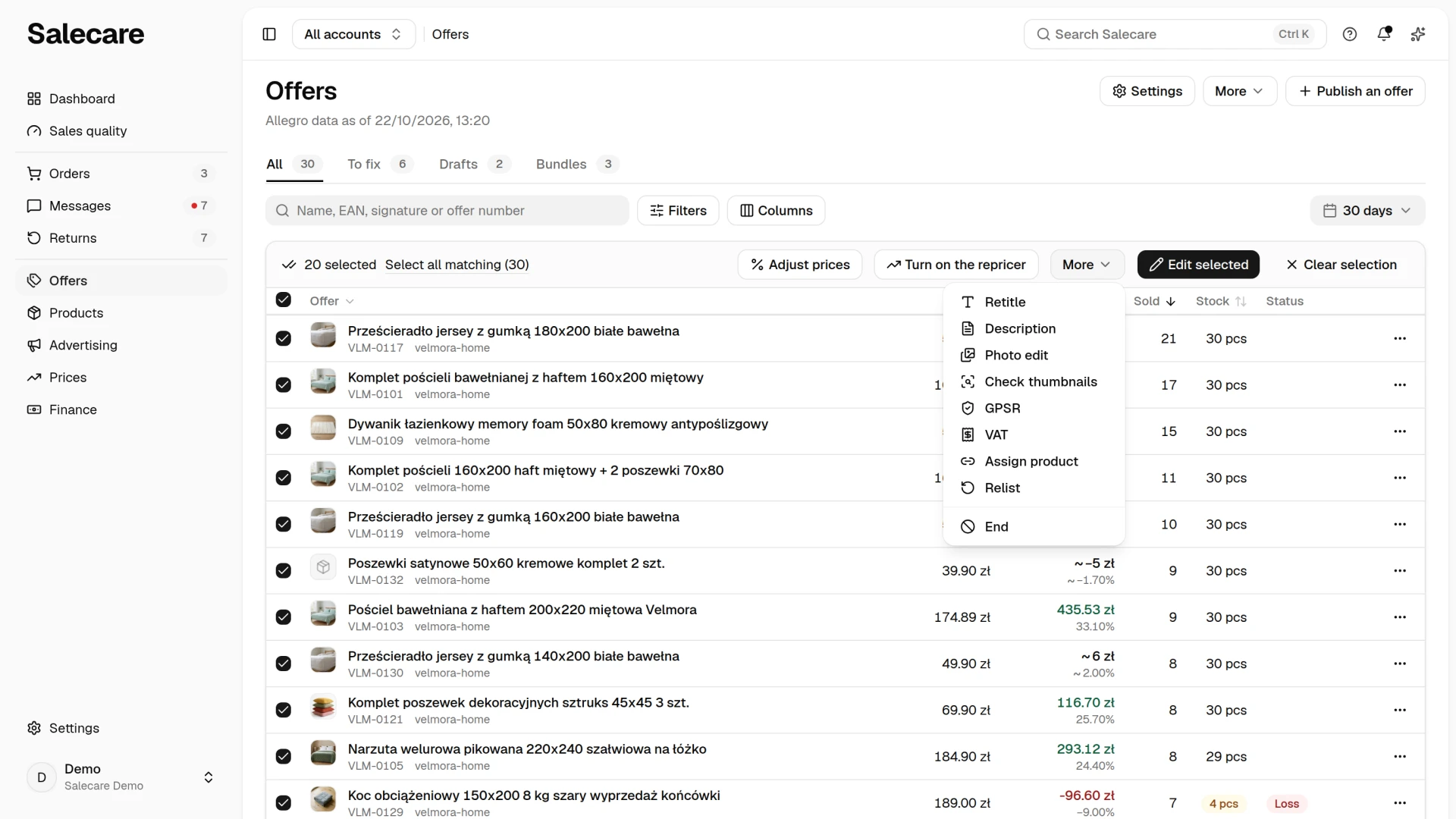
One batch covers at most 500 offers. With a larger selection the window asks you to narrow it, so in a large catalogue select offers through the filters, by account or category for example. Only one photo batch can run in your company at a time. While the previous one is still running the window says so, and you can start a new one once it finishes.
The Photo edit and Check thumbnails items are in the More menu while the photo tools are available. The list of every batch started so far opens from the More menu in the header of the Offers page, with the Photo batches item. That list is the second tab of the Change history page.
Step 2. Pick the type of edit
The Type of edit field offers two choices.
"White background" cuts the product out, crops the photo to it and centres it on a square with a pure white RGB 255 background, the one Allegro requires for the thumbnail. An even white margin stays around the product, so a product that touched the edge of the original no longer touches it. The photo keeps the real product from your photo, so the result is not labelled as AI, unless the first photo itself came from Studio AI or Allegro holds it with the AI label. Such a result is labelled as AI, goes to the end of the gallery and never becomes the thumbnail. Only a result of this edit can later become the first photo of an offer. When the background removal tool cuts nothing out, or cuts the product out together with the background, the offer's card says "The background removal tool did not separate the product from the background, so the result cannot be used". This usually happens when the product blends into the background of the photo. When the first photo of an offer already has a pure white background, Salecare leaves it out and charges nothing for it. Salecare can tell only when it downloads the photo itself. A photo on Allegro's image server that Salecare cannot download is skipped at no charge, because Salecare never asks the background removal tool to fetch it instead. When a photo sits elsewhere and only the background removal tool downloads it, Salecare does not check its background, so such a photo is edited and paid for like any other.
"Studio AI" works like Studio AI on a single photo. The image model draws the surroundings of the composition picked in the Composition field, such as a room scene or an outdoor setting. The background and shadow come from the Photo composition row in Settings, on the AI listing page. The model drew such a photo, so Salecare declares it to Allegro as AI content when it sends the file, and Allegro adds an AI watermark to it. The label cannot be changed later. A thumbnail cannot carry a watermark, so a Studio AI result always goes to the end of the gallery, never to first place. For the thumbnail, pick the "White background" edit.
With Studio AI the window also recalls a rule from Allegro's terms. A change to an offer's content must not change the goods on offer or their features. A result must not, for example, change the colour of the product or show items in the set that the buyer will not receive. Look the results over before you send them.
Step 3. Check the price
Below the type of edit the window shows the price, worked out again after every change of the type of edit or the composition. It tells you how many offers Salecare will edit and how many it will leave out and why, for example because an offer is not a Buy Now offer. For a paid edit the price gives the cost of one photo from the AI wallet and the total. That total is the most the batch can take, because the batch stops before it goes over it. When the chosen tool charges nothing, the price says that this edit takes nothing from the AI wallet.
When the first photos of the selected offers are on Allegro's image server, the price says how many of them your browser downloads from Allegro and sends to Salecare before the batch starts. Allegro's image server does not answer Salecare's servers, but it answers your browser, so the browser downloads them. After you click Start the batch, the window shows how many photos are downloaded so far. Keep the window open until the download ends, because a closed window does not start the batch. With Studio AI and photos hosted elsewhere, the price says that Salecare downloads the first photo of each offer itself.
An offer whose photo cannot be downloaded is skipped at no charge to the AI wallet. Whether a photo can be downloaded only shows during the download, so the price still counts such offers among the offers to edit. On the batch page you then see them as skipped, with the reason on the offer's card.
The AI wallet is charged what the edit really cost. When the tool returned no photo the wallet is not charged, and a photo Studio AI already generated earlier with the same settings comes from memory at no charge. When the tool returned a file that cannot be used or did not separate the product from the background, or the edit stopped after it was charged, the wallet pays for that attempt the same as for a successful edit, and the offer's card gives the reason. When the wallet holds too little for every offer, the window gives the balance and how many photos it covers. You can still start the batch, but when the wallet runs out the batch stops, and the remaining offers get the "Stopped" state and stay as they are. With an empty wallet a paid batch cannot start, and the Top up the AI wallet button leads to the wallet page. The same goes for the monthly AI spending limit set in the AI wallet. Once the charges for AI actions this month reach it, a paid batch cannot start and a running one stops before the next offer, even with money left in the wallet. The spending limit set for you in the AI wallet works the same way. Once your AI actions this month reach it, you cannot start a paid batch, and a batch you started stops before the next offer. A person who manages billing can raise the limit. The window says that a limit is reached already in the price, before the browser downloads any photo, and the Start the batch button is then inactive. Nor can a paid batch start while the welcome bonus in the AI wallet is paused until the end of the day. The window says so in the price, and a top-up of the wallet lifts the pause at once.
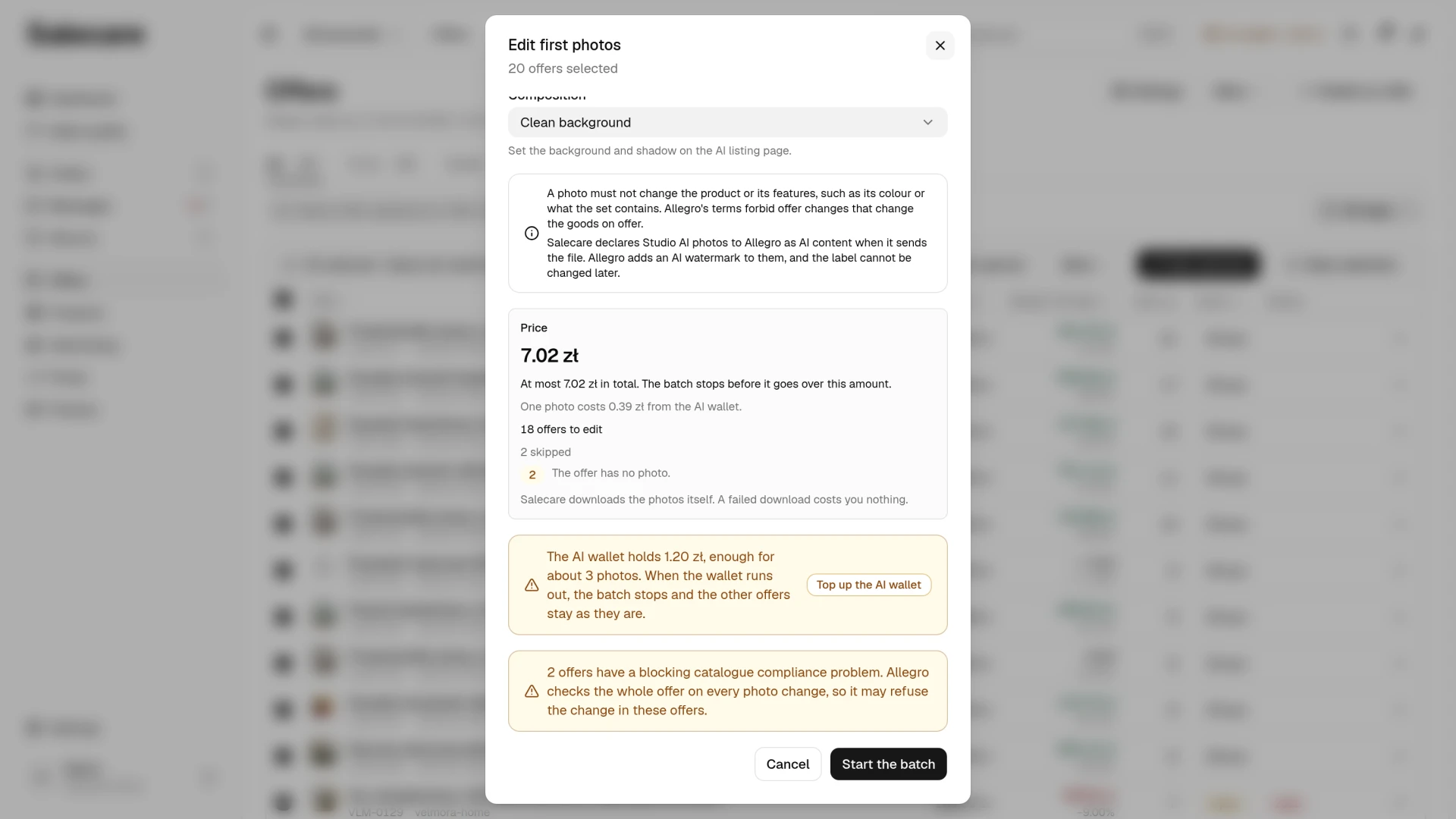
When some of the selected offers have a blocking catalogue compliance problem, the price gives their number. Allegro checks the whole offer on every photo change, so it may refuse the change in these offers.
When the price suits you, click Start the batch. If the cost of the edit went up after the price was shown, Salecare starts nothing and asks you to check the new price.
Step 4. Review the results
Once started, you land on the batch page. Salecare edits the offers one after another, and the page refreshes itself after each one. Right after the title stands the status of the batch, and below it the type of edit, the number of offers and, for a paid batch, the amount taken from the AI wallet. While the batch runs, a sentence under the header says how many offers are already edited. When the batch finishes, the "Photo batch finished" notification appears under the bell. Only the person who started the batch gets it. When the batch stopped early, the notification gives the reason, such as an empty AI wallet or a reached AI spending limit.
When the batch stopped early, because the AI wallet ran out, it reached the amount approved at the start, or the charges for AI actions reached the company's monthly limit or the limit of the person who started it, a yellow banner under the header says so plainly. Offers without a result stayed as they were. To edit them, select them on the offer list and start a new batch, and when the wallet ran out, top it up first. A top-up does not help with a reached AI spending limit. You can start a paid batch once the limit is raised in the AI wallet, or from the 1st of the next month.
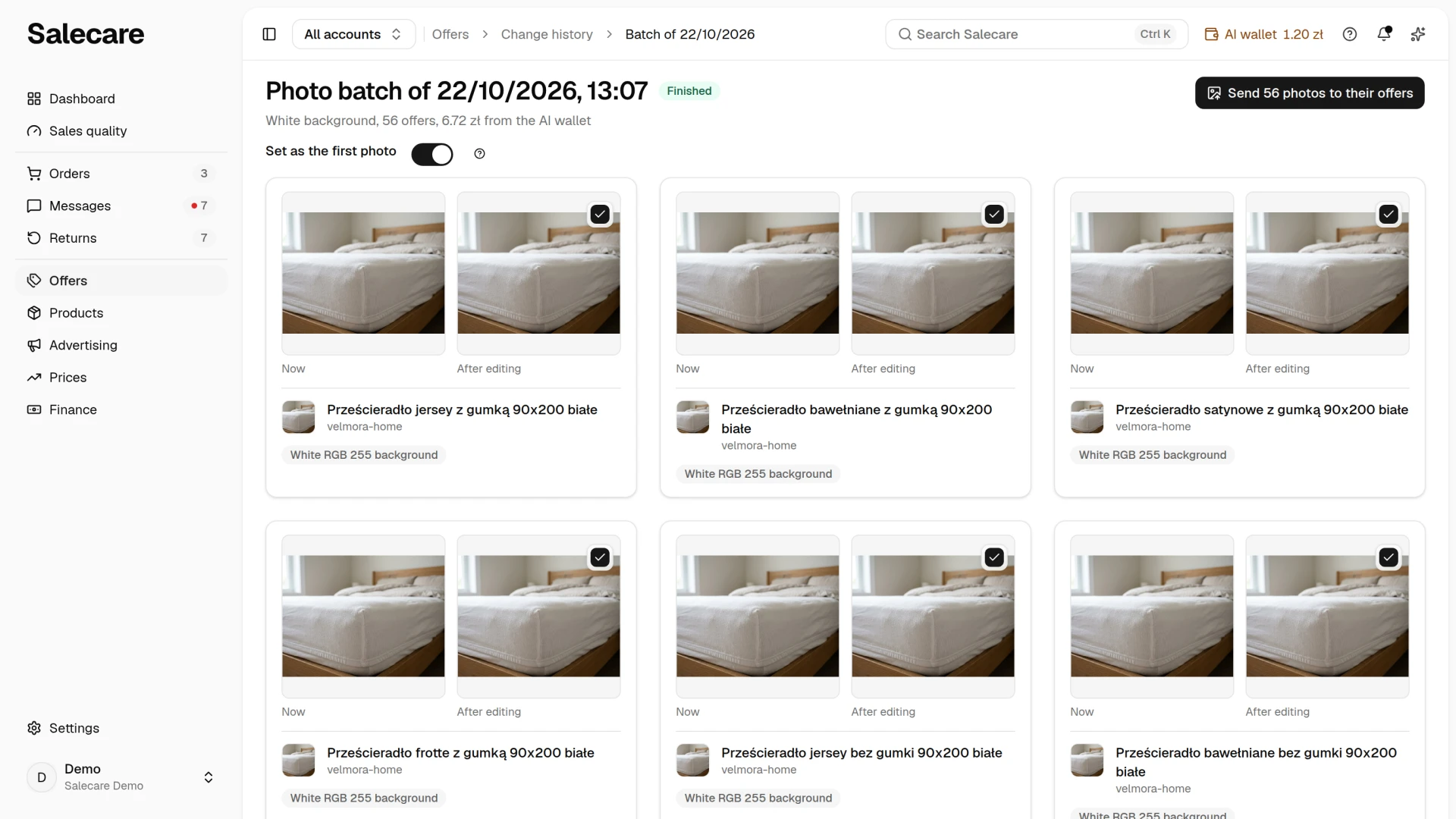
Below come the results, 50 to a page. Each card shows the current first photo of the offer (Now) and the result (After editing) side by side, and under them the offer name with a link to the offer editor, the SKU and the login of the Allegro account. An offer still waiting for its edit, or whose result was already sent, shows its state on the card. Clicking a photo enlarges it. A Studio AI result carries the "AI photo" badge, because the model drew it. A "White background" result has no such badge, because it shows the real product. The "White RGB 255 background" badge marks a result whose whole frame is exactly white and whose longer side is at least 500 pixels, so it can become the thumbnail.
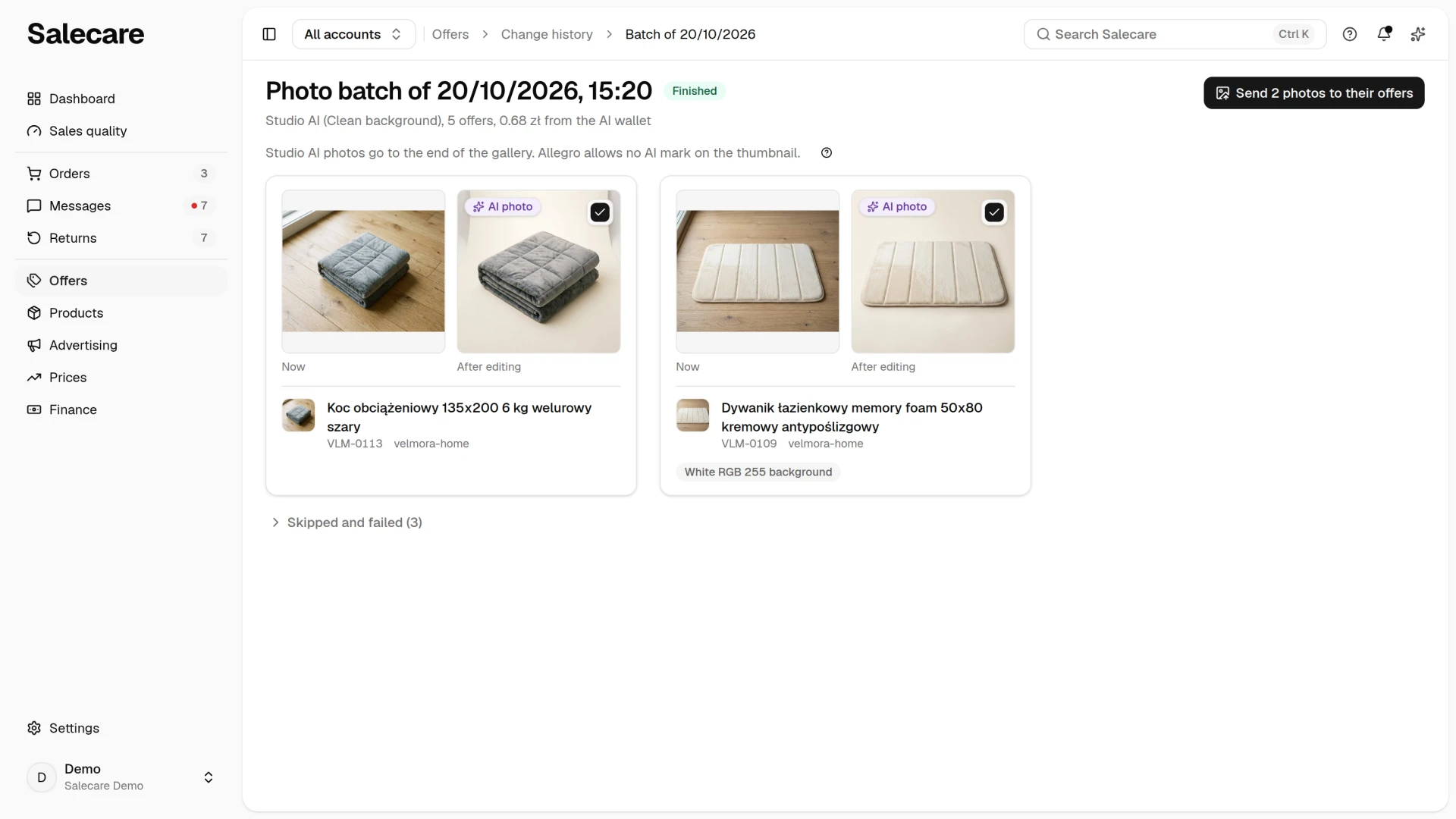
Skipped, failed and stopped offers have no card. They wait folded under the results in Skipped and failed, and once you open it each offer shows its reason. A photo whose longer side is under 500 pixels is too small for Allegro. When Salecare cannot download the first photo from Allegro's image server, both edits leave such an offer out at no charge. A photo from outside Allegro the "White background" edit still tries to fetch through the background removal tool.
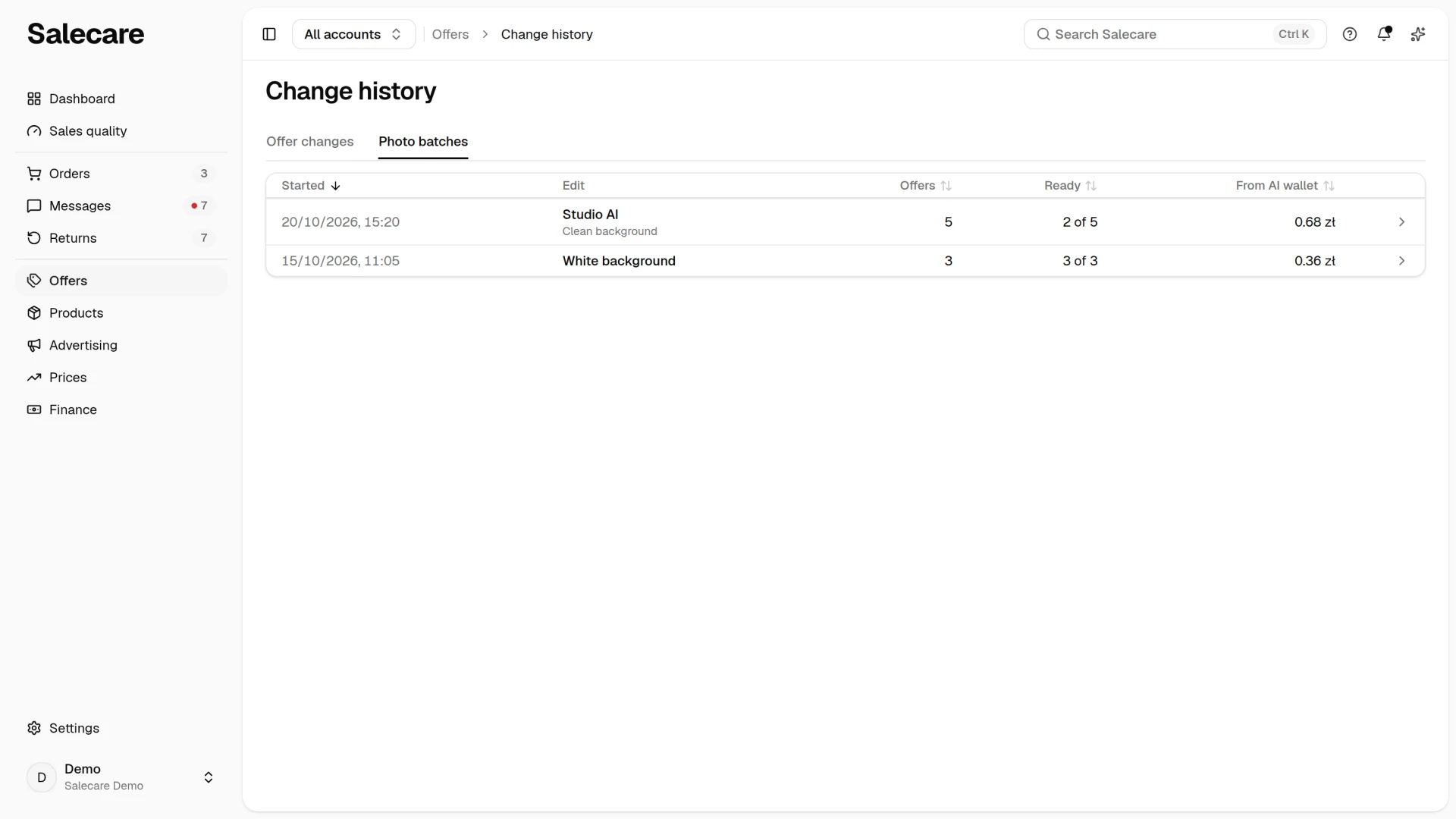
The list of every batch, newest first, is the Photo batches tab of the Change history page, which the More menu on the Offers page leads to. A row has the columns Started, Edit, Offers, Ready and From AI wallet. The Ready column says how many offers already have a result, for example "12 of 20", and a click on the row opens the batch page. The Started, Offers, Ready and From AI wallet headers change the order of the list. On a phone the batches are rows of one card, a tap on a row opens the batch page, and you pick the order in the menu above the card.
Step 5. Send the results to your offers
The send button stands in the header of the batch page, and on a phone at the bottom of the screen. The send covers the results in the "Ready to send" state on every page of the batch, and each of them starts ticked. Untick a result you do not want to send with the box in the corner of its card. The button gives the number of photos it will send, and Salecare asks you to confirm before sending. A sentence under the header says where in the gallery the photos go. The "?" mark next to the Send to offers line opens this part of the guide. After the send, its message has the Undo the sent photos button, which opens the undo confirmation on the batch page.
Nothing is removed, and the offer keeps its number. An active offer stays active when only its photos change. A gallery holds at most 16 photos including the catalogue product photos, so Salecare sends nothing to an offer whose gallery is full and gives the reason on the card.
The Set as the first photo switch stands under the header. It appears only in a "White background" batch that has at least one result with the "White RGB 255 background" badge, and it starts switched on, because a result added to the end of the gallery would not change the thumbnail a buyer sees. Those results take first place and the current first photo moves to second place. When you only want to add the results to the gallery, switch it off, and Salecare then adds them to the end of the gallery. Results without the badge and Studio AI results always go to the end of the gallery. The confirmation says how many photos take first place and how many go to the end. When the switch is on and the first photo of the offer changed after the edit, Salecare does not replace it and does not send that result, because it would push out a photo nobody reviewed. Allegro considers the first photo that meets the thumbnail rules when it picks the Top offer and when it sorts by relevance.
On every photo change Allegro checks the whole offer, so it may refuse the change for another reason, such as a missing parameter. The offer then gets the "Not added to the offer" state, and under the Reasons given by Allegro heading you see every reason Allegro gave, not only the first. A result Allegro accepted has the "In the offer" state. Salecare sends the photos to Allegro in the background, so the states on the cards change after a moment. An offer that stopped being a Buy Now offer after the edit stays as it is.
Sometimes Allegro takes longer to check a change. The card then has the "Waiting for Allegro to confirm" state, and for at least 10 minutes Salecare asks Allegro for the result of that check. When Allegro refuses the change, the card shows every reason it gave. When no result comes in that time, Salecare checks whether the photo is in the offer.
When Allegro does not accept some of the photos of one send, the "Allegro rejected some of the photos" notification appears under the bell. It gives the number of rejected photos with the number of all photos of that send and the reason on the first rejected offer, and clicking it opens the batch page. Each send has a notification of its own, so photos sent earlier are not counted twice.
Salecare deletes the result files 30 days after the batch finished. A result you have not sent by then no longer reaches the offer.
Step 6. Undo if you need to
Once a batch has sent photos, the Undo the sent photos button stands in the header of its page. You can undo the send for 7 days after it went out. After that the button goes, and the entries on the Change history page have the "Undo window closed" state. After you confirm, Salecare reads each offer from Allegro and restores the gallery from before the send only in the offers whose gallery has not changed since the send. When you add or remove a photo in an offer after the send, Salecare leaves its gallery as it is, and its entry on the Change history page gets the "Not undone" state. You then change the first photo of such an offer in the offer editor.
Every offer sent also has an entry of the "Photos" kind on the Change history page and in that one offer's history. There you undo the change on a single offer, and the entries of one batch sit under a shared header, so you can also undo the whole send with the button beside that header.
What next
You edit a single photo in a product, a draft or the offer editor with the same tools, as the guide "How to make a white thumbnail background and Studio AI photos" describes. How to top up the AI wallet and check what a batch cost is shown in "How the AI wallet and top-ups work". Undoing changes and the reasons for refusals are covered by "How to review and undo offer changes", and blocking catalogue compliance problems by "How to match Allegro offers to products".