How to review and undo offer changes
A bulk price change across three hundred offers is one click, and rolling it back by hand is a day's work. So the bulk actions on the offers list, a full edit of a single offer and sending photo edit results to offers each leave an entry in the Change history, along with the button that restores the fields from before the save for 7 days. It restores only the fields that have not changed since the save, and it never restores the quantity. The same page says what Allegro did not accept, so you never have to guess which offers actually changed.
Step 1. Open the change history
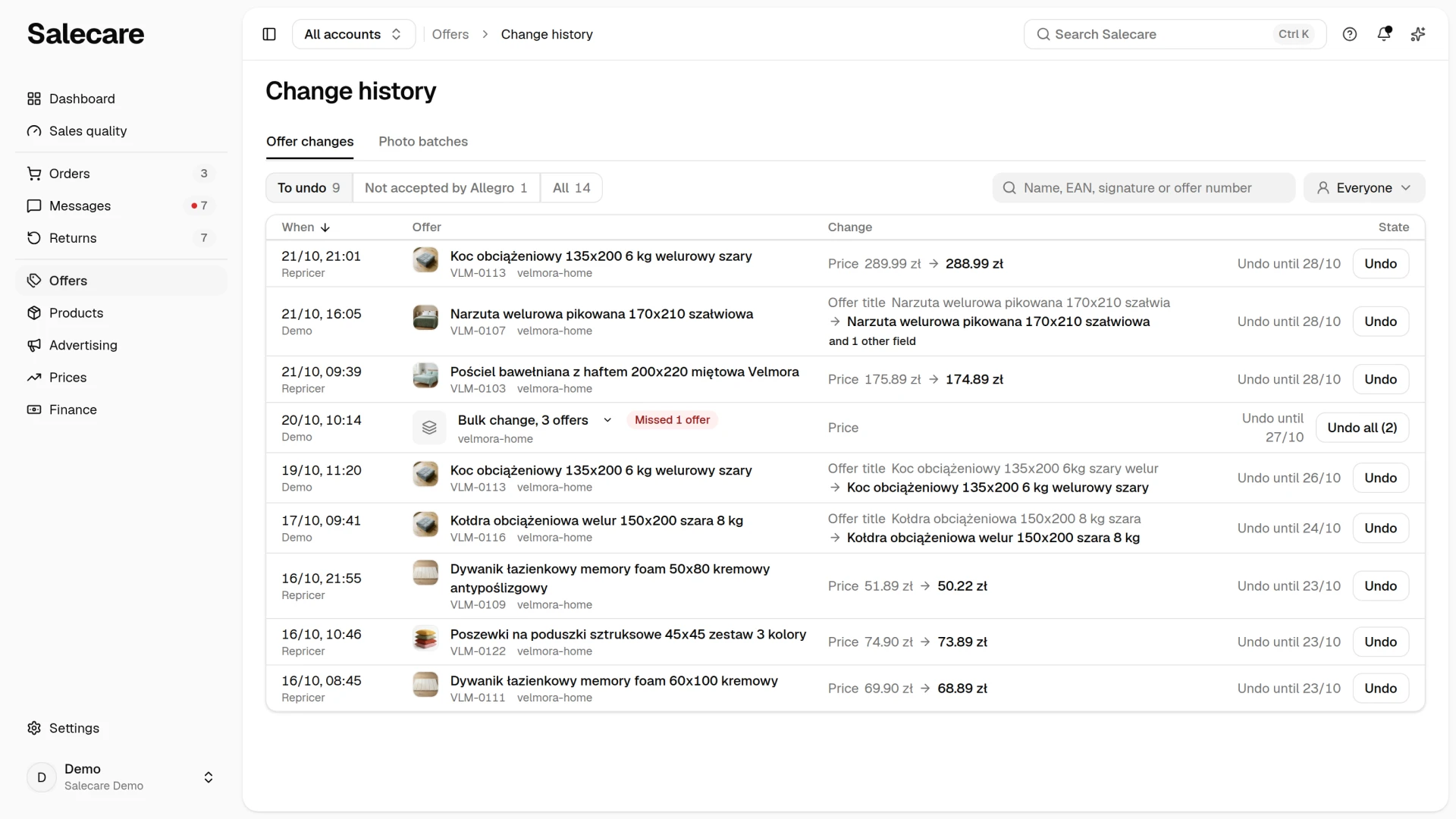
In the menu, go to Offers, open the More menu in the page header and click Change history. The page has two tabs, Offer changes and Photo batches. The list of changes shows the saves newest first, 25 to a page. A click on the When header reverses the order, oldest save first. On a phone the changes are rows of one card, and you pick the same order in the menu above the card. If you have picked a single account in the account switcher at the top of the screen, the history covers only that account's offers, while "All accounts" shows the saves from every account.
The Photo batches tab collects the photo batches, each with its number of ready results and its cost from the AI wallet, and its row opens the batch page. The guide "How to edit the photos of many offers at once" describes it. The Offer changes tab records what Salecare changed in the offers. What lands here are the bulk actions from the offers list, that is Retitle, Adjust prices, VAT, Description, Edit selected and End, and listing an Allegro draft with the Publish button. A save in the editor of a single offer lands here too, as do updating an active offer from a draft with the Update listing button and sending photo edit results to offers. The last is a price confirmed on the AI assistant's card for an offer without a repricing rule. Its entry has the kind "Price", and its author is the person who clicked Apply price. A bulk change writes a separate entry for every offer it touched. Ending a single offer from the menu in its row is recorded the same way, because it takes the same route as the bulk action. The Relist button opens no entry here, because you undo a relist by ending the offer. Every relist Allegro confirmed shows on the offer's timeline from step 5.
The offer editor sends Allegro only the fields you changed, so the entry a save in the editor leaves shows and undoes only those. Fixing the title never sends the price, the quantity or the handling time read when the editor opened. When you type a new quantity and the offer's stock on Allegro changed meanwhile, after a sale for example, Salecare does not send that save, the other changed fields included, and opens no entry. A message by the quantity field gives the stock from when the editor opened and the stock now. The field keeps the quantity you typed, and the rest of the form stays as it was too. Correct the quantity or leave it, because the next save sends Allegro the quantity that stands in the field. When you changed nothing, the save says "There are no changes to save." and sends nothing.
A price the repricer set lands here too. One such entry stands in the history per offer, and it carries the price the offer had before the repricer moved it. Later price changes on the same offer add no further entries, because each of them stands on its own in the Change history tab on the Prices page. Once the entry is older than 7 days, the next price change opens a new entry with the price the offer had right before it, and the old one stays in the history as "Undo window closed". A new entry also opens when someone else changed the offer's price between the repricer's moves, you on Allegro for example. The old entry then stays under the To undo filter, but undoing it restores nothing. So undo the offer's newest "Repricer price" entry. Undoing such an entry restores the price from before the repricer, as long as the repricer set the offer's latest price and nobody else did. On its next check the repricer turns that offer's rule off instead of setting its price again, so the restored price stays. When you want the repricer working on that offer again, turn its rule on on the Prices page, with Turn on in the menu at the offer's row.
Of the bulk actions on the offers list, only the GPSR action with a shared text and the responsible parties writes no history, because Allegro applies that data as one batch command over the whole set rather than offer by offer. A separate AI text for each offer from the same dialog is written to the history, because the texts go to the offers one by one. Before you use the GPSR action with a shared text on a large selection, check the values on a few offers first, because going back means editing again, not clicking Undo. No entry is left either by the Move to the product category button in the offer editor, by linking an offer to the Allegro catalogue, by a price confirmed on the AI assistant's card for an offer with a repricing rule (that one stands in the Change history tab on the Prices page) or by the changes Salecare sends on its own, such as the quantity and the handling time from the warehouse. You cannot undo those changes from the history.
Undoing Edit selected restores the price and the handling time from before the save, but not the quantity. Before it sends Edit selected, Adjust prices or End, Salecare reads from Allegro what an undo can restore, that is the price, the handling time and the offer's status. So the entry remembers what the offer had right before the save, a change made on Allegro after the last sync included. An undo does not restore the quantity, because stock changes with every sale and an old figure would put units on sale that you no longer have. A change that moved only the quantity reads "The quantity cannot be undone" in the State column. When a quantity of 0 ended offers, relist them with the Relist button on the offers list, as "How to relist ended offers" describes.
Step 2. Pick a filter and read the entries
In the Offer changes tab the filters To undo, Not accepted by Allegro and All sit above the list. The number beside a name counts the changes across the whole history, not just the current page, and a bulk change counts once. To undo collects the saves that can still be undone. Not accepted by Allegro collects the changes that never reached the offers, because Allegro did not accept them or did not return the offer's current price. All shows the whole history, including the changes already undone and those past the deadline. The page opens on the To undo filter, and when nothing can be undone, on the All filter. The search looks by offer name, EAN code, SKU and offer number.
When the history holds at least one entry with a recorded author, a Who list sits beside the filters. Picking a person or the "Repricer" entry narrows the list to their saves, and "Everyone" brings the whole history back.
A row has four columns. The Change column shows the field before the change and after it. The Offer column holds the offer thumbnail and name with a link to its editor in Salecare, and under it the SKU (and the account login under "All accounts"). The When column gives the date and time of the save together with the author, and the State column the state of the entry. The kinds of change are "Title", "Price", "Repricer price", "Price, quantity and handling time", "VAT rate", "Description", "Publication", "Full edit", "Photos" and "Safety information". For a change you can still undo, the State column reads "Undo until" with a date, and the Undo button stands beside it. "Undone" is a change already undone, and "Not accepted by Allegro" is a change Allegro did not accept. "Not undone" is an undo that restored nothing. Either every one of the entry's fields changed after the save (the names of those fields then stand under the state), or Allegro no longer has the offer. "Undo window closed" is a change older than 7 days. "The quantity cannot be undone" is a change that moved only the quantity, and "Publishing cannot be undone" is the listing of an Allegro draft with the Publish button. "The first safety information cannot be undone" is an AI text sent to an offer that had no text before or had an attachment, because Allegro does not accept an offer without that information. An undo does not take an offer off sale, so you take a published offer off sale with the End button.
Under the date stands the person who saved the change, under the name they had at the time, so the entry still reads once that person no longer has a Salecare account. A price the repricer set reads "Repricer", because no person saved that change. Entries saved before the history started recording the author read "Not recorded".
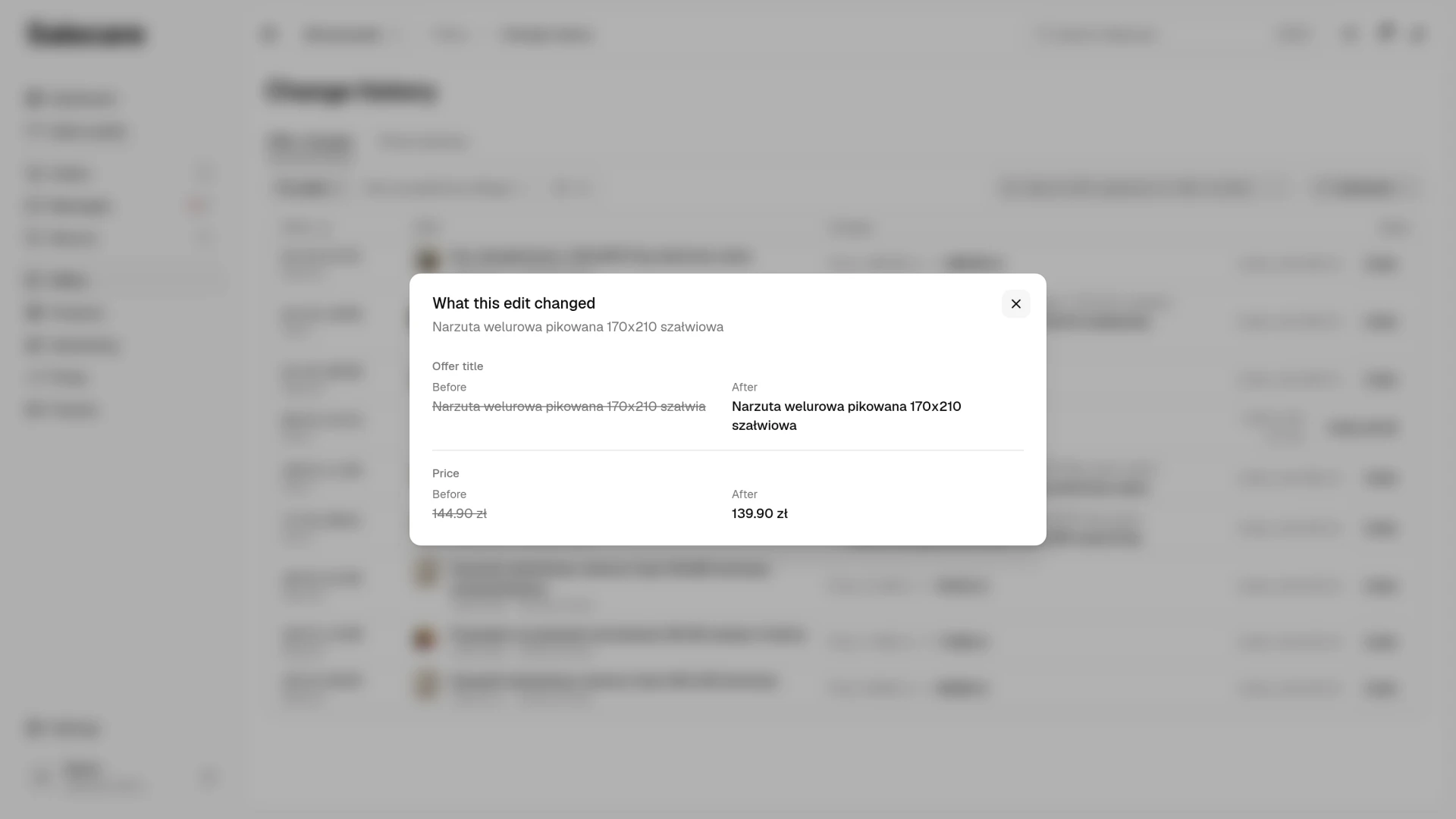
A row shows only a few fields, and the and n other fields link opens the What this edit changed window. For the description, the photos and the parameters the row only says "changed", and their values are in that window. Field by field it shows the value before the save and after it, and a field the offer did not carry before is marked as "none". Values read the way the offer editor names them. A price is an amount with its currency, a VAT rate is a percentage or "ZW (0%)" and "NP (outside VAT)", as on Allegro's list of rates, a setting that is on or off reads "Yes" or "No", and the unit, handling time, proof of purchase and province carry the name from the list. Delivery rates, the return policy, claim terms, warranty, size table, additional services, responsible producer and responsible person carry the name given on the Allegro account when Salecare fetched their list from Allegro within the last 10 minutes, for example on opening the offer editor. The country a VAT rate applies in carries its name, for example "Poland", while a currency stays a code, for example PLN, because that is how Allegro names it. A description block reads "Text" or "Image", as in the description editor. The way safety information is given reads "Text", "Attachments" or "No safety information", and a responsible producer or responsible person picked from the account's list reads "From the parties registered on the account". An identifier whose name Salecare does not know is marked "id", for example "id 12345". Hovering over a value shows how Allegro stores it. The link to the window appears on the entries that have something to show, and a bulk change has none, because its values differ in every offer.
Step 3. Undo a change
The Undo button on an entry restores the fields from before the save on that one offer. The undo works for 7 days after the save. Salecare asks you to confirm, then in the background reads the offer from Allegro and compares every field with the value the change sent. A field that still holds that value goes back to what it was before the save. A field that has changed differently since (the repricer or someone on Allegro moved the price, for example) stays as it is, and the entry names it. The undo never restores the quantity and never takes a published offer off sale. The offer on Allegro returns to its previous values after a moment rather than instantly. The entry gets the state "Undone", moves to the All filter and cannot be undone a second time. When every one of its fields changed after the save or Allegro no longer has the offer, the entry gets the state "Not undone" and shows under the All filter. The undo itself does not open a new entry, it only changes the state of the one you undid.
The Undo and Undo all buttons show for a person with the Offers (manage) permission. A person with only the Offers (view) permission sees the history and the What this edit changed window, but cannot undo a change.
Undoing End relists the offer, so it works like the Relist button. Allegro accepts a relist of an offer without units but leaves it ended, and an undo never sends a quantity. So when the offer has no units at all on Allegro, Salecare does not send the undo, the entry stays under the To undo filter, and you get the notification "The undo did not relist the offer". Relist such an offer with the Relist button on the offers list and give the quantity. When the offer has units, Salecare sends the relist and then reads the offer from Allegro up to three times within 4 minutes. Only a read that shows the offer on sale gives the entry the state "Undone", shows the offer on the list as active and adds the relist to the offer's timeline with the source "Change undone". When no read shows the offer on sale, the entry stays under the To undo filter, and you get the notification "An offer did not come back on sale after the undo".
A bulk change is one row that reads "Bulk change, n offers". The arrow in that row unfolds the list of its offers, 50 at a time, and the Show more offers button adds the next ones. You undo the change as a whole with the Undo all (n) button, where n is the number of offers that can still be undone. Salecare asks "Undo the change on n offers?" and then undoes the change one offer at a time, so a large change takes longer. When one offer of that change is left to undo, the button still reads Undo all (1). To undo that offer in its own row, unfold the change row with the arrow.
You do not have to look for the change in the history. The message after the Adjust prices or Edit selected action carries an Undo button. It opens that change in the Change history and asks for confirmation straight away. The button shows to a person who can undo changes. After a very large selection Salecare saves the change in the background, so the entries appear gradually, and a sentence above the list says how many offers of that change are already in the history. The undo then covers only the offers that are already there.
A bulk change made with all accounts picked can cover offers on several accounts. Which of them the Undo all button undoes depends on what is picked in the account switcher. With a single account picked, the bulk change row, the number on the button and the confirmation count only that account's offers, and the undo covers only them. The offers of that change on your other accounts stay as they are. With all accounts picked the undo covers the offers on every account, and the confirmation gives, for each account, on how many of its offers Salecare undoes the change. To undo a change on one account only, pick that account in the switcher first.
Entries of the "Photos" kind come from sending the results of a photo batch to your offers, one per offer, and all the entries of one batch make up one bulk change row. You undo the whole photo send with the Undo all button in that row or with the Undo the sent photos button on the batch page. The undo restores the offer's gallery from before the send. Photo batches are covered by "How to edit the photos of many offers at once".
Allegro can refuse the undo itself. That happens above all on an ended offer, because Allegro puts one back on sale only when it carries complete product safety information. The entry then stays under the To undo filter, the offer stays on the values the save left on it, and you get the notification "Allegro did not accept the undo", with the name of the first rejected offer and the reason Allegro gave. That notification comes at most once an hour per account, and the entry itself does not show the reason for the refusal. Once the undo of a whole change has finished, the offers left under its row under the To undo filter are exactly the ones that could not be undone. Once the missing data is filled in, undo the change again before the "Undo until" date in the entry's State column, because the 7 days count from the save of the change, not from the refusal.
Step 4. Fix what Allegro did not accept
A change Allegro did not accept never reached the offer, so there is nothing to undo. The Not accepted by Allegro filter gathers these entries, and the reason stands in the Change column under the change. When Allegro gave no reason, the entry says so outright. The bulk change row also shows how many offers the change was not applied to, beside the number of offers it covered.
The Adjust prices action works the percentage or the amount out from the price the offer has on Allegro at the moment of the change, not from the price of the last sync. When Allegro does not return an offer's current price, for example because the offer is no longer there, Salecare leaves it unchanged. Such an offer also lands under the Not accepted by Allegro filter, with the reason "Allegro did not return the current price of this offer, so the price was left unchanged.", and counts in the notification together with the offers whose change Allegro did not accept.
You do not have to remember a change that was not applied. When a bulk change is not applied to some offers, you get the notification "Some of the offer changes were not applied", with the number of those offers and the reason on the first of them, and the link in the notification opens this filter directly. Sending the results of a photo batch has a notification of its own, "Allegro rejected some of the photos", which opens the batch page. A separate notification, "The offer change never reached Allegro", arrives when the Allegro account has lost its permission to change offers. In that case the change was not saved on Allegro at all, and the link goes to the Allegro accounts list, where you reconnect the account and run the operation again.
Step 5. One offer's own history
The Change history collects saves across every offer. When you care about one of them, open its own history. On the offers list pick Offer history from the action menu in the last column of the row (on a phone, from the More actions menu on the offer's row). In the offer editor open the More menu in the page header and pick Offer history. The window opens over the page, so the list keeps your filters and selection, and the editor keeps an unsaved form.
The timeline holds these kinds of events, newest first.
- The saves sent from Salecare, together with what they changed and an Undo button while the change can still be undone.
- Price changes made by the repricer, together with the reason for the change and the cheapest competing offer it answered. A person without the Margins and purchase prices (view) permission sees the price change alone, without that offer and without the reason for the change.
- The price range Salecare set in an Allegro pricing rule for an offer in "Allegro automation" mode, written as "The Allegro pricing rule got its price range from Salecare". Next to it stands the minimum price of that range, which only a person with the Margins and purchase prices (view) permission sees. The rule then changes the price itself on Allegro's side, and Salecare finds such a change during a sync.
- Price changes made outside Salecare and found during a sync, written as the price before and after.
- Publication changes, that is listing, ending and relisting the offer, together with where the change came from.
- The product the offer was matched to and how it was matched.
- The day the offer went live on Allegro.
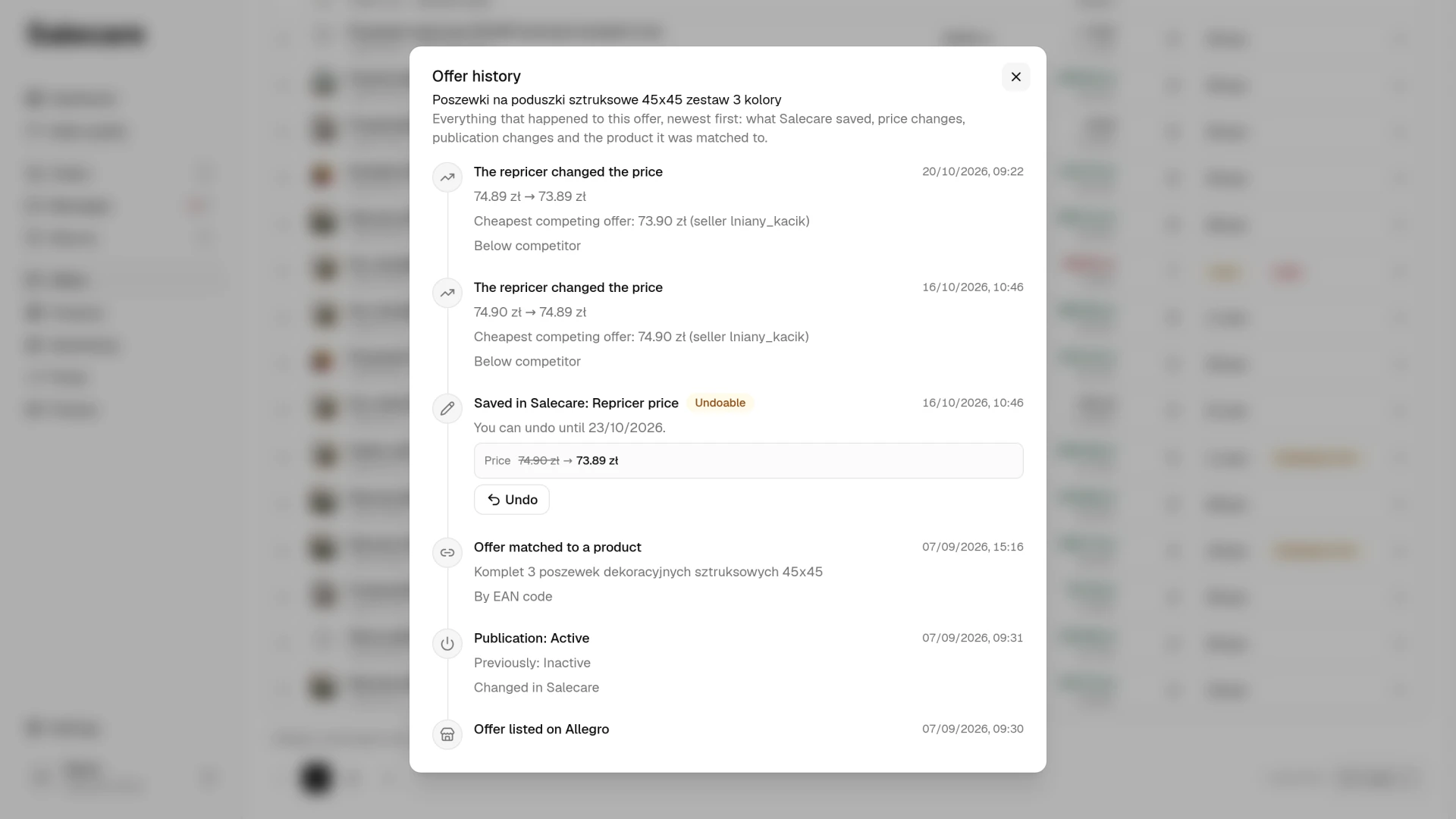
The first price change the repricer makes also puts a Salecare save on the timeline, with its Undo button, because that save is what restores the price from before the repricer.
A publication change shows its source. "Changed in Salecare" is a change saved in Salecare, the relist with the Relist button on the offers list included. "Changed outside Salecare" is a change found during a sync, and "Change undone" is a state restored with the Undo button. "Warehouse stock rule" is an offer ended at zero stock or relisted after a delivery by stock updates from the warehouse, and "Automatic relist" is the daily relisting of ended offers. A relist from any of these sources reaches the timeline only once a read from Allegro shows the offer as active, because Allegro accepting a relist does not mean the offer is back on sale. How relisting works is covered by "How to relist ended offers".
Two things are worth knowing. Salecare records publication changes from the moment this history was released, so earlier listings and endings do not appear in it. For a full edit that moved many fields at once, the timeline shows the first four fields and a button below them reveals the rest.
A save from Salecare is undone here exactly as on the history list. Salecare asks for confirmation, compares the fields with the offer on Allegro in the background and restores the ones that have not changed. The entry moves to the "Undone" state, or to the "Not undone" state when every one of its fields changed after the save or Allegro no longer has the offer. Undoing End waits for a read from Allegro here exactly as on the history list.
What next
You can undo most bulk actions in the Change history, so they are worth knowing. Start with the guide "How to list and end offers in bulk". The VAT rate you set with the bulk VAT action is covered by "How to set up VAT and rates so the app computes a net margin". And when you want to carry chosen parts of a draft over to an active offer, see "How to update a live offer from a draft".