How to set the style and sections of AI descriptions
AI-written descriptions have two typical flaws. Either they sound foreign, not in your voice, or they resemble your competitors' descriptions a little too closely, and copying someone else's content on Allegro is a straight road to trouble. In Salecare you set the style, the section layout and the knowledge sources once, and the AI writes offer drafts by them. The steps below also say when a draft takes its hint from somewhere else and which settings go into new drafts only.
The settings in this guide act on offer drafts prepared by the AI, and those are part of the Pro plan and up.
Step 1. Write the hint for the AI
In Settings open the AI listing page. The How the AI writes group holds the rows Hint for the AI, Style from your offers, Description layout, Item condition in drafts, Photos in drafts, and Sources and blocked domains. Each row shows the current setting, and the Change button opens its panel. Every panel has its own Save button. Saving generates nothing and charges nothing. The Change button on the Hint for the AI row opens the field that sets the tone of the descriptions, for example "write professionally and use emoji sparingly" or "keep it short, no emoji".
The hint applies to the whole draft, not only the description. The same field steers the title, the parameters, the description and the product safety information, so you can describe in it how all the data should be filled in. You can, for example, have the title start with the brand and model, list the fabric composition and weight in the parameters, and write the description in short paragraphs. Allegro sets the units of parameters, centimetres or millimetres for example, separately for each category, so the hint does not change them. The AI takes the hint into account, but it does not invent facts that are not in the sources.
The company hint applies to a draft that has no hint of its own. Hints do not add up, they replace each other. A hint typed on the draft itself comes first, in the Generate offer drafts dialog on the product list or in the Edit the selected drafts dialog on the Drafts tab of the Offers page. Without it, when the draft is meant for one Allegro account only, the AI takes that account's hint, if you set one. You set it in the Allegro account settings, on the AI hint for this account row. To open them, in Settings open Allegro accounts and click the account. A draft for several accounts at once always uses the company hint. A draft from the Boost with AI button carries its own hint telling the AI to improve the current offer, so the company hint does not reach it.
The hint does not lift Allegro's rules. Allegro's terms allow only information about the item itself in the title and the description, and keep contact details in the places meant for them. Delivery, payment, returns, complaints and the warranty have their own sections of an Allegro offer. That is why the AI writes none of this into the title or the description, and no contact details or web addresses either. Allegro may end an offer that breaks its terms. Allegro publishes no list of forbidden words, so Salecare keeps its own. It tells the AI to avoid sales slogans such as "najlepszy", "hit", "promocja" or "gratis", promises such as "gwarancja satysfakcji", and comparisons with someone else's brand, such as "w stylu" followed by another brand's name. The AI describes a style or an occasion as usual, "w stylu boho" or "na każdą okazję" for example. It writes no health or medicinal claims such as "leczy", "na odchudzanie" or "wzmacnia odporność". Food and supplements may not carry a health claim the European Union has not authorised, so the AI describes the composition and how to use the product instead. The title gives the exact name of the product, that is the brand, the model and the key feature, each word once, because Allegro forbids adding keywords for a place in search.
When the AI writes such a phrase anyway or repeats a word in the title, Salecare sends the copy back for a rewrite once. It cuts nothing out by itself, because the same words can be part of the product, "nr 1" in the name of a brush, for example. A phrase still there after the rewrite shows in a yellow box under the title field or under the description blocks, and the Publish the listing to Allegro? dialog names it again. Remove it yourself when it does not describe the product. The draft does not mark a repeated word in the title, so read the title and the description before you publish.
On the Item condition in drafts row you choose the condition that goes into drafts. No source can tell the item condition, so the decision is yours. The "New" option adds the "New" condition only when the AI names none. The "Used" option goes onto every draft whatever the AI suggests. The "No condition" option leaves the field empty, even when the AI fills it, so you pick the condition yourself on the draft before publishing. The setting applies to drafts created or generated again after you save.
Step 2. Lay out the description and set the photos
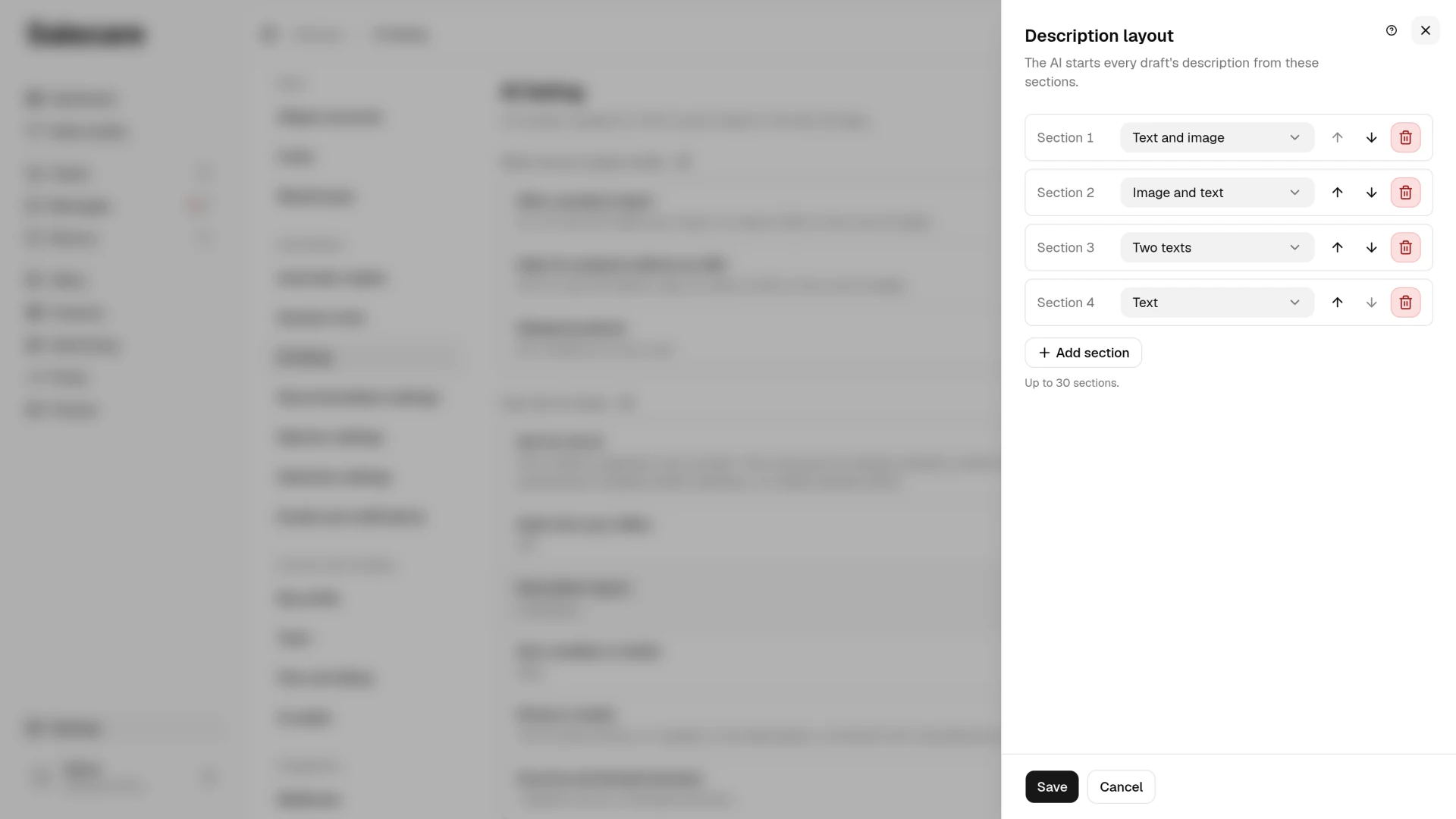
The Change button on the Description layout row opens the sections the AI starts every draft's description from, the same as in Allegro's description editor. You can choose the "Text", "Image", "Text and image", "Image and text", "Two texts" and "Two images" layouts. The arrows change the order, the Add section button adds more, and the bin removes one. The row shows the number of sections. If you do not want to impose a layout, leave the list empty, and the row says "No fixed layout". The AI fills in the texts and leaves the image slots to you, unless you turn on the Let the AI pick photos switch on the Photos in drafts row.
The Photos in drafts panel has three switches. Let the AI pick photos has the AI take photos from the Allegro catalogue and from your own offers of the product, for the gallery and the description. The other two work only with it and stay disabled without it. A switched-on Do not repeat photos in the description makes sure each photo goes into the description at most once. When there are fewer photos than image slots, the extra slots are skipped. A section left with only text goes into the description without an image, and a section made only of images disappears completely. If you would rather the AI fill every slot even at the cost of repeats, switch it off. The Let the AI take photos from manufacturer pages switch adds photos from manufacturers' websites, and the AI check of those photos is paid from the AI wallet. A new account has this option off, because a manufacturer's photo is their work and you may use it only when you have the right to. The AI never takes photos from shops or from other sellers' offers, because that is someone else's work. Without the Let the AI pick photos switch the AI adds no photos, and the draft keeps only the photos the product already has in your catalogue.
Step 3. Teach the AI the style of your offers
The Change button on the Style from your offers row opens a panel with the Style from your offers switch. Switched on, the switch has the AI read the title and description of up to 3 of your offers on Allegro and match the tone, layout and length of new descriptions to what you already sell. The AI always takes the product facts from the sources, and from those offers it takes only the way of writing. It is the quickest way to stop drafts sounding machine-made.
With the switch on, the panel shows the Sample offers field. Paste the numbers or links of up to 3 offers you are happiest with, one offer a line. Salecare saves the bare numbers and checks that those offers are among the offers of your Allegro accounts that Salecare has already downloaded. If one of them is not there, the panel saves no change and names that number under the field. Correct or remove it and save again. An offer you have only just listed goes through once Salecare downloads it from Allegro. A sample offer from an account other than the draft's account is skipped for that draft. When you leave the field empty, or no sample offer matches the draft's account, the AI takes your newest offers, active ones first, from the accounts the draft is for. It skips offers linked to a draft in Salecare, because the AI may have written their descriptions, and the style should come from you.
Step 4. Point to knowledge sources and block domains
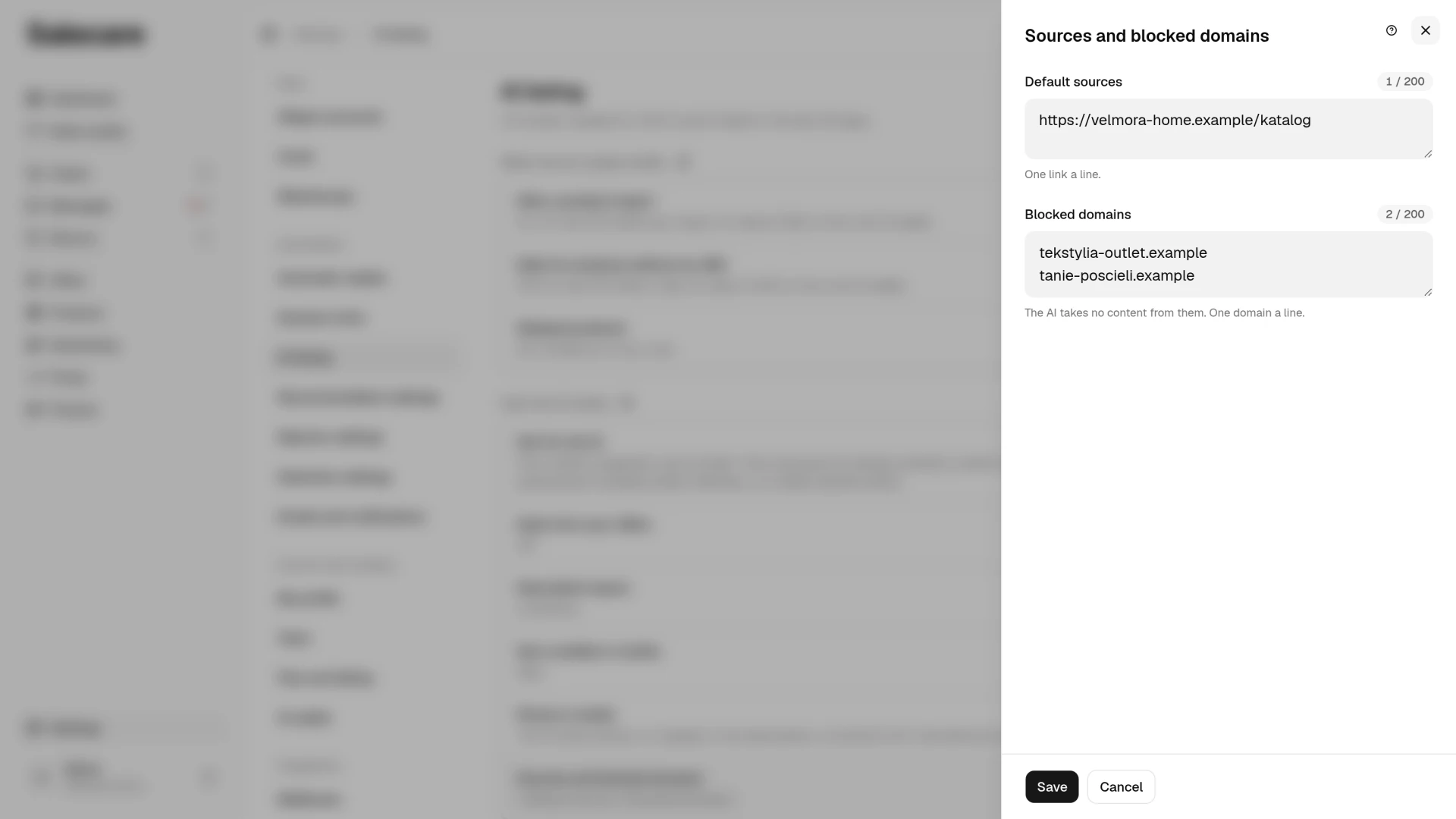
The Sources and blocked domains row decides where the AI gets product information from, and it shows how many sources and blocked domains you have. In the panel, in the Default sources field, you paste links, a manufacturer's catalogue for example, one link a line, up to 200. A link that looks like a data feed (CSV, XML, API) gets a warning in the panel, because the AI cannot read it and skips it. Salecare writes these links into every new draft. In the draft creation dialog they already stand in the Sources (optional) field and you can remove them there, and drafts from the automations get them in full. A draft that already exists keeps its sources, also when it is generated again, so a new link does not reach it by itself. You change the sources of chosen drafts on the Drafts tab of the Offers page. Select them, open More in the selection bar, click Edit and tick Change sources in the Edit the selected drafts dialog. The new list replaces those drafts' sources and takes effect when you generate them again. A draft from the Boost with AI button reads only the page of the offer being improved.
In the Blocked domains field you enter sites the AI never takes content from, competitors' shops for example, one domain a line, up to 200. The block works on every generation, also when a draft is generated again. The AI is told to write descriptions in its own words and not to copy other people's texts, and blocking domains cuts the listed sites off already at the data-gathering stage. Salecare does not, however, compare a finished description with the descriptions of other offers. The exception is a product that already has a description in your catalogue, for example from a description column in a wholesaler's file. The AI treats such a description as your text, keeps its wording and layout and only expands it. Other sellers often have the same wholesaler description, so if you want new text, clear the product description or do not import the description column.
What next
The style is set, now give the AI something to write about. See the guide "How to switch on automatic offer drafts for new products". Pair a good description with a good photo too. See the guide "How to make a white thumbnail background and Studio AI photos".