How to work with orders in Salecare
The order list in the Allegro panel shows revenue, not profit. On top of that there are buyers who can cancel a paid order when the parcel is already packed. In Salecare orders have the fulfilment status from Allegro, a dispatch deadline, a margin and profit with a cost breakdown on every order, dispatch reported to Allegro, and an option that takes the buyer's cancellation away once the order is paid.
Step 1. Review the order list
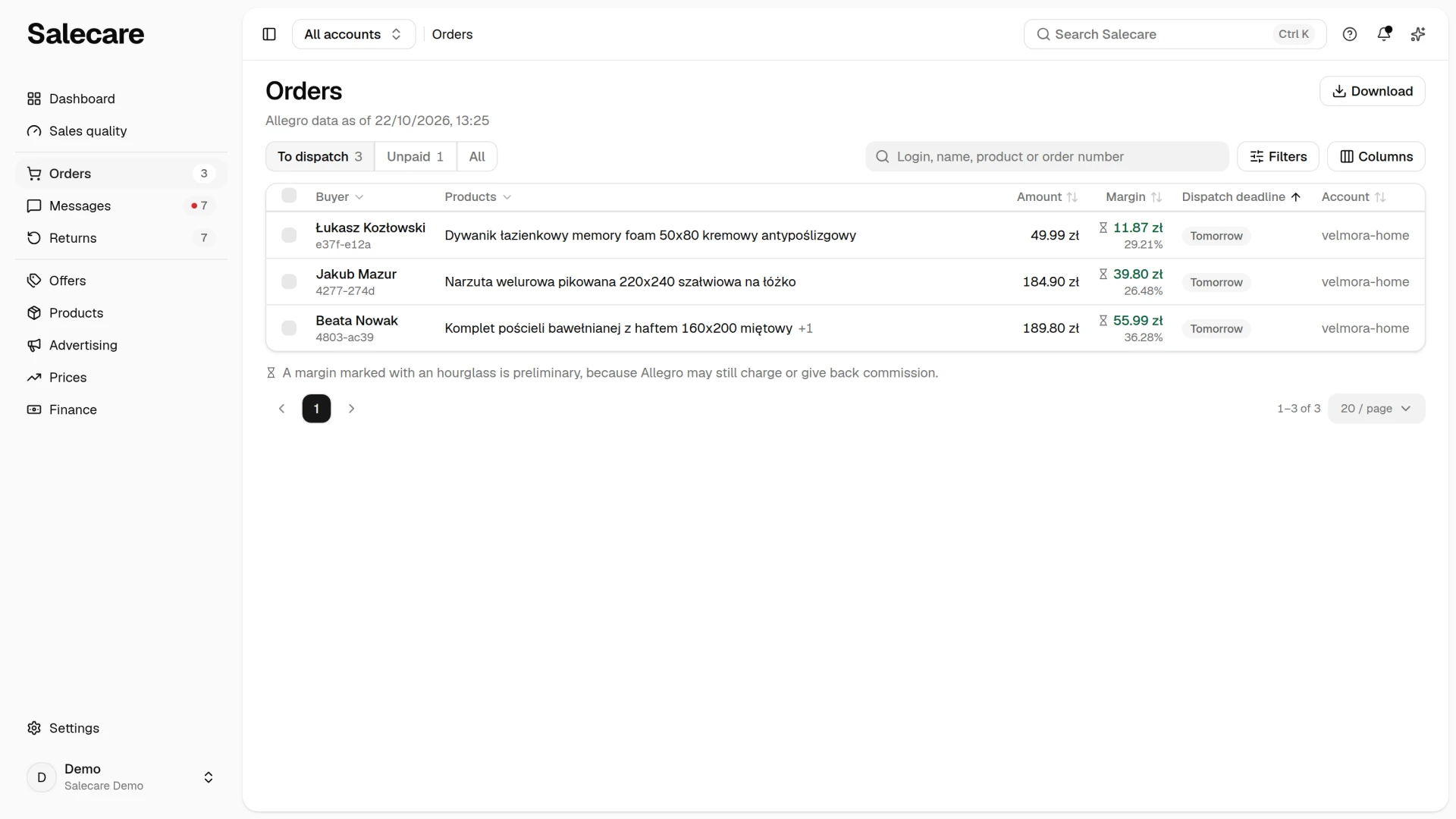
In the side menu go to Orders. The number beside this entry is the paid orders still waiting to be dispatched. A red dot on it means some of them are past their dispatch deadline, and its hint on hover says so. The entry opens the list on the "To dispatch" view with all of those orders. The overdue ones stand at the top of the list, and you narrow the list to them with the Dispatch criterion in the Filters panel. The same number stands in the To do section of the Dashboard and on the "To dispatch" view above the list. Each of these numbers covers the orders of the account picked in the account switcher in the top bar, or of all accounts. Under the page title stands the date and time of the last download of data from Allegro. The Download button saves the list to a file, and on the "All" view with the period picked there.
Views, search and columns
Orders opens on the "To dispatch" view. "Unpaid" shows the orders waiting for a payment and "All" the whole history. Beside "To dispatch" and "Unpaid" stands the number of such orders. The "Unpaid" view with no orders is hidden until you pick it. The numbers do not depend on the search, the Filters panel or the period. You pick the period on the "All" view only, at the end of the bar above the list, and you can leave "All time".
Search covers the whole history, so typing a phrase moves you to the "All" view, and clearing the field returns you to the view you came from. It finds an order by the buyer's login, a product name, a company name and the full name of the buyer or the receiver, also typed the other way round, "Kowalski Jan" for instance. It also finds one by the order number, full or the short one you see under the buyer, "8a7d-bf1f" for instance. It finds one by the phone number of the buyer or the receiver once the term holds at least 6 digits, also typed with spaces, dashes or the country code. When a phrase finds nothing, the list says that nothing matches the search and offers the Clear search button.
The list shows the buyer with the short order number, the products, what the buyer paid and the margin. The amount is everything the buyer paid, delivery included. The last column depends on the view. On "To dispatch" it is Dispatch deadline, on "Unpaid" Placed, and on "All" Status. In the view of all accounts an Account column closes the row. You turn the other columns on in the Columns menu, and the Restore defaults button undoes the choice. They are Placed, Paid, Status, Dispatch deadline, Settlement, Net revenue, Cost of goods, Commission, Shipping, Packing and order handling, Returns, Return count, Buyer history and Smart, without the column the view already shows. Only a person with the Margins and purchase prices (view) permission sees the five cost columns, Cost of goods, Commission, Shipping, Packing and order handling and Returns. The choice of columns is remembered in this browser. The name of the Net revenue column says whether the amounts are net or gross, and the same basis holds for the margin and the costs beside it. The amount the buyer paid is always gross. The Buyer history column shows how many orders, discussions and returns this buyer has, and a click on a number opens a window with the list.
The margin stands in zł with its percentage under it. A positive one is green, a negative one red. "Preliminary" before the margin means Allegro may still charge or give back commission, so the margin can still change. A ~ beside the margin means it rests on an estimated cost of goods or that no shipping rate covers the delivery method. The hint on hover says which. A dash in place of the margin means Salecare has not calculated it yet. The Status column shows the fulfilment status from Allegro, "Processing" or "Sent", for example. The statuses "Ready for shipment" and "Ready for pickup" are what Allegro's help calls "to be sent" and "to be picked up". "Unpaid" is Salecare's word for an order the buyer has not paid for yet. Only the statuses "Cancelled" and "Returned" carry a colour, because only those cost money. Every other status, "Sent" and "Picked up" included, is plain text.
On a phone the list is one card with a row for each order, and a tap on the row opens the order. The row gives the buyer with the short number, the first product, what the last column of the view shows, the amount and the margin. There are no columns to choose there. The sorting sits in the menu above the list, at the right, and the menu button names the field the list is ordered by. When the buyer has other orders, discussions or returns behind them, a button with three dots stands on the row, and its menu opens the same lists as the numbers in the Buyer history column. In the window with such a list, a phone shows rows instead of a table, and you pick the order in the menu above them.
Filters
The Filters button opens a panel with the criteria, and the number on the button says how many criteria are in effect. The Apply button narrows the list, and Reset removes every criterion of the panel. The search and the period are not in the panel, because they have their own places above the list. The panel holds these criteria.
- Status takes several picks at once, so one question leaves "New", "Processing" and "Ready for shipment" on the list together. Picking a marked status again takes it off, and with none picked the list shows every status.
- Dispatch has the values "All", "To dispatch", "Dispatch overdue" and "Late in the last 28 days", described below in the part on the dispatch deadline.
- Settlement leaves the orders that are "Preliminary" or "Settled".
- Offer and Category narrow the list to the orders with the offer or the category you pick.
- Account stands only in the view of all accounts, that is when you have not picked one Allegro account in the top bar. It is a list of your Allegro accounts to pick one or several from.
- Invoice for the buyer has the values "All", "Yes" and "No". "Yes" leaves on the list the orders where the buyer asked for an invoice, "No" the orders where the buyer declined one. An order Allegro has released no answer for reaches neither of those two lists. Neither does an order downloaded before 23 September 2026 that Allegro has not changed since. Salecare stores that answer only from that day on, with every download of the order.
- The checkboxes Only with returns and Allegro Smart orders only leave the orders with at least one return, or with Allegro Smart delivery.
- The From and To ranges cover revenue, the number of pieces, the return count, and the number of the buyer's orders, discussions and returns. A person with the Margins and purchase prices (view) permission also has the ranges of cost of goods, commission, shipping, packing and order handling, returns, margin and margin percentage. That person also has the Estimated margin criterion with the values "All", "Yes" and "No".
There is no range for the Amount column. The revenue range says "net" or "gross" in its name, depending on whether the company is a VAT payer. For a VAT payer it is therefore not the same figure as the one in the Amount column. When you reach the list from a link elsewhere in Salecare, from the fee anomalies for example, one sentence stands above the list. It says the list shows the orders with a given fee booked on a given day, and the Show all orders link removes that narrowing. When the panel or the view leaves no order at all, the list says nothing matches the filters and offers the Clear filters button. When a view is empty because everything is done, the list says "Everything is shipped." or "Every order is paid.". When the chosen period holds no orders, it says "There are no orders in the chosen period."
Settlement of an order
The Settlement column says whether the Allegro fees for the order have stopped changing, not whether the buyer has paid. "Preliminary" means a commission or its refund can still arrive, so the order's margin can still change. That state is grey, because it asks nothing of you, and its tooltip says "Allegro may still charge or give back commission". On a phone a tap on the badge opens the tooltip. An order turns "Settled" 7 days after it was placed, provided no new fee arrived in the last 24 hours. An order the buyer has not paid for yet stays "Preliminary" whatever its age, until the payment arrives or Allegro cancels it. An order with a return, or with an open missing refund alert, stays "Preliminary" until 45 days have passed since the purchase, because that is how long Allegro accepts a commission refund claim. The buyer has 14 days from receiving the parcel to withdraw, so a return often arrives once the order is already "Settled". When a return or such an alert turns up within 45 days of the purchase, the order goes back to "Preliminary" and waits until day 45, because the commission refund and the return cost will change its margin. After 45 days the order stays "Settled".
When the margin of at least one order on the page rests on the estimated cost of goods, a line under the list reads "~ Margin estimated with the cost of goods at 70% of the price.". The share comes from the Estimated cost of goods row on the Costs page. The Add purchase prices link opens the Products page on the "Without purchase price" filter. When the ~ stands only because of a missing shipping rate, there is no such line. The line shows to people with the Margins and purchase prices (view) permission, and the link to people with the Products (view) permission.
Dispatch deadline
The Dispatch deadline column shows a red "Overdue" badge, "Today", "Tomorrow" or the date of a later deadline, and the hint on hover gives the day and how the deadline is counted. Salecare counts it from the moment the buyer paid and adds the dispatch time the offer declares. It counts in working days, leaving out Saturdays, Sundays and statutory days off, and the deadline ends at the close of the day, the same way Allegro judges on-time dispatch. On an order with several items the longest dispatch time sets the deadline, because the buyer is waiting for the whole parcel. A dash stands in place of the deadline when there is no promise to keep. That is the case on an order already marked as sent, on an order where every item has a tracking number in Allegro, on a cancelled, returned or unpaid one, and on one where even a single item declares no dispatch time. While the report of the dispatch to Allegro waits in the queue or was refused, "Reporting the dispatch", "Dispatch not reported" or "Missing permission on Allegro" stands in place of the deadline. The deadline returns once you report the dispatch again. Salecare reads the dispatch time from the offer as it stands today, so changing it also moves the deadline on orders already waiting. Allegro judges an order against the deadline fixed at purchase. So when you lengthen the dispatch time, by hand or with the Set the dispatch time from the warehouse switch, the deadline of a waiting order shows a later day than the deadline on Allegro. Such an order may stay out of "Dispatch overdue" while Allegro already counts it as late. After such a change, check the deadlines in the Allegro panel. A grey "Smart" badge marks Allegro Smart delivery. It shows on the order page and in the Smart column, and helps when deciding what to pack first.
In the Dispatch criterion, "To dispatch" leaves on the list the orders that are paid, not cancelled, not returned and still not marked as sent, which is what is left to pack. "Dispatch overdue" narrows those to the ones whose deadline day has passed. "Late in the last 28 days" looks back instead. It keeps the orders whose dispatch deadline passed in the last 28 days and that neither left on time nor arrived by the expected delivery day, the ones still not sent included. They are the same orders Salecare counts as late dispatches in the Delivery row on the Score tab of Sales quality, so the Show late orders link of that row leads right here. Salecare takes the moment it saw the "Sent" status on Allegro as the dispatch time. Allegro counts from the carrier's scan, so its list can differ. Allegro's dispatch effectiveness report has the final word. Every 15 minutes Salecare checks each order waiting for dispatch on Allegro, so within 15 minutes what you mark in the Allegro panel or in whatever posts your parcels lands here too. An order where every item has a tracking number in Allegro also counts as sent, even when its status in Allegro did not change. A seller who adds tracking numbers without the automatic status change therefore does not see such an order on the packing list. Such an order stays out of "Late in the last 28 days" and out of the on-time dispatch share too, because when the parcel left is not known. When the number of "Dispatch overdue" orders starts to grow, it is usually the first sign that the program or person who marked the dispatches has stopped doing it.
The header of the Dispatch deadline column sorts the list only while the list is narrowed to the orders to dispatch. That is the case on the "To dispatch" view or with the Dispatch criterion set to "To dispatch" or "Dispatch overdue". By default the overdue orders then stand at the top, followed by those due today, tomorrow and later, and the orders with no deadline last. Within one level the order that has waited longest comes first. The header of the Paid column sorts the list by the payment date. Under such a narrowing the first click puts the parcel that has waited longest at the top and the second reverses the order. Without it the first click puts the newest payment at the top. The "Unpaid" and "All" views open with the newest orders at the top. The headers of Amount, Margin and the other columns with amounts sort by that amount, and the Buyer and Products columns have their own sort menus.
Downloading orders
A warning can stand above the list about orders the last download did not save. It says how many orders were skipped and which Allegro marketplaces they came from. Salecare saves orders only from the marketplaces where it calculates margin and costs in zł, so it skips orders from another marketplace, Allegro.cz for example. The number covers the last completed download of each account, not the whole history. Skipped orders reach neither this list nor the margin. While that warning is on screen, an order missing from Salecare therefore does not mean the sale never happened.
Salecare also compares every download against the number of orders Allegro reports for the same period. When fewer were saved and the difference is more than 3 orders and more than 1 per cent of the number Allegro reported, you get the notification "Fewer orders were downloaded than Allegro reports". It gives the number Allegro reported, the number saved and the difference between them. The notification leads to the Allegro accounts list, where the account's row says how recent the data downloaded from Allegro is. Every night Salecare downloads again the orders changed in the last 7 days, so gaps from that period fill in by themselves. If older orders are missing, or the gap is still there the next day, write to [email protected].
When an account is first connected and the orders are still downloading, a line with the progress of the download stands above the list, and the list says the orders appear as they download.
Step 2. Check the margin and profit on the order page
You open the order page from a row of the list. Its title is the buyer's name. When Allegro has released no name, the title is the buyer's login, and when there is no login either, the word "Order" with the short number. Beside the title stands one badge with the state of the order. It shows the first of these states that fits the order, in this order. They are "Cancelled" or "Returned", "Unpaid", "Dispatch not reported" or "Missing permission on Allegro", "Reporting the dispatch", and for an order waiting to be dispatched "Dispatch overdue", "Dispatch today", "Dispatch tomorrow", "Dispatch by" with a date, or "To dispatch". In other cases the badge shows the status from Allegro, "Sent" or "Picked up", for example. Under the title stands a line with the short order number, the date it was placed and the login of the Allegro account.
The Message the buyer button opens the conversation with the buyer on the Messages page, provided there is one and you may open it. The More menu has four items. Open in Allegro opens the order in Allegro. Copy order number copies the full Allegro number and confirms with "Order number copied.". Recalculate margin refreshes the result after the costs change. Erase customer data permanently removes the buyer's data, as step 4 describes. Recalculate margin is offered to a person who can manage orders and sees margins.
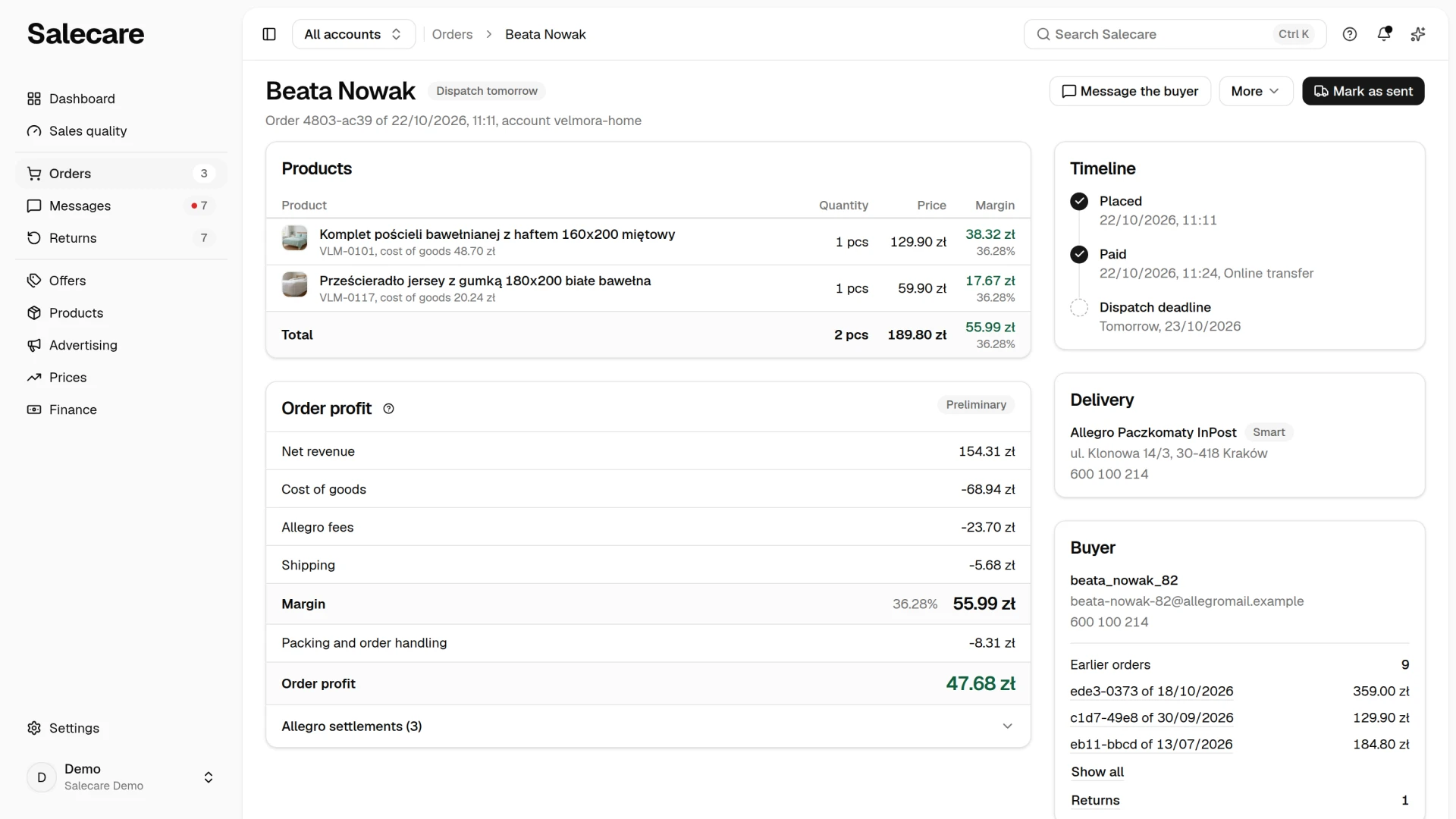
On the left stand three cards. The Products card gives every item with a thumbnail and name, the offer's reference code, the quantity, the unit price gross and the item's margin. Under the name stands the cost of goods of that item, with a ~ when it is estimated. The item's margin has a ~ when it rests on an estimated cost of goods or when no shipping rate covers the delivery method of the order. When the buyer paid for delivery, a Delivery row with that amount stands under the items. The Total row gives the number of pieces, the order value and the order's margin. The order value is everything the buyer paid, delivery included. The item prices, the order value and the refund amounts are gross, because that is what the buyer paid, also when the rest of the amounts are read net. Under the Products card stands the Order profit card, described below. A person with the Margins and purchase prices (view) permission sees it. The Returns card appears only on an order with a return. The request date opens the return card, and the status is the return status in Allegro, "In transit" for instance. When Allegro has not yet given the refund amount, the amount carries a "Preliminary" badge and is the sum Salecare worked out.
On the right stand the Timeline, Delivery and Buyer cards. The Timeline card shows the steps of the order, each with a date. They are "Placed", "Paid" with the payment method or "Awaiting payment", "Sent", "Picked up" and "Cancelled". Before dispatch, "Dispatch deadline" with the day stands in place of "Sent", "Today" or "Tomorrow" for example. A step already reached has a filled marker and a step not yet reached an empty one. The "Picked up" step appears only on an order collected at a pickup point, because Allegro ends a courier shipment at the "Sent" status. The Delivery card gives the delivery method with the "Smart" marking, the name of the pickup point, a receiver other than the buyer, the address and the country for a delivery abroad. The name of the pickup point is stored only for orders downloaded after that information was added, so older orders do not have it. The Buyer card gives the login, e-mail and phone, the invoice request and the buyer's note. It also shows the earlier orders of this login on the same Allegro account, with their returns, because purchases by the same login on your other account are counted separately. The Show all button, the Discussions and claims row and the Returns row open the buyer's history. Both rows appear only when the buyer has discussions or returns. Allegro releases the name and address only once the order is paid, and until then the card says so.
A tilde before a time on the Timeline card means Salecare did not see that change. It then gives the time it found the change, not the time it happened. Salecare reads the steps off the order's last change date that Allegro reports. So when a single download has to fill in more than one step at once, all those steps get the same time and each of them is marked with a tilde. That happens on a history import, and on an order that passed several steps between two downloads, a weekend order paid and shipped before Monday for example. A date without a tilde comes from a download that found only that one change, so it is usually minutes off the real time. The exception is an order first downloaded after a later change, at the "Processing" status for instance, whose payment date is the time of that later change. Hovering over the tilde shows the same explanation in the app, and on a phone a tap on it does the same.
Order profit
The Order profit card shows what the order brought in and how much of it was left. The lines are the revenue, the cost of goods, Allegro fees and shipping. Allegro fees cover the commission, the other fees and the promotion. The Ads and Returns lines appear only when they are not zero. The revenue says "net" or "gross" in its name, which also holds for the other amounts on the card. Together the lines give the margin, which the card shows in zł and as a percentage, with a ~ when it is approximate. Every line is the amount the order lost to it, so the costs carry a minus, and a fee Allegro gave back is positive. The Packing and order handling line subtracts from the margin the operating costs set on the Costs page, and the result stands in the last line, Order profit. The company's fixed costs are not assigned to orders, so you subtract them only from the profit of the whole period in the Profit & loss statement. The revenue on this card is the same figure the order has in the revenue column of the list, on the same basis. When the order has settlement entries from Allegro, you can expand Allegro settlements under the lines. Every entry has its date, fee and amount, the newest stands first, and a link leads to the settlements in Allegro.
The card has a "Preliminary" badge for as long as Allegro may still charge or give back commission. At most one sentence stands under the lines. When one of the items has no VAT rate, the card shows no net lines. It then says that the net margin is not computed here and gives the Set a default VAT rate link. When the buyer has not paid yet, the sentence says the margin counts only the fees Allegro has already charged. Revenue and purchase cost then stay out of the margin and the reports, and the full margin is calculated once Allegro books the payment. When the margin rests on an estimated cost of goods, the sentence is the same line "~ Margin estimated with the cost of goods at 70% of the price." with the Add purchase prices link. When no shipping rate covers the delivery method, the sentence says the cost of the parcel counts as 0 zł and gives the Add a shipping rate link. The shipping cost comes from the Allegro settlement or from your shipping rates. When the Allegro settlement carries a shipping charge for the order, the Shipping line shows that charge and the shipping rate is not used. Without such a charge, the line shows your rate for the delivery method, less the shipping charge refund when Allegro paid one out. When the rate gives no cost for the delivery method, the line holds the refund alone, as a positive amount. Before the costs of the order are counted, the card says the margin appears once they are.
The Returns line also covers payment refunds without a returned item. Those are the refunds where Allegro paid the buyer back although no goods came back, for example a discount for a defect, a refund for a missing item or for an uncollected parcel. For a missing item or an uncollected parcel, the purchase cost of those units comes back to the margin, because the goods stayed in stock.
The ad cost is an estimate. Allegro reports ad spend per offer and day, not per order, so Salecare splits the offer's daily spend evenly across its orders from that day, cancelled ones excluded. Spend from a day with no sale lands on no order. The Salecare Ads extension sends the daily spend, so without it the Ads line does not appear. The full ad cost for the period is in the Profit & loss statement.
Step 3. Mark the order as sent
On the order page, at the right of the header, sits the Mark as sent button. On a phone the same action stands in the bar at the bottom edge of the screen. The button asks for confirmation, because a report sent to Allegro cannot be taken back in Salecare, and it sends Allegro the "Sent" status for the whole order. You only see the button on an order Allegro still accepts a dispatch for, that is a paid order that has not been sent, on an account connected to Allegro. You also need the right to manage orders. An unpaid, cancelled, suspended, already sent or collected order does not have it. The buyer sees the "Sent" status, but for the sales quality score Allegro counts an on-time dispatch from the carrier's status for the tracking number, not from this button. A parcel scanned by 8 a.m. the next day counts as sent on the previous day (when Allegro considers a parcel sent). You add the tracking number in the Allegro panel, because Salecare does not send it.
You can report the dispatch of several orders from the list. On the "To dispatch" view tick the orders, and a bar appears above the list with "selected" and a number. The bar has the Mark as sent button with the number in brackets and the Clear selection button. On a phone the bar stands under the list, and with a longer list it stays at the bottom edge of the screen. The tick boxes are shown to a person who can manage orders. An order whose dispatch cannot be reported now cannot be ticked, for example one already reported, suspended or on a disconnected account. The hint beside the box then gives the state of the report or says that the dispatch of this order cannot be reported now. You tick orders of the current page of the list, and one request covers at most 100 orders. After you confirm, Salecare reports the dispatch to Allegro in the background, one order at a time. Each order's status changes once Allegro accepts the report. Until then the rows show "Reporting the dispatch" in place of the deadline, and the list refreshes by itself while a visible row waits in the queue. The message after the request says how many orders were accepted and, when some were skipped, how many.
The request runs in the background, and the badge by the page title says how far it got. "Reporting the dispatch" means it is waiting in the queue. Once Allegro accepts the report, the badge shows the "Sent" status and the order's status changes in Salecare. The date of the "Sent" step on the Timeline card then gets an exact time, with no tilde. "Dispatch not reported" and "Missing permission on Allegro" both mean the status on Allegro did not change. After a refusal, a warning with the reason Allegro gave stands under the header and the button comes back, so once the cause is dealt with you can report the dispatch again. A missing permission means the account is not allowed to write orders. In that case open Allegro accounts on the Settings page, click Connect Allegro account and confirm the same account in Allegro. When the plan's account limit locks that button, click Disconnect beside this account and then Reconnect. An order on a disconnected account has no button until you reconnect the account.
Step 4. Respect buyers' data
The buyer's details and the delivery address are on the order page, and the GDPR governs how they are protected. You process the buyer's personal data as the seller. The Erase customer data item in the More menu permanently removes it at the buyer's request, without hunting through the database. The item asks for confirmation and is offered while the order still has the buyer's details or note. After erasing, the Buyer card says the customer data has been erased. When the buyer asked for an invoice, the Buyer card holds a line with the company name and its tax ID from the invoice request. Without them the line only says "The buyer asked for an invoice". Salecare shows neither the invoice address nor whether the buyer is registered for VAT, so you take the full invoice details from the Allegro panel or from your invoicing program. Erasing the customer data removes the company name and the tax ID as well. The invoice marker itself stays, because it names nobody. If the buyer added a note at checkout, the Buyer card shows it as a quote under Note from the buyer. The note shows even before the order is paid, while Allegro still withholds the name and the address. Erasing the customer data removes that note as well, so you can erase it even from an order that was never paid.
Step 5. Switch on the Cancellation block
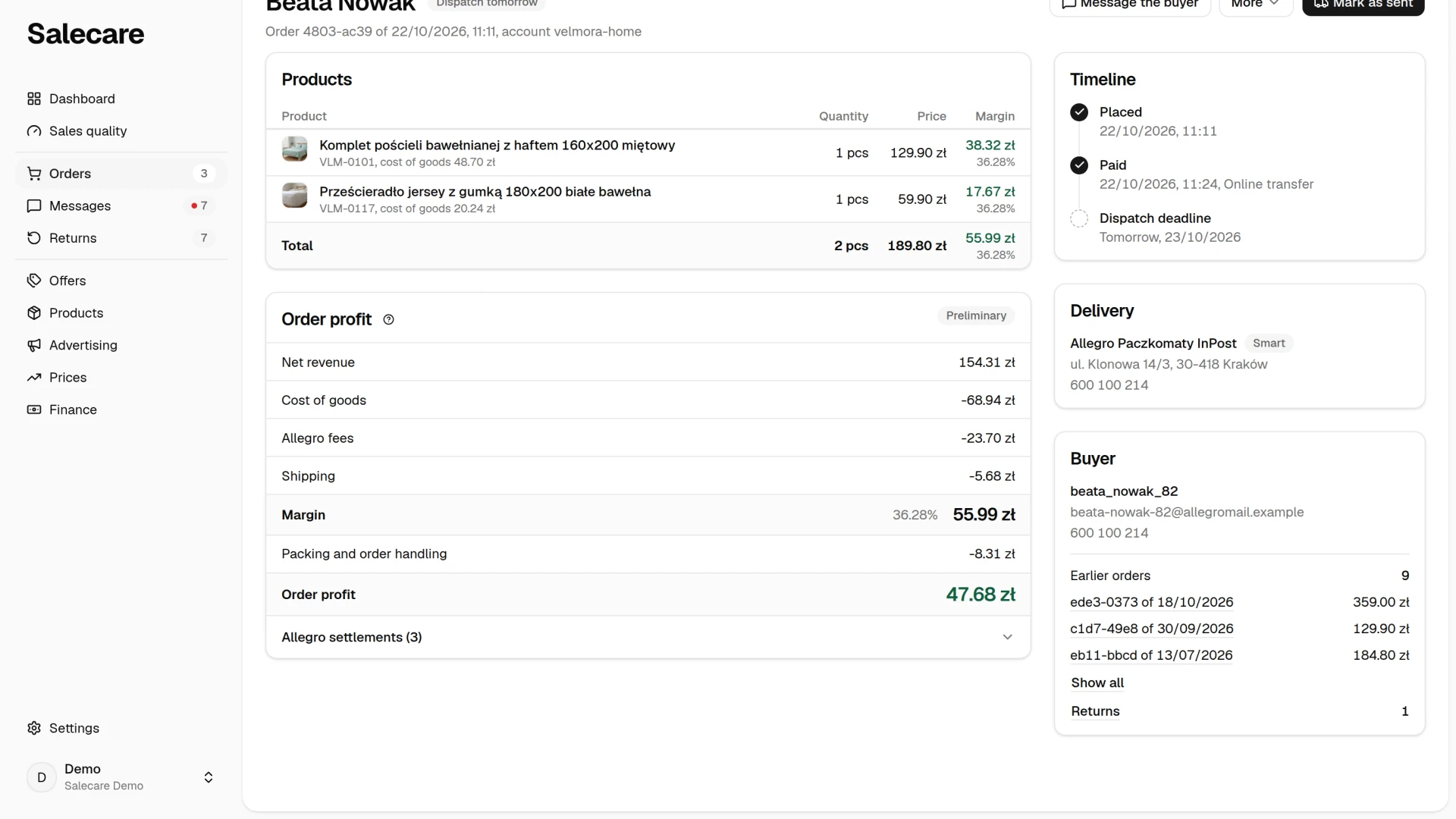
Allegro lets a buyer cancel an order only until the seller changes its fulfilment status. That is what this option builds on. On the Settings page open Allegro accounts and click the account concerned. In the After the sale group, in the Block cancellation once paid row, click Change, turn the switch on and click Save. Salecare asks first, because a paid order then gets the "Processing" status on Allegro straight away. The setting belongs to that one account, so you decide separately on each.
Salecare sends the block only while the buyer can still cancel. All of these conditions must hold at once.
- Salecare recorded the payment for that order after the switch was turned on, because the block goes out at the moment the payment is recorded.
- The order still has the "New" fulfilment status on Allegro.
- 3 days have not passed since the order was placed.
- The account is connected and holds the order-write permission.
Salecare then sets the fulfilment status to "Processing", and from that moment the buyer can no longer cancel the order themselves. Salecare checks the status on Allegro right before the change. When someone changes the order between that reading and the change, Allegro refuses it and Salecare tries again on the new state. That way it never overwrites a status set in the Allegro panel or in whatever posts your parcels. If one condition is not met, the order stays as it was, so the buyer can cancel it until their own deadline runs out. When the account lacks the order-write permission, Allegro refuses the block. Salecare then sends the notification "The cancellation block is not working", at most once a day per account. In that case open Allegro accounts on the Settings page, click Connect Allegro account and confirm the same account in Allegro. When the plan's account limit locks that button, click Disconnect beside this account and then Reconnect. An order placed more than 3 days ago is skipped on purpose, because the buyer's right to cancel has expired by then.
This option has two limits and two side effects. The buyer's right to cancel expires 3 days after the purchase anyway, so the switch buys at most those 3 days. Allegro grants that right only to buyers of a seller with a business account, so on a personal account the switch changes nothing. Every paid order loses the "New" status immediately, in Allegro and in Salecare, so the split between untouched orders and orders in progress disappears. A buyer who can no longer cancel can still withdraw from the contract within 14 days of receiving the parcel, so instead of a cancellation before dispatch you get a return after it, with the cost of sending the parcel and handling the return.
Invoices for buyers and KSeF
Salecare issues no invoices or corrections, sends nothing to KSeF and attaches nothing to the order on Allegro. You issue the invoice, and the correction after a return, in your invoicing program, and Salecare helps you gather the orders they concern. In the Filters panel pick "Yes" in the Invoice for the buyer criterion, and the list keeps the orders whose buyer asked for an invoice. The orders list export carries the Invoice for the buyer and Buyer tax ID columns, and the order line items export the VAT rate column. The file therefore reconciles against your invoicing program row by row. See the guide "How to export data to files".
What next
The margin on an order is only as good as the costs you have entered. Set them following the guide "How to set up costs and margin to see your real Allegro profit". When an order ends in a return, you can recover the commission automatically. Switch on sending the claims on the Allegro account, provided your plan includes it. See the guide "How to recover Allegro commission automatically after returns".