How to read the Salecare Dashboard
The Dashboard page opens after you sign in. At the top it lists what is waiting for you today. Under that it shows the sales and profit of the period you pick, the costs the revenue went to, your offers and the sales quality score of your Allegro accounts. This guide walks through the Dashboard from top to bottom, the first numbers card of a new account and the Profit accuracy panel.
Step 1. Open the Dashboard
After you sign in, Salecare opens the Dashboard, and from other pages you come back to it with Dashboard in the side menu. The Dashboard shows to people with the Analytics & reports (view) permission. A group with that permission always has the Margins and purchase prices (view) permission too, so everyone who sees the Dashboard sees the profit and the costs on it. A person without the Analytics & reports (view) permission lands on the first page they can open after signing in. In a new company, a person who may connect Allegro accounts first sees the pages for connecting the account and downloading the data after signing in, as described in the guide "How to connect an Allegro account to Salecare and run the first sync".
Under the page title you see when the Allegro data was last read, for example "Allegro data as of 05/10/2026, 08:12". The Dashboard sums several downloads from Allegro, namely the orders with their settlements, the returns, the refunds of buyer payments and, while Available for payout stands beside the line, the wallet. So the date is the moment of the oldest of them, and in the all-accounts view the oldest of the connected accounts' dates. Salecare downloads the orders with their settlements and the returns every 15 minutes, and the refunds of buyer payments and the wallet every hour. There is no line until Salecare has downloaded the orders with their settlements for the first time. Every page that lists or sums Allegro data has such a line under its title, with the date its own data was downloaded. The page of a single order, return or offer has none, because it gives its own dates, and neither do the pages of data prepared in Salecare, such as Products, Sales forecast and Bundles. On the regular Dashboard it also shows the Available for payout amount, the sum of the balances of your Allegro wallets in zloty, with a Payouts link. The guide "How to read Allegro payouts" describes that amount.
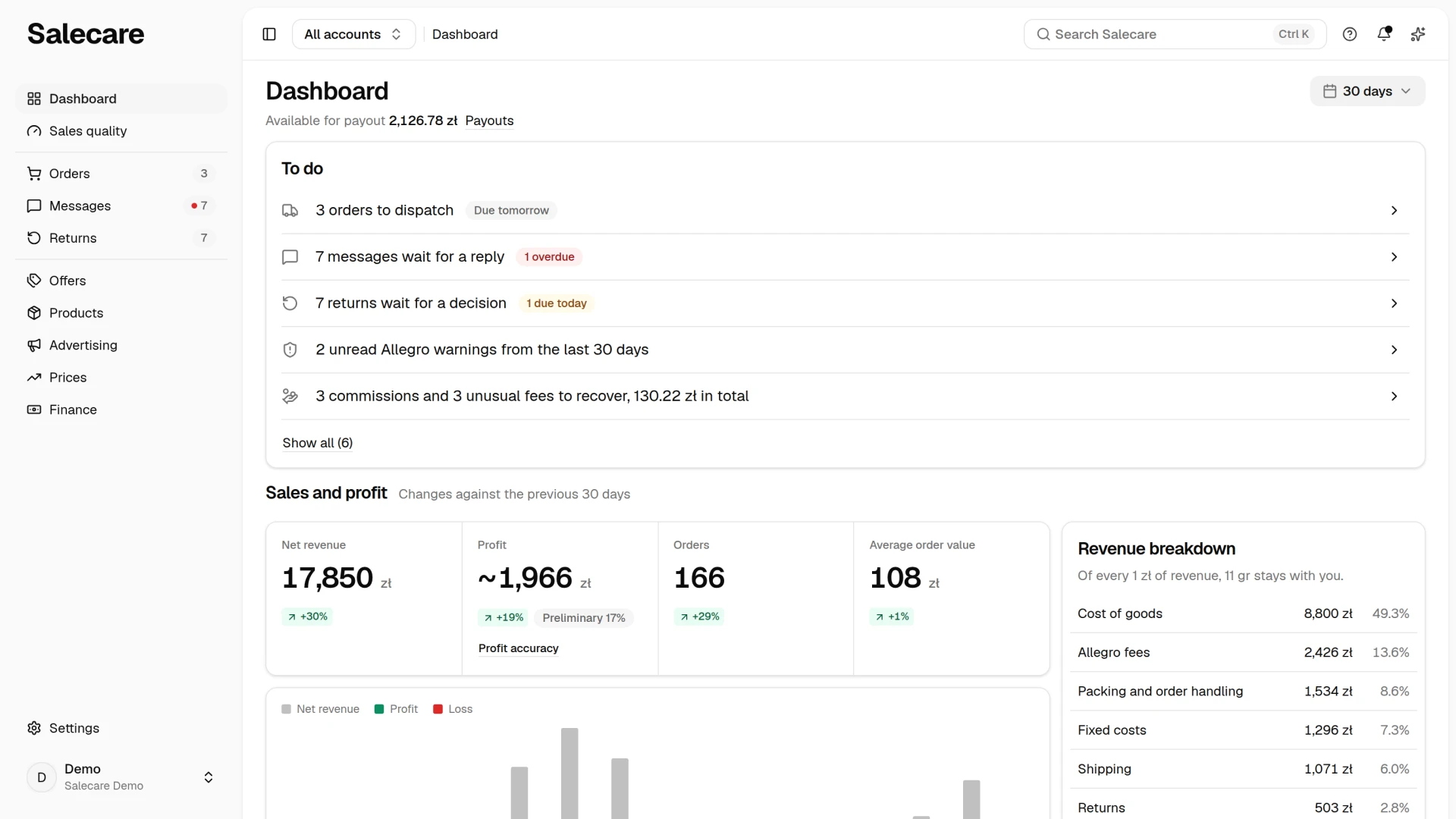
The Dashboard starts with the To do list, followed by the Sales and profit, Revenue breakdown, Offers and Sales quality score cards. In a new company the Your last 30 days on Allegro card, described below, sits above the To do list first. Every figure depends on the account switcher in the top bar, so once you pick one account, the Dashboard shows that account alone. Some figures have their place on other pages. The Categories and Allegro accounts views and the orders by day and hour, in the Days and hours mode, are on the Profit & loss statement page. The Return rate is on the Returns page, in the Reasons and money section. The Smart share and on-time dispatch are shown by the Sales and Delivery rows on the Score tab of the Sales quality page, and the rating removal requests by its Ratings tab.
Step 2. Start with what waits for you
The To do card lists what is waiting for you, always in the same order. That is orders to dispatch, messages waiting for a reply, returns waiting for a decision, unread Allegro warnings from the last 30 days, commissions and unusual fees to recover, negative ratings of the last 30 days without your reply and recommendations on the Advertising page. A row shows only while something waits. When nothing waits, the card says "Nothing urgent today.".
The badge beside a row gives the nearest deadline. A red one says how many items are overdue, for example "2 overdue". A yellow one says how many are due today, for example "3 due today". A grey "Due tomorrow" says the nearest deadline is tomorrow. Orders to dispatch, messages and returns have deadlines. Returns never show an overdue badge, because once the deadline passes Allegro refunds the buyer by itself.
Click a row to open the list of those items, with the same count as the row. The messages row counts the same as the To answer view on the Messages page, that is the messages, discussions, claims and buyer emails waiting for a reply or a decision. The menu shows the same number beside the Messages item. The returns row counts the returns of the To decide view and opens that view. The menu shows the same number beside the Returns item, and the morning report gives it for all accounts together. The warnings row opens the Messages page on the From Allegro view with the unread warnings. The orders to dispatch row opens the To dispatch view with all those orders, the late ones at the top of the list. Every row has an arrow at the right. The row of commissions and unusual fees to recover opens the To recover tab in Finance. Its amount is the amount that tab starts with, that is the commission to claim back and the part of the unusual fees above what you usually pay. A one-off burst in the number of fees adds nothing to it. The morning report gives the same amount. Five rows show at once, and the Show all button opens the rest.
You see only the rows of lists you have access to. The recommendations row needs a plan that includes Advertising, and the unusual fees row a plan with anomaly detection. The To do list does not depend on the period. Once you pick an account in the account switcher, the list counts that account's items, while warnings from a connected mailbox always count for the whole company.
Step 3. Pick the period and read the sales and profit
Pick the period at the top right. You can choose "Today", "Yesterday", "7 days", "30 days", "This month", "3 months", "12 months" or "Custom range", up to 366 days. At first the Dashboard shows 30 days, and the period you pick stays when you come back to the Dashboard from another page. The period changes the figures in the Sales and profit, Revenue breakdown and Offers cards.
Under the To do list is the Sales and profit card with four figures of the selected period, Net revenue, Profit, Orders and Average order value. For a company that is not registered for VAT, the first figure is Gross revenue. Each figure carries the change against the previous period of the same length, and the sentence beside the heading says what it is compared with, for example "Changes against the previous 30 days". Hover over a change to see the figure of the previous period. When the account history is too short or the plan does not include the comparison, the same sentence says so and no changes show.
Profit includes the fixed costs when all accounts are selected. A tilde (~) before the Profit figure means the cost of goods is estimated, and the Profit accuracy link under it opens the panel described below. The "Preliminary" badge with a percentage gives the share of orders whose fees Allegro may still change, usually for 7 days. The explanation shows when you hover over the badge, and on a phone when you tap it. A negative Profit is red.
Under the figures, only when they apply to the period, are short notes. They say how many orders have a VAT rate, how many orders have no margin worked out yet and are not in the amounts, and which orders and fees are in a currency other than zloty, because the Dashboard leaves them out of every total. Below is the revenue and profit chart, day by day up to 92 days and month by month for a longer period.
Step 4. Check the revenue breakdown
The Revenue breakdown card splits the revenue of the selected period into costs, as the statement on the Profit & loss statement page does, largest cost first. Cost of goods and Allegro fees always show, and Fixed costs, Packing and order handling, Shipping, Returns, Ads and Account fees only when they hold an amount in the period. Each cost has its amount and its share of the revenue. The sentence under the heading says how much of every 1 zł of revenue stays with you, and on a loss how much is lost.
Click a cost to open a window with its items from the selected period. Allegro fees has Commission, Promotion and Other fees tabs there. On a phone the items are rows of a list instead of a table, and you pick the order in the menu above the list. The Download button in the window saves the whole list of items, with the filters and the sort set in the window, as a CSV or Excel file. The file then waits on the Downloads page. That button shows to people with the Downloads permission. The Fixed costs row opens the Fixed costs panel on the Costs page, where you enter them, when you have access to it. Fixed costs belong to the whole company, so once you pick one account the card does not subtract them and says so in one sentence. Full statement opens the Profit & loss statement page for the same dates.
Step 5. See the offers and the sales quality score
The Offers card shows the five offers with the highest margin in the selected period, each with its photo, the units sold and the margin in zloty and in percent. The offer name opens the offer on Allegro in a new tab, and the photo shows enlarged when you hover over it. In the all-accounts view the account login also sits under the offer name. When any offer sold at a loss in the period, a Best and Losing switch appears in the card header. Losing shows the five offers with the deepest loss, and the number beside it says how many offers sold at a loss in this period. A tilde by the margin means the cost of goods is estimated. A line under the list then gives the share of the price taken as the cost of goods and an Add purchase prices link, which opens the Products page on the "Without purchase price" filter.
At the bottom is the Sales quality score card, the score Allegro gives each account, for example "350 of 400", with the weakest account last. On a computer the scores of the accounts stand on one line, and the Super Seller badge sits beside the score of the account that has it. On a phone and in a narrow browser window each account has a row of its own, with the login on the left, the score on the right and the badge under the login. With one account the row gives the score without the login. The Sales quality link opens the details of the score, and in the narrow view it sits under the scores. The card is not there while no account has a score read from Allegro. How to read and improve the score is covered in the guide "How to improve your sales quality measures".
A new account. The first numbers card
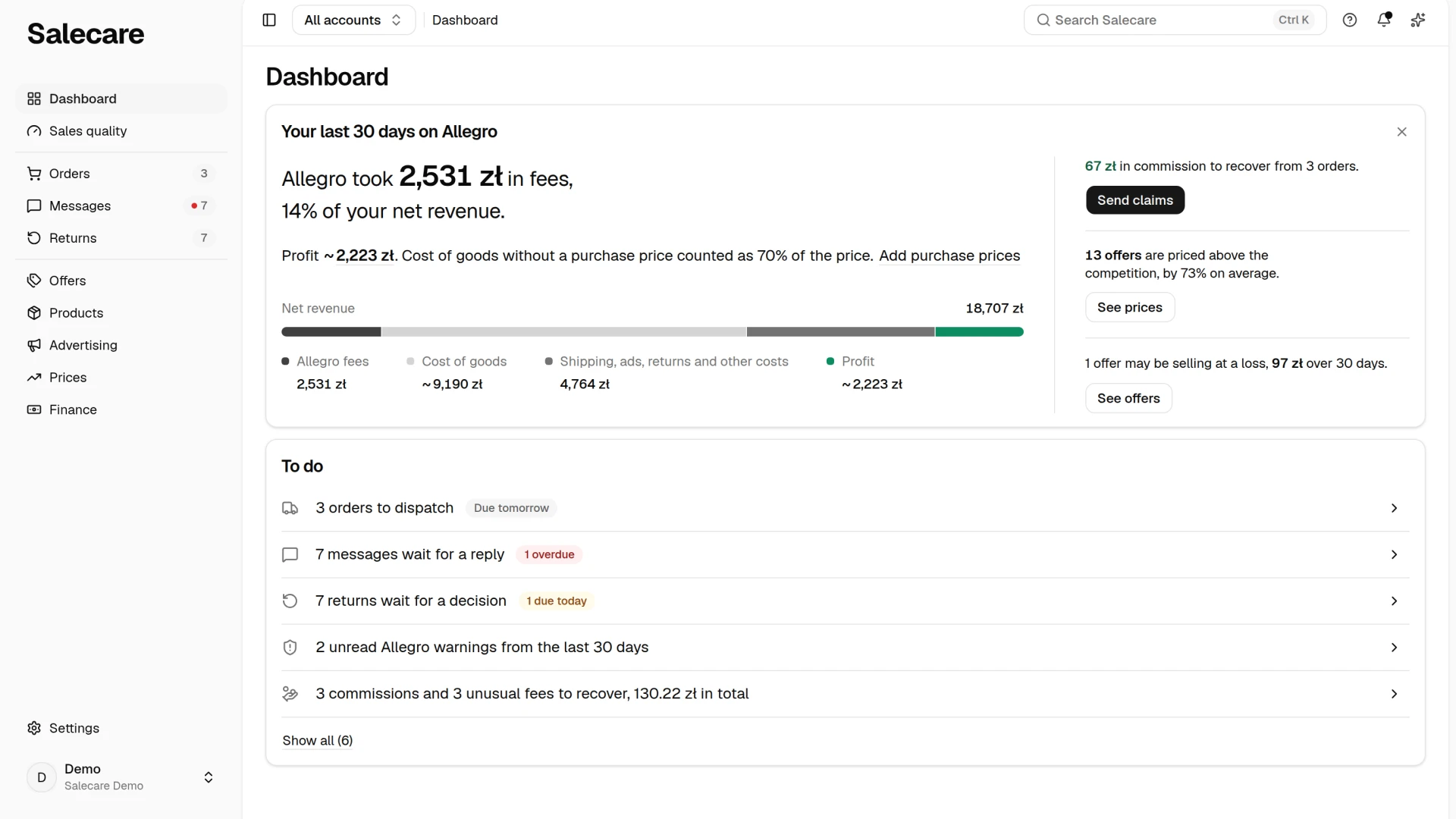
A new account sees the Your last 30 days on Allegro card at the top of the Dashboard, worked out from the Allegro orders and settlements of the 30 full days up to yesterday. First come the fees Allegro took and their share of the revenue, then the profit and a bar that shows where the revenue went. A tilde means the cost of goods is estimated, and when the costs exceed the revenue, the card says "Loss". When the company is registered for VAT and some orders of those 30 days have no VAT rate, a sentence under the figures says how many orders have one, the same as in the Sales and profit card. The card then gives no share of the revenue and no bar, and when no order has a VAT rate, no profit either. The Add purchase prices link opens the Products page on the "Without purchase price" filter. When those 30 days had no sales and no fees, the card says so in one sentence.
On the right are up to three findings, each only when there is something to say. Commissions to recover have a Send claims button, which opens the To recover tab in Finance. Offers priced above the competition have a See prices button, which opens them in the Repricer. Offers that may be selling at a loss have a See offers button. Each button opens a list with the same count and shows only to a person who can open that list. Under the card is the To do list.
The first numbers card stays on the Dashboard until you close it with Close, the cross in its top right corner, for at most 14 days after the numbers are ready. Closing it applies to the whole company, so the card disappears for everyone on the team. The Dashboard then shows the sales and profit of the selected period.
While Salecare works out those 30 days, the card says "Your last 30 days will appear here once the Allegro settlements are downloaded." and gives where the download of the settlements stands. The numbers appear on the card by themselves, without reloading the page. A company without an Allegro account sees the sentence "Your figures will appear once an Allegro account is connected." and a Connect Allegro account button, available to people with the Integrations (accounts, API tokens) permission. The To do list appears once an account is connected.
Profit accuracy
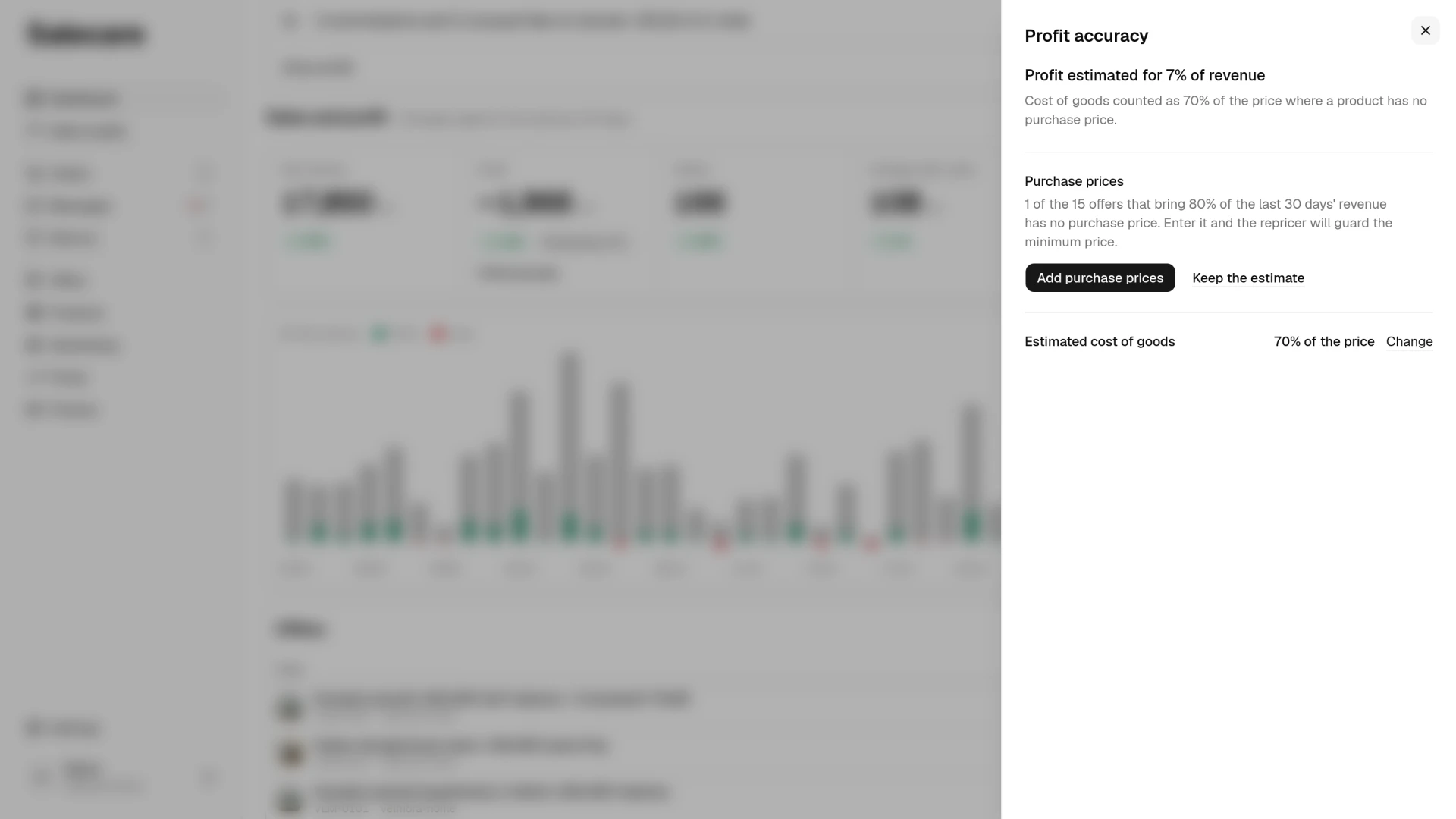
The Profit accuracy panel opens from the profit amount with a tilde on the Your last 30 days on Allegro card, and on the regular Dashboard from the Profit accuracy link under a Profit figure with a tilde. It says for what share of the revenue the cost of goods is estimated, for example "Profit estimated for 38% of revenue", and lists what makes the profit more exact. That is purchase prices, shipping cost, and packing and order handling with fixed costs, each with a button to the page where you fill it in. Add purchase prices opens the Products page on the "Without purchase price" filter, and Fill in opens the Shipping rates panel on the Costs page. Add costs opens the Packing and order handling panel, or the Fixed costs panel once packing is entered. A button shows to people who can open that place.
The Purchase prices row stays in the panel while the estimated cost of goods is at least 2% of the revenue. The Shipping cost row stays while the orders without a known shipping cost, counted at the average shipping cost of the other orders, come to at least 2% of the revenue. When no order has a known shipping cost, one such order is enough. The Packing and order handling, and fixed costs row stays until you enter those costs. The panel counts the offers that bring 80% of the revenue over the last 30 days, as the Products page does. The Estimated cost of goods row gives the share of the price taken as the cost of goods, and Change opens its setting. Keep the estimate closes the panel and changes nothing. The panel works everything out again each time it opens, so a purchase price you have just entered changes it straight away.
On a phone
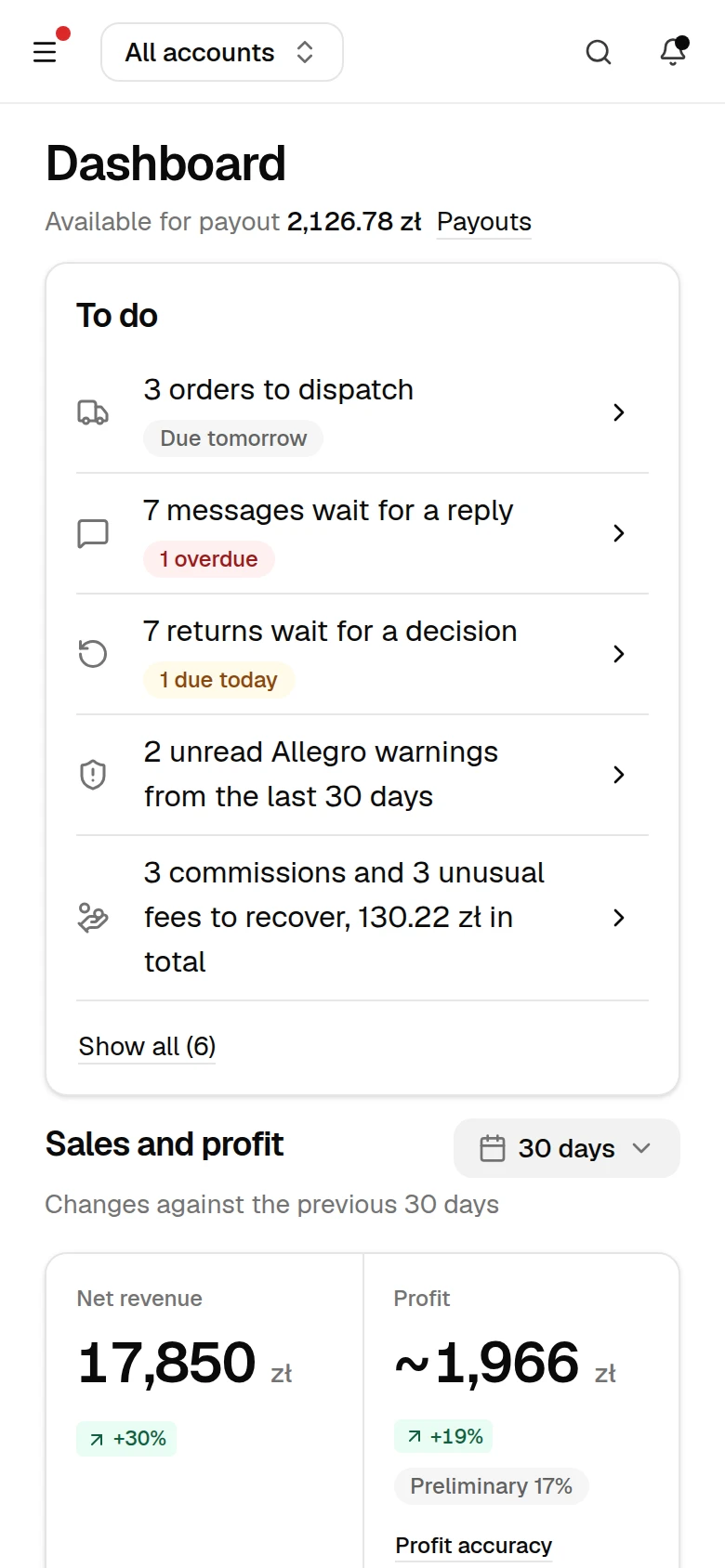
On a phone the Dashboard lays out in one column in the same order. You open a row of the To do list by tapping anywhere on it, and the deadline badge sits under the sentence. The period choice moves to the end of the Sales and profit card heading, and the Offers card has a list of rows instead of a table. On the first numbers card the first button is pinned above the bottom edge of the screen while the card is in view, and the Profit accuracy panel slides up from the bottom.
The guide to the Dashboard
You open the Guide for this page with the question mark in the top bar or, on a phone, in the menu that the ☰ button in the top left corner opens. It walks you through the parts of the Dashboard on your screen in order, from the card above the To do list through the To do list, the period, the Sales and profit card with its Profit accuracy link and the Revenue breakdown and Offers cards to the Sales quality score card, and ends on the top bar, with the menu button in the top left corner, the Search Salecare field and Help. It leaves out a part that is not on your screen, for example the Profit accuracy link beside a profit without a tilde, or Help on a phone, where it is in the menu.
What next
The tilde by the profit goes once the products have purchase prices. How to enter them is covered in the guide "Real Allegro margin in 2026, how to set up costs in Salecare". The full financial result with the Categories and Allegro accounts views is covered in the guide "How to read Finance, the profit and loss statement". The items on the To do list are covered in the guides "How to get the Allegro commission back after a return in 2026", "How to check unusual Allegro fees" and "How to monitor Allegro account health".