How to read Allegro payouts
A transfer from Allegro rarely equals the sales of the same day. Commissions, fees, refunds and holds on funds come in between, and the Allegro panel shows them in several places at once. The Payouts tab in Finance gathers the Allegro wallet history into one list. You see what came in, what Allegro deducted and what finally went to your bank account.
Step 1. Open the Payouts tab
In the menu, choose Finance, then Payouts. The page shows the Allegro wallet history, that is what came in, what Allegro deducted and what was paid out. The period above the tabs is the same as on the Profit & loss statement page, so a period changed on one of these pages stays on the other. If you picked the login of one account in the account switcher at the top of the screen, the page shows that account's wallet only, and "All accounts" collects every account's wallet on one page. The data is read-only. Salecare reads it from Allegro every hour and changes nothing in the wallet. At the first reading of an account Salecare fetches the wallet history of about the last 13 months, and after that it adds only new operations, so older operations are not on this page.
Until the page holds any operation, one sentence stands in place of the payouts list and says when the payouts will appear. It may read "Payouts appear here within an hour of connecting the account." or say that they appear after the first operation in your Allegro wallet. When the connection to an Allegro account gives no access to payments, the sentence names that account and a Reconnect button stands under it. Without that access Allegro does not release the operation history and no tool can show it. The button is visible to someone with the Integrations (accounts, API tokens) permission.
Available for payout
Above the list stands the Available for payout amount. It is the sum in zloty of the amounts Allegro last reported as available for payout in the wallets of your connected Allegro accounts. It is the same amount you see on the Dashboard and in the morning report. When Salecare last read the wallets is given by the "Allegro data as of" line under the page title, for example "Allegro data as of 05/10/2026, 08:12". In the all-accounts view it gives the oldest of the connected accounts' latest wallet reads. Allegro keeps a separate wallet for every account, payment processor (Allegro Finance, for example, and PayU or Przelewy24 in older history) and currency. With several accounts the amount of each account stands under the total. An account disconnected from Allegro carries the "Disconnected" badge and no amount, because Salecare no longer sees its wallet and does not add it to the sum. Only connected accounts whose wallet Salecare has already read count towards the sum, and Allegro keeps paying out the wallet of a disconnected account.
Step 2. Pick a payout from the list
On the left is the list of payouts, newest first. Above it the Paid out in this period line gives the sum of the payouts of the period, with the number of payouts next to it. Sums in different currencies stand side by side, because Allegro does not combine them in one transfer. The first item of the list is Since the last payout, with the number of operations that no payout from their wallet has covered yet. It has no amount, because the money that waits for it is in the Available for payout amount above the list. Below it each payout of the chosen period takes one row, with its date on the left and its amount on the right. With several accounts the account login stands next to the date. A row shows the payment processor only when the payout came from a processor other than the one behind most payouts on the list, as a badge with its name, for example "PayU". That way you can tell two payouts of the same day apart.
When the bank refuses the transfer, Allegro cancels the payout and puts the money back in the wallet. Such a payout carries a "Cancelled" badge on the list, and above its settlement a sentence says that Allegro cancelled this payout and the money went back to the wallet. The money is then in the Allegro wallet, not in your bank account. Its return stands as a "Cancelled payout" operation, with a positive amount, in the next period of the same wallet.
When Allegro holds the payouts of an account, it sends a message about it. Salecare recognises that message when it arrives through the Messages centre or in the email inbox connected to Salecare according to the guide "How to connect an email inbox for customer service". Without a connected inbox the email from Allegro does not reach Salecare. Salecare puts a recognised message in the From Allegro view, and the notification bell rings the same day. To open it, choose Messages in the menu, then the From Allegro view.
The money of a single transaction is a different case. Allegro holds it back, for example when the forecast delivery time exceeds 10 days. It holds the money for that time and 7 more days (5 with Allegro Fulfillment), 45 days at most, and moves it to the Pending section of the Funds and operations history page in Allegro. Allegro's help does not mention any message about it, so check such money in that section in Allegro. The Payouts tab sends no notifications, because it shows only what Allegro has already recorded in the wallet.
Clicking a payout, anywhere on its row, opens its settlement on the right. Salecare then takes the period that payout covers, the time from the previous payout of the same wallet to the one you picked. One wallet means the same account, the same payment processor and the same currency. When one account gets payouts from two processors on the same day, each of them therefore has its own period and its own operations. The Since the last payout item opens on the right the operations that no payout has covered yet.
Sixty payouts fit on a page. On a wide screen the list scrolls in its own box and the settlement on the right stays on screen, so you see the open payout while you scroll through a long list. The arrows under the list reach the older payouts, with the range between them, for example "1–60 of 332", and changing the page does not close the period you have open on the right. On a narrow screen, a phone for example, the list and the settlement take turns. Tapping a payout shows its settlement from the top, and the Back to list button at the very top of the page goes back to the list.
Step 3. Read the settlement of a payout
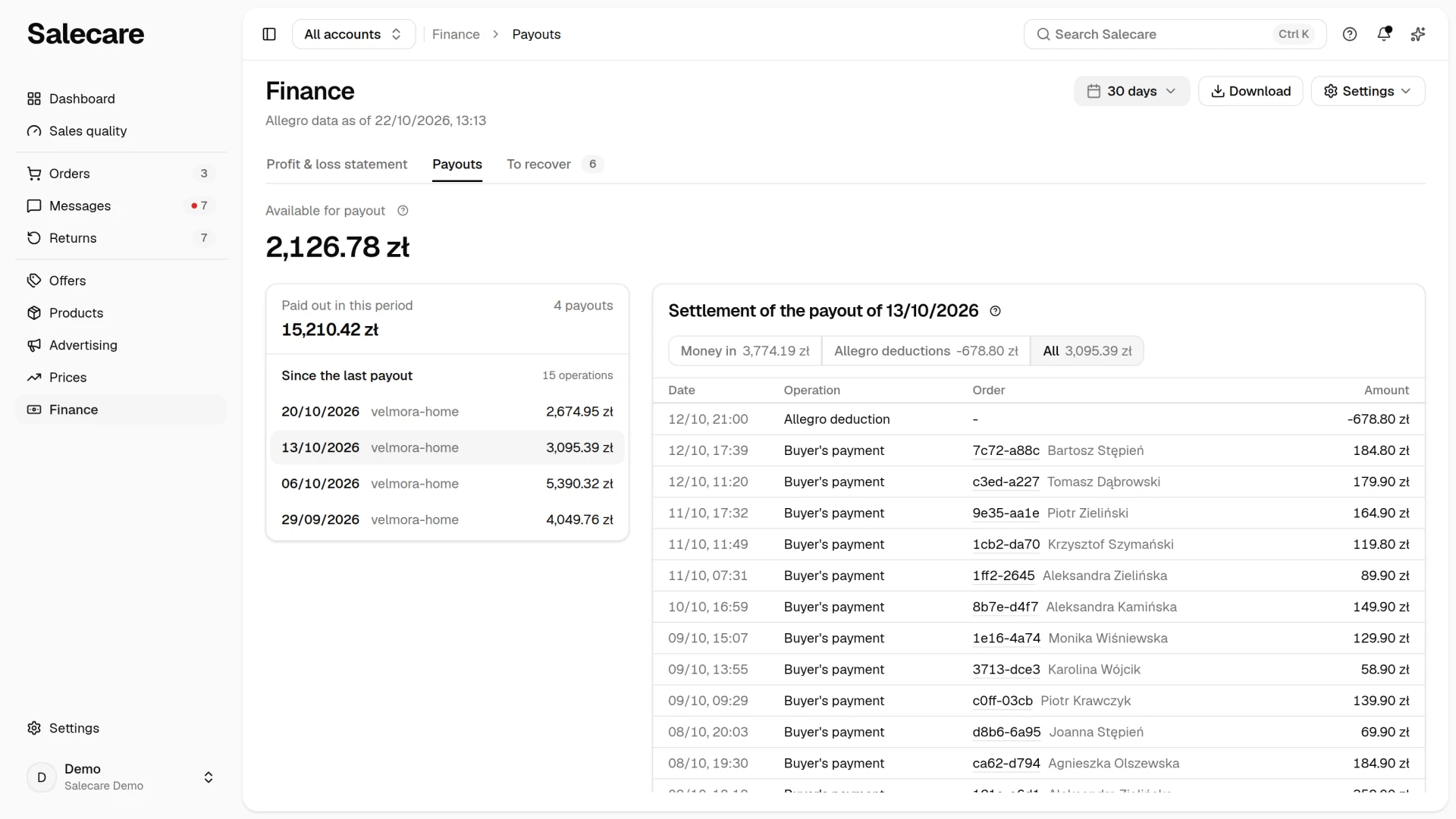
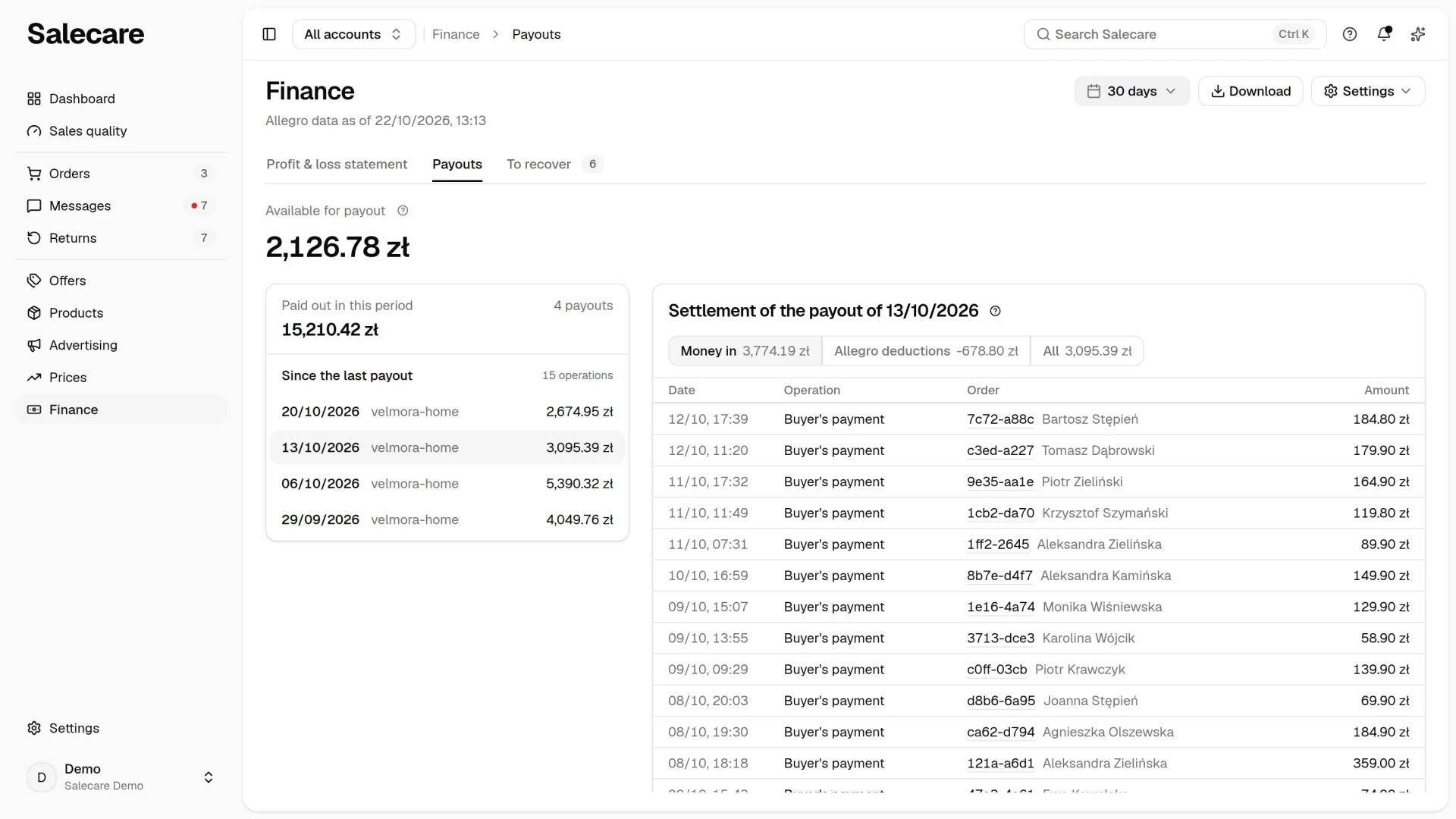
The card on the right is titled Settlement of the payout of and the date of the picked payout, and for the Since the last payout item Operations since the last payout. When the page holds more than one payment processor, the one whose wallet the payout came from stands under the title. When Allegro cancelled the picked payout, a note under the title also says that the money went back to the wallet.
The amounts are split into four groups, the way Allegro splits them.
- Money in is mostly what buyers paid, plus compensation from Allegro, returned deductions, corrections and wallet top-ups.
- Allegro deductions are, in Allegro, transfers to the bank account and deductions. In the settlement the payout itself is not an operation, because it stands on the list on the left. The group therefore holds Allegro deductions, financing instalments, cash-on-delivery settlements, transfers between ledgers and cancelled payouts.
- Refunds is money returned to buyers and refunds to you.
- Holds are funds Allegro blocked and released.
Above the table stands a switch of groups. Each group has its sum beside the name, and the last item, All, has the sum of the whole period. These sums are Allegro's amounts set side by side, not a reconciliation of the payout, so they need not add up exactly to the transfer amount. Clicking a group narrows the table below to its operations, and All brings back the full list. The sums beside the groups always cover the whole period, so after narrowing you can see what you can go back to. Picking another payout in the list opens it at once with all its operations.
Step 4. Go down to individual operations
Below the groups is a table with the operations of the period, newest first. Each row has the columns Date (day, month and hour), Operation, Order and Amount. The operation carries a name from Allegro's dictionary, for example "Buyer's payment", "Allegro deduction" or "Funds held". In the Order column an operation tied to a sale shows the short order number as a link to that order. You therefore go from an amount on the statement to a particular sale without searching by numbers. Someone with the permission to orders sees the link, and others see the number only. Beside it stands the buyer. Someone with the permission to orders sees the buyer's name, and others the buyer's Allegro login. On "Refund returned to the seller" Allegro gives the seller's login, not the buyer's. An operation with no order, for example a deduction, a financing instalment or a correction, has a dash in this column.
The table shows 20 operations at first. Under it stands the Show 20 more operations button, which adds the next 20 to those already visible, and when fewer are left it gives their number. That way you reach every operation also when the period covers the whole wallet history fetched into Salecare. Picking another group or another payout starts the list again from the first 20.
Under the table stands Total as well. It is the sum of all operations of the picked group, or of the whole period when All is picked. It also covers operations that are not on the list yet, because Show 20 more operations has not been clicked yet. Total is the sum of Allegro's amounts, so it can differ from the payout amount. The difference is made, for example, by funds Allegro blocked, which reach a payout only after the hold is released or return to the buyer if the case ends in a refund.
On a phone every operation has two lines. The first is the operation name and the amount, and the second the date, the order number and the buyer, so there is no need to scroll the table sideways.
When Allegro recorded no operation between two payouts, the settlement says so plainly instead of showing an empty list without an explanation. In the same way the Since the last payout item right after a payout says that there are no new operations since the last payout.
Step 5. Download the whole period as a file
When you want the period in a spreadsheet, to reconcile it with a bank statement for example, use the Download button in the page header. It opens the Downloads panel with the New file form already filled in. Pick the format there and click Prepare file. The panel names the downloaded period the way the settlement card does.
The button downloads the whole open period, not only the 20 operations on screen, and also when the table is narrowed to one group. In the form you choose CSV or Excel. The file carries the date, the operation, the group, the amount and the balance after the operation, and it names the order by its Allegro number, without the products sold. The buyer and the payment processor have columns of their own, and on a refund returned to the seller the Buyer column is empty for the same reason as in the table. The file of a payout ends with a row for the payout itself, with its date and amount, which is what you look for on the bank statement. The Allegro ID of that payout stands on every row, so once you put several such files in one sheet, every row still points to its own payout. The file of the Since the last payout item belongs to no payout, so its Allegro payout ID column is empty. Excel holds up to 30,000 operations. When the period has more, the form offers only CSV, which opens in Excel as well. There is no PDF, because a period can hold the whole wallet history and a PDF would carry only part of it.
The file is prepared in the background and the panel stays over the page. When it is ready, the message "File ready" appears and the list shows a Download button. The file waits on the list for 7 days, and you can open the list at any time from the account menu, with the Downloads item. When the open period has no operation, the Download button is not on the page.
What next
Payouts show the flow of money, not the result. How much of it is left after costs you read in the guide "How to read Finance, the profit and loss statement". If a fee on the statement looks suspicious, check the guide "How to check unusual Allegro fees", and you recover the commission after a return by the guide "How to get the Allegro commission back after a return in 2026".