How to connect an email inbox for customer service
You handle Allegro discussions and messages in one panel, and customer emails in another, in your mail client. One missed email about a return is enough for the matter to come back to you as a negative rating or a discussion. In Salecare you connect your own email mailbox, and customer mail lands on the same list on the Messages page as your Allegro correspondence. Instead of two programs, you have one app in which you handle every conversation with your customers.
Step 1. Connect the mailbox
Go to Settings, Integrations, Mailboxes and click Connect a mailbox. You also reach this page from the Messages page, with the Mailboxes entry under the Settings button above the list. The Connect a mailbox panel starts with the address. Once you type it, Salecare looks for the mail servers and says under the field whether it found them. It knows the servers of Gmail, including business domains on Google Workspace, and of WP, o2, Onet, Interia, Yahoo and iCloud. For other mail the Mail servers section opens by itself. You will then find the SMTP and IMAP servers, ports and encryption with your provider. The connection works over SMTP and IMAP, so it fits ordinary business mail. In the same section you type a login when the server does not sign in with the email address.
Salecare connects to the mailbox with a login and a password only. In the Password field type the mailbox password, or an app password for Gmail, Yahoo and iCloud. In the Sender name field type the name a buyer sees next to your address in a reply. Without one, the buyer sees the address alone. The answer to Who writes to this address? is described in the mailbox settings section below. Salecare does not support Outlook.com or Microsoft 365 mailboxes, hotmail.com and live.com addresses included. Microsoft switched off password sign-in for outside mail apps, and Salecare connects with a password only. The panel says so under its title.
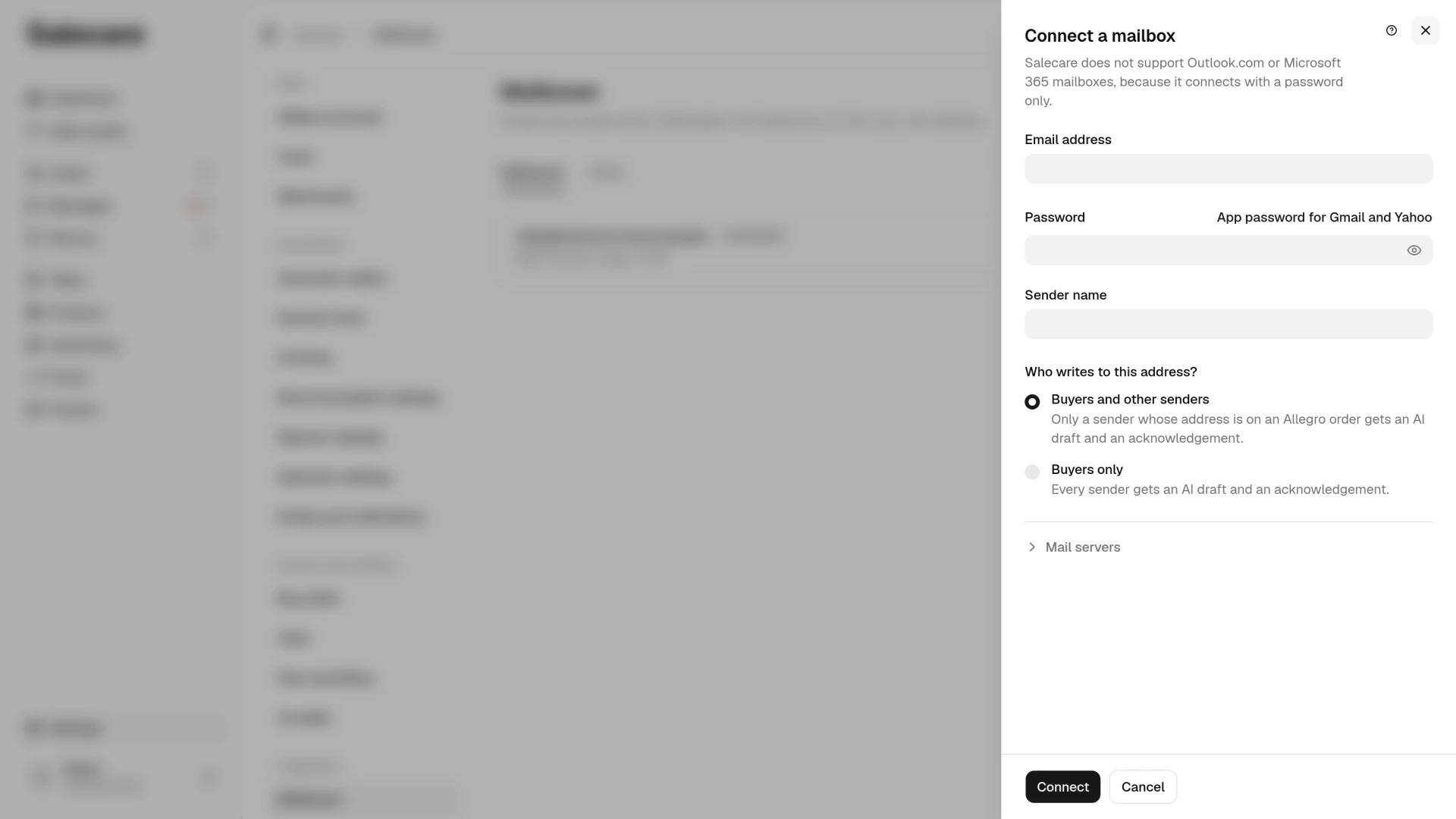
The Connect button saves the mailbox and checks the connection at once, signing in to the outgoing and the incoming server. When it works, the panel closes and a message says the emails from the last 30 days will appear on the Messages page. When one of the servers refuses, the mailbox stays on the list as "Not working", and the panel stays open with its settings. At the top of the panel stands "Signing in failed. Check the app password." when the server refused the password. Otherwise it says which server, SMTP or IMAP, could not be reached, with the error below it. Fix the password or the servers and click Connect again. Salecare fetches mail only after a successful connection check. After a failed one it fetches nothing until another check passes, even when only the outgoing server refused.
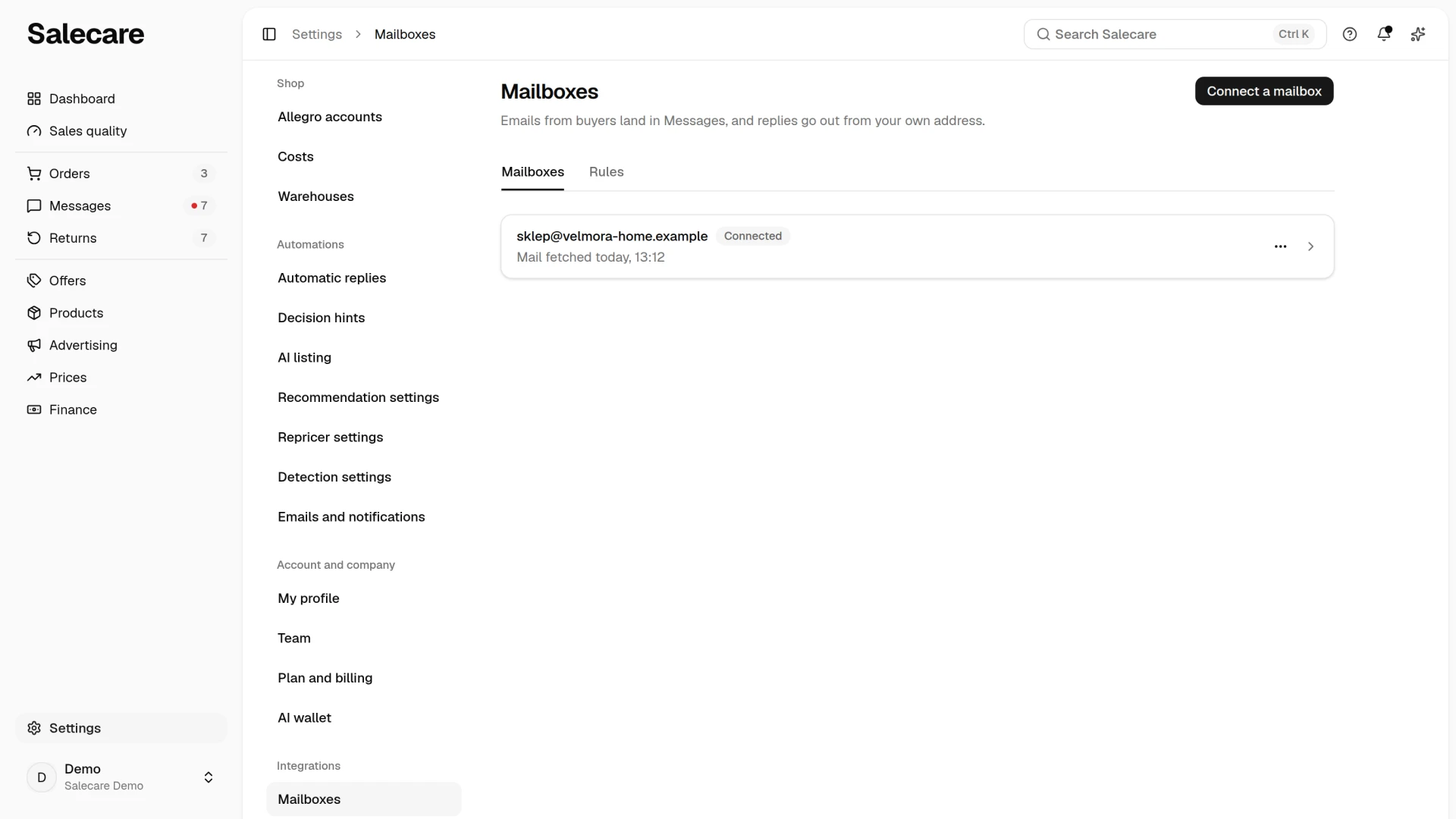
Each mailbox has a row on the list with its address and state. A connected mailbox shows when Salecare last fetched its mail. A mailbox that needs fixing has a "Not working" badge and the date since which mail has not been fetched, and a disconnected one a "Disconnected" badge. Clicking a row opens the mailbox settings. When the server refused the password or the mailbox is disconnected, the cursor is already in the password field to type it again. When the connection to the server does not work, the settings open with the Mail servers section unfolded. The menu on the row holds Check the connection and Disconnect. A disconnected mailbox has no menu, because there is nothing to check or disconnect. Disconnecting deletes the stored password, and the conversation history stays.
When the connection breaks later, during the regular mail fetch, the mailbox also gets the "Not working" state and a notification in the bell leads to its row. Salecare then retries the fetch by itself at growing intervals, at the longest every 8 hours, and after a successful attempt the mailbox is back to "Connected".
App password for Gmail and Yahoo
Gmail, Yahoo and iCloud do not let outside mail apps in with the normal account password, so type an app password in the Password field. The App password for Gmail and Yahoo link next to the Password field opens this description. In Gmail you create one in the security settings of your Google Account, and only once 2-Step Verification is on for that account. In Yahoo you create one in the security settings of your Yahoo account. In iCloud you create one on your Apple Account page, in the sign-in and security settings, and also only once two-factor authentication is on for the Apple Account. You type the password only when you connect the mailbox or change the password, and Salecare never shows it. In the mailbox settings an empty password field keeps the current password. WP, o2, Onet and Interia accept the normal mail password. Salecare does not support Outlook.com or Microsoft 365 mailboxes, because Microsoft switched off password sign-in for outside mail apps and Salecare connects with a password only.
Mailbox settings
Clicking a mailbox's row opens a panel with its address in the title. It holds the same fields as connecting, with separate SMTP and IMAP logins and the IMAP folder in the Mail servers section too, and the Replies go to, Signature, Fetch mail from, Sent folder and Keep a copy in Sent fields in the More settings section. Three of them shape your daily service.
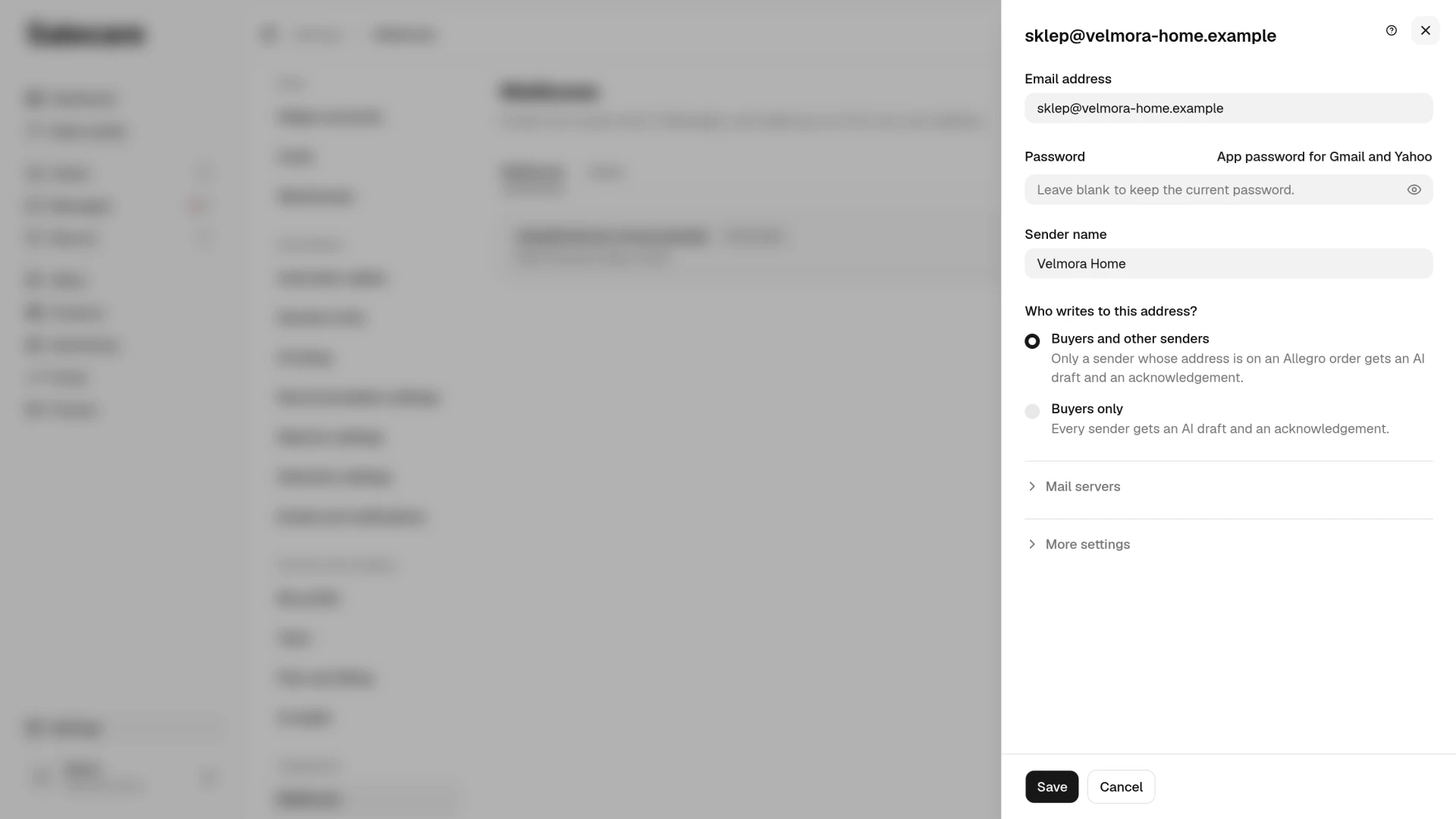
- Who writes to this address? Only a buyer gets the automatic acknowledgement and an AI reply draft. With the default answer "Buyers and other senders" a buyer is a sender with an Allegro order. That is someone whose address is on one of your orders, or who writes from an address on the allegromail.pl domain. On Allegro orders the buyer's address is usually a stand-in address on that very domain. In practice a buyer is therefore whoever writes from an allegromail.pl address. A buyer who writes from a private mailbox, Gmail for instance, lands in your conversations with no acknowledgement and no draft. The answer "Buyers only" treats every sender as a buyer. A business mailbox also hears from your wholesaler, your accountant and the courier, and an acknowledgement sent to them cannot be taken back, so pick "Buyers only" just for a mailbox that nobody but buyers writes to. Mail from other senders still lands in your conversations, and you answer it yourself.
- Signature. Salecare adds it under every reply, and quotes the buyer's message under the signature, the way a mail client does.
- Sent folder. Salecare reads it together with the inbox. A reply you sent from a phone or a mail app lands in the conversation as yours on the next mail fetch, usually within 15 minutes. From then on the case stops waiting for a reply and nobody on the team answers twice. You can leave the field blank. Salecare finds the folder itself when the server marks it as the Sent folder or gives it a usual name, such as Sent or Wysłane, and fills the field with its name. When the field stays blank even after a successful connection check, Salecare cannot see the replies sent outside Salecare, so type the folder's name yourself. The Keep a copy in Sent box is ticked from the start, so a reply sent from Salecare also shows up in the Sent folder of your mail app. Gmail files it there by itself, so a Gmail mailbox gets no extra copy.
The Fetch mail from field is rarely needed. The first mail fetch starts right after the mailbox is connected and covers the last 30 days. Salecare takes the date from this field only when it reads the mailbox from the start, for example when the mail server renumbers its messages.
When you change the server, port, encryption, login, password or IMAP folder in the settings, Salecare checks the connection right after you save and shows the result in a message. When the check fails, the mailbox gets the "Not working" state, and mail fetching waits for a successful check. Other changes, such as the signature, the sender name, the Sent folder or who counts as a buyer, need no new check and do not stop mail fetching.
Step 2. Find the mail on the Messages list
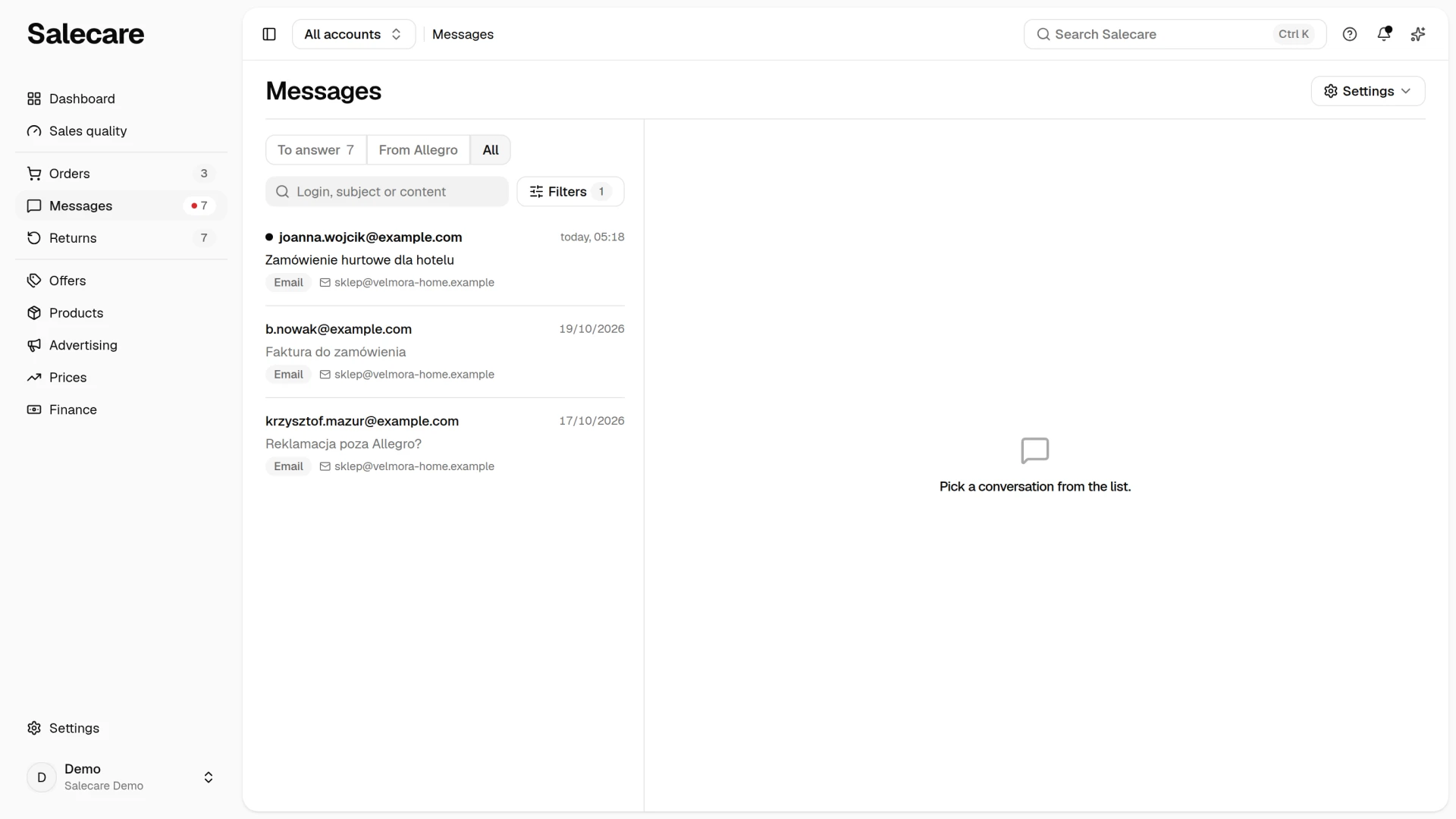
In the side menu, go to Messages. Buyer emails waiting for a reply stand on the "To answer" view together with discussions and claims. Every email from the connected mailbox is on the "All" view, with the kind "Email". Only an email from a sender who counts as a buyer under the Who writes to this address? setting reaches the "To answer" view, and an email from any other sender is on the "All" view only. The Type criterion in the Filters panel leaves only emails. The first fetch starts right after the mailbox is connected and covers the last 30 days. Salecare fetches mail in batches of 200 messages, oldest first, and when more is waiting the next batches follow one after another. With a large mailbox the first sync therefore takes longer, and today's mail shows up only after the older mail. A conversation whose buyer last wrote more than 30 days ago is imported hidden, so the list keeps what is still worth answering. After that, new messages show up here every 15 minutes.
Salecare sends no automatic acknowledgement to mail sent before the mailbox was connected, because you may have answered some of it from another program already. The same goes for an email Salecare fetched more than two hours after it arrived, after a break in mail fetching for instance. No acknowledgement goes out either when the same fetch finds your reply to that email in the Sent folder. AI reply drafts, once you switch them on, are written for unanswered buyer mail from the last 14 days, including mail from before the mailbox was connected. Every draft is paid from the AI wallet.
Mail from Allegro, warnings that an offer was removed and notices of payments for instance, goes from this mailbox to the "From Allegro" view. Without a connected mailbox that view shows only what comes through the message centre and says so under the list. The number beside the "To answer" view counts the cases waiting for your reply or decision. The "From Allegro" view has no number, and its unread warnings and notifications stand at the top of its list.
An email written in HTML shows with its own layout. Pictures pasted into the text, a supplier's label design for instance, stand in the text of the email, and under the message are only the files sent as attachments.
Step 3. Filter out mail that is not from buyers
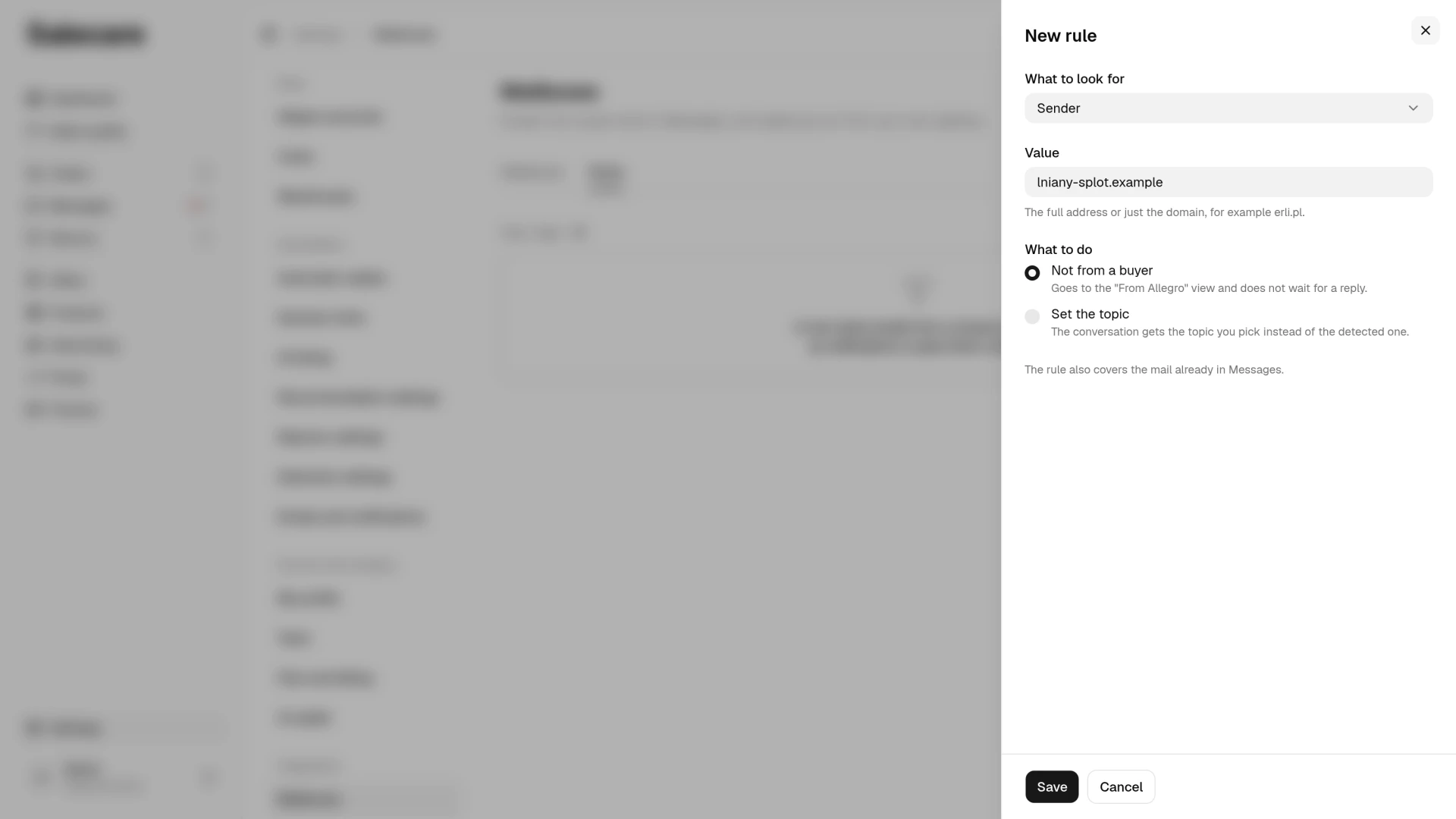
Salecare recognises notifications, newsletters and automatic replies by itself, but it does not know every company you work with. An email from a wholesaler or a courier that Salecare does not recognise stands on the "All" view as an email, and on a mailbox set to "Buyers only" it also waits on the "To answer" view and adds to its number. You filter such a sender out with a rule. Go to Settings, Integrations, Mailboxes and click Rules above the list of mailboxes. The Rules button appears there once the company has a mailbox that is not disconnected, or already has rules. Rules are set by a person with the Workspace settings permission. Click Add a rule, and in the New rule panel pick "Sender" under What to look for, type the full address or just the domain, for example hurtownia-tkanin.pl, and pick "Not from a buyer" under What to do. A domain also covers its subdomains. Under What to look for you can also pick "Subject line" or "Message text" and type a part of it, and letter case does not matter. Mail from that sender then stops waiting for a reply and goes to the "From Allegro" view as a notification. It gets no topic, no acknowledgement and no AI draft. A rule with the "Set the topic" action gives the conversation the topic picked in the Topic field when the recognition by the words in the message picks the wrong one. Rules are checked in the order you added them, and the first one that matches applies. They always take precedence over the automatic recognition. A saved rule also covers the mail already on the Messages page, and with many emails this can take a few minutes. You delete a rule from the menu on its row. It then no longer applies to new mail, and the conversations it already moved to the "From Allegro" view stay there.
Step 4. Run your customer service in one app
From now on you do not switch between the Allegro panel and a mail client. A customer's email lands on the same list as a discussion or a claim, so one person handles every conversation in one app. A buyer's email waiting for a reply stands on the "To answer" view and counts in the number beside Messages in the side menu. Salecare runs the same 24 working hours on it as on an Allegro message, although Allegro scores no email. When someone is on holiday or the person handling service changes, their successor sees all the correspondence fetched into Salecare, with no hunting through mailboxes. That correspondence reaches back 30 days before the mailbox was connected. When a customer writes an email first and then opens a discussion, you have both cases in one app, on one list. Salecare does not link them, because the email comes from an email address and the discussion from an Allegro account. The Automatic replies entry in the More menu above the list leads to the service automation settings.
What next
The email mailbox is connected. Now set up automatic responses, templates and AI reply drafts, so no case waits longer than it has to. See the guide "How to automate Allegro messages and discussions".