How to answer messages and claims
You have 24 working hours to reply in an Allegro discussion. Allegro leaves Saturdays, Sundays and statutory days off out of that window, and Salecare counts it the same way. When you miss it, an Allegro employee joins the conversation. Since 26 August 2026 Allegro's sales quality counts the compensations paid to buyers from Allegro Buyer Protection and the average time you take to decide a claim. You get the full points for that time when you decide the claims of the last 30 days in under 7 days on average. On a claim more is at stake, because if you do not decide in time, Allegro accepts the claim for you. Salecare collects the messages, discussions, claims and buyer emails of all your accounts in one list on the Messages page. It shows each case's deadline. On a claim it also shows which day of the case it is against the 7 days, the 3 days recommended for the return shipment, and Allegro's decision deadline.
Step 1. Open Messages and pick a view
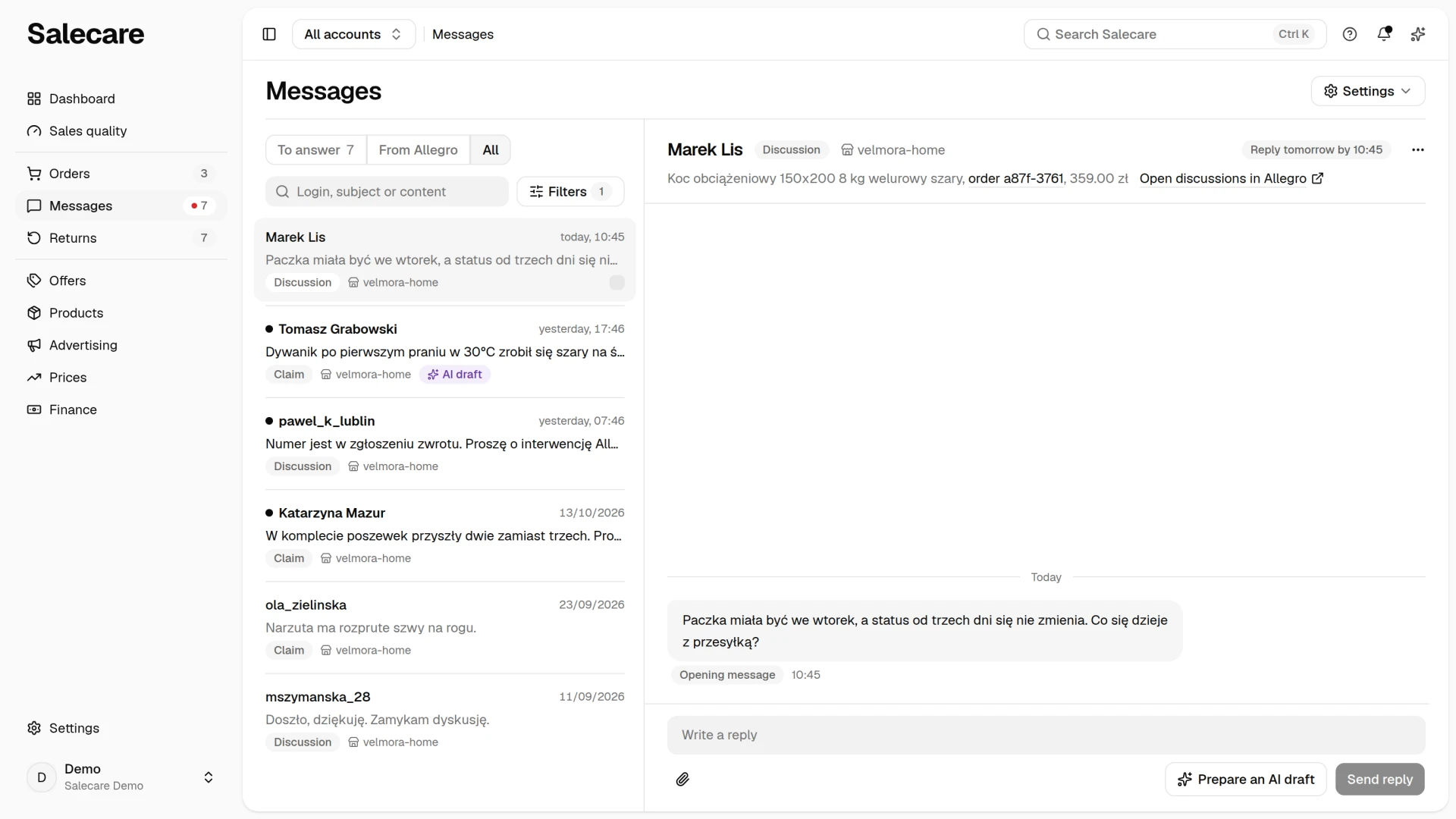
In the side menu, go to Messages. It is one list in three views. The "To answer" view gathers the messages, discussions, claims and buyer emails waiting for your reply or decision. It sorts them under the headings "Overdue", "Today" and "Later". The "From Allegro" view holds the warnings and notifications from Allegro. The unread ones stand at the top of the list, and the view has no number. The "All" view is every conversation with a buyer, including the ones you have already answered and the settled cases. The page opens on the "To answer" view. The number beside it is the same number that stands beside Messages in the side menu. The red dot beside the menu entry means that some case is past its reply deadline.
Each row is one conversation. It shows the buyer, the start of the last message, the kind of case and the product, and with all accounts selected also the account login. The kind of case is "Message", "Discussion", "Claim", "Email", "Warning" or "Notification". A conversation with a ready reply draft carries the "AI draft" badge. In an unread conversation the buyer is in bold. On the "To answer" view the row carries the deadline badge described in step 2. On the other views it shows the time of the last activity. The "From Allegro" view starts with the unread ones and "All" with the newest conversations.
On a computer the list stands on the left and the conversation opens on the right, so you do not go back to the list for every case. On the "To answer" view the most urgent case is open at once. Salecare marks a conversation read only when you click its row, so merely opening the page marks nothing as read. When you open a message centre conversation, Salecare marks it read in Allegro too, provided the Allegro connection includes the message centre. Claims, discussions and email are not marked that way, because Allegro does not allow it. On a phone you see the list first, and a tap on a row opens the conversation on the whole screen with a Back to list button.
The search box above the list searches by buyer login, subject, claim number and the text of the messages. The case you look for usually has a reply already. So a phrase typed on the "To answer" view searches every conversation, and clearing the field returns to the "To answer" view. On the other views the phrase searches where you are. The Filters button beside the search box is described in step 5.
The Settings button above the list holds Automatic replies and Mailboxes, each for a person who has access to that settings page. When you have access to only one of them, the button opens it straight away. On the "From Allegro" view a Mark all as read button stands as well. While some warning or notification is unread, it marks all of them read in one click. Allegro sends some warnings by email only, and Salecare reads buyer emails from a connected mailbox. Without one, the "From Allegro" and "All" views say under the list what a mailbox would add, with a Connect mailbox link.
Step 2. Watch the deadlines
On "To answer" the list runs from the most urgent case. Under "Overdue" stand the cases whose time to reply has run out, and under "Today" the cases with a deadline today. Under "Later" stand the rest, including the cases with no current deadline, for example one Allegro has already taken over. A row carries one deadline badge, and it shows the clock that runs out first. There are five clocks.
The first is the time to reply, counted in working hours. The badge gives the time you have to reply by, for example "Reply by 15:30", "Reply tomorrow by 15:30" or "Reply by 16/10/2026, 15:30". When the buyer writes on Friday at 15:00, the deadline ends on Monday at 15:00. A message sent on a Saturday, a Sunday or a statutory day off gives you until 23:59 on the nearest working day, the way Allegro counts. Salecare runs the same clock on a buyer's email, although Allegro scores no email. The time to reply appears only when the next reply is yours to give. Once it is exceeded, the badge turns red and says "Reply overdue" or, for example, "Reply 2 days overdue".
The other four clocks belong to Allegro and count only while they are still ahead of you. The decision deadline that Allegro itself gives carries the badge "Decide by 24/10/2026". After that date Allegro accepts the claim for you. That is why a claim whose decision deadline is still running cannot be hidden, see step 6. The 3 days recommended for the question whether the buyer sends the product back carry the badge "Settle the return by 12/10/2026". The 7-day target for the decision carries the badge "Day 3 of 7 to decide". Those 7 days are the threshold for full points on the Claim resolution time measure. These two clocks are goals, not deadlines. Thanks to them a fresh claim stands high from its first day and not only at Allegro's deadline. The fifth clock belongs to discussions. The badge "Allegro can step in from 20/10/2026" gives the day from which the buyer can mark the discussion as unresolved and pass it to Allegro. That is 7 days from the opening when the reason is a missing parcel, and 14 days for the other reasons.
When a clock passes, the case does not go under "Overdue" because of it, it falls back to the next clock. Under "Overdue" goes only a case whose time to reply has run out. Only the badge of a missed reply is red, because the other clocks are goals or Allegro's move. An orange badge means the deadline falls today or these are the last days of a goal, and a grey one means the deadline is further off. A claim accepted from Salecare whose refund is not marked as made yet has no clock left. It stands under "Later" with the badge "Refund of 149.99 zł to make" or, when Salecare does not know the amount, "Refund to make".
A claim or a discussion reaches the "To answer" view when something waits on you there. That can be an Allegro intervention, a decision whose deadline has not passed yet, a reply the buyer waits for, or the refund of a claim accepted from Salecare that nobody has marked as made yet. A message centre conversation and a buyer's email get here when the buyer wrote last, in the last 14 days. A case leaves the view once nothing waits on you in it. Hidden conversations never get here. You see the points for timely replies and the claim resolution time on the Sales quality page, which the guide "How to improve your sales quality measures" describes.
Step 3. Work in the conversation next to the list
Above the conversation stands a header with the buyer, the kind of case and the account. When the case has a deadline, the header carries the same deadline badge as the row of the list. The exception is a claim whose decision deadline passed with no decision. The header then carries a red badge with that deadline, for example "Decision deadline passed on 16.10.2026", because Allegro has already accepted the claim for you. The badge of the list row, for example "Reply 11 days overdue", then stands as text at the end of the line under the header. Under it stand the product, the amount and a link to the order in Salecare. A person with access to orders sees the link when Salecare knows the order. On a claim the Open in Allegro link leads to the same case on Allegro. A discussion has no address of its own, so the Open discussions in Allegro link opens the list of discussions, where you find it by the buyer's login.
The More menu (three dots) in the header holds only the entries that fit the conversation.
- Claim details on a claim.
- Earlier conversations with the buyer with the number of conversations, when the buyer has others in Salecare.
- How the AI draft was made and Discard the AI draft, while a ready draft waits.
- Other conversation about this order with the channel's name, when the buyer writes about the same order elsewhere.
- Message centre in Allegro on a message centre conversation.
- Ask to end the discussion on an open discussion.
- Hide or Restore, described in step 6.
Discarding the draft, the request to end and hiding are visible only to a person who can run conversations.
The Claim details entry opens a panel made entirely of Allegro data. It shows the claim number, the date it opened, the entitlement, the number of items, the problem and the expected resolution with the amount. It also shows the return shipment with the deadline or the date by which Allegro recommends that step, the decision deadline and the decision target. The decision target is the day of the case against the 7 days, with the date the target ends. Below that data stands the description of the problem in the buyer's own words. When Allegro wrote the claim's opening message, its full text stands at the end of the panel, the buyer's address included. A discussion has no such data, so it has no such entry either.
In the conversation the buyer's messages stand on the left and yours on the right. An automatic reply sent on your behalf stands on the right too, with a grey "Automated" badge. A message from Allegro, a reminder of a deadline for instance, is a grey line with an icon on the left, cut to its first sentence. The Show full message button under it opens the whole text. A claim's opening message written by Allegro starts the conversation as a list of facts with the "Opening message" badge, namely the problem, the problem description, the expected resolution and the entitlement. The Full text of the opening message button opens the Claim details panel with the whole message. An opening message the buyer wrote stands in her own words, with the same badge.
Replying to the buyer
You reply in the Your reply field below the conversation and click Send reply. Every reply sent from Salecare carries the name of the person who sent it, so months later you can still see who answered the buyer. A reply written in the Allegro panel carries no such name, because nobody in the office sent it from Salecare. An acknowledgement sent from a template carries the "Template" badge. The reply field and the decision buttons are visible to people with the Discussions (reply) permission. Other team members can only read the conversation. When the Allegro account is disconnected, the field says the reply will not reach the buyer and leads to reconnecting it.
The Add attachment paperclip adds files. On a claim or a discussion you can add up to 5 files of 2 MB each, and on a message centre conversation up to 5 files of 5 MB each. The formats there are the ones Allegro accepts, which are images and PDF. By email the limit is 10 files of 15 MB each, with office documents, CSV, TXT and ZIP as well. A file over the limit is refused, and under the field stands the limit that applies on this channel.
The case may concern an order with a return that has photos at receiving or a value reduction letter. Then an Evidence from the return list with that return's number stands under the reply box. You tick on it the Value reduction letter (PDF) and the photos that should go with this reply. One reply carries files from one return only. The list appears only on a discussion or claim about an order with a return, never in the message centre or by email. Only people with access to returns see it. Ticked files count towards the same limit, so together with the files from your disk a reply still carries at most 5 attachments. A letter that no longer fits the return cannot be ticked. Nothing leaves on its own. The buyer gets the files only once you send the reply, and the return card then records what was sent. How to prepare the photos and the letter is described in the guide "How to handle returns in Salecare".
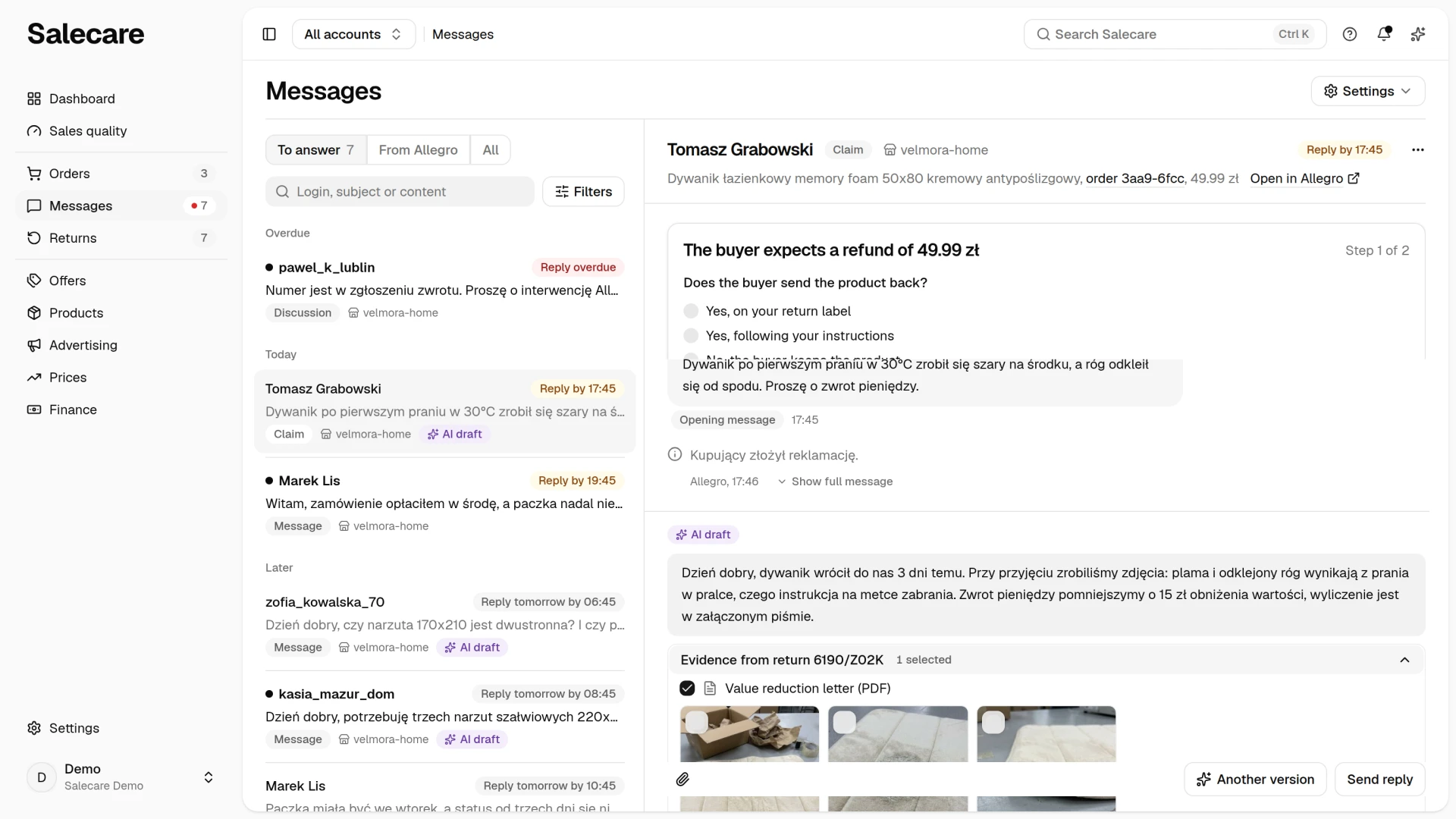
The AI assistant prepares a draft reply in claims and discussions too, but it never sends it. A ready draft waits in the reply field, and above the field stands the "AI draft" badge. You can edit it, and the message leaves only when you click Send reply. A reply in a claim is a statement in a formal procedure, so you always send it yourself. The Another version and Prepare an AI draft buttons are paid from the AI wallet. You see the approximate amount before you click, in the hint on a computer and under the button on a phone. When the field holds your own text, Salecare first asks whether to replace it. A draft written while you type does not change your text, and the Insert the AI draft button puts it in at no charge. While a draft waits, the How the AI draft was made entry in the More menu shows what the assistant based the reply on and the result of the independent safety check. Salecare checks the draft right after it is written, on seven points. It checks the first three itself, without AI, and an AI model judges the other four in a separate request, in which it does not see the assistant's confidence. The check sends nothing. The guide "How to automate Allegro messages and discussions" describes it.
Step 4. Decide the claim
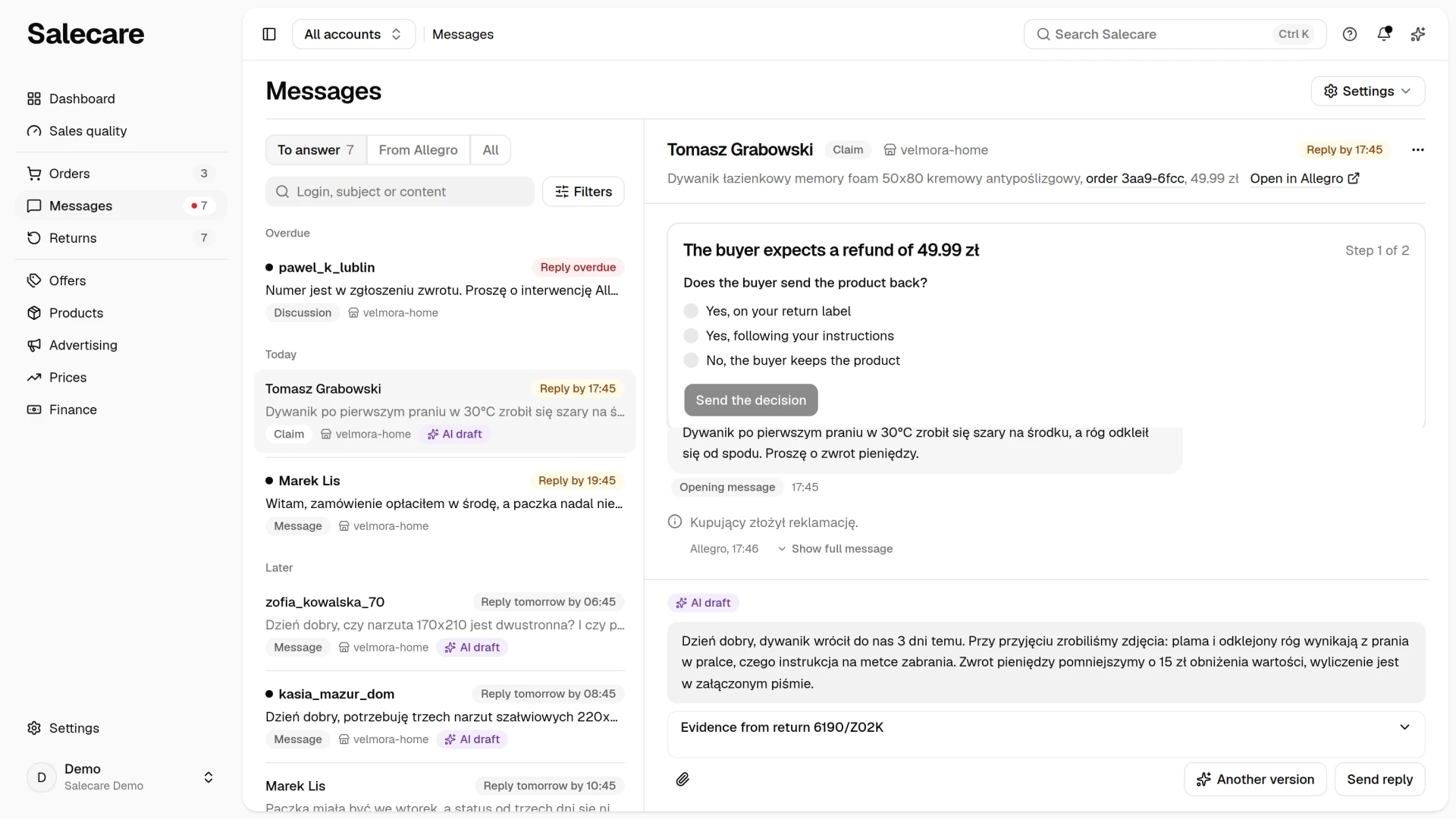
Talking to the buyer does not settle a claim. Above the conversation stands one card with the step Allegro waits for. The card's title says what the buyer expects, for example "The buyer expects an exchange". Step 1 of 2 asks whether the buyer sends the product back. Step 2 of 2 asks how you settle the claim. You confirm every answer in a window, because Allegro records it on the case and it cannot be withdrawn from the app. When Allegro does not accept an answer and gives a reason, the error message quotes that reason. People with the Discussions (reply) permission can answer Allegro. Other team members see on the card the buyer's demand, the question and the step counter, with no buttons. On a phone the card's buttons stand in a bar at the bottom of the screen, next to the Reply button, which opens the reply field. There the card scrolls with the conversation, and the conversation opens on its newest message. So until you pick an answer, the main button of the bar is called Settle the return or Decide and scrolls the conversation to the card's question. Once you pick an answer it turns into Send the decision.
Sending the product back
Step 1 of 2 asks Does the buyer send the product back?. Until you answer it, the buyer does not know what to do with the product. Allegro recommends answering within 3 days of the claim being filed. If the buyer never got your instructions on how to send the item back, you cannot later reject the claim because it never came back. You can pick one of three answers.
- "Yes, on your return label".
- "Yes, following your instructions". Then you write in the Instructions for the buyer field where and how the buyer should send it back.
- "No, the buyer keeps the product".
With the first and the third answer the Message to the buyer field already holds the sentence the buyer gets, in Polish, for example "Towar zostaje u Ciebie, nie musisz go odsyłać." (Keep the item, you do not need to send it back). You can change it before sending, and when you clear the field, Salecare sends that sentence.
The claims waiting for this answer are narrowed by the Return shipment criterion in the Filters panel, see step 5.
Claim decision
Step 2 of 2 asks How do you settle the claim?. You pick "I accept" or "I reject". For an acceptance you pick in the Resolution field a refund, a partial refund, a repair or an exchange. For a rejection you pick in the Reason field one of the reasons, for example "The product conforms to the contract" or "The product was not returned". For a partial refund you type in the Refund amount field the amount in the currency the buyer paid in. The currency stands in the field next to the amount. You type the amount in digits, 1249.50 or 1 249.50 for example. The field refuses a figure with a comma or a full stop between the thousands, such as 1,249.50, because it can be read two ways, and says so under the field. When the order is in Salecare, the amount cannot be higher than the amount paid for the order. When the buyer's demand names no currency and the order is not in Salecare, the card says so instead of showing the amount field. You then send the partial refund in the Allegro panel. The Message to the buyer field already holds a sentence that fits the decision, in Polish, for example "Uznaję reklamację, zwrócę pieniądze." (I accept the complaint, I will refund the money). The buyer sees that message on the case along with the decision. You can change it before sending, and when you clear the field, Salecare sends that sentence. After you click Send the decision, Salecare asks for a confirmation as well. With a partial refund the confirmation window states the amount and the currency that go to Allegro.
Once the decision deadline has passed with no decision sent, Allegro has already accepted the claim for you. The red badge in the header of the conversation says so, for example "Decision deadline passed on 16.10.2026". The list in step 2 then holds only acceptances, because a rejection would change nothing. You can still send an acceptance, with a refund for instance. If you have not answered Does the buyer send the product back? yet, the question stays on the card, because the buyer still needs to know what to do with the product. After a decision sent from Salecare, or once the claim is closed in Allegro, the card asks for nothing more.
Accepting a claim with a refund, full or partial, does not transfer any money. In the Allegro panel refunding the payment is a separate step, and a buyer whose money does not arrive can turn to Allegro Buyer Protection. So the confirmation window of such a decision reminds you of it. After an acceptance sent from Salecare the card shows the refund to make with the amount when Salecare knows it, and on the list the row carries the badge "Refund of 149.99 zł to make". When Salecare does not know the amount, the badge says "Refund to make". Refund the payment in the Allegro panel, then click Mark the refund as made and confirm. When the buyer sends the item back, you refund the payment once you receive the item or proof that it was sent, at the latest 14 days from that day. The confirmation window, the message after the acceptance and the card then say that the refund waits for the item. The mark sends nothing to Allegro. Salecare only records who marked the refund and when. Salecare can also mark the refund itself, when it knows the order the claim is about and the Allegro connection includes the payment read permission. For 30 days after the acceptance it then checks this order's refunds in Allegro every 15 minutes and marks the refund as made once it finds one. Only a refund made because of a claim, after the claim was filed, and not cancelled or refused by Allegro counts. A refund for a withdrawal from the contract does not. When Salecare knows the refund amount, such refunds must add up to it. A refund of the delivery alone or of part of the amount therefore does not settle it. One refund counts toward one claim only. When Salecare does not find the refund, mark it yourself. A claim accepted in the Allegro panel is not covered by this card.
Asking to end a discussion
A discussion has no seller decision at all. Until it is closed, the More menu holds the Ask to end the discussion entry. It opens a window with a Message to the buyer field. The message is required, because Allegro does not take the request without one, and the Send the request button works only once you have written it. The buyer gets the request with your message and decides whether to close the discussion. You send the request once. After that the header says when it was sent, and the entry leaves the menu. A discussion is closed by the buyer, or by Allegro after 30 days, so the request does not close the case, it only asks the buyer to.
Step 5. Narrow the list with filters
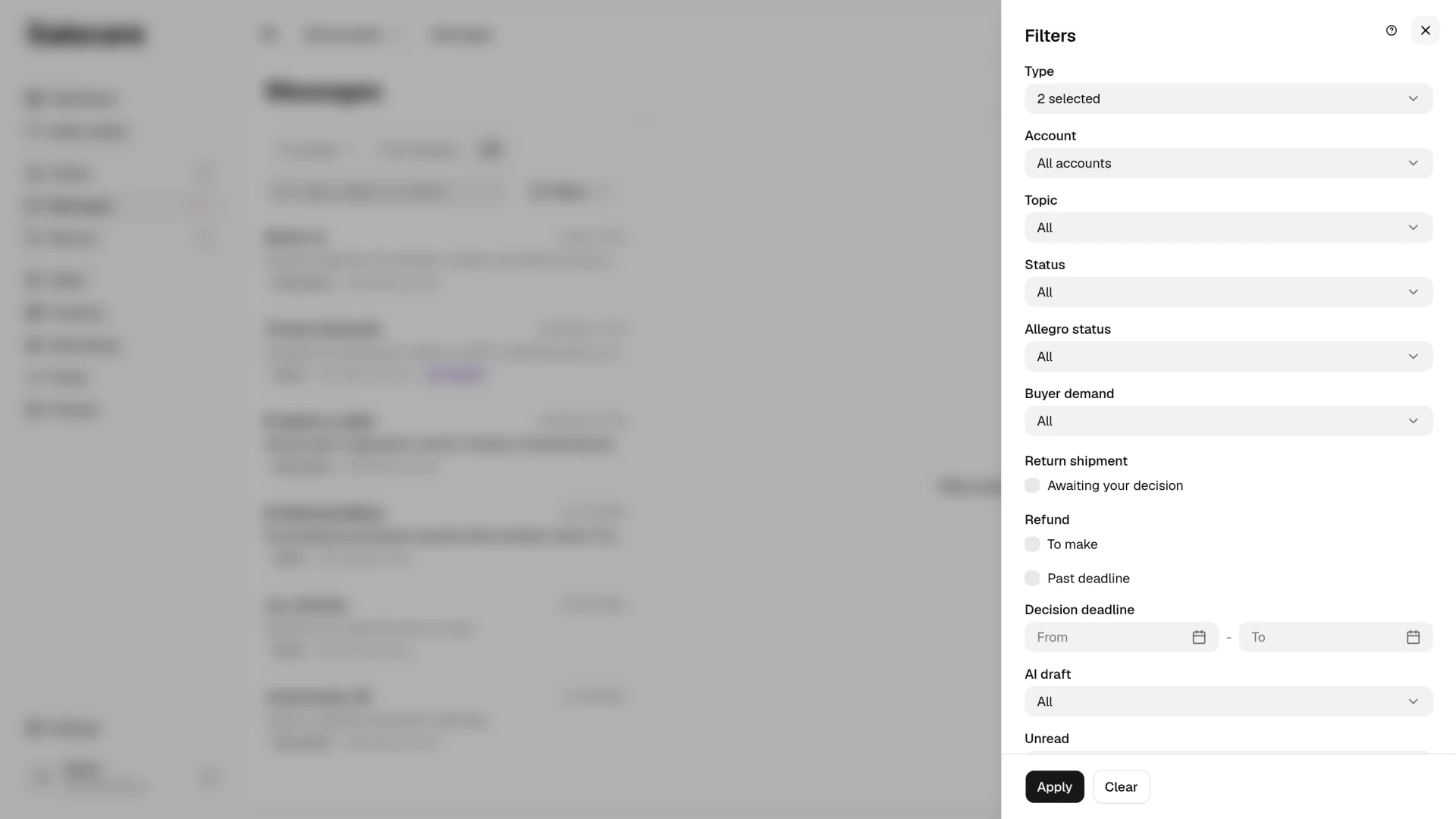
The Filters button beside the search box opens a panel with the criteria. The number on the button says how many criteria are on. The phrase from the search box and the default setting of the Visibility criterion do not count. Apply closes the panel, and Clear takes off all the criteria. The criteria are Type, Account, Topic, Status, Allegro status, Buyer demand, Return shipment, Refund, Past deadline, Decision deadline, AI draft, Unread, Visibility and Last activity. The Account criterion appears when there is more than one Allegro account or mailbox to pick from.
Type narrows the list to messages, discussions, claims or emails, and on the "From Allegro" view to warnings or notifications. Status is "Awaiting reply" or "Answered", that is who wrote last. The Allegro status field starts on "All". In it you can pick one of three things.
- "Needs your action", the cases where something waits on you.
- "Open on Allegro", every case Allegro has not closed yet.
- A single status, that is "Ongoing", "Allegro intervention", "Submitted", "Accepted", "Rejected" or "Closed on Allegro".
Buyer demand is "Refund", "Partial refund", "Repair" or "Exchange". The Return shipment criterion with its "Awaiting your decision" option leaves the claims where you have not yet answered whether the buyer sends the item back. The Refund criterion with its "To make" option leaves the claims accepted from Salecare with a refund nobody has marked as made yet. The Past deadline criterion shows every case of the "Overdue" group and the claims whose Allegro decision date has passed, and on the "All" view also the message centre conversations whose buyer has waited for a reply for more than 14 days. Decision deadline narrows the list to a range of dates. AI draft and Unread have the "Yes" and "No" options, and Last activity takes a range of dates.
The case criteria, that is Allegro status, Buyer demand, Return shipment, Refund and Decision deadline, concern discussions and claims only. Switching one on therefore narrows the list to discussions and claims. On the "From Allegro" view nothing waits for a reply and nothing is a case in Allegro. The panel there shows only Type, Account, Topic, Unread, Visibility and Last activity. Changing the view keeps the criteria switched on in the Filters panel, except the ones the new view does not have. The criteria missing on the "From Allegro" view do not move to that view. Type does not move between the "From Allegro" view and the other views, because those views hold different types.
A case leaves the "Needs your action" list once nothing is left to do on it. It leaves the "Open on Allegro" list only when Allegro closes it. The two lists differ because Allegro leaves a statutory claim at "Submitted" for good, so the list of open cases never shortens by itself.
When the list is empty, it says what emptied it. For a phrase from the search box it offers the Clear search link, and for the criteria the Clear filters link.
Step 6. Hide a case Allegro never closes
Allegro leaves a statutory claim at "Submitted" for good. An old claim with nothing left to do for months can therefore stay on the list as an overdue case. You can hide such a case. Hiding works in Salecare only, so the case on Allegro stays as it is, and neither the buyer nor Allegro gets any message. Hiding does not replace a reply.
You hide one conversation with the Hide entry in the More menu above it. On a computer you can also tick many conversations at once. The tick box appears when you point at a row, and once you tick the first one it shows on every row. A bar then takes the place of the views, with the number of ticked conversations, the Hide button and the Select all matching link. The link covers every conversation of the view and the filters, not only the loaded ones. One selection holds up to 25,000 conversations, and Salecare says so when there are more. With more than 200 conversations ticked, hiding runs in the background, in batches. A phone has no tick boxes on the list, so you hide from the More menu of the conversation. A person who may only read conversations gets neither tick boxes nor hide buttons.
A hidden conversation leaves the lists and every counter. That includes the number beside Messages in the side menu, the Dashboard and the alerts.
A claim that waits for your decision while its decision deadline in Allegro is still running cannot be hidden, because past that deadline Allegro accepts it for you. In the More menu the Hide entry is then disabled, and a sentence under it gives the day from which you can hide this claim. When Allegro gave no deadline, Salecare counts 14 days from the filing of the claim. On the selection bar such a claim stays on the list, and the message says how many claims stayed. With more than 200 conversations selected, hiding runs in the background and the message does not give that number. After the decision or after the deadline you hide the claim like any other case.
A hidden conversation comes back to the list on its own when a new message in it from the buyer or from Allegro reaches Salecare, so you never miss a new message. What counts is the moment the message reached Salecare. So a message written just before you hid the conversation, which the sync fetched only after, brings it back too. A hidden discussion also comes back when the buyer asks Allegro to step in. A hidden claim comes back when Allegro sets a new decision deadline, even if nobody wrote anything. A mere refresh of the case during a sync, with no new message, no request for Allegro to step in and no new decision deadline, does not bring it back.
You find the hidden conversations in the Filters panel, in the Visibility field. It starts on "Visible". The "Hidden" option keeps only the hidden ones, and "All" shows both. A hidden row carries the "Hidden" badge. The Restore entry in the More menu of the conversation, or the Restore button on the selection bar, puts it back on the list. When only hidden conversations are left in a view, the empty list says so, and the Show hidden button lists them at once.
What next
The automatic acknowledgement and AI reply drafts are described in the guide "How to automate Allegro messages and discussions". When a case ends with the goods being sent back, the guide "How to handle returns in Salecare" will take you through it.