How to handle returns in Salecare
Every return on Allegro means money given back and a handling cost that lowers your margin. On top of that, it is easy to lose track in the Allegro panel of which returns are still waiting for your decision. Salecare collects every return in one Returns list. The returns that wait for your decision stand apart from the ones still on the way, and below the list you see how much money went back to buyers and how much is still waiting.
Step 1. Open the list of returns
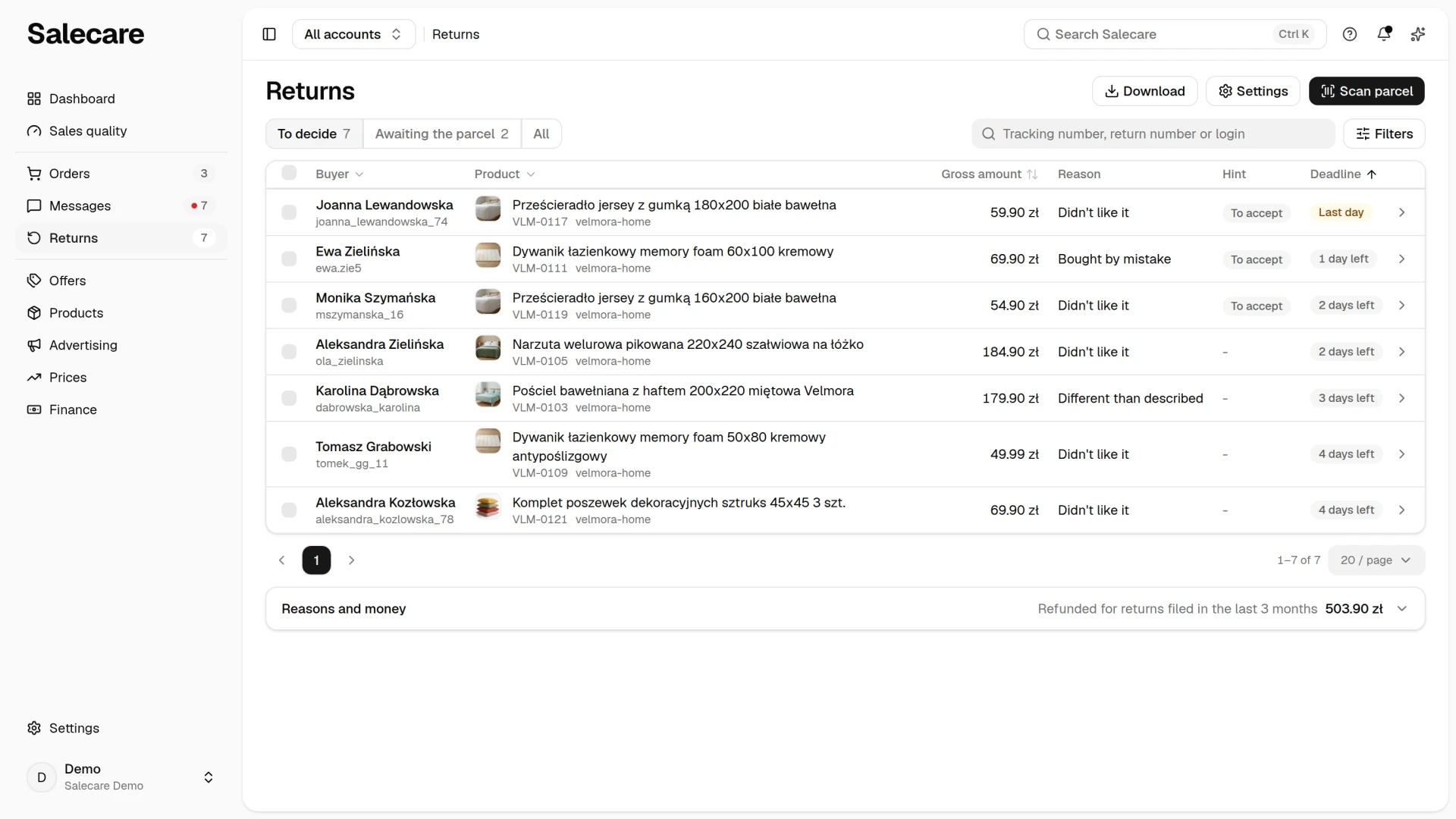
In the side menu go to Returns. The list has three views. The To decide view holds the returns without a decision whose parcel has reached you or that have at most 3 days left until the refund deadline. The Awaiting the parcel view holds the other returns without a decision, that is the ones the buyer has reported but not sent yet and the ones whose parcel is on its way. The All view is the whole history, including returns with a decision and returns Allegro has finished. To decide and Awaiting the parcel show the number of returns on their list, and All shows no number. The page opens on To decide, and the same number stands beside the Returns entry in the side menu.
A row shows the buyer, the product with its reference, the gross amount and the reason of the return. Refunds and return handling costs are gross, because that is what goes back to the buyer and what you pay for the parcel. VAT is deducted only in the net margin. In To decide and Awaiting the parcel a row also has the Hint and Deadline columns. The Hint column shows the badge of the matching decision hint, for example "To accept", "To refuse" or "To check", and a dash when no hint matches. The Deadline column shows a badge such as "3 days left", "Last day", "Overdue", "Deadline unknown" or "Not sent yet". In All the State column stands in their place. A return still waiting for a decision shows its deadline there. A return with a decision shows the badge "To refund" (accepted, and Allegro has not confirmed the payout yet), "To refuse in Allegro" (rejected only in Salecare) or the state of sending the decision to Allegro, for example "Send to Allegro failed" or "Account disconnected". When nothing is waiting any more, it shows the plain text "Refund accepted" or "Refund rejected". A return Allegro finished without a decision in Salecare shows Allegro's status. In the all-accounts view, that is when you have not picked one Allegro account in the top bar, a row also names the login of the account the return came from. On a phone the list is one card with a row for each return, holding the same data and the product photo.
Clicking a row opens the return card. The badge in the Deadline column says that a return waits for a decision and until when. You record the decision only on the return card, in the Decision step, and the list merely leads there. The one exception is the bulk grade and accept from the bar in To decide, described in step 5. Only whoever may decide returns sees the boxes for ticking returns. The Buyer, Product, Gross amount and Deadline column headers sort the list, and on a phone the sort menu above the list does it.
Three buttons stand above the list. The Download button opens the Downloads panel with the New file form filled in for the list of returns. The Settings button leads to the Decision hints page in Settings, which step 5 describes. Only whoever has access to settings sees it. The Scan parcel button opens a window for a tracking number that you scan with a barcode reader or type. Salecare does not use a camera for it. On a phone Download and Settings are icons only. The buttons appear together with the first return.
When an account sends decisions to Allegro but its Allegro connection is missing the permission to refund buyers, a banner with an Update permissions button stands above the list. The account keeps working, but you cannot refund buyers from Salecare until you update the permissions. Until then a decision is recorded only in Salecare and you finish the return in the Allegro panel.
A separate banner covers the payment read permission. With it Salecare reads the settled refund amounts every night, including the ones paid by hand in the Allegro panel. Without that permission Salecare never fetches these amounts, so the returns keep its own figure, which leaves out the delivery refund. The return card marks such an amount with the "Preliminary" badge, and the Reasons and money section with a ~ sign. The Update permissions button on that banner leads to the same Allegro consent screen.
Search and filters
The search field searches the whole return history by tracking number, return number, order number, buyer login and product name. Typing a phrase moves the list to All, and clearing the field goes back to the view you came from. Enter in the field first looks for a return whose parcel has exactly the number you typed and opens it at once. The Scan parcel button does the same. It finds a return by the number of any of its parcels, including the number of the carrier that physically moves the parcel, ORLEN Paczka for instance. Letter case does not matter. When no return has a parcel with that number, the list shows All searched for that phrase and keeps the filters that were already on.
The Filters button next to the search opens a panel of criteria that narrow the view you are in. They are Product, Order, Return no., Buyer, Reason, Status, Decision, Urgent deadlines, Allegro (the state of sending the decision), Rejection reason from the Allegro list, Item condition, Disposition, Gross amount, Qty, Buyer's returns and Requested. In the all-accounts view the Account filter joins them, where you pick one Allegro account or several, and when some account sends decisions to Allegro, so does the Account disconnected filter. The Decision filter has the values "Accepted", "Accepted, to refund", "Rejected", "Rejected, to refuse in Allegro" and "Waiting for the refund". The last value shows the returns whose buyer has not been paid back yet, decided or not. The Urgent deadlines filter shows the returns with at most 3 days left until the refund deadline or already past it. You download the file of returns with the Download button above the list.
Reasons and money
Below the list stands a folded Reasons and money section. Folded, it says how much money was refunded to buyers for the returns filed in the chosen period. At the start the period is the last 3 months. Once open, you pick the period in the Period field, from yesterday to the whole history or a range of your own. The section then shows Refunded to buyers, the amount Allegro says went back to the buyers, and Retained, the amount of the returns refused on Allegro's side. Both amounts cover the returns filed in the chosen period. Below them, whatever the period, stands Waiting for the money with the To refund row (accepted money that has not reached the buyers yet) and the To refuse in Allegro row (returns rejected in Salecare while Allegro does not know about the refusal yet). The count beside each row opens All with the matching value of the Decision filter. The period narrows only this section, not the list. A decision recorded only in Salecare is in neither Refunded to buyers nor Retained, because it has not transferred or kept anything yet. Returns from offers sold on allegro.cz, allegro.sk or allegro.hu carry their amount in koruna, euro or forint. The section then gives a separate total for each currency, for example "120.00 zł + 500.00 CZK", and never converts it to zloty. The Return rate is counted for orders old enough for a return to have come in, and the days those orders come from stand under the figure. The Return reasons show where the returns come from. Each reason has a percentage share of the returns filed in the chosen period and the amount Allegro says was refunded to buyers for it. So you can see whether the problem is "Didn't like it" or, say, transport damage, and whether fixing a listing moved it.
Step 2. Open the return
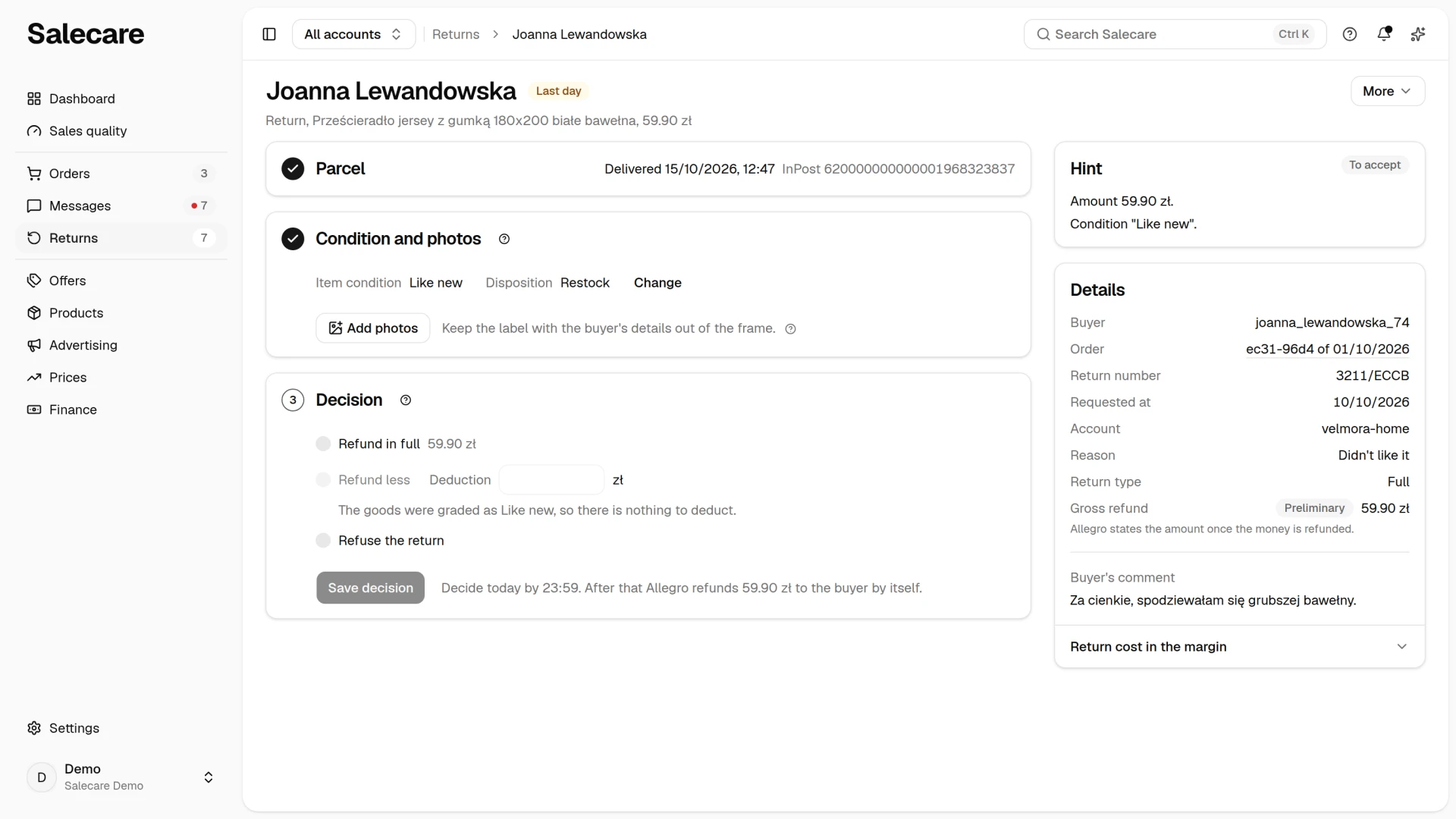
The return card leads through three steps. They are Parcel, Condition and photos and Decision. The header shows the buyer, the order and one badge. While the return waits for a decision the badge shows its deadline, and after a decision the state of the return. The More menu in the header starts with Open in Allegro, which opens the Returns tab in Allegro, where you find the return by the return number from the Details card. The tab opens on the Allegro account you are signed in to in the browser. With several accounts, sign in first to the account the return came from. Its login is on the Details card, in the Account row. After it the menu holds Set the return cost by hand, Internal note and Messages with the buyer. A teammate who may manage returns sees the first two of them, and one who may read messages sees the third.
The Parcel step says in one row where the return parcel is, for example "Delivered" with the day and hour, "Delivered, date unknown", "On the way" or "The buyer has not sent the parcel yet.". Beside it stand the carrier and the waybill number. When another carrier moves the parcel than the one Allegro names, both carriers stand there. Two cards stand beside the steps. The Hint card shows what the matching decision hint suggests and which facts of the return it rests on. A hint makes no decision and sends nothing to Allegro. The Details card holds the buyer, the order, the return number, the request date, the account, the reason, the return type, the returned items with quantities, the buyer's comment, the internal note and the gross refund. From there you go straight to the order.
Refund deadline
By the header stands the deadline badge, and in the Decision step, beside the button, a sentence about the deadline, for example "Decide today by 23:59. After that Allegro refunds 120.00 zł to the buyer by itself.". Allegro counts two deadlines, 7 days from the return parcel being delivered or 14 days from the return request, and the one that runs out first applies. Once the parcel has arrived, Allegro refunds the buyer itself on the 8th day after it was picked up unless you refuse the return on the Returns tab before then. This cannot be switched off (Allegro's rules). The sentence gives the last day before such a refund. On an order paid on delivery and on a return handled by One Fulfillment Allegro refunds nothing by itself, so the sentence gives only the day and hour by which you have to decide. Past the deadline the badge says "Overdue" and the sentence gives the day the deadline passed.
Allegro does not state the delivery date, so Salecare records the moment it first sees the parcel as delivered. After a break in the connection to Allegro that date can therefore be later than the actual delivery. When the parcel arrived before Salecare read the return at all, for example before the account was connected, the Parcel step says "Delivered, date unknown", the badge "Deadline unknown", and the deadline sentence "Salecare does not know the delivery day. Allegro refunds by itself on the 8th day after delivery.". The deadline can then run out sooner, because it counts 7 days from delivery. Such a return goes to To decide at once. On an order paid on delivery the sentence only says that Salecare does not know the delivery day, so it gives no deadline.
The deadline does not go away after an accept is recorded, or after a rejection recorded only in Salecare. Allegro's deadline runs until the money has gone back to the buyer or Allegro records the refusal. Until the buyer sends the parcel the deadline does not count. The badge then says "Not sent yet" and the Decision step "Counted from the parcel's dispatch. The buyer has not sent it yet.". Such a return waits in Awaiting the parcel, because until you receive the goods or proof they were sent back you may hold back the refund. When the parcel reached you outside Allegro's tracking and Allegro still sees the return as only filed, a recorded grade counts as receiving the parcel. The deadline then starts, and goods graded "Like new" with the "Restock" disposition go back on stock. That is why the Condition and photos step warns about it, and the Save grade button works only after you tick the The parcel of this return reached me outside Allegro's tracking box. You therefore grade such a return on its own card, because the Grade selected and Accept selected buttons on the list leave it out, as step 5 describes.
Refund by transfer
When the order was paid on delivery, Allegro cannot refund this money, because it never took it. You transfer it yourself to the account the buyer gave in the return form (Allegro help). On a return of the whole order you also transfer the delivery, at least the cheapest one the offer had. An order paid by a traditional bank transfer is refunded like any other, on the Returns tab in Allegro, and Allegro sends the money back to the account the payment came from. Do not transfer it yourself then, because Allegro refunds the buyer on the 8th day after the parcel is received anyway and the buyer would be paid twice. The Details card of such a return holds a Refund by transfer block with the account holder and number, and the Decision step says "You transfer the money to the buyer's account.". A teammate who may decide returns sees the full number, everyone else only its end. The number is stored encrypted and goes together with the buyer's details when you erase them at the buyer's request.
Refund amount
The Details card has a Gross refund row. Until Allegro states a settled amount the figure carries the "Preliminary" badge with a note that Allegro states the amount once the money is refunded. It is Salecare's own sum of the lines coming back to you and leaves out the delivery refund. Once Allegro states its figure the badge goes, and an Of which the delivery refund row joins underneath, provided Allegro refunded the delivery too.
Cost of the return
At the foot of the Details card you can unfold Return cost in the margin. It shows Scenario, Return shipping, Repackaging and Value recovery, and under the return shipping a sentence names which of Allegro's arrangements applies to this return. Allegro has three arrangements here, not one rate. Allegro gives one free return per Allegro Smart! order, so it pays for the parcel of the first return when it is a withdrawal from the contract or a claim filed within 14 days of pickup. A later return of that order and a later claim follow the usual rules. On a withdrawal the buyer pays unless the account has free returns switched on, and on a claim you pay. The sentence names the arrangement outright, so you can see whether your return shipping rate burdens this return at all.
Condition and photos
Once the parcel arrives, grade the condition of the goods in the Condition and photos step and choose what happens to them next. The Item condition field has the values "Like new", "Signs of use" and "Damaged", and the Disposition field the values "Restock", "Relist as used" and "Dispose of". The Save grade button finishes the step, and you change a saved grade with the Change button. The grade sets the value recovery scenario that goes into the order's margin. The "Restock" disposition is open only to goods graded "Like new". Goods with signs of use put back on the stock of a new offer would reach the next buyer as new, so list such goods as used or send them for disposal.
When Salecare keeps your stock levels, goods with the "Restock" disposition go back to the warehouse once the parcel has been received. Without a grade the goods of a return do not go back to the warehouse. That holds on a return of the whole order too, when Allegro refunds the buyer before you grade the parcel. Salecare then holds those goods until the grade, because the parcel may not have arrived yet or may hold used goods. When the goods are already back in the warehouse and you change the "Restock" disposition to "Relist as used" or "Dispose of", Salecare takes them off again and records it in the stock movements as "Return taken off stock". A grade recorded while the parcel is still on its way waits until Allegro shows the parcel as delivered. Grading a return Allegro shows as only filed counts as receiving the parcel and puts the goods back in the warehouse at once, so you save it only after confirming the parcel reached you. To grade several received parcels at once, use the Grade selected button on the list of returns, described in step 5.
Your own return cost
In the More menu choose Set the return cost by hand when the return cost rule does not fit the situation. In the window you enter your own scenario and your own handling cost of this one return, that is the return shipping, the repackaging and the value recovery. A field you leave empty keeps the rate from the rule. In the return shipping field enter 0 when the buyer paid for the return parcel. A cost set by hand carries the note "Set by hand" in the Return cost in the margin section, and the Remove the manual cost button brings back the rate from the rule.
Step 3. Photograph the goods at receiving
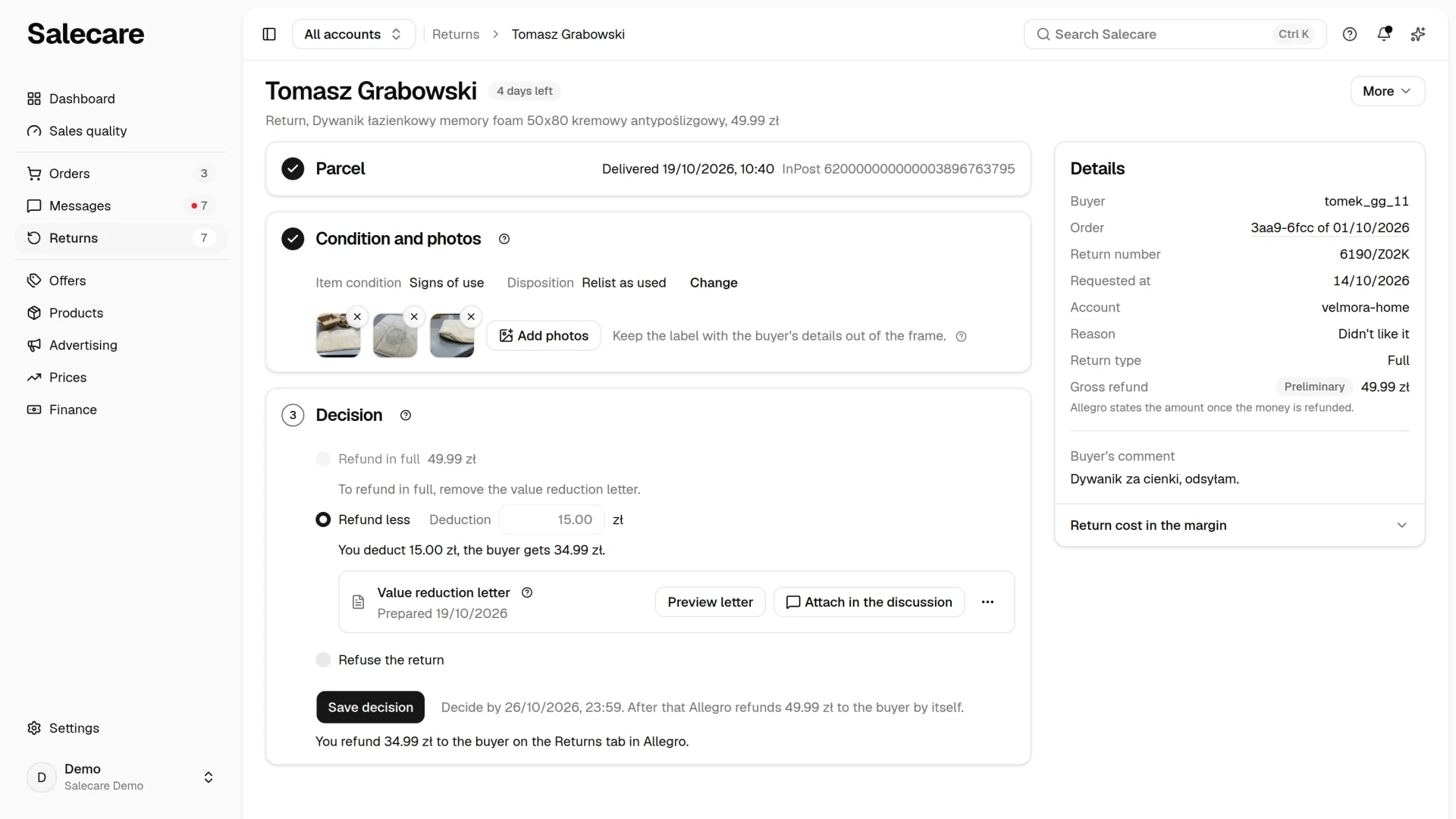
You add the photos in the Photos at receiving section of the Condition and photos step, below the grade. Take photos of the goods when you open the parcel, before you grade them, and pick them with the Add photos button. It takes JPG, PNG and WEBP files up to 12 MB, at most 8 at a time and 20 photos per return. Once a return holds the full number, a sentence beside the button tells you to delete one first. Salecare saves each photo as a JPG of up to 2 MB, because Allegro refuses attachments over 2 MB and WEBP files. That way any of them can later be attached to a reply in a discussion or claim. Keep the label with the buyer's details out of the frame.
Only your company sees the photos, and Salecare never sends them to the buyer automatically. Click a thumbnail to enlarge the photo. The tooltip on a thumbnail gives the date it was added and the person who added it, and a photo already attached to a reply carries the note "Sent to the buyer". The Delete photo button, the cross on a thumbnail, deletes a photo for good after a confirmation. Once a return holds 20 photos, a new one goes in only after you delete another. When One Fulfillment handles a return, the parcel never reaches you, so the Condition and photos step says "Allegro grades the goods." and has no photos. A teammate who may only view returns sees the photos without the add and delete controls.
Step 4. Prepare the value reduction letter
When goods sent back under a withdrawal from the contract show use beyond what checking them needs, you may demand that the buyer pay for the lost value and set that amount off against the refund. The simplest way is to do it in Allegro. On the Returns tab, refund the buyer a smaller amount with a description and photos before 7 days pass from picking up the parcel, because after that Allegro refunds the full amount itself. When the account sends decisions to Allegro, the Decision step says so beside "Refund less" and carries an Open in Allegro button. The letter helps when you also want to demand payment from the buyer in writing, and Salecare prepares it. You can prepare the letter when the return meets all of these conditions.
- One Fulfillment does not handle the return.
- The sale was on Allegro.pl, because the template follows Polish law.
- The buyer did not report the return as a defect, damage or not as described, because the letter is about value lost through use after a withdrawal, not about a claim.
- The goods are graded "Signs of use" or "Damaged", because a "Like new" grade leaves no reduction to describe.
- The recorded decision is not a rejection.
- Salecare is not sending and has not sent Allegro an accept for the full amount.
- Allegro has not confirmed the refund.
When a condition is not met, the Decision step disables "Refund less" and says under it which condition is missing.
You have to prove that the buyer used the goods beyond checking them, that this use reduced their value, and by how much. Keep the photos of the parcel and of the goods at receiving, and for transport damage the carrier's damage report. To back the amount, keep a receipt, a repair quote or the prices such goods sell for as used. If the buyer does not agree, a court decides the dispute. The letter window says so at the very top.
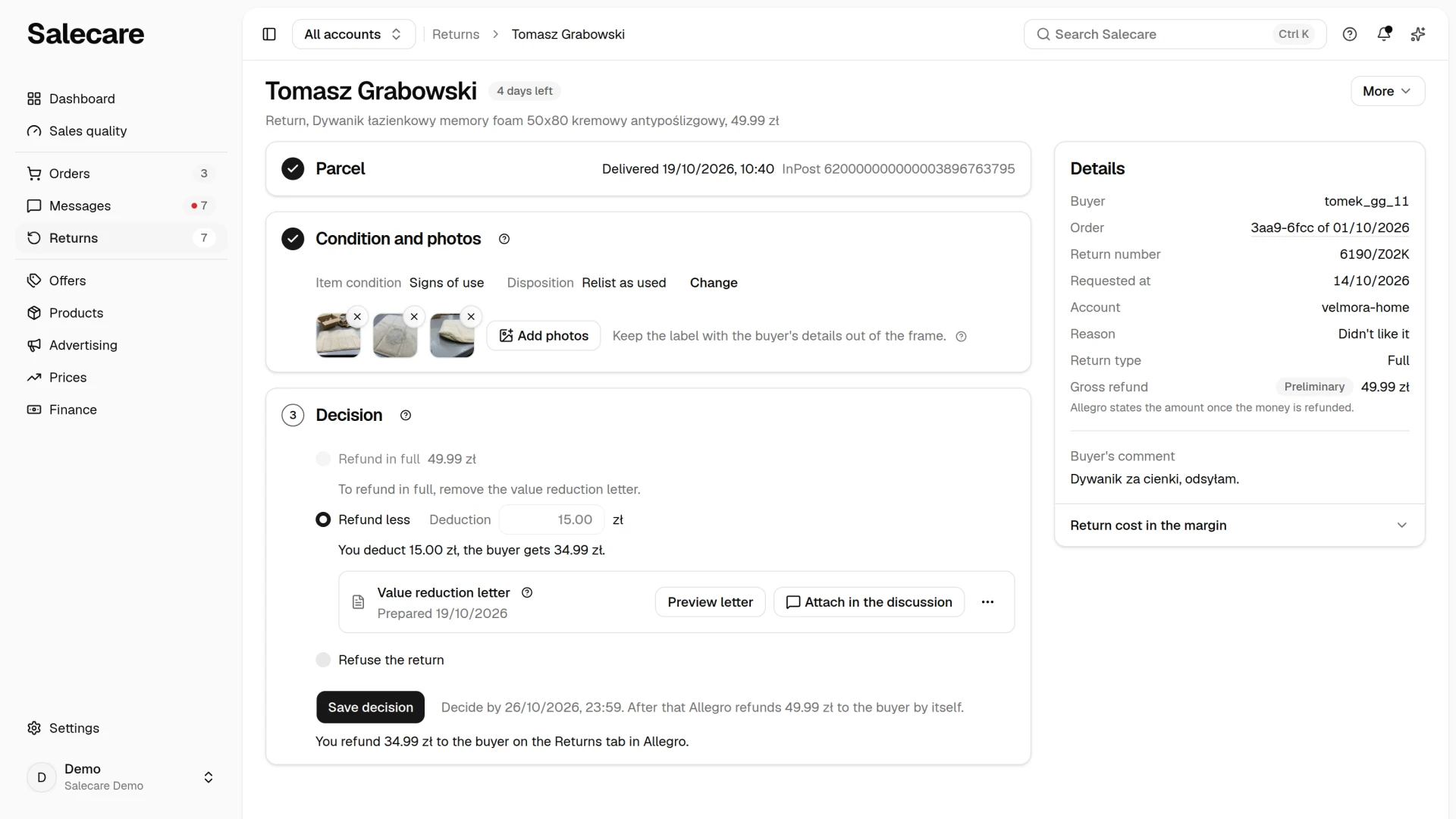
You prepare the letter in the Decision step. Choose "Refund less", enter the amount in the Deduction field and click Prepare letter. The button opens a window with three fields and two confirmations, and the amount you entered goes to the Reduction amount field. The reduction amount can be at most the price of the returned goods, without the delivery. When it is more than half that price, the window warns that such a large amount needs strong proof, such as a repair quote or an expert opinion. The Condition of the returned goods field starts empty. Describe in it exactly what you see, where and how visible it is, such as signs of wear, missing tags or dirt. Trying clothes on, or opening the packaging of goods shops display unpacked, does not reduce the value. The How the amount was set field is required. Enter in it the basis of the amount, for example the cost of cleaning or repair from a receipt or quote, or the difference between the price new and a realistic price you will sell the item for as used, with the source of that price. The amount can never be the value of using the goods as such, or the cost of checking them in the usual way. Then you confirm two facts Salecare cannot check. The first confirmation says the value was lost through the buyer using the goods, not in transport, because you report transport damage to the carrier. The second says the buyer was told how and by when to withdraw from the contract and was given the model form, because without this information the buyer is not liable for the lost value. Without both confirmations the letter is not saved, and you confirm them again every time you change the letter.
You change only the amount and the text of these two fields. The rest of the letter is a fixed, neutral template and the return's data, which means your company's details, the buyer's login without their name or address, the order and return numbers, the dates, the calculation and the legal basis. The legal basis quotes art. 34(4) of the Polish Consumer Rights Act in full, including the exception that the buyer is not liable for the reduction if you did not inform them of the right to withdraw from the contract. After it the letter demands that the buyer pay the reduction amount, and in the next sentence sets it off against the amount owed to the buyer. Courts disagree on whether a set-off in the same letter as the demand is effective. If it is not, you owe the buyer the withheld part of the refund with interest, which the letter window says before you save. When the return has photos at receiving, the letter states how many there are and the day the first of them was saved in Salecare. The letter is in Polish because it goes to a buyer on Allegro.pl, and no AI writes its text.
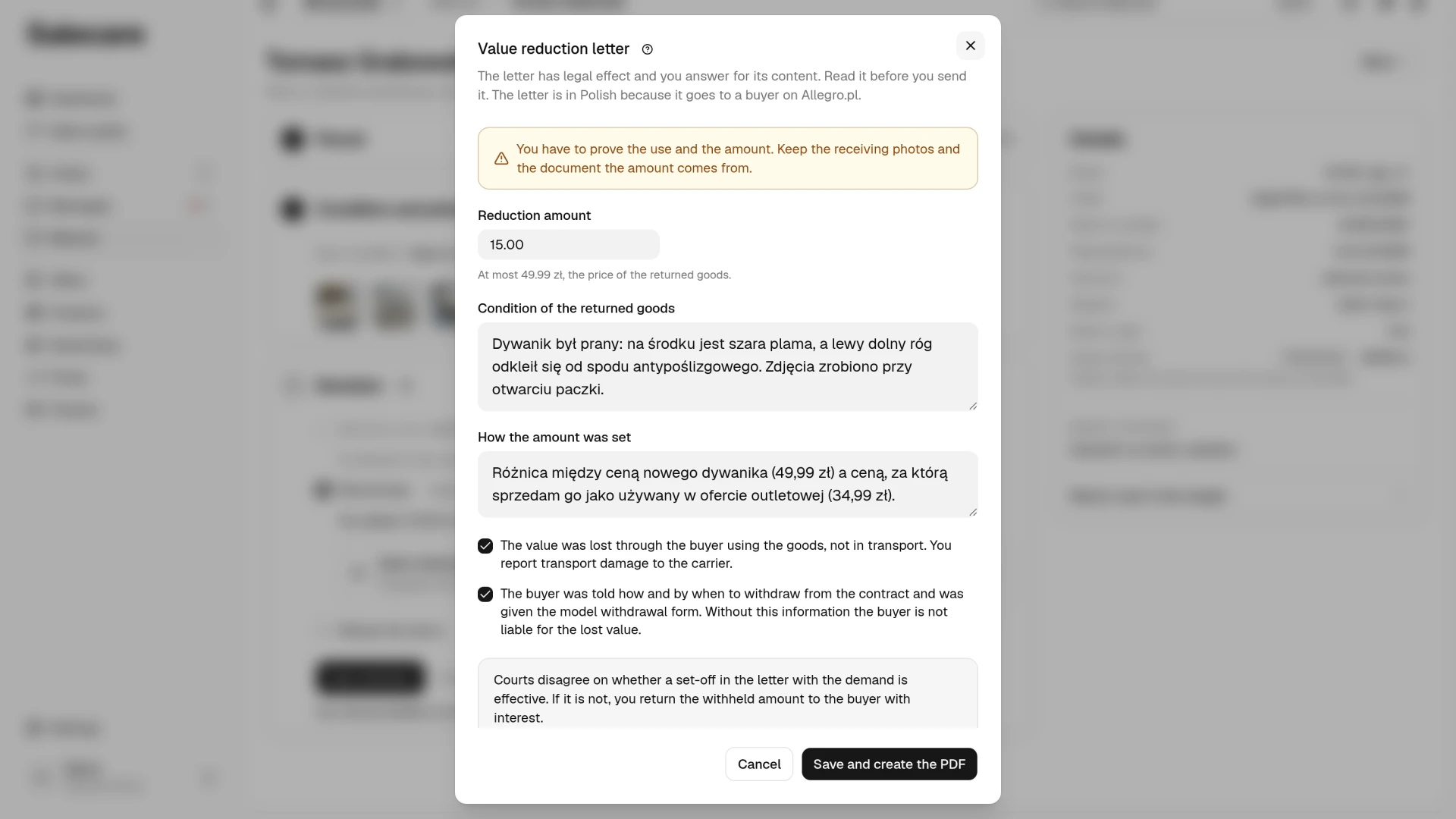
After you click Save and create the PDF, the letter gets a row of its own in the Decision step, under "Refund less". The row gives the date the letter was prepared and, once it has gone out in a discussion, the date it was sent. The step also shows how much you deduct and how much the buyer gets, for example "You deduct 40.00 zł, the buyer gets 60.00 zł.". The Preview letter button opens the PDF in a new browser tab. It is your own statement to the buyer, a demand for payment and a set-off declaration, both with legal effect. Salecare fills the template with this return's data and you answer for its content, so read the letter before you send it. The More about the letter menu (three dots) holds Download PDF, Edit letter and Remove letter. The Edit letter entry changes the amount and both fields, and the new PDF replaces the old one. The Remove letter entry, after a confirmation, takes the amount and the file off the return, while a letter already sent to the buyer stays in the discussion. When the return changes so that the letter no longer fits, for example after a new grade of "Like new", the row warns you not to send it. A letter prepared on an earlier template, without a demand for payment ahead of the set-off, is also marked in the row as one you do not send. You cannot attach such a letter to a reply until you prepare it again with Edit letter.
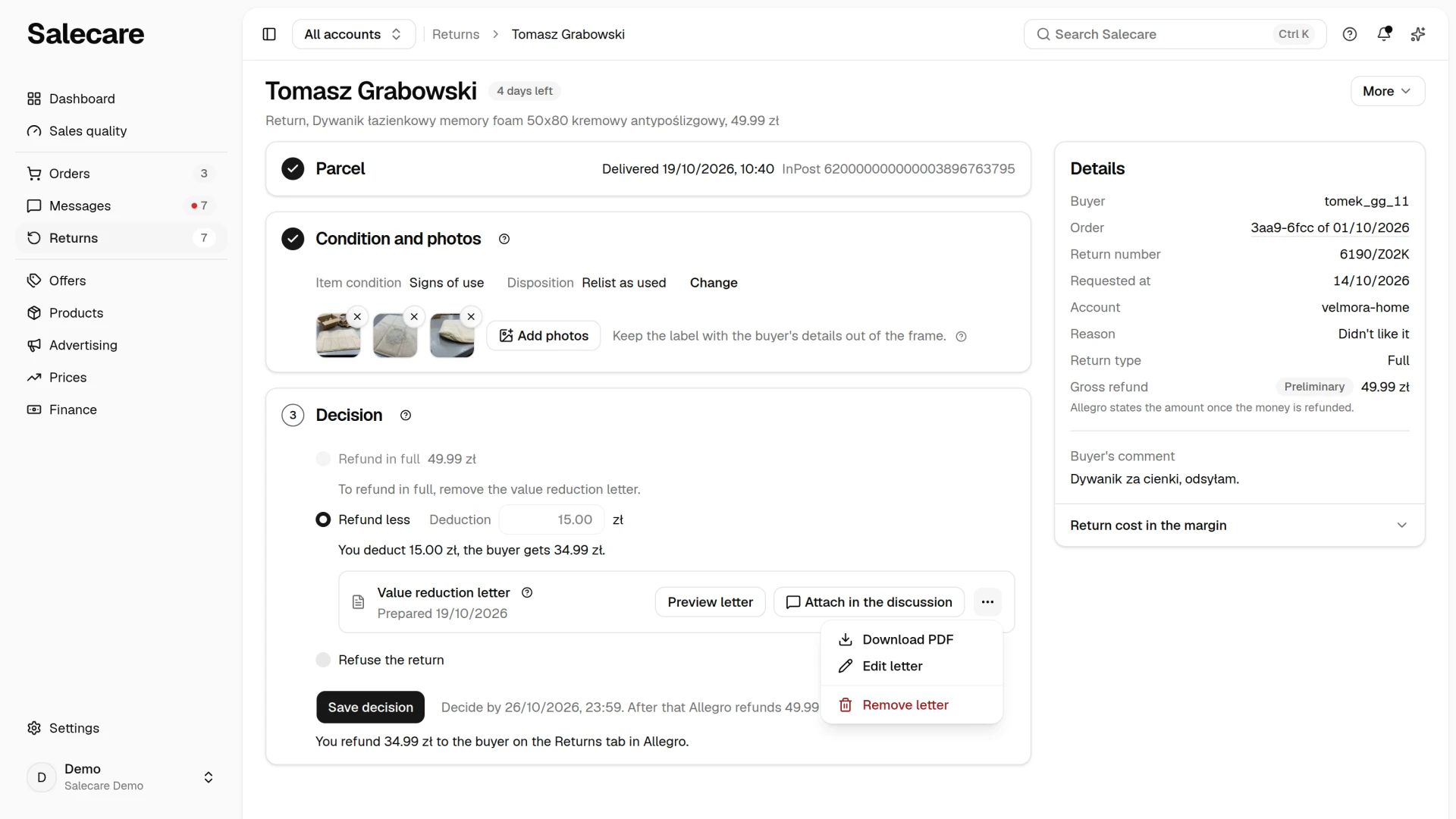
In the Allegro panel a refund reduced by this amount can carry a description and up to 5 JPG or PNG photos of up to 5 MB each, which the buyer sees in the return details. Allegro takes no PDF there, so you attach the letter to a reply in a discussion or claim about this order. When the order has an open discussion or claim, the Attach in the discussion button opens it with the letter ticked under the reply box. The letter goes out only with the reply you send yourself. When there is no such case, the row says "No open discussion for this order. Download the PDF and pass it to the buyer.". You then save the file with Download PDF from the More about the letter menu and pass it to the buyer yourself. Once it is sent, the letter row adds the date it was sent in the discussion, and the attached photos get the note "Sent to the buyer". If you then change the letter or prepare a new one, that date goes, because the buyer has not received that version yet.
The letter does not change the amount Allegro refunds. Salecare sends Allegro only a full refund, so when the account sends decisions to Allegro through the API, "Refund less" has no send button. The Decision step then says "Salecare sends Allegro full refunds only. Make the reduced refund in Allegro, on the Returns tab." and carries an Open in Allegro button. You can tick such a return on the list, but the Accept selected button leaves it out, because a bulk accept stands on the full refund. The refund deadline still applies, 7 days from the return parcel being delivered or 14 days from the return request, whichever comes first. If you neither refund nor reject the return before the deadline, Allegro refunds the buyer in full, and the deadline sentence in the Decision step reminds you of that while the deadline runs. Once Allegro confirms the refund reduced by the value reduction, the letter stays on the return as a record of it. When Allegro confirms a refund without that deduction, for example the full amount refunded to the buyer automatically after the deadline, the letter row warns you not to send it, and the letter can no longer be attached to a reply.
Step 5. Record the refund decision
You record the decision on the return card, in the Decision step. The list of returns only leads there, with a click on a row. The one exception is the bulk grade and accept described below. Whoever may decide returns sees the choice of outcome on a return with no decision that Allegro still holds open. On a return Allegro has already finished, cancelled or rejected, and on one whose refund is confirmed, there is no choice, because a decision would repeat or undo what already happened. The step then says "Allegro has closed this return.". The deadline for the decision stands beside the choice, as described above under the refund deadline. You save the note with the Internal note entry of the More menu on the return card. The note stays in Salecare and never reaches the buyer or Allegro.
There are three outcomes. "Refund in full" gives the buyer the whole refund. "Refund less" gives the refund reduced by a deduction, which rests on the value reduction letter of step 4. "Refuse the return" rejects the return. Nothing is chosen in advance, and a return that already has a letter opens on "Refund less". The button works only once the chosen outcome has what it needs. "Refund in full" is saved only after you delete the value reduction letter, and the step says so with "To refund in full, remove the value reduction letter.". "Refund less" needs a current letter, and without one the step says "A deduction needs a value reduction letter.".
The button reads Send decision when the decision goes to Allegro and Save decision when it stays in Salecare. When the Allegro connection cannot refund buyers, you save a full refund with Save decision, without a confirmation window, and refund the money on the Returns tab in Allegro.
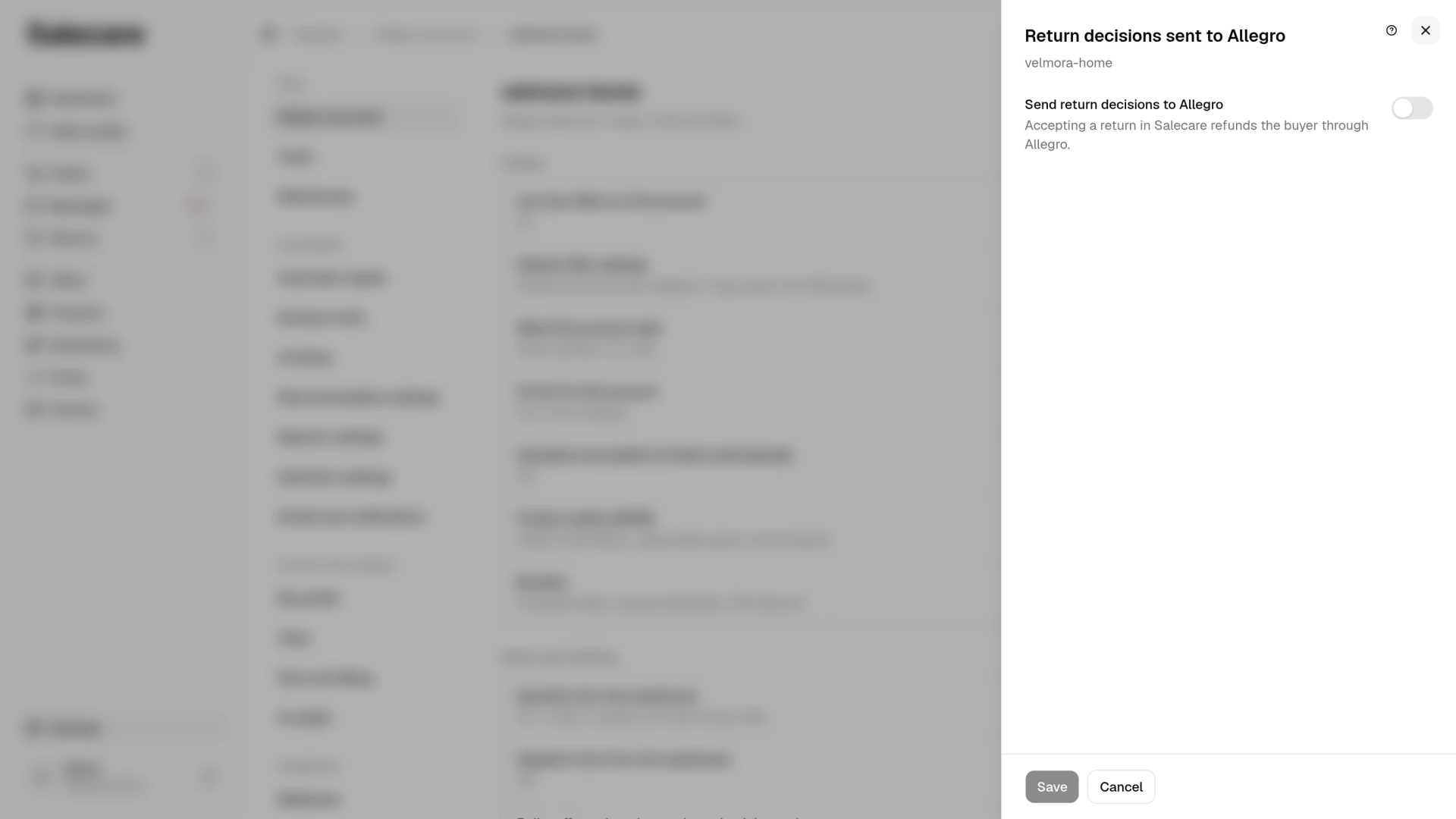
If you want to take decisions in Salecare and send them to Allegro via the API, open Allegro accounts on the Settings page and click the account. In the Return decisions sent to Allegro row click Change and switch on Send return decisions to Allegro. The setting belongs to the account, so you can send decisions to Allegro on one account and keep finishing returns in the Allegro panel on another. While the switch is off, the decision stays in Salecare and transfers or keeps nothing. A sentence under the button then says where to finish it, for example "You refund the money on the Returns tab in Allegro.", "Refuse the return on the Returns tab in Allegro too." or "You refund 60.00 zł to the buyer on the Returns tab in Allegro.". The Open in Allegro entry of the More menu in the header of the return card leads to that tab. A rejection recorded only in Salecare keeps nothing. The return gets a "To refuse in Allegro" badge, and the deadline stays. It still names the day Allegro refunds the buyer itself unless you refuse the return on the Returns tab before then. On an order paid on delivery the step only reminds you to refuse the return on the Returns tab, because Allegro does not refund that money itself. The badge goes once Allegro records the refusal. You change a recorded decision with the Change decision button, as long as it is not being sent to Allegro or already sent.
When the account sends decisions to Allegro, "Refund in full" opens a confirmation window whose button names the amount, for example Refund 120.00 zł. After you confirm, Allegro refunds the buyer. Under "Refund in full" you can click Add a message to the buyer. The Message to the buyer field is optional there, and Allegro passes the message to the buyer with the refund confirmation. Salecare sends the refund to Allegro as a refund after a withdrawal and always names what it pays for. On a return of the whole order that is every line with its full quantity and the delivery, on a partial return the units coming back. When a line of the order has no Allegro id, Salecare sends nothing and the return shows "Finish in Allegro panel". You then finish the return in the Allegro panel. When the account is disconnected, the step says the decision cannot be sent and has no button.
"Refuse the return" needs a reason picked in the Reason for refusal field. A rejection sent to Allegro also needs a message in the Message to the buyer field. Allegro passes it to the buyer with the rejection, so write in it why you reject the return. With the "No right of return" reason you confirm that the buyer has no right to withdraw from the contract. That is the case when the withdrawal period has passed, meaning 14 days since delivery or the longer period in your return terms on Allegro, or when the goods are excluded from that right (art. 38 of the Polish consumer rights act), for example sealed hygiene goods opened after delivery. With this reason the step gives the withdrawal period of the account's return terms, never less than 14 days, and the number of days from the order's pickup to the return request. When the return was filed within that period, the step warns that the buyer has the right to withdraw unless the goods are excluded from it. With the "Business purchase" reason the step reminds you that a sole trader who bought goods unrelated to their profession keeps a consumer's rights (art. 7aa of the Polish consumer rights act). When a decision hint suggests a rejection, the step names its legal ground and reminds you that the hint does not check whether this ground applies to this return. You set the decision hints on the Decision hints page in Settings, which the Settings button above the list of returns leads to, as does the Decision hints row in the Automations group. The guide "How to set return costs and return decision hints" describes them.
Allegro cannot refund an order paid on delivery, so "Refund in full" on such an order is recorded only in Salecare, and the step says that you transfer the money to the buyer's account yourself. On a return of the whole order the amount to transfer includes the delivery the buyer paid, and the Accept selected button adds it to the amount you refund yourself. The rejection of such a return goes to Allegro like any other. When the buyer sends a whole order back in several partial returns, accepting the return that completes the order also refunds the delivery the buyer paid for it. Salecare adds it only once. The law and Allegro require you to refund the delivery at least up to the cheapest delivery the offer had, while Salecare refunds the delivery the buyer paid. When the buyer chose a dearer delivery and you want to refund only the cheapest one, make that refund in the Allegro panel. When an accept sent to Allegro also refunds the delivery, because the whole order comes back, the step and the confirmation window give the amount with the delivery, for example "including 14.99 zł for delivery".
While sending decisions is off, a recorded accept transfers no money. The return therefore stays on the list with a "To refund" badge and a running deadline until Allegro confirms the payout. Salecare reads those confirmations every night, including transfers you made by hand in the Allegro panel. Allegro does not show your own transfer for an order paid on delivery, so such a return keeps the "To refund" badge until Allegro closes the return or 30 days pass from its request. You cannot mark the transfer as made in Salecare.
Several returns at once
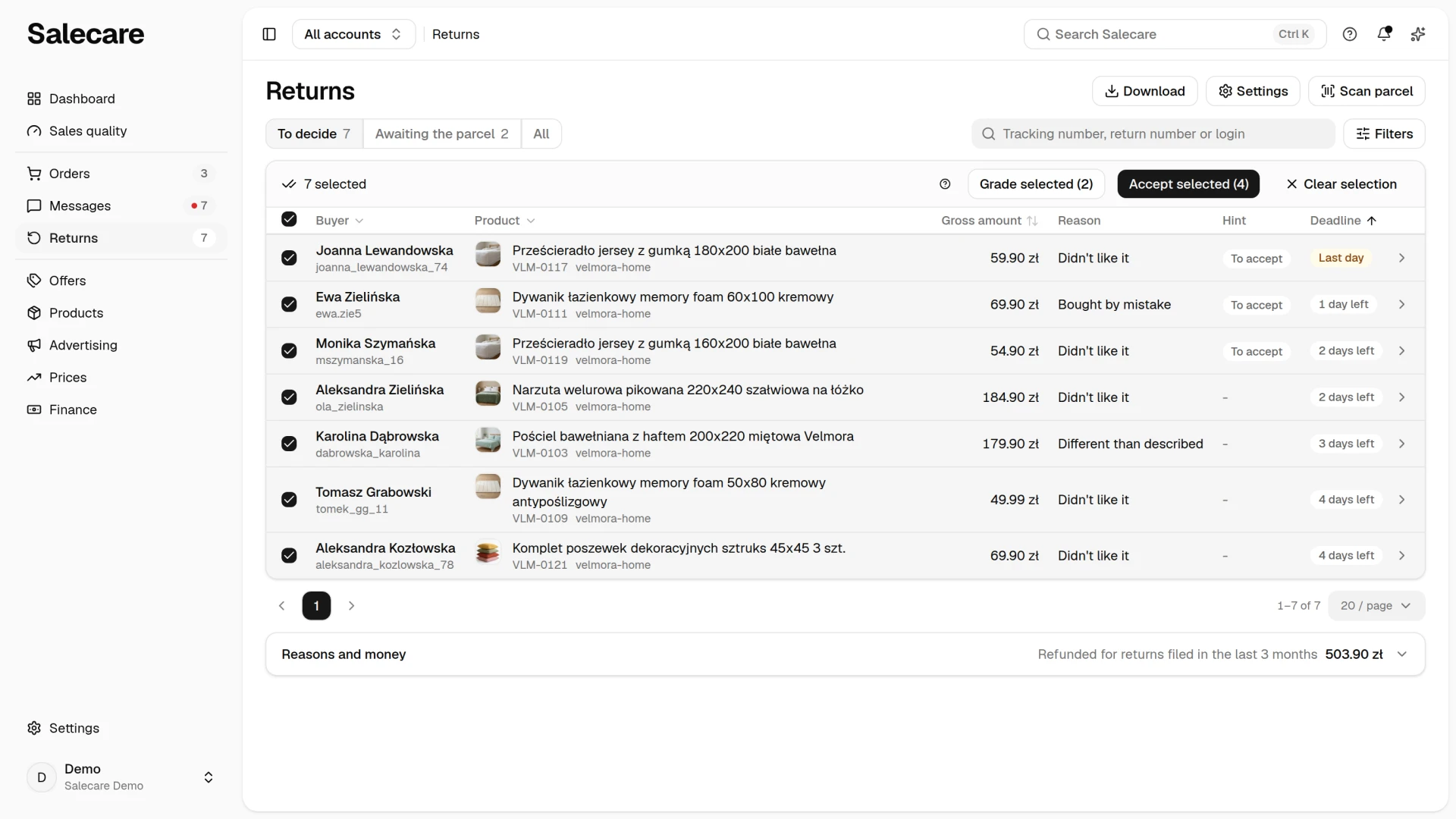
When several parcels arrive at once, open the To decide view and tick those returns in the first column of the table. The box in the column header ticks the whole page. On a phone you tick the rows of the list. Ticking works only in this view and only for whoever may decide returns, and any return on the list can be ticked. The selection covers only the page on screen and is cleared when you change the page, the view, the sort or a filter. A bar then appears above the list with the number of ticked returns, a Clear selection button and two action buttons. Each of them covers only the ticked returns it applies to and names how many. A button that covers none of them is disabled. When a button covers only part of the ticked returns, its dialog says how many of them it covers, and the other ticked returns stay as they are.
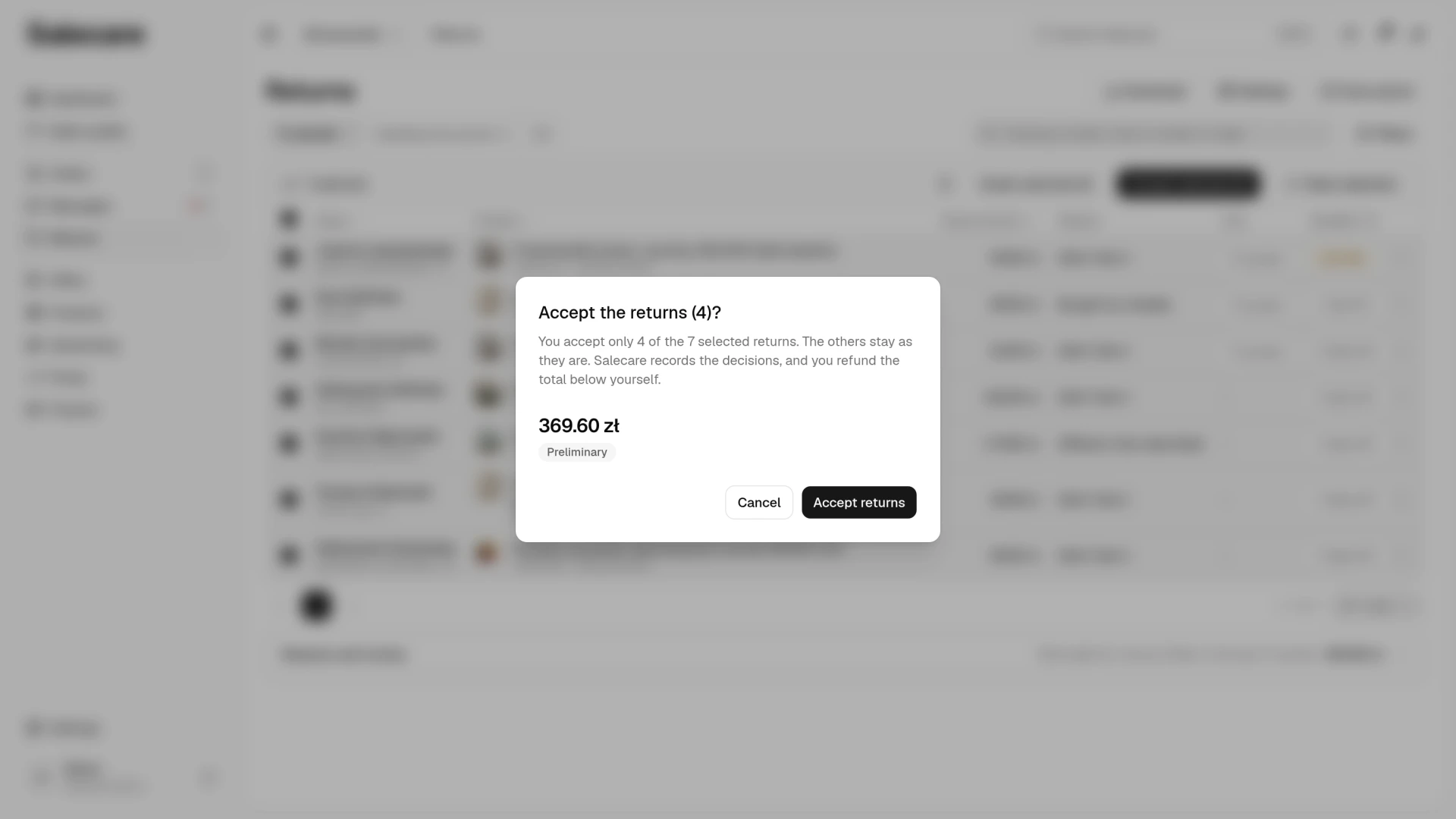
The Grade selected button opens a window with the Item condition and Disposition fields. It records the chosen item condition and disposition on the ticked returns with no recorded item condition yet. It never changes a grade already recorded, because you change a grade on the return card. After the save the returns stay ticked, so you can accept them straight away. The Accept selected button covers the ticked returns with a recorded item condition, no decision yet, not closed by Allegro and with no value reduction letter. The confirmation states the total amount going back to the buyers, with the delivery on a return of the whole order. That is the sum of the amounts the Decision step gives for those returns. When the ticked returns are in different currencies, each currency has its own total in that dialog. Allegro may refund some of the ticked returns itself, because the account sends decisions to Allegro, while you refund the others yourself, because the account only records decisions in Salecare or the order was paid on delivery. The dialog then gives two totals apart, the amount the buyers receive through Allegro and the amount you refund yourself. A disconnected account that sends decisions to Allegro keeps its returns out of the accept, the same way it stops you sending a decision for them in the Decision step.
Both buttons cover only the returns whose parcel Allegro shows as delivered. A return Allegro shows as only filed or in transit stays as it is, even when you tick the whole page. Grading a return the buyer has not sent yet counts as receiving the parcel and puts the goods straight back on stock, and an accept would refund goods that have not come back to you. The grade dialog and the confirmation each say how many of the ticked returns they left out for that reason. When the parcel reached you outside Allegro's tracking, grade the return on its card in the Condition and photos step and record the decision in the Decision step. A rejection cannot be recorded in bulk, because each one needs a reason chosen on that return.
What next
A return is not the end of the accounting. After a return you are owed a commission refund from Allegro. Allegro most often gives it back on its own when the payment went back to the buyer through Allegro. When it does not, Salecare shows the case and files the claim, as the guide "How to get the Allegro commission back after a return in 2026" describes. To have the cost of handling returns counted fairly into your margin, look at the guide "Real Allegro margin in 2026, how to set up costs in Salecare".