How to set the return terms in Salecare
Buyers often ask about returns. Can I return it for free, where do I send the goods, what about a claim. If the AI assistant drafts your replies, it has to know your rules. Otherwise it will guess. You save the rules in Salecare separately for each Allegro account, the same way Allegro keeps its return policies per account. You also decide whether return decisions should go to Allegro via the API. Salecare does not change the return policies in Allegro. The rules saved in Salecare tell the assistant what to answer buyers and affect the cost of returns in the margin. If you offer free returns, set the same in the return policies in the Allegro panel.
Step 1. Open the account's return terms
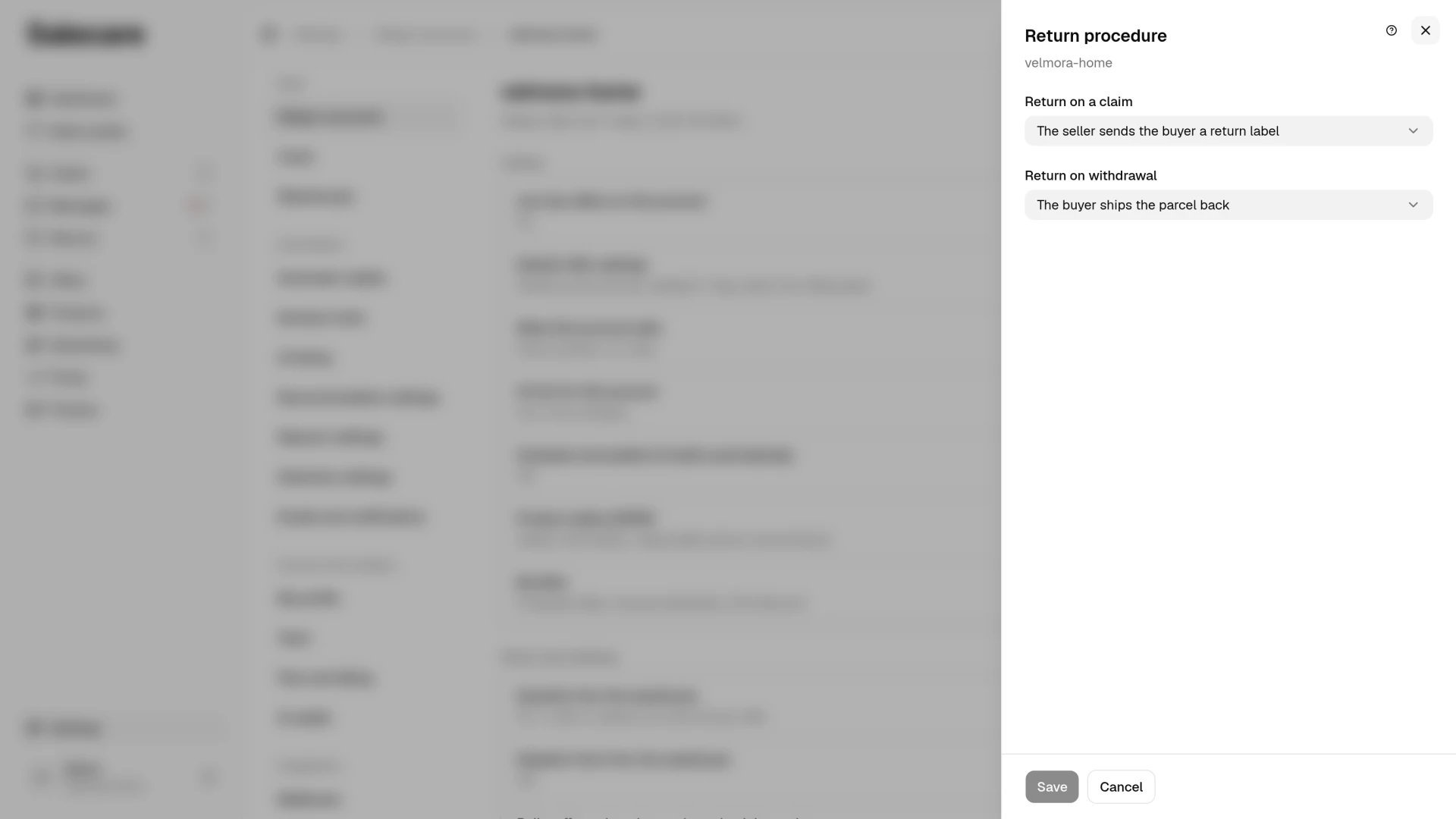
In Settings open Allegro accounts and click the account. The return terms are four rows in the Customer service group, Free returns, Return procedure, Return address and instructions and Return decisions sent to Allegro. Change next to a row opens a panel with the row's fields and one Save button. Everything you save there belongs to that one account and becomes the source of truth for the assistant when it drafts replies to buyers of that account. An e-mail thread belongs to no account, so the assistant uses these rules in it only when you have one connected Allegro account. With several accounts it does not state in an e-mail thread who pays to send the goods back, nor a withdrawal period longer than the statutory 14 days.
Under the switch, the Free returns panel shows the terms fetched from Allegro, that is how many days Allegro gives to withdraw and who pays the return shipping, the seller or the buyer. You therefore see Allegro's declaration and your own side by side. That line sums up all of the account's return policies in Allegro. It shows the shortest withdrawal period, and the return shipping paid by the seller only when every policy says so. Salecare reads them when the account is connected and then once a day, so a change in Allegro shows here by the next day at the latest. When Salecare does not hold those terms yet, the panel shows no such line. When the account was connected before Salecare started requesting access to the sales settings, Salecare cannot read those terms, and the panel asks you to reconnect the account and has a Reconnect button.
Step 2. Decide about free returns
The toggle in the Free returns panel is called Free returns for buyers. When it is on, the assistant's draft tells the buyer that sending the goods back is free. The toggle changes nothing in Allegro. If the return policies in Allegro still say the buyer pays the return shipping, the Allegro return form charges the buyer, even though the assistant promised a free return. The toggle covers every offer of the account. Switch it on only when every return policy the account's offers use in Allegro has the return shipping paid by the seller. When some offers have a free return and others a paid one, leave it off.
The toggle also acts on the margin. When it is on, the return shipping rate from the Return costs panel (Settings, Costs, Returns row) counts as your cost on a withdrawal. Salecare does not record since when the toggle has been on, so the next margin recalculation applies the change to earlier withdrawal returns on this account as well. When every return policy of the account in Allegro has the return shipping paid by the seller, Salecare treats the account's returns as free regardless of the toggle, in the assistant's drafts and in the margin.
The page also reminds you of the exceptions that apply regardless of the toggle. Allegro gives one free return per Allegro Smart! order, so it pays the parcel of the first return when that is a withdrawal or a claim filed within 14 days of the pickup. A further return of that order and a later claim follow the ordinary rules. That is why the assistant promises a free Smart return only when the order has no return yet other than a cancelled one and at most 14 days have passed since the pickup. Returns of orders shipped with Allegro Delivery are free for the buyer. Faulty goods or goods not matching the description always come back at your cost.
Step 3. Decide whether to send return decisions to Allegro
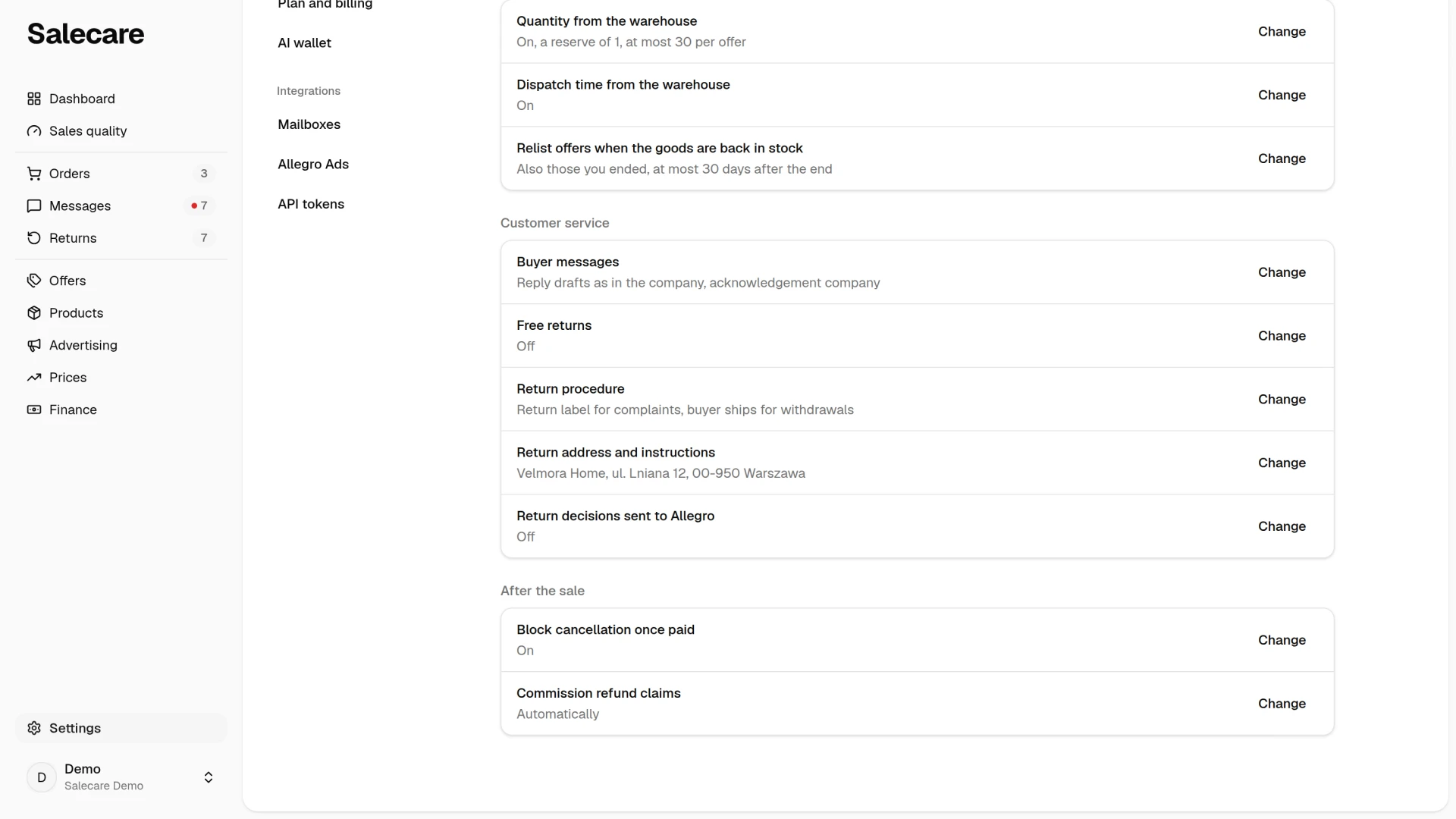
The Send return decisions to Allegro toggle in the Return decisions sent to Allegro panel decides where the refund decision is taken. Turning it on asks first, because accepting a return in Salecare then refunds the buyer through Allegro. Once it is on, you take the decision in Salecare and it reaches Allegro via that account's API. A rejection declines the return in Allegro, and an accept refunds the buyer's money. Before an accept is sent, the app asks you to confirm the amount. On a return of the whole order the amount also includes the delivery the buyer paid. A few cases work differently.
- A rejection sent to Allegro needs a message to the buyer, because Allegro passes it to the buyer with the rejection.
- Allegro cannot refund an order paid on delivery, so its accept is recorded only in Salecare and you transfer the money to the buyer's account yourself.
- Salecare does not send a refund reduced by the deduction of a value reduction letter (the Refund less option), because Allegro would refund the full amount. The Decision step then has no send button, and you make the reduced refund in the Allegro panel, on the Returns tab.
- You can send a decision only from an account connected to Allegro. A return Allegro has already finished, cancelled or rejected takes no decision.
When the toggle is off, the decision is saved only in Salecare and you close the return in the Allegro panel. The button in the Decision step is then Save decision instead of Send decision, and the sentence under it says where to finish the return. A rejection recorded only in Salecare then never reaches Allegro and keeps nothing. Allegro refunds the buyer itself on the 8th day after the return parcel was picked up unless you refuse the return on the Returns tab in Allegro before then (Allegro's rules).
Accounts connected before write permissions such as "Refunds to buyers" were added have to be reconnected to Allegro. The Return decisions sent to Allegro panel then says the account has to be reconnected. The row of a connected account on the Allegro accounts list has no Reconnect button, so click Connect Allegro account there and confirm the same account in Allegro. When the plan's account limit locks that button, click Disconnect beside this account and then Reconnect. When the toggle is on and the account lacks the refund permission, the Returns page shows a banner with an Update permissions button that opens the same Allegro connection.
Step 4. Describe the return procedure
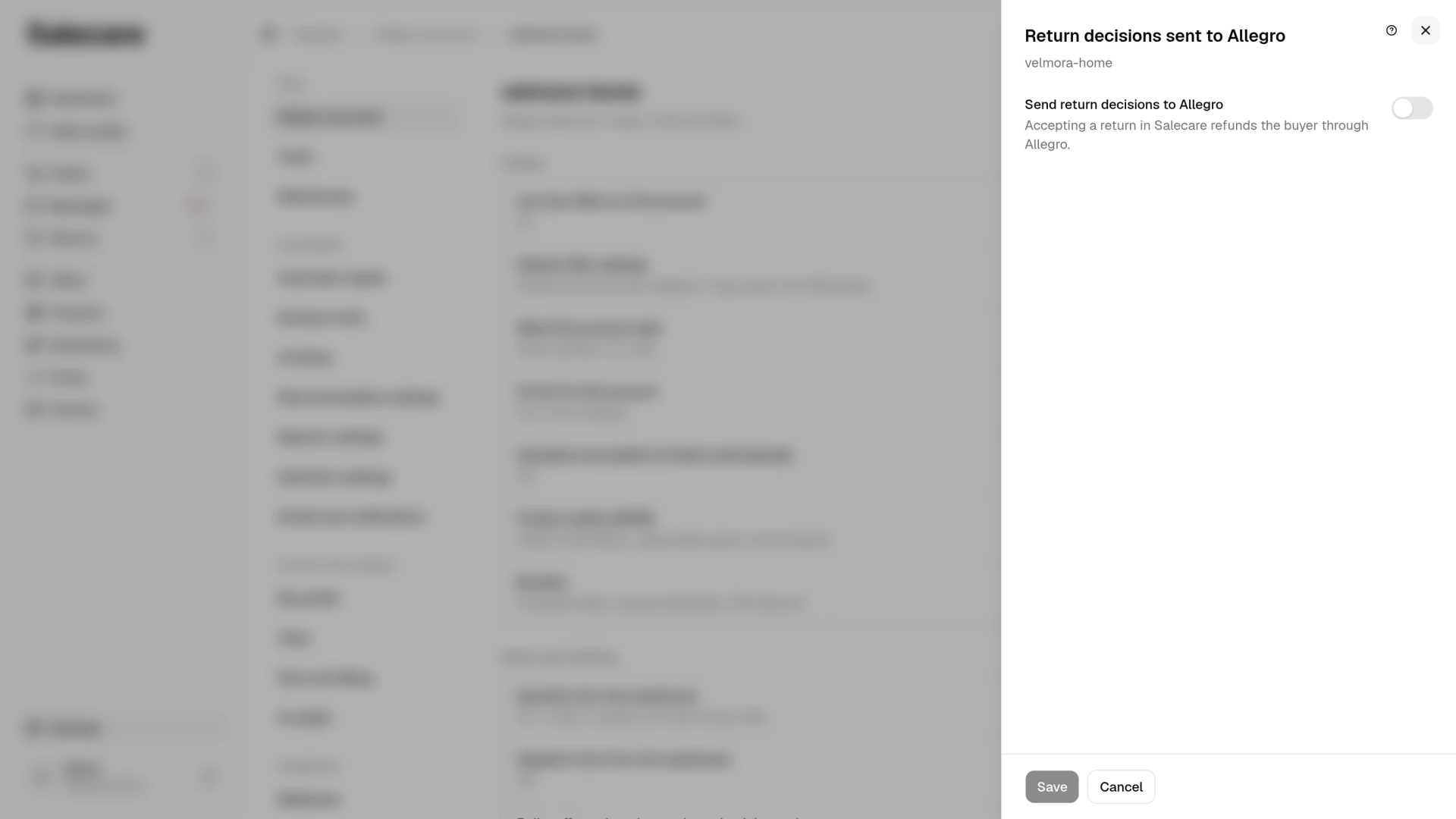
The Return procedure row says how the goods physically come back and where to send them. The assistant sticks to these declarations instead of guessing. You set the rule separately in the Return on a claim field and in the Return on withdrawal field. By default both are set to "No standing rule". Once you set a standing rule, the buyer gets a concrete instruction from the assistant instead of generalities. A justified claim is always returned at your cost, whichever way it is sent. Who pays on a withdrawal follows the free-returns toggle. In the Return address and instructions row you fill in the Return address and Extra return instructions fields. The instructions are short notes the AI reply draft passes on to the buyer. Without an address the row is marked "Missing". The assistant gives buyers exactly this address. Without it the assistant can only fall back on an address found in your earlier replies. You save each panel with its own Save button, because the fields do not save on their own.
What next
The account's return terms are the basis of the assistant's replies. You set the rest of the message automation following the guide "How to automate Allegro messages and discussions". Returns themselves, with decisions and the search by tracking number, are handled following the guide "How to handle returns in Salecare".