How to automate Allegro messages and discussions
You have 24 working hours to reply in an Allegro discussion, with Saturdays, Sundays and statutory days off left out. Allegro counts the time you take to answer questions in the message centre the same way, and the threshold for its Timely responses measure is 95 per cent. When you are late, an Allegro employee joins the conversation and your score on that measure drops. Sellers know this well. Some admit that they "reply with a full stop" to messages that need no answer, just to avoid losing points.
Salecare collects messages, discussions, claims and warnings from all your accounts into one list and helps you reply before the 24 working hours are up. You see the deadline badge not only on claims and discussions but also on questions from the message centre. The AI assistant prepares a draft reply, and an independent safety check reviews it before you see it. You read the draft, correct it and send it. The assistant never sends a reply to a buyer on its own.
Step 1. Get to know the inbox
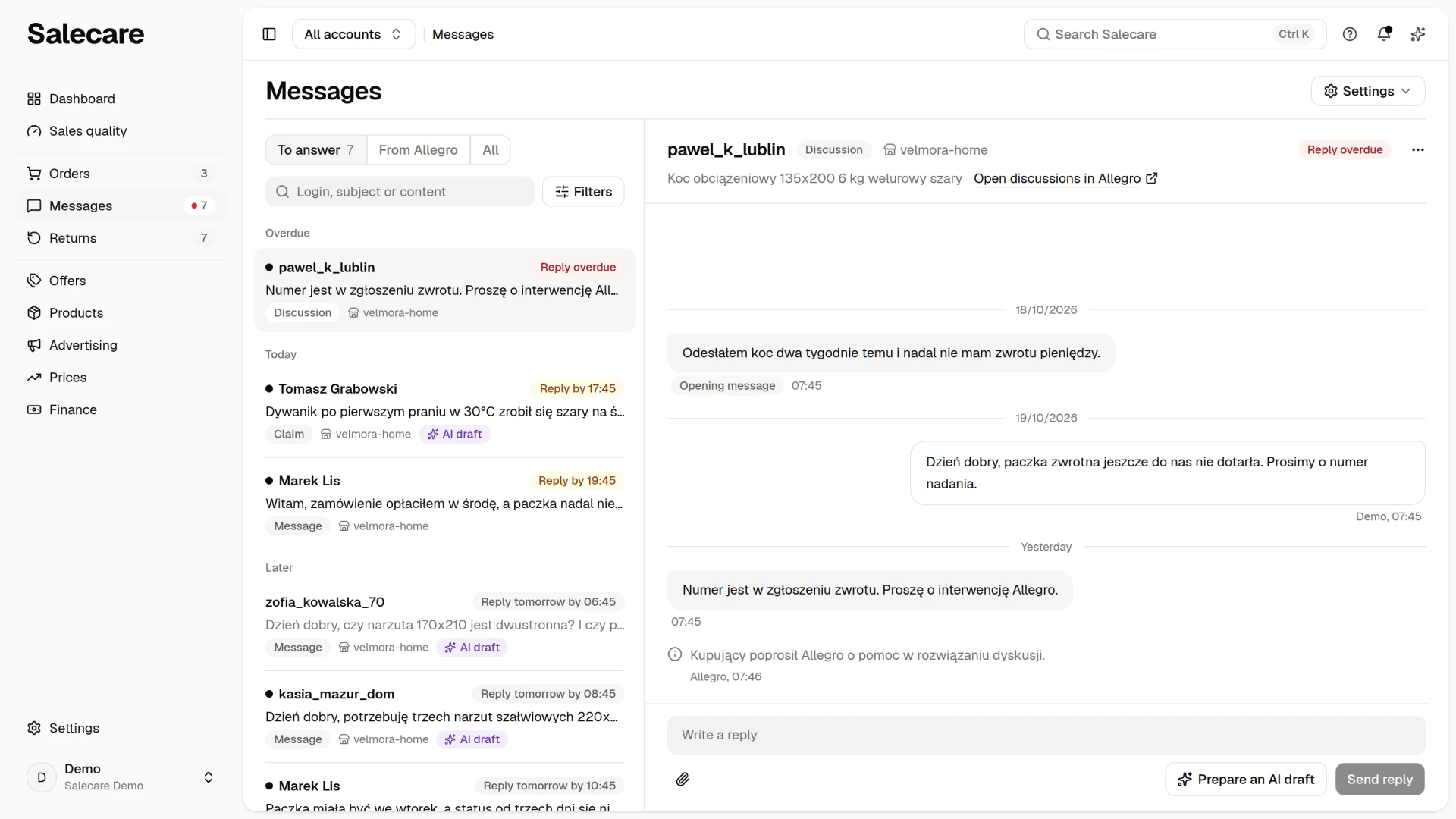
In the side menu, go to Messages. The number beside this entry is the number of cases on the To answer view, and a red dot on it means some case is already past its reply deadline. Messages is one list in three views. The To answer view gathers the messages, discussions, claims and buyer emails waiting for your reply or decision, under the headings Overdue, Today and Later. The From Allegro view holds warnings and notifications. The unread ones stand at the top of the list, and the view has no number. The All view is every conversation with a buyer, including the ones you have already answered. A buyer question from the message centre has the same row on the list as any other case. The row gives the buyer, the start of the message, the kind "Message" and the product, and with all accounts selected also the Allegro account it concerns. You pick a topic Salecare recognised, such as "Availability", "Invoice" or "Returns and refunds", in the Filters panel, with the Topic criterion. You can hide a conversation that needs no more attention, in Salecare only. Use the Hide entry in the More menu of the conversation, or on a computer also the Hide button on the selection bar. A hidden conversation comes back on its own when a new message in it from the buyer reaches Salecare. You get back to the hidden ones with the Visibility field in the Filters panel, as the guide "How to answer messages and claims" describes. You shape the list of topics on the Automatic replies page, as the part "Conversation topics" below describes. A conversation opens next to the list, so you never lose context when moving between cases.
Allegro warnings and notifications are read, not answered. While the From Allegro view holds unread messages, the Mark all as read button stands on it. One click marks every warning and notification as read, and the button goes. Allegro also sends warnings and notifications by email, and Salecare reads those only from a connected mailbox. Without one, the From Allegro and All views say under the list what a mailbox would add, and carry a Connect mailbox link. Salecare marks a conversation read only when you click its row. When you open a message centre conversation in Salecare, Salecare marks it as read in Allegro too, if the Allegro connection covers the message centre. A teammate working in the Allegro panel therefore sees the same counter. When Allegro already holds a newer message Salecare has not fetched yet, the conversation stays unread in Allegro, and that message arrives in Salecare unread. A conversation left open in a browser tab that refreshes itself on a new message does not turn read until you click its row again. Claims, discussions and mail cannot be marked this way, because Allegro offers no way to do it. On a discussion the Open discussions in Allegro link in the header opens the list in Allegro the conversation sits on. On a message centre conversation the Message centre in Allegro entry of the More menu does it. Allegro gives no address for a single conversation, so you find it there by the buyer's login.
Conversation topics
Eight topics come with the app, and the list is yours to shape on the Automatic replies page. Click Change in the row of any channel. In the channel panel, under the answers, sits the Topics list, shared by every channel. Clicking a topic's name opens the Edit topic dialog. A topic says what a conversation is about. Salecare recognises it from the words in the message, and you set the list of topics and the words they are recognised by. You can rename the built-in topics, describe them in your own words and switch them off with the Topic is in use field. You cannot delete them, though, because they are attached to past conversations. You add your own topics, wholesale or warranty registration for instance, with the Add a topic button under the list. You delete a topic of your own with the Delete button in its dialog, and the conversations with that topic are then left without one.
Topics are checked in order, and the first one whose keyword appears in the message takes precedence. Your own topics are checked before the built-in ones, so they take precedence when a message matches both. You enter keywords one per line. The start of a word is enough, so "complain" also matches "complaint" and "complaining", and letter case does not matter. The description is one sentence about what the topic covers. The AI assistant reads it when it assigns the topic and writes a reply. The This is a pre-sale product question box makes the assistant add catalogue products to its reply on such a topic. On a claim or a return catalogue products would not be useful.
A switched-off topic stays on past conversations, but no longer appears in the filters or the mail rules, or when new messages are classified. Switched-off topics sit under the list, in the folded Switched-off topics section. A topic with no keywords is set with a mail rule.
Step 2. Choose what to do with a new message
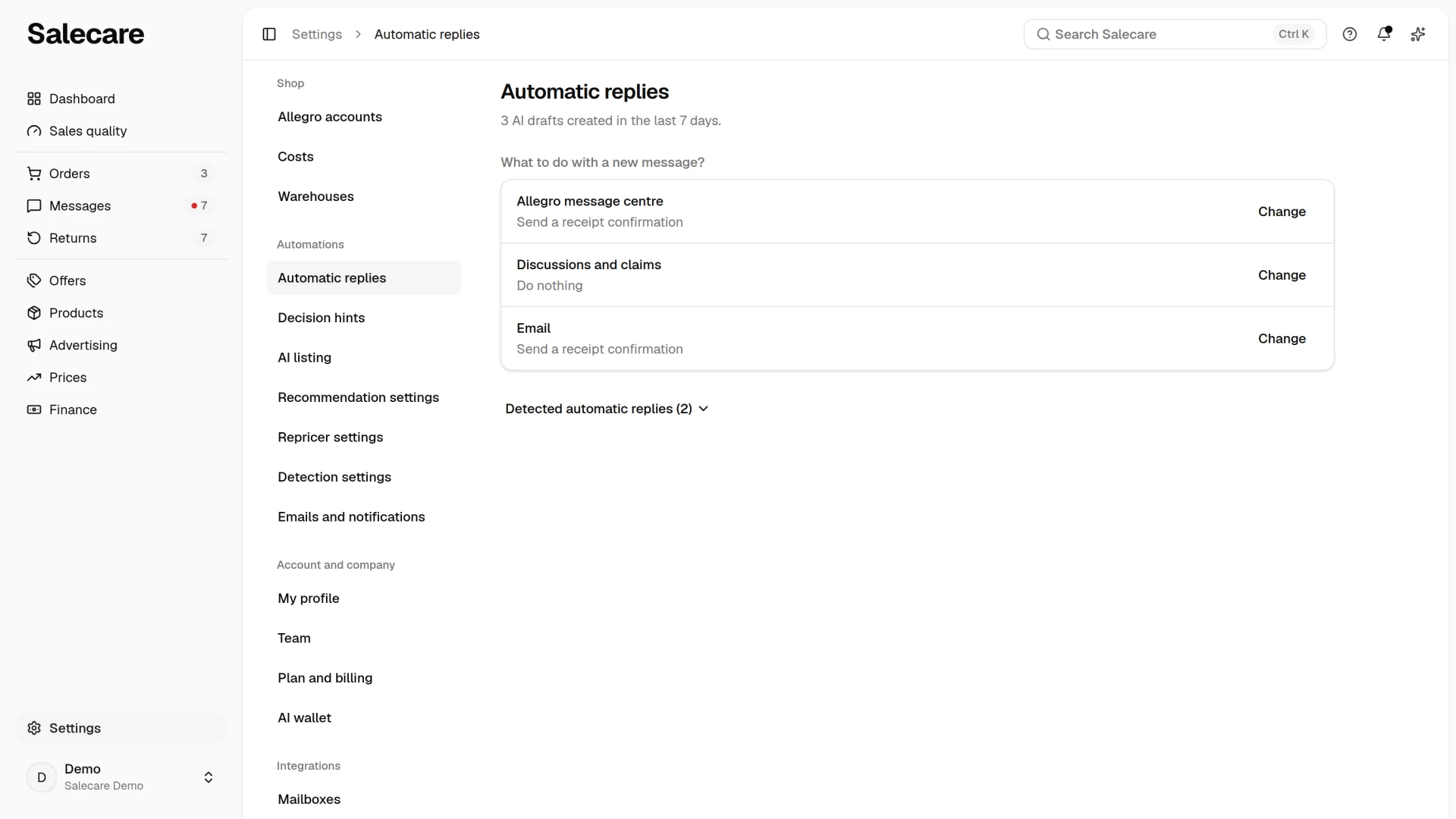
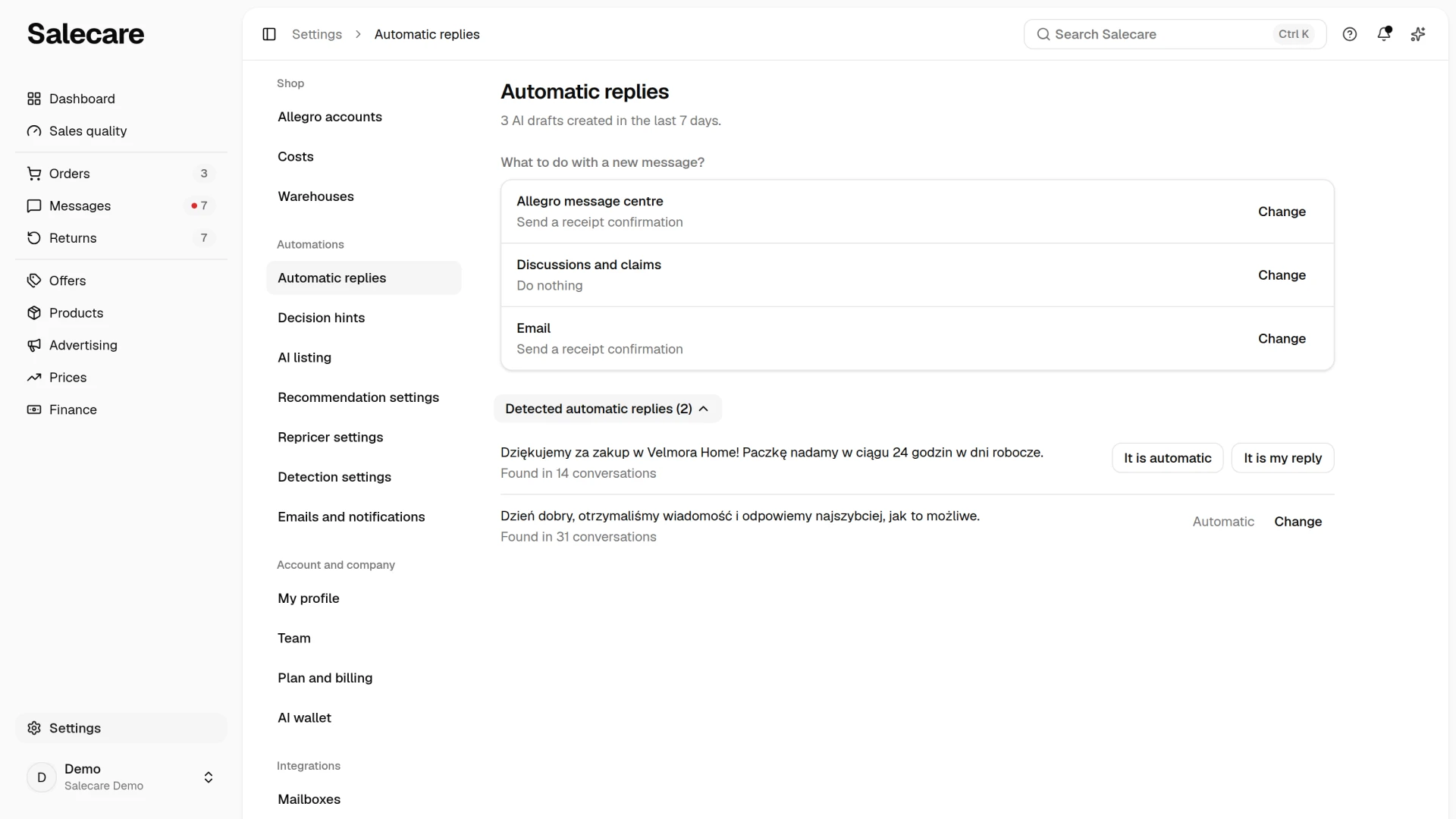
On the Settings page, in the Automations group, open Automatic replies. The Automatic replies entry under the Settings button above the Messages list opens the same page. The page has one row per channel, that is Allegro message centre, Discussions and claims and Email, and each row shows the answer the channel gives today. Under the title the page says how many receipt confirmations were sent and how many AI drafts were created in the last 7 days, when any were. The Email row without a connected mailbox says "No mailbox" and has a Connect a mailbox button.
The Change button in a row opens the channel panel with the question What to do with a new message? and three answers, "Do nothing", "Send a receipt confirmation" or "Prepare an AI draft". Each channel has one answer. The Save button in the panel saves only that channel and sends nothing. Step 4 describes the receipt confirmation. With "Do nothing", Salecare only gathers that channel's messages on the list, and you write the answer yourself.
The "Prepare an AI draft" answer tells the assistant to prepare a draft for every new buyer message on that channel, for the topics switched on in the panel. The draft waits in the conversation for your approval, and Salecare never sends it by itself. Once this answer is saved, the assistant also prepares drafts for that channel's conversations already waiting for a reply, if the buyer's last message is at most 14 days old. Each draft and its check are paid from the AI wallet, and the panel gives the approximate cost of one draft. While the wallet is empty or the monthly limit is used up, no drafts are prepared. The draft waits for you in the reply field. You send it yourself, after reading it, and nothing reaches the buyer without your click.
A company that signs up for Salecare from this version on starts with the "Prepare an AI draft" answer on the Allegro message centre channel, for the topics "Product details", "Availability", "Delivery" and "Order status". A draft waits in the conversation for your approval, and Salecare never sends it by itself. Each draft is paid from the AI wallet, first from the welcome bonus the company gets once it connects its first Allegro account. Companies that signed up earlier keep their settings.
Drafts prepared without your click belong to the Pro plan and up. On a lower plan you can still pick "Prepare an AI draft", but a padlock next to it names the plan the drafts start on. Until then no drafts are prepared. The shared inbox itself works on every plan, and you then ask for a single draft with the Prepare an AI draft button by the reply field.
The switches next to the topics in the panel show only while "Prepare an AI draft" is chosen. The topic list is shared by every channel with AI drafts, and the channel row says for how many topics drafts are prepared. Until you save the topics, every topic in use is switched on, the ones you added included. A topic you add later has to be switched on here by you, or the assistant prepares no draft for it. Salecare recognises the topic from the message before the assistant writes a draft, so a message on a switched-off topic gets no draft and costs you nothing. A message whose topic cannot be recognised gets a draft, and when the assistant files it under a switched-off topic, the draft is hidden. You pay for such a draft from the AI wallet. The topics "Invoice", "Returns and refunds", "Claim" and "Other" carry a "Risky" badge, and so does any topic you added yourself, because they touch money, documents or disputes. Read a draft for them with particular care. When you switch on no topic with this answer, the panel does not save, and the message "Turn on at least one topic for AI drafts." appears under the topic list.
Step 3. Check the draft and its safety check
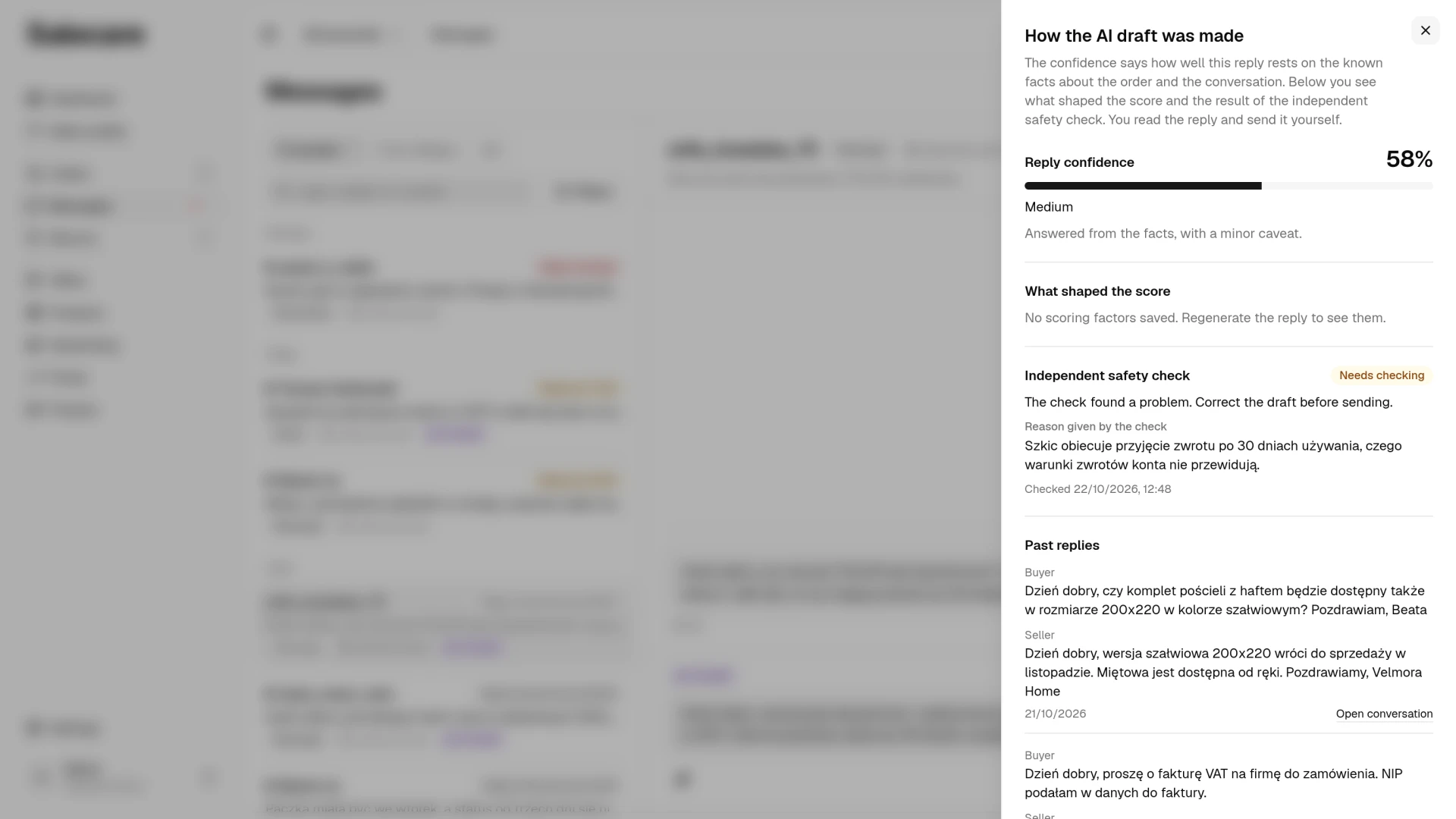
A ready draft waits in the reply field, and above the field stands the "AI draft" badge. You can edit it, and the message leaves only when you click Send reply. When the field holds your own text, Salecare does not change it. It offers the draft with the Insert the AI draft button instead and asks before it replaces your text. While a draft waits, the More menu of the conversation holds the How the AI draft was made entry, which opens a panel with the details. The confidence says how well the reply rests on the known facts about the order and the conversation, not how nicely it reads. The panel has three main parts, and below them the Past replies and Similar products sections, that is what the assistant drew on.
- The Reply confidence section shows the score in percent with its band, "High", "Medium", "Partial" or "Low", and a short description of what that band means.
- The What shaped the score list gives the facts the assistant based the reply on, for example the shipment status or your saved return address, and what it was missing or put off for later. When the draft states an address, a phone number, an account number or an email that is not among the known facts, Salecare lowers the confidence itself and adds that to the list.
- The Independent safety check section. Right after the draft is written, Salecare checks it on seven points. It checks the first three itself, without AI. It checks whether the draft has content, whether its addresses, phone numbers, account numbers and emails come from your earlier messages or the order, and whether it repeats nothing another buyer wrote. An AI model judges the other four points in a separate, fresh request, in which it does not see the assistant's confidence. The model checks whether the draft answers the buyer's latest question, whether prices, dates, tracking numbers and availability match the known facts, whether promises of a refund, a replacement or a free return are backed by the facts, and whether the draft keeps to this buyer's case. It is the same model that writes the drafts, so the result of the check does not spare you reading the draft.
The check ends with one of three results. "No issues" means every point passed. "Needs checking" means at least one point failed, and the list of points shows which one, for example a phone number that is not among the known facts. Correct such a draft before you send it. "Not checked" appears when the check gave no result, for example when the AI model did not answer, and on drafts written before the check existed. Such a draft is not marked as safe, so read it with extra care. Under the result stands one sentence of reasoning from the model, and the points the check never reached say "not checked".
The check runs on every draft, both the ones prepared automatically and the ones you ask for with the Prepare an AI draft or Another version button. It is paid from the AI wallet just like the draft. It sends nothing and blocks nothing. You put the draft into the reply field with the Insert the AI draft button, correct it and send it yourself.
Step 4. Set up message acknowledgements
The "Send a receipt confirmation" answer is a short, fixed acknowledgement. You write it yourself in the Confirmation text field of the channel panel, and Salecare sends it by itself once it has fetched the buyer's new message. It is the only answer that goes out without your click, and always in your own words. Salecare fetches messages every 15 minutes. The text never comes from AI. The empty field suggests "e.g. Thanks for your message, we'll get back to you shortly.", and without a text the panel does not save. Salecare records the acknowledgement as an automatic message, so in Salecare the conversation still waits for a proper answer, and the buyer knows they have been heard. The buyer and Allegro, however, see it as an ordinary message from you, and Allegro encourages sellers to answer themselves, without automatic replies. So do not treat the acknowledgement as your answer, and reply within 24 working hours.
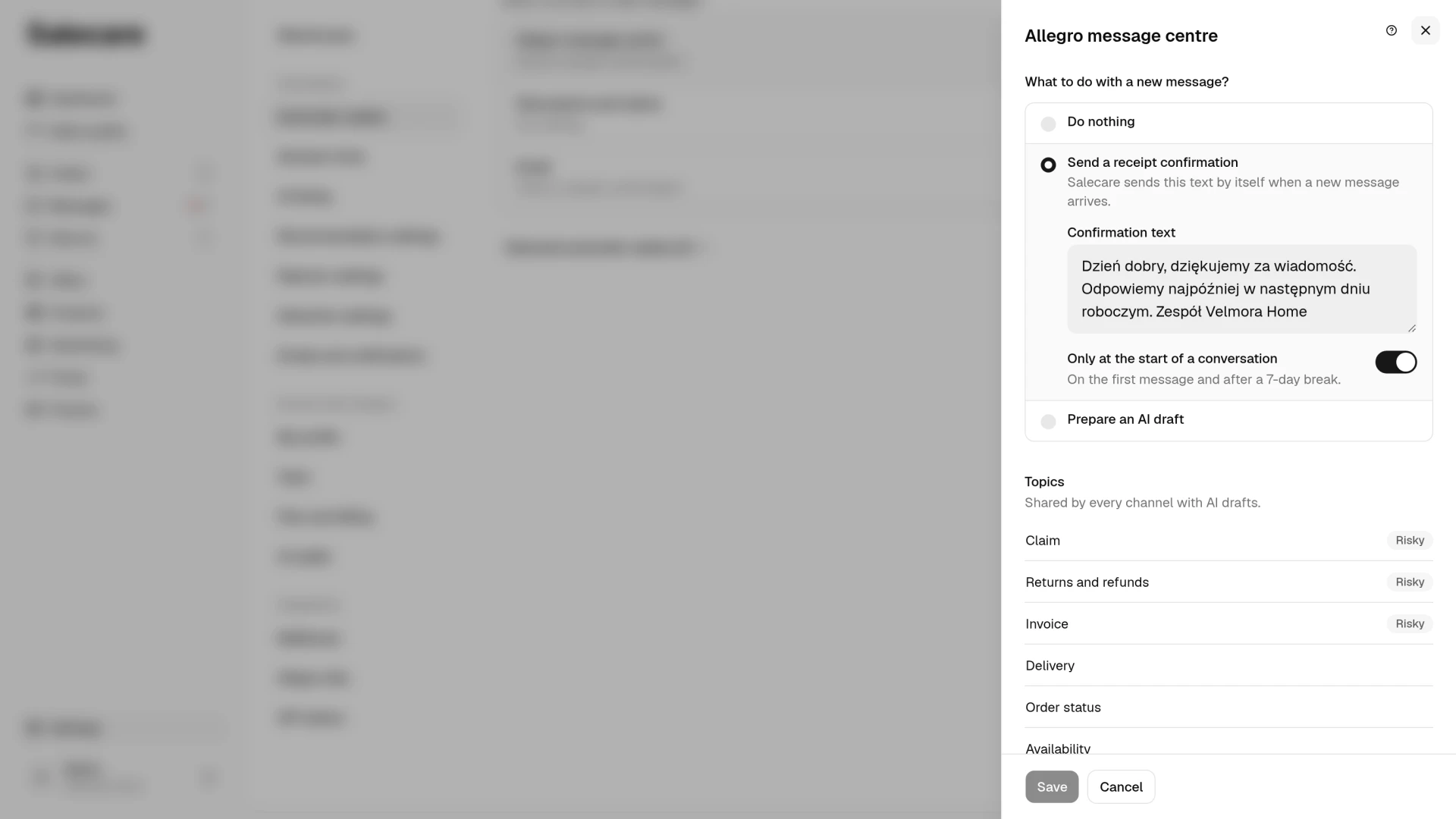
You set an acknowledgement separately for each channel, in its panel. Several buyer messages fetched at once get one acknowledgement. The Only at the start of a conversation switch is on to begin with. The acknowledgement then goes out only when a conversation starts, that is on the first message in a thread, or when a buyer writes again at least 7 days after your last reply or acknowledgement, about another order for example. With the switch off, the acknowledgement goes out on every new buyer message nobody has answered yet. On the Email channel only a buyer gets the acknowledgement, as the mailbox's Who writes to this address? setting defines it. It never goes out to mail sent before the mailbox was connected, nor to mail Salecare fetched more than two hours after it arrived. An AI draft also goes only to a buyer, but a draft is prepared for mail from before the mailbox was connected too, when that mail waits for a reply and is at most 14 days old. Mail from a wholesaler or a courier that stands on the All view moves to notifications with a mail rule, as the guide "How to connect an email inbox for customer service" describes.
An acknowledgement covers the whole channel, whatever the conversation is about. A channel with a receipt confirmation gets no AI drafts, because each channel has one answer to a new message. You therefore write the proper answer there from scratch.
Step 5. Check the detected automatic replies
Under the channel rows sits the folded Detected automatic replies section with the number of texts found. It appears once there is something to show. Salecare recognises the replies that go out of your account automatically, that is, the same text repeated across many conversations. It lists them with a sample of the text and the number of conversations it found them in.
A freshly detected text is only a proposal and changes nothing on its own. It has two buttons, It is automatic and It is my reply. Until you pick one, that text still counts as your answer to the buyer.
The It is automatic button asks for confirmation and names the number of conversations that go back to the "Awaiting reply" status because of it. Once confirmed, that text stops counting as an answer to the buyer and stops teaching the assistant your style. A conversation where it was the only answer returns to the list of conversations awaiting a reply. With automatic drafts on, the assistant prepares a draft for such a conversation, paid from the AI wallet, if the buyer's last message is at most 14 days old.
The It is my reply button leaves everything as it is and takes the question away for good. A row you have already decided shows "Automatic" or "My reply" and a Change button, so you can change your mind at any time. Changing it to automatic works just like the It is automatic button, but without the window that names the number of conversations. The conversations where that text was the only answer go straight back to the "Awaiting reply" status, and on a channel with AI drafts the assistant prepares paid drafts for them.
How it works together
A buyer writes a message. On a channel with the "Send a receipt confirmation" answer, the acknowledgement goes out once Salecare fetches the message, and the automation stops there. The proper answer is yours to write. On a channel with the "Prepare an AI draft" answer, the assistant prepares a draft reply from the order and the conversation history, and the independent safety check reviews it right away. The draft waits in the reply field, and the How the AI draft was made panel shows its confidence and the result of the check. You read the draft, correct it if needed and send it. On a channel with the "Do nothing" answer, nothing happens by itself. The assistant never sends a reply to a buyer on its own.
Settings on an Allegro account
The settings on the Automatic replies page cover the whole company, but any Allegro account can have its own drafts setting. On the Settings page open Allegro accounts and click the account. In the Customer service group, in the Buyer messages row, click Change. The panel has the AI reply drafts field with the options "As in the company", "On for this account" and "Off for this account". With "As in the company" the panel says whether drafts are on now, that is whether the Allegro message centre channel has the "Prepare an AI draft" answer. The account's choice wins over the company setting both ways. So drafts can be prepared only on the account whose questions are predictable, even while they are off for the company. They then do not spend the AI wallet where you write every answer from scratch anyway. The channels and topics for drafts are the same for every account, the ones on the Automatic replies page. That page says under its rows how many accounts have their own reply settings, and has an Allegro accounts link. An account can neither switch the acknowledgement on nor switch it off, because that setting covers the whole company. In the same panel, in the Message acknowledgement on this account field, you only change the acknowledgement's wording on this account's threads. Mailbox threads belong to no account, so they always follow the company setting.
What next
The deadlines of all cases stand on the To answer view. The badge on each case shows there the time left to reply or the decision deadline Allegro set. The guide "How to answer messages and claims" walks you through it, the headings and clocks included. Platform warnings land in the notification bell the moment they appear. The state of your quality indicators is under Sales quality in the side menu, on the Score tab. How the AI wallet that pays for the drafts and their check works is shown in the guide "How the AI wallet works".