How to request the removal of negative ratings
Allegro shows your recommendation percentage on your offers and counts it from the ratings of the last 12 months, so a single unfair negative stays in it for a year, unless the buyer removes the rating or Allegro excludes it from the average. On top of that, the deadline by which you can even request a rating's removal simply passes if nobody watches it. Salecare shows which negative ratings are running out of that time and helps you reply to a rating publicly. For each rating whose removal you can request, the AI prepares a separate draft justification from its comment and the order's facts. You send the removal request yourself, for one rating or for many at once, after reading every draft. Salecare never sends a request without your click. On every request you sent you then see what the buyer did with it.
Step 1. Find the ratings you can request the removal of
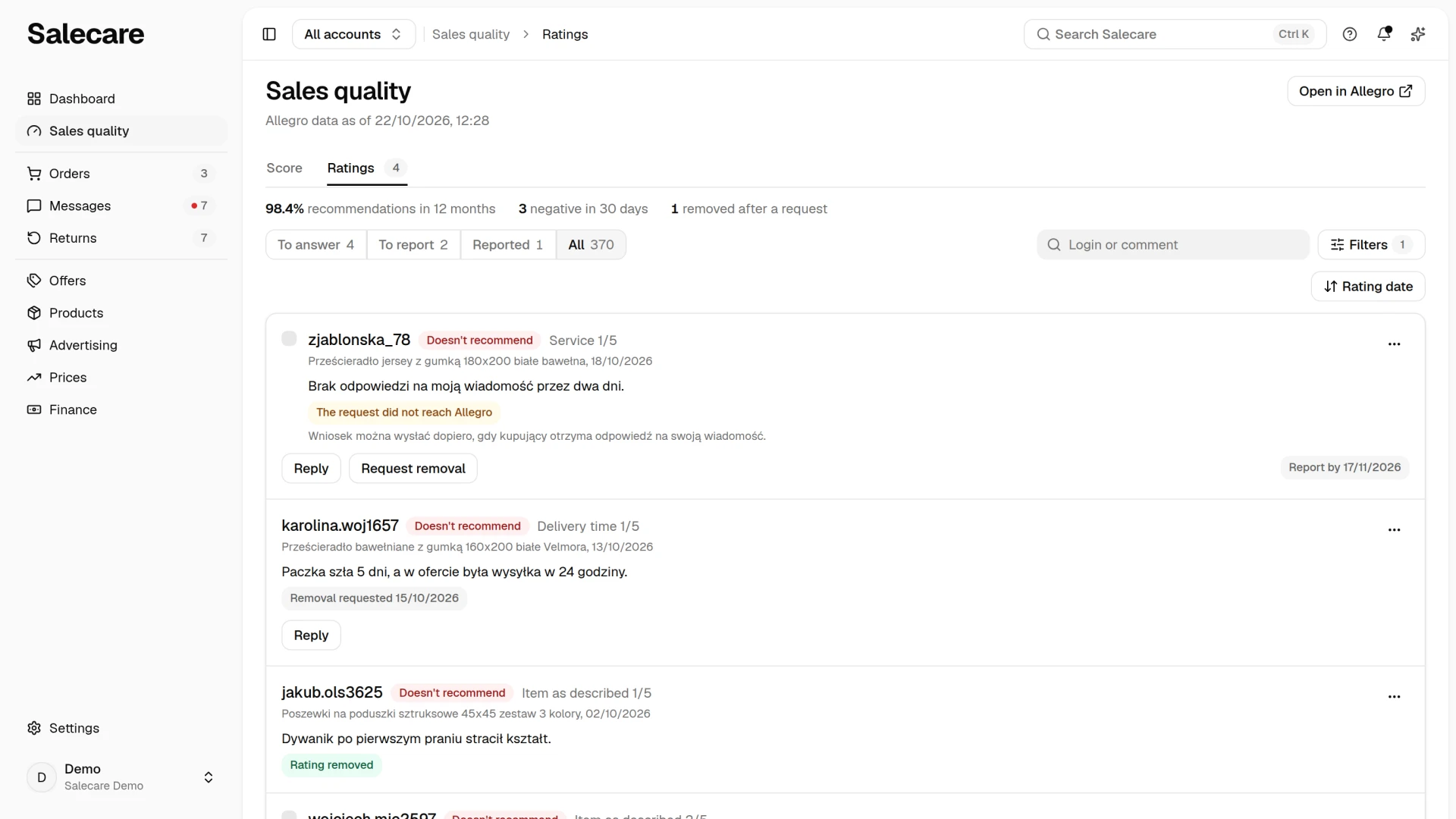
In the side menu go to Sales quality and open the Ratings tab. The number beside the tab is the negative ratings without your reply. Above the list stands a line of three figures, the recommendation rate of the last 12 months, the negative ratings of the last 30 days and the ratings removed after a request in the last 30 days. A rating the buyer changed to positive does not enter the last figure. The figures cover the account picked in the account switcher in the top bar, and with "All accounts" the ratings of all accounts, whatever the filters of the list below.
Below stand the views, with the number of ratings in each. To answer holds the negative ratings without your public reply. It is worth starting with a reply, as step 2 explains. To report holds the negative ratings that have no request yet and whose removal Allegro still lets you ask for. Reported holds the ratings with a request that waits for the buyer. All is every rating of the picked accounts. The tab opens on the To answer view, and when nothing waits there, on the To report view. When nothing waits there either, it opens on the All view. The row about ratings in the To do section on the Dashboard page opens the All view with the criteria that leave the negative ratings of the last 30 days without a reply.
Every rating that can be reported carries a "Report by" badge with a date under its row, also when it already has your reply. In the last 7 days before that date the badge warns. After the date you can no longer send a request for that rating, but you can still reply to it.
You can set the same criteria by hand. Click Filters above the list to open the panel, and pick "Doesn't recommend" in the Recommendation field. In the Removal requested and Removed from Allegro fields pick "No", and in the Report deadline field set the start date to today. The end date in that field narrows the list to the ratings whose deadline to report falls on the days you pick. You pick the order of the list in the menu above it, and its Report deadline item puts the ratings whose deadline comes first on top. Picking that item again reverses the order. The search field looks through the buyer login and the comment of all ratings.
Step 2. Reply to a negative rating
Buyers who come after read the reply next to the rating, and Allegro sets no time limit on a reply, so it is worth starting with it. The reply is public on Allegro. The Reply button stands under the rating's comment, beside the Request removal button, the same on a computer and on a phone. In the Reply to the rating window you see the buyer, their recommendation and comment, and the reply field has a counter up to 500 characters. The window opens with an empty field and takes nothing from the AI wallet.
An AI draft is prepared only after you click Prepare an AI draft, and its price stands beside the button. The AI writes it from the buyer's comment and stars and the order's facts, such as the dispatch dates, the parcel's status, a return, a claim and the messages with the buyer. When the field already holds your text, the finished draft waits, and you insert it with Insert the AI draft. Another version prepares a different draft and has its own price beside it. An inserted draft carries an "AI draft" badge. When you cannot ask the assistant for a draft, the button and the price are not there. The buyer's login does not reach the AI. Everyone sees the reply, so the AI is told to leave out the order number and the parcel number. Salecare removes from the draft a sentence with an address, phone number, email address, bank account number or Salecare link. Read the draft and correct it before you click Send reply.
You save a reply you use often in the Templates menu in the window's footer. Save this reply as a template asks for a short name, and on the next rating you insert the template from the same menu and adapt it to the case. A template is your own text, so it costs nothing from the AI wallet, and you send it the same way with Send reply. Saving under the name of an existing template replaces its text. Delete template removes the chosen template after you confirm, and every user of the company sees the templates. A company can have at most 50 templates. After the reply is sent, the row shows "Your reply" under the comment, and a rating that can still be reported keeps its "Report by" badge. The row about ratings in the To do section on the Dashboard page counts the negative ratings of the last 30 days without a reply, and clicking it opens those ratings on the Ratings tab.
Step 3. Check whether a request is needed
A removal request goes to the buyer, so it only makes sense once the matter with them is resolved, for example after an exchange of messages, a return or a missing part sent out. On a negative rating that is still on Allegro, the More menu at the end of the row leads to the buyer. Conversation with the buyer opens in Salecare the newest conversation, discussion or claim about that order. When Salecare holds none, Write to the buyer on Allegro opens the order in Sales Center, where you send the buyer a message. Show order opens the order in Salecare once it is synced. Allegro does not allow a new message that asks the buyer to change or remove a rating, so use the message to settle the matter and ask for the removal only with the request. Salecare sends no such message for you. You may offer the buyer compensation for a failed transaction, as long as it is not in exchange for changing the rating. When the buyer then removes the rating and gives the compensation from the seller as the reason, Allegro shows that removal on your list of ratings and comments.
An "Excluded from average" badge on a rating means Allegro shows the rating to buyers but leaves it out of your average, so it no longer lowers your recommendation percentage. A request for such a rating only takes off Allegro what buyers see. The To report view holds such ratings too.
A frequent negative is about the delivery time. When the parcel left within the dispatch time stated in the offer, and the buyer gave late delivery as the reason for "Doesn't recommend" without a comment or with a comment of up to 4 characters, Allegro excludes the rating from the average on its own. When the comment makes clear that the rating is only about the delivery time Allegro predicted, and the parcel left within the declared time, contact Allegro and ask for the rating to be excluded. Neither way needs the buyer's consent or a removal request.
Allegro itself also removes a rating whose comment breaks Allegro's rules or terms, a rating given to the wrong transaction when its comment clearly shows the mistake, and a rating given in exchange for a benefit. You report such a rating with the "report violation" option on the ratings list in Sales Center or by contacting Allegro. Contact Allegro as well when someone bought only to leave a "Doesn't recommend" rating. Such a report needs no consent from the buyer. Allegro does not remove ratings given over a misunderstanding with the seller, for an item not as described, for the service, or for a carrier's problems delivering the parcel. Salecare sends no such report for you. When a rating disappears from Allegro, Salecare marks it with a "Removed from Allegro" badge, as step 6 explains.
Step 4. Send the removal request for one rating
A request can be sent only for a negative rating without a request whose Allegro deadline to request removal has not passed. Such a rating shows a "Report by" badge with a date, also after your reply, and a Request removal button at the end of its row. A positive rating has no such button, because the request would reach a satisfied buyer.
Click Request removal, and the Request rating removal window opens with an empty justification field. Opening the window takes nothing from the AI wallet. A draft is prepared only after you click Prepare an AI draft, and its price stands beside the button. The AI writes a draft justification from the buyer's comment and the order's facts, such as the dispatch dates, the parcel's status with the carrier, a return, a claim and the messages with the buyer. The draft lands in the field with an "AI draft" badge, and its cost comes out of the AI wallet, as with a reply draft. When the wallet runs out, the per-minute limit of AI drafts is used up, or the AI features are paused over an overdue subscription payment or a plan over its limit, the window says so, and you write the justification yourself. Read the draft, correct it (up to 500 characters) and click Send request. Preparing a draft sends nothing, and Salecare never sends a request without your click. The buyer reads the justification in the email from Allegro, so it has to be written to the buyer, politely and specifically about this one case, for example that the rating is about a carrier delay while the parcel left on time. For such a rating check first whether Allegro excludes it from the average without the buyer, as step 3 describes. The draft offers the buyer nothing in exchange for removing the rating, because Allegro forbids it, so do not add that in your corrections either. The draft also gives no address, phone number, email address, bank account number or link. Salecare removes a sentence in which the AI wrote one from the draft before it reaches the field. Allegro sends every request by email to the buyer and gives in it the date and time until which the buyer can remove or change the rating. The later you send the request, the less time the buyer has, so send it right after the matter is settled, not when the deadline is close. This is not instant removal, but without a request the buyer gets no ask from Allegro to change the rating. You send the request for a rating only once, and once it is sent the button leaves the row.
When Allegro does not accept the request or does not respond, you see a message, and the rating keeps a yellow "The request did not reach Allegro" badge. You can request that removal again. When the rating stopped qualifying before you clicked Send request, for example the deadline passed or a teammate sent the request first, Salecare does not send the request and says so in a message.
Step 5. Send requests for many ratings at once
Tick the boxes next to the ratings you want to send a request for. A box works only on a rating whose removal you can request, so you cannot tick a positive rating or one that already has a request. The selection stays when you move to the next page of the same list, and it clears when you change the view, the search, the filters or the account. A bar with the number of ticked ratings appears above the first rating, with a Request removal button that shows the number of ratings of the nearest window. On a phone the bar stands under the list, and with a longer list it stays at the bottom edge of the screen. Click the button, and in the Request removal of ratings window every rating has its own row with the buyer's login, the rating date, the comment and a justification field.
The window of several ratings prepares the drafts as soon as it opens. The AI writes a draft justification for each rating in turn, from its comment and its order's facts, and a finished draft carries an "AI draft" badge. The cost of every draft comes out of the AI wallet, and the price stands beside each rating. When a rating no longer qualifies, for example its deadline to request removal has passed, the reason appears under that rating and the drafts of the other ratings go on. Read every draft and correct it, or untick Send request on a rating you do not want to send a request for. The Prepare an AI draft button on a rating prepares its draft again. Click Send requests with the number of ratings you kept. Salecare sends only the ticked requests, each with its own justification, and sends nothing without that click. When you close the window without sending, the drafts and your corrections come back the next time you open it for the same ratings, without being paid for again, also after you reload the page or come back from the conversation with the buyer in the same browser tab. You tick the ratings again then. A draft that was still being prepared when you closed the window comes back too, as long as you stay on the page until it arrives. A new browser tab starts without kept drafts.
One window holds at most 10 ratings. When you tick more, the window says so, and after you send, the other ratings stay ticked and you go through them in the next window. When the AI wallet runs out, the per-minute limit of AI drafts is used up, or the AI features are paused over an overdue subscription payment or a plan over its limit, the window says so once above the list and stops preparing further drafts. You then write the remaining justifications yourself or prepare them later with the button on a rating. When one of the ratings has meanwhile changed to positive, Salecare sends none of the requests, and the reason appears under that rating. Untick it and send the others. When a ticked rating stopped qualifying in another way before you clicked Send requests, for example its deadline passed, a teammate sent the request first or its Allegro account was disconnected, Salecare sends no request for it, and the message after sending gives that rating's buyer login and the reason. The other requests go out. When Allegro does not accept the request for one rating, the others go out anyway, and that rating keeps a yellow "The request did not reach Allegro" badge with the reason when Allegro gave one. You can request that removal again.
Step 6. Read the results of the requests
Under the comment of a rating with a request, a badge says where the request stands. A grey one with a date is a request waiting for the buyer, with the note "on Allegro" when it was filed in the Allegro panel. When an Allegro employee asked for the rating's removal, as part of the One Fulfillment service for example, the grey badge says an Allegro employee filed the request. The Reported view holds the ratings with such a request.
The buyer decides on the request. Allegro sends them an email with your justification and the date until which they can remove or change the rating. When the buyer removes or changes the rating, Allegro tells you by email, but it does not share that through its API. That is why at the hourly ratings sync Salecare checks the ratings whose request is waiting. When the rating is no longer on Allegro, the badge on its row changes to a green "Rating removed". When the buyer changed the rating to positive, the badge changes to a green "The buyer changed the rating to positive". When the negative rating is still on Allegro 14 days after the request, the badge changes to a grey "The buyer did not remove the rating". That is what Salecare observed, not a result Allegro sent, which is why the badge only says the rating stayed.
A negative rating can also disappear from Allegro without a request, for example when the buyer removes it unasked or Allegro removes it. Once a day Salecare checks the negative ratings of the last 12 months and marks such a rating with a grey "Removed from Allegro" badge and the date. A removed rating stays on the list, but it no longer enters the figures above it, and you can neither request its removal nor reply to it. The Removed from Allegro field in the Filters panel shows only such ratings or hides them.
What next
A request rescues ratings that have already landed. The cheapest way to good ratings, though, is a fast response before the customer gets annoyed. It is covered in the guide "How to automate Allegro messages and discussions". And if your negatives come from orders cancelled after stock hit zero, the guides "How to set up an automatic wholesaler import" and "How to pause selling for offers with no stock cover" will help, because stock from the import reaches the offers only once quantity updates are on for the account.