How to set return costs and return decision hints
The cost of handling a return does not stand still. The carrier raises its rates, you change packaging, the packer's rate goes up. If you simply overwrite the old rate at that point, your whole margin history is recalculated with the new costs and stops matching reality. In Salecare, return cost rates have effective dates, so history is calculated with the old rates and new returns with the new ones. The last step covers decision hints, which suggest what to do with a new return.
Step 1. Open the Return costs panel
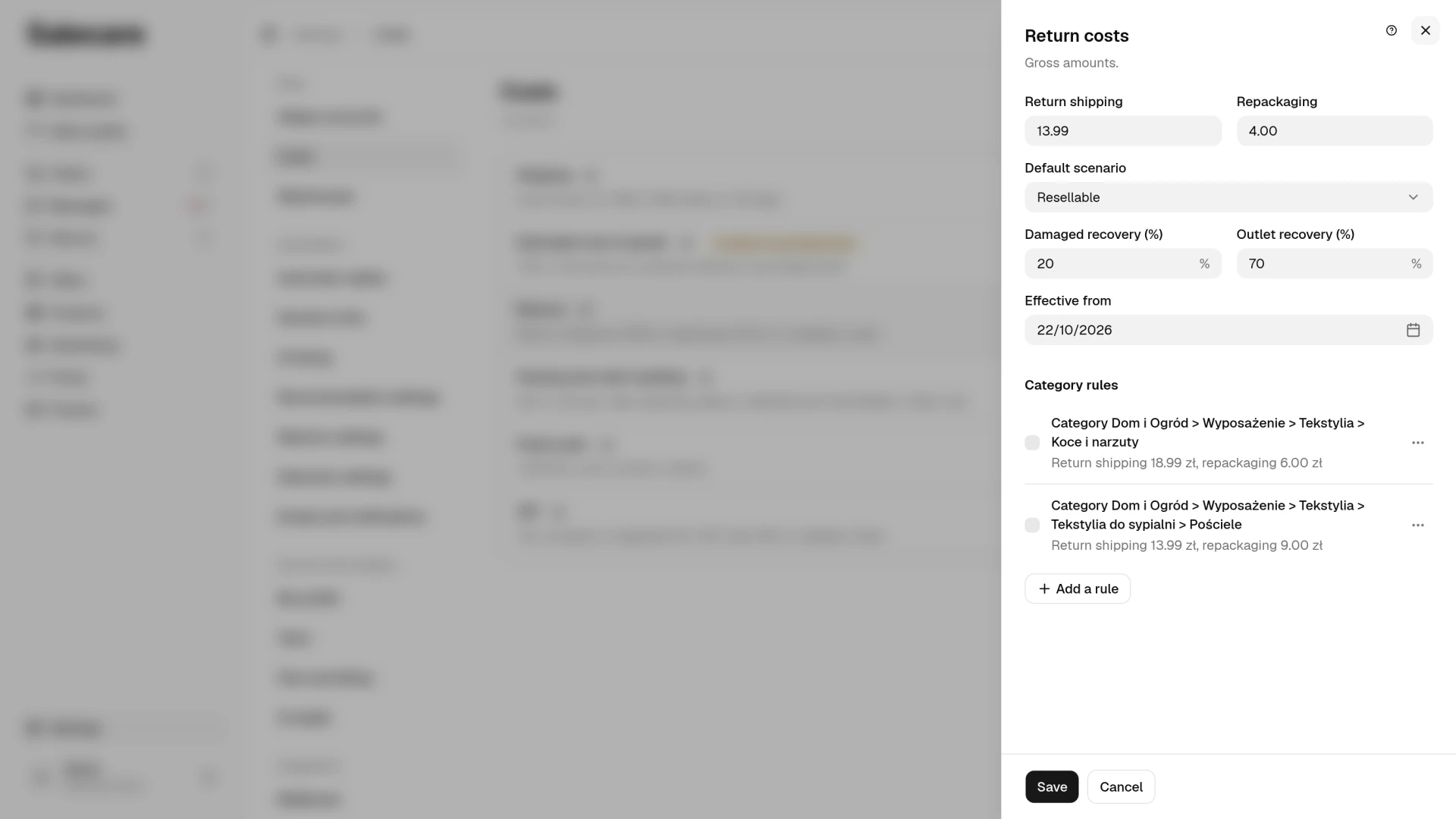
In Settings open the Costs page and click Change on the Returns row. The row shows the return shipping and the repackaging of the company-wide rule and the number of category rules. The Return costs panel holds the company-wide rule at the top and the Category rules section under it. The Return shipping and Repackaging fields are gross amounts, next to the Default scenario field and the two recovery fields. Save stores the company-wide rule and closes the panel, and Cancel closes it without a change. The first rate also covers returns requested earlier, so enter the rates that have applied so far. Once the rule runs, a change applies from the day in the Effective from field, today by default, as in step 2. Once you save a rule, Salecare recalculates in the background the margin of the orders with the returns that rule prices.
What a return cost rule counts
A return cost rule says what a single return costs you. The costs are Return shipping and Repackaging. Separately you set the value recovery, the percentage of the purchase price you get back when the goods come back damaged (the Damaged recovery field) or go to an outlet (the Outlet recovery field). At 0% a damaged item is written off. At 100% the damage costs you in the margin only the return shipping, if you pay for it. If you enter an overstated recovery, the margin shows a lower cost of returns than you really have. You enter the costs gross and that is how they are shown, and in the net margin the app deducts VAT from them at the rate in the Rate on your cost invoices field of the VAT panel. On an order from allegro.cz, allegro.sk or allegro.hu, Salecare converts the return costs into the order's currency at the NBP average rate of the business day before the return was filed.
A few rules decide what a return costs in the margin. The Default scenario field says how to count a return whose condition you have not graded yet when the parcel arrived. The "Resellable" scenario means recovering the whole purchase price, so the recovery percentages work only with the "Damaged" or "Outlet" scenario, set in the rule or coming from the return's grade. The recovery is counted from the purchase price, not from the selling price, so without a purchase price it is zero. Repackaging does not count for damaged goods. Return shipping counts only when you pay for the return parcel. Allegro pays for the first return of an Allegro Smart! order when it is a withdrawal or a claim filed within 14 days of the pickup. On a claim you pay, and on a withdrawal the buyer pays unless the account offers free returns. Only approved or completed returns go into the margin.
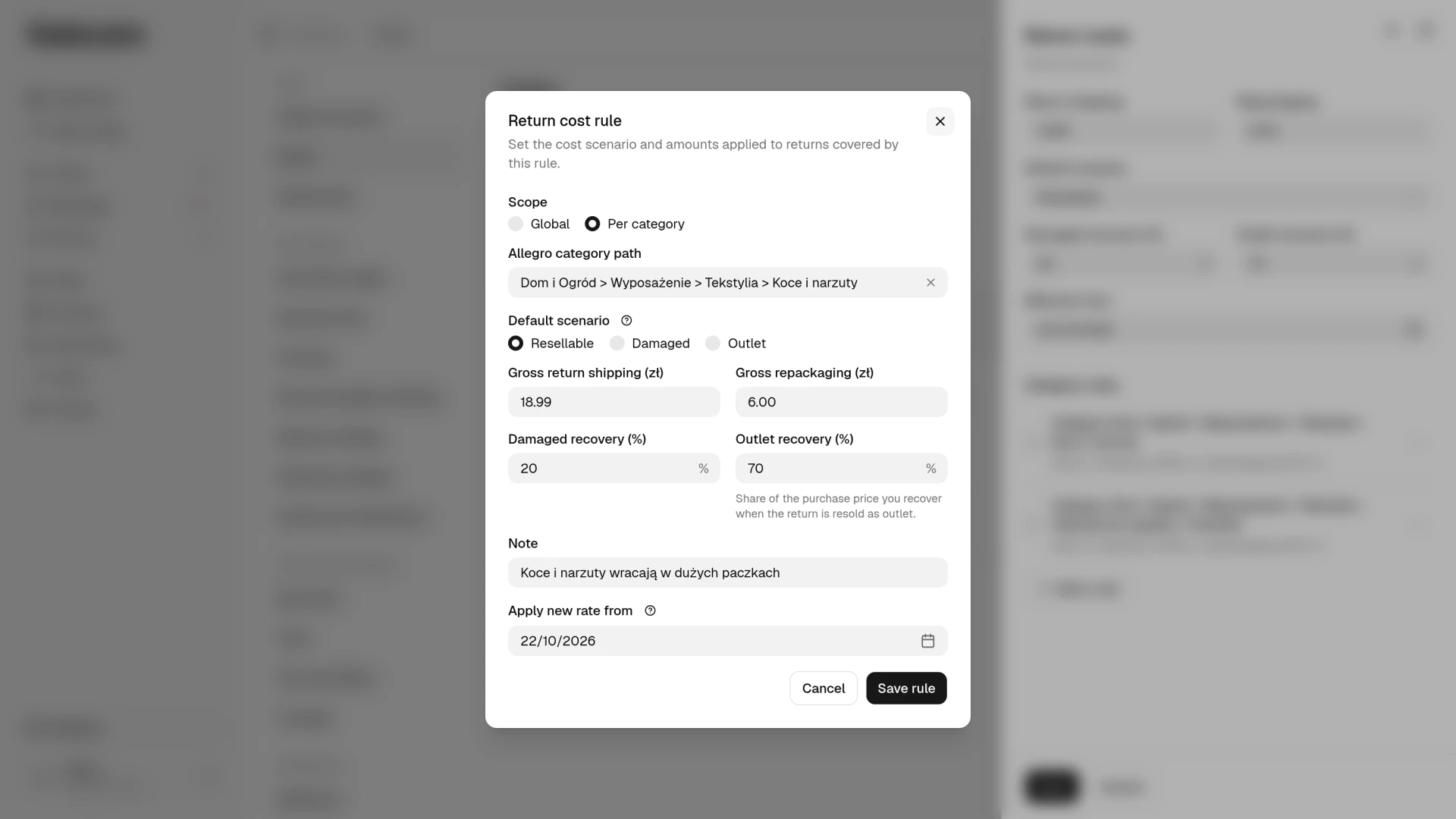
Category rules are for the Allegro categories where returns cost something different. A category rule also covers its subcategories, and when several match, the most specific one wins. Salecare picks the rule by the category of the goods that came back. Pillowcases sent back from an order that also held a duvet therefore get the pillowcase rule, not the duvet one. The Add a rule button opens the category rule dialog with the Effective from field set to today. The category rule then prices the returns filed from that day, and earlier ones stay with the company-wide rule. Pick a past date only when the rule already applied before. The dialog does not save a second rule for the same category. You change a category rule, cancel its scheduled change or delete it from the ⋯ menu beside it.
Step 2. Change rates with an effective date
Salecare prices a return with the rate that was in force on the day it was reported. On the company-wide rule you pick the day of the change in the Effective from field under the amounts. On a category rule the Change entry in its menu opens a dialog with the Apply new rate from field. Today's date therefore changes the costs only for new returns. A future date schedules a change, an announced carrier increase for example, and leaves current costs as they are until that day. The company-wide rule then shows the scheduled change with its date under the amounts, and a category rule is marked "Scheduled". While the change waits, the panel shows the scheduled amounts, and the rate in force today keeps working in the background until the day before the planned date. Changing a rule with a scheduled change changes the scheduled amounts. To call the plan off, click Cancel scheduled change under the company-wide rule or pick it in the menu of a category rule. Only the scheduled amounts go, and returns keep being priced with the rate in force today. Do not delete a scheduled rule when you only want to call off the plan, because deleting it also takes the rate in force today and every earlier one. A past date works as a correction of a mistake, and the sentence under the field reminds you it changes the margin of the returns requested from that day. Once you save, Salecare recalculates in the background the margin of the orders whose returns were reported from that day.
Step 3. Edit several rules at once
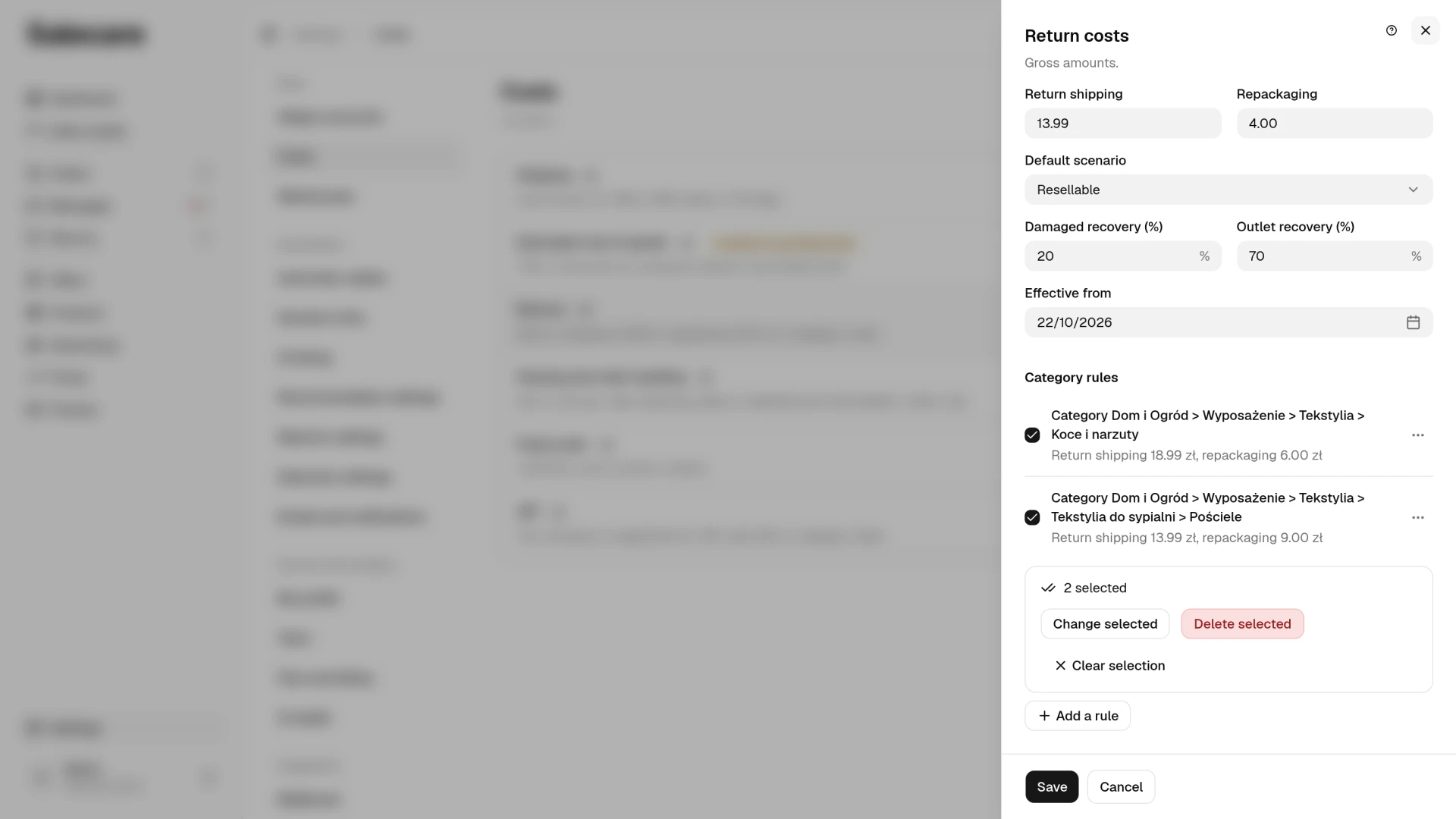
When a carrier raises prices, the shipping cost usually changes in every rule at the same time. Tick at least two rules in the Category rules section, and a bar with the Change selected and Delete selected buttons appears under the list. Change selected opens a dialog in which you switch on only the fields you want to change and set shared values for them. The new rates apply from today, and returns reported earlier keep their existing costs, so the margin history stays untouched. Only the orders with returns reported from today are recalculated in the background. A rule marked "Scheduled" keeps its date, and the change goes into its scheduled amounts. Delete selected deletes the ticked rules. Deleting takes a rule together with its earlier rates, and for a scheduled rule the rate in force today too. The returns it priced, including ones from months ago, are then recalculated in the background with another matching rule or without return costs. You change the company-wide rule on its own, in its fields at the top of the panel.
Step 4. Add decision hints
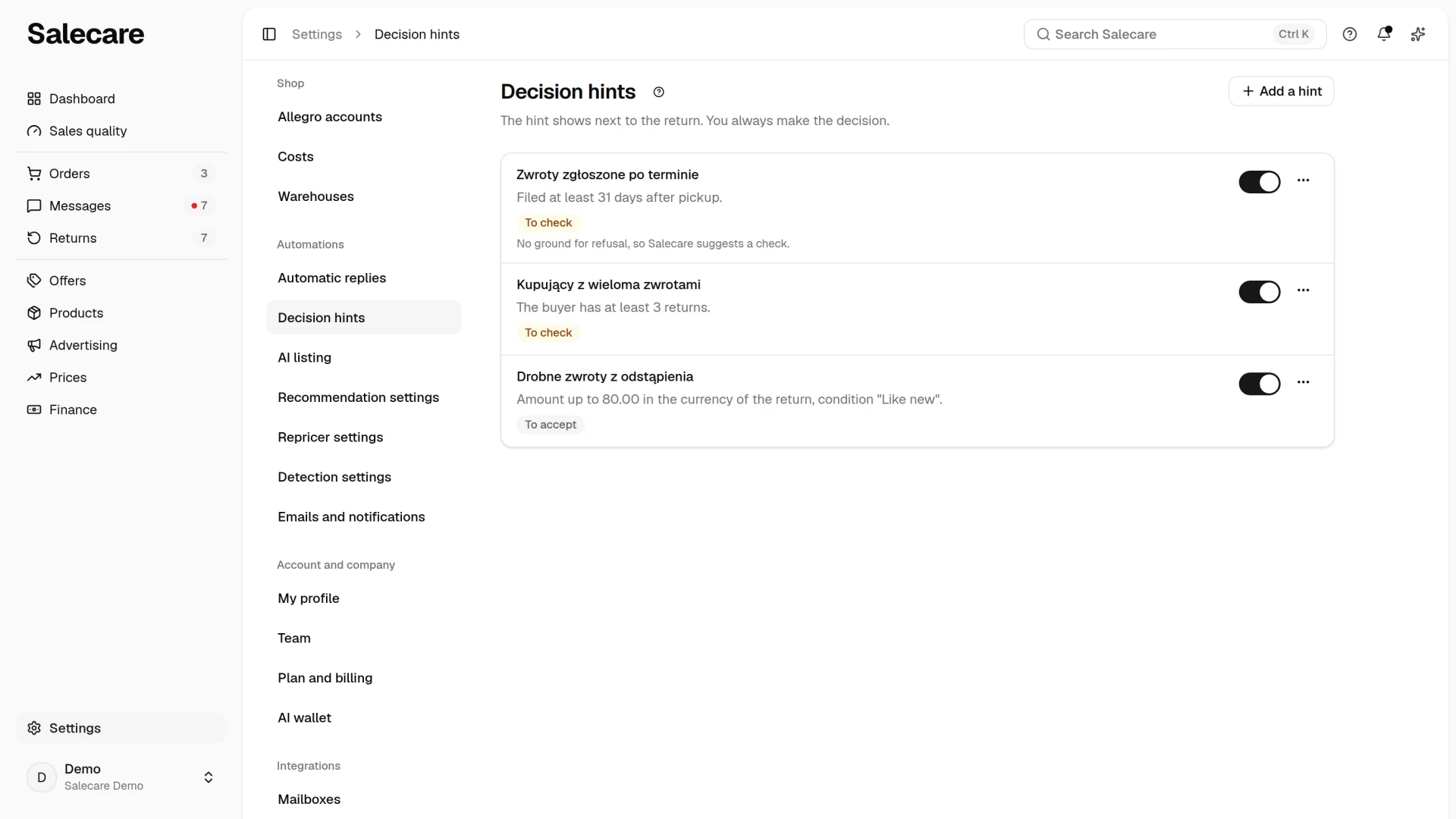
Decision hints are a page in Settings. Open Returns in the side menu and click Settings above the list. The Decision hints page opens, and the path at the top of the page leads back to Returns, and on a phone the Back to … link does the same. The Decision hints row in Settings, in the Automations group, opens the same page, and Search Salecare finds it under that name among the settings. The old address of the decision rules page leads to this page too. Whoever has access to returns and to settings sees the page. Each hint is one row with its name, the sentence of its conditions, a badge ("To accept", "To refuse" or "To check") and a switch. The switch saves at once, and Undo stands beside it for 10 seconds. Add a hint and Edit open the form on the same page, and Cancel goes back to the list. The Amount from and Amount up to fields are compared with the refund amount in the currency of the return, without conversion. So 50 means 50 zł on a return in złoty and 50 € on a return in euro. A hint is always only a suggestion. It makes no decision, rejects nothing automatically and sends nothing to Allegro. The list starts empty. The first hint appears on the matching returns in the To decide and Awaiting the parcel views and on the return card, in the Hint card. When several hints match a return, the one with the higher priority suggests.
You can reject a return made under the right of withdrawal only on a legal ground, so a hint "To refuse" needs the Ground for refusal field. You pick "No right of return", when the withdrawal period has passed or the goods are excluded from the right of withdrawal, "Business purchase" or "Item does not match the claim". The withdrawal period is at least 14 days from picking up the goods, and if your Allegro return conditions give a longer one, 30 days for example, the longer one binds you. Pick "Business purchase" only for a purchase made as part of a business activity, because a sole trader who bought goods for their own needs keeps a consumer's rights. A claim you already settled, which means "New item sent", "Item fixed" and "Missing part sent", is a ground only in a hint for a reason reported as a claim, such as "Damaged", because a withdrawal from the contract is never rejected on it. These three grounds appear in the list only once you pick such a reason. The amount, the kind of return, the item condition and the buyer's number of returns are never such a ground. The Buyer's returns, at least and Item condition conditions therefore save only in a hint "To accept" or "To check". For wear beyond an ordinary check you can reduce the refund, but you cannot reject the withdrawal from the contract for it. The hint does not check the ground it names. It shows it with the return, and the Decision step reminds you to check whether it applies to that return. A hint "To refuse" saved earlier without a ground, with a settled claim on a reason that is not a claim, with the buyer's number of returns or with the item condition, suggests a check, and its row says so.
Item condition and days since pickup
Two conditions rest on what you check before deciding. The Item condition condition, for example "Signs of use", makes the hint match only a return whose condition was recorded when the parcel was received. A return not graded yet waits for the grade. The Days from pickup to filing, at least condition counts the whole days from the day Salecare saw the order as picked up in Allegro to the day the return was filed. Set it one day above your withdrawal period, 15 for 14 days or 31 for 30 days, and the hint points to the returns filed after the deadline, which are worth checking. The hints are shared by all your Allegro accounts, so when the accounts have different periods, count from the longest. A return on an order whose pickup Salecare did not see, for example one from the history read when the account was connected, does not match such a hint. The day count also works in a "To refuse" hint with the ground "No right of return", but only when it is above your period.
What next
Return costs are one component of the full margin. The other components, purchase prices, commissions, shipping, and packing and order handling, are covered in the guide "How to set up costs and margin to see your real Allegro profit". After returns you can also recover the commission. See the guide "How to recover Allegro commission automatically after returns".