How to monitor Allegro account health
An Allegro account block halts sales, and an appeal can take weeks. One of the sales quality measures, Terms & conditions and rules, takes points off for Allegro's penalties. Allegro takes 300 points off for an account block, 200 for a listing block with offers ended, 150 for a listing block alone and 50 for a warning. A removed offer costs points too. Allegro divides the last 30 days into 5 weeks, Monday to Sunday. For the first week with removed offers it takes 20 points off, whatever their number. For every further such week it takes twice as many as for the one before, that is 40, 80, 160 and 320. For every day with an offer removed for a gross violation it takes 150 points off. Not every block can be foreseen, but signals usually come first, such as falling quality measures, warnings and violations of the terms. Salecare gathers these signals in a few places and notifies you on the day they appear, not after the fact.
Step 1. Check the score and the badge in Sales quality
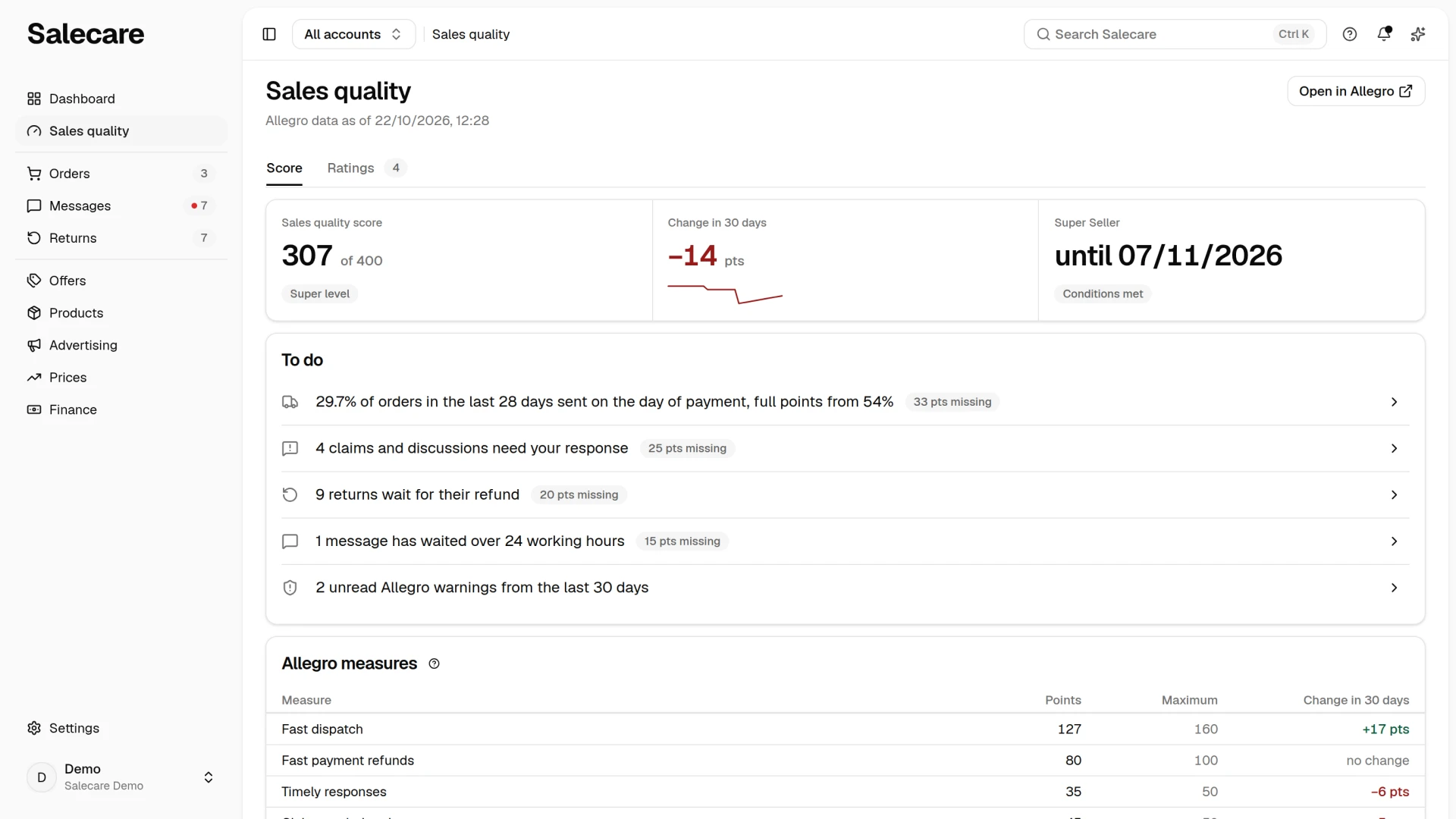
In the side menu go to Sales quality and stay on the Score tab. The old addresses of the Account health and Account risk pages open exactly that tab. Allegro scores each account on its own, so with several accounts pick one in the account switcher in the top bar. The tab shows the sales quality score of the account with the level Allegro gave it, the change of the score over 30 days and the state of the Super Seller badge. The Allegro measures card lists every measure, and the points taken for warnings and blocks show in the Terms & conditions and rules measure. How to read each measure and how to improve it is described in the guide to sales quality measures.
A separate part watches the Super Seller badge. Allegro keeps the badge while a business account has, over the last 30 days, at least 14 days at the "Super" level, no day below "Good" and at least 50 orders. The Super Seller conditions row shows each of these conditions on its own. It opens by itself when the badge is about to go or a condition is already not met. You get the "Super Seller status at risk" notification when an account holds the badge and a condition fails, or its days at the "Super" level stop being enough within 7 days. It arrives in the bell and by e-mail, under the Account standing on Allegro notification topic. The notification names the condition that is not met, or gives the date from which the days at the "Super" level stop being enough and the number of days to that date. When Allegro withdraws the badge, the "Super Seller status lost" notification arrives. Salecare reports a day below "Good" only once Allegro has graded that day. Allegro checks the conditions daily and can withdraw the badge as soon as the next day. None of these notifications warns of a fall of the score towards the "Neutral" level, so with an account that holds the badge, look at the score yourself.
When Allegro lowers the sales quality level of an account, for example from "Good" to "Neutral", the "Sales quality level dropped" notification arrives in the bell and by e-mail. It gives both levels and leads to the score of that account.
Late replies have no signal of their own. In the Timely responses measure Allegro judges what share of the messages in Discussions and in the Message Centre you reply to within 24 working hours. Allegro counts those hours without Saturdays, Sundays and statutory days off. In the To do section of the Score tab the row about messages counts the late replies. It holds the threads whose answer has waited over 24 working hours, that is buyer messages, messages in claims and discussions, and buyer e-mails. E-mails belong to the whole company, so they count whatever account is picked. They are the same threads as the "Overdue" group of the "To answer" view on the Messages page, which this row opens. A thread hidden in Salecare is not in the number, but Allegro still sees the message unanswered. So you close a buyer's message with a reply and not by hiding it. The row goes away when you reply to all the late messages, but a late reply keeps lowering the Timely responses measure for 30 days.
The row about warnings in the To do section counts the unread Allegro warnings from the last 30 days. It opens the "From Allegro" view with those warnings only, which step 2 describes. The row appears when a warning from the last 30 days is unread. It carries points only when Allegro takes points off for breaking its terms.
Step 2. Watch the "From Allegro" view in Messages
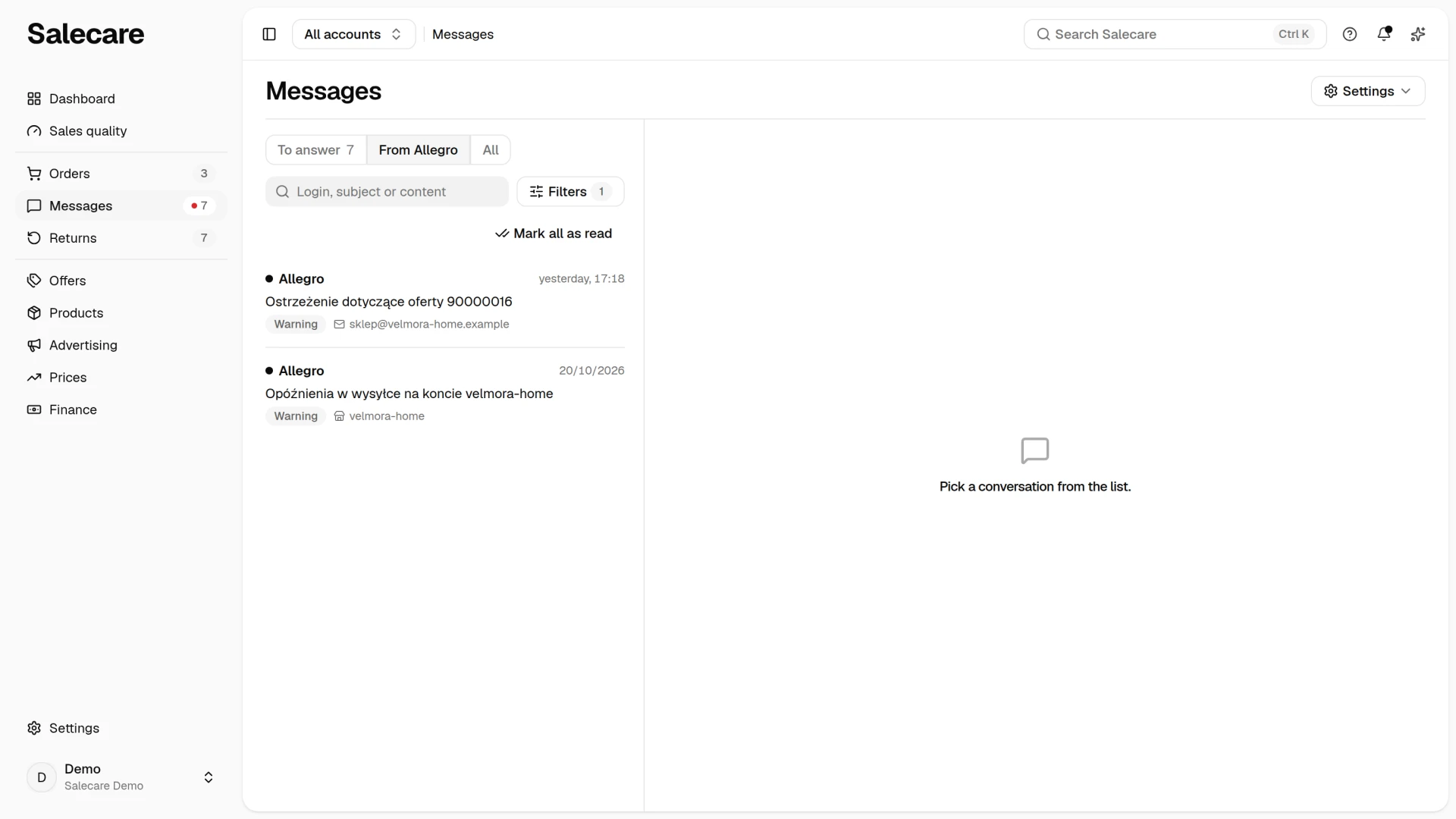
The second source of signals is the "From Allegro" view. In the side menu go to Messages, then open the "From Allegro" view, beside the "To answer" and "All" views. Unread messages stand at the top of the list with a dot before the name. The row about warnings from step 1 counts the unread warnings from the last 30 days, and the view itself has no number. Notifications stand on this view too. Allegro informs you here about removed and ended offers, blocks, withheld payouts and violations of the terms. To keep the warnings alone, pick the value "Warning" in the Type criterion of the Filters panel. You do not reply to these messages, but you have to react to them. A removed offer costs points on its own in the Terms & conditions and rules measure, and the penalty grows with every further week with a removed offer. So it is best to remove the cause within the same week. A violation of the terms, in turn, is a signal that comes before more serious trouble.
Allegro sends warnings two ways, through the Message Centre and by e-mail. Salecare fetches the ones from the Message Centre by itself, and sees the ones sent by e-mail only when you connect the mailbox Allegro's mail arrives in. The guide to connecting an e-mail inbox describes how. Without a mailbox the view shows only the warnings from the Message Centre.
You do not have to watch the view by hand. Every new warning Salecare fetches also lands in the notification bell at the top of the app as "Warning from Allegro", so you will see it even when you are working in another part of Salecare.
Step 3. Check your email inbox and your notification consents in Allegro
If you are expecting warnings and the "From Allegro" view is empty or incomplete, first check your mailbox. On the Settings page, in the Integrations group, open Mailboxes and check that the mailbox Allegro's mail arrives in is connected there. Without it Salecare does not see the warnings sent by email, and the "From Allegro" view says so under the list and has a Connect mailbox link. Then check your notification consents in Allegro. Some are off by default, and without those consents Allegro does not send certain messages at all. These are one-off tasks. They decide whether you learn about a removed offer straight away or only after sales drop.
What next
The score and the badge are one part of the picture, and the other part is the measures Allegro uses to calculate your sales quality. How to read and improve them is described in the guide on sales quality measures. How to reply faster within 24 working hours is described in the guide on automating Allegro messages and discussions. Negative ratings and requests to remove them are described in the guide to replies to ratings and removal requests.