How to import products from a file and track the import history
Retyping a supplier's price list by hand is a day's work and a guarantee of typos in prices. A wholesaler file handles it in minutes, but it can wreck your catalogue just as fast, because one shifted column is enough. That is why a file import in Salecare shows a review before saving, keeps a full import history and can be undone.
Step 1. Open the wizard
Go to the Products page, open the Imports tab and click Import file. The Product import wizard has three steps, File, Columns and Review and import. The step bar at the top shows the whole way, and the Next button moves on to the next step only when the current one is complete. When something is missing, a sentence above the button says what.
The Download a sample file button saves a CSV file with three sample products and the columns the import recognises on its own, that is name, EAN, SKU, net purchase price, VAT, stock, description and photo. It helps when you are not sure how to prepare a file. The same wizard sets up an automatic import, which fetches the file from a URL or an FTP server on a schedule. A separate guide describes it.
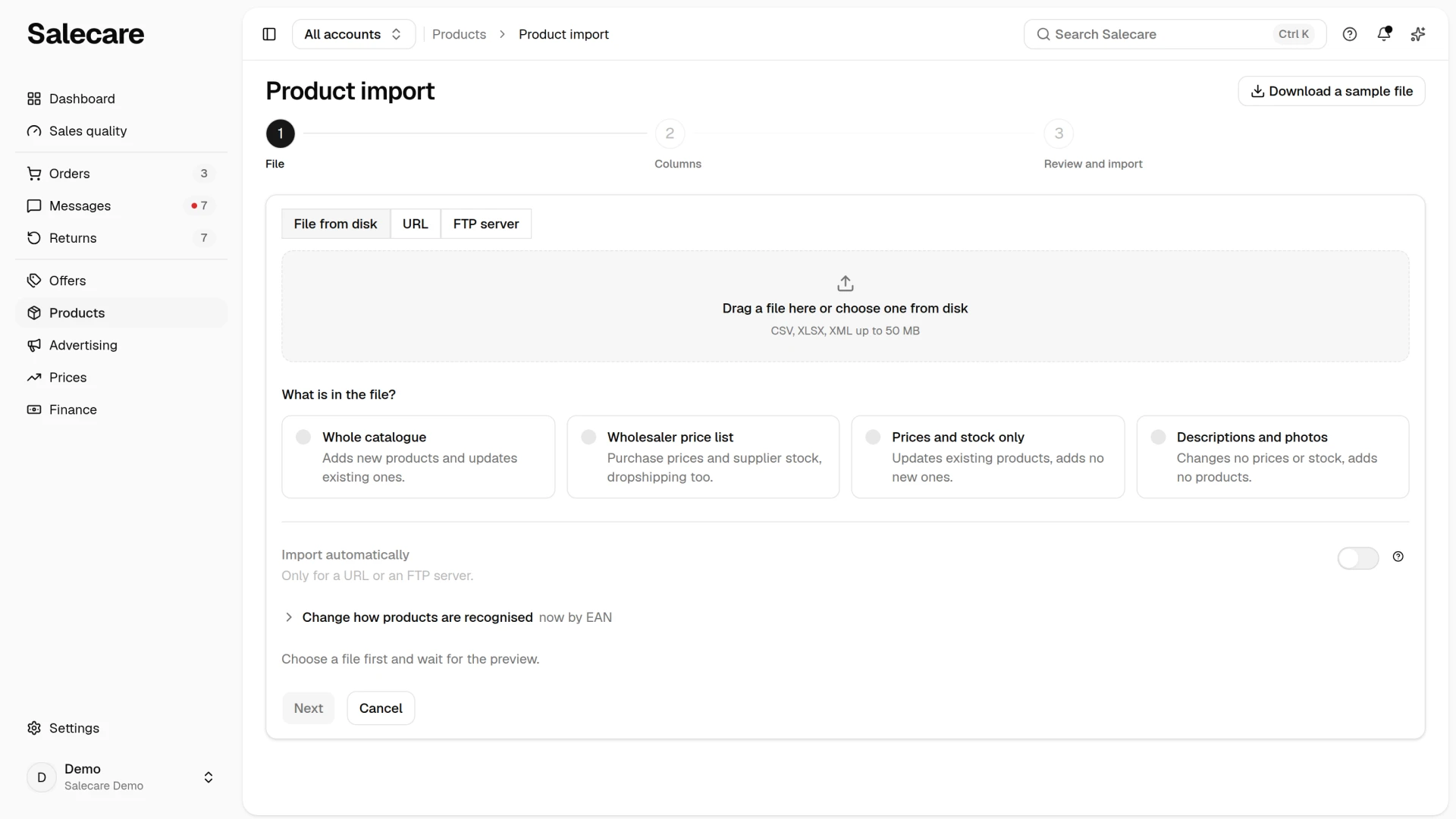
Step 2. Point to the file and say what is in it
Choose the source, "File from disk", "URL" or "FTP server". Drag a disk file onto the field or choose it from your computer. The field accepts .csv, .tsv, .txt, .xml and .xlsx files up to 50 MB. For a URL paste it into the File address field, and for an FTP server give the host, login, password and path you get from the wholesaler. Then click Fetch and preview. Once the file is read you see its name, size and number of rows. Salecare detects the separator and the number format from the file itself.
The What is in the file? question sets whether the import adds new products and which fields it changes. No answer is selected from the start, and the Next button waits until you choose one.
- Whole catalogue. Adds new products and updates existing ones.
- Wholesaler price list. Adds new products and updates existing ones, but does not overwrite the names of products you already have. It sends stock to an external warehouse if you have one. In an automatic import it also sets "Set stock to 0" for products that vanish from the file.
- Prices and stock only. Updates existing products and adds no new ones. It does not change their names.
- Descriptions and photos. Adds no products and changes no prices or stock. This answer does not change purchase prices, supplier prices or stock.
You can adjust each answer in the Review and import step, separately for every group of fields.
Under the question stands the folded Change how products are recognised section with the current value, for example "now by EAN". The Recognise products by field has the options "EAN (barcode)", "Signature (SKU)" and "Name". The chosen option says which column sends a file row to a product in the catalogue. Until you change it, Salecare recognises products by EAN, and when the file has no EAN column, by signature or by name. The choice matters when the file has both codes. With signature, Salecare checks a row with no match by barcode too, and by name it matches only products without a barcode. With EAN there is no such second attempt. If the products in your catalogue do not have the EANs from the file and you leave EAN, the import will not find them and treats the rows as new products.
The When an EAN repeats in the file field concerns a code that appears in the file several times with different purchase prices. The default "Block import (strict mode)" stops such a file, and the other options take the first or the last row, the lowest or the highest price, or the row with stock. With the stock option Salecare takes the price from the row that has goods, and with several such rows it works out a stock-weighted average. With automatic offer drafts on, each new product can also get an AI draft paid from the AI wallet, as the guide "How to switch on automatic offer drafts for new products" describes.
Step 3. Assign the columns
In the Columns step you assign each column of the file to a product field, for example the name, EAN, price or stock. Each column shows sample values from the file, so you see at once whether it landed in the right field. The Mapping template list loads a saved assignment, and the Save as template button saves the current one. For a CSV, TSV, TXT or XLSX file the assignment is also remembered after a successful import and returns when the next file has the same headers. For an XML file and for changed headers use the Save as template button.
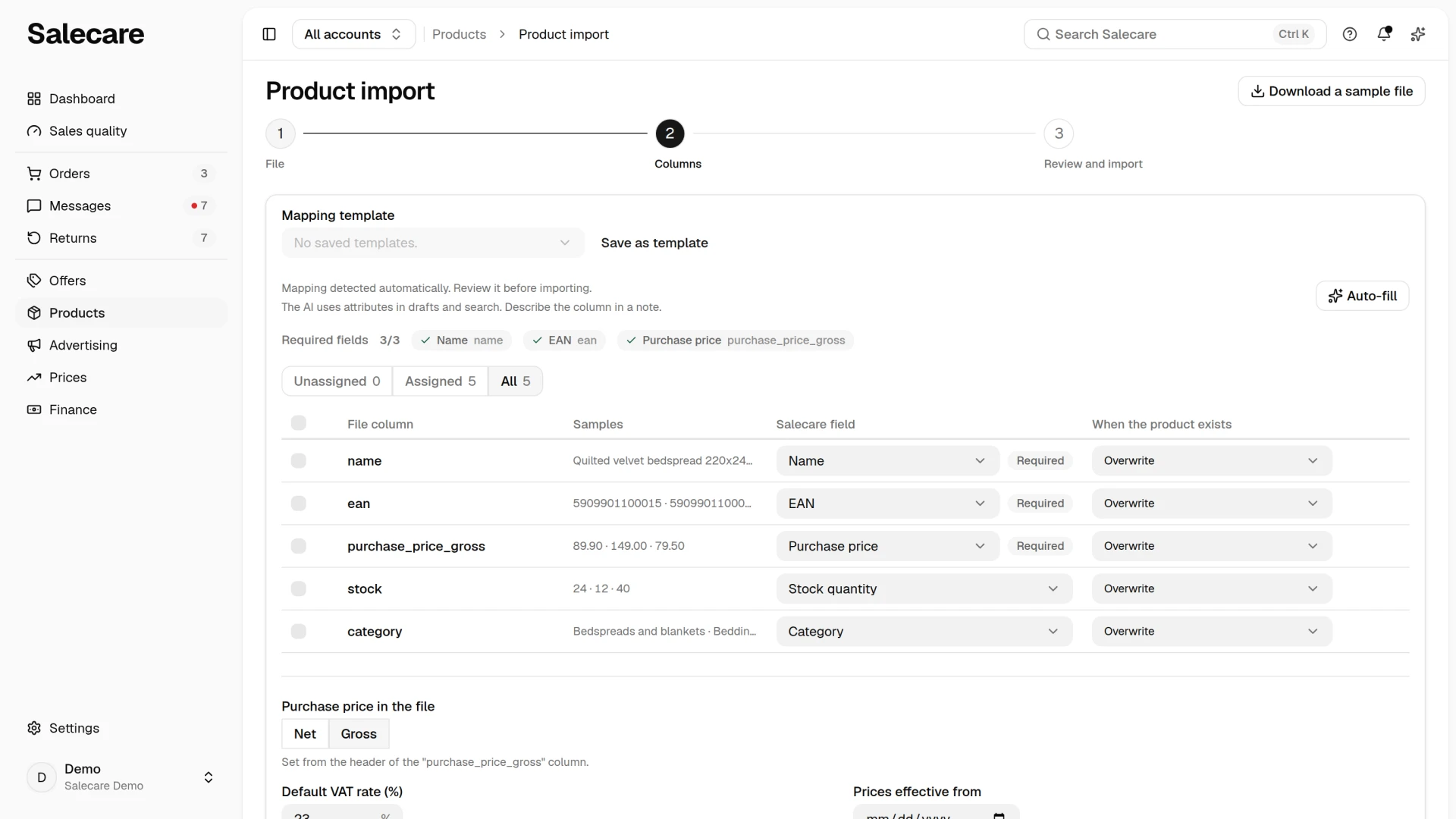
Under the table only the settings of the mapped columns appear. For each price you choose "Net" or "Gross". Until you choose, Salecare sets it from the column header. Then come the default VAT rate that net prices need, the date the prices apply from, the Stock target warehouse field for stock (without it the stock is not saved), the Default supplier field, the weight and dimension units and the number format. A warehouse column in the file takes precedence for its row. The Default supplier field assigns the supplier code and price from the file to the chosen supplier when the file has no supplier name column. When you leave it empty, Salecare saves supplier data only when the file has a column with its name.
The Number format in the file field has the options "Detect from the file", "Comma (1 234,56)" and "Dot (1,234.56)". Salecare reads the format from the first 50 non-empty prices. When none of them has a fractional part, the file is read with a comma, so a price written later with a dot, 12.50 for example, would be read as 1250 zł. If the prices in the file have no decimals in the first rows, choose "Dot" or check the Purchase price changes section after the import.
Product fields
Each column of the file goes to one product field. Apart from the required fields, which the wizard checks, every field is optional.
- Selling price. The gross list price. Salecare keeps it as a reference only and works out the margin from the Allegro revenue and the purchase price. An empty column does not change a stored price.
- Purchase price valid from. The date (YYYY-MM-DD) the purchase price in that row takes effect from. An empty cell means the import date.
- Bundle composition. Only for bundles, described below in "Bundles and variants in the file".
- Signature (SKU). Your own product code, not the supplier's. It helps with searching, and chosen as the match key it identifies the product instead of the EAN.
- Warehouse. The name of your warehouse. The warehouse has to exist on the Warehouses page in Settings.
- Stock quantity. Units in the given warehouse. The same product can appear in several rows, one per warehouse. Without a Warehouse column the quantity goes to the target warehouse chosen under the table.
- VAT rate. The rate as a percentage, for example 23. Map it when products have different rates, because without it the default VAT rate applies. More in the "Prices and VAT" part.
- Purchase VAT rate. The rate from the supplier invoice, which you map together with the Purchase price column. Enter 0 for an intra-EU purchase or a supplier exempt from VAT.
- Category. Your own product category, for example "Audio". It filters the product list. An empty column does not change a stored category.
- Product description. Your own description, carried from the file onto the product card as the starting point for the offer description. Simple HTML stays (headings, paragraphs, lists, bold), and links, tables, images and styles are removed, because Allegro does not accept them. An empty cell does not clear a stored description, and text that is too long is trimmed to the Allegro limit.
- Active. Whether the product is active. The import recognises yes and no, 1 and 0, active and inactive. An empty or unrecognised value does not change the state.
- Photos. Photo URLs. Separate several URLs in one cell with a comma, a semicolon or a pipe. The first photo is the thumbnail. An empty column does not change a stored gallery.
- Weight, Height, Width, Length. Weight is in kilograms and the package dimensions in centimetres by default. Pick the units (kg or g, cm or mm) under the table, in the Weight in the file and Dimensions in the file fields. The values show on the product card, and the weight also in the catalogue export.
- Manufacturer. The manufacturer or brand. It shows on the product card and in the catalogue export.
- Additional EAN. A second barcode, for example the manufacturer's or the carton's, kept next to the main EAN.
- Parameters, many features in one column. Pairs of a name and a value separated by a colon, with the pairs separated by a semicolon or a pipe, for example "Colour: Red; Size: XL". Salecare unpacks them and passes them to the AI exactly like attributes.
- Supplier (name). The name of the supplier or wholesaler. A product can have several suppliers, one per row. Without this column the supplier code and price go to the supplier chosen in the Default supplier field.
- Supplier's code (their SKU). The code this supplier uses for the product, not your SKU. It is kept with the supplier.
- Supplier's price. The price at the supplier. Salecare keeps it as a reference only and works out the margin from the product's purchase price.
- Safety document (GPSR). A link to the manual or safety sheet the supplier publishes, usually in a column named gpsr. When you list an offer, Salecare sends that file to Allegro as the safety information, so the offer is not rejected for missing it.
Skip rows
Under the table there is a folded Skip rows section with the number of conditions. A row that matches a condition is skipped entirely, so the import creates no product from it and updates none. Conditions read the columns of your own file, including the ones you do not import. With no conditions every row of the file is imported.
Prices and VAT
For each mapped price you indicate whether the file holds net or gross. When the header of the price column says gross or net, cena_zakupu_brutto for example, the switch follows it and shows the name of that column. If the file quotes prices with VAT and the switch shows "Net", set the Purchase price in the file field to "Gross", because otherwise every purchase price is saved too high by the VAT rate. When you pick the basis by hand and the column header says otherwise, the app points it out. Purchase and selling prices are stored gross, so a net figure is converted for you. Whether the app shows net or gross amounts depends separately on whether the company is registered for VAT (see the guide on VAT rates).
For net prices fill in the Default VAT rate (%) field, because without it net prices cannot be imported. In the column mapper, next to the VAT rate field, there is a separate Purchase VAT rate field, the rate from the supplier invoice, which you map together with the Purchase price column. An empty purchase VAT rate cell keeps the rate saved with the cost before. Where there is no such rate, Salecare converts the net price at the product's VAT rate, or at the sale rate from the file when the product has none. The default VAT rate is saved on the product when Salecare used it to convert a price on that row. When a row converted nothing with it, the rate only goes to a product that has no rate, and only when you have no VAT rate rules. A VAT cell holding text instead of a number, such as "zw.", counts as empty. The review before importing lists such rows, and the import details show the warning "Unreadable VAT rate" for them. The warning does not stop the import. For goods exempt from VAT or a purchase with no VAT to deduct, enter 0.
Prices have to be in zł. Salecare reads the currency from the price cell itself ("12.50 €") and from the price column header ("Price EUR"), for the purchase price and the selling price alike, and a column of bare numbers counts as zł. A row that names another currency gets the error "Price in a foreign currency", and an error stops the whole import, so not one row from the file reaches the catalogue. The review before importing says how many issues will block the import, and the details show which rows they are. Salecare calculates margin and the minimum price in zł only, so convert the prices to zł in the source file and run the import again.
Leave the Prices effective from field empty to have prices apply from the import day. Set a past date only when you want to recalculate the margins of orders from that period. A Purchase price valid from column in the file takes precedence over this field. Tick Purchase prices in this file are estimates for a list such as a manufacturer's price list without your rebates. Margins based on such prices get a "~" marker. When a real cost arrives, from another file or entered by hand, it replaces the estimate retroactively and the margins are recalculated automatically.
Step 4. Review and import
The Review and import step runs a trial import that saves nothing and says how many products differ from the data in Salecare, how many are new and how many rows are skipped. The review of a person without the Margins and purchase prices (view) permission does not compare purchase prices with the stored ones. For such a person, a row where only the purchase price changes counts as unchanged.
The changes are grouped into Name and description, Prices, Stock, Photos and parameters, and Codes and measurements. For each group the file changes you see the number of products and an example of the change with the old and the new value. You choose what the import does to existing products, "Overwrite", "Keep existing" or "Fill empty fields". The Prices group also offers "Fill empty fields and refresh estimates" when the stored prices are estimates. A new product always gets every mapped value. Any later change of the file or of the settings needs a new review.
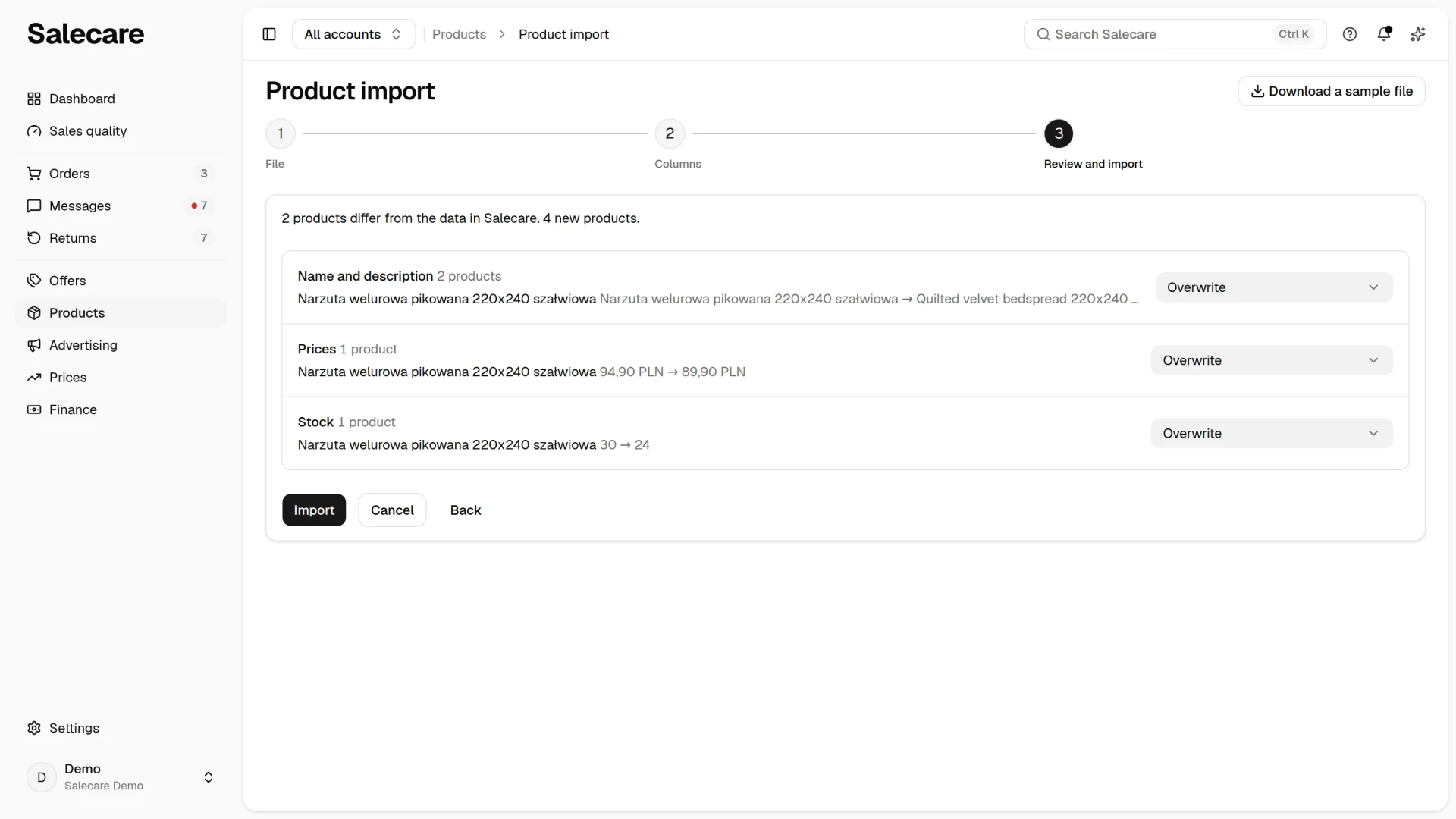
Under the groups stand the warnings worth reading before you import. They include the number of rows with an error that will not be saved, the number of issues that will block the import, rows with an unreadable VAT rate and the warning about offers that "will stop covering their purchase price". That last warning says how many listed offers would sell at a price equal to or below the new purchase price after this import. Only the offer price is compared with the purchase price, without Allegro commission and delivery cost, so the break-even point lies higher. A person without the Margins and purchase prices (view) permission does not see that warning. The minimum prices of repricing rules are recalculated right after the import and after its undo, for the products whose purchase price the import changed. So do not wait with fixing the file until the next day.
The Import button starts the import and opens its details. While another import runs, the button waits until it ends, and under it stands the name of the file being processed with a shortcut to its details. Nothing is saved until you click Import, so a shifted column comes out before it does damage.
Safeguards
A one-off import has two safeguards on, with a threshold of 50%, Mass stock zeroing and Mass purchase-price change. A person without the Margins and purchase prices (view) permission only has the first one. Mass stock zeroing reacts when the file sets stock to zero for more than the given percentage of the products that have positive stock at the time of the import. Mass purchase-price change reacts when the purchase price falls or rises by more than the given percentage for more than a quarter of the matched products that already have a purchase price. Neither reacts when the change concerns fewer than 10 products. When the file crosses a safeguard, the warning gives the number of products and the Import button waits for your decision. If the change is intended, click Import despite the warning. Just before saving, Salecare checks the safeguards once more. If the catalogue has changed since the review and the file crosses them now, the import ends with an error before it writes anything, and the import details show which safeguard reacted. You set the thresholds and the reaction in an automatic import, described in the guide "How to set up an automatic wholesaler import".
Step 5. Read the result in Details
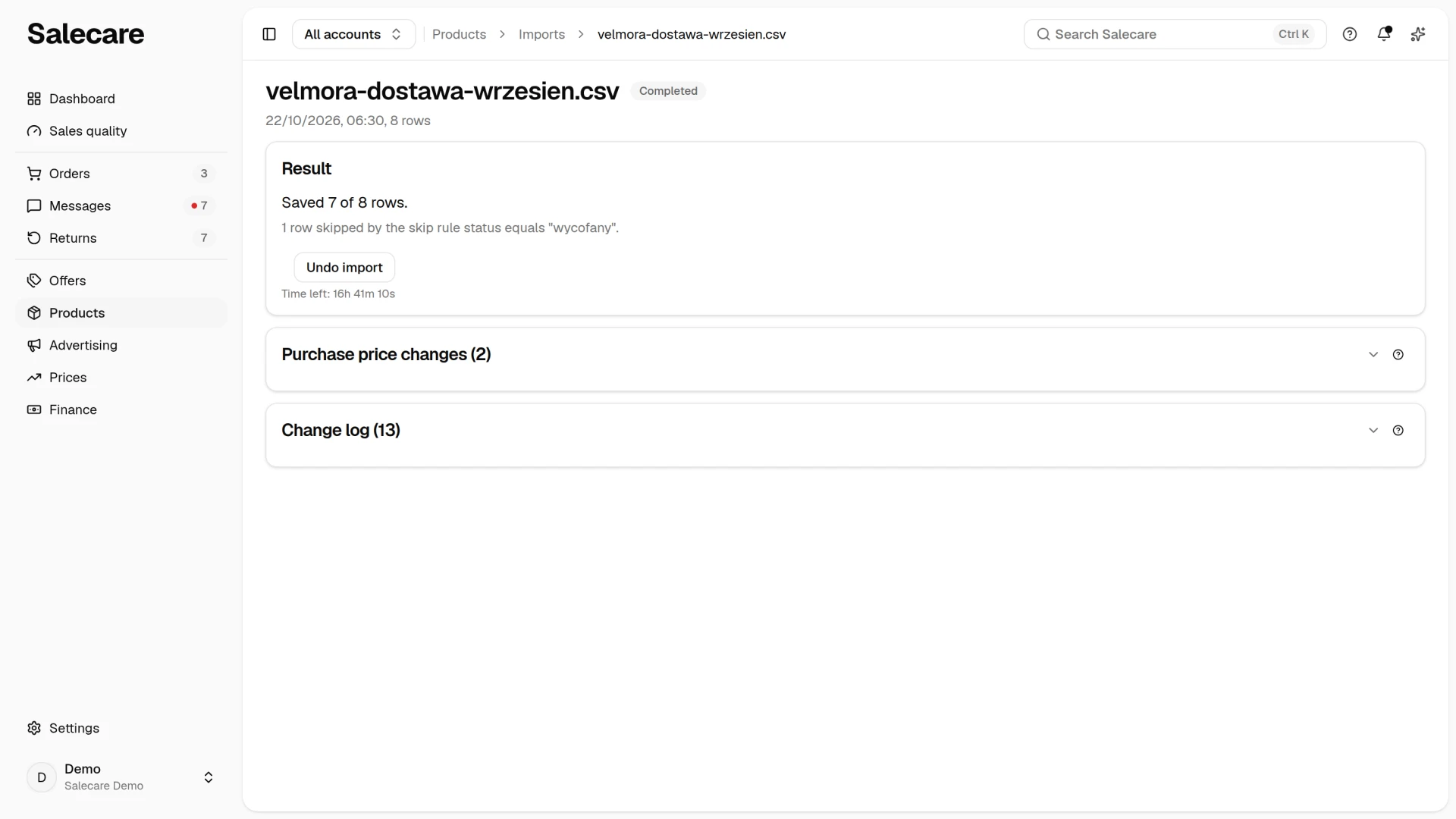
The Import details page opens on the Result card. One sentence says what the import saved, with the reason it skipped some rows under it. Below are folded sections with their counts, Rejected rows, Rows with errors and conflicts, Purchase price changes and Change log. Click a section title to open it. Rejected rows are rows the import could not read, for example with no name or EAN, or with a wrong date, price or composition. They do not reach the catalogue. Salecare keeps the full content of the first 500 reported rows of an import. So you can open a row with an error and see it exactly as it looked in the file. On a phone each section is a list of rows instead of a table. You pick the order in the menu above the list, with the same fields as the table headers, and picking the same field again reverses the order. The Filters button next to the menu opens the fields that narrow the list.
Purchase cost changes
If the import overwrote purchase prices, the Purchase price changes section shows for each product the price before the import, the price after it and the difference in zloty and in percent, with the products that got dearer at the top. The Product, Before the import, After the import and Change headers change the order. A product's first purchase price and estimated prices are not counted here, because there is nothing to compare them with. For a large import the section shows the largest changes, and you find the rest in the change log.
Change log
An import usually writes several entries for one product, which is why there are more entries than imported rows. These are the changes the Undo import button reverts.
What saving sets off
An Allegro account can send stock to Allegro when the Quantity from the warehouse row is on in its Allegro account settings (in Settings open Allegro accounts and click the account). On such an account the changed stock levels reach its offers once they are saved. The Warehouses page in Settings shows in the Allegro offers from the warehouse section which accounts this covers. Only the products whose level changed are sent. So a file of eighteen thousand rows with three changes moves only the offers of those three products, on every account you list them on. An offer does not get the bare figure from the file. It gets the product's combined stock from every warehouse that counts toward Allegro, less the Reserve field and within the Most units per offer field when you set them.
Zeroes are the exception. When an import sets more than 30% of the products with stock for sale on Allegro to zero at once, Salecare holds the zeroes back so a broken file cannot end offers. Until then the offers show the previous quantity. If the zeros are real, click Send now. If the file was broken, undo the import, because without a decision the zeros reach Allegro with the stock update at 06:15.
Saving the import sets off other changes too. On accounts with dispatch time from stock switched on, Salecare recalculates the offers' dispatch time from the new stock and sends it to Allegro. The minimum and maximum prices of repricing rules are recalculated for the products whose prices the import changed, and the margins of orders with those products are recalculated from the new purchase prices. If automatic offer drafts are on, the new products from the import get AI drafts, up to the per-import limit in the draft settings, paid from the AI wallet.
Step 6. Keep an eye on the Import history
The Imports tab on the Products page has a second list under the automatic imports, Import history. It lists every import newest first, with one sentence about what it did, and its state. Click the row of an import to open its details, see the row counts and undo the import.
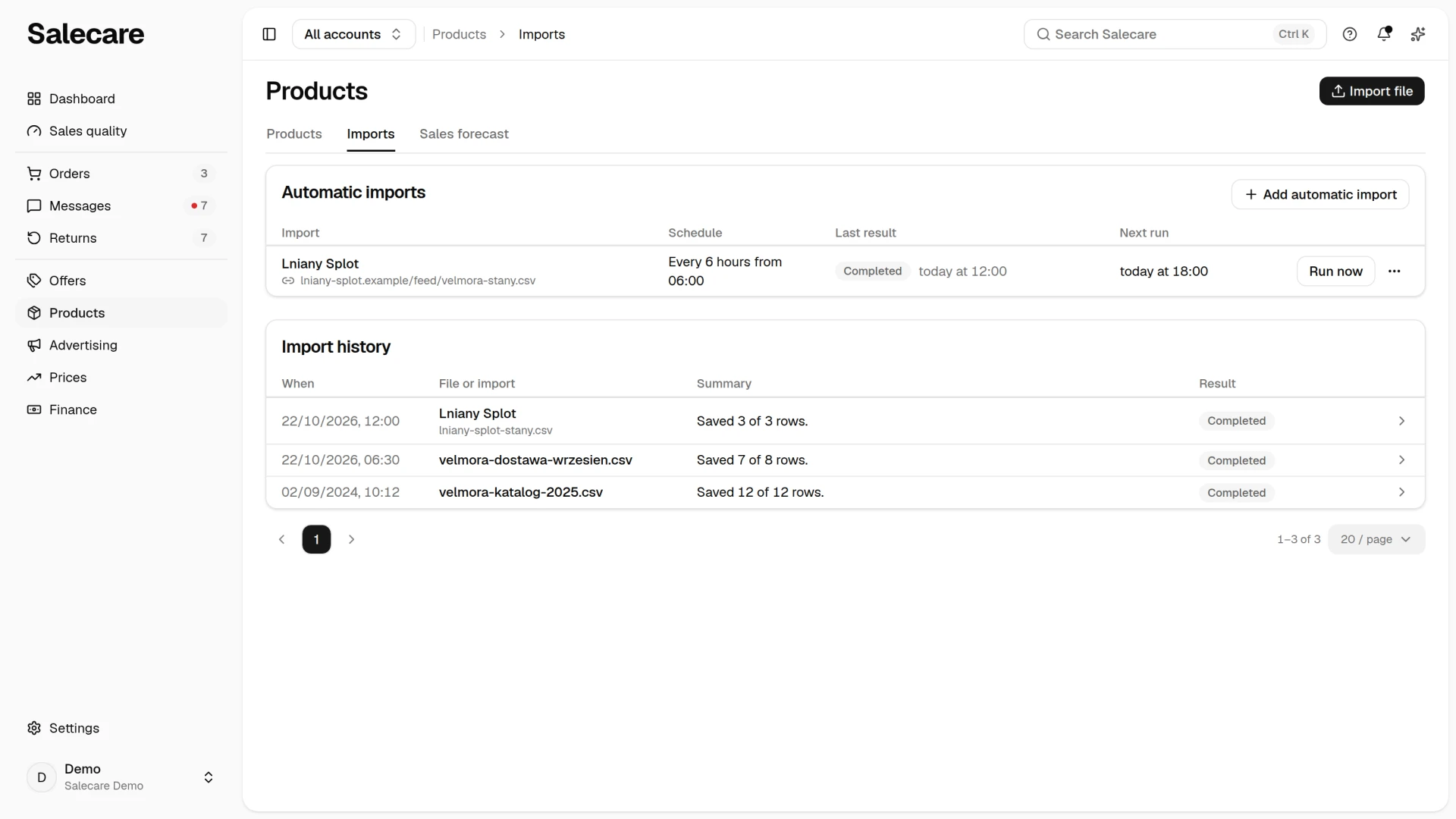
The "Needs a decision" state marks an import that set products' stock to zero before the zeros reached Allegro. A held run of an automatic import that still waits for a decision has the same state. A held run replaced by a newer run, or a run of a paused automatic import, shows "Not saved". When Salecare could not fetch the file, for example because the server did not answer, the import shows "Error" and the history gets no new entry, because nothing was imported.
Step 7. Undo an import if something goes wrong
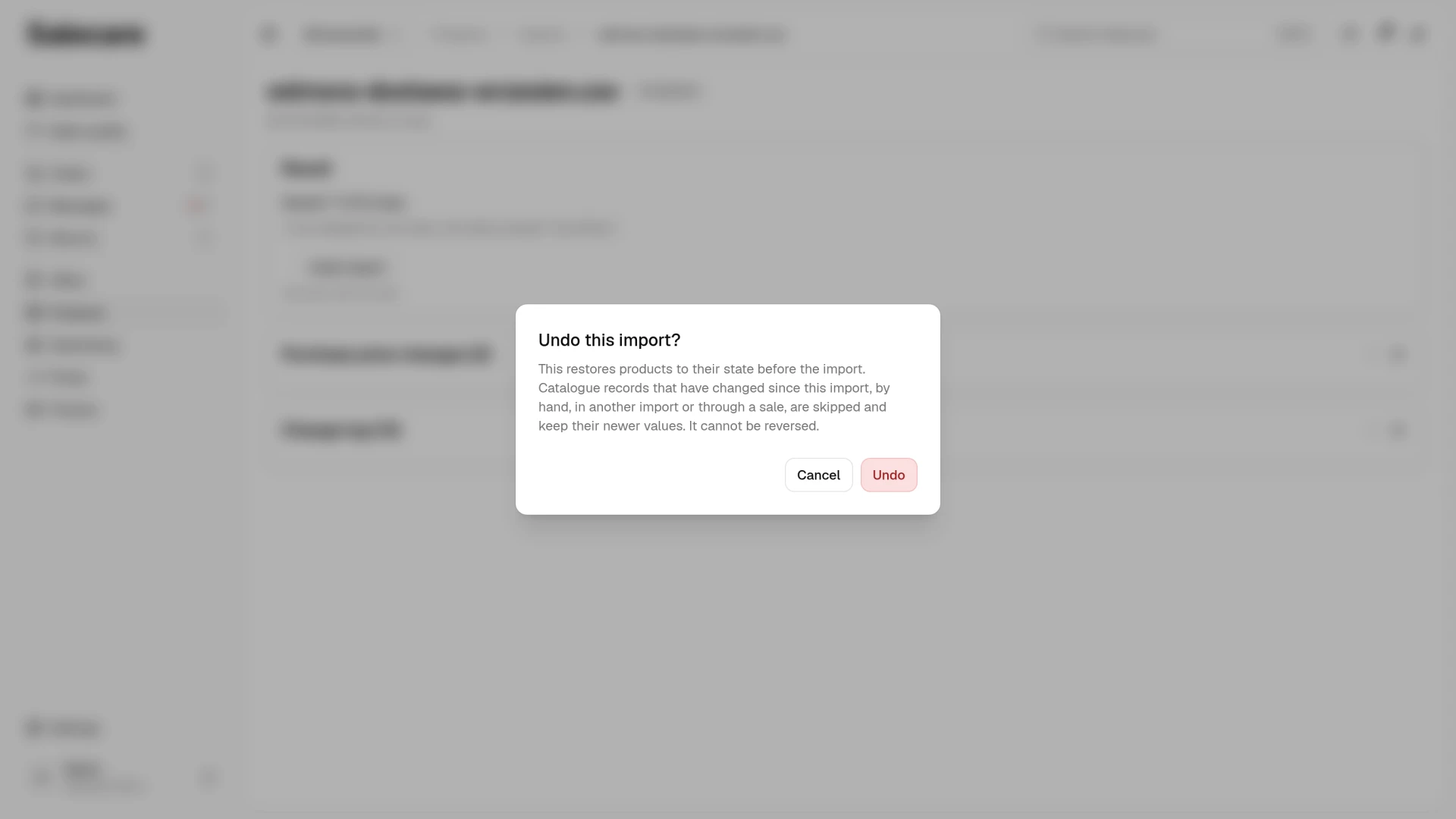
The Undo import button is in the import details, together with the time left to undo. You can undo an import with the state "Completed", and one with the state "Error" that had already written part of the file before it stopped, for up to 24 hours after it ended. An import with the state "Error" that wrote nothing, one stopped by an error in the file or by a safeguard for example, has nothing to undo and no such button.
The undo restores the catalogue and the stock in Salecare to how they were before the import and sends the stock to the offers of the accounts with stock updates on Allegro switched on. It skips every catalogue record that has changed since the import, by hand, in another import or through a sale, and leaves it at its newer value. So if the file inflated stock levels, the products sold after the import keep the inflated level. Right after the undo the details give only the number of skipped records, with no list, so check the stock of the products sold since the import by hand.
Offers Allegro ended after a zero the import sent come back on their own only on accounts whose Relist offers when the goods are back in stock row has the answer "Only those Allegro ended for lack of stock" or "Also those you ended, at most N days after the end", at the latest in the morning run at 6:50. On the other accounts go to the Offers page, set the Offer status filter to "Ended", select those offers and click Relist, as described in "How to relist ended offers". After 24 hours the option to undo expires, so review import results as they happen rather than once a week.
Bundles and variants in the file
You cannot build a bundle or a variant in the product editor. A file import creates them. A bundle, a bed linen set with two pillowcases for example, is described by the column mapped to the Bundle composition field. Each component is an EAN code, a colon and a quantity, and a comma separates the components, for example 5901234567890:1,5900000000000:2. The components have to be in the same file or already in the catalogue. A row with a component that is in neither gets the error "Composition references unknown EAN", and a bundle that contains itself through other bundles gets the error "Circular composition detected". An error stops the whole run. A bundle has no stock of its own, it is counted from its components, as the guide "How to set up warehouses and stock" explains.
A variant, the same towel in another size or colour for example, is tied to its parent product by the column mapped to the Parent EAN field, holding the parent product's EAN code. The parent product also has to be in the file or in the catalogue, otherwise the row gets the error "Parent EAN not found". One row cannot give both a parent EAN and a bundle composition.
What next
If the wholesaler publishes the file at a fixed address, do not upload it by hand. Set up an automatic import following the guide "How to set up an automatic wholesaler import". And to turn the purchase prices from the file into a real result, see the guide "How to set up costs and margin to see your real Allegro profit".