How to verify GPSR data across offers in bulk
The GPSR regulation requires an offer to carry the producer's details and, when the producer is not established in the European Union, the details of a responsible person in the Union as well. This is not a formality to be put off, because since 4 August 2025 Allegro no longer accepts the "no safety information" option when listing, relisting or editing an offer. With several accounts and many brands that means hundreds of manual offer edits.
Allegro has tools of its own for this work. In the My assortment tab the incomplete product data filter finds offers with no producer or responsible person, and the bulk edit in the Product section adds a producer to many offers of one account at once. Salecare lets you fill in this data from one list for every connected account. First you check which offers are missing safety information or a producer, and then you fill them in in bulk. In one dialog you pick the entities separately for each account, and the dialog warns when the selected offers belong to different producers or when the chosen producer does not fit the producer of the products. Salecare does not create the producers and responsible persons themselves. You register them in the Allegro panel separately on each account, and Salecare lets you pick the registered ones.
Step 1. Find offers without GPSR data
Go to the Offers page, click Filters, tick Missing GPSR data only and click Apply. The list will keep only those offers for which Allegro returns no product safety information or no producer. That state comes directly from Allegro, so you do not have to click through offers one at a time. Salecare reads it about once a day for every active offer, so a fix made in the Allegro panel usually leaves the list the next day. An offer whose state Salecare has not read yet does not appear as missing data.
The same offers are also on the To fix tab, under the "No GPSR data" reason, which you find in the Other reason field. The Add GPSR data button in a row opens the same bulk dialog for that one offer. The To fix tab checks only the producer and the safety information, so find offers with foreign-language text with the filter in the Filters panel.
By default the list shows active offers. Before relisting ended offers, set the Offer status filter to "Ended" or "All", because Allegro does not relist an offer without this data. The state of an ended offer comes from the last read before it ended or from a bulk GPSR action in Salecare, so a fix made later in the Allegro panel does not change it.
The filter requires a producer on every offer, also when the offer names a responsible person, because the producer's details are always mandatory and the responsible person only adds to them. The filter does not check the responsible person, because the offer does not say whether the producer is established in the Union. Check offers of producers from outside the Union separately, with the incomplete product data filter in the My assortment tab on Allegro, for example. On an offer with several products Salecare checks and fills in only the first one, because that is how Allegro's bulk edit works, so fill in the other products of a set in the offer editor.
An offer marked as placed on the market before 13 December 2024 is skipped only in the conditions Allegro accepts that mark for, that is used, retreaded, for parts, regenerated, damaged, refurbished by the manufacturer, refurbished by the seller, for renovation, after renovation, not requiring renovation and after dismantling. For new, ex-display, returned, repackaged or incomplete goods Allegro refuses an edit and a relist of an offer carrying that mark, so such an offer stays on the list. So does an offer from a category that has no Condition parameter. Allegro requires this data in the categories covered by GPSR, and the filter does not know the list of excluded categories, so you can skip an offer from an excluded category.
The data alone is not the whole job. The safety information has to be understandable to the buyer, so on the Polish market it should be in Polish, and Allegro accepts an offer with text in another language without saying anything about it. The Filters panel holds a Foreign-language GPSR text only checkbox. Once you click Apply it leaves on the list the offers whose safety information is written in English, German, Czech, Slovak or Hungarian. A text in another language, one shorter than 40 characters, or one with no clear leaning towards one language never reaches that list. You fix a foreign-language text with the same bulk action as the missing data, and the offer leaves this list once Allegro accepts the new text.
Step 2. Select a batch and open the bulk GPSR action
Narrow the list with filters to fill in the data producer by producer, by category, name or SKU signature, for example. The list has no producer filter, but the search looks through offer titles, which usually carry the brand. The more precise the filter at the start, the fewer corrections afterwards, because the whole batch gets the same data. The checkbox in the table header selects the current page, and the Select all matching option covers every result of the current filters, including those on later pages.
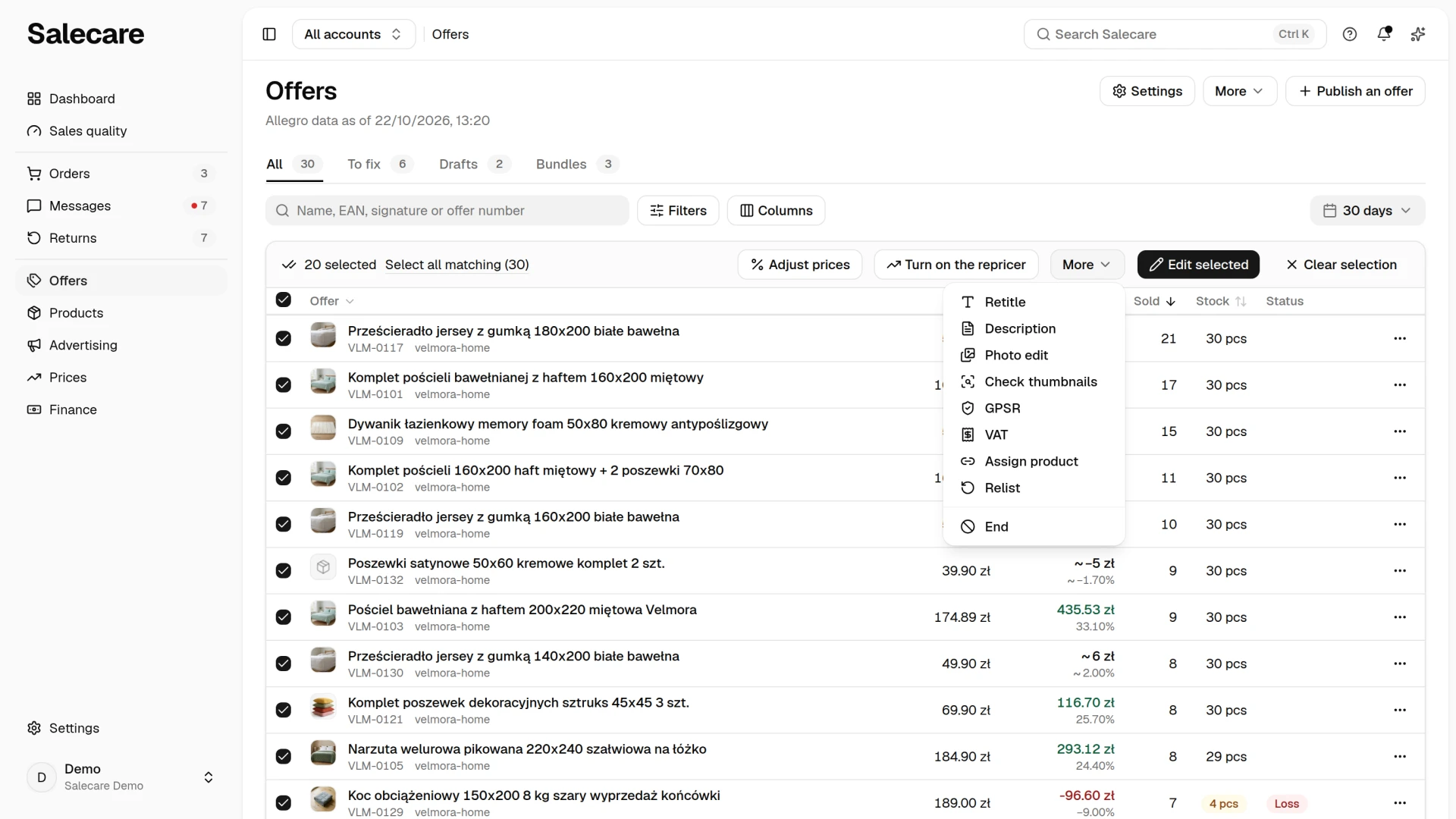
A bar of the selected offers appears above the list. Open its More menu and click GPSR. The Bulk product-safety information (GPSR) dialog opens, gathering in one place the entities registered on your Allegro accounts, responsible persons and producers. The dialog shows only the accounts connected to Salecare. If an account has no registered entities, add them in the Allegro panel first, and Salecare pulls them from there the next time you open the dialog. If the dialog says it could not load an account's entities, Allegro did not answer in time, so close the dialog and open it again.
If instead of a list you see a request to reconnect the account, the account was connected before Salecare started asking Allegro for access to sales settings. In Settings open the Allegro accounts page, click Connect Allegro account and sign in to the same account. When the plan's account limit locks that button, click Disconnect beside this account and then Reconnect. The account's existing data stays as it is, and the entities appear the next time you open the dialog.
Step 3. Fill in the data and apply
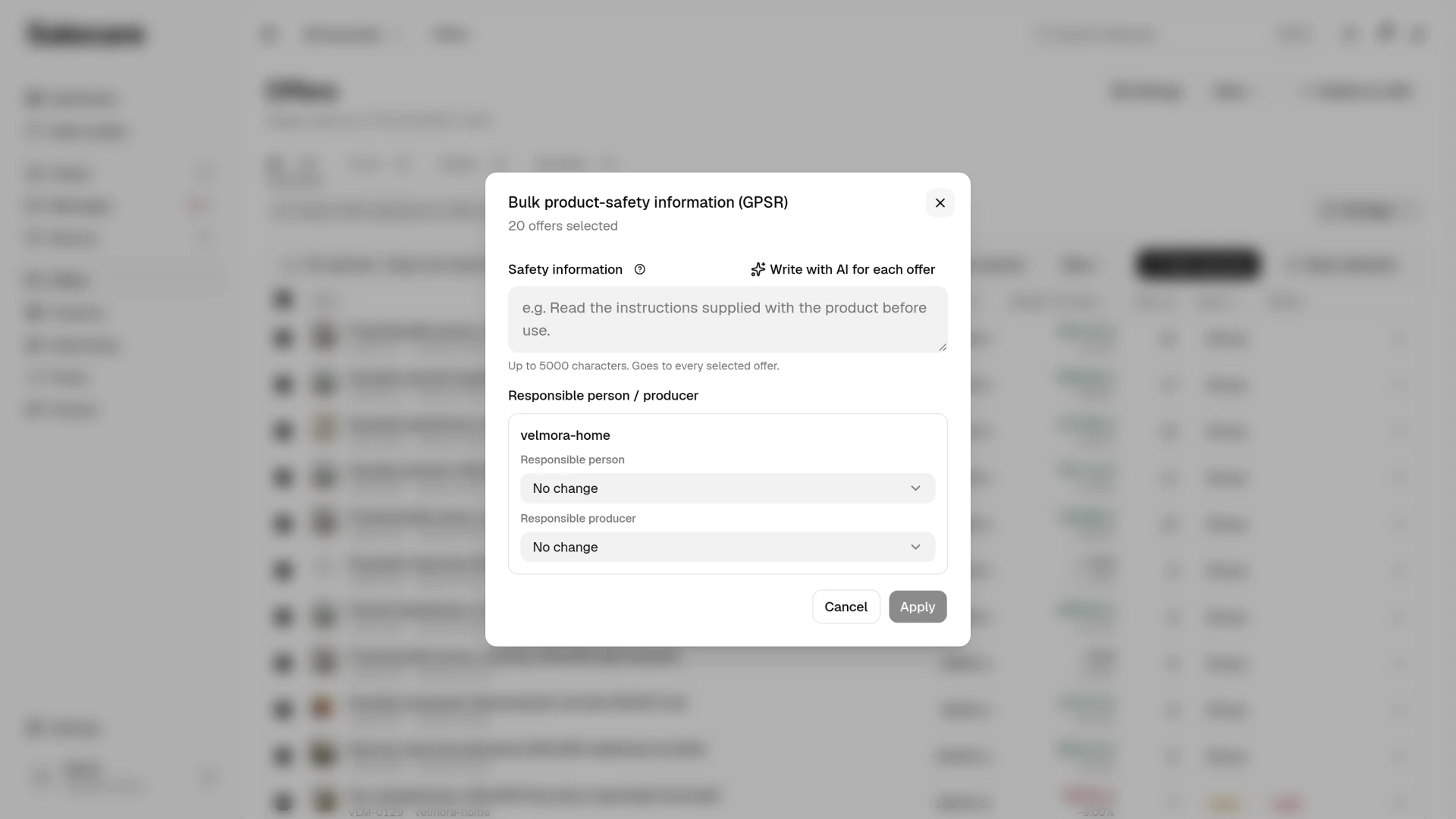
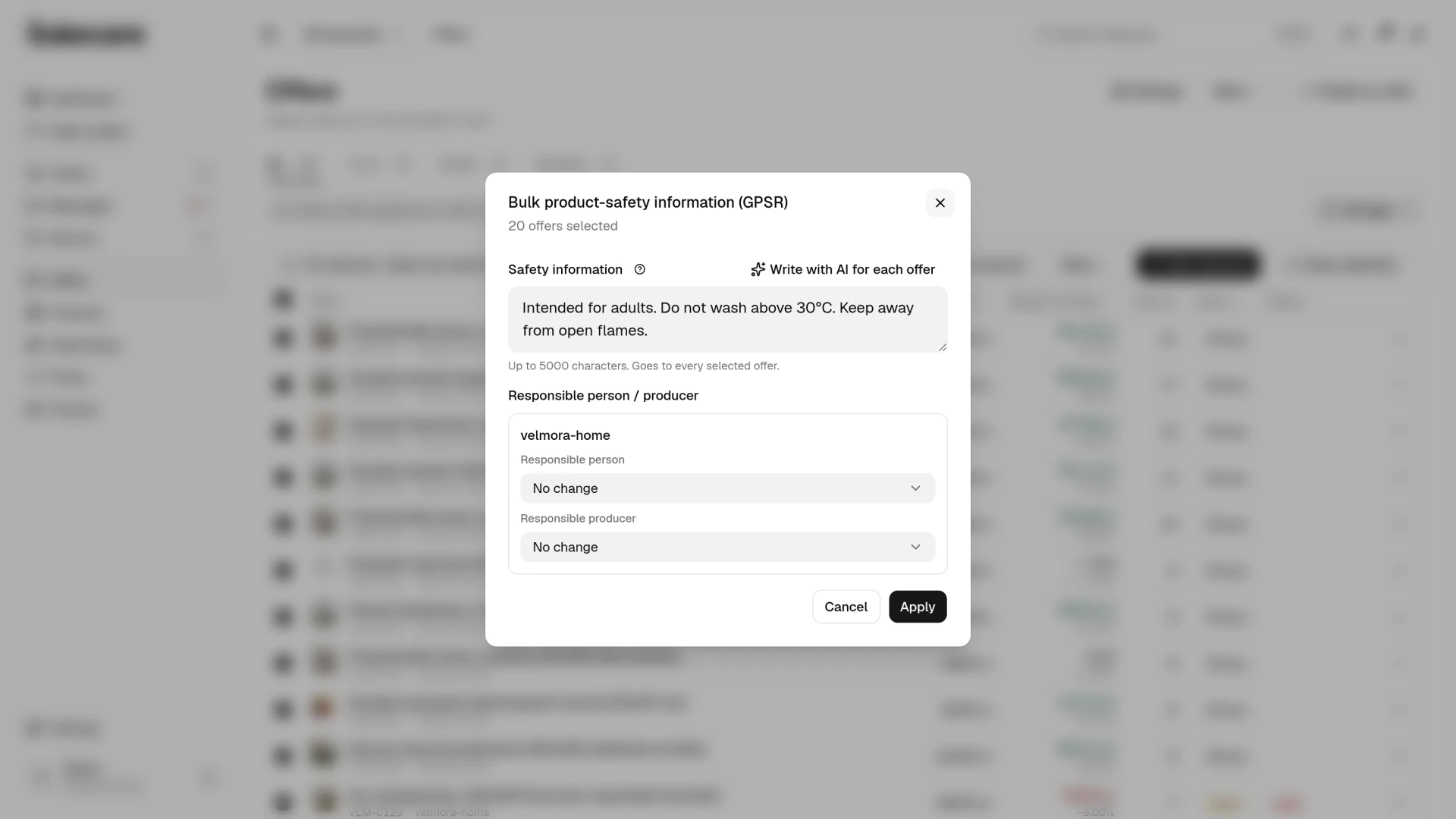
In the dialog you set the product safety information, up to 5,000 characters, a warning about small parts unsuitable for young children, for example, and the responsible person or the producer. You can leave any field at "No change", and the action then does not overwrite what the selected offers already have. Click Apply and the data goes to the selected offers at once. On an offer with several products it goes only to the first one. You cannot undo this change on the Change history page, so check the data before you click.
The list of gaps combines offers with no safety information and offers with no producer. Allegro holds the safety information either as a text or as attachments, so a typed text would replace a PDF manual on an offer that lacked only the producer. That is why offers with the information in an attachment keep it by default and get only the chosen parties. Once you type a text, the dialog says how many such offers the selection holds. If you want the text to replace their attachments, tick Replace the attachments with the typed text. An offer that already holds the information as a text, a foreign-language one for example, always gets the new text.
The chosen producer goes to every selected offer of that account, and GPSR requires the product's actual producer on the offer. So once you pick a producer, the dialog compares it with the producers of the products linked to the selected offers of that account. When the products have different producers, a warning under the account names up to three of them. Select the offers of one producer then, or leave "No change". When the chosen producer's name fits the producer of none of those products, the dialog warns as well, because that is usually a slip when picking from a long list. The dialog compares whole words of the names, so the producer "Lumo Sp. z o.o." fits the products of the "Lumo" brand. Under the warnings the dialog also says how many of the selected offers have no producer on a linked product, because for those Salecare cannot check that the chosen producer fits. The warning does not block the save, and the decision is yours. The safety text and the responsible person alone never raise it.
Allegro carries out such a bulk command in the background, so Salecare reads its result itself, the first time after about a minute. Offers accepted by Allegro then leave the list of the Missing GPSR data only filter, usually within a few minutes, without waiting for the daily read. If Allegro rejects some of the offers, because the category requires attachments rather than a text description, for example, you get a notification in the bell with the reason for the first rejected offer and a link to the list of gaps. When Allegro reports no result within about 11 minutes, the bell says the result is unknown, and Salecare reads the state of those offers at the daily refresh. The bell also rings when the account of the selected offers is not allowed to change offers or is not connected to Salecare, because the data does not reach its offers.
A separate AI text for each offer
One typed text goes to every selected offer, while the warnings differ from product to product. That is why the Safety information field has a Write with AI for each offer button beside it. The AI then checks the product of each selected offer on the manufacturer's page, in the manual and on the product card in the Allegro catalogue, and writes that offer a text of its own. It follows the same rules as on an offer draft. It writes only what it finds in the sources, in Polish, in a few short lines, and never invents a warning, a certificate, a standard or an age limit. When the sources say nothing about safety, the offer stays without a text. It also follows the hint for the AI the way a draft for one account does: the hint in the settings of the offer's Allegro account, or, when there is none, the company hint on the AI listing page. The AI writes texts only for offers with an Allegro catalogue product, because safety information cannot be saved in an offer without one. For an offer Allegro shows with several products, the AI writes nothing and charges nothing, because the text would go to the first of them only. One run covers at most 200 offers.
Before the AI starts, the dialog says how many offers it writes a text for and roughly what that costs from the AI wallet. It prices each text as one AI offer draft, because the AI searches the sources the way it does for a draft, only for one field. The charge leaves the wallet after each written offer, by what the AI actually used, and the wallet history names it "Offer safety information". When the wallet is empty or an AI spending limit is reached, the dialog says so and does not let you start, and when a top-up helps, it links to it. Click Write with AI at the bottom of the dialog to start the writing, or Back to return to the shared text. On a plan without the AI features the button is locked, and the padlock names the plan that unlocks it.
The AI writes the texts in the background, and the dialog shows how many are ready. You can close it, because a finished text waits with its offer for 2 days. When you open the dialog again with these offers, in another selection too, you see their texts at once and do not pay for them a second time. When the selection also holds offers the AI has not written for yet, the dialog opens on the shared text, and Write with AI for each offer prices only those. When the wallet runs out along the way, the AI stops writing and the dialog gives the reason. A text the AI was already writing still lands on the list. The remaining offers carry the "No text" badge, and Write with AI for the rest writes them, once more after showing the cost. When the dialog cannot refresh the list, it says so and keeps trying, and Refresh the list reads it at once.
Each offer gets its own text on the list, in a field you can correct. Under the offer's name stand its number and its Allegro account. The violet AI badge stands beside a text while it is as the AI wrote it. An offer with the "Not in the sources" badge has no text, but you can type one yourself. An empty field leaves the offer unchanged. Apply works once the AI is done and sends each offer its own text, separately, offer by offer. The chosen persons and producers go to the offers as before, in one command per account. A text typed in the shared field before you switched to the list goes to no offer. Offers with the information in an attachment keep it until you tick Replace the attachments with the new text. Unlike the shared text, these changes show on the Change history page. There you can undo a text that replaced an earlier text. A text that went to an offer without an earlier text, or replaced an attachment, cannot be undone, because Allegro does not accept an offer without safety information and Salecare does not keep the attachment. When Allegro rejects the text of an offer, you get a notification in the bell with the reason. Once you click Apply, with the shared text too, the AI texts of these offers are dropped, so the dialog opens on the shared field next time. Type one text for all goes back to the shared field.
A bulk change applies to the selected offers only
Whatever you apply in bulk goes to the selected offers only. It does not change the account's default GPSR data that new offers get when published from a draft, because a producer applied to one brand's offers does not fit the products of another. The next section covers the default data.
The account's default GPSR data
You set the default data in the account settings. In Settings open the Allegro accounts page and click the account, then in the Listing group, in the Product safety (GPSR) row, click Change. Every new offer from that account gets the data from this panel. The safety information takes up to 5000 characters. An offer takes the text entered on the draft first, then the safety document assigned to the product, usually from the supplier file, and last the text saved in the panel. So write in the panel only what holds for every product this account sells. You register the responsible person and producer in the Allegro panel, and the panel lets you pick the registered ones. When the account has no registered parties yet, the panel asks you to add them in the Allegro panel. A product with a brand gets the producer registered under that brand, and the parties picked in the panel go only to offers of products without a brand.
On an offer draft the AI can write this text for you. In the Product safety (GPSR) section click Regenerate, and the model looks up the warnings and safe-use instructions for this product in its sources, an age limit or a small-parts warning, for example, and fills the field with them. It also fills the field when the AI writes the whole draft. It does this only from what it finds on the producer's website, in the manual or in the Allegro catalogue. When the sources say nothing, the field stays as it was and the offer goes out with the safety document from the product page or, when the product has none, with the text the account has saved, because an invented warning would be a false declaration. The text speaks for you, so read it before you publish. The AI never picks the responsible parties, because those have to be registered in your Allegro account.
The editor of a live offer works the same way, next to the Safety information field. The guide "How to update a live offer from a draft" describes it.
The safety description, the producer and the responsible person are never copied from another of your offers, because they concern a specific product. Salecare matches the producer to the product. When the draft names none and the product names its brand, the offer gets the producer registered in the Allegro account under that brand. When none matches, or more than one does, Salecare does not list the offer until you pick the producer on the draft, in the Product safety (GPSR) section. The card on the right that lists what is missing before publishing then shows the gap "Responsible producer (GPSR)" beside that account. The same goes for a product with no brand when the account settings save no producer. When the producer's address is outside the European Union, the offer must also name a responsible person in the EU, and without one Salecare does not list it and shows the gap "Responsible person in the EU (GPSR)". You pick the producer and the responsible person on the draft while one account is selected, because the entities are registered separately on each account. With several accounts, publish the draft on each of them in turn. The producer and the responsible person saved in the account settings go only to offers of products that name no brand. A single producer or person registered in the account is not enough to put them on an offer, because they may not concern that product.
If your products arrive from a supplier file that publishes a link to a manual or safety sheet, map that column to the Safety document (GPSR) field in the import settings. When publishing, that file is fetched and sent to Allegro as a safety-information attachment. The link has to point straight at a PDF, JPG or PNG file of up to 10 MB. Salecare skips a link to a web page, or a link that redirects, and uses the text saved on the account instead. The document describes one specific item, so it beats the account's default sentence, which covers the whole assortment. Any text in the draft's field, also one the AI wrote, still takes priority over the document and over the account's text. When the product has a document and you would rather have it on the offer, clear the field on the draft. You can see and correct the link on the product page, in the Description and parameters section, in the Safety document (GPSR) field.
What next
You select offers the same way for the other bulk actions. See "How to list and end offers in bulk". And if you are only just connecting your sales to Salecare, start with "How to connect an Allegro account to Salecare and run the first sync".