How to add a product to the Salecare database
The descriptions, parameters and photos of your products usually live only inside your Allegro listings. When an offer ends, or you want to list another variant, you go hunting for old files and write everything again. The product database in Salecare is independent of Allegro. You enter the data once, and the AI then uses it to build drafts of new offers. The fuller the product, the better the draft.
Step 1. Open the product list
In the menu choose Products. The page has the tabs Products, Imports and Sales forecast, and this guide is about the first one, the product catalogue. Above the table sits a switch of quick filters with the items Without purchase price (only with the Margins and purchase prices (view) permission), Without an offer, Low stock and All. The number beside each is the number of rows that list shows without a search or filters. Without purchase price gathers the products without a purchase price and the offers without a product, each with a price field. Without an offer shows the products without a live offer. Low stock shows the products with a live offer that have 5 units or fewer, 0 included, and a bundle counts by the stock of its components. A product whose stock you do not keep in a Salecare warehouse never appears on this list. When you have no products yet, the Products page opens on the Without purchase price view, so click All first. The catalogue is in alphabetical order, and a click on a column header changes the order.
The table has six columns, namely Product, Offers, Stock, Purchase price, Sold and Margin over the chosen period. Only a person with the Margins and purchase prices (view) permission sees the Purchase price and Margin columns. Under a product's name stand its signature and EAN. The Offers column holds the number of live offers, and a product with no live offer has a Publish button. The Publish button prepares an AI offer draft and does not send it to Allegro. The draft costs what the button's tooltip says, and that amount comes out of the AI wallet. The stock of a product with a live offer is red at 0 units and yellow at 1 to 5. A product without a purchase price has a field in the Purchase price column. The Save prices (n) button at the bottom of the page saves every typed price at once, and Cancel drops them. Until you save, the margin keeps its "~", and a note under the table says what percentage of the price Salecare then takes as the cost of goods. A bundle has no field, because its cost is the cost of its components. The menu at the end of the row has Fill with AI, Assign an offer and Delete. When you tick products, a bar above the table shows the Edit and Generate offer drafts buttons and a More menu with Delete selected.
Beside the quick filter sits a search field. It searches the name, the EAN and the signature on the open list, together with the criteria from the Filters panel. The Filters button opens that panel at the side. It holds product type, category, activity, warehouse, ranges (selling price, purchase price, revenue, margin, stock, returns, and on a plan with ads the spend, ROAS and ACOS) and the dates added and updated. The number beside the button is the number of criteria in use. Apply narrows the list, and Reset removes the criteria and keeps the search. The Columns button adds the Gross selling price, Net revenue (Gross revenue for a company not registered for VAT), Returns, Category, Warehouse and Added columns to the table, and on a plan with ads also Net ad spend, ROAS and ACOS. The choice stays in this browser. At the end of the bar you pick the period the revenue and the margin are counted over. A period picked from the list also applies to the offer list, while a custom date range applies to this list only. On a phone the table turns into cards and there is no Columns button.
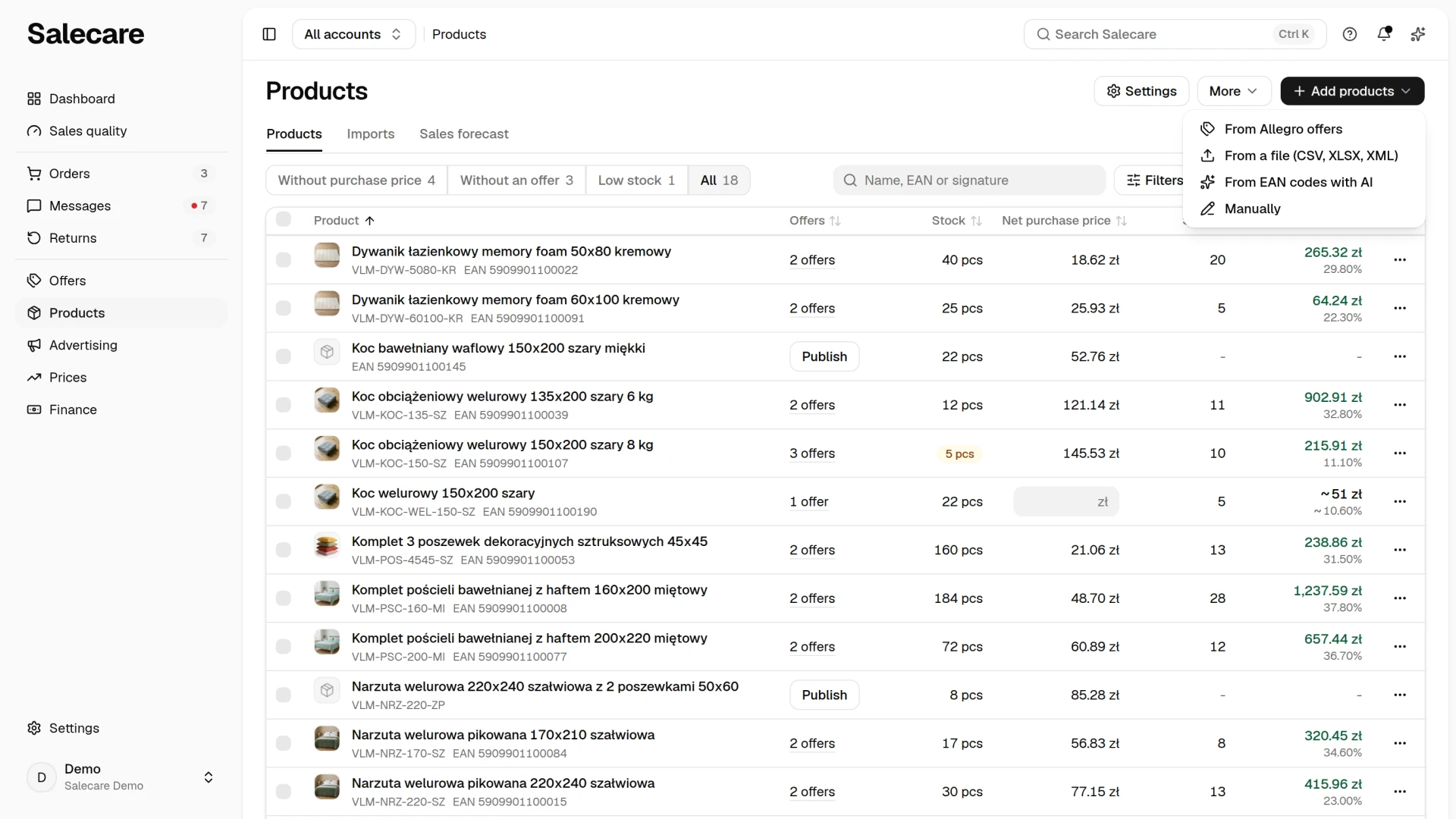
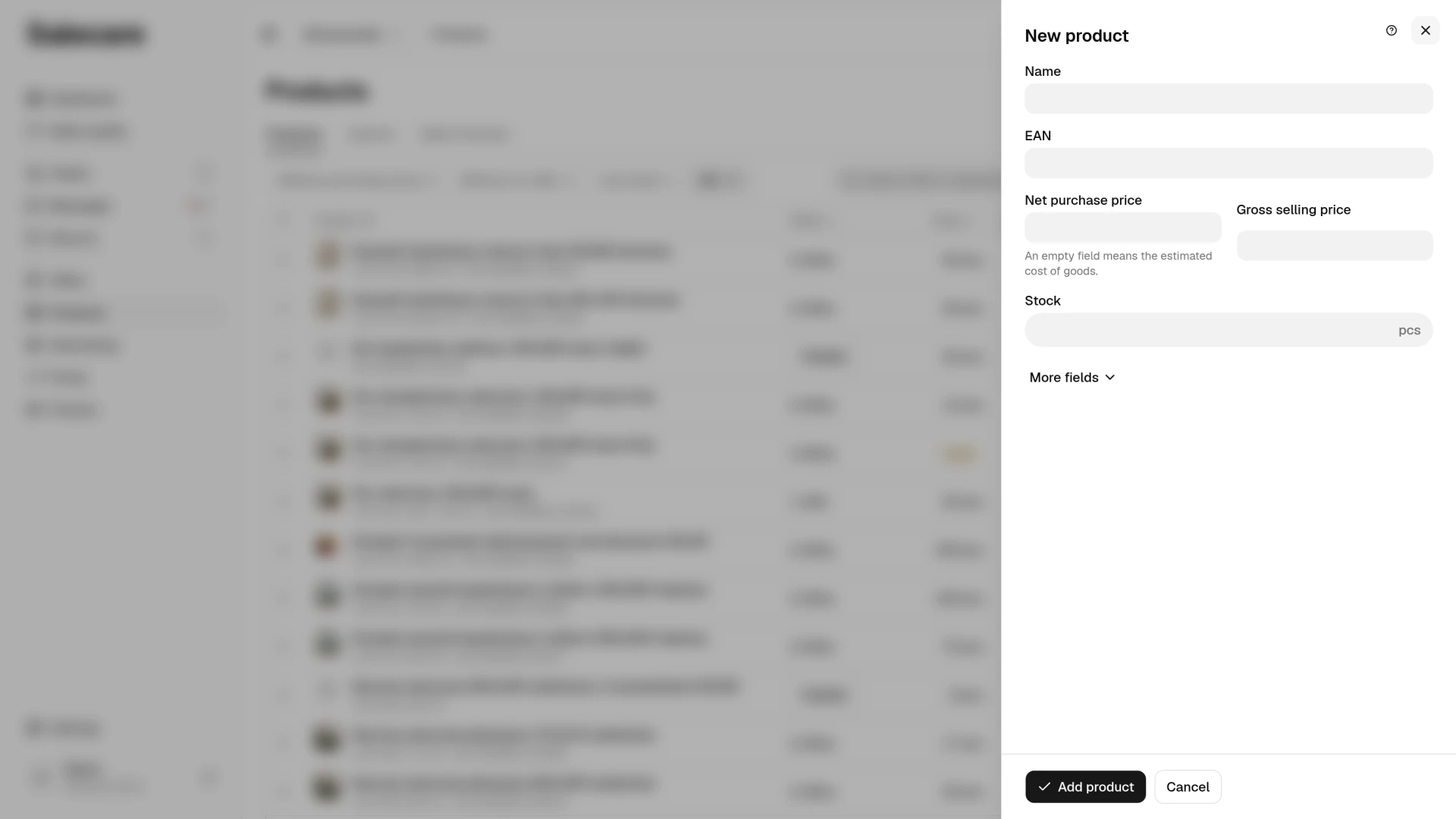
To add a product click Add products and choose Manually. The New product panel opens with five fields, namely Name, EAN, Purchase price, Gross selling price and Stock. Under More fields are the other fields, that is the other code (SKU or EAN), Category, Warehouse, VAT rate and the Active switch. A company registered for VAT types the purchase price net and sees under the field what it is gross and at which rate. The stock goes to the default warehouse when you do not pick another in the Warehouse field. When the catalogue identifies products by signature, the panel starts with the Signature (SKU) field and the EAN is under More fields. After you click Add product the panel closes and the product appears on the list. The Open the product button on the notification opens its card, where you add the photos, description and attributes. The old /products/create address opens the same panel. The other items of the Add products menu are From Allegro offers, From a file (CSV, XLSX, XML) and From EAN codes with AI, but for one or a few products the panel is fastest.
The Download catalogue item in the More menu above the list opens the Downloads panel with the New file form already filled in. Click Prepare file there, and you get the product catalogue as a CSV file. The file is built in the background and appears in the list in the panel. You can also open that list from the account menu, with the Downloads entry. The file always covers the whole catalogue, not the narrowing you see on screen. It carries every field recorded about a product, from codes, category and tags, through the purchase price with its VAT rate, the selling price, stock, warehouse and suppliers, to dimensions, the description, the photo addresses and the attributes. Prices in the file are gross whether the app shows you net or gross amounts, and the sales and purchase VAT rates stand in their own columns. The photo addresses and the attributes are written in the same format the file import reads, so you do not have to rewrite those columns.
Before you feed this file back in, set the import up for it, because the import's default settings do not fit this file. By default the import reads prices as net and adds VAT to them, the weight as kilograms and the dimensions as centimetres. So set Purchase price in the file and Selling price in the file to "Gross", Weight in the file to "grams (g)" and Dimensions in the file to "millimetres (mm)". For the Total stock column choose "Skip this column". That column is the sum of the stock in every warehouse, and the import would write it into one warehouse. A product kept in several warehouses would therefore get an inflated stock level, which reaches Allegro on accounts that take their stock from the warehouse. Feed the products that read "Yes" in the Purchase price estimated column back in a separate file with the Purchase prices in this file are estimates box ticked. Otherwise their prices come back as actual ones and replace the estimate retroactively too.
The product catalogue is available as CSV only. It carries every product field together with the descriptions, so an Excel or PDF file of the whole catalogue cannot be built. A CSV file opens in Excel.
Step 2. Open the product card
Click a product's name on the list and its card opens. The title is the product's name, with its EAN and signature under it. Under the title are the product's figures, namely the current Stock, Lasts and Sold in 30 days, and with the Margins and purchase prices (view) permission also Purchase price and Margin 30 days. Lasts is the stock divided by the units sold in the last 30 days. Under 2 weeks it shows days, under 60 days whole weeks, under a year whole months, and beyond that "over a year". A product with no units in stock shows "Sold out". Without a sale in the last 30 days the Lasts value is not shown. A product whose stock you do not keep in a Salecare warehouse shows none either. The card has the tabs Details, Offers and History. The header holds the Publish to Allegro button, which on a product with no live offer creates a paid AI offer draft at once. Beside it is the More menu with Fill with AI and Delete product. The save bar shows only while something is unsaved. Save saves the card, and Cancel returns to the saved data.
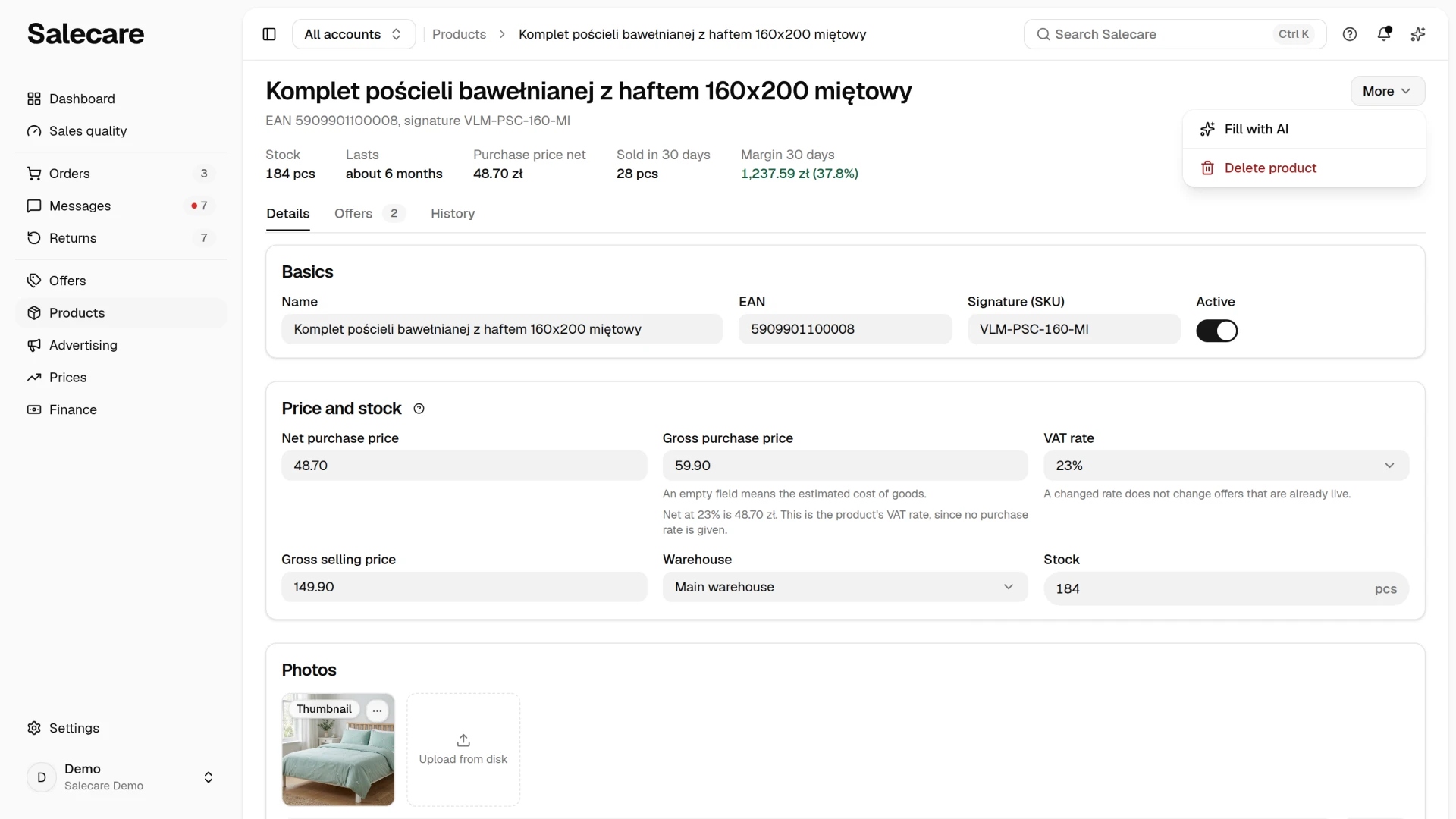
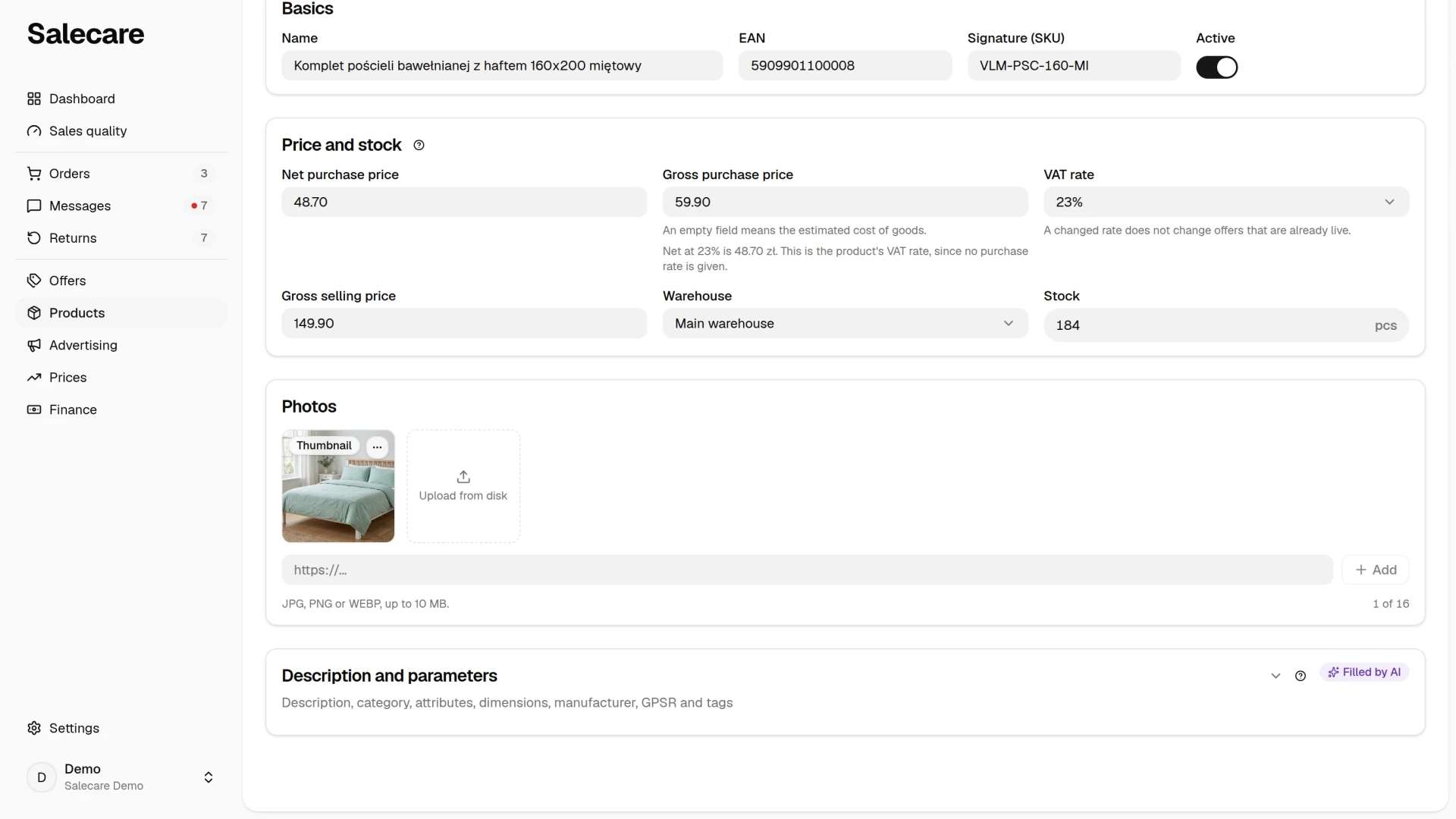
The Details tab starts with the Basics section, that is the name, EAN, an optional signature (SKU) and the Active switch. The EAN is required, it must have a correct check digit and no other product in your database may carry it. The form will therefore not accept a code with a typo or a code already in the database. If you enter the EAN of a product you deleted earlier, Salecare does not add a new product but brings that one back together with its purchase price history. Switch Active off when you withdraw the product from your range. An inactive product gets no automatic AI offer drafts, neither the ones made daily for products without an offer nor the ones after an import. Stock, margins and the repricer keep working for it, because its live offers still sell, and you can still generate a draft for it by hand. You cannot build a bundle or a variant in the New product panel or on the card. A file import creates them, through the Bundle composition and Parent EAN columns, as the guide "How to import products from a file and track the import history" explains.
Step 3. Set the price and stock
In the Price and stock section of the Details tab you choose the warehouse and enter the stock level, the purchase price, the gross selling price and the VAT rate. The stock field unlocks only once a warehouse is chosen, because stock is counted per warehouse. The Warehouse field names the warehouse whose stock you are editing. When you pick another warehouse on the product card, the stock field shows the stock of that warehouse, and stays empty when it holds no units. Switching the warehouse does not move any units. The stock in the previous warehouse stays as it is, which the line under the field reminds you of. That stock still counts towards the stock sent to Allegro, unless the warehouse is excluded from Allegro.
On accounts that take their stock from the warehouse, the quantity in this field reaches the offers of this product. After you save the card that happens straight away. The stock of a new product reaches the offer Salecare links it to at the latest with the daily offer stock reconciliation at 6:15. The offer gets the product's stock summed over every warehouse not excluded from Allegro, and a stock of 0 ends the offer. If you do not know the stock, leave the field empty, because an empty field writes no number. When the warehouse drives an Allegro account without stock reservations, enter the units on the shelf less the units of orders that have not shipped yet (see the guide on warehouses).
The purchase price is the basis for calculating the margin and the repricer's minimum price, so enter the price from the supplier invoice. If you do not know it, leave the field empty. Salecare then uses the estimated cost of goods, the margin is approximate, and the repricer does not calculate a minimum price until you enter the real cost. The Without purchase price view on the Products list gathers the products without a purchase price, and there you type the prices of many products at once. You can also type the price in the All view, in the row of a product without one. The app treats any amount in this field as an invoice price, so an estimate set too low lowers the minimum price as well. Both prices are stored gross. When the supplier invoice states a net amount, type it into the Net purchase price field. Salecare adds VAT at the purchase rate (or at the sale rate when no purchase rate is given) and fills in the gross price. For a product with neither rate it uses the rate of the category rule or of the company. The save then writes that rate beside the price, so the net amount you typed does not change. With no rate at all, the net field waits and says it needs a purchase or a sale VAT rate. For a company registered for VAT a second line under the purchase price also shows the same cost with VAT deducted, because the VAT on a supplier invoice can be deducted. The Purchase price column on the product list behaves the same way, while the selling price stays gross. You choose the purchase VAT rate, the rate from the supplier invoice, in the Purchase VAT rate field of the collapsed Description and parameters section. The "Same as on the sale" option means the same rate as on the sale. You choose 0% for an intra-EU purchase or a supplier exempt from VAT (see the guide on VAT rates). In the VAT rate field the "Default" option means the product has no rate of its own and the rule of the category or of the company applies. Both options stand at the top of their list, so you can clear a rate you picked earlier. When the price was loaded from a file whose prices were marked as estimates, the product card shows an "Estimated price" badge. The repricer does not calculate a minimum price from such a price, and saving the card confirms it as the actual purchase price. That goes for every save of the card, also after you changed only the description or the photos, so check the price against the invoice before you save a card with this badge. While the card has unsaved changes, a line under the price reminds you that saving confirms this price. When the price is right and you change nothing else on the card, click Confirm price beside the badge.
The product's VAT rate is needed for Salecare to state a net margin and a net minimum price. Imports read it from a VAT column or from the import's default rate. For the net margin of a sold offer Salecare takes the rate Allegro reported first. For the net minimum price it takes the higher of two rates. The first is the rate in this field or a category rate from the VAT panel on the Costs page, and the second is the rate the Allegro offer declares. When the company is registered for VAT, Salecare declares this rate on Allegro for a new offer published from a draft. Listings already live keep their rate. Carry the new rate over with the bulk VAT rate change on the offers list, or with the Update listing button on the draft.
The Gross selling price is your target price. An AI offer draft takes it as the starting point for the price of a new offer, and the repricer uses it as the maximum price in rules that have no maximum margin of their own. In the repricer this price is called the product's suggested price. A change on the card recalculates those maximum prices straight away. A maximum price worked out from this price never goes below the offer's current price, so a selling price set too low blocks price rises but does not cut the price. Do not enter the price from the wholesaler's list here unless that price is to decide how high the repricer may raise the offer.
Purchase price history
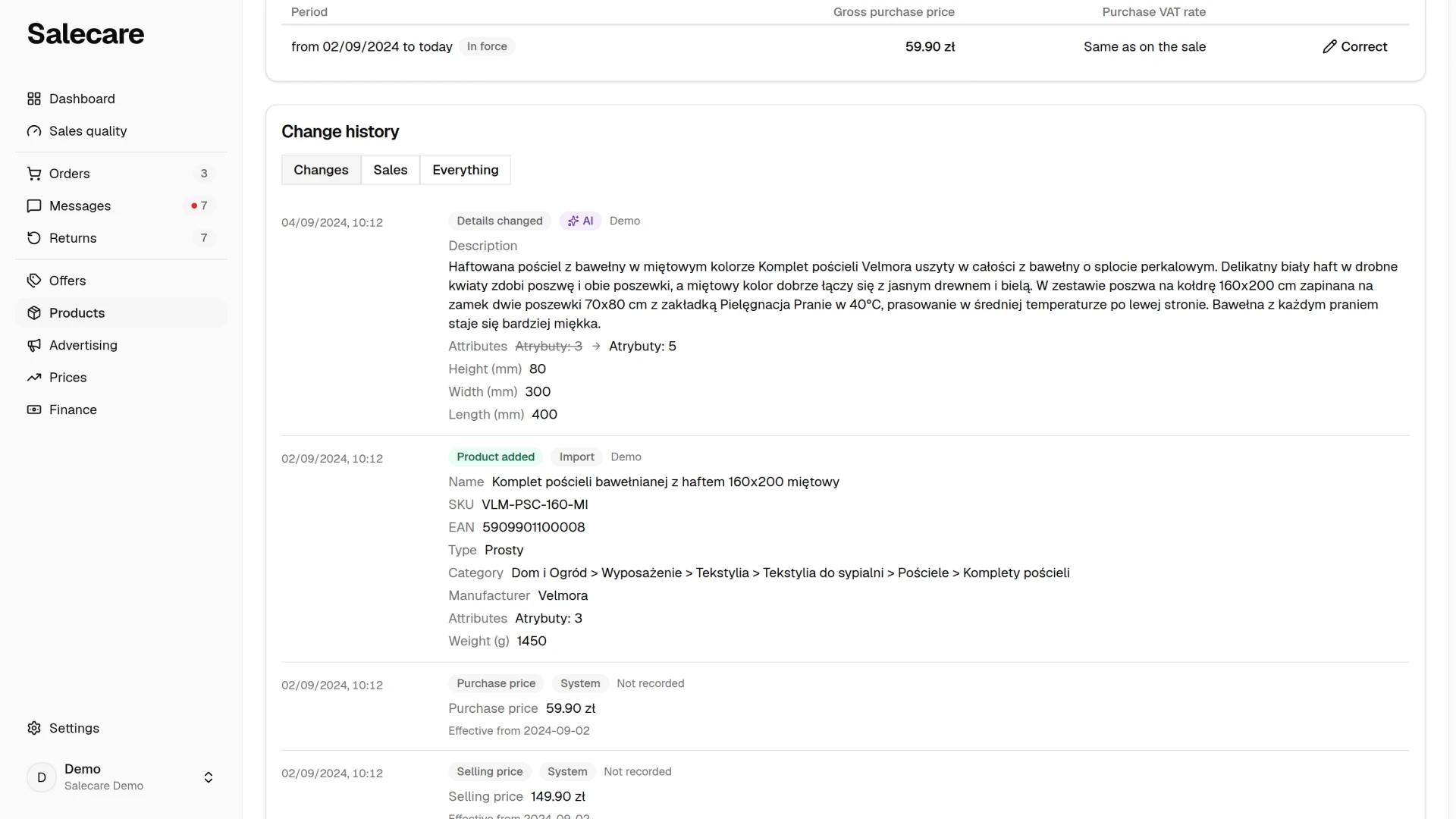
The first purchase price entered on the card covers all earlier orders of the product, and a price entered in place of an estimated price takes over the whole period of that estimate. Every later change of the purchase price applies from the day you save it, also to the orders placed earlier that same day. The orders of the days before keep the old price, because that is what you paid then. A change of the purchase VAT rate alone, at the same price, corrects the current period from its start. A person with the Margins and purchase prices (view) permission sees every period of the price on the History tab of the card, in the Purchase price history section. When the price of a period was entered wrong, the first one for example, click Correct in its row and enter the price from the invoice. The correction replaces the price for that whole period, and the margins of the orders from that period are recalculated on their own. The button works when the page has no unsaved changes.
Step 4. Add the photos, description and parameters
The photos, description and parameters are on the Details tab, under the Price and stock section.
Photos
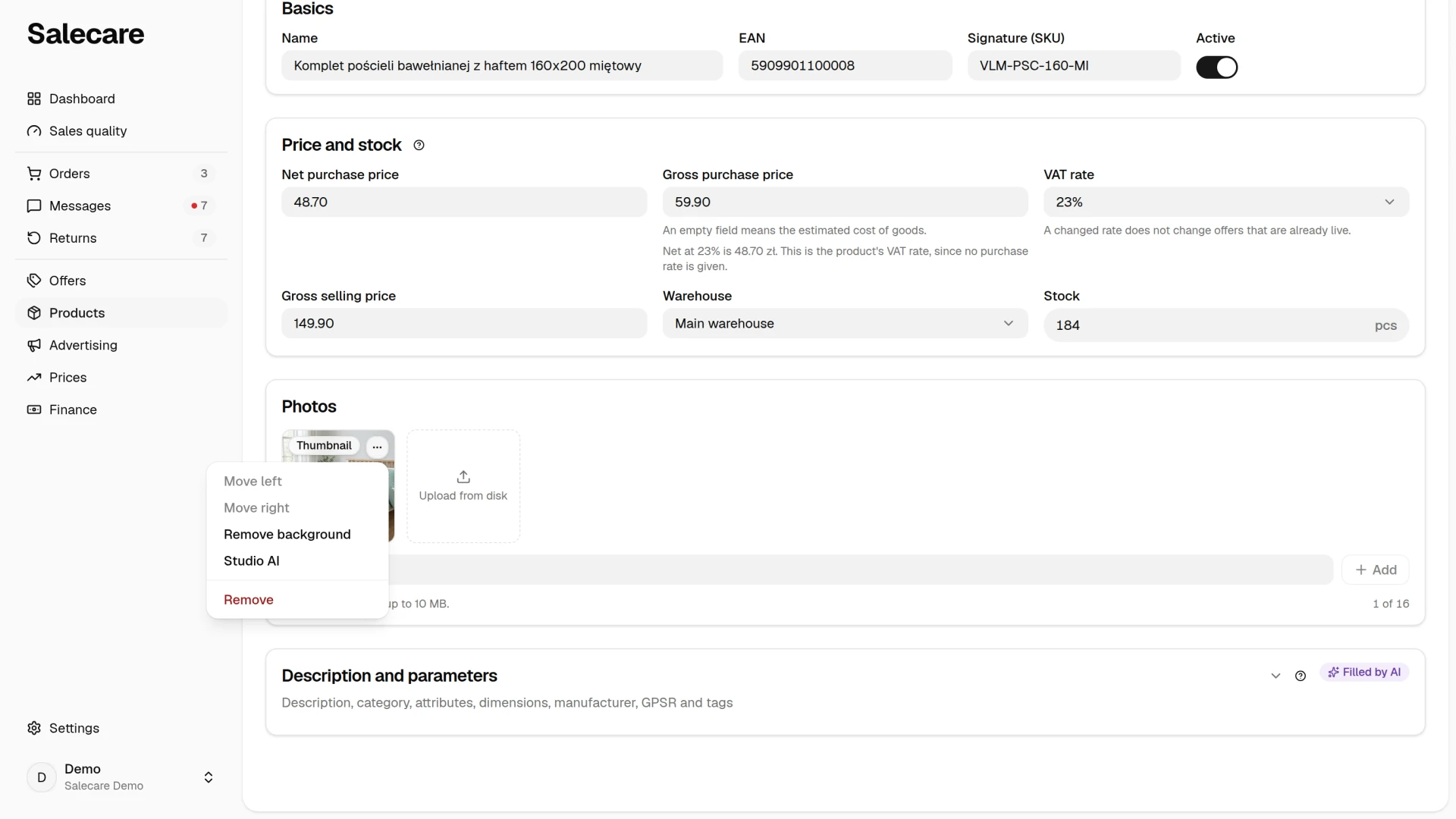
In the gallery every photo is a tile. The first one, with the "Thumbnail" badge in its top left corner, becomes the thumbnail of the offers listed from the product, so put your best shot at the front. You change the order by dragging a tile to another place, and a photo dragged to the first place becomes the thumbnail. Each photo has a menu in its top right corner with Set as thumbnail, Move left, Move right, Remove background, Studio AI and Remove. On a plan without the AI tools the Remove background and Studio AI entries are switched off in the menu, and the name of the plan that unlocks them stands beside them (see the guide on removing a background). A photo the AI drew, in Studio AI for example, cannot be set as the thumbnail, and a card with such a photo at the front of the gallery cannot be saved. The gallery holds up to 16 photos. The Upload from disk tile adds photos from your computer, picked in the window or dropped onto the gallery, and the field under the tiles adds a photo from a URL. The counter shows how many of the 16 photos are in the gallery. The gallery is saved together with the product. An offer on a business account takes the same 16, while on a personal account Allegro allows 10. If you sell from a personal account, some photos may therefore not reach the offer. Allegro accepts photos whose longer edge is at least 500 pixels, and does not allow added text or your own logo on them. Salecare does not measure the photos you add to the gallery yourself, and one photo that is too small blocks the listing of the whole offer. So check a wholesaler's thumbnails before you upload them.
Description and parameters
The Description and parameters section is collapsed, and it opens by itself when a save rejects a field inside it. It holds Description, Category, Attributes, the weight and dimensions, the manufacturer, the additional EAN, the safety document (GPSR), the tags (separated by commas) and Purchase VAT rate. When an automatic import keeps the product up to date, an Automatic import line under the fields links to those imports.
In the Description section you write in the visual editor or switch to HTML. On save the description is brought down to the tags Allegro accepts, headings, paragraphs, bold and lists. Italic and emphasis turn into bold, and smaller headings into a second-level heading. The app strips any other markup, links and tables for example, and the text it wrapped stays in the description. You will use this description in your offers later.
You point at the category in the Allegro category search. The same search sits in the forms, those of the product, the VAT rate and cost rules and the offer draft for example, and in the filters of the offer list and the order list. In a form you type part of a name and pick from the suggestions, or you walk down the category tree level by level. The Select … button confirms the level you stopped on. In the filter above the offer or order list the same search suggests only the categories your own offers and orders actually carry, so a chosen category always leaves something on screen. The category filter in the Filters panel of the product list is a plain drop-down of the categories your products carry.
The same section holds the weight and dimensions, the manufacturer, the additional EAN, the safety document (GPSR), the tags and the purchase VAT rate. The weight and dimensions are catalogue data of the product, carried into the catalogue export. Salecare does not calculate a shipping cost from them. It takes an order's shipping cost from Allegro billing or from your rates in the Shipping rates panel on the Costs page (see the guide on costs and margin).
The manufacturer is the product's brand, and the GPSR data in the offer depend on it. When an offer is listed from a draft, Salecare matches the responsible producer by that brand, taking the producer registered in the Allegro account under the brand. When nothing matches, Salecare does not list the offer until you pick the producer in the Product safety (GPSR) section of the draft. The safety document (GPSR) is a link to the manual or safety sheet the supplier publishes for this product. On listing, Salecare sends that file to Allegro as the product's safety information. Only a safety text written in the draft itself comes before it. The additional EAN is a second barcode of the same goods, and the tags keep the catalogue tidy. The extra codes under which an import gathered the same goods from several file rows show on the card as badges, and you do not change them there. Offers published under such a code point to this product too, and for a code with its own purchase price the margin of the offer is calculated from that price. To find and fill in missing GPSR data on live offers, follow the guide "How to verify GPSR data across offers in bulk".
Attributes
Attributes are any product characteristics, each with a name and a value, Colour or Material, for example. They feed the AI's knowledge of the product, so the more fully you fill them in, the more accurate the offer drafts and descriptions built from that product will be.
Step 5. Check the Offers and History tabs
The Offers tab shows the product's offers, ended ones included, with their status, price, stock, sales and the Units in one sale column. The list starts with the most recently listed offer. The column headers change the order, and the Offer header sorts by the name, the status or the account, picked from a list. The card shows the first 50 offers in the chosen order at most, and the full list is in the offers list. On a phone the offers are rows of one card with labelled values, and you pick the order in the menu above the card. You change the units in one sale there in the row's menu. The Open in the offers list link leads to the full list on the Offers page, and the Assign an offer button links to the product an offer that Salecare did not match by itself. The offers of a product that has none yet appear here once listed or assigned.
The History tab of the card has the Change history section. It shows what changed in this product and when, split into the Changes, Sales and Everything tabs. A change to the product data, the name, the description or the photos for example, carries the author of the change and the channel it came through, "Manual", "Import", "Bulk edit", "AI", "Import rollback" or "From an Allegro offer". The last channel marks a product made from an offer on the Without purchase price list. A stock entry shows the channel, whether an import, an order or a manual correction moved it, but no author. Purchase price and selling price entries always carry the "System" channel and the author "Not recorded", because for prices Salecare records neither who changed them nor how. When a purchase price looks different from what you remember, compare the date of its entry with the dates on the Import history page.
Deleting or withdrawing a product
You delete a product with Delete in the row menu on the Products list, or with Delete product in the More menu on its card. After a delete from the card the list of all products opens. Deleting takes away its warehouse stock, selling prices, suppliers and extra codes. The purchase price history stays, so the margins of orders placed before the delete keep counting the real cost, a recompute included. The live offers of a deleted product stop getting stock from the warehouse. When the product has live offers and an account takes its stock from the warehouse, the confirmation dialog has the End the live offers on accounts that take their stock from the warehouse box ticked by default. With the box ticked, the product's offers on those accounts get 0 units and Allegro ends them, so read the dialog before you confirm. Left unticked, they stay with their last quantity. Offers on accounts where you set the quantity by hand stay as they are. The dialog for deleting selected products has the same box whenever an account takes its stock from the warehouse, because the selection can span several pages of the list. When you are only withdrawing the product from your range, do not delete it, just switch Active off on its card. The product then stays with its stock, offers and history.
What next
With a larger catalogue, do not add products one by one. See the guide "How to set up an automatic wholesaler import". And to turn a purchase price into a real result, work through the guide "Real Allegro margin in 2026, how to set up costs in Salecare".