How to fill in product data with AI
Imported products often have only a name and an EAN code, with no category, description or characteristics. A card like that will not produce a good offer draft, and filling it in by hand can take longer than the listing itself. In Salecare you can hand this to the AI with a single button, straight from the product card. Filling in with AI works from the Pro plan up. Every research run of a product is charged to the AI wallet at its actual usage, even when the AI changes nothing.
Step 1. Open the product card and choose "Fill with AI"
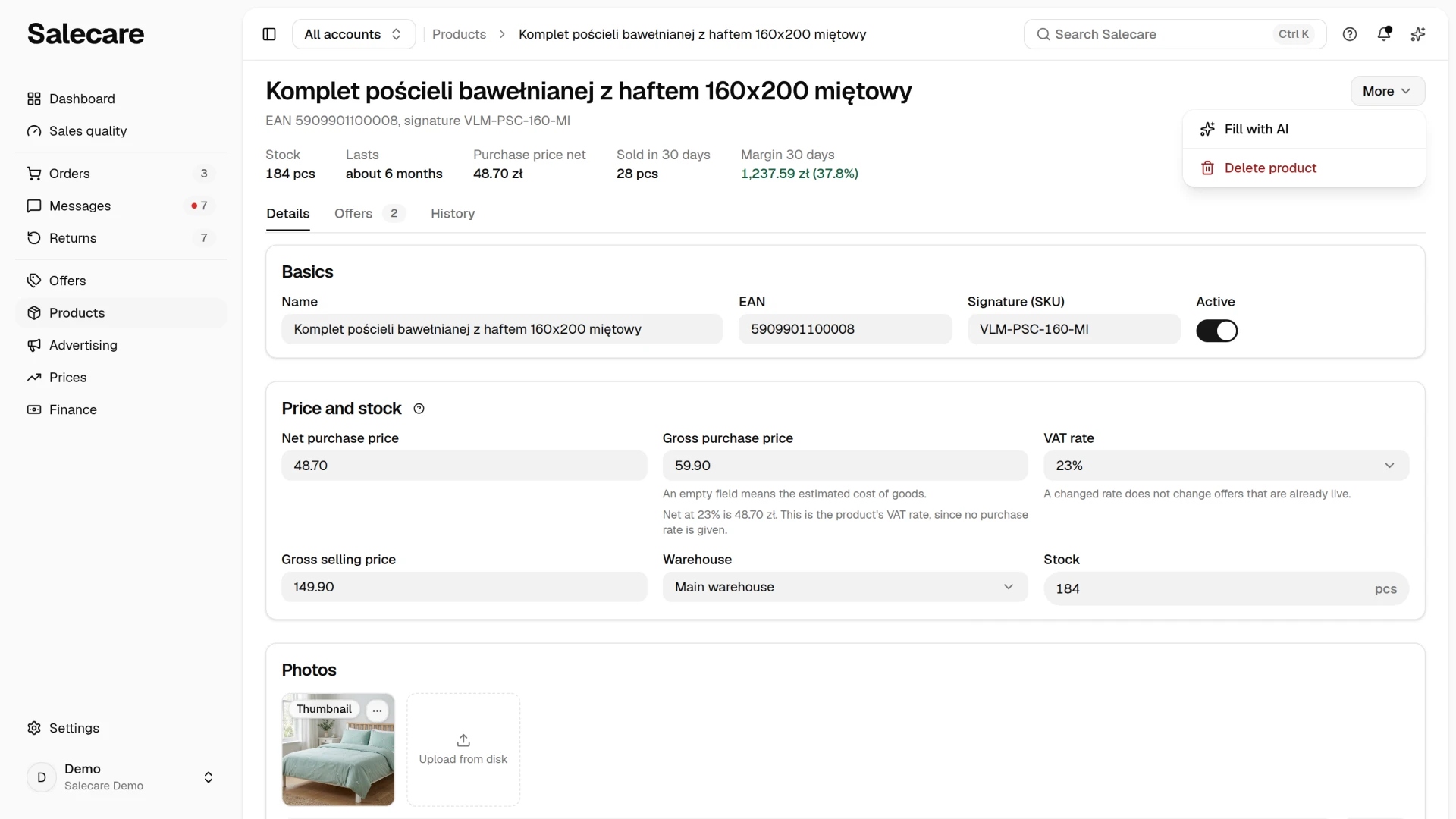
Go to Products and click the product's name. In the card header click "More" and choose "Fill with AI". On the Starter plan this item is switched off, with the name of the plan that unlocks it beside it. While the card has unsaved changes the item is disabled, and its hint asks you to save them first, because the AI fills the saved product. The same item is in the menu at the end of the product's row on the Products list. A fill always covers one product, it is not among the actions for selected products. It works best when the product has a correct EAN code, because that is what the AI uses to look the product up.
Step 2. Pick the fields, choose a mode and add a hint
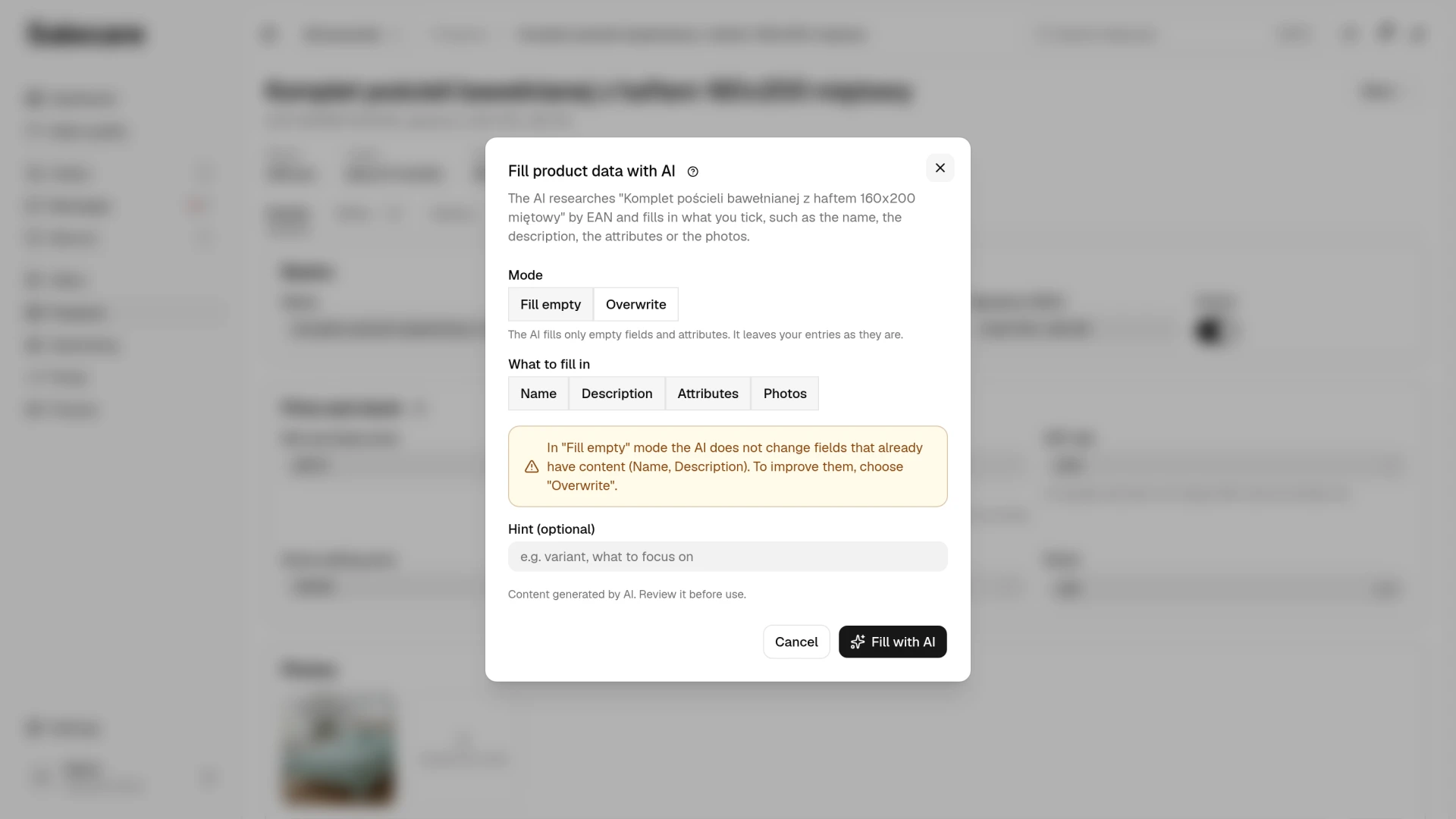
The dialog says plainly what will happen. The AI researches the product by its EAN code and fills in what you tick. Under "What to fill in" you choose the fields yourself, the name, the description, the attributes or the photos, and everything you leave unticked stays as it is. Ticked attributes also cover the category, plus the manufacturer, weight and dimensions in the Description and parameters section.
Then you have two modes to choose from. "Fill empty" writes the category, description, manufacturer, weight and dimensions only where the field is empty, and adds the attributes the product does not have yet. It changes the name only when the name is the bare EAN code the product was added with. Your entries are left untouched, the safe choice to start with. When the ticked name or the ticked description already has content, the dialog warns that the AI will not change it in this mode. When only such fields are ticked, the button that starts the fill is disabled, because the run would change nothing and still cost from the AI wallet.
"Overwrite" lets the AI replace what is already there too, which helps when the data came from a poor file and is better replaced wholesale. The result is saved at once and cannot be undone with one click. The change history keeps the previous description without formatting and only up to 500 characters, and for the attributes only their count, so copy a longer description before you overwrite it. If you have already checked the manufacturer, weight and dimensions, untick the attributes in this mode, because the AI writes its own findings there. The manufacturer on the card helps pick the registered GPSR producer for an offer draft. A product kept up to date by an automatic import needs one more setting, described under What next, or the import brings the file's data back.
The AI never removes or replaces your photos, in either mode. It adds new photos at the end of the gallery, so your first photo stays the thumbnail. An empty gallery it fills from scratch, putting a photo on a white background first when it finds one. It takes photos from the Allegro product catalogue, from your own offers on Allegro and from the manufacturer's website, and in the gallery each of them carries a source badge, "Allegro catalogue", "Allegro listing" or "Web". The AI does not change a price you entered in either mode. When the Gross selling price field is empty and you tick every field, the AI fills it with a market price from existing offers when it finds one. Check it before you generate a draft, because an AI offer draft takes it as the starting point for its price, and the repricer uses it as the maximum price in rules without a maximum margin of their own.
In the Hint field you can specify which variant is meant or what to pay attention to. Finally, click "Fill with AI".
Step 3. Verify the result
The fill runs in a queue and can take a few minutes. Above the form the "AI is filling this product" card appears, with a progress bar and the name of the current stage. Until the fill finishes, the card's fields are read-only, so you cannot save a change that would overwrite the AI's result. You can turn to something else meanwhile, and once it finishes the fields update on their own. When the fill fails, the message "The last fill with AI failed." appears above the form with the reason, for example an empty AI wallet or a monthly spending limit reached, and what to do.
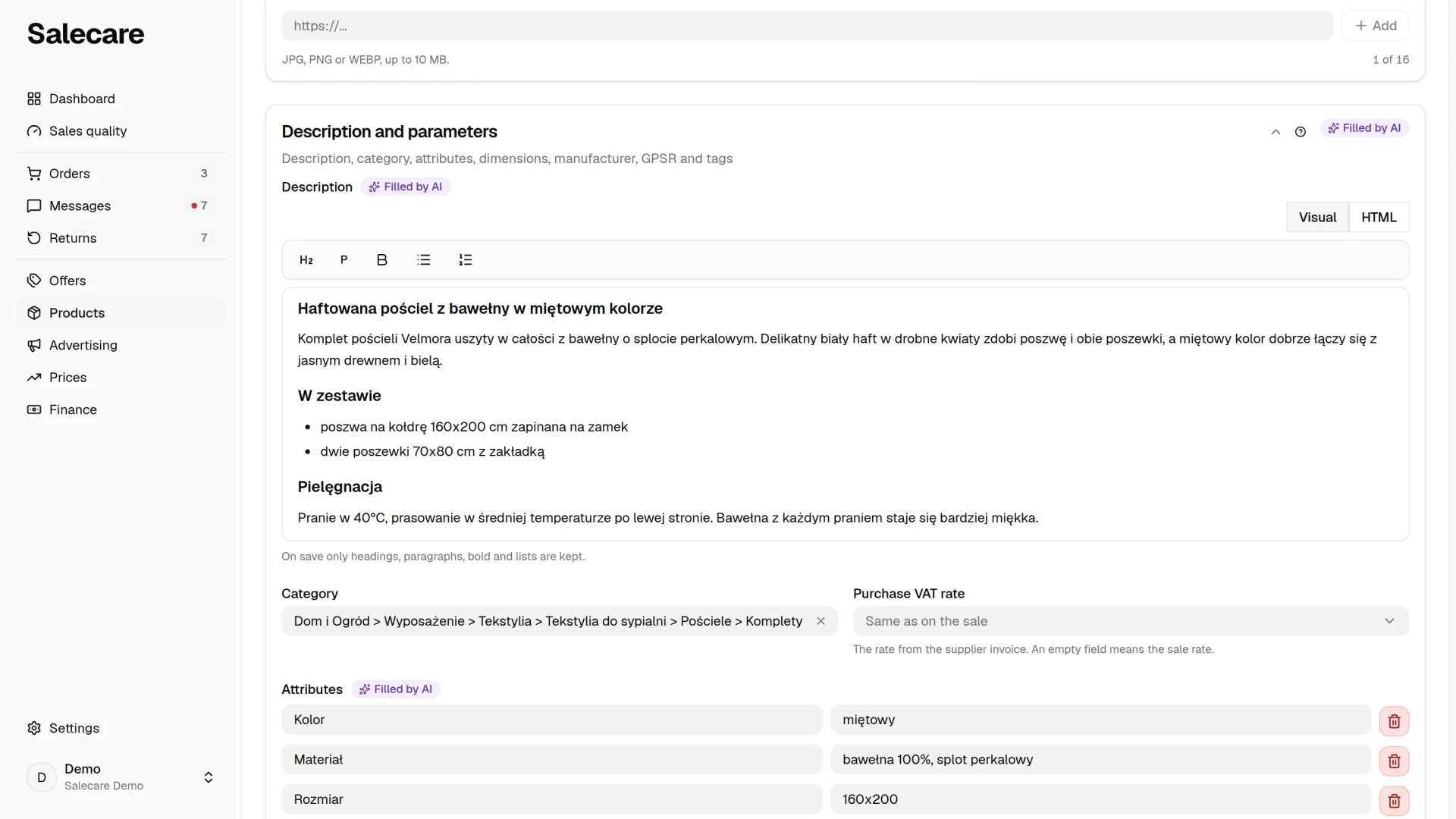
What the AI wrote carries the violet "Filled by AI" badge. For the name, category, manufacturer, weight and dimensions it sits next to the field's label, and for the description and the attributes in the section header. The badge goes once you change the field by hand and save the product, or once an import or a bulk edit changes it. The fill also leaves an entry with the AI badge in the Change history on the History tab of the card. A selling price the AI entered carries no badge, and its history entry shows the "System" channel. Review the description and attributes in particular, because those are what later go into offer drafts. Verify AI-generated content before you use it, just as the dialog reminds you.
If the result does not suit you, correct the fields by hand or run the fill again in "Overwrite" mode, tick only the fields to improve and add a better hint, the series name or the colour, for example. In "Fill empty" mode the AI does not change fields that already have content, including the ones it filled itself earlier.
What next
Once the data is complete, turn to the photos. The guide "How to make a white thumbnail background and Studio AI photos" shows how to get a professional background without a photographer. And if products are only just entering the database from a wholesaler file, set up the automation following the guide "How to set up an automatic wholesaler import". When an automatic import keeps the products up to date, set the Name, Category, Product description and Photos fields in its Columns step to "Fill empty fields" or "Keep existing" under "When the product exists". With "Overwrite", every later run of the import replaces what the AI wrote with the file's data and photos.