How to remove a product photo background
A photo taken on a phone against a shelving unit lowers an offer's click-through rate, and a photo session costs more than many a product. In Salecare you remove the background straight from the product gallery, and you can inspect and touch up the result before anything is saved. A clean background also makes the whole gallery consistent, so the thumbnails look alike.
A photo saved in the product goes to the offers you create from this product. It does not change offers already listed on Allegro. The end of step 3 says how to fix their photos.
Step 1. Open the photo menu and choose "Remove background"
Open the product card and scroll to the Photos section on the Details tab. In the gallery the photos are tiles, and each has a photo menu in its corner. The menu has Set as thumbnail, Move left, Move right, Remove background, Studio AI and Remove. Remove background and Studio AI belong to the Pro plan and up. On a lower plan they stand switched off in the menu, and beside them is the name of the plan that unlocks them. A team member who can only view products sees the photos alone, without the menu. The first photo, with the "Thumbnail" badge in its top left corner, is the thumbnail of the offers created from this product, so it is worth starting there. A photo the AI drew cannot be set as the thumbnail. You add new photos with the Upload from disk tile (JPG, PNG or WEBP, up to 10 MB) or by URL in the field under the tiles. The counter shows how many of the 16 photos are in the gallery. The gallery is saved together with the product. Open the menu of the photo you want to clean up and choose Remove background.
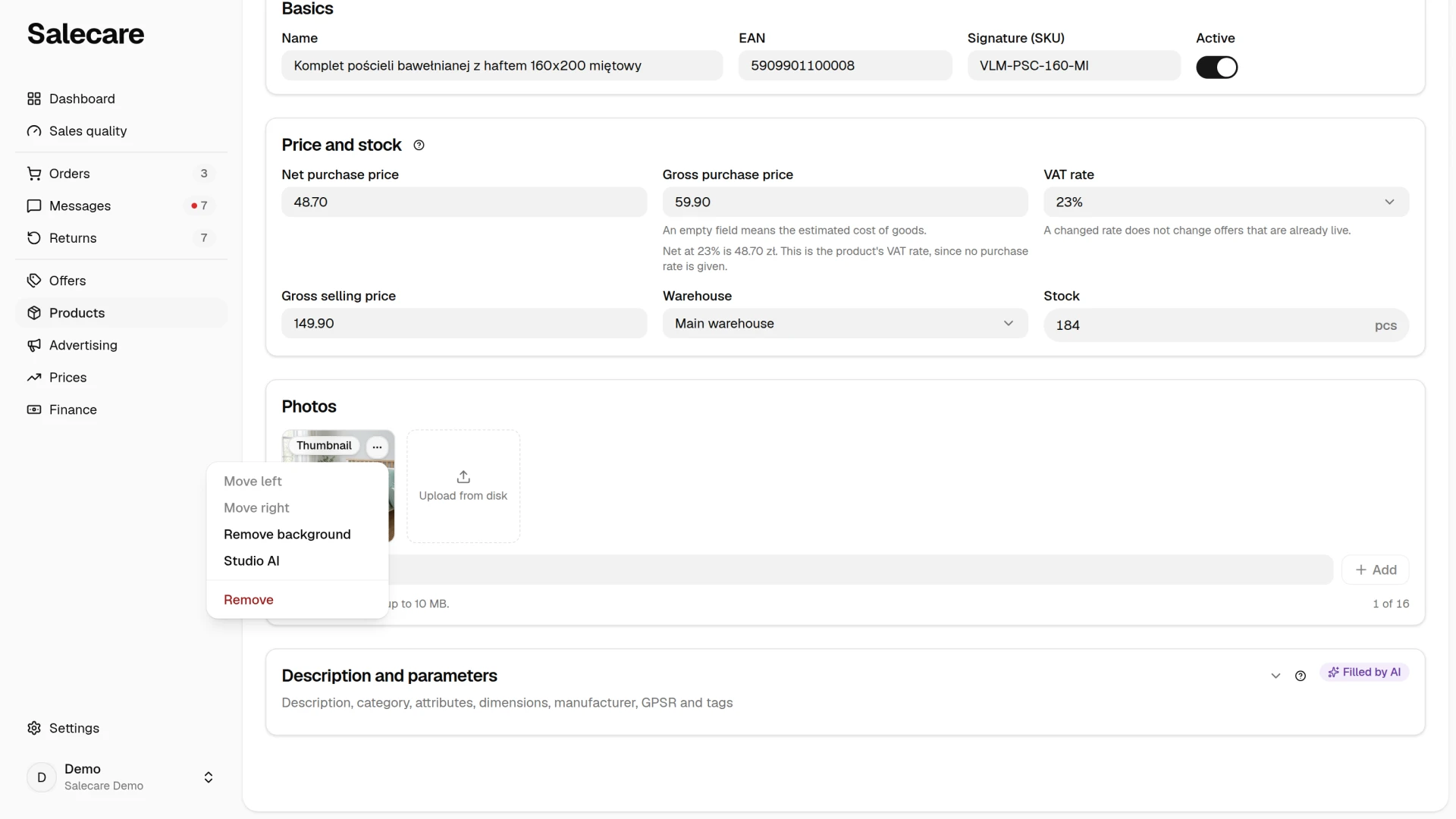
When a photo was added by the address of another site, a wholesaler's or a manufacturer's server for example, your browser has to download it first. When that site's server does not allow it, or the photo is no longer there, the window says the photo could not be downloaded, and nothing comes off the AI wallet. Another try usually ends the same way, so save the photo to your disk, upload it to the gallery from disk and choose Remove background in the menu of the uploaded file.
Step 2. Check the preview and touch it up with the brushes
The app cuts the background out and shows a preview of the cut-out before anything reaches the gallery. If the automation took too much or left a piece of background behind, pick a brush and paint over that spot. The Erase brush removes the object you paint over, and the Restore brush brings back a fragment that was cut out. The brush does not work pixel by pixel. It snaps to the edge of the object under the mark, so when a shelf and the product blend into one, it can take more than you painted. Hold Show original to compare the result with the photo before the cut.
Painted spots are only marked at first. You can mark several spots with both brushes and then click Apply touch-ups. All the marks are sent together. While marks are waiting, the Use on white and Use without background buttons are switched off, because marks you do not apply never reach the photo. Apply them or take them off with the Undo button. Undo takes off the last mark first, and once the touch-ups are applied it goes back to the previous result. Closing the window without a choice leaves the photo in the gallery as it was.
Background removal is charged to the AI wallet. Salecare charges for every successful automatic cut-out, meaning every time the window opens on a photo with a background. You also pay for every applied mark, also when you do not take the result afterwards. Closing the window while it works does not stop the charge, because a cut-out already started finishes on the server. A failed cut-out and a click on Undo itself cost nothing. A person who manages billing sees the balance in the account menu, under the AI wallet entry. You open the account menu through your name at the bottom of the menu, and on a phone that item is in the Account and settings part of the menu the ☰ button in the top left corner opens. On the top bar the balance appears only once it falls to the low balance warning amount or lower, and you set that amount on the wallet page. That person finds every charge in the wallet history on the AI wallet page.
When the AI wallet is empty, the welcome bonus is paused, or the charges for AI actions this month reached the company's monthly spending limit or your personal limit, background removal does not start. A notification on screen gives the reason, and for the automatic cut-out the window says it too. The photo in the gallery then stays as it was and nothing comes off the wallet. The same goes for brush corrections. The balance and the limits are covered in the guide "How the AI wallet and top-ups work".
Step 3. Take the photo on white or without a background
Allegro requires a pure white RGB 255 background on the thumbnail, while the cut-out alone has a transparent one. So the main button is Use on white. Salecare crops the photo to the product, centres it on a square with a pure white background and leaves an even white margin around it, so a product that touched the edge of the original no longer touches it. The edges of the finished photo are measured, and when they are not all white you see a warning that such a photo can be the thumbnail only in an offer Allegro exempts from the white background rule, used goods sold from a regular account for example. Putting it on white uses no model, so it costs nothing. The Use without background button takes the cut-out alone, with a transparent background, which is useful further down the gallery.
The photo takes the original's place in the gallery and is saved with the product, so check the result before saving. On a cut-out with a transparent background the Remove background item of the photo menu changes its label to Touch up the cut-out. Until you leave the page, it opens the window straight on the brushes, without a second cut. Once the page is opened again Salecare no longer knows the original, and a second background removal would only damage the product. The menu item is then switched off and labelled "Background already removed". A photo put on white has no transparency left to touch up, so that menu item is switched off next to it straight away. If an automatic import with a Photos column keeps the product up to date, set that column to "Fill empty fields" or "Keep existing" in the mapping. With "Overwrite", the next run of the import replaces the corrected photos with the ones from the file.
When you cut the background out of a Studio AI photo, the result is still an AI photo, because the pixels the model drew stay in it. It carries the violet "AI-generated" badge, goes to Allegro with the AI label and cannot be the thumbnail.
Saving the product does not change offers already listed on Allegro. You fix the photo of such an offer in the offer editor, which you open from the Offers list. The photo menu in its gallery has the Remove background item too, and saving the offer sends the photos to Allegro. An offer listed from a draft you can also fix in the draft's gallery and then update, as the guide "How to update a live offer from a draft" describes. When there are many offers, turn to the guide "How to edit the photos of many offers at once".
Step 4. Net curtains, lace and other openwork
Cutting out works best with hard, well-defined edges, so bedding, a towel or a tablecloth of solid fabric usually cuts out well. With openwork and translucent things such as net curtains, lace or mesh, the automation has to guess what is background and what is product, and it punches holes in the thin parts. The thumbnail of such goods still has to be a real photo on white. Bring the cut-out parts back with the Restore brush, click Apply touch-ups and then Use on white. You can also upload a photo taken on white in the first place.
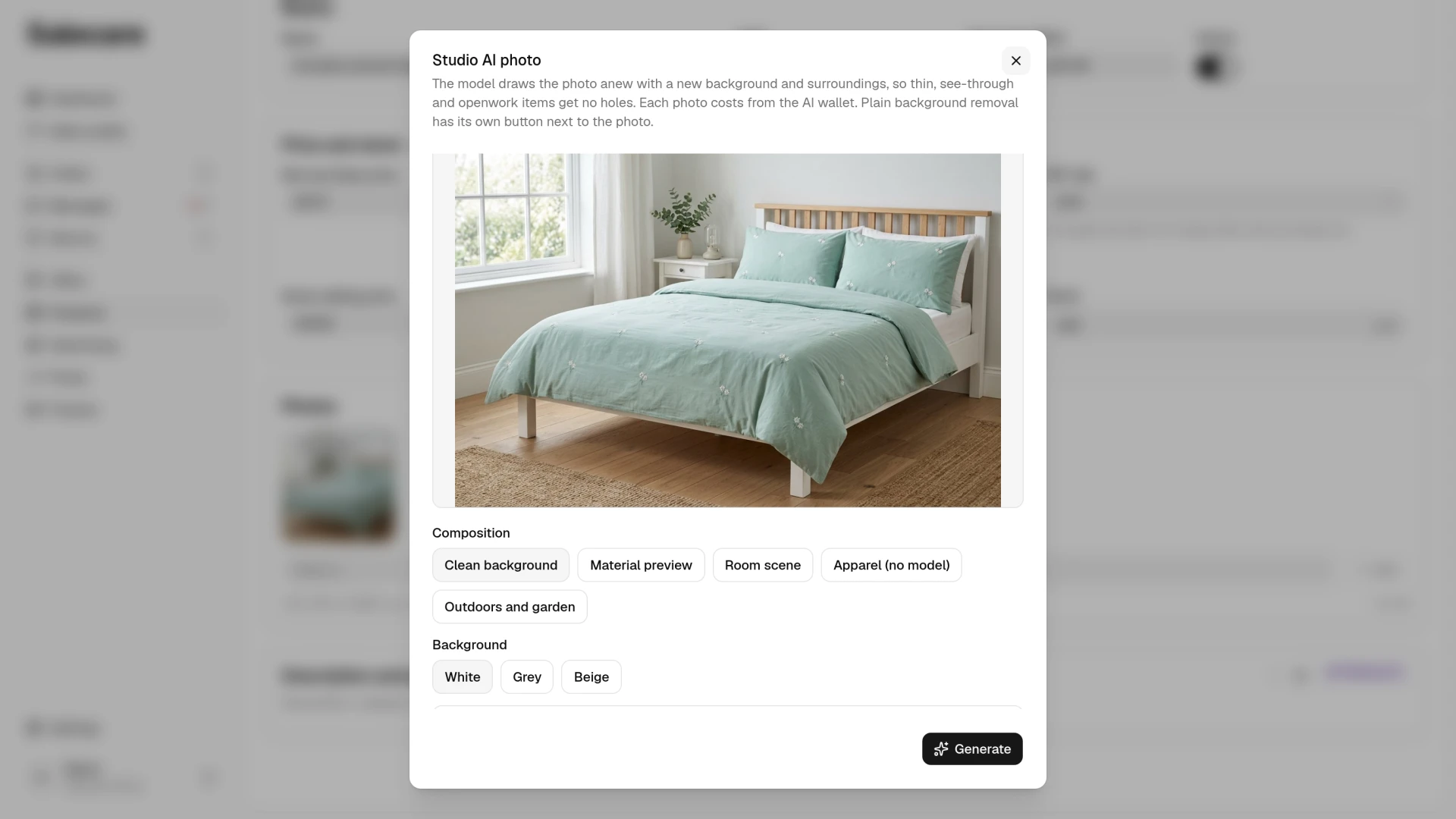
Studio AI from the photo menu gives you extra offer photos, never the thumbnail. It does not cut anything out. It draws the photo anew with a new background, so the product stays whole, without holes. The model draws the whole picture though, the lace pattern or the curtain weave included, so compare the result with the original before you use it. Studio AI is also charged to the AI wallet. Its result goes into the gallery as a new photo, right after the original, and is never the thumbnail, because Allegro puts a watermark on an AI photo.
What next
Studio AI has a guide of its own. Read "How to make a white thumbnail background and Studio AI photos". And once the photos are ready, check whether you are earning as much on them as you think. The guide "Real Allegro margin in 2026, how to set up costs in Salecare" will help.