How to use the AI assistant
Which offers are losing margin, how sales look this month, what lowers the sales quality score of your account. Instead of clicking through reports, you can simply ask. The AI assistant in Salecare knows your company's data, that is your products, orders, margins and discussions with buyers. On a plan with the Competitor analysis feature it also has tools for analysing the Allegro market. It answers wherever you happen to be, without leaving the work in hand.
Step 1. Open the assistant from the top bar
Click the assistant icon in the app's top bar. It works from anywhere. The conversation panel opens next to whatever you are working on. Type a question in your own words or pick one of the suggestions, "Which offers have the lowest margin?", for example. The suggestion about sales compares the last 30 days with the 30 before them. When sales fell it reads "Why did sales drop?", and otherwise "Why did sales grow?". Alongside its answer, the assistant lists the data it used. The assistant gives revenue, costs, margin and profit net or gross the same way as the dashboard and the order page. A company registered for VAT gets them net, and the assistant then says the amounts are net. The exception is the margin in the table of your prices next to competitor prices, which the assistant gives gross. Offer prices and what buyers paid are always gross, because that is how Allegro shows them. A day on which no order has a VAT rate has no net amounts. The assistant then says they are unknown instead of giving zero, and the sales forecast leaves that day out of the average revenue. In the same way a category, an order or an offer with some sales that have no VAT rate has no net amounts, and the assistant says they are unknown. The assistant picks the offers that lose money the same way the dashboard does. For a company registered for VAT the net margin decides, and the gross margin decides when some of the offer's sales have no VAT rate. For such an offer the assistant gives the gross loss and says it is a gross amount.
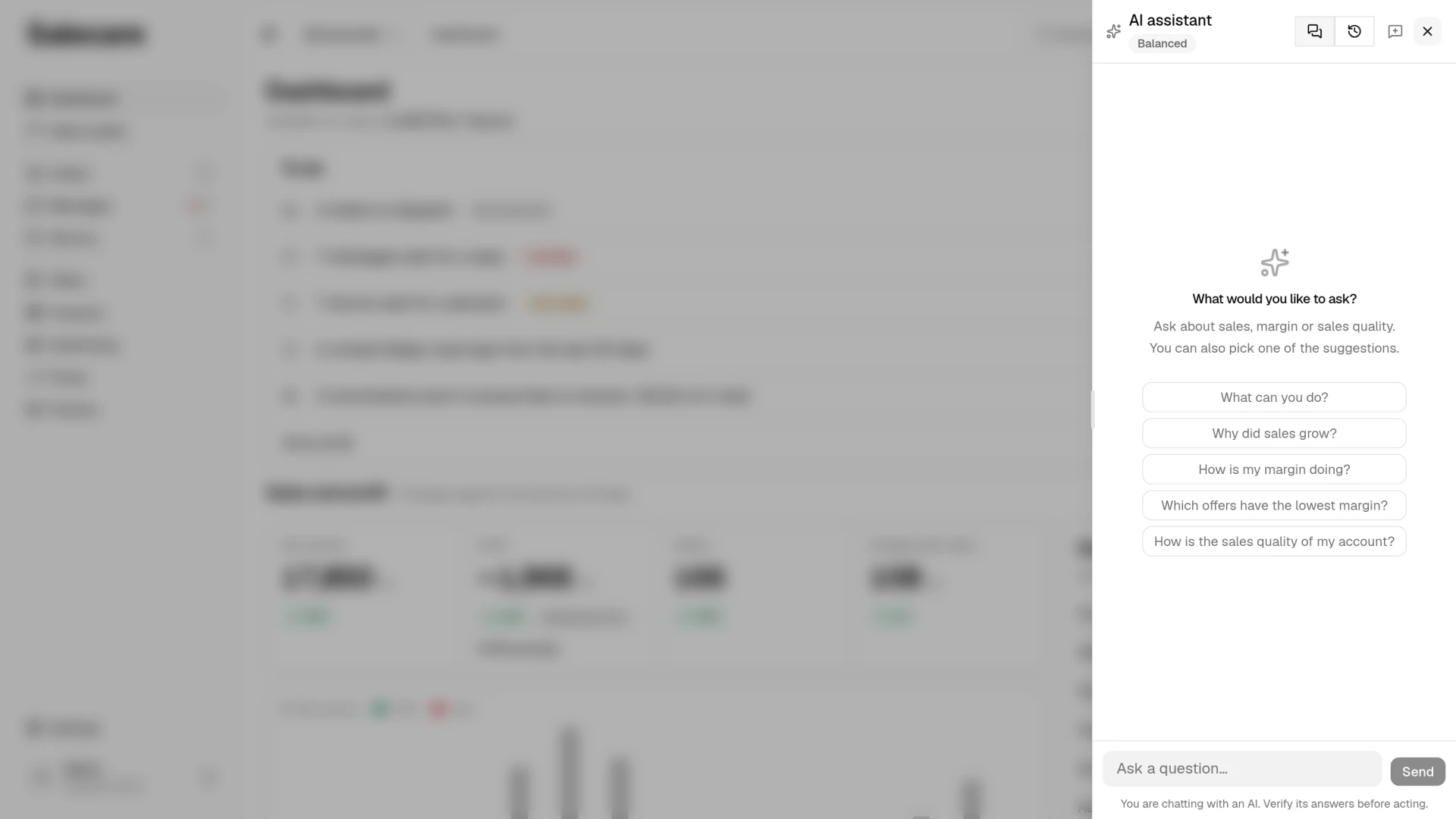
Remember that you are chatting with an AI system. Responses may be inaccurate, so verify the more important conclusions before you act on them.
The figures the assistant gives you cover the same scope as the rest of the app. When you pick one Allegro account in the top bar switcher, sales and margin, their trend, the best offers, the offers losing money, the categories, the sales forecast and the sales quality score are counted for that account alone, and the answer names the account a figure belongs to. Next to each offer on those lists it names that offer's account too. In the consolidated view the figures are combined. You can also ask for one account by its login, or for all of them together, without touching the switcher. The assistant sees every other statistic only for all accounts together and says so plainly, also when one account is picked in the switcher.
The assistant gives an account no risk level. Asked "What lowers my score?", it answers with Allegro's sales quality score, the Super Seller badge conditions and the matters of the To do list on the Score tab, with the same numbers as the Sales quality page. The list belongs to one account, so with several accounts pick one in the switcher at the top. Ask about Allegro fees the way you ask about margin.
Step 2. Come back to saved conversations
Conversations are saved. In the assistant panel switch the view from Conversation to History to see the Recent conversations list. You can continue an earlier thread, start a new conversation with one click, or delete a conversation you no longer need.
Under each answer you see what it cost, meaning what it took from the AI wallet, and under the conversation what the whole conversation has cost so far. Each answer reads the last 20 messages of the conversation, your questions included, and leaves older ones out. Once a conversation reaches that length, the panel says so under the thread. Ask about a new topic in a new conversation then, because an answer in a shorter conversation usually costs less.
Step 3. Match the AI level to the task
You set the AI level of each task ("Economy", "Balanced" or "Accurate") on the AI wallet page in the AI quality row, described in the guide "How the AI wallet and top-ups work".
Step 4. Ask the assistant to change something
The assistant mostly reads, but three things it can change, and it says so plainly each time.
An offer's price it only proposes. Ask for a cut or a rise and you get a card with the price before and after, and the change happens only when you click Apply price. The card is valid for 5 minutes. If the offer's price changes in that time, for example because the repricer changed it, Apply price refuses and you ask the assistant for a new proposal. A single change never exceeds 20 percent of the current price. The card appears only when the change can be applied, that is on a plan with the Salecare repricer feature, for an offer listed on Allegro that is not sold to business buyers only and takes part in no Allegro campaign that sets its price. Salecare reads the offers' campaigns every hour. An offer whose campaigns could not be read in the last 6 hours, one listed a moment ago for example, gets no card either, because the repricer does not change its price in that situation. In every other case the assistant gives the reason instead of a card.
An offer with a repricer rule gets a price no lower than the rule's minimum price and no higher than its maximum price. Neither the price you ask for nor the price after that bound may be more than 20 percent away from the current price. When the rule's minimum price is higher than its maximum price, after a rise in the purchase cost for example, the assistant proposes no price and asks you to fix the rule in the repricer. Applying turns the offer's rule off so the repricer does not change the price back. You can turn it on at any time on the Prices page, with Turn on in the menu at the offer's row.
An offer without a repricer rule gets a price no lower than the price at which a sale still covers the purchase cost, delivery, operating costs and the Allegro commission. So such an offer has to be matched to a product with a known purchase cost, and the delivery cost has to be known. Here too, neither the price you ask for nor the price after that bound may be more than 20 percent away from the current price. Nothing is turned off, and the price stays until you change it. The change appears on the Change history page, where you can undo it with one click for 7 days.
A repricer rule it turns off and on at once. Ask it to turn off the repricer rule of an offer and it turns it off. The price on Allegro stays as it is. A rule that is turned off stops changing it, and a rule in the "Allegro automation" mode also takes the offer out of Allegro's price automation. Turning a rule on takes one sentence too. A rule in the "Allegro automation" mode then puts the offer back into Allegro's price automation within a few minutes. If the number of active Salecare repricer rules is limited, turning one on takes one of the available slots. When they are all taken, the assistant does not turn the rule on. It gives the limit and suggests turning another rule off or changing your plan.
A return decision it records in Salecare. Ask it to note an accept or a reject together with the reason. The assistant sends nothing to Allegro, so finish the refund or the rejection in the Allegro panel, within the deadline that applies to that return. A return Allegro has already closed the assistant does not change, and it says why. If the Allegro account has Send return decisions to Allegro switched on, accepting refunds the buyer, so the assistant refuses and sends you to the Returns page. It does not record a rejection with the "No right of return" reason either. That reason needs your confirmation that the buyer has no right to withdraw from the contract, so you record it on the Returns page. Ask the assistant about the page itself and it points to the Returns page and the Decision hints page in Settings, and describes the To decide, Awaiting the parcel and All views.
Each of these needs the permission for that area. A price proposal needs Offers (manage) and Margins and purchase prices (view). Turning a rule off and on needs Repricing (manage), and a return decision needs Returns (manage). A teammate without the permission never sees that option in the assistant. Applying a price turns the offer's repricer rule off even when the person who clicked may only look at the repricer.
The assistant makes no changes in the same answer in which it has read text written outside your company, that is a buyer message or a competitor listing. Text like that can carry an instruction that did not come from you, so ask for the change in a new message and the assistant makes it.
What next
Every assistant action reduces the AI wallet balance. With an empty wallet the assistant does not answer, and the chat window shows a Top up the AI wallet link under the message. The same happens when the welcome bonus in the wallet is paused until the end of the day, because the AI use across all of Salecare passed its daily limit. A top-up lifts that at once. When the charges for AI actions this month reach the monthly spending limit set in the AI wallet, the assistant does not answer either, and a Change the limit in the AI wallet link leads to that setting. Both links show for a person with the Billing & subscription permission. A teammate without it reads instead that a person who manages billing tops up the wallet or changes the limit. If that person set a personal monthly AI spending limit for you, the assistant does not answer once you reach it either. You can ask again from the 1st of next month, or after that person raises the limit. See the guide "How the AI wallet and top-ups work". And if you want the AI to help with customer service too, read "How to automate Allegro messages and discussions".