How to add a team and permissions
Allegro sales are rarely watched over by one person. Someone replies to buyers, someone else handles offers and prices, and you would rather keep the Salecare plan and the invoice details to yourself. In Salecare you invite people to the team by email, and permission sets decide which modules each of them sees and can change.
Step 1. Open the Team page
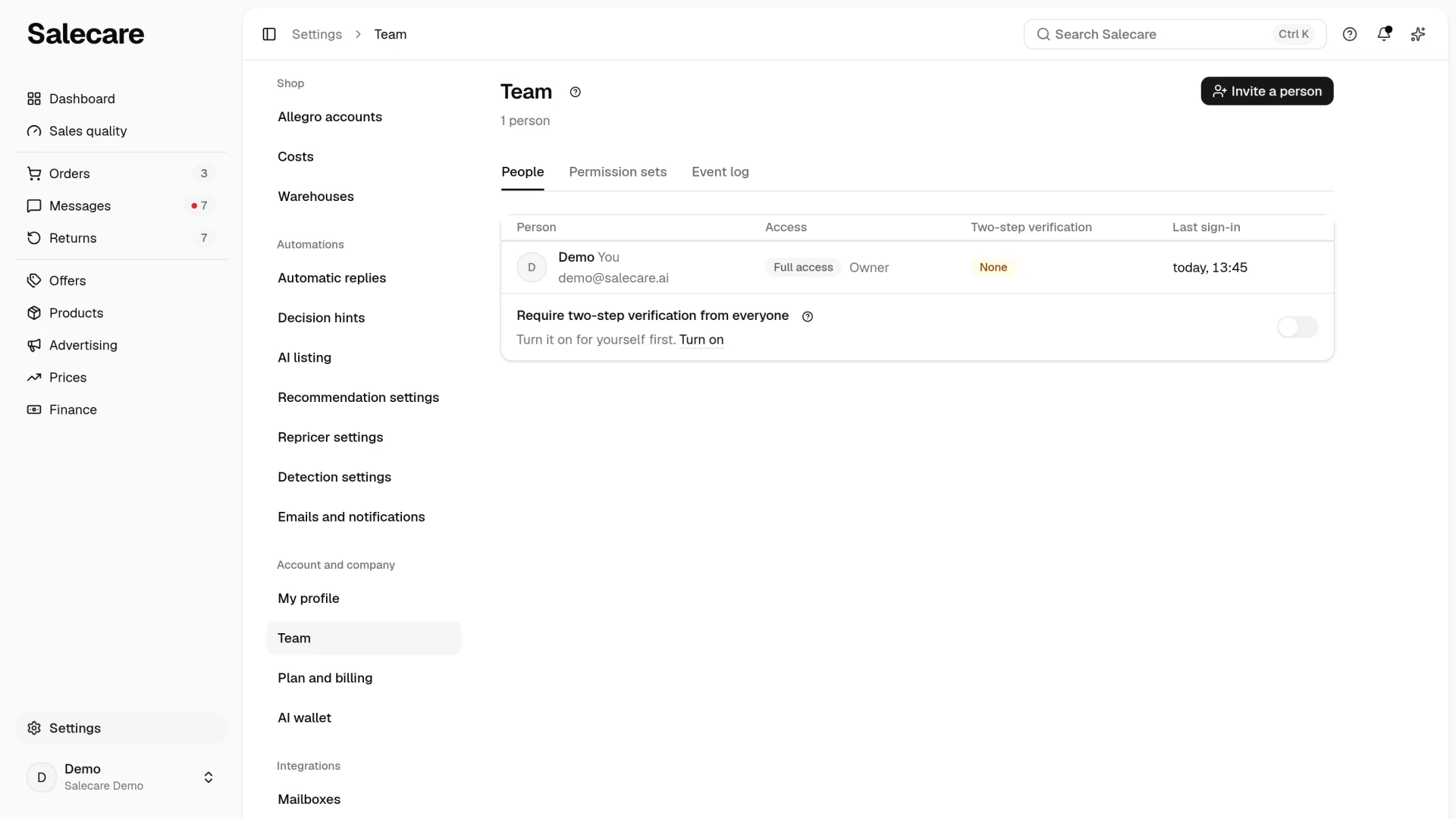
Go to Settings and choose Team in the Account and company group. A person with the Team permission but without Billing & subscription also has the Team entry in the account menu, which you open by clicking your profile at the bottom of the side menu. Under the title the page says how many people are in the team and how many invitations are waiting. Below are the People, Permission sets and Event log tabs. The People and Permission sets tabs are open to a person with the Team permission, and Event log to a person with the Company & invoice details and Audit log permissions. The page does not show a tab you have no permission for.
The People tab lists the people with access to your company and the pending invitations in one table. For each person you see the name, the email address, the access, two-step verification and the last sign-in. The Access column shows a "Full access" badge for the Owner and Administrators, and the name of the permission set for everyone else. With several sets it shows the first one and how many more there are. A person with no set at all has a "No access" badge and sees no module after signing in. The Two-step verification column shows "On" or a "None" badge, so accounts protected by a password alone stand out at once. The Last sign-in column shows when that person last opened the account. A visit by Salecare support to that person's account does not change this date. When the person has not signed in for the last 12 months, the column shows a dash, because that is how long Salecare keeps security events. That column is visible to people with the Audit log permission. To start with, only your own account is in the table, marked "You".
The menu next to a person holds Change access, Transfer ownership and Remove from the team. Only the Owner sees Transfer ownership. Once confirmed, that person becomes the Owner and you become an Administrator. Removing a person from the team, also after a confirmation, deletes their account and takes away their access to the company. Your own row has no menu, and neither does the row of a person whose role holds permissions beyond yours.
Step 2. Invite a person
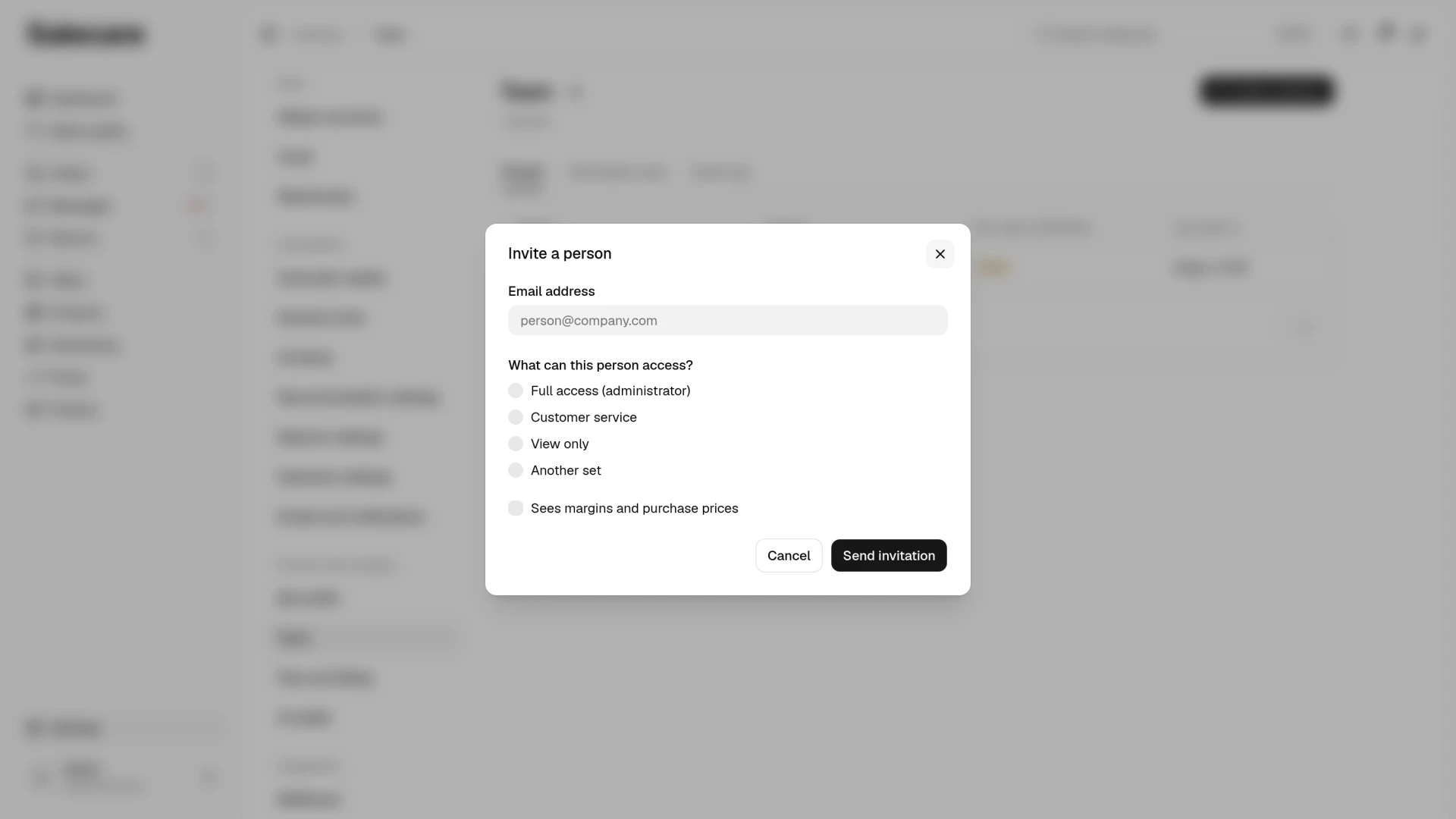
Click Invite a person in the top right corner of the page and enter the email address. In the same dialog you answer What can this person access?. The choices are "Full access (administrator)", "Customer service", "View only" and "Another set". The Another set list holds the other ready-made sets, which are "Warehouse and shipping", "Offers and prices" and "Accounting", then the sets made in your company, and "Custom set" at the end. The "Custom set" option opens the panel for a new set. Once you save the set, you come back to the dialog with that set already picked.
An Administrator has the same access as the Owner but cannot delete the company, cancel a requested deletion or transfer its ownership to someone else. Only a person who holds every permission of the Administrator role can give it, usually the Owner or another Administrator. The dialog shows only what you can give. A person whose set grants the Team permission but not every permission of an Administrator sees neither the "Full access (administrator)" option nor sets with permissions they do not hold themselves.
The Sees margins and purchase prices box is ticked and locked when the chosen set already shows margins. That is the case for the "Full access", "Offers and prices", "Accounting" and "View only" sets and every own set holding that permission. With the other sets, ticking the box adds a separate "Margins and purchase prices" set for the person. A ready-made set becomes a set of your company the first time it is picked, in an invitation or in the Change access dialog.
The person invited will get a message with a link to join, which works for 7 days. Until then the invitation stands in the table under the people, with an envelope icon and the date until which the link works. In the invitation's menu, Send again sends a new link valid for another 7 days and the previous one stops working. Revoke, once confirmed, switches the link off at once. An invitation nobody accepts within 7 days drops off the list, and you have to send a new one. Once the person joins, they appear in the table with the access chosen in the invitation. An invitation stops working when the person who sent it is no longer in the team or can no longer give the chosen role. Salecare then revokes it when the invitee tries to accept it, and the invitee is asked to request a new invitation. Send the invitation to an address that does not have a Salecare account yet, because one account belongs to one company. When the address already has one, the invitation dialog says so straight away and the invitation is not sent. Until the company pays for a plan, it sends at most 5 invitations within 24 hours, resent ones included, and creates at most 10 invitations in total, revoked and expired ones included. These limits also apply after the trial ends, until the first paid period of a plan begins.
You give a person a set on the People tab, in the Invite a person or Change access dialog. Change access in the menu next to a person opens the same dialog with their current access and changes the role and the set in one save. For a person who holds several sets today, the dialog picks the first one and lists them all, and saving keeps only the one chosen. Nothing changes until you click Save.
Step 3. Set up permission sets
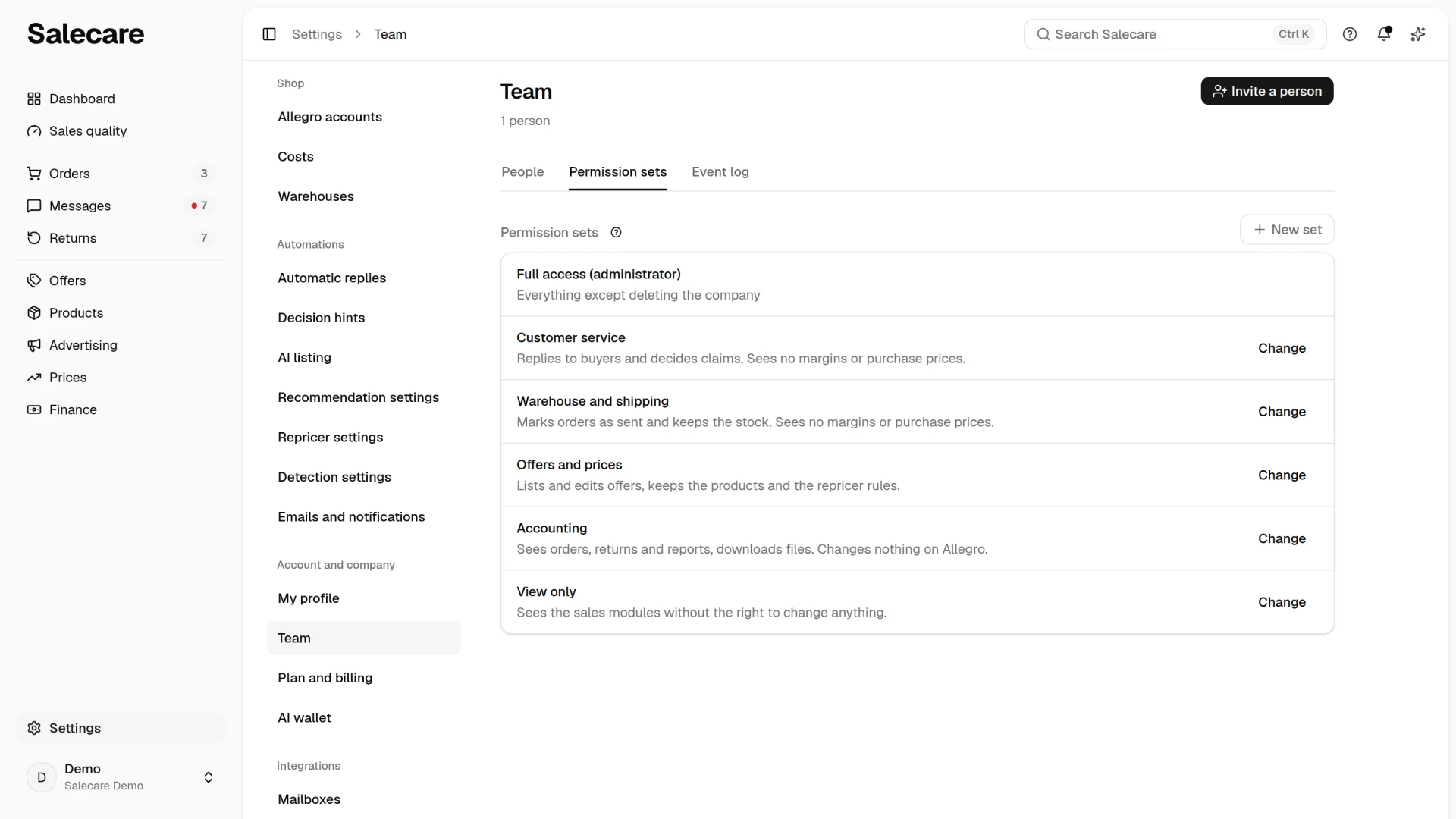
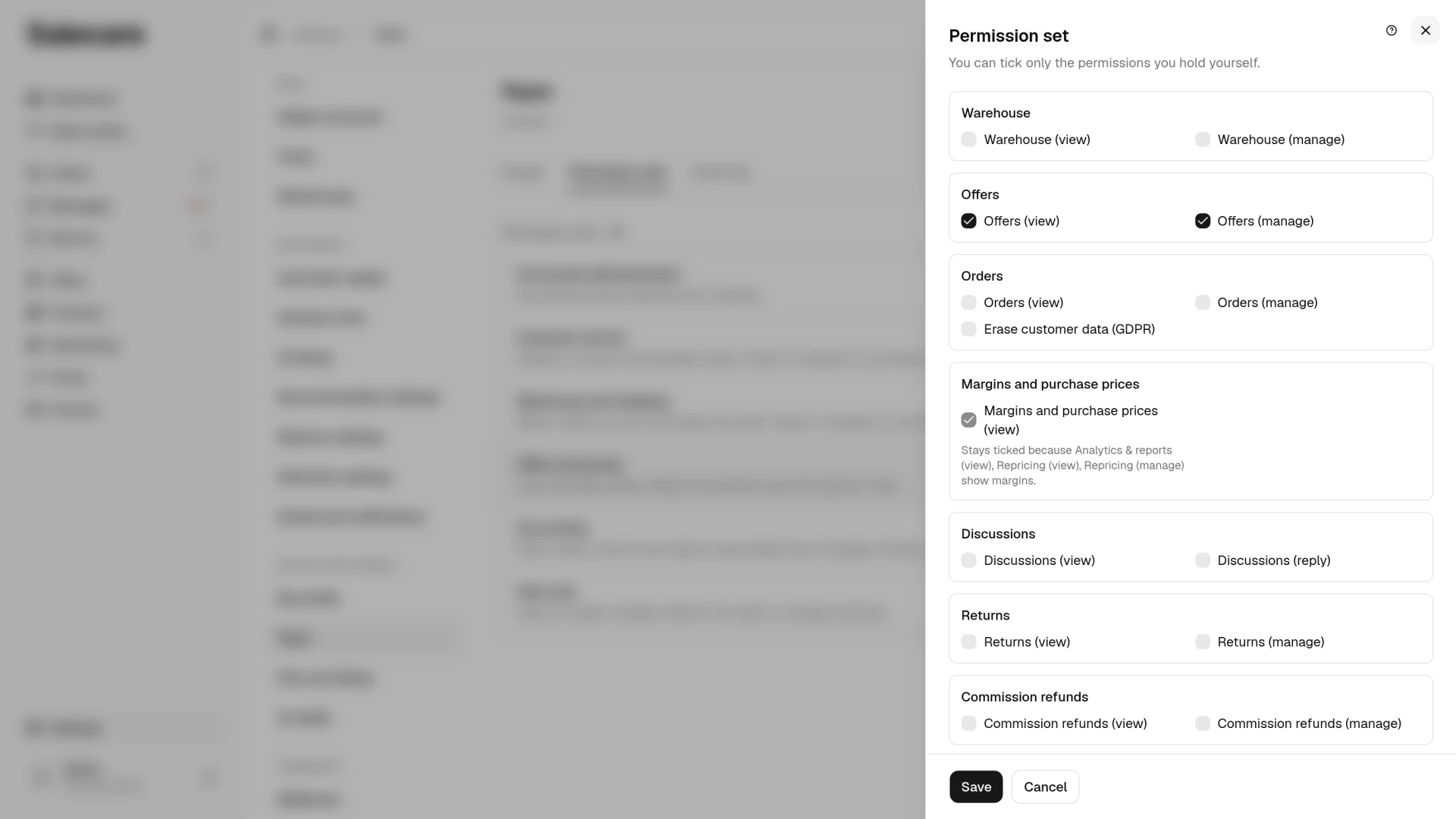
The Permission sets tab lists "Full access" (everything except deleting the company), five ready-made sets and the sets made in your company, each with how many people hold it. The New set and Change buttons open the Permission set panel with the name, the description and the permissions by module. You can tick only the permissions you hold yourself. A ready-made set keeps its name and description, and its first save creates it in your company. Delete an own set from its menu, and the people with that set lose its permissions.
The ready-made sets are "Customer service", "Warehouse and shipping", "Offers and prices", "Accounting" and "View only". No ready-made set grants refunds for returned goods, plan changes, team management, bulk deleting products, erasing customer data or deleting Allegro accounts. The "Customer service" set does decide claims on Allegro, including the refund amount for the buyer, because it grants Discussions (reply). Three ready-made sets can delete data as well. The "Offers and prices" set deletes single products, including ending their offers on Allegro, as well as offer drafts, repricer rules, automatic imports and mapping templates. The "Warehouse and shipping" set deletes warehouses other than the default one together with their stock, and the offers then get the stock of the remaining warehouses or 0. The "Accounting" set deletes files from the Downloads panel.
A person with a set sees and changes only the modules the set allows. The Downloads permission lets a person prepare and download data files. Permissions apply to all of the company's Allegro accounts at once, so you cannot limit a person to one account. Margins and purchase prices come with a separate permission, Margins and purchase prices (view). Without it, the Orders (view) permission shows the orders without their margin, purchase cost and cost breakdown. Products (view) then shows the products without the purchase price and margin, and Offers (view) shows the offers without their margin. The Allegro fees and returns of an order stay visible. In the preview of a bulk offer edit or a bulk price adjustment such a person does not see how many offers drop below their minimum price, and the offer history shows them a repricer price change without the competing offer and without the reason. Such a person publishes, schedules and updates offers from drafts at the price they type, without a check against the cost. When an offer goes on Allegro at a price that does not cover the purchase cost and the commission, Salecare notifies the owner and the people with that permission, and not them. Such a person cannot order reports with a margin, a purchase price or a minimum price in the Downloads panel. The AI Assistant does not give them those amounts nor propose an offer price. The Emails and notifications page does not show them the Offers at the minimum price, Orders below cost, Offers with a low margin and Competitor report (PDF) topics, and they get no emails of these topics, even when they are on the list of recipients. The copy of the company data they download on the Plan and billing page leaves out margins and purchase prices. The permissions of the Repricing, Advertising and Analytics modules are worked out from the margin, so a set with any of them also has Margins and purchase prices (view). The Permission set panel then ticks it for you and says why. The "Warehouse and shipping" and "Customer service" ready-made sets leave it out, the other ready-made sets grant it. Sets created before this permission existed have it ticked, so their people see the same as before. Every ready-made set except "Offers and prices" grants Orders (view), and every one except "Accounting" grants Products (view). The Analytics & reports (view) permission opens, among others, the Payouts and Profit & loss statement pages. The "Offers and prices", "Accounting" and "View only" ready-made sets grant it. The Plan and billing and AI wallet pages are visible only to people with the Billing & subscription permission, and the company data on the Plan and billing page also to people with the Company & invoice details permission. No ready-made set grants these permissions or the Team permission. Sets do not apply to Administrators and the Owner. Both see everything, and only the Owner can delete the company, cancel a requested deletion or transfer its ownership.
The Integrations (accounts, API tokens) permission opens the list of Allegro accounts and is enough to connect an account and reconnect it. Changing a setting of an Allegro account takes two permissions. Integrations (accounts, API tokens) opens the Allegro account settings, and the permission of the module a row drives lets you change it. The Allegro account settings show only the rows the person may change, and a person with only the Integrations permission is taken back to the Allegro accounts list. A person with only the module permission, Returns (manage) for example, cannot open the Allegro account settings. The rows of the Listing and the Stock and relisting groups need Offers (manage). In the Customer service group the messages row needs Discussions (reply). The returns rows need Returns (manage), the Return decisions sent to Allegro row included, which refunds the buyer when a return is accepted. The After the sale group needs Orders (manage), because the cancellation block changes the fulfilment status of paid orders. Its Commission refund claims row is shown only to someone who also holds Commission refunds (manage).
This way an employee who only has to reconnect the shop after a password change cannot switch on refunds or the relisting of ended offers. The Integrations (accounts, API tokens) permission alone does let them disconnect an Allegro account, bring back an account over the plan limit in place of another account, create and delete API tokens, and connect and disconnect the Salecare Ads extension and mailboxes. A disconnected account stops fetching orders, and Salecare does not update the stock or prices of its offers until someone reconnects it. Permanently deleting an Allegro account takes the separate Delete Allegro accounts permission.
A set carries only the permissions held by the person who saves it, and only such a set can be given to someone. So an Administrator passes the right to delete the company on neither through a new set nor by giving someone a set the Owner built. Roles work the same way. The Team permission in a set lets you invite people and change their access, but without every permission of an Administrator you cannot give that role, take it away or remove an Administrator from the team. An Administrator cannot change the Owner's role or remove the Owner from the team either.
Step 4. Require two-step verification from the whole team
On the People tab, under the table, the Require two-step verification from everyone row has a switch. You can switch it on only once two-step verification is on for your own login, otherwise this page would be locked for you too. Until then the row says "Turn it on for yourself first." and its Turn on link opens the Two-step verification page. The switch saves at once, and the Undo button in the notification puts the previous setting back. The row says how many people in the team do not have it yet. On the next page each of them opens in Salecare they land on the Two-step verification page and see only that page until they turn it on. The same goes for a new person in the team and for anyone who turns it off. The Two-step verification column of the table shows who. The requirement applies to signing in to Salecare. API tokens and the Salecare Ads extension connections keep working. Switching the requirement on and off goes to the Event log.
Event log
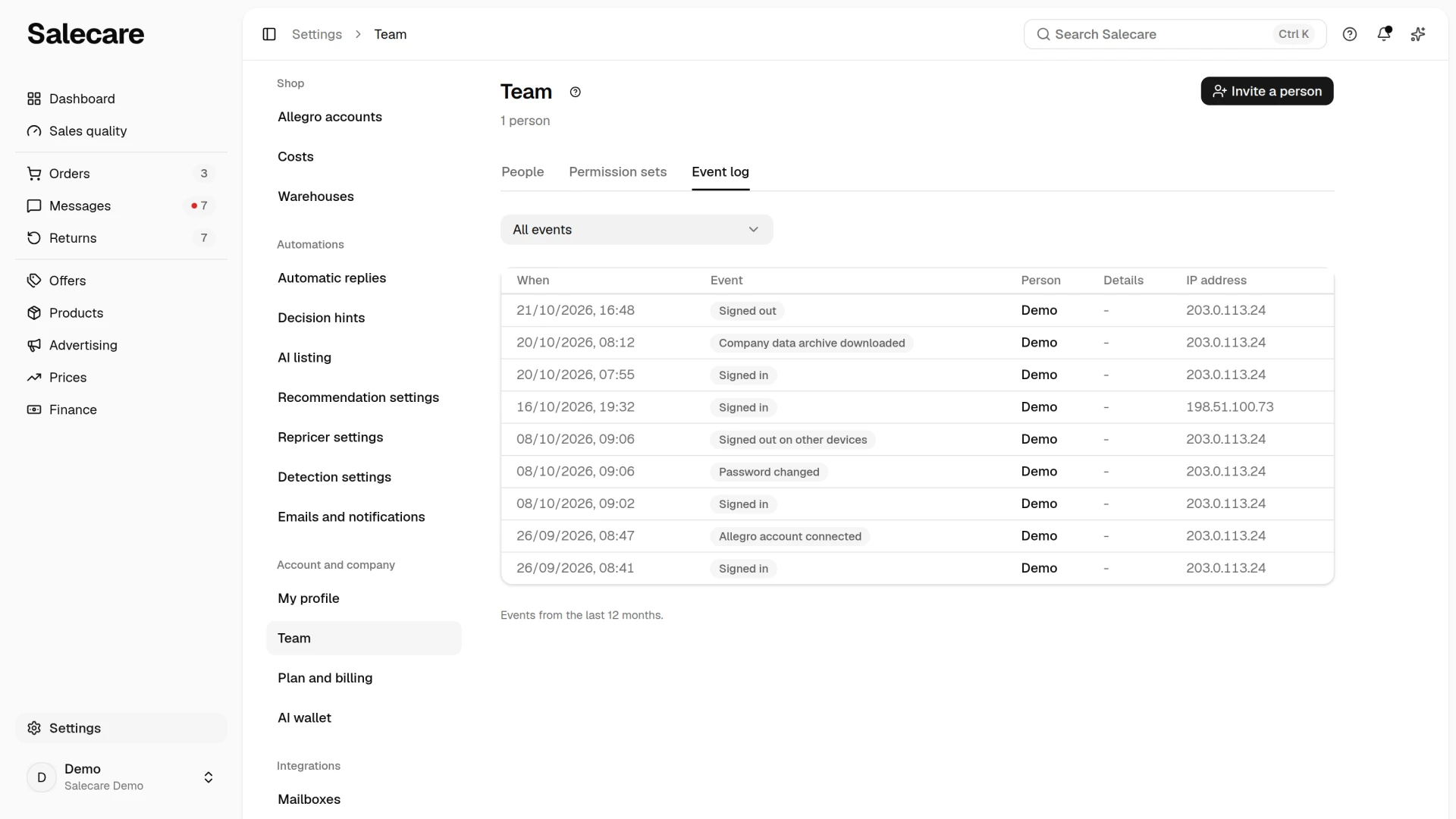
The Event log tab of the Team page lists the team's sign-ins and security changes from the last 12 months. Each event shows when it happened, what it was, who performed it ("Salecare support" when support was working inside the account), the details, meaning the Allegro account login, and the IP address. A visit by Salecare support to the account is not logged as a sign-in or a sign-out. Changes support made inside the account are logged, marked "Salecare support". The list holds what people did, without the work that runs in the background, newest first. Narrow the list to one event type, sign-ins or password and two-step verification changes for example. The Show older button loads the next 50 events. A password set through the e-mailed link, including the first password of a Google, Microsoft or Apple login, is logged as a password change. The tab is open to a person who holds both Company & invoice details and Audit log. Without the Team permission, Settings open the Team page for them straight on this tab.
Remove your own access to Salecare
On the My profile page the folded Remove my access to Salecare section deletes only your login. The company, its data, its Allegro accounts and its subscription stay. You are then signed out, and your API tokens and the Salecare Ads extension connection stop working.
The company's only Owner cannot delete just their login, because the company would carry on without anyone who can manage it. Instead of the delete button they see two ways out. Transfer ownership opens the Team page, where you hand the company to another person and can then remove your access like anyone else. Delete company opens the same window as on the Plan and billing page, where you confirm the deletion with the company name and your password. The sentence above the buttons says that together with the company Salecare permanently deletes all its data, including the Allegro accounts connected in Salecare with their offers and orders, the products, the settings and the access of every person in the team, yours too. The accounts, offers and orders on Allegro itself stay. On a paid plan Salecare keeps working until the end of the paid period, unless you choose "Stop at once". From the day Salecare stops working you have 30 days to download the data and 90 days to take the deletion back. The guide "How to export data to files" says more about these deadlines.
Once the deletion is requested, the section shows the day the company is permanently deleted and an Open Plan and billing button instead of the two buttons, because the deletion is taken back on that page. An account locked for non-payment has no Delete company button, only Transfer ownership.
What next
Now that more people sign in to the company, take care of the security of every account. See the guide "How to turn on two-step verification". And if the team is to reply to buyers faster, read "How to automate Allegro messages and discussions".