How to turn on two-step verification
Your Salecare account shows your orders, your buyers' details and your settlements, and on top of that it can change your prices and offers on Allegro and reply to your buyers, so a password alone is not enough. Two-step verification adds a second safeguard, a one-time code from an app on your phone. Even if your password leaks, nobody will sign in to your account without your phone. It is the simplest way to protect your account better, and turning it on takes two minutes.
Step 1. Open the Two-step verification page
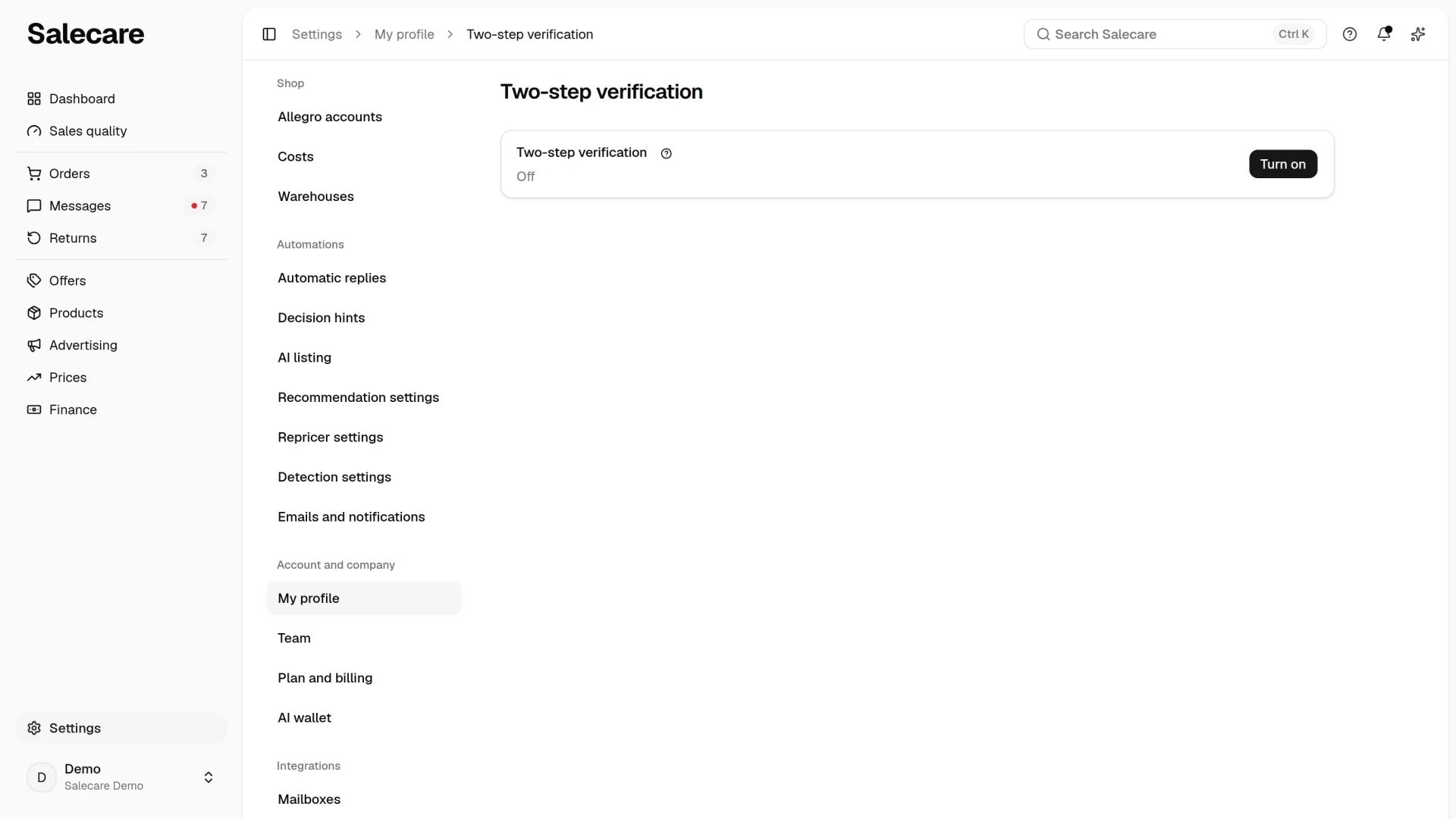
Click your profile at the bottom of the side menu to open the account menu, and choose My profile. In the Sign-in group, the Two-step verification row shows whether it is "On" or "Off". Click Turn on in that row, or Manage once it is already on. Both buttons open the Two-step verification page. The app will first ask you to confirm your password. That is a deliberate safeguard on this page. Once it is on, you will enter the 6-digit code from the authenticator app on your phone at every sign-in.
Step 2. Scan the QR code with an authenticator app
On the Two-step verification page click Turn on. Salecare will display a QR code, which you scan with an authenticator app such as Google Authenticator, Microsoft Authenticator or 1Password. The app will start generating one-time codes for Salecare. Click Continue, enter the 6-digit code from the app and click Confirm. Only then is two-step verification on. If you close the dialog halfway and stay on this page, the row shows "Setup not finished", and the Finish setup button opens the dialog again with the same QR code. Once you leave the page or refresh it, the unfinished setup is dropped and the row shows the Turn on button again. Then click Turn on again, scan the new QR code and delete the old Salecare entry from your phone, because its codes will not work.
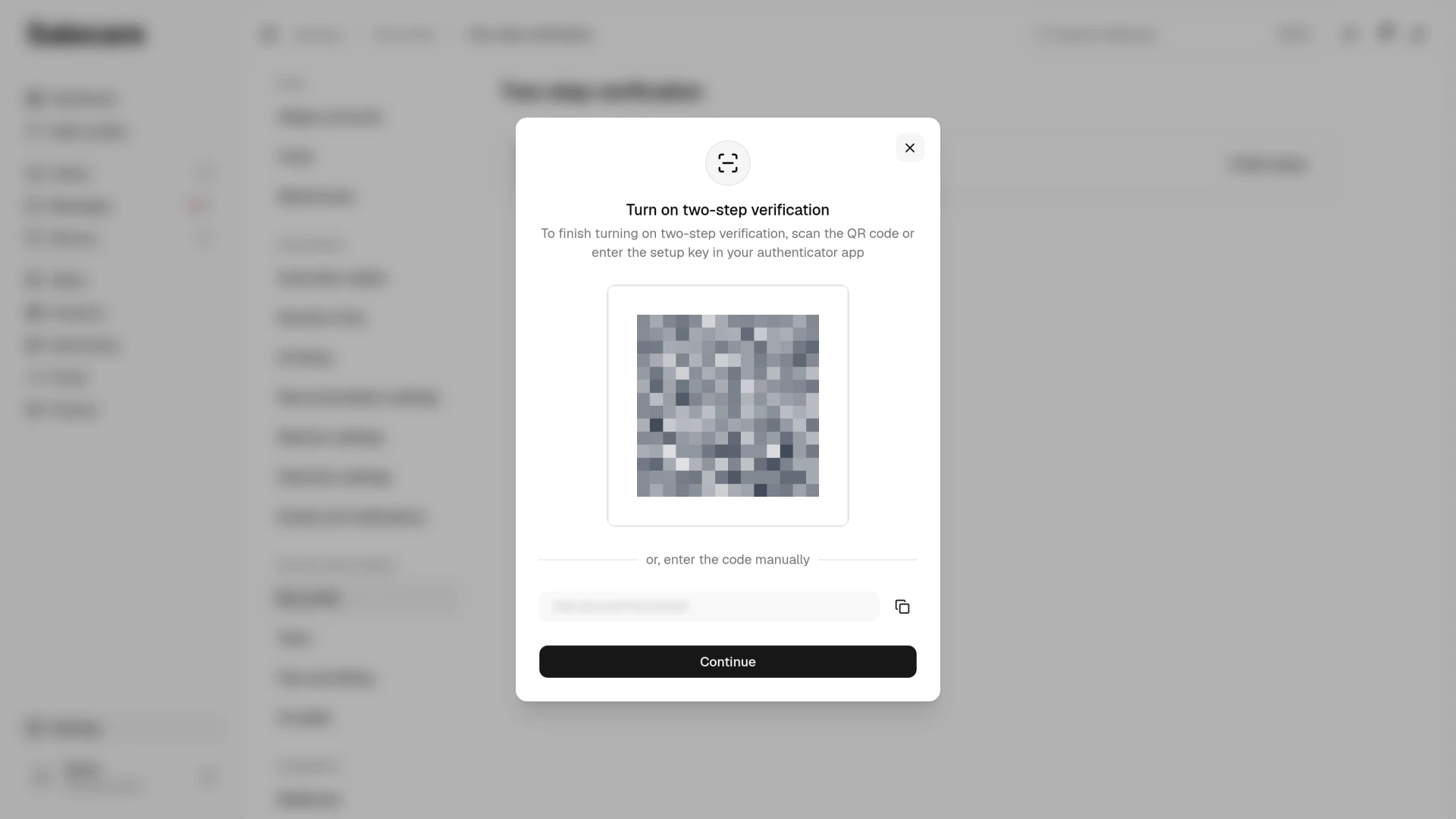
If your phone does not read the QR code, type in the key shown below it. The app accepts it just the same.
Step 3. Save your recovery codes
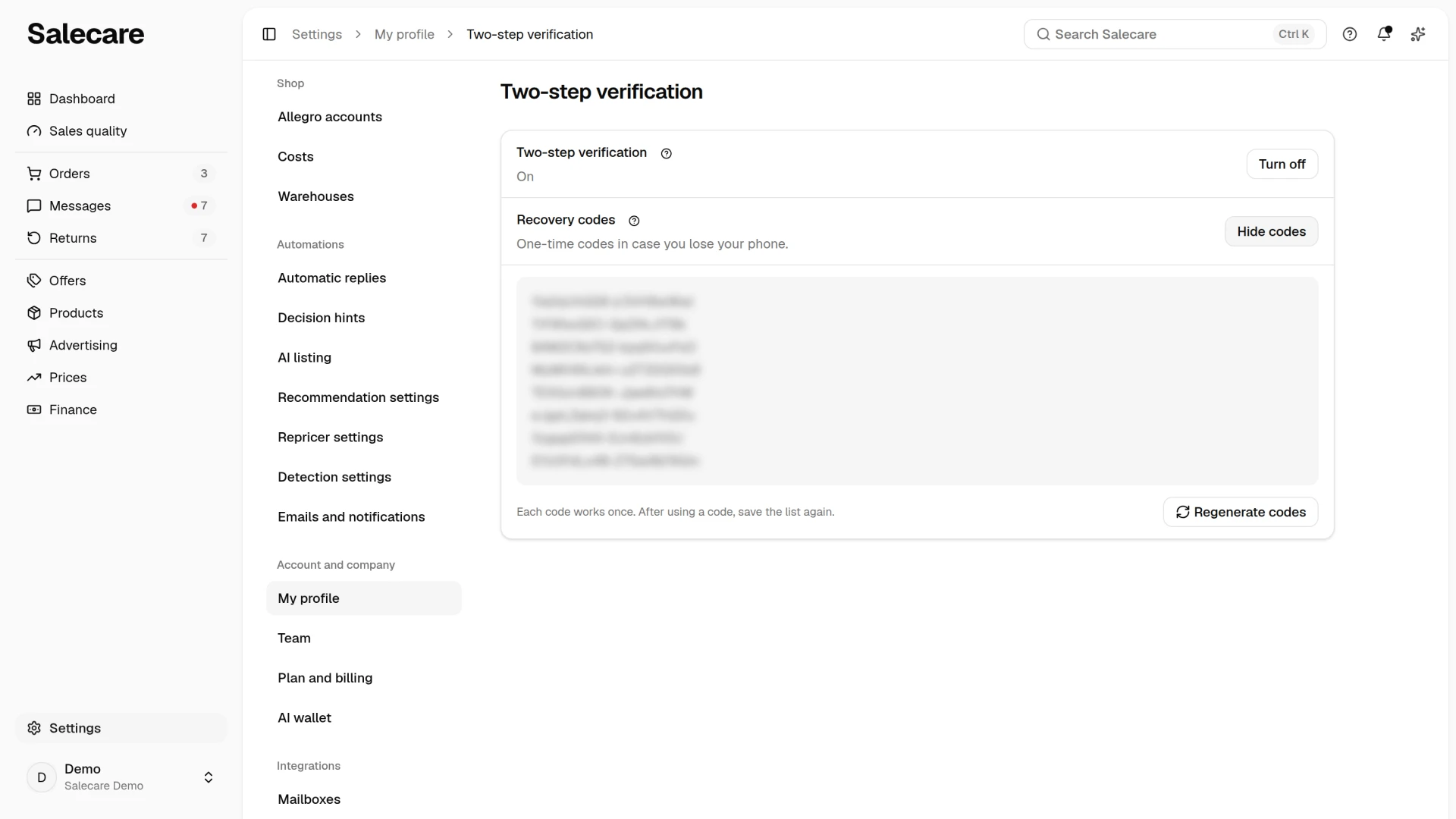
Once two-step verification is on, the Recovery codes row appears on the same page. Click Show codes in it and save the eight codes somewhere safe away from your phone, in a password manager for example. You can view the codes later in the same row. If you lose access to the authenticator app, after changing phones, say, a recovery code will let you sign in. Each code works only once, and Salecare replaces a used code with a new one. So after signing in with a recovery code, open the Two-step verification page, click Show codes and save the list again. If the codes may have fallen into the wrong hands, click Regenerate codes below the list and the old ones stop working.
On a new phone, set two-step verification up again. On the Two-step verification page click Turn off and confirm in the dialog, then click Turn on and scan the new QR code with the new phone. The key on the old phone then stops working.
If you have neither the phone nor the recovery codes, you cannot sign in on your own. Write to [email protected] from the email address you sign in with. If you work in a team, a person who manages the team can also remove your login on the Team page and invite you again at the same address.
From now on signing in requires the password and a code from your phone. At sign-in you can enter a recovery code instead of the code from the app. If you turn on two-step verification because your password may have leaked, also click Sign out on other devices in the Devices row on the My profile page straight away, and change your password with the Change password button in the Password row on the same page. Browsers that signed in before it was turned on do not ask for a code from the phone. If you ever want to go back to the password alone, you can turn two-step verification off on its page. The recovery codes stop working then.
Sign out on other devices
When you lose a phone or sign in on a shared computer, click Sign out on other devices in the Devices row on the My profile page. Salecare asks for your current password and, once you click Sign out other devices, signs your login out of every other browser, while this browser stays signed in. On the sign-in page, Remember me is ticked by default, so the browser stays signed in after it is closed. On a shared computer, untick it before you click Log in, and sign out when you finish. If the lost phone had the authenticator app, also set two-step verification up again as in step 3, so the old key stops working. API tokens and the Salecare Ads extension connections keep working. You revoke a token on the API tokens page, and the extension connection with the Disconnect button on the Allegro Ads page in Settings. Signing out other devices is recorded on the Event log tab of the Team page. A person with the Company & invoice details and Audit log permissions sees that tab, that is the Owner and the Administrator.
When the company requires two-step verification from the team
The owner, or a person who manages the team, can require two-step verification from everyone in the company on the Team page. If you do not have it on then, the Two-step verification row on the My profile page carries the "Required" badge. Every other page of Salecare, except the My profile page, then takes you to the Two-step verification page with the warning "Your company requires two-step verification. Turn it on to get back to work." Turn it on with the steps above and the rest of the app works again straight away. When you turn it off while the requirement is on, the confirmation dialog warns that you will see only that page and the My profile page until you turn it on again.
What next
If you work with a team, you can require two-step verification from everyone with the switch on the Team page, because one weak password can open the whole company. See the guide "How to add a team and permissions".