How to install Salecare as an app
You check orders and messages several times a day, and Salecare gets lost among dozens of browser tabs. Install Salecare as an app. It gets its own window and icon, and you launch it like any other program. It is the same application and the same data, only always to hand, without downloading anything from an app store.
Step 1. Choose "Install the app" in the account menu
Click your profile at the bottom of the side menu to open the account menu. It has an Install the app item. In Chrome and Edge, choose it and confirm the installation in the browser dialog. After a moment Salecare will appear among your installed programs and on the taskbar, and the item disappears from the menu.
In Safari on a Mac and in Firefox on Windows, choosing the item shows a short instruction on where that browser keeps the right option. Safari adds Salecare to the Dock from the File menu, and Firefox, from version 143, pins it to the taskbar with the Add tab to taskbar icon in the address bar. These browsers do not tell a page that it was installed, so in an ordinary tab the item stays after you add the app. In the installed window itself it is gone.
The account menu shows this item only while the browser can install the app or has its own option for it. It is absent in a private window of Chrome or Edge and in Firefox on a Mac or Linux, which does not install apps. In Chrome you can then click the install icon in the address bar, or open the three-dot menu, choose Cast, save, and share and then Install page as app.
Step 2. On a phone, add it to the home screen
Open Salecare in your phone's browser and tap the ☰ button in the top left corner. The Account and settings part of the open menu has an Install the app item.
On Android, in Chrome and Edge, that item opens the browser's install dialog straight away. You only confirm. In Chrome you can also open the three-dot browser menu, choose Install and create shortcut and then Install. In Firefox on Android the item tells you to choose Add app to Home screen in the three-dot menu, then Add.
On an iPhone no browser installs apps by itself, so the item shows where your browser keeps the right option. In Safari, tap ⋯ (More) in the toolbar, then Share. If the toolbar shows the Share icon itself, tap it. Scroll down the list, choose Add to Home Screen and tap Add. With the Open as Web App switch on, Salecare opens in a window of its own without the Safari toolbar and shows its own bar with Back, Forward and Refresh buttons at the bottom of the screen. With the switch off, Salecare opens in Safari, with its toolbar. The Salecare icon will appear alongside your other apps, and from then on you open it with a single tap. Safari does not tell a page that it was added to the Home Screen, and an icon added with the switch off opens an ordinary Safari tab, so the Install the app item then stays in the menu.
On a phone the view arranges itself into a single column, and the top bar of every page starts with the ☰ button, which opens the menu. The guide "How to get around Salecare" describes the phone menu. The Dashboard starts with the To do list, the items waiting for you, and you open a row of that list with a tap. Below are the Sales and profit card with the period choice at the end of its heading, Revenue breakdown, Offers as a list of rows and Sales quality score with a row for each account. The guide "How to read the Salecare Dashboard" describes the Dashboard.
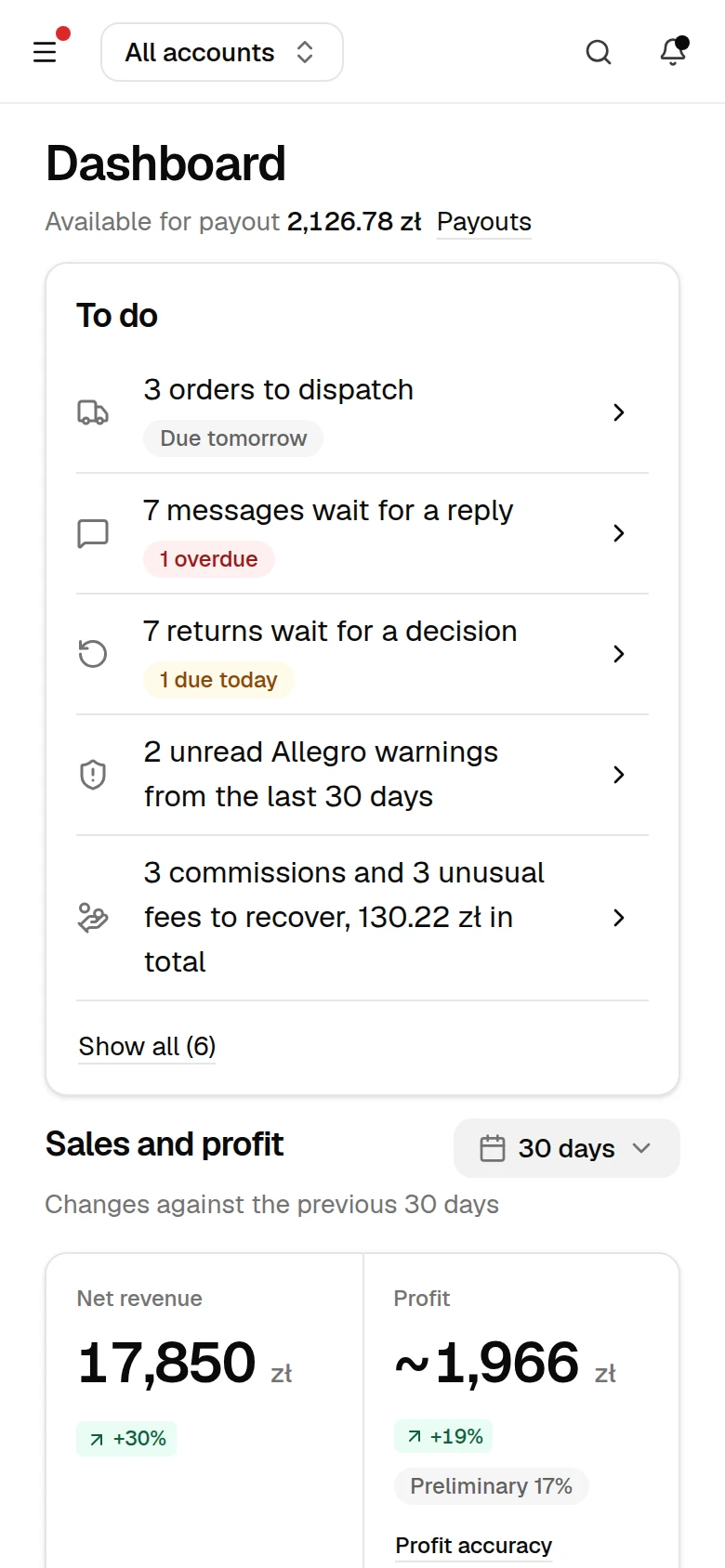
Step 3. Use it like any other app
Installed, Salecare opens in its own window, with no browser tabs, so nothing distracts you and nothing gets lost. You sign in the same way, see the same data and the same features, and configure nothing anew. If you ever want to remove the app, you uninstall it like any other program. Your data stays untouched in your account.
The app window keeps the browser's navigation. In Chrome and Edge on a computer and on Android the browser shows its back arrow and refresh button in it, and they work as in an ordinary tab. A page that sits under another one, an order or a settings page for example, has a link at its top on a phone, Back to … with the name of the page above it.
When the browser opens the app in a window without any toolbar, on an iPhone with the Open as Web App switch on for example, Salecare shows its own bar at the bottom of the screen with Back, Forward and Refresh buttons. Back returns to the previous page, Forward goes again to the page that Back left, and Refresh loads the current page anew. A button with nowhere to go is greyed out. While you type, the bar disappears and comes back once the keyboard is hidden. The end of the Salecare top bar then also holds the This page menu (three dots). In it you copy the link to the current page, to an order for your accountant for example, or share the page when the system supports it. On a phone you can also refresh a page by pulling it down from the very top.
The installed app sends no notifications to your phone or desktop. You see new notifications under the bell in the top bar while the app is open, and urgent events arrive by email. The guide "How to set up notifications and alerts" explains how to set up email alerts.
What next
Now that Salecare is always to hand, make sure it is working on your data. If your Allegro account is not connected yet, connect it following the guide "How to connect an Allegro account to Salecare and run the first sync".