How to set up ad recommendations and break-even ROAS
Ad recommendations watch one figure, the ROAS from the Allegro Ads panel, that is the sales Allegro credited to the account's ads divided by the cost of those ads. For each Allegro account you set a lowest and a highest ROAS and the pace of bid raises. Salecare checks where the account stands at the rhythm you set, once a day by default, and prepares recommendations for changing bids and budgets and for pausing offers. Nothing changes by itself. You decide about every change, and the Salecare Ads extension makes it in the Allegro Ads panel, or you make it yourself when the extension cannot.
Recommendations are part of the Pro plan and up.
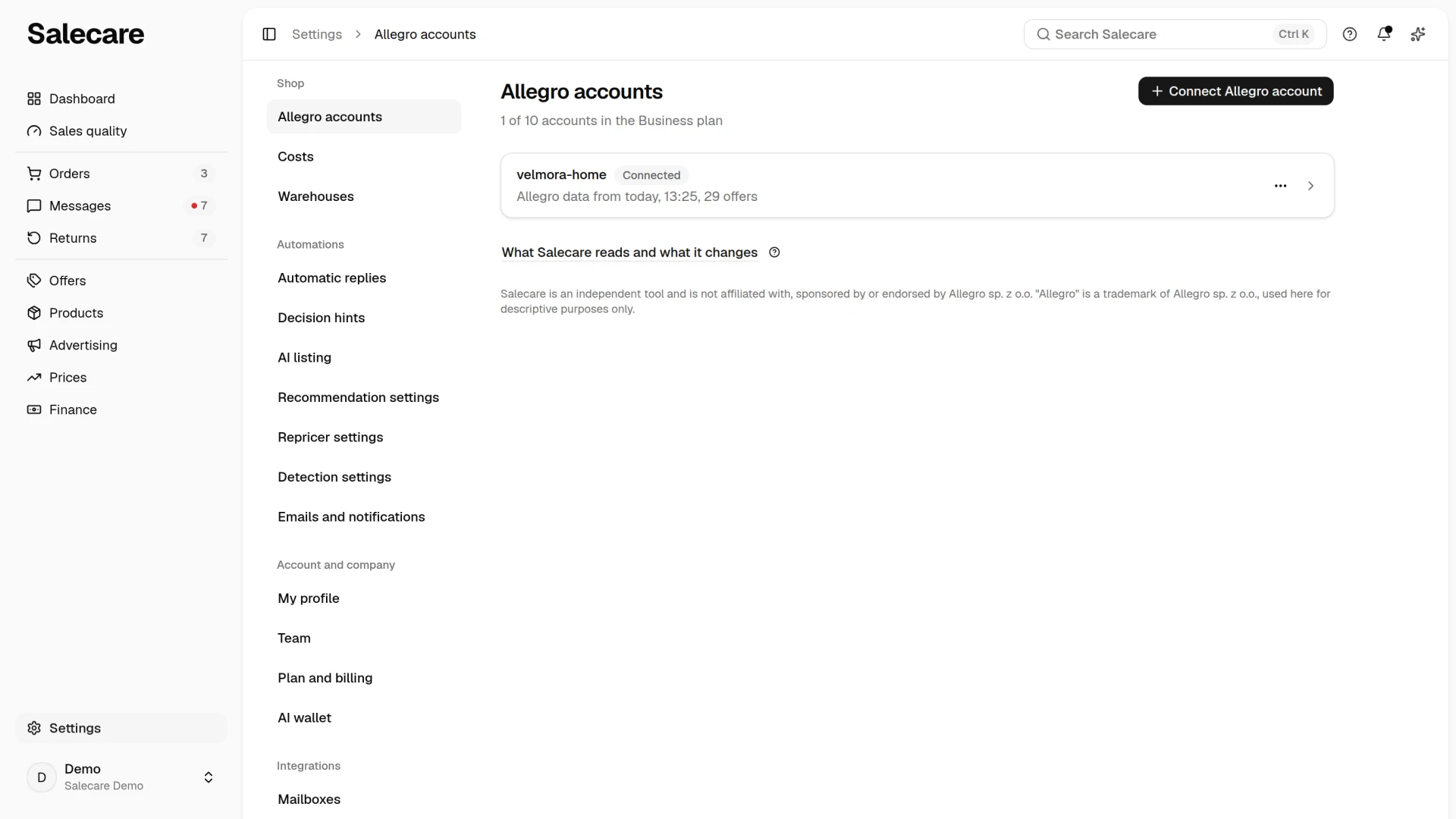
Step 1. Connect an Allegro account
Recommendation settings work on a connected Allegro account. Until you have one, the Recommendation settings page says "The settings appear once an Allegro account is connected." You can connect an account with the Connect Allegro account button in the top right corner of the app, and the whole process is described in the guide "How to connect an Allegro account to Salecare and run the first sync". Recommendations judge the ROAS from the Allegro Ads panel, so they also need the Salecare Ads extension, described in the guide "How to connect Allegro Ads to Salecare". Until Salecare has read any Allegro Ads panel, the Overview tab of the Advertising page shows a Connect Allegro Ads button.
Step 2. Open Recommendation settings and check the break-even
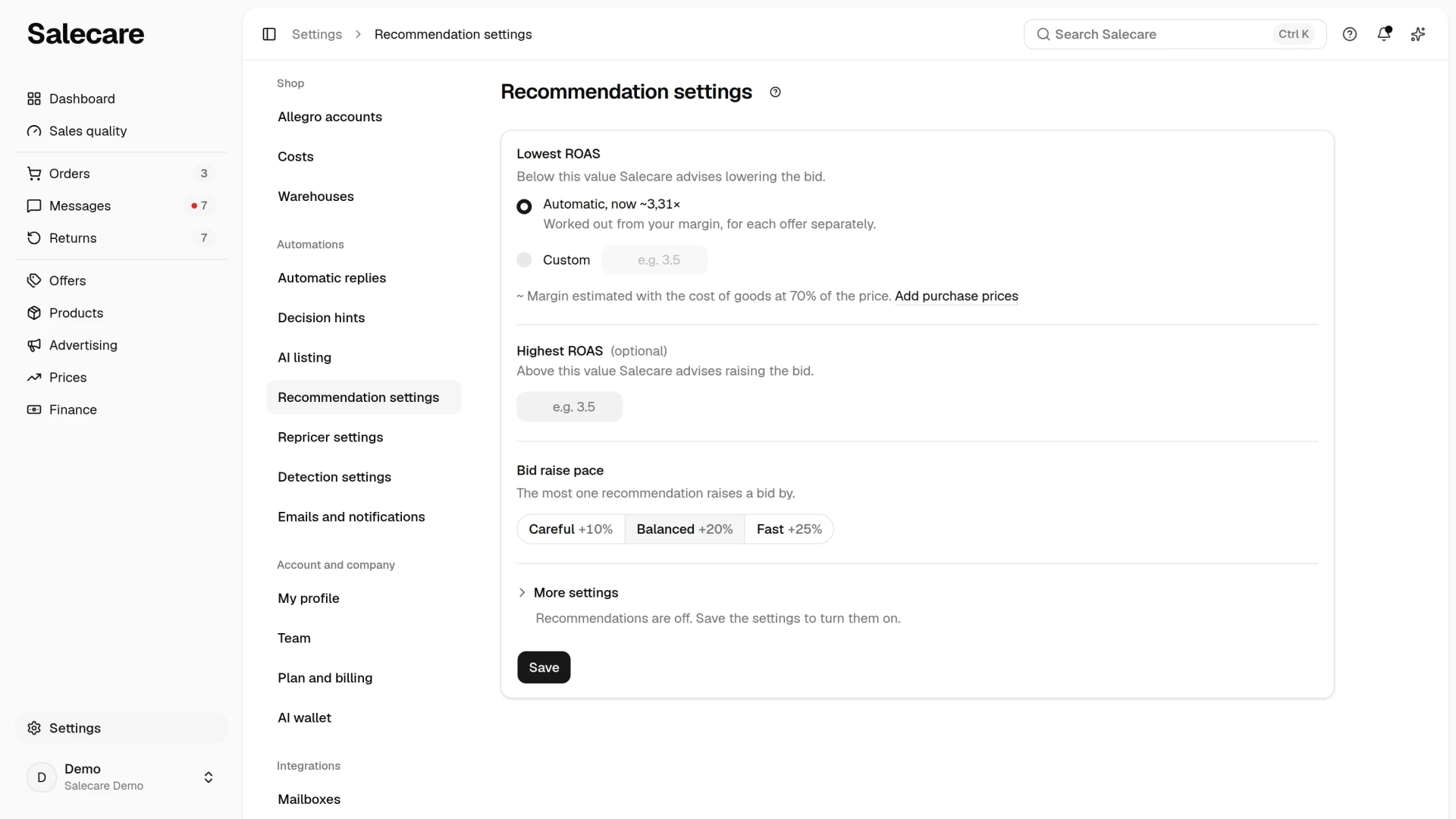
Go to Advertising, click Settings in the top right corner and choose Recommendation settings. The Recommendation settings page opens in Settings, and the path at the top of the page leads back to Advertising, and on a phone the Back to … link does the same. The Recommendation settings row in Settings, in the Automations group, opens the same page. The "?" beside its title leads to this guide. When recommendations are off, the Recommendation settings button in the Recommendations card on the Overview tab leads to the same page. With several accounts the page has an Account field and the Same settings for all accounts switch. When the switch is on, Save saves the same settings for every connected account. When you change the account with unsaved changes, the page asks whether to discard them. Discard changes puts back the saved values. Saving works the recommendations out at once, and a message says "Salecare is working out the recommendations now." A person whose role only allows viewing sees the settings with the note "Your role lets you view these settings only."
You do not need to create the first settings of an account yourself. When the Salecare Ads extension sends data from that account's Allegro Ads panel for the first time, Salecare creates them, once, and does not overwrite ones you already saved. The Lowest ROAS field is then set to "Automatic", the Highest ROAS field is empty, the pace of raises is "Balanced", and recommendations are on and worked out every 24 hours.
Lowest ROAS
The field's description says "Below this value Salecare advises lowering the bid." The field has two settings. "Automatic" means the break-even, that is the ROAS from which the margin on sales from ads covers the cost of the ads. The panel prints it in the label, for example "Automatic, now 2.50". With several accounts and the Same settings for all accounts switch on, it prints the range of all the accounts' break-evens, for example "Automatic, now from 2.50 to 7.69". "Custom" opens a field where you type your own number.
Salecare works the break-even out from the account's margin before ads, over the 30 days that end 7 days before today, as revenue divided by that margin. On a 40% margin the break-even is 2.50, on a 13% margin already 7.69. The margin before ads does not depend on how much you spend on ads, so the break-even does not rise when the ad cost eats a larger part of the margin, and it does not vanish when the cost eats all of it. The break-even is only as exact as your purchase prices. The sales of an offer with no matched product, or whose product has no purchase price, carry an estimated cost of goods, that is a percentage of the price set in the Estimated cost of goods row on the Costs page. When the judged period holds such sales, the number carries a "~", and a note about the estimated cost of goods with an Add purchase prices link stands under the field. Then fill in the purchase prices or choose "Custom" and type your own lowest ROAS. An account with no sales in that period, or with a zero or negative margin before ads, has no break-even, so with "Automatic" no number stands and Salecare does not advise lowering the bids of the whole account.
The account break-even judges the ROAS of the whole account. Salecare judges each offer by a break-even from its own margin, so an offer on a 13% margin has a break-even of 7.69, and an offer on a 60% margin about 1.67. An offer whose margin cannot be worked out is judged by a fixed threshold that depends on the pace of raises, that is 0.7 for the "Careful" pace, 1.0 for "Balanced" and 1.3 for "Fast". A custom lowest ROAS replaces both thresholds, for the account and for all its offers, including offer thresholds that were higher than it. A ROAS from the Ads panel below the lowest ROAS means the ads stop paying off, so a "Lower the bid" recommendation appears. Until the extension sends the panel's data, the account has no measured ROAS. Salecare then gives no verdict on the account's bids, and on the Checks list in the Change history panel the check shows "No Allegro Ads data". Salecare also gives no recommendation until the account has spent at least 10 zł on Allegro Ads in the judged period. Such a check shows the reason "Spend below 10 zł" on the Checks list.
Highest ROAS
The field is optional. Its description says "Above this value Salecare advises raising the bid." A ROAS from the Ads panel above it is a sign of bids that are too cautious, so a "Raise the bid" recommendation appears. An empty field switches that limit off, and a value you type has to be higher than a custom lowest ROAS. If you want to get recommendations to raise bids, fill in the Highest ROAS field.
Step 3. Set the bid raise pace
The Bid raise pace field says how big one raising step can be. "Careful" raises a bid by at most 10% at a time, "Balanced" by 20%, and "Fast" by 25%. The same setting decides how much Salecare advises lowering the bid of a group with too few clicks to work out its own bid, and which threshold it uses for an offer whose margin cannot be worked out. That is 0.7× for "Careful", 1.0× for "Balanced" and 1.3× for "Fast".
A recommendation never raises the bid at once to the highest profitable one, because a bid many times higher buys a lot of clicks before you can see whether they pay back. The next change in the same ad group appears after 7 days at the earliest, so the effect of the previous one is visible. Those 7 days count from the moment the change reached the Allegro Ads panel, or from your click on Done. There is no bid raise for an ad group in which no offer can be bought now, because every offer of that group known to Salecare is ended or sold out. There is no budget raise for such an offer. A higher bid or budget would then only buy clicks that cannot end in a sale. Bid lowering and pausing come as usual. There is also no bid raise for a group that the same recalculation advises lowering or in which it advises pausing an offer, nor for a group with an offer advertised by several of your groups, until you dismiss the recommendation for that offer.
When recommendations should not appear, unfold More settings. The Recommendations on switch turns them off, and the Recommendations card then says "Recommendations are off." When recommendations are on but the Allegro account is disconnected, Salecare does not work them out, and the card says "The Allegro account is disconnected, so recommendations wait for it to be reconnected." They come back once you reconnect the account. The Work out every (hours) field says how often Salecare works the recommendations out, from 1 to 168 hours, 24 by default. Accounts are checked once an hour, but the setting does not start a run more often than you typed.
Step 4. Approve the recommendations
Recommendations stand in the Recommendations card on the Overview tab of the Advertising page. Each is one sentence, for example "Raise the bid in the … group" with "from" and "to" amounts, and one line of reasoning under it. The card shows the first five, and Show all unfolds the rest. It is always at most the 200 newest, and when more are open, the last line says "Showing the 200 newest of" and gives the total. With more than five recommendations every row has a checkbox, and the Dismiss selected button on the bar dismisses the ticked ones after a confirmation. If nothing needs changing, the card says "Recommendations appear when an ad needs a change." and gives the time of the last check.
The buttons in a row depend on what Salecare can do with the recommendation.
- Apply passes the change to the Salecare Ads extension. The change reaches Allegro Ads only when, with that account's Allegro Ads panel open, you click Apply in the Changes to make section of the extension's side panel. Until then the row says "Waiting in Allegro Ads", and Cancel withdraws it. When the extension is not connected yet, Apply leads to the Allegro Ads page in Settings, if you have the Integrations (accounts, API tokens) permission.
- "You can apply it from" with a date stands by a pause of an offer that rests on indicators. Salecare waits for the condition to hold for 3 days, and until then you can only dismiss the recommendation.
- Done stands by changes the extension does not make, for example when an offer has to be removed from a group, moved to a group of its own, or the target average bid of a group with Dynamic CPC has to be changed. Make the change yourself in the Allegro Ads panel and only then click Done. The group then gets a 7-day break from further advice, and the change goes to the What the changes did section in the Change history panel, where the day of the click is the day of the change.
- Open in Prices stands by a "Check the price" recommendation. It leads to the Prices page narrowed to that offer, and only a person who can open that page sees it.
- Dismiss stands by every recommendation.
The extension writes the recommendation's bid or budget in the panel. When the panel requires a higher minimum bid, it writes that minimum. When the bid or budget in the panel changed since the recommendation was worked out, it writes nothing, and the change shows the status "Failed" in the Change history panel. Wait then until Salecare works the recommendation out again, and apply it again.
A dismissed recommendation does not come back on later recalculations until you restore it with the Restore button on the list that the Show dismissed button opens (the 50 latest decisions). Restoring works the recommendation out again at once. The exception is bid lowering and pausing an offer, because they protect against a loss. They come back when the ROAS falls by more than a fifth below the one at the time you dismissed them, for example a lowering dismissed at 2.3 comes back when the ROAS falls below 1.84. A dismissed bid or budget raise never comes back.
When you dismiss a recommendation that advises keeping the offer in one ad group, Salecare takes it that several groups advertise the offer on purpose and stops holding back bid and budget raises for it.
The Change history link under the list shows the further path of a change. The guide "Allegro Ads ROAS in 2026. How to work out margin after ads" describes the Changes list, the Checks list and the What the changes did section.
What next
Before the recommendations start advising, check where you stand. The guide "Allegro Ads ROAS in 2026. How to work out margin after ads" shows which offers and ad groups make money after ads and which lose it. If campaign data is not yet reaching the app, start with the guide "How to connect Allegro Ads to Salecare".