How to switch on automatic cross-sell bundles
A buyer takes one thing and disappears, though one more of your products would have fitted in the basket. A cross-sell bundle adds a Buy in a set section to your Allegro offers, with a second product of yours and a discount for taking both, so it raises the basket value. Every day Salecare proposes pairs of offers that buyers really take together, computed from your own orders, and you decide what goes to Allegro.
Cross-sell bundles are part of the Pro plan and up. On a lower plan the Bundles tab of the Offers page has no count, and clicking it opens the plan and billing page with a message that names the plan the feature comes with. The Bundles row in the account settings then shows a padlock that names the plan. Salecare then neither proposes bundles nor sends them to Allegro, even when the switches were turned on earlier, on a higher plan. Bundles published earlier stay on Allegro, and you withdraw them in the Allegro panel, on the Offer bundles tab.
Step 1. Switch on automatic bundles
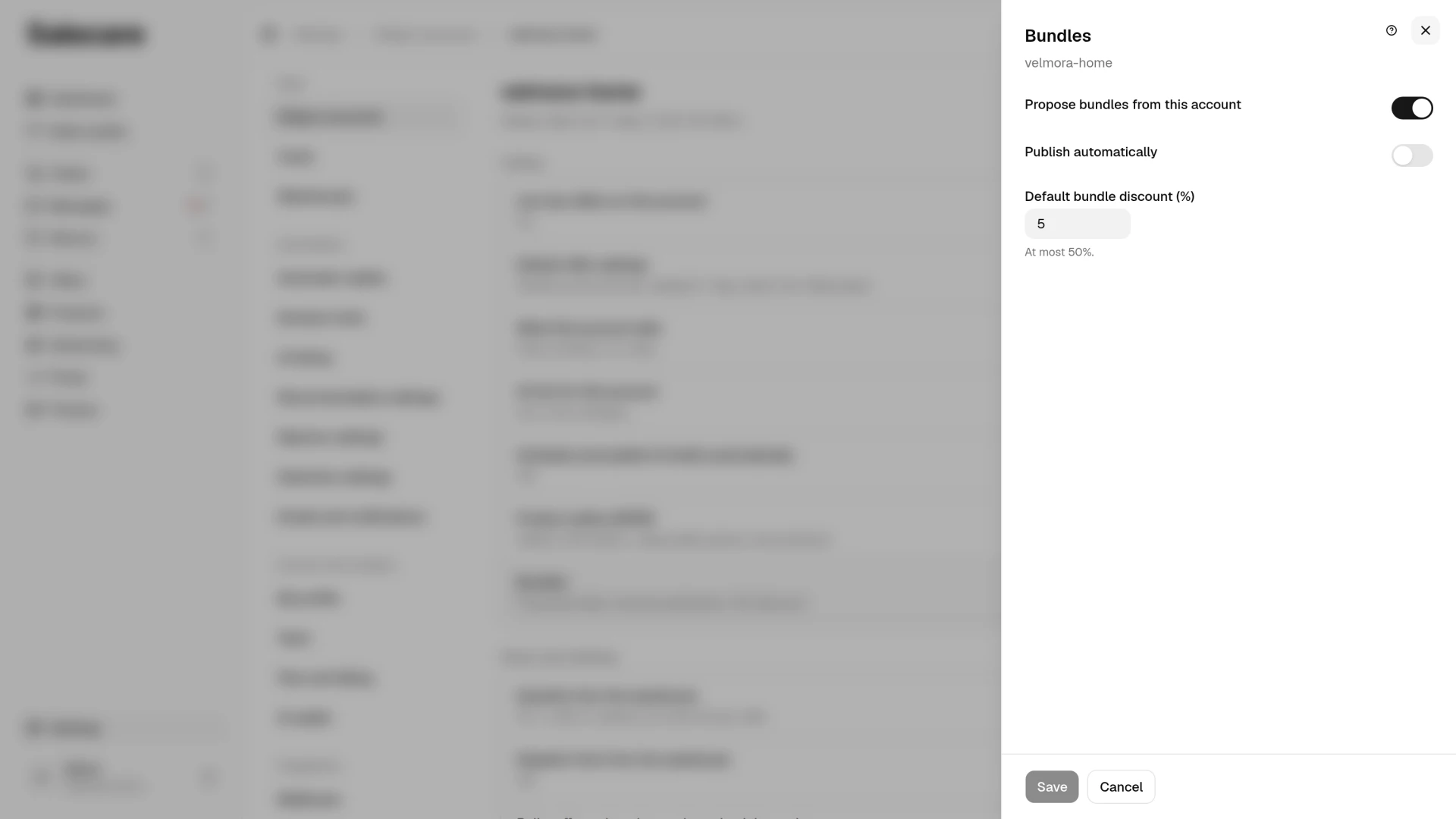
On the Settings page open Allegro accounts and click the account. In the Listing group, in the Bundles row, click Change, switch on Propose bundles from this account in the panel and click Save. From then on you get daily bundle proposals built from that account's offers most often bought together, calculated from real orders, not guessed. Proposals are made once a day, at 7:15, so you see the first ones after the next such run. Salecare takes pairs of active offers of one account that buyers took together in at least 2 orders over the last 12 months. It starts with the pairs bought together most often and adds at most 25 new proposals a day for the whole company, all accounts together. A pair of two offers of the same Allegro catalogue product, such as the same mug listed in two offers, is not proposed, because Allegro does not accept such a pair in a bundle. Different colours or sizes are usually separate catalogue products, so they can make a bundle. A bundle is published on the account's offers, so the setting belongs to the account and each account has its own.
Step 2. Decide on publishing and the discount
Leave the Publish automatically toggle off to start with. You then review and publish each proposal yourself first. Once switched on, the toggle sends this account's proposals to Allegro without asking, including the ones that were waiting on the list before you switched it on. That is why a save with publishing switched on asks first and says how many proposals wait. A published bundle shows on this account's offers. Salecare does this every day and right after you switch the toggle on, at most 100 bundles at a time, starting with the pairs bought together most often. Publishing needs an account connected with offer-write permission. On an account connected without it automatic publishing sends nothing, and the proposals wait on the list with no reason given.
Automatic publishing still skips a pair whose margin falls below zero at that discount. Salecare takes that margin as the average of the orders from the last 12 months in which buyers took both products together. If the offers' prices have dropped since, for example after a repricer cut, Salecare takes the cut off that margin, and it does not add a price rise. It takes the discount off today's offer prices. The costs come from those orders, so when they have gone up since, the Allegro commission for example, the real margin is lower than that figure. When no such order has a calculated margin, for example because the products have no purchase prices, the automation sends the pair only with a discount of up to 5%. With a higher discount the proposal stays on the list with the reason next to the pair of offers, waiting for your decision, just like a pair that would sell at a loss. A person without the Margins and purchase prices (view) permission does not see a reason in the row that speaks of the pair's margin.
In the Default bundle discount (%) field you set the discount that this account's new proposals get, 5 per cent, for example. The field takes at most 50%, and 0 means no discount. A bundle with no discount still takes the Buy in a set section on the offer, but gives the buyer no reason to take both products. Proposals already waiting on the list keep the discount they had on the day they were made, also when you switch automatic publishing on later. You change their discount with the Change discount action in the row, or when approving the selected bundles, where you set one discount for all of them. A single bundle can have a discount of up to 90%, but automatic publishing sends only bundles with a discount of at most 50%. The discount lowers the margin of every sale in the bundle, also for buyers who already take both products at full price today, because the proposals are exactly the pairs bought together. So start at 0 to 5%, and before raising the discount check in the discount dialog what the pair earns. Click Save.
Step 3. Review and publish bundles
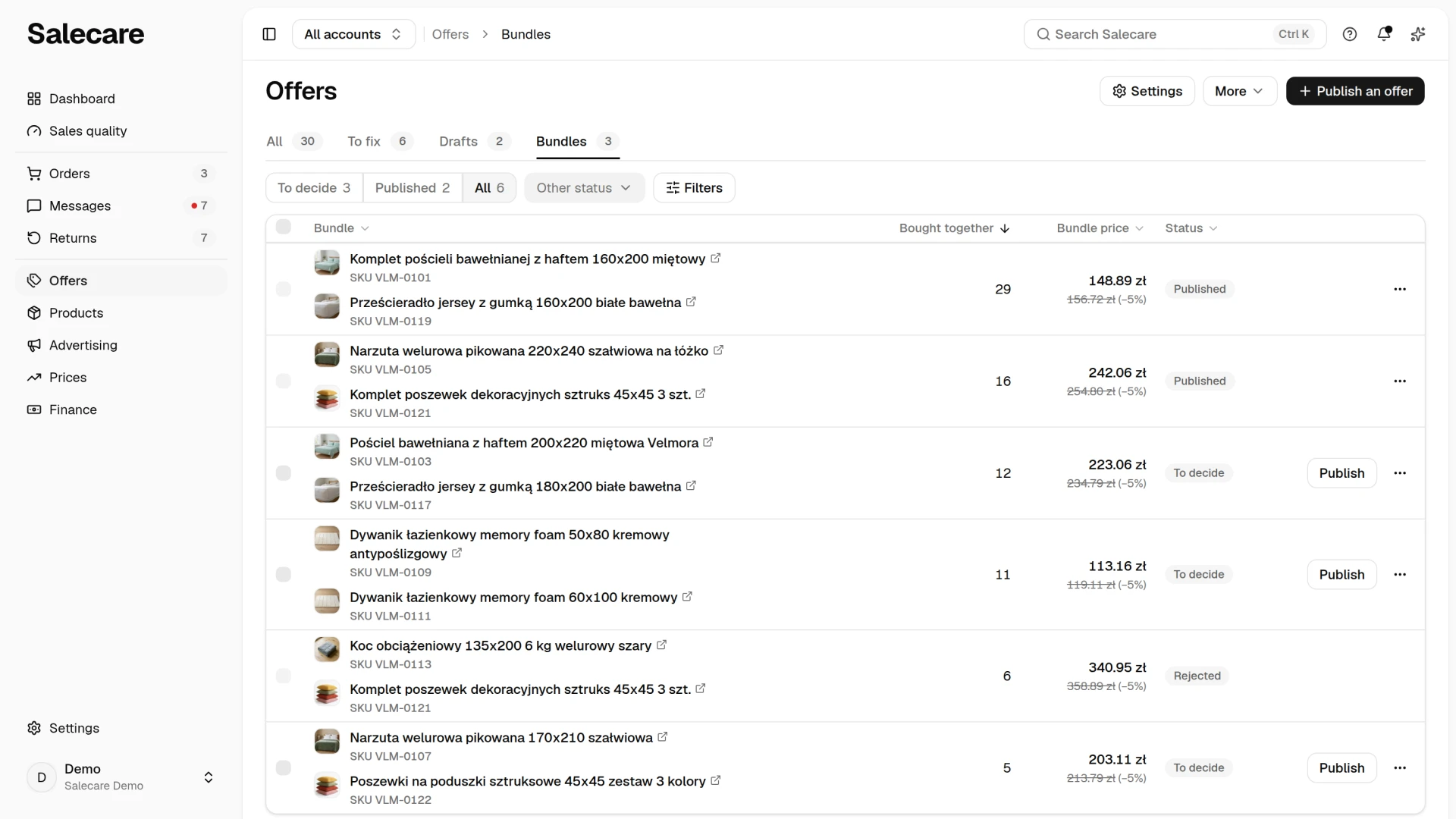
Proposals are collected on the Bundles tab of the Offers page. The number next to the tab says how many proposals are awaiting a decision. Each row is a pair of offers with photos, SKU or EAN and the bundle price after discount. The table has the Bundle, Bought together, Bundle price and Status columns. The Bought together column gives the number of orders from the last 12 months that held both offers. Salecare counts it on the day the proposal is made and does not change it afterwards. Above the list there are three views. The To decide view gathers the proposals you can still publish, meaning new, approved, failed and withdrawn ones. The Published view lists the bundles on Allegro, and the All view shows everything. Rejected bundles and those being published are in the Other status field. Each view shows next to its name how many bundles are waiting in it, and a view holding none shows no number. So you see at once where the work is waiting. The Filters button opens a panel with criteria such as Bundle price, Bundle value, Bundle discount (%) and Cannot publish. You publish the pairs that make sense and reject the rest. The Reject entry in the row menu asks you to confirm, because a rejected pair does not come back to the list and Salecare does not propose it again. You can then create such a bundle only in the Allegro panel. Remember that a published bundle goes onto your real offers on Allegro, not just into Salecare.
The Publish button in a row opens the discount dialog, where you set the discount and send the bundle to Allegro. The other bundle actions, Change discount, Reject and Withdraw from Allegro, are in the Bundle actions menu at the end of the row. When you select several rows, a bar appears above the table with a Publish (n) button and the More menu. The Publish (n) button opens a dialog where you set one discount for all the selected bundles, and sends them to Allegro at once. The Approve without publishing entry in the More menu keeps them in Salecare and does not send them to Allegro, on an account with automatic publishing too. So you can still look them over calmly. You send them later with the Publish button in the row or on the bar.
The dialog of the bar does not show the margin of each pair. So, like automatic publishing, it leaves out a bundle whose margin falls below zero at the chosen discount, and a bundle without a calculated margin when the discount is above 5%. A bundle left out stays on the list with the reason in its row, and the message after sending says how many were left out. You publish such a bundle with the Publish button in its row, because there the discount dialog shows that pair's margin. When a person without the Margins and purchase prices (view) permission publishes, the bar does not check the margin of the pairs and sends the selected bundles only with a discount of up to 5%. At a higher discount it leaves out every one of them, and that person publishes such a bundle with the Publish button in its row. The Reject entry in the More menu rejects the selected bundles together, after you confirm.
On a phone the bundles are the rows of one card. A row starts with its checkbox and the pair of offers, and the Bundle actions menu stands at its right end. Under the pair are the Publish button and the status badge, and below them the labelled Bought together and Bundle price values. Ticked rows bring up the same bar with the Publish (n) button, which on a phone stands under the list, at the bottom edge of the screen. You choose the order in the menu above the card. It holds every field the table headers sort by, and its button names the field the list is sorted by. Picking the same field again reverses the order.
Allegro shows only one bundle per offer. Salecare marks both offers of a pair as places where the bundle may appear, so Allegro shows it on the page of each of them that shows no other bundle yet. Allegro refuses the bundle only when both offers already show another one.
Allegro also makes bundles from your offers by itself, without a discount, and a large account can have several hundred of them. Every day Salecare reads all of the account's bundles from Allegro, including the ones Allegro made and the ones you set up outside Salecare, and never changes or deletes any of them. A pair whose two offers both already show another bundle waits on the list and is not sent. Once one of its offers is free, automatic publishing sends it on the next run. If you prefer the Salecare bundle, delete the other one in the Allegro panel, on the Offer bundles tab, in the Flexible bundles section. Allegro does not recreate an automatic bundle you deleted.
A pair leaves the list once one of its offers ends, because Allegro no longer has a page to show such a bundle on, and relisting the offer brings it back. A published bundle whose offer ended stays published and comes back with the relist as it was. While the offer is ended, though, other bundles can be published on its offers. When, after the relist, both offers of the old bundle already carry newer published bundles, Salecare asks Allegro about the old bundle at the next offer sync. It withdraws it from Allegro only when the account has offer-write permission and Allegro either no longer has that bundle or names none of its offers as a place where the bundle shows. When Allegro answers that the bundle still shows, the bundle stays published, and Salecare asks about it again after 3 days at the earliest. The withdrawn bundle goes back to the To decide view and automatic publishing does not send it again. To bring it back, publish it yourself once one of its offers is free.
The row itself says when Allegro would refuse the bundle, before you try to publish it. The "Cannot publish" badge in the row names every reason that applies to the pair, checked on both of its offers. It can be "offer inactive", "offer out of stock", a B2B offer, which Allegro does not accept in a bundle, two offers of the same Allegro catalogue product, or both offers already showing another bundle. In that last case the badge says whose bundle it is. Allegro may have made it by itself, it may have been made outside Salecare, or these may be other Salecare bundles. The badge appears only where something can still be done about it, that is on bundles that can still be sent to Allegro. To gather such rows in one place, use the Cannot publish field in the Filters panel above the list.
The discount dialog
Below the bundle price the discount dialog of a single bundle shows what the pair earns. The first figure is the margin from the orders of the last 12 months in which buyers took both products together, less any price cut on the offers since. The second is that same margin once the discount you are setting is taken off it, counted from today's price. The margin is quoted on the basis your company reads its money in, net or gross, while the bundle prices are always gross, because that is what the buyer pays. When the second figure comes out below zero, the dialog says plainly that at this discount the set sells at a loss. If no order holding both products has a computed margin yet, the dialog shows no such figure. The dialogs opened from the bulk action bar show no margin. A person without the Margins and purchase prices (view) permission sees only the prices in the dialog of a single bundle too.
Three things are easy to forget when you set a discount. A buyer who returns part of the bundle loses the right to the discount, and you may then reduce the refund by the difference between the price in the bundle and the price outside it. An offer taking part in a price-cutting campaign can still be bought in the bundle, but without this bundle's discount, which one line in the discount dialog reminds you of. Salecare sets the discount on allegro.pl only, so on foreign markets the bundle shows without a discount, once you share at least two of its offers there. Allegro lets you set a bundle discount for each market separately, but changing the discount in Salecare sends the bundle to Allegro anew, with a discount on allegro.pl only, so a discount added in the Allegro panel for another market is then gone.
Bought together
The Pairs bought together link below the list opens the Bought together panel. It shows the 25 pairs bought together most often over the last 12 months, in at least 2 orders, ended and inactive offers included. A pair outside those 25 does not show in the panel, but when both of its offers are active it reaches the proposals list in time, because the daily run adds further pairs. On a phone the pairs are rows of a list instead of a table. You pick the order in the menu above the list, and the Filters button next to it opens the fields that narrow it.
Step 4. Watch and adjust
Come back to the list after a few days and check the To decide and Published views. A bundle whose publishing failed stays in the To decide view and shows the reason next to the pair of offers, for example that one offer is handled by One Fulfillment and the other is not. Once the cause is gone, publish it again with the Publish button. When Allegro refused the bundle because both offers already showed another bundle, the reason says whether Allegro made that one by itself, and what you can do. On an account with automatic publishing Salecare retries such a bundle by itself, once, when one of the offers is free. A second refusal is left to you. On an account without automatic publishing the reason changes to say that one of the offers is free now and you can publish the bundle again. Before Salecare counts such an offer as free, it checks on Allegro that the offer belongs to no bundle.
Salecare does not count what sold in a bundle, and the figure in the Bought together column dates from the day the proposal was made. You check a bundle's sales on the orders list, in the orders holding both of its offers placed after publishing. A bundle that does not sell can be taken down with the Withdraw from Allegro action. The Buy in a set section then disappears from the offer page, the offers themselves are untouched, and the bundle can be published again later. If the proposals are accurate and you are approving them in bulk without changes, switch automatic publishing on and leave the whole thing to the automation.
What next
Without purchase prices Salecare cannot tell what a pair earns, and automatic publishing then sends bundles only with a discount of up to 5%. Set your real costs following the guide "Real Allegro margin in 2026, how to set up costs in Salecare". To make sure new products have offers for bundles to be built from at all, see the guide "How to switch on automatic offer drafts for new products".