How to manage offer promotion
Highlighted offers have a better chance of a higher position in Allegro search results. A highlight costs a fee for every cycle and an extra commission on every sale, though, so it is worth seeing what each offer pays for it. Salecare attributes promotion fees to individual offers and takes them off the margin of the orders in which those offers sold.
The Promotion tab works on every plan, because splitting promotion fees across single offers is part of working out the margin. The other tabs of the Advertising page, Overview, Offers and Ad groups, are part of the Pro plan and up.
Step 1. Go to Advertising
In the side menu click Advertising. On the Pro plan and up you land on the Overview tab, and four tabs stand above the content, that is Overview, Offers, Ad groups and Promotion. On the Starter plan the Advertising page opens the Promotion tab straight away, and the first three tabs carry a padlock with the name of the plan they are available from. To keep an eye on promotion spend the Promotion tab is enough, because it ties promotion to your financial result.
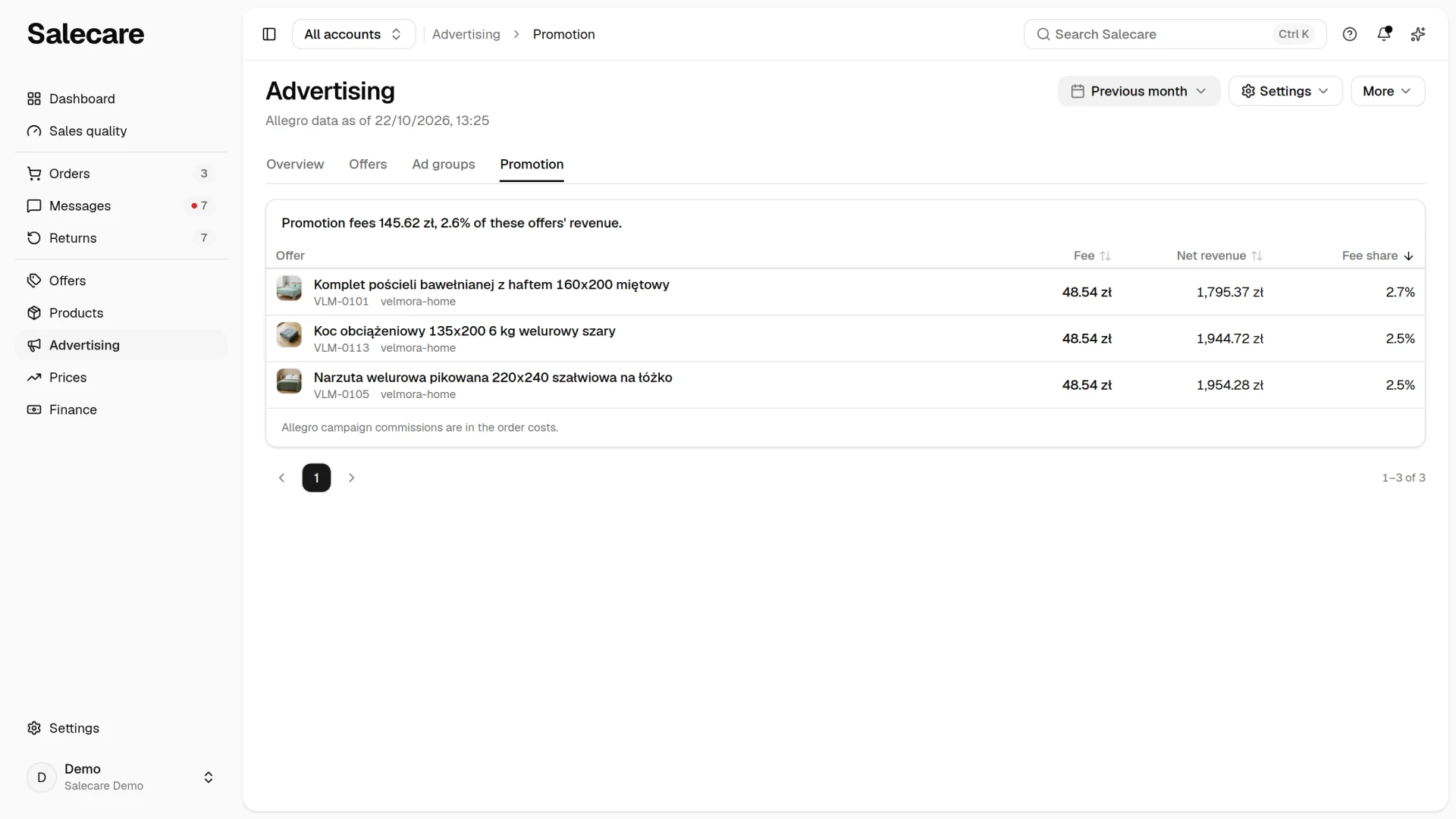
Step 2. Check the promotion fees
The Promotion tab collects the fees Allegro charged for promoting your offers. You upload and configure nothing. Salecare takes from the Allegro settlements the fees tied to an offer. After the first sync of a connected account it attributes them from the whole settlement history it pulled, that is about the last 13 months. With every later sync it recalculates the fees of the previous and current month. Until the first sync you see the message "No promotion fees in this period.".
You choose the period in months, with the button in the top right corner. Every cost item covers a whole month, so the tab shows whole months, and your choice is remembered. Above the table stands a summary of the period, the sentence "Promotion fees" with an amount and the share of these offers' revenue. When the offers sold nothing in that time, the summary gives the amount alone.
Each row is a cost item, that is the sum of all promotion fees of one offer in one month. The table has the columns Offer, Month, Fee, Net revenue and Fee share, and the Fee, Net revenue and Fee share headers sort the rows. The name of the Net revenue column says whether the amounts are net or gross, for example Net revenue. The row carries the offer's name, so on this tab you cannot separate the highlight fee from other promotion fees of the same offer. A negative fee means a refund of a promotion fee. Fees and orders in a currency other than the zloty, for example from Allegro.cz, do not reach this tab. Allegro Ads spend is not here either, because it is on the Overview and Offers tabs. On a phone the cost items are rows of one card with the labelled values Fee, Net revenue and Fee share, and Month too in a period longer than a month. You pick the order in the menu above the card. It holds the same fields the table headers sort by, and picking the same field again reverses the order.
This tab does not hold the promotion-related commissions either. Highlight and Flexible highlight carry, beside the fee, an extra commission on every sale of the highlighted offer, equal to 0.75 of the commission in the given category. At a category commission of 14% that is an extra 10.5% of the price, so for an offer that sells well it is usually more than the fee itself. Allegro charges it separately at the sale, and Salecare counts it in the order's commission, so you find it in the order's cost breakdown. The same goes for the commission provided for by the terms of an Allegro campaign, for example Allegro Days. A campaign is not a promotion fee, so it is not here either. The sentence "Allegro campaign commissions are in the order costs." under the table is a reminder of that.
Step 3. Judge what promotion costs each offer
The Fee share column shows what part of the offer's revenue in that month the fee makes up. When the share is higher than 10%, it stands in a yellow badge, because the fee takes a clear part of what the offer brings in. This figure does not include the extra highlight commission. What the offer earns after all costs, promotion and commissions included, is shown by the Price & net margin column on the offer list (Price & gross margin for a company outside VAT). The share counts only the revenue from orders that count as a sale, without cancelled and not yet paid ones, the same as when the fee is split in the order's margin. The offer's name leads to its product if you have the permission to edit products.
Compare full months and do not add up several months' results in your head, because each row is a separate cost item.
Step 4. Switch the highlight on or off
Salecare does not change the highlight on offers that are already on sale. You can choose the highlight in an offer draft, in the Price and quantity section, in the panel opened by the Promotion link. Salecare will switch it on in the offer it lists from that draft. The fee charges your Allegro account from the moment the offer is listed, even if nothing sells, and renews itself until you switch the highlight off in the offer settings in the Allegro panel. The details are in the guide on listing offers with AI. When an offer sells at a loss and the promotion fee is a large part of its revenue, switch its highlight off in the Allegro panel or fix the price. The "Check the price of …" recommendation on the Overview tab of the Advertising page points to such an offer.
What next
Promotion fees are one component of the real margin, beside commissions, shipping and operating costs. You set the rest following the guide on costs and margin. Once the margin is calculated, the repricer guide shows how to defend it in a price war. The repricer never goes below your minimum price, but that price does not include promotion fees or Allegro Ads cost. For a highlighted offer set a higher minimum margin that covers the highlight fee.