How the sales forecast works
Stocking up is one of the most expensive decisions in Allegro trading. When you order too much, you tie up money in stock. When you order too little, the offer disappears from sale in the middle of the season, taking your hard-won search position with it. The sales forecast in Salecare predicts the coming months from your sales history and seasonality, assuming your advertising spend stays where it has been. Right after an account is connected, that history holds the orders of about the last 12 months, because Allegro does not serve older ones. The forecast learns its own seasonal pattern from at least 13 months with sales. Until then it relies on a typical spread of sales across the year. You plan purchases on numbers rather than a hunch.
The sales forecast is part of the Pro plan and up. On a lower plan the tab is visible on the Products page but locked with a padlock, naming the plan that opens it. The tab is visible to people with the Analytics & reports (view) permission.
Step 1. Open the Sales forecast
Go to the Products page and open the Sales forecast tab. The forecast counts whole months. The How far ahead list has the options "1 month", "3 months" and "6 months", and "3 months" is selected by default. The current, unfinished month is part of neither the history nor the forecast. On 15 October a forecast for 3 months therefore covers November, December and January. You add the sales up to the end of the current month yourself. Until the first full month of sales has passed, the tab says the forecast appears after it and shows nothing else.
Under the tabs the first line gives the projected revenue for the chosen period and the month with the most sales. For a VAT payer the revenue is net, for others gross, and the line says which. The second line gives the number of months of sales the forecast stands on and the forecast spread. "Forecast spread ± X%" says how far the nearest forecast month may rise and how far it may fall. Salecare works it out from how much past results strayed from the trend. It is a spread, not accuracy, so plenty of months of history does not by itself mean the forecast is stable. With one or two months of history there is nothing to work deviations out from, so the second line gives no spread. Every month with orders or Allegro fees counts, also a month in which Allegro charged only a subscription or advertising and nothing sold. A month with neither orders nor fees is skipped. The How the forecast is calculated link leads to the part "How the forecast is built" below.
Under those lines there may be one more, grey line with the first note that applies to your forecast. The notes have a fixed order. First "The forecast leaves out sales in other currencies", then the note on the VAT rate, then "Sales of one account, stock of the whole company", and last "Little history, the amounts are rough". The forecast counts only orders and fees in zloty, like the dashboard and the profit and loss statement. Orders from allegro.cz, allegro.sk and allegro.hu enter neither the forecast units, nor the amounts, nor the split by category. If you also sell abroad, you plan stock for that sales yourself, on top of the forecast.
For a VAT payer the revenue is counted net, and only orders that carry a VAT rate have a net amount. When some orders in the forecast history have none, the note says how many orders have a rate, and the net amounts are too low. Units then count every order, while revenue counts only those with a rate. How to fill in the rates is covered by the guide to VAT and rates.
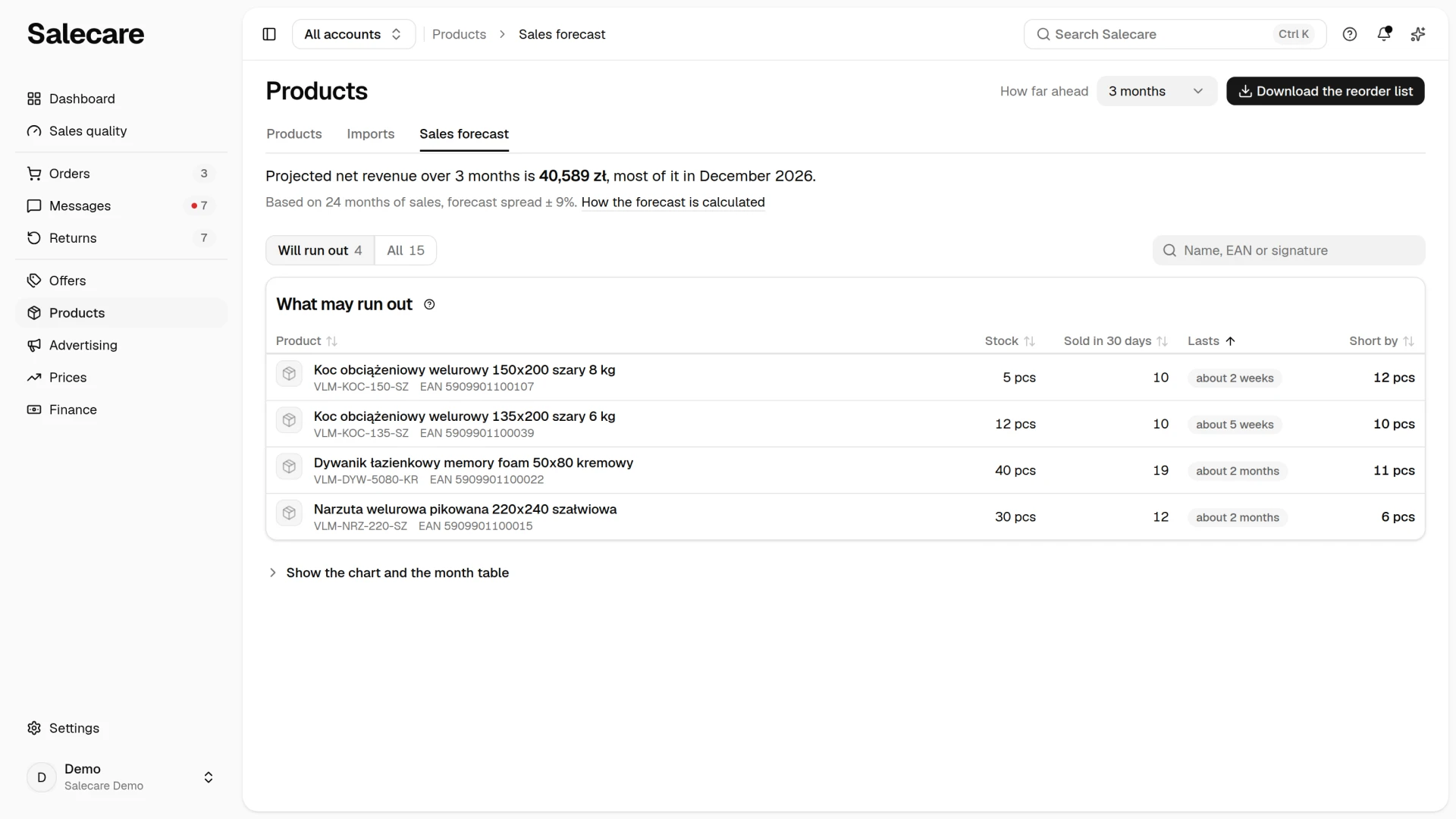
What may run out
The What may run out card is a list for planning purchases. It shows the products that sold in the last 90 days, and each has the Stock, Sold in 30 days, Lasts and Short by columns. The quick filter "Will run out" shows the products that run out in the chosen period, and it is selected as long as there is such a product. The "All" filter shows every product of the forecast. The numbers beside the filters count products. The Name, EAN or signature field narrows the list, and a click on a row opens the product card. When nothing runs out in the chosen period, the card says so, and you can still choose "All". The list starts with the products whose stock lasts the shortest, and the header of every column changes the order. A product without a value in the column you sort by always comes last. On a phone the products are rows of one card with the same labelled values. You pick the order in the menu above the card. It holds every field the table headers sort by, and the menu button names the field the list is ordered by. Picking the same field again reverses the order.
- Stock. Units in your own and the supplier's warehouses.
- Sold in 30 days. Units of the product sold in the last 30 days, net of returns. A multipack offer that has 3 in the Units in one sale column counts every unit sold as 3 units of the product. A bundle has no row of its own, because it has no stock of its own, and its sales go to its components.
- Lasts. The stock at the pace of the last 30 days, that is stock divided by the units sold in 30 days and multiplied by 30. The result is named in the unit people plan in, days under two weeks, weeks under 60 days, months up to a year and "over a year" beyond. At stock 0 it says "Sold out". A product with no sale in the last 30 days has no value here.
- Short by. The forecast units for the chosen period minus the stock, rounded up. When nothing is missing, the column shows a dash.
A product whose stock you do not keep in a Salecare warehouse has no value in the Lasts and Short by columns. The products that run out soonest stand at the top of the list, and with the same cover, those that miss more units. The Lasts column counts from sales of the last 30 days and the Short by column from the forecast. The two numbers can therefore disagree when sales are rising or a season is near.
Each product gets a part of the forecast units for the whole chosen period according to its own sales of the last 90 days, minus the units buyers returned. A product whose first sale in those 90 days came later, for example a new one, one back from being out of stock or a seasonal one, is counted at the pace since that sale, but from at least 14 days. A new product therefore gets a forecast at once. A product that did not sell in those 90 days or was returned in full has no row, even if it sold well a year ago. The product's share does not take its season into account either. In September a winter duvet that sold a few units in summer gets a small share in the December forecast too, although the total forecast grows before the holidays. So order seasonal goods by last year's sales and compare with the split by category. Only products matched to offers have a row. Sales of an offer not matched to a product count in the summary and in the "Uncategorised" row of the split by category, but the list has no row for them. Match such offers following the guide on matching offers to products. The sum of the rows does not equal the summary at the top, because the rows are net of returns.
Download the reorder list
The Download the reorder list button stands beside the How far ahead list, and people with the Downloads permission see it. It creates an Excel file with the products that run out in the chosen period. The file has the Product, Signature (SKU), EAN, Stock and Sold in 30 days columns, the forecast for the chosen period and Short by, the number of missing pieces. The forecast in the file is rounded up to a whole piece, so Short by is always the forecast minus the stock. The file is made in the background, and when it is ready it appears on the Downloads page. The list takes the sales of the account chosen in the account switcher in the top bar, while warehouse stock is shared by the whole company. So plan orders with "All accounts" chosen in the switcher, because then the forecast counts the sales of all accounts. When one account is chosen, the grey line under the summary reminds you of it.
Show the chart and the month table
Under the list there is a folded Show the chart and the month table section. Once it is open, it shows the Sales history and forecast chart, the Month table and the By category section. The switch above the chart picks what the chart shows, that is "Units", revenue, "Margin", "Profit" or "Costs". For an active VAT payer the switch calls revenue "Net revenue", and for everyone else "Gross revenue". Margin, profit and costs show only to people with the Margins and purchase prices (view) permission. Profit is the margin minus operating costs, Allegro account fees such as the subscription, and fixed costs, as in the profit and loss statement. Fixed costs, such as rent or salaries, enter the forecast with the monthly amount entered in the cost settings, in future months too. When the forecast covers one Allegro account, fixed costs are left out, as in the profit and loss statement.
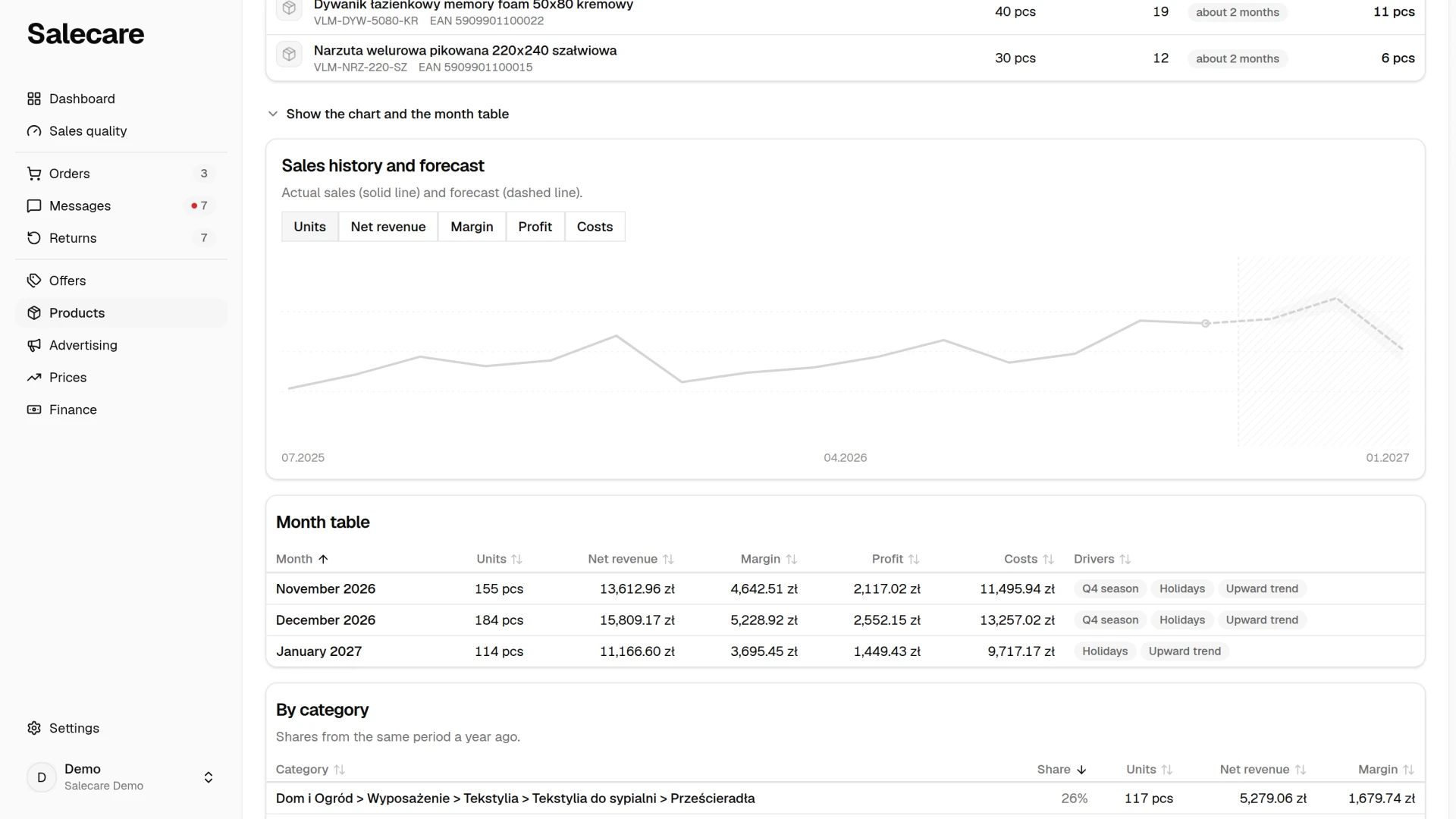
The chart sets actual sales, drawn as a solid line, against the forecast for the coming months, drawn as a dashed line, together with the range. The further into the future, the wider the range, because less is known. The range is set to cover roughly four periods in five, not every possible result. The chart shows up to the last 15 months of history, so you see last year's season and what the model expects next.
The month table sets the forecast out month by month, and the Drivers column marks each month with the "Q4 season", "Holidays" and "Weekend" tags and the direction of the trend. The header of every column changes the order. On a phone the months are rows of one card with the tags and the labelled values, and you pick the order in the menu above the card. The tags describe the period and do not change the forecast on their own. Holidays have no separate factor in the model. They affect the forecast only through the spread of months. So before a long weekend or Easter order stock by your own experience, not only by the number from the forecast.
The By category section splits the forecast by the share of each category in sales of the same period a year ago. When there was no sale in that period a year ago, the shares come from the last 6 full months, and the table says which source the shares come from. The table opens on the largest share, and the header of every column changes the order. On a phone the categories are rows of one card with the labelled share, units and amounts, and you pick the order in the menu above the card. A category is the Category field of the product card, not an Allegro category. Sales of offers not matched to a product and of products without a category go to the "Uncategorised" row. Shares from a year ago have their consequences. A category added in the last year gets zero, and a retired category keeps its old share. That is why you plan purchases by the What may run out list.
How the forecast is built
The forecast is a transparent statistical model computed on your data, so the same data always gives the same result. The model goes through these steps.
First it adds up the units sold month by month. It skips a month with no orders and no Allegro fees, so that a gap does not come out as zero.
Then it works out seasonality, the typical spread of sales across the year, with a weaker summer and January and a strong November and December. With a short history it uses a market profile, and with a longer one it works the spread out from your data.
After taking seasonality out it fits a direction line that shows whether sales are rising or falling. It projects the line onto the coming months and multiplies it by the seasonal factor of each month, which is why a month in the Q4 peak may get a higher forecast despite a falling trend.
Finally it estimates uncertainty from the spread of the history, so the further into the future, the wider the range. The upper edge of the range points to a safe stock for purchases.
Using it in practice
Place wholesaler orders by the What may run out list. The number in the Short by column is the total for the whole chosen period. So set How far ahead to as many months as delivery and selling the goods until the next order take. With 6 months the Short by column shows how much to order for half a year of sales, and with 1 month only what will sell in the next month. The forecast of a single product has no range of its own. Add a buffer for uncertainty as a percentage, by the forecast spread that the second line of the summary gives. With a spread of "± 20%", order goods that are easy to sell on with a buffer of up to 20% above the number in the Short by column. Order earlier before the forecast peak, because wholesalers run short in season too. When the forecast shows a fall, do not spend money on goods that will sit for the next months.
What next
The forecast says how much you will sell, but someone has to watch stock levels and wholesaler prices. An automatic import does that, as the guide on automatic wholesaler imports describes. For the margin and profit in the forecast to match reality, first set up costs following the guide on costs and margin.